
Samsung Galaxy Z Flip Screen: Care, Assessment and Repair Decisions
Your Galaxy Z Flip screen needs different care than a regular phone screen — keep the factory protective film on, avoid sharp objects and dust, and treat the crease and occasional brightness bands as normal foldable characteristics unless they are accompanied by cracks, dead spots, or lines that persist across all apps. This guide explains what Samsung says about foldable durability, how to tell normal behavior from damage, and how to decide your next step.
On this page
Your Galaxy Z Flip screen needs different care than a regular phone screen — keep the factory protective film on, avoid sharp objects and dust, and treat the crease and occasional brightness bands as normal foldable characteristics unless they are accompanied by cracks, dead spots, or lines that persist across all apps.
Who this guide is for
This guide is written for owners of the Samsung Galaxy Z Flip series — including the Z Flip3, Z Flip4, Z Flip5, and later models — who want to look after the folding inner screen, understand whether something they are seeing is normal, or decide whether the phone needs a professional assessment. It is also useful if you are considering buying a used Z Flip and want to know what to inspect. (Source: samsung.com)
The advice here is based on Samsung’s published support guidance on foldable durability and on the company’s troubleshooting notes for display phenomena on foldable screens. It does not replace an in-person assessment, and it does not assume any particular repair service is available for your model — foldable inner-screen service varies, so always ask about options for your specific device before making plans.
How a Z Flip screen differs from a regular phone screen
A conventional smartphone screen is a rigid sheet of glass. Your Z Flip’s main display is a flexible assembly: Samsung describes it as an Infinity Flex Display built around Ultra-Thin Glass (UTG), with additional protective layers and a PET (polyethylene terephthalate) protective film on top. The phone folds in half on a hinge, which means the display, its layers, and the hinge mechanism all work together every time you open and close the device.
That flexibility brings trade-offs that are worth understanding before anything goes wrong:
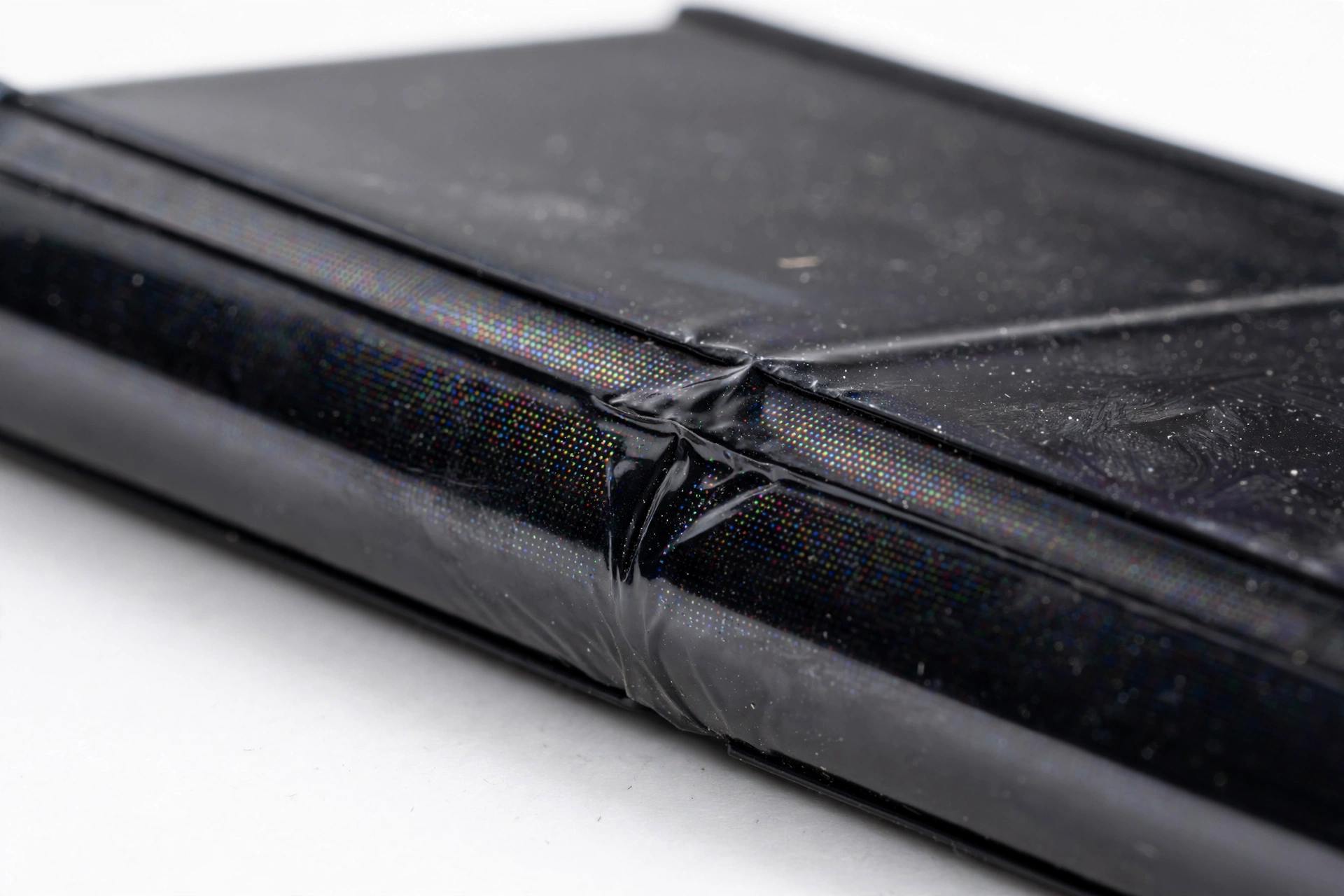
- There is a visible crease where the screen folds. Samsung states plainly that you may notice a crease at the center of the screen, that the film material is still prone to deformation, and that creases do not hinder device performance — a crease is not a sign of a faulty device.
- The factory protective film is part of the display system. Samsung recommends using the phone with the protective film attached and warns not to remove the protective film of the main display, because doing so can leave the screen damaged. If the film becomes detached, Samsung recommends visiting an authorized service center.
- The hinge is a moving mechanism. Samsung fits sweeper fibers inside the hinge to reduce the entry of foreign substances — but notes these decrease the influx of particles without guaranteeing dust resistance.
The cover (outer) screen on a Z Flip is a conventional rigid display covered with hardened glass. Most of the special care in this guide concerns the folding inner screen, which is far more delicate.
What Samsung says your Z Flip is built to handle
Samsung publishes durability figures for its foldables, and it helps to read them the way the company intends — as laboratory results under controlled conditions, not promises about any individual phone.
The 200,000-fold rating
Samsung states that the Galaxy Z Fold3 and Z Flip3 can withstand over 200,000 folds, which it equates to roughly 100 folds a day for 5 years. Important context from the same page: the figure comes from internal testing measured to Samsung’s own quality standards, the test was performed under specific temperature conditions, and the 200,000-fold life cycle is not guaranteed under other conditions. Treat it as evidence that the hinge is engineered for years of normal use — not as a warranty or a countdown you need to track.
Water resistance — but not dust resistance
Samsung describes the Z Fold3 and Z Flip3 as the first foldables with IPX8-rated water resistance. The “X” in IPX8 matters: the same support page states the devices are water-resistant but are not dust-resistant, and recommends keeping them away from sand and other small particles. Practical takeaway: rain or an accidental splash is a different category of risk than a day at the beach, a dusty workshop, or a pocket full of grit.
Frame, hinge, and cover materials
According to Samsung, the frames and hinges use Armor Aluminum for added strength versus earlier foldables, while the cover display and back use Gorilla Glass Victus for scratch resistance. These protect the outside of the phone — the folding inner display remains the most vulnerable part, which is why the care rules below focus on it.
Daily care rules that protect the folding screen
These rules come directly from Samsung’s published guidance for foldable devices. They cost nothing and prevent the most common kinds of avoidable damage.
Keep the factory film on — always
The pre-installed protective film on the main display is not a disposable shipping protector. Samsung instructs users not to remove it and says the phone should be used with the film attached. If the film starts peeling, bubbling, or detaching on its own, do not peel it the rest of the way off — Samsung’s guidance is to visit an authorized service center when the film is detached.
Stop for safety: never cut at, scrape, or peel the inner screen’s protective film yourself. The layers beneath it — including the Ultra-Thin Glass — are easily damaged by tools, fingernails used forcefully, or improvised scraping, and film removal is one of the fastest ways to turn a cosmetic issue into a destroyed display.
No sharp objects, no pressure on the fold
Samsung warns that applying too much pressure or pressing with a sharp object may damage the device, and specifically cautions against excessive force on the area where the screen folds — especially when the device is not fully opened. In practice this means:
- Use a soft touch on the inner screen; it does not need — or tolerate — firm pressing.
- Never use pens, styluses not designed for the device, fingernails dug in, or any pointed tool on the folding display.
- Do not place cards, coins, keys, or any hard object between the screens and then close the phone. Samsung explicitly warns that objects trapped between the screens can damage the display.
- Open the phone fully before interacting with the center of the screen when possible, so you are not pressing on the fold at an angle.
Keep dust, sand, and grit away from the hinge
Because Z Flip models are not dust-resistant, fine particles are a genuine hazard: grit in the hinge can affect the folding mechanism, and particles pressed into the soft inner display can leave permanent marks. Samsung advises keeping the device away from dust, foreign substances, moisture, and water — naming beaches, muddy terrain, swimming pools, and showers as examples. If you work in a dusty environment, consider keeping the phone closed in a clean pocket or pouch rather than open on a workbench.
Clean the inner screen gently
For smudges on the folding display, use a clean, soft, dry microfiber cloth with light pressure. Avoid household cleaners, alcohol-heavy wipes, abrasive cloths, and any liquid applied directly to the screen. The anti-fouling and anti-fingerprint coating Samsung applies over the protective film is there to reduce smudging — harsh cleaning works against it.
The crease in the middle: normal or a problem?
Almost every Z Flip owner notices the crease — a shallow valley running across the center of the inner display where it folds. Samsung addresses this directly: the company says you may notice a crease at the center of the screen, that the current film material remains prone to deformation, that research to reduce the limitation is ongoing, and that creases do not hinder device performance. In short: a crease, by itself, is an expected characteristic of the technology, not evidence of a fault.
What should prompt a closer look is a change in the crease or new symptoms around it:
- A crease that suddenly deepens, sharpens, or develops a crack along its length after a drop or impact.
- Discoloration, bright or dark lines, or dead pixels appearing specifically along the fold.
- The screen no longer opening flat, or resistance, grinding, or looseness in the hinge.
A stable, smooth crease that has looked the same since the phone was new is normal. A crease that is changing — or that arrived together with an incident — deserves an assessment. The symptom worksheet later in this guide puts these side by side.
Horizontal line or brightness band: what to check first
Some Z Flip owners notice a horizontal line with contrasting brightness across the screen. Samsung has published specific guidance for this on the Z Flip4, and the explanation is reassuring: the company says it can be caused by the adaptive refresh rate setting or by the normal optical characteristics of the foldable display, and that the phenomenon is often not a defect.
Step 1 — Change the Motion smoothness setting
Samsung’s recommended adjustment is to switch the display’s refresh-rate behavior from Adaptive to Standard:
- Open Settings.
- Tap Display.
- Tap Motion smoothness.
- Change the setting from Adaptive to Standard.
Samsung explains that adaptive refresh rate can cause brightness differences, particularly on screens showing repetitive small text against a white background, and that switching to Standard reduces the likelihood of seeing the phenomenon. Note the trade-off: Standard mode locks the refresh rate lower, so scrolling may look slightly less smooth — that is the price of the calmer image.
Step 2 — Update the software
If the line is still visible, Samsung suggests making sure the device is running the latest software via Settings > Software update. Display-driving software is updated regularly, and newer firmware can change how the panel behaves.
Step 3 — Judge whether it is app-specific or everywhere
Samsung’s guidance draws an important line: if the horizontal line appears consistently across different apps and screens, it may be worth contacting Samsung Support for further assistance. A band that shows only in one app, or only on white backgrounds with small text, points toward the optical/refresh-rate explanation. A line that is present on the lock screen, in the camera app, in settings, and everywhere else — regardless of content — is a stronger candidate for professional assessment.
The same Motion smoothness adjustment is worth trying for general flicker on a Z Flip before assuming hardware trouble. Our companion guide to Samsung Galaxy screen flickering checks covers flicker diagnosis in more depth.
Symptom worksheet: normal characteristic or cause for concern?
Use this table to sort what you are seeing. “Normal” means Samsung documents it as an expected characteristic; “concerning” means it warrants a professional assessment rather than continued use.
| What you observe | Likely meaning | Suggested next step |
|---|---|---|
| Smooth, shallow crease across the fold, unchanged since new | Normal foldable characteristic | No action; continue normal care |
| Faint horizontal brightness band, mainly on white backgrounds with small text | Often adaptive refresh rate / optical characteristic | Switch Motion smoothness to Standard; update software |
| Brightness band visible in every app, on all backgrounds | Concerning — may need assessment | Contact Samsung Support or seek a professional assessment |
| Protective film bubbling or lifting at the edges | Film aging or adhesion failure | Do not peel; visit an authorized service center |
| Sharp new line, crack, or discoloration along the fold after a drop | Likely physical damage | Stop flexing the phone; seek assessment promptly |
| Black spots, dead pixels, or colored lines anywhere on the inner display | Concerning — panel-level issue | Seek professional assessment; note when it started |
| Hinge feels gritty, stiff, or loose; phone won’t sit flat | Possible hinge mechanism issue | Stop forcing it; seek assessment — do not attempt DIY hinge repair |
| Touch not registering in a band across the screen | Concerning — digitizer issue | Restart once to rule out software; then seek assessment |
| Screen went black after the phone got wet | Possible liquid-related failure | Power off, do not charge, do not use heat; seek assessment |
What your observations can and cannot establish
Careful observation narrows things down, but a foldable display hides a lot. Being honest about the limits keeps you from either ignoring real damage or paying for service you do not need.
What observation can establish
- Whether a symptom is content-dependent. A band that appears only on white screens with small text behaves like the documented refresh-rate phenomenon; a line present on every screen does not.
- Whether something changed. A crease that looks the same as day one is a different fact from a crease that deepened after the phone fell off a table.
- Whether the film is intact. You can see and feel whether the factory film is smooth, lifting, bubbled, or torn — and that single observation decides whether the next step is “leave it alone” or “service center.”
- Whether the hinge moves normally. Smooth, even resistance through the fold is normal; grinding, catching, or looseness is not.
What observation cannot establish
- Whether the Ultra-Thin Glass beneath the film is cracked. Micro-fractures in the glass layer can be invisible while still affecting the display.
- Whether a brightness band is “just software.” Only systematic checks — the Motion smoothness change, a software update, and ideally a professional diagnostic — can separate a settings phenomenon from early panel failure.
- Whether the hinge will keep working. A hinge that feels slightly different today may work for another year or fail next week; there is no home test for remaining hinge life.
- Whether the phone is safe to keep using. If the inner display is cracked or the battery area was involved in an impact, continued use carries risks you cannot evaluate by looking.
Hypothetical examples: putting it together
The following scenarios are hypothetical illustrations of how the guidance above applies — not reports of real repairs.
Example 1 — The brightness band (hypothetical)
Hypothetical: Maya notices a faint horizontal band across her Z Flip4’s screen, most visible when reading articles with small text on a white background. It does not appear in photos or videos, and her lock screen looks uniform. Following this guide, she switches Motion smoothness from Adaptive to Standard and installs a pending software update. The band fades to the point she only sees it if she looks for it. Because the symptom was content-dependent and responded to the documented setting change, she treats it as the normal optical characteristic Samsung describes and continues normal care.
Example 2 — The lifting film (hypothetical)
Hypothetical: After eighteen months, Daniel notices the protective film on his Z Flip3’s inner screen bubbling near the bottom edge. He is tempted to peel it off and use the phone without it. Remembering Samsung’s warning not to remove the film, he leaves it alone, avoids pressing on the bubbled area, and books a visit to an authorized service center to have the film properly replaced. His restraint avoids exposing the Ultra-Thin Glass beneath.
Example 3 — The deepening crease (hypothetical)
Hypothetical: Priya’s Z Flip5 slipped off a car seat onto pavement. The phone still works, but the crease now has a sharp bright line along part of its length, and touch is unreliable in a horizontal band. She stops folding and unfolding the phone repeatedly “to test it,” powers it down, and seeks a professional assessment — recognizing that a changed crease plus new symptoms after an impact belongs in the “concerning” column of the worksheet, not the “wait and see” column.
When to stop and seek a professional assessment
Stop troubleshooting at home and arrange an assessment if any of the following apply:
- The inner display is cracked, punctured, or bleeding color — continued flexing can worsen panel damage.
- The protective film is torn, detached, or missing over any part of the folding display.
- The hinge grinds, catches, feels loose, or the phone no longer opens and closes smoothly — never force a damaged hinge.
- New lines, spots, or dead areas appeared after a drop, impact, or pressure incident.
- The phone was exposed to significant liquid and the screen now misbehaves — power it off and do not charge it.
- The device becomes unusually hot during normal use, or the battery area swells or distorts — stop using and charging it immediately.
Stop for safety: a swollen, distorted, or dangerously hot foldable should not be charged, folded repeatedly, or kept in a pocket or bag. Move it to a non-flammable surface away from people and seek professional advice promptly.
Safe checks you can do at home, in order
For non-urgent display quirks — a faint band, mild flicker, or a one-time glitch — work through these steps in sequence, stopping when the symptom resolves:
- Restart the phone. A simple restart clears transient software states. Hold the side key and volume-down key together for more than seven seconds until the device restarts, or use the power menu from Quick settings.
- Adjust Motion smoothness. Settings > Display > Motion smoothness > switch Adaptive to Standard, as described above.
- Check for software updates. Settings > Software update > download and install anything pending, then re-check the symptom.
- Test across apps and screens. Open the camera, settings, and a plain wallpaper. Note whether the symptom is everywhere or content-specific.
- Inspect the film and the fold. In good light, look along the crease and across the film for lifting, bubbles, scratches, or cracks — without pressing on them.
- Check the hinge feel. Open and close the phone slowly once, feeling for grinding, catching, or looseness.
If the symptom survives all six steps, or if any step reveals damage, that is the point to stop and arrange an assessment rather than repeating the sequence or trying improvised fixes.
Questions to ask before approving foldable screen service
Foldable inner-screen service is specialized: parts are expensive, the repair is delicate, and not every shop handles every foldable model. Before approving anything, ask:
- Do you service the folding inner display on my specific Z Flip model, or only the outer cover screen? (The two are completely different jobs.)
- Will the factory protective film be replaced as part of the work, and with what film?
- What is included in the quoted assessment — is the hinge mechanism inspected as well as the display?
- What happens to my data during the repair, and what should I back up beforehand?
- What warranty, if any, covers the replaced display — and does it cover the fold area specifically?
- If the phone is still within Samsung’s warranty or a carrier plan, would manufacturer or carrier service be the better route for this issue?
- What is the realistic turnaround time, and is there a diagnostic fee if I decline the repair?
Be cautious of any quote that seems unusually cheap for an inner foldable display — the part alone is costly, and a price far below market may signal a non-genuine part or a shop that has not actually done the job before. Our Samsung Galaxy screen quote checklist explains what a proper repair estimate should include, so you can compare quotes on equal terms.
Repair, replacement, and manufacturer-support considerations
Deciding between repair and replacement for a Z Flip with screen trouble involves factors beyond the display itself:
- Age and remaining value. On an older Z Flip, the cost of an inner-display replacement can approach the phone’s resale value. Get the assessment first, then compare calmly.
- Hinge involvement. If the hinge mechanism is also compromised, a display-only repair may not restore normal folding — ask whether the quote covers both.
- Manufacturer channels. For issues that look like premature failure rather than accidental damage — a crease-area fault with no incident history, for example — Samsung Support or an authorized service center may be the most appropriate first call, particularly while any warranty applies.
- Data and continuity. Any service that opens or replaces major components carries some data risk. Back up photos, messages, and authenticator apps before handing the phone over, regardless of who does the work.
Foldable inner-screen service availability varies by model and by shop — this article does not assume any particular service is offered locally. For an honest answer about your specific Z Flip model, our Galaxy Z Fold screen assessment guide explains how foldable assessments generally work, and you can ask directly about service options for your device.
Video: How to tell if your smartphone is fake or real
Frequently asked questions
Is the crease on my Z Flip screen a defect?
No. Samsung states that a crease at the center of the folding screen is an expected characteristic of the current film materials, that it does not hinder device performance, and that it is not a sign of a faulty device. What matters is whether the crease is stable or changing — a new sharp line, discoloration, or touch failure along the fold after an incident is different from the normal crease.
Can I remove the pre-installed screen protector and use the phone without it?
Samsung says no: the company recommends using the device with the protective film attached and warns that removing the protective film of the main display can leave the screen damaged. If the film is peeling or detached, the recommended course is a visit to an authorized service center rather than DIY removal.
What does the 200,000-fold rating actually mean?
It is Samsung’s internal laboratory test result — roughly equivalent to 100 folds a day for five years, measured to Samsung’s quality standards under specific temperature conditions. The company notes the life cycle is not guaranteed under other conditions. Read it as engineering confidence, not as a warranty or a personal countdown.
Is my Z Flip dust-resistant?
No. Samsung states its foldables are water-resistant (IPX8 on the Z Fold3/Z Flip3 generation) but not dust-resistant, and advises keeping them away from sand and small particles. The sweeper fibers in the hinge reduce particle entry but do not guarantee dust resistance.
A horizontal brightness band appeared on my screen. Is it broken?
Often not. Samsung documents this as a possible effect of the adaptive refresh rate setting or the normal optical characteristics of the foldable display. Try switching Motion smoothness from Adaptive to Standard (Settings > Display > Motion smoothness) and installing any software updates. If the band appears consistently across all apps and screens regardless of content, contact Samsung Support or seek a professional assessment.
Can I put a third-party screen protector on the inner folding display?
This is risky. The inner display’s factory film is part of an engineered layer stack, and incompatible protectors — or the act of applying and removing them — can damage the soft display or interfere with folding. If you want added protection, ask Samsung or an authorized service center what is approved for your model rather than improvising.
What should I do if I dropped my Z Flip and the fold area looks different?
Stop flexing the phone repeatedly to “test” it, inspect the crease and film in good light without pressing on them, and note any new lines, discoloration, or touch dead zones. Then seek a professional assessment. A changed fold area after impact belongs in the concerning column — continued folding can turn a repairable issue into a destroyed panel.
Where can I get my Z Flip screen assessed in Las Vegas?
Las Vegas Phone Repair & Accessories, 7400 Las Vegas Blvd S, Unit TT42, Las Vegas, NV 89123 — (424) 406-6202, open 10:00 AM–8:00 PM (call ahead to confirm today’s hours) — can discuss assessment options for your specific Z Flip model. Because foldable inner-screen service varies by model, it is worth calling first to ask what is available for your device rather than assuming.
Sources and editorial notes
- Samsung Support: How has durability improved with the Galaxy Z Fold3 or Galaxy Z Flip3 devices — durability figures (200,000 folds, sweeper fibers, Armor Aluminum, Gorilla Glass Victus, Ultra-Thin Glass and PET film), IPX8 water resistance without dust resistance, crease guidance, protective-film warnings, and cautions about sharp objects, pressure on the fold, and foreign substances. Last updated September 28, 2026 per the page.
- Samsung Support: Why are there horizontal lines on my Galaxy Z Flip4 screen? — adaptive refresh rate and normal optical characteristics as causes of the contrasting-brightness band, the Motion smoothness Adaptive-to-Standard adjustment, software-update advice, and when to contact Samsung Support.
Last source check: October 13, 2026. AI-assisted editorial guide, checked against the linked manufacturer information. Samsung’s guidance evolves with new models and software versions; menu names and settings locations may differ slightly on your device. This article summarizes official guidance in original language and does not reproduce manufacturer text. For model-specific service availability, contact the shop or Samsung directly.
Let’s get you connected again.
Tell us what’s happening with your device and we’ll help you decide the safest next step — no jargon, no pressure.
Las Vegas Phone Repair & Accessories · 7400 Las Vegas Blvd S, Unit TT42, Las Vegas, NV 89123
10:00 AM–8:00 PM — call ahead to confirm today’s hours