
Phone Screen Black But Still Works: Causes and Safe Fixes
A phone screen that is black while the phone itself still works usually points to a display or backlight fault, a brightness or settings problem, or a software crash — and the safe fixes follow an ordered sequence before any service decision. The key distinction in this guide: your phone rings, vibrates, charges, or responds to blind touch, but the display shows nothing.
On this page
A phone screen that is black while the phone itself still works usually points to a display or backlight fault, a brightness or settings problem, or a software crash — and the safe fixes follow an ordered sequence before any service decision.
1. Who this guide is for
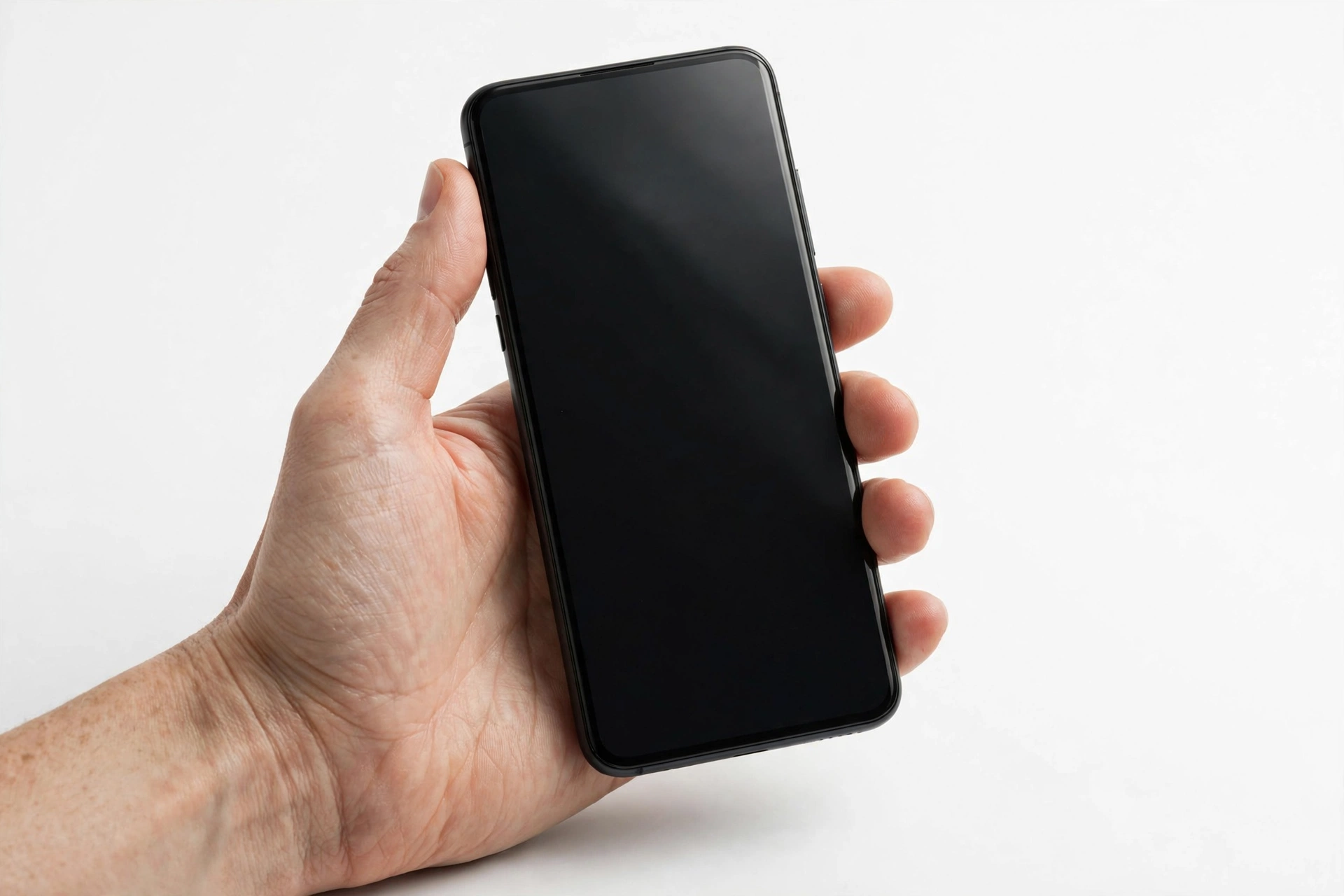
This guide is for anyone whose phone’s screen has gone black — fully dark, no image — while the phone itself still works. “Still works” means you can hear calls coming in, feel vibrations, hear the charging chime, or even unlock it and swipe blindly and feel haptic feedback. That combination — a working phone with a dead display — is a specific failure, and it has its own causes and its own safe fix sequence. (Source: support.apple.com)
This is not the same as a phone that will not turn on at all (no sounds, no vibration, no charging indicator). If your phone shows no signs of life whatsoever, read our Samsung black screen power checks guide instead, which covers the no-power scenario. It is also distinct from a phone that powers on and shows an image but has touch problems — for that, see our intermittent touch guide and our ghost touch guide.
2. The one-minute triage: is the phone actually on?
Before doing anything else, confirm the phone is genuinely on rather than genuinely off. The fix path diverges completely depending on the answer.
- Call your phone from another device. If it rings (even on vibrate-only, you will feel it buzz or hear it vibrate against a table), the phone is on.
- Plug in a charger. Listen for the charging chime or watch for a vibration. A phone that is on will typically acknowledge the charger even with a dead display.
- Try blind unlock. If you know your passcode by muscle memory, tap roughly where the digits are and listen for the unlock click or feel the haptic. You can also press the power button twice quickly on some phones to open the camera — listen for the shutter sound.
- Hold the phone to your ear. During an incoming call, a working phone’s proximity behavior is unchanged — the speaker audio will be audible.
Quick facts: If the phone rings, vibrates, or chimes when charging, the logic board, battery, and main software are alive. The failure is isolated to the display system — backlight, display assembly, display connector, or display-driving software.
3. Understanding what can make the screen black while the phone works
A modern phone screen has several layers that all have to work together. Understanding which layer fails helps you choose the right fix and — just as important — tells you when to stop trying things at home.
3.1. The backlight (LCD phones)
Phones with LCD displays (older iPhones, many mid-range Android phones) use a backlight — a separate lighting layer behind the liquid-crystal pixels. If the backlight fails but the LCD layer is fine, the screen can appear completely black even though an image is technically being drawn. A classic symptom: in a dark room, if you shine a bright flashlight at the screen at an angle, you can faintly see the lock screen or home screen behind the darkness. If you can see a ghostly image under a flashlight, the display driver is working and the backlight is the problem — that is a hardware repair, not a settings fix.
3.2. The OLED panel (modern flagship phones)
OLED displays have no separate backlight — each pixel makes its own light. When an OLED screen is fully black, either the panel is not being powered, the display cable is damaged, or the software is not sending it an image. Unlike LCD, there is no flashlight test for OLED; a truly black OLED panel looks the same whether it is off or receiving no signal. The diagnostic information comes from the symptoms around the failure instead.
3.3. The digitizer and display assembly
The digitizer is the touch-sensing layer; the display assembly combines the digitizer, the display panel, and the connecting cable into one replaceable unit. A failing display cable — the thin ribbon connector between the screen and the logic board — can produce a black screen with a working phone. Drops, bending, or swelling batteries (which push the screen away from the body) are the classic causes of cable damage. Since the cable is integrated into the display assembly on most phones, cable damage typically means the whole display assembly needs assessment.
3.4. The proximity sensor
The proximity sensor sits near the top of the screen, usually above the earpiece. Its job is to turn the screen off when your face is near it during a call, preventing accidental touches. If the sensor is dirty, obstructed by a misaligned screen protector or case, or faulty, it can get stuck in the “face detected” state and keep the screen off after you move the phone away from your face. Apple Support documents the sensor’s role in calls; a screen that goes black specifically during calls and never comes back is a strong proximity-sensor pattern.
3.5. Software and display settings
A software crash in the display pipeline, a corrupted display setting, an interrupted update, or a brightness setting stuck at minimum can all produce a black screen on an otherwise working phone. These are the cases you can fix yourself, which is why the safe sequence in section 5 starts with them. Samsung’s support guidance lists software updates and display settings among the first things to check, and Apple’s guidance centers on force restart and charging as the opening moves.
4. Common patterns and what they usually mean
The exact pattern of the black screen narrows the cause considerably. Match your situation to the pattern before choosing fixes.
4.1. Screen black after a drop or impact
A drop that leaves the phone working but the screen black usually means the display assembly or its cable absorbed the impact. The glass may look intact — the damage can be internal. A force restart is still worth trying once, because a crash can coincide with a drop, but if the screen stays black, this is a hardware assessment case. Do not keep charging it for hours hoping it will “wake up.”
4.2. Screen black during or after a call
If the screen goes black when you bring the phone to your ear and does not come back after the call ends, the proximity sensor is the prime suspect. Check for a screen protector or case edge covering the top area near the earpiece — this is the most common and most fixable cause. Wipe the area clean of dust and grease. If the phone was recently serviced, a misaligned screen can cover the sensor too.
4.3. Screen black after an update
An update that ends with a black but working phone usually means the software install corrupted the display driver or a setting. The fix sequence is: force restart first, then — if the screen returns — install any pending follow-up update. If your screen was black specifically after an update and touch is also unresponsive, see our post-update unresponsive screen guide.
4.4. Screen gradually dimming, then black
A screen that has been getting dimmer over days or weeks before going fully black is almost always a backlight or panel failure in progress — this is hardware. Auto-brightness can mask the early stages by pushing the panel harder, which is why it sometimes looks fine indoors and dies outdoors. If you can still faintly see the image (LCD flashlight test), that confirms the backlight path.
4.5. Screen flickering, then black
Flickering that escalates to a black screen is a classic failing-display-assembly pattern. This is the same family of failure covered in our screen flickering guides — for iPhone, see our iPhone screen flickering guide; for Galaxy, see our Samsung screen flickering guide. One force restart is reasonable; beyond that, this is assessment territory.
4.6. Screen black but touch still works
If you can blind-unlock, feel haptic feedback, and hear interface sounds when tapping, the digitizer and the phone are fine — only the image path is dead. This combination (working touch, black display) points toward the display cable or the display panel rather than the logic board, which is genuinely useful information to carry into a service conversation.
4.7. Screen black, no touch response at all
A fully dead screen — no image, no touch — with a phone that still rings and charges is most often a display assembly or cable failure. Force restart once. If nothing changes, this is not a settings problem.
5. The safe fix sequence, in order
Work through these steps in order. Stop when the screen comes back, and stop entirely and move to section 8 if the phone shows any sign of swelling, unusual heat, or a distorted frame.
Step 1 — Charge for a full hour (iPhone and Samsung)
A deeply drained battery can produce strange partial states. Apple’s support guidance for a black screen starts with charging: connect the iPhone, and if it shows a low-charge battery, charge for 30 minutes or until it starts; for a phone that will not turn on at all, charge for one hour and try again. Samsung’s guidance is similar: use the original or a genuine charger and cable, plug directly into a wall outlet (not a power strip), and charge for at least one hour. On a deeply drained Samsung, the charging indicator can take up to 10 minutes to appear — a dark screen early on does not mean charging has failed. If anything feels hot, swollen, or smells wrong during charging, unplug immediately and stop.
Step 2 — Force restart (clears a crashed display pipeline)
A force restart clears a hung system without erasing anything. This is the single most effective fix for a black screen on a working phone, because display-pipeline crashes are common and this is exactly what the restart clears.
- iPhone with Face ID (iPhone X and later): press and quickly release the Volume Up button, press and quickly release the Volume Down button, then press and hold the Side button until the Apple logo appears — this can take longer than 10 seconds.
- iPhone 7 / 7 Plus: press and hold both the Side button and the Volume Down button at the same time until the Apple logo appears.
- iPhone 6s and earlier: press and hold both the Home button and the Side (or top) button until the Apple logo appears.
- Samsung Galaxy: press and hold the Volume Down button and the Side (Power) button at the same time. Samsung’s guidance varies across its articles from more than 7 seconds to as long as 20 seconds, and third-party corroboration notes it can take up to 60 seconds — do not let go too early. Keep holding until the phone vibrates and the Samsung logo appears.
Step 3 — Check brightness and display settings (if the screen returns, or faintly visible)
If the screen comes back even briefly, check Settings > Display & Brightness (iPhone) or Settings > Display (Samsung). On iPhone, a screen that looks black can be a brightness slider at minimum combined with auto-brightness misbehaving in a dark room — disable Auto-Brightness temporarily and drag the slider up. On Samsung, the equivalent is the adaptive-brightness toggle. If the flashlight test on an LCD phone shows a faint image, brightness settings cannot be the cause — that is backlight hardware — but on a working screen, miscalibrated brightness is a real and common cause of “black” complaints.
Step 4 — Remove the screen protector and case
A misaligned tempered-glass protector or a case edge overlapping the top of the screen can block the proximity sensor and keep the display off. Remove both, wipe the top edge of the screen clean, and test a call. This fixes a surprising share of “screen stays black after calls” cases, and it costs nothing. Also inspect for a protector that has shifted after a drop — even a millimeter of overlap over the sensor area matters.
Step 5 — Check for software updates (if the screen returns)
If the screen comes back after a force restart, install any pending OS update promptly. Both Apple and Samsung ship display-driver and sensor fixes in updates, and a phone that crashed once is likely to crash again on the same buggy build. On Samsung, the path is Settings > Software update > Download and install. On iPhone, Settings > General > Software Update. Make sure the battery is above 50% and the phone is on Wi-Fi before starting.
Step 6 — Reset all settings (not a factory reset)
If the black screen recurs — screen dies, force restart revives it, screen dies again — a corrupted display setting may be the cause. On iPhone, Settings > General > Transfer or Reset iPhone > Reset > Reset All Settings clears system settings (including display and brightness preferences) without deleting your photos, apps, or data. On Samsung, Settings > General management > Reset > Reset all settings does the same. This is meaningfully different from a factory reset, which erases everything and is a last resort.
Step 7 — Restore via computer (last software step)
If the screen stays black through all of the above, a computer-based restore is the last software step worth trying. On iPhone, connect to a computer, open Finder (Mac) or Apple Devices / iTunes (Windows), and use Update first — this reinstalls iOS without erasing data. Only if Update fails should you consider Restore, which erases the phone; back up first if the screen works at all, and understand that a restore cannot fix a broken cable or panel. On Samsung, a factory reset via Settings > General management > Reset > Factory data reset erases everything — Samsung warns personal information may not be recoverable afterward, so back up via Samsung Cloud or Smart Switch first, and only attempt it if the screen is at least intermittently usable.
6. Symptom → likely cause → safe fix
| Symptom | Likely cause | Safe fix |
|---|---|---|
| Black screen, phone rings/vibrates, force restart fixes it | Software crash in display pipeline | Install pending OS update; reset all settings if it recurs |
| Black screen after bringing phone to ear; stays black after call | Proximity sensor blocked or faulty | Remove protector/case; clean top edge; re-test a call |
| Black screen after drop; phone still works | Display cable or assembly damage | One force restart, then seek assessment — not a settings fix |
| Screen faded dimmer over days, now black; faint image under flashlight (LCD) | Backlight failure | Assessment — backlight is a hardware repair |
| Screen flickered, now black; phone works | Failing display assembly | One force restart, then seek assessment |
| Black screen after update; phone rings | Corrupted display driver or setting | Force restart; install follow-up update; reset all settings |
| Black screen but blind touch works (haptics, sounds) | Image path dead — cable or panel | Force restart once; assessment if it persists |
| Screen looks black only in bright light | Brightness/auto-brightness issue | Disable auto-brightness; raise slider; check outdoor visibility |
| Black screen, phone gets hot or battery swells | Battery or power fault | Stop — unplug, do not charge, seek assessment immediately |
| Screen black after liquid exposure | Possible liquid damage to display system | Do not charge; do not use heat; see water-damage steps first |
7. What these checks can and cannot establish
| Observation | What it can establish | What it cannot establish |
|---|---|---|
| Phone rings with a black screen | The phone is on; the failure is in the display system | Whether the cable, panel, or backlight is the failed part |
| Force restart brings the screen back | A software crash caused the blackout | That it will not happen again — update and watch for recurrence |
| Faint image visible under flashlight (LCD only) | Backlight has failed; image path is fine | The cost or availability of the repair |
| Screen returns after removing the protector | The protector was blocking the proximity sensor | That the sensor itself is healthy — test several calls |
| Screen stays black through force restart and charging | Software fixes are exhausted | The exact failed component — that needs hands-on assessment |
| Black screen appeared right after a drop | Impact is the likely trigger | Whether internal damage beyond the screen exists |
8. When to stop troubleshooting and seek assessment
Stop home troubleshooting and seek professional assessment if any of these apply:
- The screen stays black after a full hour of charging and a force restart. Samsung’s own guidance is explicit: if the screen fails to turn on after those steps, the device needs service.
- The black screen followed a drop, bend, or crush — even if the glass looks fine.
- The phone, screen area, or battery feels hot, the frame looks distorted, or the screen is lifting away from the body. These can indicate battery swelling.
- The screen flickered before going black, or blackouts keep recurring after software fixes.
- Liquid got into the phone. Do not keep charging a possibly wet phone — read our water-damage immediate steps first, and see our iPhone screen after water guide for the screen-specific angle.
Stop for safety: Never charge a phone that is swollen, distorted, unusually hot, or smells of chemicals. Do not press on a lifting screen, do not put the phone in a freezer, and do not attempt to open it. Move it to a non-flammable surface and seek professional assessment.
9. How this differs from the no-power black screen
It is worth restating the boundary, because mixing up the two scenarios wastes time and can mislead a service conversation. In the no-power black screen, the phone is off or unable to boot: no ringing, no vibration, no charging chime, no response to any button. That scenario is about power — battery, charging system, or a failed boot — and is covered in our Samsung black screen power checks and our iPad black screen guide. In this guide’s scenario, the phone is demonstrably alive and only the display is dark. If you are unsure which one you have, run the triage in section 2 — calling the phone settles it in seconds.
10. Hypothetical examples
(Hypothetical illustration, not a customer story.) Amara’s Galaxy rings every time her alarm goes off, and she can feel it vibrate when texts arrive, but the screen has been black since she dropped it on tile yesterday. One force restart changes nothing. Her pattern — black screen immediately after impact, working phone — matches a damaged display cable, so she stops troubleshooting and books an assessment instead of spending a weekend on software fixes.
(Hypothetical illustration, not a customer story.) Daniel’s iPhone screen goes black during every call and never wakes up until he force-restarts. He notices his new tempered-glass protector overlaps the top edge of the screen by a hair. He removes the protector, cleans the area, and the next call ends normally with the screen waking on its own. His pattern matched a blocked proximity sensor — the cheapest possible fix.
11. Prevention and care
- Keep a case on the phone with a raised edge around the screen. Most display-cable injuries come from corner impacts that flex the frame.
- Align screen protectors carefully. Leave the earpiece and sensor area fully clear; a protector that creeps over the top edge invites proximity-sensor problems.
- Install updates on Wi-Fi with the battery above 50%. Interrupted updates are a known cause of corrupted display drivers.
- Do not ignore flickering. Flicker is often the display assembly warning you before it fails. Back up the phone while the screen still works.
- Back up regularly. A black screen can become permanent without warning. With the phone still working, a computer backup (iPhone) or Smart Switch backup (Samsung) is possible even with a dead display — do it before the assessment, not after.
12. Questions to ask before approving a screen service
- Is the failure in the display assembly, the cable, or the logic board’s display circuit — and how was that determined?
- Will the replacement display be the same panel technology (OLED vs LCD) as the original?
- What happens to True Tone / adaptive display features with a replacement screen?
- How is my data protected during the service, and do I need to back up first?
- What warranty covers the replacement display, and what does it exclude?
- Will the phone’s water resistance be affected by opening it?
13. Frequently asked questions
Why is my phone screen black but I can still hear calls?
The phone’s main systems — processor, cellular radio, speaker — are working, but the display system is not producing an image. The most common causes are a software crash in the display pipeline (fixable with a force restart), a blocked proximity sensor, or a failed display cable or panel (needs assessment).
Can a software update cause a black screen?
Yes. An interrupted or buggy update can corrupt the display driver or a display setting, leaving the phone on with a black screen. A force restart is the first fix; if the screen returns, install any pending follow-up update right away.
Will a force restart erase my data?
No. A force restart clears a hung system without touching your photos, apps, or settings — on both iPhone and Samsung. It is safe to try and is the recommended first step in both Apple and Samsung’s guidance.
How do I know if it’s the backlight or the whole screen?
On an LCD phone, shine a bright flashlight at the screen at an angle in a dark room. If you can faintly see the lock screen or icons, the backlight has failed but the image path works — a backlight repair. On OLED phones there is no separate backlight, so this test does not apply; a fully black OLED with a working phone usually means a cable or panel failure.
My screen goes black during calls and won’t come back. What’s wrong?
That pattern points to the proximity sensor staying stuck in the “near” state. The most common cause is a screen protector or case edge covering the sensor area near the earpiece. Remove both, clean the area, and test another call before assuming hardware failure.
Should I keep charging a phone with a black screen?
Charge for up to one hour with a genuine charger as part of diagnosis — a deeply drained battery can mimic a display fault. But stop charging immediately if the phone gets hot, the frame distorts, or the screen starts lifting, and do not charge at all if liquid got inside.
Can a repair shop fix a black screen while keeping my data?
Often, yes — display assembly replacement does not require erasing the phone. But back up first anyway: with the phone still working, a computer or Smart Switch backup is possible even with a dead display, and no service outcome is ever guaranteed.
Is a black screen after a drop covered by any warranty?
Standard manufacturer warranties typically exclude accidental damage, and carrier or manufacturer accidental-damage plans have their own terms and deductibles. Check your specific coverage documents rather than assuming — and get any quote in writing before approving service.
Video: How to tell if your smartphone is fake or real
Sources and editorial notes
- Apple Support — If your iPhone won’t turn on or the screen is black: Apple’s official guidance — force-restart sequences for Face ID, Home-button, iPhone 7, and iPhone 6s models; charge-for-one-hour rule; low-battery hardware check. (Last checked October 13, 2026.)
- Technobezz — Samsung Galaxy S23 black screen fix guide: third-party guide summarizing Samsung’s official troubleshooting — one-hour genuine-charger charge, force restart (Volume Down + Side, up to 60 seconds), Safe Mode, and the “needs service” endpoint. (Last checked October 13, 2026.)
- Technobezz — Samsung Galaxy S25 FE black screen fix guide: corroborates Samsung’s charging and restart guidance, Safe Mode, and the factory-reset-as-last-resort ordering. (Last checked October 13, 2026.)
- Samsung Community — official staff response on black screen: Samsung support staff recommending recovery-mode cache clear, Samsung Members diagnostics, and certified-technician evaluation. (Last checked October 13, 2026.)
- AEANET — Why would my iPhone screen go black: corroborating overview of software, cable, sensor, and power causes with the standard fix ordering. (Last checked October 13, 2026.)
Last source check: October 13, 2026. AI-assisted editorial guide, checked against the linked manufacturer information. Procedures described here follow Apple and Samsung published support guidance; third-party sources are cited only for corroboration. If your phone’s screen needs hands-on assessment, Las Vegas Phone Repair & Accessories is at 7400 Las Vegas Blvd S, Unit TT42, Las Vegas, NV 89123 — call (424) 406-6202 ahead to confirm today’s hours (generally 10:00 AM–8:00 PM).
Let’s get you connected again.
Tell us what’s happening with your device and we’ll help you decide the safest next step — no jargon, no pressure.
Las Vegas Phone Repair & Accessories · 7400 Las Vegas Blvd S, Unit TT42, Las Vegas, NV 89123
10:00 AM–8:00 PM — call ahead to confirm today’s hours