
iPhone Sound Not Working: Causes and Safe Fixes
When your iPhone has no sound, the cause is usually a setting — not a broken speaker. Work through the Ring/Silent switch, volume channels, Focus modes, and Bluetooth routing first; this guide walks you through every safe check in order, and shows you how to tell a software problem from genuine hardware damage.
On this page
When your iPhone has no sound, the cause is usually a setting — not a broken speaker.
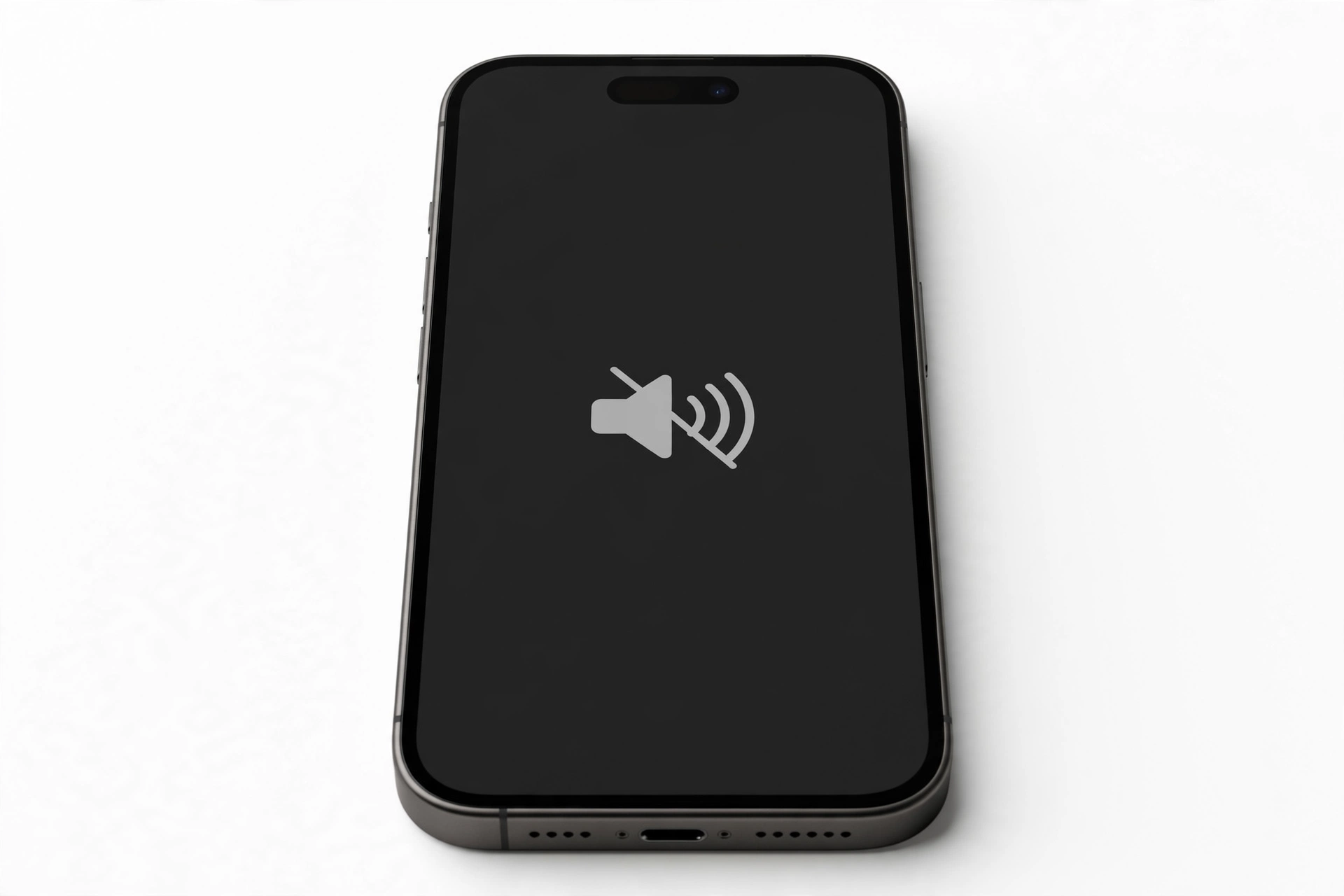
This guide is for everyday iPhone owners whose device plays no sound at all, plays sound in some places but not others, or rings silently when it shouldn’t. It is a general sound guide — it covers ringer, alerts, media, calls, and system sounds together. If your problem is specifically that the speaker sounds crackly or distorted, our companion guide on phone speaker crackling and distortion goes deeper on that symptom. If callers can hear you but you can’t hear them through the earpiece, see iPhone earpiece speaker not working. And if callers can’t hear you, that’s a microphone problem — covered in iPhone microphone not working on calls.
1. The 60-second checks: fix the most common causes first
Before you touch anything else, run through these four checks. In practice, they resolve the majority of “no sound” complaints, because sound problems on iPhone are far more often about silent settings than dead hardware. (Source: support.apple.com)
1.1. Check the Ring/Silent switch
Every iPhone model has a small physical switch on the upper-left edge, just above the volume buttons. Slide it toward the screen (up) so that the orange strip is hidden — that puts the phone in Ring mode. When the orange strip shows, the phone is silent, and you will hear no ringer, no alerts, and no keyboard or lock sounds.
Quick fact: the Ring/Silent switch is silent by design — iOS shows no persistent indicator of which mode you’re in. That is why an accidental brush of the switch (in a pocket, in a bag, during a case swap) is the single most common reason an iPhone “suddenly” stops ringing.
1.2. Check your Focus mode
Go to Settings > Focus and make sure Do Not Disturb — and any other Focus like Sleep, Work, or Driving — is off. Focus modes silence calls, alerts, and notifications; some also silence media in specific apps. Also check Control Center: if the Focus icon is highlighted, a mode is active.
1.3. Turn off Bluetooth (temporarily)
If your iPhone is connected to wireless earbuds, a car system, a Bluetooth speaker, or even a hearing aid, audio may be playing through that device instead of the phone’s speaker. Go to Settings > Bluetooth and toggle Bluetooth off, then play a sound. If sound returns, the phone was never broken — the audio was simply routed elsewhere. Reconnect your accessories afterward and manage which ones auto-connect.
1.4. Raise both volume types
Press the Volume Up button repeatedly while a sound is playing (open Music or a video first — the buttons control media volume only when media is active). Then go to Settings > Sounds & Haptics and drag the Ringer and Alerts slider. If you hear a tone while dragging the slider, the speaker works — the problem is elsewhere in the list.
2. Understand iPhone’s separate volume channels
One of the biggest sources of confusion is that the iPhone does not have one “volume.” It has several independent audio channels, and silence in one does not mean silence in the others:
| Channel | Controls | How to adjust |
|---|---|---|
| Ringer & Alerts | Incoming calls, texts, alarms, app notifications, system sounds | Settings > Sounds & Haptics > Ringer and Alerts slider |
| Media | Music, videos, games, podcasts, speakerphone call audio | Volume buttons while media is playing; Control Center slider |
| In-call volume | Call audio through the earpiece or speakerphone | Volume buttons during an active call |
| Siri / Voice Feedback | Siri responses, voice prompts | Volume buttons while Siri is speaking |
This explains a very common puzzle: “my music plays fine but my phone doesn’t ring.” Media uses the media channel; the ringer uses the Ringer & Alerts channel. The Ringer & Alerts slider may be turned down or muted even when everything else sounds normal. Conversely, “my phone rings but videos are silent” points at media volume or an in-app mute — not a speaker fault.
Also note the “Change with Buttons” setting under Sounds & Haptics: when it is off, the physical volume buttons adjust only media, never the ringer. If you keep finding your ringer volume won’t respond to the buttons, that toggle is why.
3. Ring/Silent switch vs. the Action button (iPhone 15 Pro and newer)
On iPhone 15 Pro, iPhone 16 series, iPhone 17 series, and newer Pro models, Apple replaced the physical Ring/Silent switch with a customizable Action button. By default it still toggles silent mode, but it can be reassigned to camera, flashlight, Voice Memos, or shortcuts — which creates a new way to lose your ringer silently.
- Press and hold the Action button to see the current mode: a crossed bell means silent, a bell means ring.
- Check Settings > Action Button to see what it is currently assigned to. If someone reassigned it to the camera, pressing it no longer affects sound at all — and you may have Silent Mode enabled from Control Center without realizing.
- On these models, Silent Mode can be toggled in Control Center (the bell icon). The orange-on-switch visual cue no longer exists.
Whether you have the classic switch or the Action button, the rule is the same: confirm the phone is actually in Ring mode before diagnosing anything else.
4. Focus modes: the quietest cause of missed calls
Focus is more powerful than the old Do Not Disturb, and more confusing. A single Focus can silence:
- Incoming call rings and message alerts (except from allowed people)
- App notifications entirely
- Home Screen pages and Lock Screen content tied to the Focus
Things to check:
- Settings > Focus — look for any mode with a schedule (time-based, location-based, or app-based activation). Sleep Focus activating at night and staying on past your wake time is a classic “my alarm didn’t sound” complaint.
- Share Across Devices — if on, enabling Do Not Disturb on your iPad or Mac also silences your iPhone. Check your other Apple devices.
- Smart Activation — iOS can turn Focus on automatically based on your routines. If this keeps happening, turn off automatic activation for the mode.
- Focus filters and allowed people — if calls come through but silently, someone may have allowed “calls” but silenced “notifications” for everyone except contacts.
Tip: ask someone to call you while you watch the screen. If the call arrives but produces no sound, Focus or the silent switch is the likely cause. If the call never arrives at all, the problem is network or carrier-related, not a sound setting.
5. Bluetooth and audio routing: where did the sound go?
Bluetooth audio routing is the second-most-common cause of “no sound” after the silent switch. The tricky cases:
- Forgotten accessories: earbuds in a bag still connected, a car system from yesterday’s drive, a Bluetooth speaker in another room. The phone is “ringing” — just not where you can hear it.
- Hearing aids and Made-for-iPhone devices can route ringer audio too.
- AirPlay destinations: if you recently AirPlayed video to a TV or HomePod, media audio may still be routed there.
- Wired headphones or adapters: a stuck or dirty Lightning/USB-C port can make the phone think headphones are plugged in even when they aren’t.
How to check routing: open Control Center, tap the AirPlay icon in the audio card, and look at where audio is going. The destination should be “iPhone.” If anything else is selected, that’s your answer.
6. The speaker grille test: is it hardware or software?
This is the fastest way to determine whether the speaker itself works. Go to Settings > Sounds & Haptics and drag the Ringer and Alerts slider back and forth:
- You hear a tone: the speaker driver works. Your problem is a setting, a routing issue, or an app-specific mute. Keep working through this guide.
- You hear nothing, or the speaker button on the slider is dimmed: the speaker itself may need service. That doesn’t automatically mean an expensive repair — but stop software troubleshooting here and read Section 10.
- You hear crackling or distortion: see phone speaker crackling and distortion.
6.1. Clean the speaker grilles safely
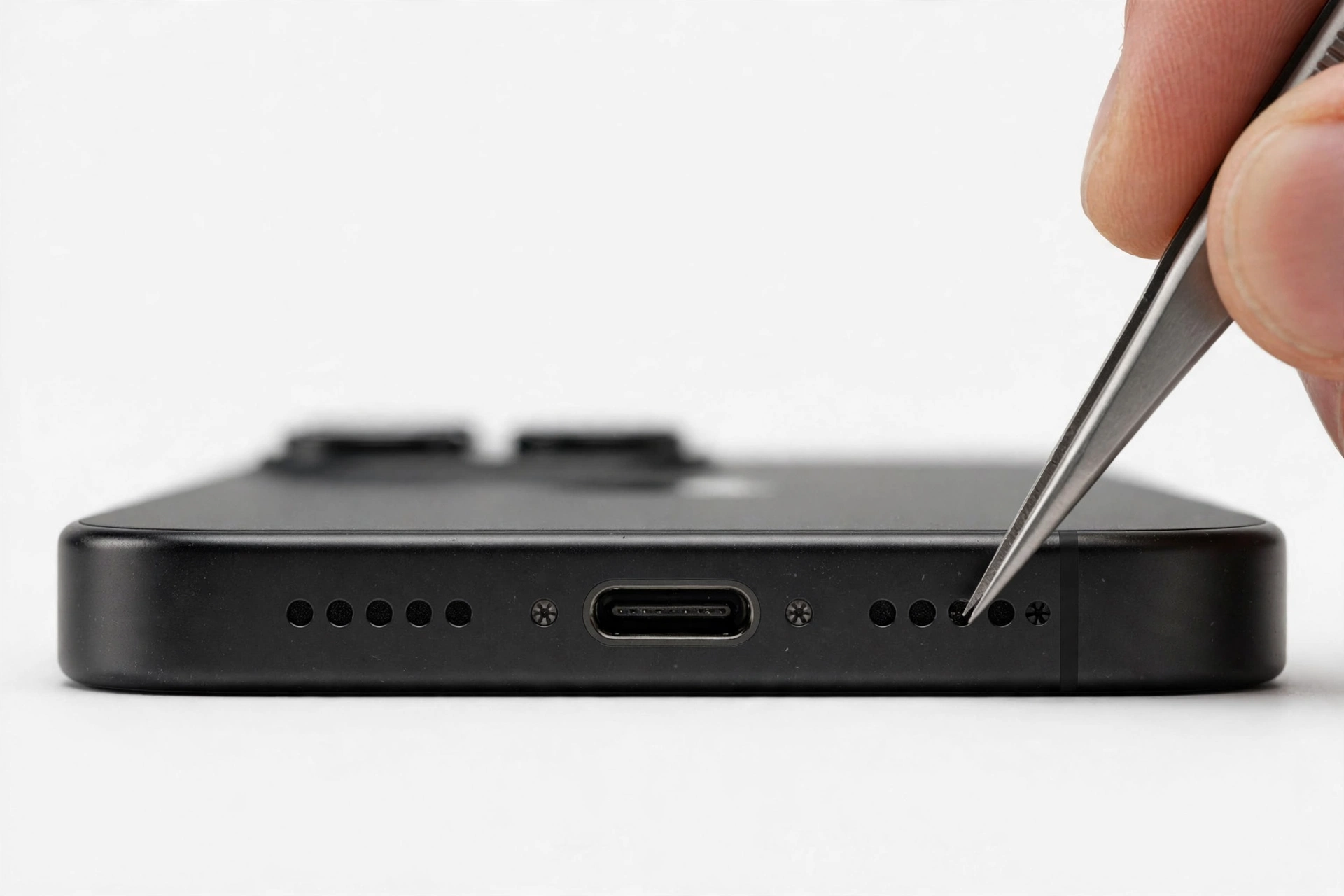
Debris, pocket lint, and dust in the speaker grilles at the bottom edge of the phone (and in the earpiece mesh at the top) can muffle or completely block sound. Apple recommends removing screen protectors, films, and cases first to rule out an accessory blocking the openings, then checking whether the speaker opening is blocked or dirty. If cleaning is needed, use a small, soft-bristled brush that is clean and dry. Never use anything sharp or metallic, and never poke into the openings with needles, pins, or compressed air — those can damage the delicate mesh and drivers.
7. Calls specifically: earpiece, speakerphone, and the greyed-out speaker icon
Sound during phone calls uses different paths depending on how you hold the phone:
- Earpiece (receiver): the small speaker at the top of the screen. If you can’t hear callers on a normal call but speakerphone works, the receiver is the suspect — see iPhone earpiece speaker not working.
- Speakerphone: the bottom speaker. Try a call and tap Speaker. If you hear the caller on speakerphone but not through the earpiece, the receiver path is at fault, not the phone’s audio system.
- Greyed-out speaker button during calls: on many iOS versions this points to a Bluetooth routing conflict. Forget (not just disconnect) paired Bluetooth devices in Settings > Bluetooth, then retry. This single step resolves a large share of greyed-out-speaker cases.
Also make a test call and turn up the volume during the call — in-call volume is its own channel and may simply be turned down from a previous call.
8. App-specific sound: when only one app is silent
If system sounds and ringer work but one app (a game, YouTube, a messaging app) is silent, the problem is almost certainly in the app:
- Check the app’s own in-app mute or audio settings — many games have separate music/effects toggles.
- Check Settings > Notifications > [app] — make sure Sounds is enabled for that app.
- Force-close and reopen the app; install any pending app update.
- Some apps mute themselves when the Ring/Silent switch is set to silent — a game with no sound but working music may just need the switch flipped.
9. Software fixes: restart, update, reset settings
When the quick checks haven’t worked but the speaker test (Section 6) passed, the next steps are software-level:
- Restart the iPhone. Go to Settings > General > Shut Down, or force-restart with the button combination for your model. This clears stuck audio routing and temporary software glitches.
- Update iOS. Go to Settings > General > Software Update. Audio bugs — including routing and Bluetooth regressions — are fixed in updates regularly.
- Reset All Settings (Settings > General > Transfer or Reset iPhone > Reset > Reset All Settings). This returns every setting — sound, network, display, privacy — to factory defaults without deleting your data, apps, or media. It clears stuck audio-routing values that can survive normal reboots. You will need to re-enter Wi-Fi passwords and re-pair Bluetooth devices afterward.
Stop for safety: Reset All Settings is not the same as Erase All Content and Settings. Never choose “Erase” as a sound fix — it wipes the phone. If you’re unsure which option is which, back up first and ask someone knowledgeable to check the screen with you.
10. When it’s hardware: the honest assessment
If you’ve worked through everything above and the speaker test in Section 6 still produces no sound, the speaker driver, its connector, or the audio circuitry is likely damaged. Common hardware causes:
- Liquid exposure — even past exposure can corrode speaker contacts over time. Never charge a wet phone; if liquid is involved, power it down and don’t try to “test” the speaker repeatedly.
- Drop damage — the speaker connector can loosen or the driver can crack.
- A specific manufacturing issue: Apple ran a service program for iPhone 12 and iPhone 12 Pro devices (manufactured between October 2020 and April 2021) that could experience no sound from the receiver during calls due to a component failure. Apple offered service for affected devices for two years after first retail sale. If you have an iPhone 12 or 12 Pro with receiver sound failure, it’s worth checking with Apple whether your device qualifies under any current program — eligibility details change over time, so confirm directly with Apple rather than assuming.
No software fix can repair a physically damaged speaker. At this point, the question becomes repair vs. replace — which depends on the phone’s age, its overall condition, and what a diagnostic finds. A professional assessment can confirm whether the fault is the speaker module (a contained repair) or deeper audio-circuit damage.
11. Symptom-to-cause worksheet
| Symptom | Likely cause | Try this |
|---|---|---|
| No ring on incoming calls, but screen lights up | Silent switch on; Focus active | Flip switch to Ring; turn off Focus |
| No sound anywhere, volume slider silent | Speaker driver fault; heavy blockage | Clean grilles; if still silent, hardware assessment |
| Music plays, but calls are silent | In-call volume down; Bluetooth routing | Volume up during a call; turn Bluetooth off |
| Rings, but videos/games are silent | Media volume down; in-app mute | Volume up while media plays; check app settings |
| Sound comes from earbuds/car, not phone | Audio routed to Bluetooth accessory | Control Center → audio destination → iPhone |
| Can’t hear callers, speakerphone works | Receiver (earpiece) fault | See earpiece guide; clean earpiece mesh |
| Callers can’t hear you | Microphone fault | See microphone guide |
| Sound works, then stops after an update | Software regression; stuck routing | Restart; update again; Reset All Settings |
| Greyed-out speaker button on calls | Bluetooth routing conflict | Forget paired Bluetooth devices |
| Only one app is silent | App settings or notification permissions | In-app audio settings; reinstall the app |
12. What the checks can and cannot establish
| Observation | Establishes | Does not establish |
|---|---|---|
| Ringer slider plays a tone | Speaker driver works | That call routing is correct |
| Sound works on speakerphone only | Audio system works; receiver path faulty | Whether the receiver is dirty or dead |
| Sound returns with Bluetooth off | Routing was the cause | That the speaker was ever broken |
| No sound after Reset All Settings | Settings are not the cause | The exact failed component |
| Crackling at high volume only | Likely driver or debris issue | Whether cleaning will fully fix it |
13. Two worked examples
(The following are hypothetical illustrations, not customer stories.)
Example 1 — Maya’s missing alarm. Maya woke late twice in one week because her iPhone alarm made no sound. The speaker test in Settings > Sounds & Haptics played a tone fine, so the speaker worked. She discovered a Sleep Focus she had set months earlier for a night shift; it was still activating at 10 PM and silencing everything until 7 AM — but her alarm was set for 6:30 AM, inside the silenced window. Turning off the Sleep Focus schedule fixed it immediately. Nothing was broken; the phone was doing exactly what the schedule told it to do.
Example 2 — Daniel’s silent drive. Daniel’s phone stopped making any sound after a weekend road trip — no ring, no music, no notifications. The Ring/Silent switch was in Ring mode and no Focus was active. When he opened Control Center, the audio destination showed his car’s Bluetooth system, still connected from the drive. The phone had been “ringing” in the parked car all weekend. Turning Bluetooth off restored sound instantly. He later removed the car’s pairing from the phone to stop it happening again.
14. Preventing the next silent day
- Check the switch position after case swaps — cases and pockets are the main cause of accidental silencing.
- Review Focus schedules monthly — a schedule you set for a trip or a project can outlive its usefulness.
- Clean the speaker grilles gently every few months with a dry soft brush.
- Keep iOS updated — audio routing bugs are among the most frequently fixed categories.
- Name your Bluetooth devices and remove ones you no longer own, so forgotten accessories stop hijacking audio.
- Keep a backup before any reset. See our guide on how to back up your iPhone before repair.
15. What a repair shop can (and cannot) do about sound problems
A repair shop can run a diagnostic that isolates the fault — setting vs. routing vs. speaker module vs. audio circuit — and, for many models, replace a failed speaker module. What a shop cannot do is fix a software-level problem with hardware: if your issue is Focus modes, Bluetooth routing, or a muted channel, no part replacement will help, and an honest shop will tell you so before touching a screwdriver.
Note: before any service, remove your passcode or enable the appropriate privacy mode, back up your data, and record the phone’s condition. Ask what the diagnostic covers, what parts would be used, and what the warranty terms are — and get the answers in writing.
If you’re in the Las Vegas area and the checks in this guide point to a hardware fault, Las Vegas Phone Repair & Accessories (7400 Las Vegas Blvd S, Unit TT42, Las Vegas, NV 89123; (424) 406-6202; open 10:00 AM–8:00 PM — call ahead to confirm today’s hours) can assess iPhone sound problems. We’ll tell you honestly whether it’s a setting, a cleaning, or a part.
Video: How to tell if your smartphone is fake or real
Frequently asked questions
Why does my iPhone have no sound all of a sudden?
The most common reasons are the Ring/Silent switch being flipped to silent, a Focus mode being active, or audio routing to a forgotten Bluetooth accessory. Check those three before anything else — hardware failure is much rarer.
Why can I play music but my phone doesn’t ring?
Media volume and ringer volume are separate channels. Your media volume may be up while the Ringer & Alerts slider is turned down — or the phone is in Silent mode, which silences the ringer but not music. Check Settings > Sounds & Haptics.
Why is there no sound on calls but everything else works?
Check the in-call volume (press Volume Up during a call), turn off Bluetooth to rule out routing, and try speakerphone. If speakerphone works but the earpiece doesn’t, the receiver is the suspect. If callers can’t hear you, it’s the microphone — see iPhone microphone not working on calls.
How do I know if my iPhone speaker is broken or just muted?
Go to Settings > Sounds & Haptics and drag the Ringer and Alerts slider. If you hear a tone, the speaker works and the cause is a setting or routing issue. If you hear nothing — or the speaker button is dimmed — the speaker may need service.
Will Reset All Settings delete my photos?
No. Reset All Settings returns settings to defaults without deleting your data, apps, photos, or messages. It is different from Erase All Content and Settings, which wipes the phone. Still, keep a current backup before any reset.
Why does my iPhone only make sound through headphones?
The phone may be stuck in headphone mode — it thinks something is plugged in. Try plugging and unplugging headphones a few times, check the port for debris, and restart. If it persists, the port or its sensor may need professional attention.
My speaker button is greyed out during calls. What does that mean?
A greyed-out speaker icon usually indicates a Bluetooth audio-routing conflict. Go to Settings > Bluetooth and forget paired audio devices (not just disconnect), then try the call again. This resolves most cases.
Can water damage cause no sound even if the phone works otherwise?
Yes. Liquid can corrode speaker contacts or the audio circuitry while the rest of the phone works normally — and the damage can appear days after exposure. If liquid is involved, power the phone down, do not charge it, and get it assessed promptly rather than repeatedly testing the speaker.
Sources and editorial notes
- Apple Support — If you hear no sound or distorted sound from your iPhone, iPad, or iPod touch speaker: the official troubleshooting sequence — Ring/Silent switch position, Focus/Do Not Disturb check, removing cases and films, cleaning the speaker opening with a small, soft-bristled brush (clean and dry), the Ringer and Alerts slider test, and the guidance that a silent slider or dimmed speaker button means the speaker may need service.
- Apple Support — Use the Action button on iPhone: how the Action button replaces the Ring/Silent switch on newer models and how to check its current assignment.
- Apple Support — Use Focus on your iPhone: how Focus modes silence calls and notifications, schedules, and Share Across Devices behavior.
- Apple Support — Connect a Bluetooth accessory: Bluetooth pairing, forgetting devices, and audio routing behavior.
- Mac Observer — No Sound Coming From Your iPhone?: corroboration of the ordered fix sequence and the Control Center routing check.
- Fone.tips — iPhone Speaker Not Working on Calls: the Voice Memo playback test and the forget-Bluetooth-devices fix for the greyed-out speaker icon.
Last source check: October 14, 2026. AI-assisted editorial guide, checked against the linked manufacturer information. Apple’s support procedures were summarized in original language; no passages were copied. If your symptoms persist after every safe check in this guide, the fault is likely hardware and needs a hands-on diagnostic — not further software attempts.
Let’s get you connected again.
Tell us what’s happening with your device and we’ll help you decide the safest next step — no jargon, no pressure.
Las Vegas Phone Repair & Accessories · 7400 Las Vegas Blvd S, Unit TT42, Las Vegas, NV 89123
10:00 AM–8:00 PM — call ahead to confirm today’s hours