
iPhone Camera Not Focusing: Causes and Safe Fixes
In most cases an iPhone that will not focus is fixable without a repair: a dirty lens, a case pressing on the camera module, or a software glitch is far more likely than a broken camera. Work through cleaning, removing the case, tap-to-focus, and a restart in that order; if one lens consistently refuses to focus after all of that, the camera module itself is the likely fault and needs professional assessment.
On this page
In most cases an iPhone that will not focus is fixable without a repair: a dirty lens, a case pressing on the camera module, or a software glitch is far more likely than a broken camera.
1. Is it actually a focus problem? (Rule out the lookalikes)
Before you start fixing “focus,” it is worth confirming that focus is the actual problem. Several different camera faults all produce photos that look blurry, and they need different fixes: (Source: support.apple.com)
- Missed focus: part of the photo is sharp but your subject is soft. The camera locked onto the wrong thing — often the background. This is the problem this guide fixes.
- Motion blur: everything is smeared in one direction, often in low light. The shutter stayed open longer to gather light and the phone moved. Hold the phone steadier, tap the subject, or add light.
- General softness across every lens: if the 1x, 0.5x, telephoto, and front cameras all produce mushy images, the likely cause is a film over the lenses, a software problem, or low light — not four simultaneous hardware failures.
- Blur that moves or flickers while you frame the shot: that is usually the autofocus hunting, or — if the image visibly wobbles or vibrates — the optical image stabilization system misbehaving. If the picture itself shakes, read our guide to iPhone camera shaking causes and checks instead.
- Blurry plus a black screen, or the camera app not opening at all: different fault. See iPhone camera black or blurry.
- Blurry photos from a visibly cracked or scratched lens cover: cleaning cannot fix scratched glass. See iPhone camera lens cracked: assessment for what that damage does and does not mean.
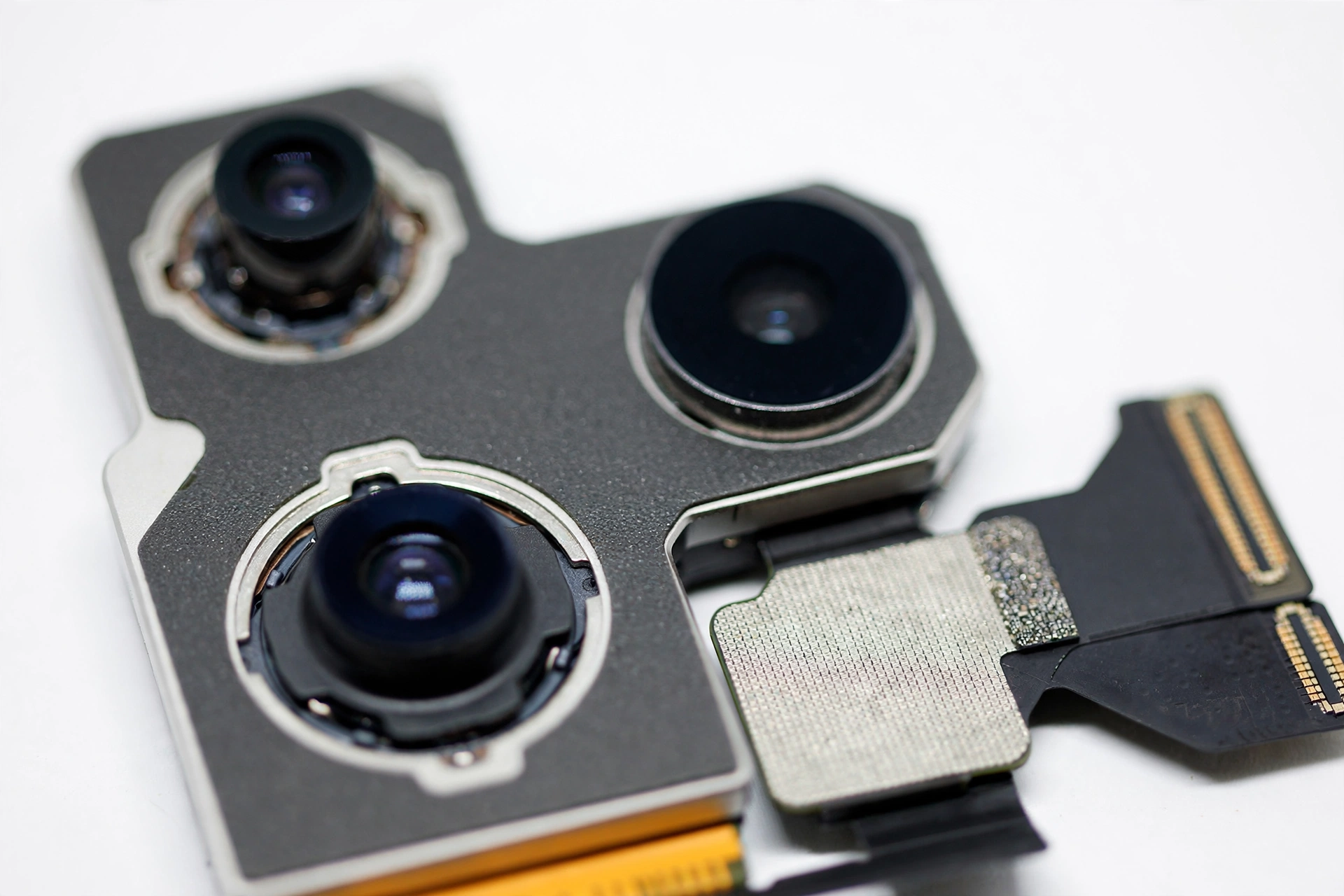
Quick fact: The iPhone’s autofocus is a small physical mechanism. Voice-coil motors move the lens elements back and forth to find the sharpest point. Anything that adds weight or magnetic force to that tiny mechanism — a magnetic case, a stick-on lens — can slow it down or stop it. This guide returns to that point because it is the single most overlooked cause of focus problems.
The rest of this guide is for the genuine missed-focus case: the camera is open, the preview is live, but your subject will not come sharp no matter what you do.
2. The two-minute checks: clean the lens, remove the case
Apple’s own camera troubleshooting starts here, and so should you. These two steps resolve a large share of focus complaints.
Clean the rear lenses properly
Fingerprints are the enemy of autofocus. A thin film of skin oil scatters light across the lens, which lowers contrast — and the autofocus system finds focus by looking for contrast. A dirty lens literally gives the focusing system less to work with.
- Power the iPhone off and unplug any cables.
- Wipe each rear lens gently with a soft, lint-free cloth — a microfiber lens cloth is ideal. A slightly damp cloth is acceptable; Apple specifically advises a soft, slightly damp, lint-free cloth for camera lenses.
- Hold the phone up to a light at an angle afterward and look for remaining smudges or film you missed.
- Open the Camera app and test the same shot again.
Note on cleaning: Do not use paper towels, tissues, or rough fabrics — they can scratch lens coatings. Do not use bleach, hydrogen peroxide, or harsh solvents. Do not submerge the iPhone in cleaning agents, do not let moisture into openings, and do not use compressed air near the lenses.
Take the case off and retest
This is the step people skip. Remove the case completely — and any clip-on lens, stick-on filter, or camera protector — then take the identical test shot. If the problem disappears with the case off, the case was the problem, not the camera.
Cases cause focus problems in three ways: the raised rim can press against the camera housing and subtly restrict the focusing mechanism; a poorly cut opening can partially cover one lens; and magnetic cases or mounts can interfere with the autofocus motors and the stabilization system. Apple explicitly advises removing any accessory that places a magnet near the camera, noting that magnetic accessories can interfere with iPhone cameras.
3. Tap to focus — and how the iPhone’s autofocus actually works
The iPhone focuses automatically, choosing what it believes is the subject — usually the largest or nearest face, or the center of the frame. When it guesses wrong, you get a perfectly sharp background and a blurry subject. The fix is manual:
- Frame the shot as normal.
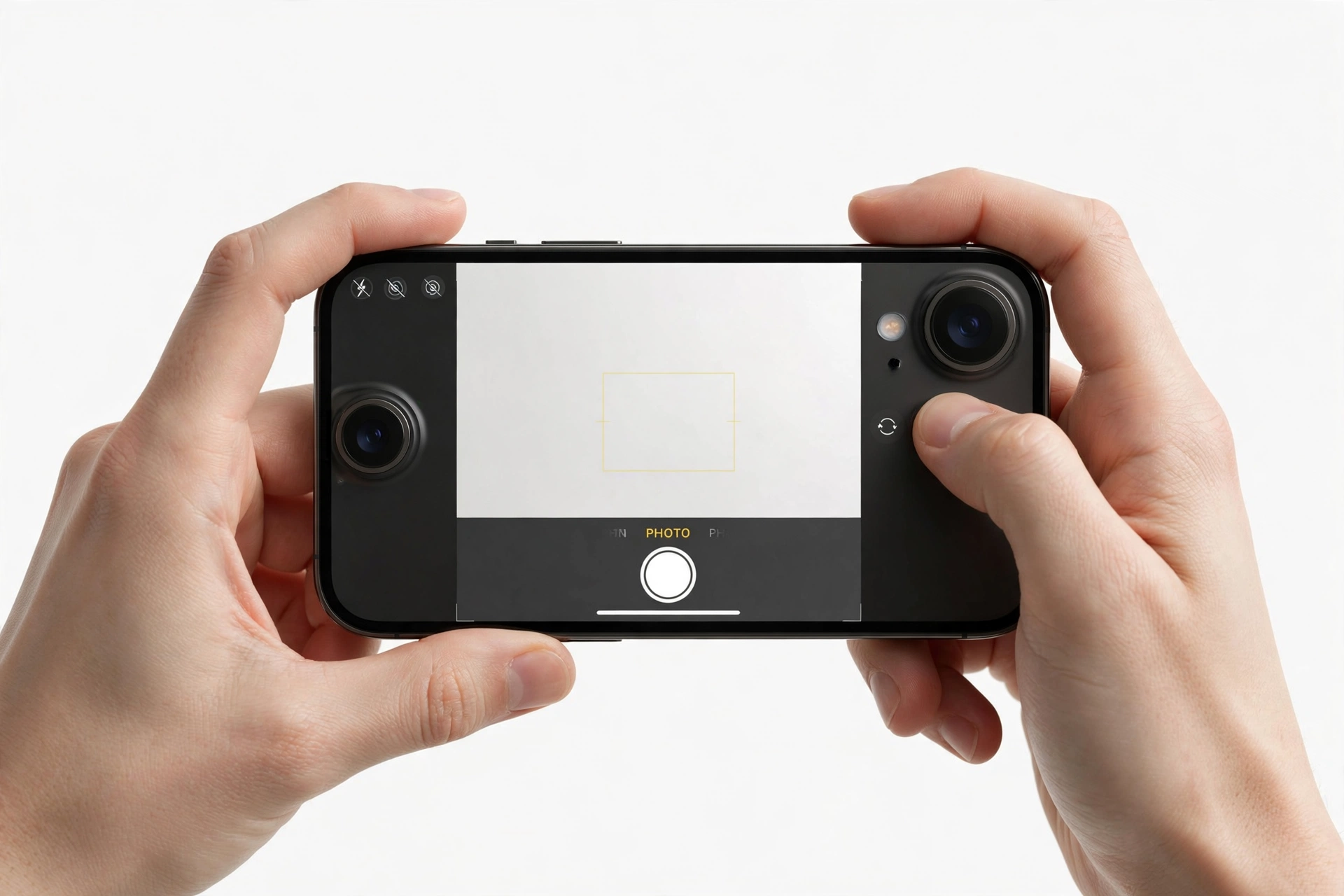
- Tap the subject on the screen. A yellow square appears around that spot, confirming the focus point.
- Take the photo. The camera prioritizes the tapped point.
This matters most when the subject is off-center, when there are objects at very different distances (a person against a distant view), or when the subject is small in the frame. If tapping fixes your blurry shots, nothing was broken — the autofocus was simply choosing a different target than you wanted.
The exposure slider
After you tap to focus, a small sun icon appears next to the yellow square. Dragging it up or down adjusts exposure (brightness) without moving the focus point. This is useful in the opposite situation: the focus is right but the subject is too dark or blown out. It does not change focus, but people often find their “blurry” photo was actually a badly exposed photo.
4. Lock the focus with AE/AF Lock
If the focus keeps drifting — the yellow square jumps around, or focus is sharp for a second and then goes soft as you move — lock it in place:
- Tap and hold on your subject for about two seconds.
- A yellow “AE/AF LOCK” banner appears at the top of the screen.
- Release. Autofocus and auto exposure are now locked; you can recompose the shot and the subject stays sharp.
- To release the lock, tap anywhere on the screen.
AE/AF Lock is the right tool when the camera keeps hunting between two distances — for example, photographing through a window, shooting a subject partially behind branches, or filming where the camera keeps refocusing on background movement. It converts a drifting-focus problem into a locked, predictable one.
Tip: If your photos are sharp in the viewfinder but soft in the finished image, that is a different symptom — a capture or processing issue rather than an autofocus failure. Clean the lens, check for a case, and if it persists across all lenses, update iOS (Section 7) before assuming hardware trouble.
5. Magnetic interference: the case and mount problem
This deserves its own section because it is so commonly missed — and because Apple’s guidance is explicit about it.
The camera’s autofocus and optical image stabilization systems use tiny magnets and electromagnetic coils. External magnets — in a case, a car mount, a magnetic wallet attachment, or a stick-on lens adapter — can disturb these systems. The symptoms of magnetic interference include focus that hunts endlessly, images that are slightly soft only when the accessory is attached, and visible wobble or shimmer in the preview.
- Remove every magnetic accessory — case, mount, wallet flap, lens adapter — and test with the phone bare.
- Test in the same conditions (same light, same subject, same distance) so the comparison is fair.
- If focus returns with the accessories off, you have your answer: replace the case with a non-magnetic one, or at minimum one whose magnets sit far from the camera module.
- Note the low-light clue: magnetic interference often shows up worst in dim light, because the autofocus works harder and longer there. Focus that is fine in daylight but hopeless indoors points strongly at an accessory.
One related trap: some “camera protector” films and stick-on lens covers sit over the lenses and add a thin optical layer the autofocus was not designed for. They are marketed as protection, but a cheap or poorly fitted one degrades focus and low-light performance. Test with it removed; if focus improves, leave it off.
6. Lighting and distance: why focus hunts
Autofocus needs contrast and light. In a dark room, or aimed at a blank white wall, even a healthy camera hunts. Before concluding the camera is broken, test focus where focus is easy:
- Bright, even daylight with a high-contrast subject — text on a page, a patterned fabric.
- A normal subject distance — arm’s length to a few meters. Every iPhone lens has a minimum focus distance; closer than that and no camera can focus. The main camera typically needs several centimeters of clearance; if you are photographing something almost touching the lens, back up.
- All four cameras — switch between 0.5x ultra-wide, 1x main, 2x/3x/5x telephoto, and the front camera. If three lenses focus perfectly and one does not, you have isolated the fault to that module.
The multi-lens test is the most useful diagnostic in this entire guide. Autofocus hardware is per-lens: each rear camera has its own focusing mechanism. A software problem tends to affect all lenses at once; a hardware problem almost always affects one.
7. Software fixes: restart, update, reset settings
If cleaning, removing the case, and tap-to-focus have not solved it, the next layer is software. Work in this order, from least to most disruptive:
Force-close and reopen the Camera app
Swipe up from the bottom (or double-click Home on older models) to open the app switcher, swipe the Camera app away, and reopen it. A stuck camera process can hold a bad focus state; a fresh launch resets it. Test focus again.
Restart the iPhone
A full restart clears temporary system states that affect the camera pipeline. On modern iPhones: press and hold the side button and either volume button, drag the slider, wait 30 seconds, then hold the side button to power on.
Check for an iOS update
Go to Settings > General > Software Update. Camera and autofocus behavior is part of iOS; updates have fixed focus-related bugs in the past. Install any available update and retest.
Reset All Settings
If the problem persists, Settings > General > Transfer or Reset iPhone > Reset > Reset All Settings restores system settings — including camera-related preferences — to defaults without deleting photos, apps, or accounts. It is the last software step before considering hardware.
Stop for safety: Do not confuse “Reset All Settings” with “Erase All Content and Settings.” Erasing wipes the phone completely — photos, messages, apps, everything — and is never a troubleshooting step for a camera problem. Back up the iPhone before any reset, and never erase the phone to fix focus.
8. Test each lens separately: isolate the failing camera
Now combine everything into one decisive test. With the case off and the lenses clean, in good light, shoot the same high-contrast subject with each camera:
- 0.5x ultra-wide — tap the Camera app’s “.5” button.
- 1x main — the default view.
- 2x/3x/5x telephoto — whichever your model offers.
- Front (TrueDepth) camera — switch with the rotate icon.
Write down the result for each. The pattern tells you what is wrong:
- All lenses fail equally → software, settings, lighting, or a phone-wide issue. Revisit Sections 6 and 7.
- One lens fails, the rest are sharp → that camera module’s focusing mechanism is the suspect. Cleaning will not fix a stuck focus motor.
- Main lens fails but telephoto works at the same subject → the 1x module specifically; this is the most common single-module failure.
- Front camera fails but rears work → a TrueDepth camera issue; note whether Face ID still works, since they share hardware.
9. Symptom-to-cause worksheet
| Symptom | Most likely cause | Try first |
|---|---|---|
| Subject soft, background sharp | Autofocus picked the wrong target | Tap the subject to focus; use AE/AF Lock |
| Focus drifts or hunts continuously | Low light, low contrast, or magnetic interference | Add light; remove magnetic case and mounts |
| All photos slightly soft on every lens | Dirty lenses or a film over them | Clean lenses properly; remove case and test |
| Focus fine in daylight, hopeless indoors | Accessory interference or low-light limits | Test bare phone; add light |
| One lens will not focus, others fine | That module’s focus mechanism | Clean and retest; if unchanged, professional assessment |
| Focus was fine, failed right after a drop | Impact damage to the camera module | Inspect for visible damage; do not open the phone — assessment needed |
| Preview sharp, finished photo soft | Capture/processing issue, not focus | Update iOS; reset all settings; retest |
| Focus fails only in a third-party app | App bug or permissions | Test the built-in Camera app; update or reinstall the third-party app |
| Close-up subjects never sharp | Closer than minimum focus distance | Back up; use the ultra-wide or Macro mode if available |
| Focus problem after iOS update | Software regression | Restart; check for a follow-up update; reset all settings |
10. What these checks can and cannot establish
| Observation | What it can establish | What it cannot establish |
|---|---|---|
| Focus returns with the case off | The case or an accessory was the cause | Whether the camera itself is fully healthy long-term |
| Only one lens fails | The fault is isolated to that module | Whether it is the lens, the focus motor, or the connector — that needs disassembly |
| All lenses fail identically | Points away from single-module hardware failure | Does not prove software — a board-level issue can also affect everything |
| Photos sharp after a restart | A temporary software state was responsible | Whether the glitch will return |
| Visible damage near the camera | Physical trauma is a plausible cause | The full extent of internal damage |
11. Two worked examples
(The following are hypothetical illustrations, not customer stories.)
Example 1 — Maya’s magnetic case. Maya’s iPhone 16 takes sharp photos outdoors but the camera hunts endlessly in restaurants and bars. She cleans the lens — no change. She removes her magnetic wallet case and retests in the same dim room: focus locks instantly. The diagnosis: the case’s magnets interfere with the autofocus, worst in low light where focus works hardest. She switches to a non-magnetic case and the problem never returns.
Example 2 — Daniel’s dead telephoto. Daniel drops his iPhone 15 Pro on concrete. Afterward the 1x and 0.5x cameras focus normally, but the 3x telephoto shows a permanently soft image no matter what he taps. Cleaning and a restart change nothing. The multi-lens test isolates the fault to the telephoto module — consistent with impact damage to that unit’s focusing mechanism. Daniel stops troubleshooting (there is no home fix for a damaged focus motor) and books a professional assessment instead of buying a new case or erasing his phone.
12. When it is hardware: the honest assessment
If you have cleaned the lenses, removed the case and all magnetic accessories, tested in good light, tapped and locked focus, restarted, updated iOS, and reset all settings — and one lens still will not focus — the remaining possibilities are hardware:
- A stuck or failed focus actuator — the tiny motor that moves the lens elements. This is the most common hardware cause of a single lens that will not focus.
- Impact damage — a drop can shift the lens assembly or damage the module even when the glass looks fine. Apple notes that damage to the camera, such as from dropping the iPhone, may require a camera repair.
- Connector or board-level fault — rarer, but possible, especially after impact or liquid exposure.
- Debris inside the module — dust or foreign material inside the lens assembly (not on the surface) cannot be cleaned from outside.
None of these have a home fix. The camera module is a sealed, calibrated unit; opening the phone to reach it risks the display, the battery, water resistance, and any remaining warranty. The correct next step is a professional diagnosis — ideally with the multi-lens test results from Section 8 written down, so the technician starts from evidence rather than guesswork.
Quick fact: A genuine Apple camera module is calibrated to the phone. Third-party camera modules can work but may behave differently — focus speed, color, and stabilization can all change. Ask any repair provider what part they install and how they verify focus on all lenses after the repair. Our guide to iPhone parts and service history labels explains what iOS shows after a camera replacement.
13. What a repair shop can (and cannot) do about focus problems
A competent shop can: run the multi-lens test on professional targets, inspect the module and connector under magnification, replace a failed rear camera module, and verify focus, stabilization, and calibration on every lens after the repair. What a shop cannot do: fix a focus actuator with software, restore a physically damaged lens element, or guarantee that a phone with board-level damage will focus perfectly after a module swap — that is why the diagnosis comes before the quote, not after.
Before approving any camera repair, ask: which lens failed and what did the test show? Is the replacement part new or refurbished, and who made it? How do you verify focus on all lenses after installation? What happens to the phone’s water resistance after the repair? A shop that answers these plainly is a shop that has actually diagnosed the fault.
If you are in the Las Vegas area and the checks above point to hardware, Las Vegas Phone Repair & Accessories (7400 Las Vegas Blvd S, Unit TT42, Las Vegas, NV 89123; (424) 406-6202; open 10AM–8PM, call ahead to confirm today’s hours) can assess the camera and explain the options before any work begins.
Video: How to tell if your smartphone is fake or real
Frequently asked questions
Why is my iPhone camera not focusing all of a sudden?
A sudden focus failure usually traces to something that changed: a new case (especially magnetic), a dirty lens, a software update, or a drop. Work backward from what changed. If nothing changed and focus degraded gradually, the focus mechanism may be wearing — run the multi-lens test to isolate which camera is affected.
Does tapping the screen actually fix focus?
It fixes the most common kind of “not focusing” — the camera choosing the wrong subject. Tapping tells the autofocus exactly where to lock. It does not fix a dirty lens, a magnetic case, or a broken focus motor; if tapping changes nothing, move on to the other checks.
Can a phone case really stop the camera from focusing?
Yes. Apple explicitly advises removing any case, accessory, or film that blocks the camera or places a magnet near it, and notes that magnetic accessories can interfere with iPhone cameras. Thick cases can also press on the module. Always retest with the phone completely bare — it is the fastest way to rule an accessory in or out.
Why does my iPhone camera focus in daylight but not indoors?
Autofocus needs light and contrast, and it works hardest in dim conditions — which is exactly when interference (magnetic accessories, a film over the lens) shows up most. If daylight focus is fine and indoor focus hunts, suspect an accessory first, then lighting.
What is AE/AF Lock and when should I use it?
Tap-and-hold on your subject until the “AE/AF LOCK” banner appears. It locks focus and exposure so they stop drifting while you recompose. Use it for tricky scenes — through windows, mixed distances, moving backgrounds. Tap anywhere to release it.
My front camera focuses but the rear does not (or vice versa). What does that mean?
The front and rear cameras are separate modules with separate focus systems, so one can fail while the other works. If the front camera fails, also check whether Face ID works — they share hardware on the TrueDepth assembly, and a Face ID failure alongside points to that module.
Will resetting my iPhone fix the camera focus?
“Reset All Settings” sometimes helps by clearing corrupted camera preferences — and it does not delete your data. “Erase All Content and Settings” is a different, destructive action that wipes the phone; it is not a camera fix and should never be used casually. Back up before any reset.
How do I know if the focus problem needs a repair?
The decision rule: if the lenses are clean, the phone is bare (no case or magnetic accessories), the light is good, you have tapped and locked focus, restarted, updated iOS, and reset all settings — and one lens still cannot focus — that is a hardware fault. Write down which lens failed and what the multi-lens test showed, then get a professional assessment.
Sources and editorial notes
- Apple Support — iPhone troubleshooting: camera issues (last checked October 14, 2026): Apple’s camera troubleshooting flow — symptom lists, lens cleaning procedure (soft, slightly damp, lint-free cloth; power off first; no bleach, hydrogen peroxide, submersion, or compressed air), removing cases/accessories/films and anything placing a magnet near the camera, inspecting for damage, and seeking service when damage is present. Summarized in our own words; no passages copied.
- Technobezz — iPhone camera won’t focus fixes (last checked October 14, 2026): corroboration of the tap-to-focus, AE/AF Lock, case-removal, and magnetic-interference steps. Summarized in our own words.
- MacObserver — iPhone camera keeps refocusing (last checked October 14, 2026): corroboration of AE/AF Lock procedure, Camera settings toggles (Lens Correction, Macro Control), and restart/update steps. Summarized in our own words.
- Marketing Catalyst — iPhone camera won’t focus (last checked October 14, 2026): corroboration of lens-cleaning technique and third-party camera app testing. Summarized in our own words.
Last source check: October 14, 2026. AI-assisted editorial guide, checked against the linked manufacturer information. Manufacturer procedures are summarized in original language; no manufacturer text is reproduced. Device behavior varies by model and iOS version — if a menu path differs on your iPhone, use the closest match in Settings. This guide does not replace professional diagnosis for suspected hardware faults.
Let’s get you connected again.
Tell us what’s happening with your device and we’ll help you decide the safest next step — no jargon, no pressure.
Las Vegas Phone Repair & Accessories · 7400 Las Vegas Blvd S, Unit TT42, Las Vegas, NV 89123
10:00 AM–8:00 PM — call ahead to confirm today’s hours