
How to Transfer Data from Broken iPhone to New iPhone: Complete Guide
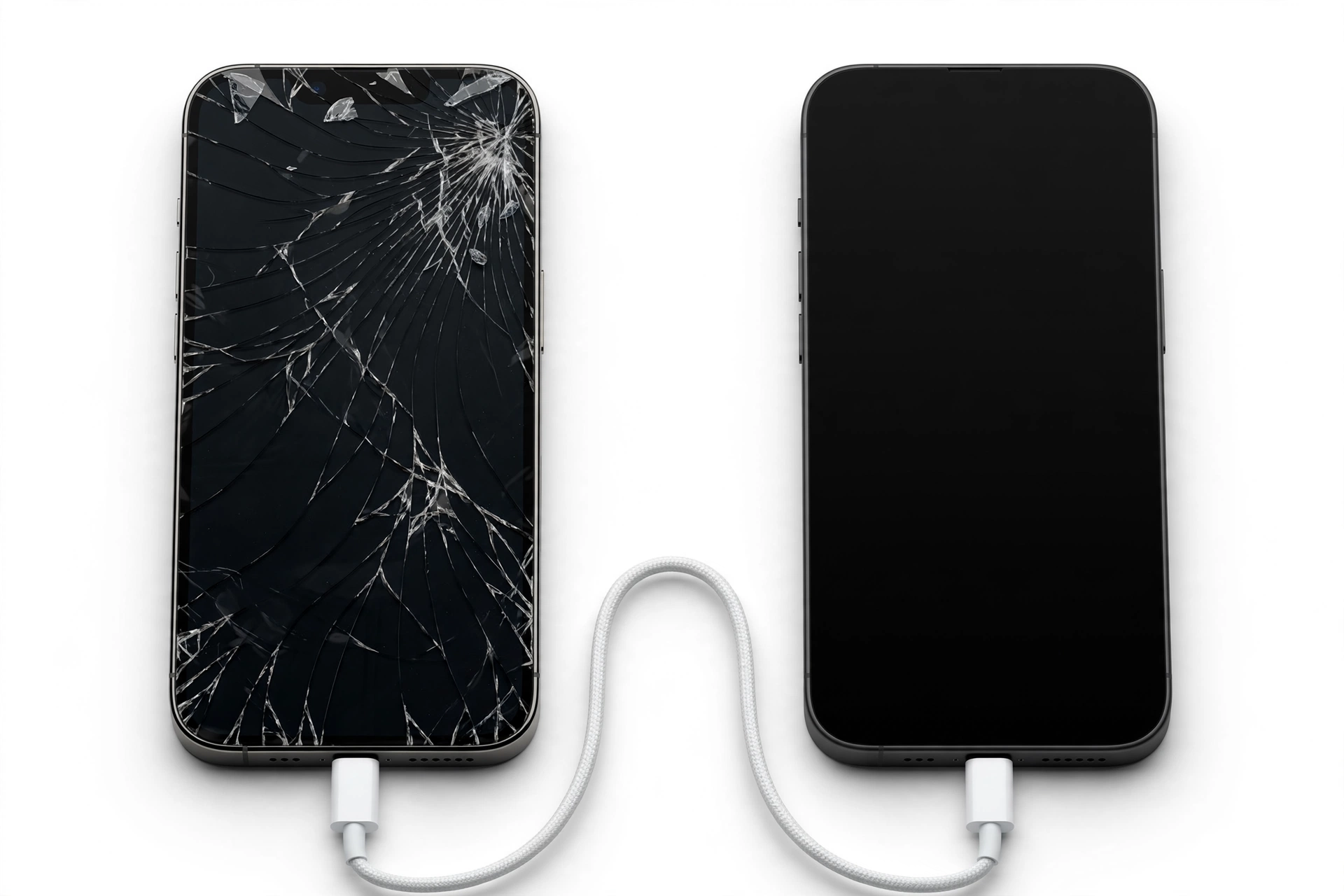
If your iPhone is broken, you can still move everything to a new iPhone as long as you have an iCloud or computer backup of the old one — you don’t need the broken phone itself. Restore that backup during the new iPhone’s setup, and your photos, messages, apps, and settings come along with it.
On this page
If your iPhone is broken, you can still move everything to a new iPhone as long as you have an iCloud or computer backup of the old one — you don’t need the broken phone itself.
Who this guide helps
This guide is for iPhone owners whose old phone is cracked, unresponsive, water-damaged, lost, or otherwise out of commission, and who now need to get their data onto a replacement iPhone. Whether your screen is shattered but the phone still powers on, or the device is completely dead, this guide walks you through every legitimate path Apple provides: iCloud backup restore, computer backup restore, Quick Start (if the old phone can still cooperate), and what to do when none of those exist. (Source: support.apple.com)
This guide is iPhone-specific. It does not cover Android-to-iPhone migration; for that, see Apple’s Move to iOS guidance and our general broken-phone data transfer guide, which covers both platforms.
The one question that decides your path
Before reading further, ask yourself this: did the old iPhone back up to iCloud or a computer before it broke?
- Yes, an iCloud backup exists — you’re in good shape. Set up the new iPhone from that backup. The broken phone is not needed at all.
- Yes, a computer backup exists — you’re also in good shape. Restore it with a Mac or PC using a USB cable.
- Not sure — check iCloud backup status first (explained below) before doing anything else.
- No, there is no backup, and the old phone is dead — be honest with yourself: the data is likely gone. No software, repair shop trick, or app can recover data that was never saved anywhere else. This guide explains the realistic options and how to avoid this position next time.
- No backup, but the old phone still turns on and unlocks — you still have options: make a backup now, or use Quick Start to transfer directly.
Quick fact: An iCloud backup captures most of what matters — photos, messages, app data, device settings, Apple Pay history, and more. What it does not include is anything already stored in iCloud itself (iCloud Photos, iCloud Messages if syncing is on, iCloud Drive files), because those live in your Apple Account, not in the backup file. Those sync automatically once you sign in on the new phone.
Method 1: Restore from an iCloud backup (no old phone needed)
This is the most common path, and it works even if the old iPhone is completely dead, lost, or recycled — because the backup lives on Apple’s servers, not on the phone.
Step 1: Check that a backup exists (before you commit)
If you have access to any other Apple device signed in with the same Apple Account, you can verify the backup before starting. On another iPhone or iPad, open Settings > [your name] > iCloud > iCloud Backup and look at the backup list and dates. If you see the broken iPhone listed with a recent date, you have what you need. You can also check Settings > [your name] > iCloud > iCloud Storage > Manage Account Storage > Backups on any signed-in device.
Step 2: Start setting up the new iPhone
Turn on the new iPhone and follow the on-screen setup steps (language, region, Wi-Fi) until you reach the Transfer Your Apps & Data screen.
Step 3: Choose “From iCloud Backup”
Tap From iCloud Backup and sign in with the same Apple Account you used on the broken iPhone. Apple will show a list of available backups — choose by checking the date and size, and pick the most recent one from before the breakage.
Step 4: Stay on Wi-Fi and power
The restore begins immediately. Apple documents that the progress bar can take anywhere from a few minutes to an hour or more depending on the backup size, and that it can appear to pause if the Wi-Fi connection drops. Stay connected to Wi-Fi and keep the phone plugged in. Your apps, photos, and music continue restoring in the background even after the main progress bar completes — sometimes for hours or days with very large photo libraries.
Step 5: Finish setup and verify
After the restore completes, finish the remaining setup steps. Then check the important things: photos, messages, contacts, banking apps, and two-factor authentication apps. Sign in again where services require it — some security-sensitive apps deliberately require re-authentication after a restore, which is normal.
Tip: If you already started using the new iPhone before deciding to restore the backup, Apple requires erasing it first: Settings > General > Transfer or Reset iPhone > Erase All Content and Settings. Erasing returns the phone to the Hello screen so setup can run again. Back up anything new on the current setup first (photos taken since, for example), because erasing deletes it.
Method 2: Restore from a computer backup (Mac or PC)
If you regularly backed up the broken iPhone to a Mac (Finder) or a Windows PC (Apple Devices app or iTunes), you can restore that backup to the new iPhone with a USB cable.
What you need
- A Mac or PC with the backup already on it
- A USB cable compatible with the new iPhone
- The backup password, if the backup was encrypted
Steps
- Open Finder on a Mac, or the Apple Devices app (or iTunes) on a Windows PC.
- Connect the new iPhone with a USB cable. If the phone was already set up, you may need to erase it first (Settings > General > Transfer or Reset iPhone > Erase All Content and Settings) so it reaches the setup screen — or connect it while it’s in the setup flow.
- Select the new iPhone when it appears in the sidebar or device list.
- Choose Restore Backup, pick the backup of the broken iPhone (check the date), and enter the backup password if prompted.
- Keep the phone connected until the restore finishes and it restarts.
Quick fact: An encrypted computer backup saves more than an unencrypted one — including saved passwords, Wi-Fi settings, website history, and Health data. If you only ever made unencrypted backups, those items won’t restore, and you’ll re-enter them manually. This is worth knowing before you panic when a Wi-Fi password is missing.
What if the broken phone still powers on? Back it up now.
If the old iPhone’s screen is cracked but the device turns on and you can still unlock it (even with an external display or VoiceOver tricks), connect it to your computer and make a fresh backup before doing anything else. A fresh backup taken today is worth more than a stale one from three months ago. This only works if the phone has previously been trusted with this computer — a brand-new trust prompt on a dead screen is a dead end.
Method 3: Quick Start direct transfer (old phone must still work)
If the broken iPhone still powers on, unlocks, and can connect to Wi-Fi, Apple’s Quick Start can move data directly from the old phone to the new one — no backup needed as an intermediate step.
How it works
- Turn on the new iPhone and place it next to the old one. A Quick Start screen appears on the old iPhone.
- Confirm the Apple Account, then hold the new iPhone up to scan the animation shown on the old iPhone’s camera (if the screen is too damaged to show it, Quick Start may not be possible).
- Enter the old iPhone’s passcode on the new iPhone.
- Choose Transfer from iPhone (direct device-to-device) or restore from iCloud.
- Keep both phones close together, plugged into power, until the transfer finishes. Don’t use either phone for other tasks during the migration.
Wired option for large transfers
If you have a lot of photos and videos or slow Wi-Fi, Apple supports a wired transfer between the two phones. The cable depends on the ports: USB-C to USB-C for iPhone 15 or later pairs, USB-C to Lightning when one phone is an iPhone 14 or earlier, and a Lightning to USB 3 Camera Adapter (with a 12W or higher power adapter) plus a Lightning to USB cable for two older Lightning phones.
Tip: Quick Start transfers apps, settings, photos, messages, and account information, but some services still ask you to authenticate again afterward — banking apps, two-factor authentication, and Apple Pay. Keep the old phone available (if it works) until you’ve re-verified these.
Method comparison table
| Method | Requires | Old phone needed? | Limitations |
|---|---|---|---|
| iCloud backup restore | An iCloud backup made before the breakage; Wi-Fi; Apple Account credentials | No | Backup must exist; restore speed depends on Wi-Fi; background downloads continue for hours or days |
| Computer backup restore | A Finder/Apple Devices/iTunes backup on a computer; USB cable; backup password if encrypted | No | Backup must exist on that computer; encrypted password must be known |
| Quick Start (wireless) | Old iPhone powers on, unlocks, has Wi-Fi; both phones on power | Yes | Requires a working screen for the animation scan; slow with large libraries |
| Quick Start (wired) | Old iPhone powers on and unlocks; correct cable for the port combination | Yes | Cable compatibility; both phones must stay connected and undisturbed |
| iCloud sync only (no backup) | iCloud Photos, Messages, Contacts sync already enabled before breakage | No | Only synced categories return; device settings, app data, and Health data are not included |
| Professional data recovery | A service that can work with the damaged device | Yes | Success is not guaranteed; never pay a service that promises guaranteed recovery |
What if the screen is broken but the phone still works?
A cracked screen that still responds to touch is the best-case broken-phone scenario. Your options, in order of preference:
- Back it up right now — to iCloud (Settings > [your name] > iCloud > iCloud Backup > Back Up Now) or to a computer. Do this before anything else, while the phone still cooperates.
- Use Quick Start to move directly to the new phone if the screen is legible enough for setup steps.
- Use the computer path if the phone was previously trusted with your computer — connect it and back up without needing the screen much.
Stop for safety: Do not attempt to open the iPhone, reseat cables, or “fix” the screen yourself to get the data. Lithium batteries in damaged phones can be punctured by prying tools, which can cause fire or injury. If the phone is swollen, distorted, or getting hot, stop handling it and keep it away from flammable materials.
What if the iPhone is completely dead?
If the phone won’t power on at all, won’t charge, or was destroyed by liquid, your options narrow sharply:
- An existing iCloud backup is your primary path — it doesn’t need the phone.
- An existing computer backup is your secondary path — it also doesn’t need the phone.
- iCloud-synced content (Photos, Contacts, Notes, Messages in iCloud) returns automatically on sign-in, even without any backup.
- Professional data recovery is the last resort. Understand what this means: board-level technicians may attempt to power the storage chip long enough to extract data. Success rates vary enormously with the type of damage, and no one can guarantee recovery. Any service that guarantees results before seeing the device is not being honest with you.
What your Apple Account already protects (even without a backup)
Many people underestimate how much comes back automatically once you sign in to the new iPhone with the same Apple Account, because iCloud sync operates independently of backups:
| Data type | Returns via iCloud sync alone | Needs a backup to return |
|---|---|---|
| Photos and videos (iCloud Photos on) | Yes | — |
| Contacts, Calendars, Reminders, Notes (iCloud on) | Yes | — |
| iCloud Drive files | Yes | — |
| Messages (Messages in iCloud on) | Yes | — |
| Safari bookmarks and passwords (iCloud Keychain on) | Yes | — |
| App data for apps that don’t use iCloud | No | Yes |
| Device settings, Home screen layout | No | Yes |
| Health data | No (syncs only with iCloud backup or encrypted computer backup) | Yes |
| Apple Watch pairings and data | No | Yes |
Common problems and fixes
“I don’t remember my Apple Account password”
Recovery starts at Apple’s account recovery page (iforgot.apple.com). This is worth beginning immediately because account recovery can take days if you can’t verify your identity quickly. You cannot set up the new iPhone from an iCloud backup without the account credentials.
“The backup is too old”
Restore the newest one you have, then let iCloud sync fill in the gaps for photos, messages, and other synced categories. The backup covers settings and app data as of its date; sync covers the rest up to now.
“There isn’t enough iCloud storage for the restore”
Restoring a backup to a new phone doesn’t require buying more iCloud storage — the backup already exists on Apple’s servers. Storage limits matter for making new backups, not for restoring existing ones. That said, if the new iPhone’s storage is smaller than the old one’s, the restore will fail partway: you need a new phone with at least as much capacity as the backup’s content.
“The restore keeps failing”
Apple’s documented causes: unstable Wi-Fi, the phone not staying on power, or a backup that is partially corrupted. Try a different Wi-Fi network, keep the phone plugged in and undisturbed, and if iCloud restore repeatedly fails, try the computer-backup route instead.
“My new iPhone has less storage than the old one”
A 128 GB backup cannot restore onto a 64 GB phone. Your choices: get a new phone with equal or larger capacity, or restore selectively — which realistically means restoring the iCloud-synced content only (sign in without restoring the full backup) and reinstalling apps manually.
Hypothetical examples
(The following are hypothetical illustrations, not customer stories.)
Example 1 — Maya’s shattered screen. Maya drops her iPhone 15 on concrete and the screen goes black, though the phone still vibrates when plugged in. She had iCloud Backup turned on, and her last automatic backup ran the night before the drop. She buys a replacement iPhone, chooses “From iCloud Backup” during setup, and her photos, messages, and apps restore overnight. Nothing is lost except a few hours of setup time.
Example 2 — Daniel’s dead phone. Daniel’s iPhone 12 won’t power on after a swim. He never turned on iCloud Backup, but he did have iCloud Photos and Contacts sync enabled. On his new iPhone, he signs in with his Apple Account: photos and contacts return automatically. His third-party app data and Home screen layout do not, because those only live in backups. He sets a calendar reminder to enable iCloud Backup on the new phone immediately.
Before you erase or recycle the broken iPhone
Once your data is safely on the new phone and verified, handle the old device properly:
- Confirm the new phone has everything — photos, messages, contacts, banking and authenticator apps. Don’t recycle the old phone the same day you set up the new one.
- Erase the old iPhone if it still powers on: Settings > General > Transfer or Reset iPhone > Erase All Content and Settings. This protects your data if the device ends up with someone else.
- Remove it from your Apple Account at account.apple.com under Devices, or on the new phone under Settings > [your name].
- Recycle responsibly. Apple offers trade-in and recycling; many carriers and retailers do too. A phone with a swollen battery should go to a proper e-waste facility — never in household trash.
For the full preparation checklist, see our guide on how to erase an iPhone before selling or recycling it.
Preventing this next time
- Turn on iCloud Backup: Settings > [your name] > iCloud > iCloud Backup, and tap Back Up Now once to confirm it works. Automatic backups run when the phone is locked, charging, and on Wi-Fi.
- Enable iCloud Photos and Messages in iCloud so your most irreplaceable content syncs continuously, independent of backups.
- Make an encrypted computer backup periodically if you want a local copy with Health data and passwords included.
- Keep your Apple Account recovery information current — a recovery phone number and email you can actually access.
Our iPhone backup guide covers these steps in detail.
Video: How to transfer all data to new iPhone fast
Frequently asked questions
Can I transfer data from a broken iPhone without any backup?
Only what was already syncing to iCloud (photos, contacts, messages with sync enabled, and similar) will come back when you sign in on the new phone. Device settings, app data, and anything that existed only on the phone cannot be recreated without a backup. If the broken phone still powers on and unlocks, make a backup now — that changes everything.
Can Quick Start work if the old iPhone’s screen is cracked?
It depends on how cracked. Quick Start needs the old phone to display the setup animation and respond to taps. A cracked-but-responsive screen usually works; a black or unresponsive screen does not. If the screen is unusable, use an iCloud or computer backup instead.
How long does an iCloud restore take?
Apple documents that the main progress bar can take from a few minutes to over an hour depending on backup size and Wi-Fi speed. After that, apps, photos, and music keep downloading in the background — with very large libraries, this can continue for hours or even days. Keep the phone on Wi-Fi and power during this period.
Will my WhatsApp chats transfer?
WhatsApp on iPhone backs up to iCloud (if enabled in WhatsApp’s own settings) and restores from an iPhone backup. If you used WhatsApp’s iCloud backup feature, your chats return. If you never enabled it, they don’t. This is separate from Apple’s backup — check WhatsApp’s settings.
What about my Apple Watch data?
Apple Watch backups are bundled inside the iPhone backup. Restoring the iPhone backup restores the Watch’s data, and you’ll re-pair the Watch with the new iPhone afterward. Without an iPhone backup, Watch data is not independently recoverable.
Can a repair shop pull data off my dead iPhone?
Sometimes, depending on the damage. Board-level data recovery is a real specialty, but success is never guaranteed — it depends on whether the storage chip and its encryption keys are intact. Be skeptical of any service that guarantees recovery before examining the device, and get a clear quote before authorizing work. Never pay upfront for a guaranteed outcome that can’t be guaranteed.
Do I need the same size iPhone as the old one?
For a full backup restore, the new iPhone needs at least as much storage as the backup’s contents. If your old phone was 256 GB and nearly full, a 128 GB replacement won’t take the full restore. iCloud-synced content alone (without a full restore) has no such requirement.
Should I repair the broken iPhone instead of replacing it?
That’s a separate decision from data recovery — and the two don’t have to happen in the same order. If the phone is repairable, a screen replacement may be the cheapest way to regain access to a working device (and make a fresh backup). If the damage is severe, replacing may be more economical. For help deciding, see our broken-phone data transfer guide, and if you’re in the Las Vegas area, Las Vegas Phone Repair & Accessories (7400 Las Vegas Blvd S, Unit TT42, Las Vegas, NV 89123; (424) 406-6202; open 10 AM–8 PM, call ahead to confirm today’s hours) can assess the device and discuss your options.
Sources and editorial notes
- Apple Support — Transfer data from your previous iPhone to your new iPhone (official guide covering Quick Start, iCloud backup restore, and wired transfer options; last checked October 14, 2026).
- Apple Support — Restore your iPhone from a backup (official restore steps for iCloud and computer backups; last checked October 14, 2026).
- Apple Support — Back up iPhone (what iCloud and computer backups include; encrypted backup contents; last checked October 14, 2026).
- Technobezz — How to Transfer iPhone to iPhone Without Losing Data (independent walkthrough summarizing Apple’s documented flows, including restoring without the old phone; last checked October 14, 2026).
- SolveYourTech — How to Transfer Data From iPhone to iPhone (independent guide documenting Quick Start cable combinations and iCloud restore steps; last checked October 14, 2026).
- SimplyTechToday — Data Transfer from Old iPhone to New iPhone (independent guide covering direct migration and iCloud/computer restore paths; last checked October 14, 2026).
Last source check: October 14, 2026. AI-assisted editorial guide, checked against the linked manufacturer information. Apple Support procedures are summarized in original language; steps reflect Apple’s documented flows as of the check date. This guide does not promise data recovery outcomes, does not recommend opening the device, and does not claim any manufacturer authorization or certification.
Let’s get you connected again.
Tell us what’s happening with your device and we’ll help you decide the safest next step — no jargon, no pressure.
Las Vegas Phone Repair & Accessories · 7400 Las Vegas Blvd S, Unit TT42, Las Vegas, NV 89123
10:00 AM–8:00 PM — call ahead to confirm today’s hours