
Phone Overheating After Update: Causes and Safe Fixes
Your phone running warm after a software update is usually normal and temporary — the update leaves the processor doing extra background work for hours or even a day or two. If the heat fades within a couple of days, nothing is wrong; if the phone stays hot during light use weeks after the update, something else is causing it and it deserves a closer look.
On this page
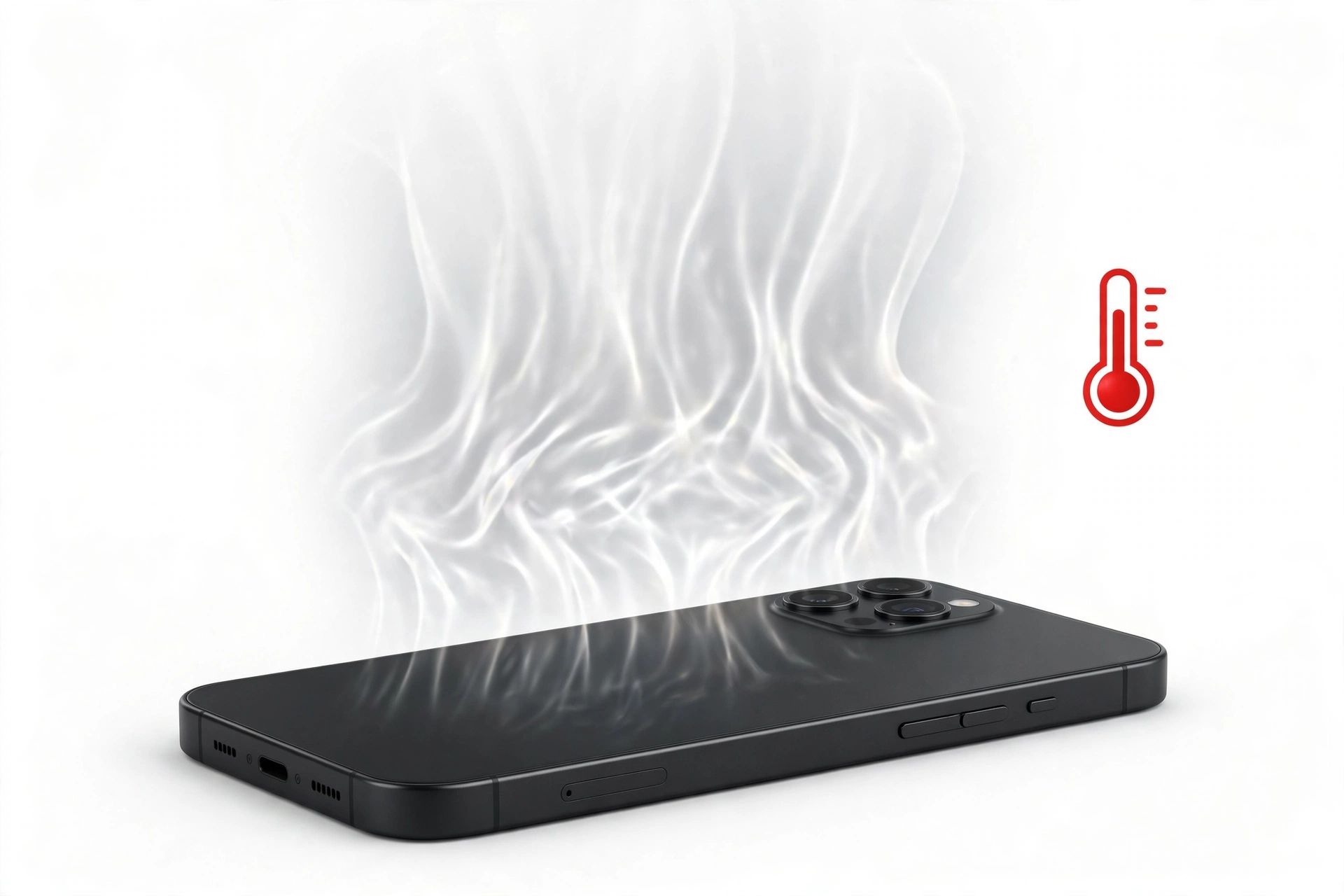
Your phone running warm after a software update is usually normal and temporary — the update leaves the processor doing extra background work for hours or even a day or two.
Who this guide helps
This guide is for anyone whose iPhone or Android phone started running noticeably warmer right after installing a system update. It explains why this happens, what counts as normal post-update warmth, the warning signs that mean the heat is a real problem, and the safe, step-by-step fixes that work on iPhones and Samsung phones — the two brands this guide is written around. (Source: support.apple.com)
Quick fact: Apple lists “complete a software update, particularly to a major release” among the normal causes of a warm iPhone. Temporary warmth after a major update is an expected, documented behavior — not automatically a defect.
1. The direct answer: is post-update heat normal?
Yes — for a limited time. A major system update forces your phone to do a large amount of background work it would not normally do: reindexing files, re-optimizing apps for the new system, rebuilding search and photo indexes, resyncing data with cloud services, and sometimes relearning your usage patterns for battery and performance management. All of that keeps the processor and storage working hard for hours, and hard work produces heat.
On most phones this elevated activity lasts somewhere between a few hours and about two days. A phone that feels warm to the touch during that window — especially while idle on a charger — is usually just working through its post-update checklist. Apple has stated no specific duration for how long warmth after a major update lasts, so there is no official cutoff; two days is an editorial guideline based on how this background work typically behaves, not a manufacturer specification.
What is not normal: a phone that becomes too hot to hold comfortably, shows a temperature warning, shuts down, or is still running hot during light use a week or more after the update. That pattern points to something beyond routine post-update activity.
2. Why an update makes your phone hot
Understanding the mechanism helps you tell normal heat from abnormal heat. Here are the five main post-update heat sources.
2.1 Post-update indexing and reindexing
Modern phones maintain searchable indexes of your files, messages, and photos. A system update can invalidate or rebuild these indexes. Rebuilding means the processor scanning through thousands of items — often at the same time as the system re-optimizing itself — which raises temperature even when you are not touching the phone.
2.2 App re-optimization
After a major update, the system recompiles or re-optimizes installed apps for the new OS version. On Android this is a formal process; Samsung’s own tooling acknowledges that old system files conflicting with new app data can keep the CPU cycling. Samsung provides a “repair apps” step in recovery mode specifically to clear out corrupt files left behind by an update without deleting your data.
2.3 Background resyncing
Updates frequently trigger cloud services to re-verify and resync: photos, messages, health data, backups. Uploads and downloads at full speed keep both the processor and the radio (cellular or Wi-Fi) busy. If you notice the phone warming up while a “Syncing…” indicator shows in cloud apps, the heat and the sync are probably the same story.
2.4 A rogue or outdated app
Sometimes the update is not the direct cause but the trigger: an app that worked fine before now misbehaves with the new OS, running in the background constantly. Heat that begins after an update but never settles is a classic sign of one stuck app — or a system service looping — rather than the update itself.
2.5 Genuine OS bugs
Occasionally a software release ships with a real thermal problem. Press reporting on 2026 Samsung updates described Galaxy S25 and S24 Ultra devices running hot and draining fast after a software push — a widespread pattern consistent with a software cause rather than isolated hardware failure, and one that, based on Samsung’s history, tends to improve with a follow-up patch. If your phone’s heat matches a widely reported pattern on the same OS version, the fix may arrive with the next update rather than from anything you do.
3. Normal warmth vs. dangerous heat
The most important judgment call in this guide is deciding which side of the line your phone falls on. Use the table below.
| What you observe | Likely meaning | What to do |
|---|---|---|
| Warm to the touch, first 24–48 hours after update, especially while idle or charging | Normal post-update background work | Give it time; cool it gently (Section 4) |
| Warm while cloud sync indicators show, cooling off afterward | Normal resync activity | Let it finish; keep on Wi-Fi |
| “Temperature: iPhone needs to cool down” warning or a system thermal alert | Built-in thermal protection engaged | Stop using it, cool it immediately (Section 4) |
| Too hot to hold comfortably, or shut down on its own | Potentially unsafe temperature | Stop use; cool it; contact support if it recurs |
| Still hot during light use a week after the update | Likely a stuck app, bad cache, or OS bug | Work through the fix paths (Sections 5–6) |
| Heat plus a swollen, bulging, or distorted battery — screen lifting, case separating | Battery safety emergency | See Section 7 immediately — stop, do not charge |
| Heat plus rapidly dropping battery with no heavy use | Stuck process or battery problem | Check battery usage (Sections 5–6); seek assessment if it persists |
3.1 Apple’s temperature guidance, in plain language
Apple publishes temperature guidance for iPhone and iPad that is worth quoting in substance: the devices are designed for use in ambient temperatures of 0°C to 35°C (32°F to 95°F), and should be stored between −20°C and 45°C (−4°F to 113°F). Apple explicitly lists completing a software update — especially a major one — as an activity that can make the phone warm, alongside first-time setup, restoring from a backup, wireless charging, graphics-heavy apps, and streaming high-quality video.
When an iPhone gets too warm, iOS protects itself automatically: it can slow down or pause charging (you may see “Charging On Hold. Charging will resume when iPhone returns to normal temperature.”), dim or switch off the display, put the cellular radio into a low-power state, disable the camera flash temporarily, and reduce performance in demanding apps. These are protective moves, not evidence of damage. They reverse themselves once the phone cools down.
4. First response: safe ways to cool a hot phone
Do these first, before any deeper troubleshooting. They are safe on every phone and cost nothing.
- Stop charging it. Unplug the cable or lift it off the wireless charger. Charging adds heat on top of the update’s background work. Apple’s own thermal protections may pause charging on their own — do not fight that; it is protecting the battery.
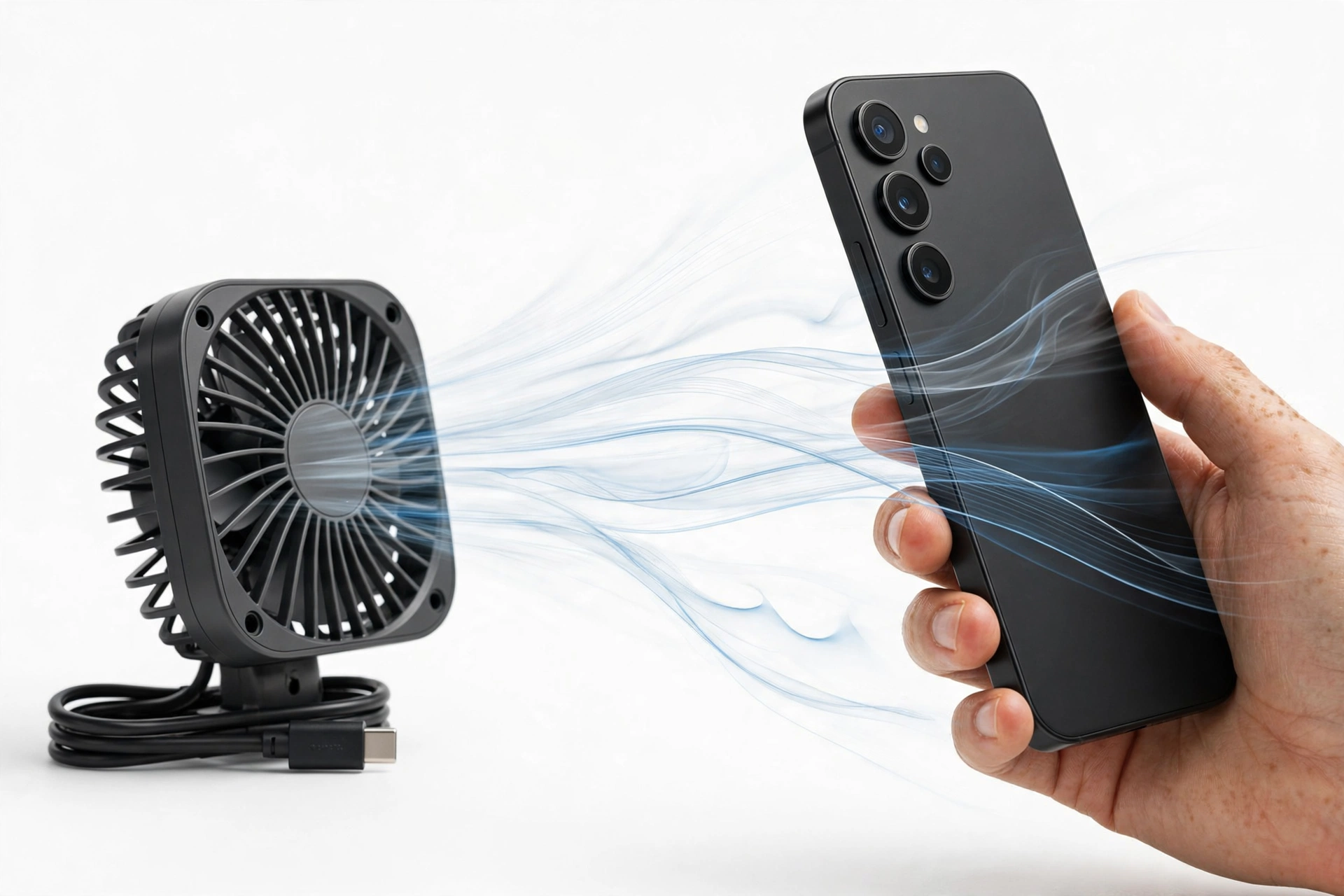
- Move it to a cooler spot. Take it out of direct sunlight, away from a hot car dashboard, and off bedding or a pillow that traps heat. Room-temperature air is the cooling method; heat escapes through the phone’s surfaces.
- Remove the case. Thick cases insulate. Taking it off for a while lets heat escape faster.
- Stop heavy tasks. Close navigation, camera, and game apps. Turn off video streaming for a while.
- Leave it alone. A screen-on phone generates more heat than an idle one. Put it down and let the background work finish.
Stop for safety: never put a hot phone in a freezer or refrigerator, and never cool it with ice or water. Rapid cooling can cause condensation inside the phone, which causes the kind of liquid damage no warranty covers. Room-temperature air and patience are the safe cooling method.
Quick fact: heat and humidity in a parked car can push a phone far past its designed temperature range in minutes. Apple warns specifically against leaving an iPhone in a hot car; Samsung and other makers give the same advice for their devices.
5. iPhone: the ordered fix path
If your iPhone is still running hot days after the update, work through these steps in order. Stop when the heat resolves.
5.1 Wait out the settling window
Seriously: many post-update heat complaints resolve by themselves within 48 hours. If the phone is warm but fully usable — no temperature warning, no shutdowns — and you are within that window, the cheapest fix is patience. Keep the phone cool (Section 4) and connected to Wi-Fi overnight so the background work finishes fastest.
5.2 Find the culprit in Battery settings
Go to Settings → Battery and scroll to the battery usage list. The system shows which apps have consumed battery in the last 24 hours or 10 days. An app at the top of the list that you barely used is your prime suspect. Tap it and check its background activity. Remove it, update it, or restrict its background refresh (Settings → General → Background App Refresh).
This one screen identifies the cause of post-update heat more often than anything else: a single app — frequently a third-party mail client, VPN, social app, or a widget — can run continuously under the new OS. Fixing that one app can normalize temperatures in minutes.
5.3 Install the next point release
Update-caused heat is sometimes fixed by the next small update. Go to Settings → General → Software Update and install any pending update. Software releases regularly include thermal and power-management refinements; past cycles show that genuine update-caused heat often improves with a follow-up patch.
5.4 Reduce the load
Lowering screen brightness, turning off Background App Refresh for non-essential apps, and pausing heavy iCloud photo syncing for a few hours all reduce the processor’s workload while the system finishes settling. These are temporary measures — a healthy phone should not need them permanently.
5.5 Reset All Settings (not Erase)
If nothing else helped, Settings → General → Transfer or Reset iPhone → Reset → Reset All Settings returns system settings to defaults without deleting your photos, apps, or data. This can clear corrupted preferences carried over by the update. You will need to re-enter Wi-Fi passwords and re-pair Bluetooth accessories afterward.
Stop for safety: “Reset All Settings” and “Erase All Content and Settings” are different buttons on the same screen. Read the label before tapping. A factory erase is a last resort with real data-loss risk — back up first (iCloud or a computer), and never treat it as a casual first step.
5.6 Contact Apple Support
If the phone shows temperature warnings repeatedly, shuts down, or is too hot to hold after you have worked through the steps above, the next move is diagnosis — Apple’s own support channels or an authorized service point. Describe the pattern: when the heat started (right after which update), what triggers it, and what you already tried. Note that Apple can run remote diagnostics to check for genuine thermal faults.
6. Samsung: the ordered fix path
Samsung’s own support guidance for post-update problems centers on clearing corrupted files the update left behind. Work through these in order.
6.1 Wipe the cache partition
This is Samsung’s recommended first step after an update causes problems: it clears stale system cache files without touching your photos, apps, or accounts.
- Turn the phone off completely.
- On most models, connect it to a computer or the original charger with a USB cable (many US models require this to reach recovery mode), then press and hold Volume Up + Power together.
- Release the buttons when the Samsung logo appears.
- Use the volume buttons to highlight Wipe cache partition — not “Wipe data/factory reset” — and press Power to select it.
- Confirm, then choose Reboot system now.
On some newer Samsung phones the recovery menu also offers a “Repair apps” option; running it after the cache wipe re-optimizes installed apps for the new system — exactly the kind of re-optimization work that otherwise keeps the CPU churning for days.
Stop for safety: in the recovery menu, “Wipe cache partition” is safe; “Wipe data/factory reset” deletes everything. The two options sit near each other. Read the highlighted line twice before pressing Power.
6.2 Run Galaxy App Booster
Samsung ships a free optimizer for exactly this situation. Install Good Guardians from the Galaxy Store, open it, and run Galaxy App Booster. It re-optimizes your installed apps for the new OS version — finishing, in a few minutes, background work the phone might otherwise grind through for much longer.
6.3 Audit background drain
Go to Settings → Battery and device care → Battery and check which apps used the most power since the last full charge. Revoke background location and background data from apps that do not need them; background permissions are a documented compounding factor in post-update heat. Update every app from the Play Store and Galaxy Store — developers routinely ship compatibility fixes in the days after a major OS release.
6.4 Use Samsung Members diagnostics
The Samsung Members app includes diagnostic tools and a direct reporting path. Running the device diagnostics helps confirm the heat is a software pattern rather than a sensor or battery fault, and reporting the issue through the app’s feedback section feeds directly into Samsung’s bug-tracking process — which matters when a widespread update-caused problem is waiting on a patch.
6.5 Boot into Safe Mode as a test
Safe Mode runs the phone with third-party apps disabled. If the heat disappears in Safe Mode, a third-party app is the cause; uninstall recently updated or suspicious apps one at a time to find it. If the phone still runs hot in Safe Mode, the cause is in the system itself — proceed to the next steps rather than uninstalling everything.
6.6 Keep current, then escalate
Install any pending software update — follow-up patches are how update-caused thermal issues typically get resolved. If the phone is still overheating during normal use after all of this, Samsung’s guidance points to having the phone evaluated at an authorized service location rather than attempting deeper interventions yourself.
7. Battery safety: the non-negotiable part
Heat and batteries deserve extra caution because a lithium battery pushed past its limits can fail dangerously. These rules apply regardless of which brand you own.
- Never charge a phone that is too hot to hold comfortably, swollen, distorted, or making an unusual smell. Unplug it, move it to a non-flammable surface away from anything you value, and stop using it.
- A swollen battery is an emergency, not a repair project. A screen lifting off the frame or a case splitting apart can indicate a battery expanding inside. Do not press on it, do not puncture it, and do not try to open the phone to “fix” it. Get it assessed professionally.
- Watch for the warning signs: unexpected shutdowns, the phone restarting by itself, battery percentage jumping or dropping suddenly, or the phone getting extremely hot while doing almost nothing. Any of these after the settling window means professional diagnosis.
- Do not charge in extreme heat. If the room itself is hot — a car interior, a sunny windowsill — charging there pushes temperatures beyond what the battery’s protection systems were designed to manage.
Stop for safety: iOS may show “Charging On Hold. Charging will resume when iPhone returns to normal temperature.” This is the phone protecting itself. Do not work around it — cool the phone and wait.
8. Symptom worksheet: match, then fix
| Symptom | Most likely cause | Try first |
|---|---|---|
| Warm for a day after a major update, cools by day two or three | Normal post-update background work | Wait; keep it cool (Section 4) |
| Hot while “syncing” or cloud indicators show; settles afterward | Background resync | Let it finish on Wi-Fi overnight |
| One app dominating battery usage in Settings | Rogue or outdated app | Update or remove that app; restrict its background activity |
| Heat persists for a week+ with no heavy use | Corrupted cache or system service loop | Samsung: wipe cache partition; iPhone: point release, then Reset All Settings |
| Heat on every phone running the same new OS version (widely reported) | Genuine OS bug | Report via Samsung Members / Apple feedback; install the follow-up patch when it arrives |
| Heat plus fast battery drain with no use | Stuck process or battery fault | Battery usage audit; professional assessment if it persists |
| Too hot to hold, shutdowns, or temperature warnings | Unsafe temperature event | Stop use; cool it; contact support — see Section 7 |
| Bulging case or lifting screen with heat | Swelling battery | Stop everything; see Section 7 immediately |
9. Two hypothetical situations
Note: The following are hypothetical illustrations, not customer stories.
9.1 The patient update
Hypothetical: Suppose Maya installs a major iOS update on her iPhone on Monday evening and notices the phone warm and draining faster on Tuesday. She checks Settings → Battery, sees “Photos” doing heavy background work, leaves the phone on Wi-Fi overnight, and by Wednesday the phone feels normal again. That pattern — warmth tied to visible background work that finishes — is exactly what normal post-update heat looks like.
9.2 The stuck cache
Hypothetical: Suppose Daniel updates his Galaxy phone and it is still running hot a week later while sitting idle. Samsung’s own guidance would point him at a cache wipe in recovery mode: he wipes the cache partition and runs the repair-apps step, and the heat settles within a day. His case shows the other common pattern — stale update files keeping the processor busy long after the update itself finished.
10. When to stop troubleshooting and get help
Stop and seek professional assessment if any of these are true:
- The phone is too hot to hold, shows temperature warnings repeatedly, or shuts down on its own.
- You see any sign of battery swelling — a lifting screen, a separating case, or distortion.
- The heat has not improved after you worked through the appropriate fix path above.
- The phone gets hot while doing almost nothing, in a cool room, after the settling window.
When you contact support or a repair shop, describe the pattern precisely: which update preceded the heat, when the heat started, what you were doing when it peaks, and everything you already tried. A clear timeline is the single most useful thing you can hand a technician. If you are near a repair shop, you can also ask for a hands-on assessment — for example, Las Vegas Phone Repair & Accessories (7400 Las Vegas Blvd S, Unit TT42, Las Vegas, NV 89123; (424) 406-6202; hours are 10 AM–8 PM, and it is worth calling ahead to confirm today’s hours) can evaluate heat that you cannot pin down yourself.
Related guides you may need next: Phone Touch Screen Not Working After Update covers a different post-update failure mode; Phone Battery Draining After Update addresses the drain that often accompanies heat; and Samsung Phone Overheating After Update goes deeper on Samsung-specific overheating.
11. Preventing it next time
- Update on Wi-Fi and charger. A full battery and fast Wi-Fi let the post-update work finish quickly instead of stretching across days on cellular.
- Do not update right before you need the phone. Start major updates in the evening so the background work happens overnight.
- Update your apps first — and after. Outdated apps are the leading cause of lingering post-update heat. Update them before the OS and again a few days later, when developers ship compatibility fixes.
- Keep the phone cool during the update. Take the case off, keep it out of the sun, and do not stack gaming or streaming on top of the installation.
- Know your rollback limits. Manually downgrading an OS (unofficial firmware rollbacks) carries real risks — including data loss, security exposure, and on Samsung devices potentially voiding warranty coverage through the Knox security flag. For most users, waiting for the follow-up patch is the safer path.
12. Frequently asked questions
How long should my phone be warm after an update?
Most phones settle within a day or two of a major update as background indexing, app re-optimization, and syncing finish. Apple does not publish a specific duration for post-update warmth, so treat two days as a practical guideline rather than a hard rule. If the heat is unchanged a week later during light use, move to the fix paths above — something beyond routine background work is happening.
Can a software update physically damage my phone through heat?
A normal update cannot physically damage the phone’s components — thermal protection systems slow or pause activity before temperatures become dangerous. What an update can do is keep the processor working hard enough, long enough, to age the battery a little faster than idle time would. Prolonged heat from a stuck process is a reason to fix the software, not evidence the phone is already harmed.
Is it safe to charge my phone while it is hot from an update?
If it is only mildly warm, charging is generally fine — iOS will pause charging on its own if temperatures rise too far (“Charging On Hold”). But if the phone is uncomfortably hot, unplug it and let it cool first. Never charge a phone that is swollen, distorted, or too hot to hold.
My iPhone shows “iPhone needs to cool down.” What do I do?
That message is Apple’s built-in thermal protection doing its job: the phone has paused most functions to protect itself. Stop using it, move it to a cooler spot out of sunlight, remove the case, and wait. It will resume on its own once temperatures return to the normal operating range (0°C to 35°C). If you see this repeatedly days after an update, contact Apple Support.
Will a factory reset fix post-update overheating?
It can, because it clears corrupted data and stuck settings — but it is a last resort, not a first step. Try the ordered fix paths first (iPhone: Sections 5.1–5.5; Samsung: Sections 6.1–6.5), since most cases resolve earlier. If you do reset, back up everything first, and know that a reset will not help if the cause is a genuine bug in the OS itself.
Why does my Samsung phone overheat at the power button after an update?
Samsung’s own support staff have addressed this pattern: after an update, the phone may be working hard searching for the network or processing stale system files, and the heat is felt near the components doing that work. Their recommended remedy is the same cache-partition wipe plus the “repair apps” step in recovery mode described in Section 6.1, followed by the optimal-temperature guidance.
Should I put my hot phone in the fridge to cool it down?
No. Rapid cooling can cause condensation inside the phone, leading to internal liquid damage — which most warranties do not cover. Room-temperature air, removing the case, and unplugging the charger are the safe ways to cool a phone.
My phone is still overheating after the fix steps. What now?
If you have worked through the full path for your brand and the phone still runs hot during light use, the cause is beyond home troubleshooting — a deeper software fault or a hardware issue such as a failing battery. Get the phone evaluated professionally; describe the update timeline and everything you tried so the technician can pick up where you left off.
Video: How to tell if your smartphone is fake or real
Sources and editorial notes
- Apple Support — “Understand thermally limited charging on iPhone” (Apple’s documented behavior for how iOS slows or pauses charging in hot or cold conditions, and the “Charging On Hold” message). Last reviewed in sources October 2026.
- MacObserver — “iPhone Running Warm After iOS 27? Apple’s Documented Range Is 0 to 35 Degrees C” (secondary summary of Apple Support article 118431: ambient operating range 0°C–35°C, storage range −20°C–45°C, and Apple’s naming of completing a major software update as a normal cause of warmth). Last reviewed October 2026.
- Switching to Mac — “iPhone Overheating? 10 Fixes to Try” (secondary summary of iOS thermal-protection behaviors: paused charging, dimmed display, low-power cellular state, disabled camera flash, reduced performance; and the temperature warning screen). Last reviewed October 2026.
- Samsung Community — solved post-update overheating thread (Samsung support staff recommendation after updates: clear the cache partition and run the “repair apps” option in recovery mode; link to Samsung’s optimal-temperature guidance). Last reviewed October 2026.
- FixGeniusLab — “Fix Samsung Phone Overheating After Update (2026 Guide)” (secondary walkthrough: cache-partition wipe steps, Galaxy App Booster via Good Guardians, background-permission auditing). Last reviewed October 2026.
- iTechify — “Galaxy S25, S24 Ultra Overheating and Battery Drain After Update” (2026 press reporting describing widespread update-related heat on Samsung flagships; notes that such issues are typically addressed by follow-up patches, and warns that manual firmware rollbacks can trip Samsung’s Knox warranty flag). Last reviewed October 2026.
Last source check: October 14, 2026. AI-assisted editorial guide, checked against the linked manufacturer information. Apple’s temperature ranges and thermal-protection behaviors are summarized from Apple’s own published guidance; Samsung’s post-update procedures are summarized from Samsung’s support channels. All other steps, examples, and timelines are editorial guidance, not manufacturer statements.
Let’s get you connected again.
Tell us what’s happening with your device and we’ll help you decide the safest next step — no jargon, no pressure.
Las Vegas Phone Repair & Accessories · 7400 Las Vegas Blvd S, Unit TT42, Las Vegas, NV 89123
10:00 AM–8:00 PM — call ahead to confirm today’s hours