
Phone Touch Screen Not Working After Update: Causes and Safe Fixes
If your phone’s touch screen stopped working right after a software update, the most likely cause is a software-side failure — a frozen touch process, a corrupted settings migration, or a setting the update silently reset — and it can usually be fixed without opening the phone. Start with a button-only force restart (no touch needed), then remove the screen protector and any connected accessories, then run the manufacturer’s touch diagnostics; only consider a computer-based software reinstall or professional assessment if touch stays completely dead through every software step.
On this page
If your phone’s touch screen stopped working right after a software update, the most likely cause is a software-side failure — a frozen touch process, a corrupted settings migration, or a setting the update silently reset — and it can usually be fixed without opening the phone.
1. Who this guide is for — and who it is not
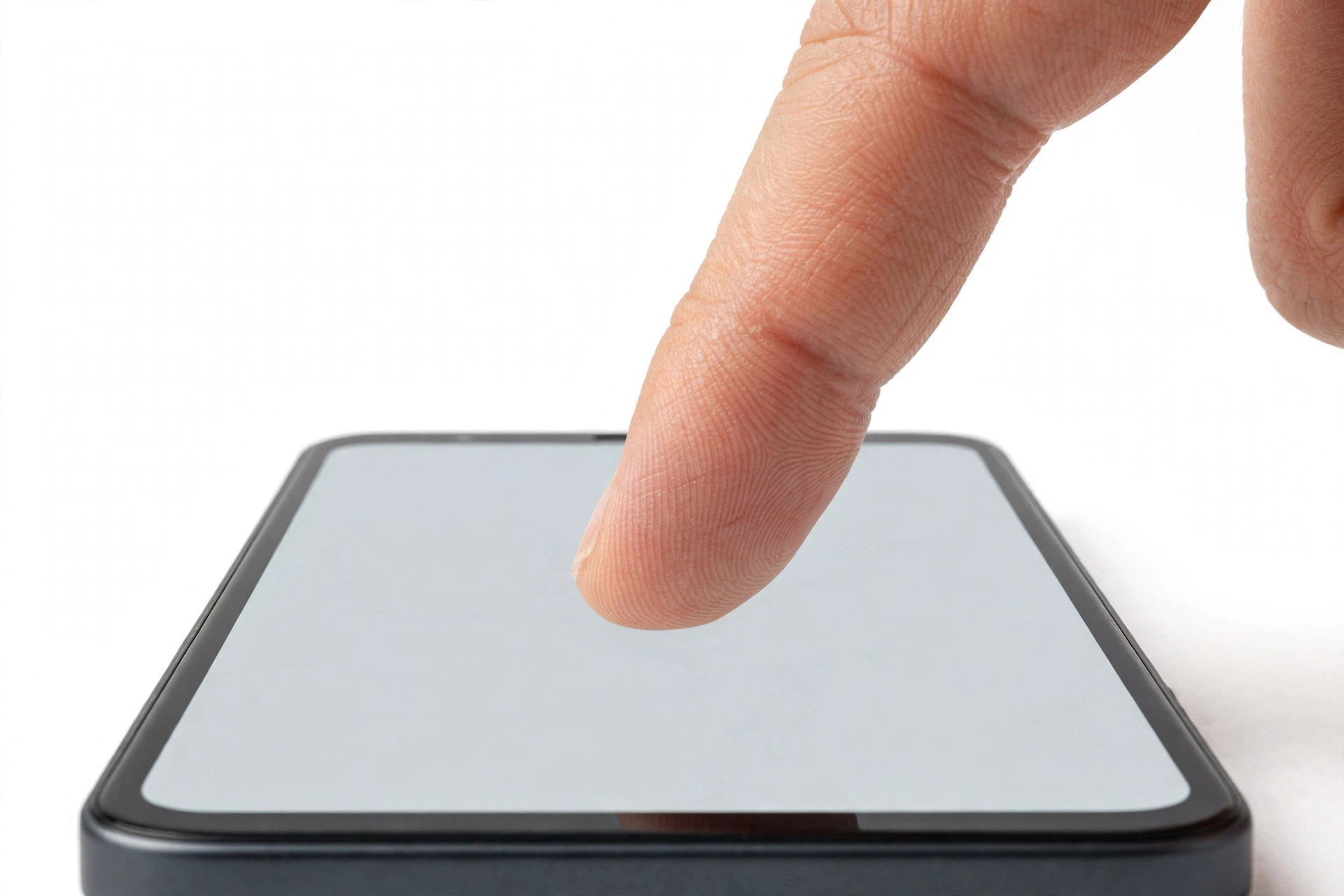
This guide is for you if your phone’s screen still displays content — you can see your lock screen, apps, and notifications — but taps, swipes, and gestures do nothing, and the problem started immediately after installing a software update (iOS, One UI, or another Android update). It covers iPhone and Samsung Galaxy primarily, with a shorter path for other Android phones. (Source: manuals.plus)
A scope note matters here, because several related problems look similar but are not this one. This guide is not about:
- A frozen phone after an update — where the whole system is locked up. If your screen is stuck on one image and nothing responds at all, see our guide to phone screen unresponsive after update first.
- Touch that works sometimes — zones that miss taps or ghost-tap on their own. That is the domain of touch screen works intermittently.
- Visual glitches after an update — flickering, lines, or pulsing brightness. That is covered in phone screen flickering after update.
This article is specifically about complete touch failure with a working display, appearing right after an update. The display lights up and shows content normally; the digitizer — the transparent touch-sensing layer laminated to the display — simply stops reporting your finger.
Quick fact: A modern phone screen is really two devices stacked together: the display (which draws the picture) and the digitizer (which detects touch). They share glass and a ribbon cable, but they fail independently. An update can disrupt the digitizer’s software drivers without touching the display at all — which is exactly why your screen can look perfect while ignoring every tap.
2. The five post-update mechanisms that kill touch
Understanding why an update can kill touch keeps you from wasting time on fixes aimed at the wrong cause. Apple and Samsung both document touch troubleshooting, but neither says updates commonly destroy touch hardware — because they do not. What an update can do is change the software conditions around the digitizer. The five mechanisms, in rough order of likelihood:
| Mechanism | How it shows up | First fix to try |
|---|---|---|
| 1. Frozen touch process | Touch dies mid-update or on first boot after; display fine | Force restart using only buttons (Section 6 or 7) |
| 2. Silently reset settings | Touch feels dead or erratic; accessibility or sensitivity settings changed on their own | Check Touch sensitivity (Samsung) and accessibility settings (iPhone); remove screen protector |
| 3. Corrupted settings migration | Touch dead after a major version jump (e.g., a full-number OS update); other quirks too | Reset All Settings (non-destructive); if still dead, computer-based reinstall |
| 4. Incompatible app or profile | Touch works in some apps but not others, or dies after launching a specific app | Safe Mode test (Android); delete or update the suspect app |
| 5. Hardware failure revealed by the update | Touch was marginal before (occasional dead zones, ghost taps); the update’s recalibration or thermal stress finished it off | Professional assessment — no software fix will hold |
Mechanism 5 deserves emphasis because it is the one people misunderstand most. An update does not physically damage the digitizer. But the update process heats the phone, recalibrates sensors, and rewrites driver tables — and a digitizer already on the edge of failure (micro-cracks in the touch layer, a loosened connector from an old drop, moisture under the glass) can be pushed over the edge. The update gets blamed because it is visible; the damage was already there. Section 10 shows how to tell which mechanism you are dealing with.
Hypothetical example: (The following is a hypothetical illustration, not a customer story.) Maya installs a One UI update on her Galaxy phone overnight. In the morning, the screen lights up normally but ignores every tap. Convinced the update “broke her phone,” she is about to factory-reset it — until she removes her two-year-old tempered-glass protector as a test step and touch instantly returns. The update had recalibrated touch sensitivity just enough that her aging, poorly adhered protector crossed the line. A new Samsung-approved protector, with the touch-sensitivity toggle on, and the problem never returns.
3. Two-minute triage: is your touch really dead?
Before fixing anything, establish what exactly is broken. This takes two minutes and prevents the commonest mistake — resetting the whole phone when a single accessory was the problem.
Test A: the lock-screen test
On the lock screen, try swiping. Then try pressing a physical button (volume or power). If the display responds to buttons but ignores every swipe and tap across the full screen, touch input is dead at the system level. If some areas respond and others do not, you have a partial digitizer failure — closer to intermittent touch territory than this guide’s complete-failure frame.
Test B: the accessory strip-down
Samsung’s official touch troubleshooting puts accessories first for a reason: unapproved screen protectors, magnetic cases, and faulty chargers are among the commonest causes of dead or erratic touch. Remove the case and the screen protector entirely, unplug any cable or accessory, dry the screen with a microfiber cloth, and test again with clean, dry hands. Gloves and wet fingers do not register on capacitive screens — this is physics, not a fault.
Test C: the app isolation test (if any touch works)
If touch works in Settings but dies in one app, the app — not the update — is the problem. Update or reinstall that app. If touch is dead everywhere including Settings, continue to the platform paths below.
Tip: On Samsung phones, TalkBack can mimic dead touch: with TalkBack enabled, the phone only responds to specific gestures (double-tap to activate, two-finger scroll). Updates have been known to flip accessibility settings. If your phone seems to ignore normal taps but reacts to double-taps or speaks aloud, check Settings > Accessibility > TalkBack before anything else.
4. Symptom worksheet: match what you see, then fix
Find the row that matches your symptoms. Work the rows in order — the first matching row is usually the right one.
| What you observe | Likely cause | Do this |
|---|---|---|
| Display fine, zero touch response anywhere, started on first boot after update | Frozen touch process or corrupted driver load | Button-only force restart (Sections 6–7) |
| Touch dead, but double-taps work and the phone speaks | TalkBack (Android) or VoiceOver (iPhone) enabled by the update | Disable in Accessibility settings |
| Touch dead with a third-party screen protector on; works with it removed | Protector interference, possibly worsened by recalibrated sensitivity | Use a manufacturer-approved protector; enable Touch sensitivity (Samsung) |
| Touch dead only while charging | Faulty charger or cable injecting electrical noise | Unplug; test with a different certified charger |
| Touch dead in one app, fine elsewhere | Incompatible app | Update, reinstall, or remove the app |
| Touch died after update but was glitchy before it | Pre-existing digitizer damage finished off by the update | Professional assessment; see Section 11 |
| Touch dead after update plus other oddities (Wi-Fi drops, battery drain) | Corrupted settings migration | Reset All Settings; then computer-based reinstall |
| Touch dead in a fixed zone (e.g., top third) after update | Digitizer hardware fault (zone failures are almost never software) | Professional assessment |
| Touch dead with visible cracks or recent drop/liquid exposure | Physical damage | Professional assessment; do not keep using a cracked screen over the battery |
| Touch works after force restart, then dies again hours later | Recurring software fault or failing digitizer | Update to the next point release; if it recurs, professional diagnosis |
5. What the manufacturers officially say
Both Apple and Samsung publish touch-screen troubleshooting, and their steps agree on the fundamentals. Summarized in our own words:
Apple’s guidance (support article on iPhone/iPad screens not responding) says: restart the device; make sure the screen is clean and free of debris or water; disconnect any Lightning or USB-C accessories and test again (trying a different outlet, cable, or charger if the screen works after removal); remove any cases or screen protectors. If the screen still does not work, Apple says the device may need service and to contact Apple Support.
Samsung’s guidance says: remove screen protectors and accessories; clean the screen and dry any moisture; do not tap with sharp objects and keep hands clean and dry; enable the touch sensitivity feature under Settings > Display; check that TalkBack is off under Accessibility; avoid magnetic accessories and non-approved covers; and use the Samsung Members app (Support > Phone diagnostics > Touch screen) to run a touch test where you fill every empty area of the screen. If the screen is cracked or completely unresponsive after all of that, Samsung advises professional repair.
Neither manufacturer lists “software update broke my digitizer” as a common cause — which aligns with this guide’s framing: updates trigger software-side failures that are fixable, or reveal hardware that was already failing.
6. iPhone: the ordered fix path (no touch required)
Work these in order. Each step is safe and reversible until noted otherwise.
Step 1 — Force restart with buttons only
This is the single most effective fix for post-update touch death, and it needs no touch input. On iPhone 8 and later: press and quickly release Volume Up, press and quickly release Volume Down, then press and hold the Side button until the Apple logo appears (Apple notes the final hold can take longer than 10 seconds — do not release early). On iPhone 7: hold Volume Down and Sleep/Wake together. On iPhone 6s and earlier: hold Home and Sleep/Wake together. This restarts the touch driver process from scratch.
Step 2 — Strip accessories
Remove the case and screen protector. Unplug every cable and accessory. Clean the screen with a dry microfiber cloth. Test touch with clean, dry hands. Apple’s own guidance lists this before anything more invasive — and a protector that worked fine for a year can start interfering after an update changes touch sensitivity behavior.
Step 3 — Check for VoiceOver and AssistiveTouch
If you cannot use the screen at all, ask Siri: “Turn off VoiceOver.” If taps seem to need double-tapping, VoiceOver (or a stuck AssistiveTouch menu) may be intercepting input. Also try Siri’s “Open Software Update” to check whether a newer iOS point release exists — Apple frequently ships touch-driver fixes in the weeks after a major release.
Step 4 — Update or reinstall iOS from a computer
If the phone’s screen is too unresponsive to navigate Settings, connect it to a Mac or PC and use Finder/iTunes to check for updates or reinstall iOS. Choose “Update” (not Restore) first — it reinstalls the operating system, including touch drivers, without erasing your data. This is the heaviest software fix available and resolves corrupted driver loads from a bad update.
Stop for safety: A full Restore (factory reset via computer) erases everything on the iPhone. Only do this after a current backup exists — iCloud backup or a computer backup. If touch is dead, you may still be able to back up: plug into the computer you normally sync with and back up from there. Never factory-reset a phone you cannot back up unless you accept losing its data.
Step 5 — Reset All Settings (non-destructive)
If you can reach Settings (even with difficulty, or via Siri), go to General > Transfer or Reset iPhone > Reset > Reset All Settings. This clears corrupted preference files — including touch and accessibility settings the update may have mangled — without deleting your photos, apps, or data. You will need to re-enter Wi-Fi passwords afterward.
7. Samsung Galaxy: the ordered fix path
Step 1 — Force restart with buttons
Press and hold Volume Down and the Power button together for about 10–15 seconds until the phone restarts. No touch needed. This clears frozen touch processes exactly as on iPhone.
Step 2 — Strip accessories and dry the screen
Remove the case and screen protector. Unplug all cables. Wipe the screen dry with a microfiber cloth. Test with clean, dry hands. Samsung specifically warns that unapproved protectors may not fully adhere and can cause touch issues — and moisture is a documented touch-killer.
Step 3 — Enable touch sensitivity
If you use a screen protector (a Samsung-approved one), go to Settings > Display > Touch sensitivity and turn it on. Updates can reset this toggle — so check it even if you are sure it was on before. This single toggle resolves a large share of “touch died after update” reports on Galaxy phones.
Step 4 — Check TalkBack and magnetic interference
Go to Settings > Accessibility > TalkBack and make sure it is off. Remove any magnetic case, wallet cover, or magnetic accessories — Samsung documents that magnets interfere with touch and S Pen recognition. Try a Samsung-approved cover if you use one.
Step 5 — Run the Samsung Members touch diagnostic
Open the Samsung Members app > Support > Phone diagnostics > Touch screen. The test asks you to touch every empty area of the screen; unfilled areas indicate dead digitizer zones. If the diagnostic itself shows dead zones that a force restart did not clear, you are likely looking at hardware, not software.
Step 6 — Safe Mode test
Boot into Safe Mode (press and hold Power, then touch and hold “Power off” until “Safe mode” appears — if touch is too dead for this, use the button-only method for your model). In Safe Mode, third-party apps are disabled. If touch works in Safe Mode, a third-party app is interfering — remove recently updated apps one by one, starting with screen-overlay, launcher, and accessibility-service apps.
Step 7 — Software update, then reset
Check Settings > Software update > Download and install for a newer release. If none exists and touch is still dead, Reset all settings (Settings > General management > Reset > Reset all settings) — non-destructive. Factory reset is the absolute last resort, only with a verified backup; Samsung’s own guidance treats persistent complete unresponsiveness as a repair matter rather than a keep-resetting matter.
8. Other Android phones: the short path
For Google Pixel, Motorola, OnePlus, and others, the same principles apply with brand-specific menus:
- Force restart: hold Power for 20–30 seconds (Pixel: hold Power + Volume Up for ~10 seconds on newer models). No touch needed.
- Strip accessories: remove case, protector, cables; dry and clean the screen.
- Accessibility check: TalkBack or similar screen readers can mimic dead touch after an update flips them on.
- Safe Mode: disables third-party apps; if touch returns, an app is the culprit.
- Update check: a point release may carry the driver fix.
- Reset all settings before ever considering factory reset — and back up before a factory reset, always.
9. The accessory trap: protectors, cases, and chargers
This section exists because accessories cause more “dead touch after update” cases than most people expect — and because the update is usually innocent.
Screen protectors. A protector adds distance between your finger and the capacitive sensor. Most of the time the phone compensates. But an update can change the touch sensitivity calibration just enough that a marginal protector — too thick, poorly adhered, air bubbles at the edges — crosses the line from “working” to “dead.” Samsung’s touch-sensitivity toggle exists precisely for this. If removing the protector restores touch, the phone is fine; replace the protector with a manufacturer-approved one rather than assuming the update damaged anything.
Cases and magnets. Magnetic wallet cases and mounts can interfere with the digitizer and, on Samsung phones, with S Pen recognition. Remove the case as a test step, not as an afterthought.
Chargers and cables. A failing charger can inject electrical noise that overwhelms the touch sensor — touch works on battery but dies the moment you plug in. Apple’s guidance explicitly includes disconnecting accessories and trying different outlets and cables. Test touch both plugged in and unplugged; if the difference is consistent, replace the charger with a certified one and stop blaming the update.
Quick fact: Capacitive touch screens detect the tiny electrical charge of your finger. Anything that changes the electrical environment — moisture on the glass, a thick protector, noise from a bad charger, gloves — changes what the sensor sees. An update can only change the software’s interpretation of that signal, not the signal itself. That is why accessory checks come before software resets in every manufacturer’s guidance.
10. What your checks can and cannot establish
Honesty about diagnostic limits is what separates a useful guide from a misleading one. Use this table to avoid drawing conclusions your tests cannot support.
| Observation | What it establishes | What it does NOT establish |
|---|---|---|
| Force restart restores touch | The cause was software (frozen process or driver) | That it will not recur — watch for repeats |
| Touch works with the protector removed | The protector was interfering | That the update damaged anything |
| Touch works in Safe Mode | A third-party app is interfering | Which app, without further testing |
| Touch dead in a fixed zone after all software steps | Strong evidence of digitizer hardware failure | The exact failed component — that needs professional diagnosis |
| Touch dead everywhere after a computer-based OS reinstall | Very strong evidence of hardware failure | Whether the update “caused” it — coincidence is not causation |
| Touch died right after the update | Timing correlation | Causation — pre-existing damage is the commonest confounder |
The last row is the one people resist. “It worked before the update” feels like proof. It is not. Digitizers fail progressively: first occasional missed taps (often dismissed), then dead zones, then full failure. An update’s reboot, heat, and recalibration can coincide with the final stage. The tests above — not the timing — are what distinguish software from hardware.
11. When to stop troubleshooting
Stop and seek professional assessment if any of these are true:
- Touch is dead in fixed zones or everywhere after a force restart, accessory strip-down, and (where possible) a computer-based OS reinstall.
- The Samsung Members touch diagnostic shows unfillable dead areas.
- There are visible cracks, the screen is lifting, or there was a recent drop or liquid exposure — especially if the screen area over the battery feels warm or the glass is separating. Power the phone down and do not keep using it.
- Touch worked before the update but was already glitchy (missed taps, ghost touches). The update likely finished off failing hardware.
- You have repeated the full software path twice with the same result. Repeating it a third time will not change the outcome.
Hypothetical example: (The following is a hypothetical illustration, not a customer story.) Daniel’s iPhone had been missing the occasional tap near the top of the screen for months — he assumed it was a software quirk. After installing a major iOS update, the entire top third of the screen goes dead to touch. A force restart changes nothing, and a computer-based iOS reinstall does not help either. The update did not cause the failure; the digitizer had been deteriorating for months, and the update’s reboot and recalibration coincided with its final stage. He stops troubleshooting and books a professional display-assembly assessment instead of erasing his phone for no benefit.
Stop for safety: Never attempt to open the phone, reseat the display connector, or apply heat to “fix” the digitizer yourself. The battery sits directly beneath the display assembly; puncturing or bending it can cause fire. Digitizer and display-connector work requires proper tools, ESD protection, and a controlled environment — this is professional-repair territory, full stop.
If you are in the Las Vegas area and the software steps above did not restore touch, Las Vegas Phone Repair & Accessories (7400 Las Vegas Blvd S, Unit TT42, Las Vegas, NV 89123; (424) 406-6202; open 10:00 AM–8:00 PM — please call ahead to confirm today’s hours) can assess whether the issue is the digitizer, the display assembly, or the connector. Bring the phone powered off if the screen is cracked or separating.
12. Questions to ask before approving service
If a shop recommends a screen replacement for touch failure, ask these before approving:
- Did you rule out software first? A reputable shop will force-restart and test before quoting hardware.
- Is the quote for the full display assembly or the digitizer alone? On most modern phones the digitizer is laminated to the display — they are replaced as one assembly. Be wary of anyone promising a digitizer-only fix on a laminated screen.
- What parts quality are you using, and how does that affect touch calibration? Low-quality aftermarket assemblies are a known source of ongoing touch issues. Ask what the part is, not just the price.
- Will my data be affected? A screen replacement should not touch your data — but confirm the shop’s policy, and back up first if you can.
- What warranty covers the repair, and does it cover touch functionality specifically? Get the terms in writing.
- Is there a diagnostic fee, and is it applied to the repair if I proceed? Know the cost of “just looking” before you hand over the phone.
Never invent or assume pricing, warranty periods, or turnaround times from this guide — those vary by shop, part, and model. Confirm them directly with whichever shop you choose.
13. Repair, replacement, or manufacturer support
Three paths exist once software is ruled out. Which is right depends on your phone’s age, warranty status, and the cost of the assembly.
- Manufacturer service (Apple / Samsung). If the phone is under warranty or AppleCare+/Samsung Care+, manufacturer service is usually the best value — genuine parts and warranty-preserving. Apple’s guidance ends at “contact Apple Support” for persistent touch failure; Samsung’s ends at professional repair. Out-of-warranty manufacturer screen pricing is typically the highest option but carries the strongest parts guarantee.
- Independent repair shop. Often faster and less expensive. The key questions are parts quality (Section 12) and the warranty on the work. For touch issues specifically, ask whether the shop tests full multi-touch after the replacement.
- Replacement phone. If the phone is several generations old and the display assembly costs a large fraction of a replacement device, putting the money toward a newer phone may be the rational choice — especially if the battery is also degraded.
One caution: do not pay for a screen replacement on the theory that “the update broke it, so any new screen will fix it.” If the actual fault is a logic-board touch controller issue (rare, but real), a new screen will not help. A proper diagnosis distinguishes assembly failure from board failure before parts are ordered.
14. Preventing it next time
- Back up before every major update. iCloud or computer backup on iPhone; Samsung Cloud/Google backup on Galaxy. A backup does not prevent touch failure, but it converts a factory reset from a catastrophe into an inconvenience.
- Use manufacturer-approved screen protectors. They are tested against the phone’s touch calibration; bargain protectors are the commonest accessory cause of touch complaints.
- Keep the phone cool during updates. Install updates with the phone on a hard, cool surface, unplugged or on a certified charger, and do not use it heavily while the update applies. Heat is the enemy of every component involved.
- Do not ignore early warnings. Occasional missed taps or ghost touches before an update are the digitizer telling you it is failing. Get it assessed before the next update finishes the job.
- Install point releases promptly. If a major update introduces a touch bug, the fix usually arrives in the next point release within weeks. Check for updates rather than assuming the problem is permanent.
15. Frequently asked questions
Can a software update permanently damage my touch screen?
No — a software update cannot physically damage the digitizer hardware. What an update can do is trigger software-side failures (frozen touch processes, corrupted settings, flipped accessibility toggles) or coincide with the final failure of already-damaged hardware. If a computer-based OS reinstall does not restore touch, the hardware was failing regardless of the update.
Why does my touch screen work in some apps but not others after an update?
That pattern points to an incompatible app rather than a system-wide touch failure. Update the affected app first; if the problem persists, reinstall it. On Android, booting into Safe Mode confirms the diagnosis — if touch works normally in Safe Mode, a third-party app is interfering.
My iPhone touch died after updating — will Apple fix it free?
That depends on your warranty and AppleCare+ status, and on the diagnosed cause. If Apple determines the failure is a manufacturing defect covered by warranty, repair may be covered; accidental damage is not. We cannot state Apple’s current pricing or coverage terms here — check Apple’s support site or contact Apple Support with your serial number for your specific situation.
Should I remove my screen protector?
Yes — as a test step, always. Remove it completely (not just lift a corner), clean the screen, and test. If touch returns, the protector was the problem; replace it with a manufacturer-approved one. This single step resolves a surprising share of post-update touch complaints.
Is factory reset the fix for dead touch after an update?
It is the last software resort, not the first. Work through force restart, accessory removal, settings checks, Safe Mode, and a computer-based OS update/reinstall first. A factory reset erases everything — only do it with a verified backup, and understand that if touch is a hardware failure, the reset will not help and will cost you setup time.
Why does touch only fail while my phone is charging?
A faulty charger or cable can inject electrical noise that overwhelms the capacitive touch sensor. Unplug and test on battery; try a different certified charger and cable. If touch works on battery but dies when plugged in, replace the charger — the update is not the cause.
How do I restart my phone if the touch screen does not work at all?
Use the button-only force restart: on iPhone 8 and later, press Volume Up, then Volume Down, then hold the Side button until the Apple logo appears; on Samsung, hold Volume Down + Power for 10–15 seconds. Neither requires any touch input.
The update finished and now half my screen does not respond to touch. Is that software?
Almost certainly not. Zone-specific touch failure — a fixed dead area while the rest works — is a classic digitizer hardware symptom. Software failures tend to kill touch everywhere or nowhere. Get a professional assessment rather than repeating software resets.
Video: How to tell if your smartphone is fake or real

Sources and editorial notes
- Apple Support: If the screen isn’t working on your iPhone or iPad — restart the device; keep the screen clean and free of debris or water; disconnect Lightning/USB-C accessories and retry; remove cases and screen protectors; contact Apple Support if the screen still does not work.
- Samsung Support: What to do if the touch screen is not working properly — remove protectors and accessories; clean and dry the screen; enable touch sensitivity under Display settings; disable TalkBack under Accessibility; avoid magnetic accessories; use Samsung-approved covers.
- Samsung Support: Touch screen sensitivity fixes — step-by-step touch sensitivity restoration, software update check, and guidance on when professional repair is needed for cracked or fully unresponsive screens.
- Samsung Support: Fixing Galaxy device display issues — Samsung Members app touch-screen diagnostic procedure (Support > Phone diagnostics > Touch screen).
- TechMyMoney: iOS freeze bug and force-restart procedure — documents Apple’s button-only force-restart sequence (Volume Up, Volume Down, hold Side button) as the recovery path when touch is unusable.
- AppleHeadlines: iPhone touch screen troubleshooting — independent guide consistent with Apple’s official steps; notes that sudden touch failure without physical damage is most often software-related.
Last source check: October 14, 2026. AI-assisted editorial guide, checked against the linked manufacturer information. Manufacturer procedures are summarized in our own words; menu paths and steps reflect the manufacturers’ published guidance as of the check date and may vary slightly by model and software version. This guide does not replace professional diagnosis for suspected hardware failure.
Let’s get you connected again.
Tell us what’s happening with your device and we’ll help you decide the safest next step — no jargon, no pressure.
Las Vegas Phone Repair & Accessories · 7400 Las Vegas Blvd S, Unit TT42, Las Vegas, NV 89123
10:00 AM–8:00 PM — call ahead to confirm today’s hours