
Phone Screen Flickering After Update: Causes and Safe Fixes
Screen flickering that starts right after a software update is almost always a software problem, not a broken display. Work through the ordered checks below — restart, display settings, Safe Mode, and the next point-release update — before assuming the screen needs professional repair.
On this page
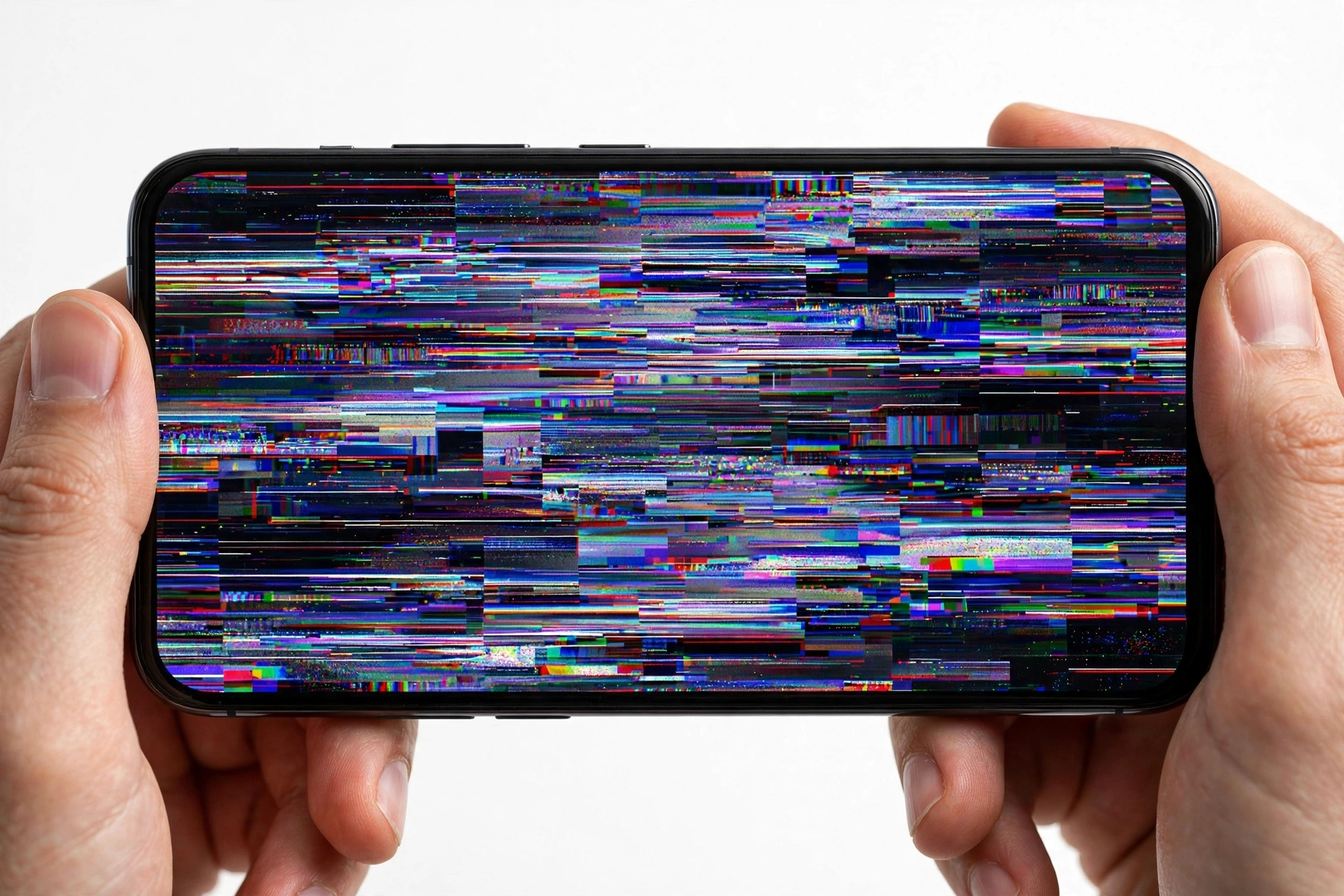
Screen flickering that starts right after a software update is almost always a software problem, not a broken display.
1. Who this guide helps
This guide is for you if your phone’s screen began flickering, flashing, pulsing, or showing brief brightness wobbles shortly after installing a software update — a major OS upgrade (iOS, Android, or One UI), a monthly security patch, or even a single app update. If the flickering appeared out of nowhere with no update involved, or it started after a drop or water exposure, the general troubleshooting guides will serve you better: (Source: samsung.com)
- Samsung Galaxy screen flickering: checks and fixes — the general Samsung display guide
- iPhone screen flickering: causes and fixes — the general iPhone display guide
- Phone microphone not working after update — the companion update-specific guide for audio
Quick fact: Update-related flickering is one of the most commonly reported post-update display complaints across both iPhone and Samsung forums. In most cases the hardware is fine — a display setting got reset, an app became incompatible, or a rendering bug shipped in the new build and gets fixed in the next point release.
2. Why an update can make the screen flicker
A software update touches the exact layers that drive your display. Understanding which layer changed helps you pick the right fix instead of guessing. Here are the realistic mechanisms:
The display pipeline gets a new driver
Every OS update includes updated drivers for the GPU and display controller. If the new driver handles brightness curves, refresh-rate switching, or color calibration slightly differently, the panel can visibly flicker — especially at low brightness where OLED panels are most sensitive. Samsung’s own support documentation notes that outdated software or interrupted updates may trigger display issues, and that updates can also resolve them.
Settings get silently reset
Updates sometimes reset display-related preferences: adaptive brightness retrains from scratch, Eye Comfort Shield or Night Shift schedules change, motion smoothness flips between 60Hz and adaptive, True Tone recalibrates. A flicker that appears “after the update” may really be a setting you had carefully tuned months ago reverting to a default.
An app becomes incompatible
Screen-filter apps, custom launchers, blue-light overlays, wallpaper engines, and some third-party camera apps hook into the display pipeline. When the OS changes underneath them, they can misbehave — drawing conflicting brightness commands or fighting the system’s own adaptive features. Samsung specifically recommends Safe Mode testing to isolate app conflicts, and reports that a poorly optimized or incompatible third-party app is one of the most common causes of screen flickering.
Temporary files and caches corrupt mid-update
If an update installs over a warm cache or gets interrupted, temporary system files can end up in an inconsistent state. The display still works, but rendering stutters or pulses until the cache is rebuilt. A plain restart often clears this; Samsung additionally documents clearing the cache partition as a fix for software-related display issues.
Beta builds and early releases
Beta and early-release builds are, by definition, unfinished. Display glitches — including flicker — are among the most common beta complaints. If you are running a beta, the most honest first step is to check whether the flicker is a known issue in the release notes, and consider whether you want to stay on the beta at all.
Quick fact: A new update can also introduce a display bug it didn’t have before. Independent reporting on Samsung updates notes that while One UI patches usually fix bugs, a new release can occasionally introduce display-related issues — and that Samsung typically addresses update-related display bugs in a follow-up patch within a few weeks. Patience plus the checks below is a legitimate strategy.
3. The 5-minute first response
Before changing anything, do these four things in order. They take about five minutes total and resolve a large share of post-update flicker.
Step 1: Restart the phone
A restart clears the transient glitches that updates leave behind — half-loaded display services, stuck brightness commands, frozen rendering processes. On iPhone: press and hold the Side button and either Volume button until the power-off slider appears, drag it, wait about 30 seconds, then hold the Side button until the Apple logo appears. On Samsung: press and hold the Power button, tap Power off (or Restart), then power back on. Test the screen for a few minutes afterward.
Step 2: Note exactly when the flicker started
Was it immediately after the update finished installing, or hours/days later? Immediate onset points strongly at the update itself (driver, settings reset, or a bug). Delayed onset points more at an app that updated afterward, or a coincidence with hardware. Write this down — it is the single most useful fact if you end up asking for help.
Step 3: Check for a newer update
Counterintuitive, but effective: if a buggy release caused the flicker, the fix is often already waiting. On iPhone: Settings > General > Software Update. On Samsung: Settings > Software update > Download and install. Apple and Samsung both document checking for software updates as part of display troubleshooting, because patches routinely include display-stability fixes.
Step 4: Observe the pattern for two minutes
Watch the screen deliberately and note: Does it flicker at all brightness levels or only low brightness? Only in certain apps or everywhere? Only while charging? Does tilting the phone or pressing gently near the edges change it? (Do not press hard.) These observations feed directly into the diagnosis table in section 7.
Stop for safety: If the flicker is accompanied by a swollen back panel, a screen lifting away from the frame, a burning smell, or the phone becoming dangerously hot, stop troubleshooting immediately. Those are battery or hardware danger signs, not software quirks. Power the phone down and have it assessed — never continue using a device with a suspected swollen battery.
4. iPhone: ordered fixes after an update
Work through these in order. Check after each step whether the flicker is gone before moving on.
Force restart
If a normal restart didn’t help, a force restart goes deeper — it cuts power to the system without erasing anything. Quickly press and release Volume Up, quickly press and release Volume Down, then press and hold the Side button until the Apple logo appears. This is Apple’s documented procedure for a frozen or misbehaving iPhone and is safe to repeat.
Temporarily disable adaptive display features
Post-update flicker often traces to the automatic brightness and color systems. Temporarily turn off each one to see if the flicker stops:
- Auto-Brightness: Settings > Accessibility > Display & Text Size > Auto-Brightness. Apple confirms this feature automatically adjusts brightness, and independent troubleshooting guides report that toggling it off and back on has resolved post-update flicker for some users.
- True Tone and Night Shift: Settings > Display & Brightness. Both adjust color and brightness automatically; disabling them temporarily helps isolate whether one is driving the flicker.
- Display Pulse Smoothing: On supported models, Settings > Accessibility > Display & Text Size. If flickering is most noticeable at low brightness, enabling this can help — it exists specifically to smooth low-brightness pulsing on OLED iPhones.
If disabling one of these stops the flicker, you have found your culprit. You can leave it off, or re-enable it after the next iOS point release and see whether the bug was fixed.
Update your apps
An app built against the old iOS can glitch against the new one — especially screen-filter, launcher-replacement, and video apps. Open the App Store, tap your profile, and install all pending updates. If the flicker happens only in one app, delete and reinstall that app (its data may be affected, so check whether it syncs to the cloud first).
Install the next iOS point release
Apple ships point releases (for example, 26.x.1) specifically to fix bugs from the major release. Community reports after recent iOS updates show Apple fixing some display-adjacent bugs in follow-up releases while others remain known issues. Keep Settings > General > Software Update checked for a week or two after a major update.
Reset All Settings (not Erase)
If nothing else works, Settings > General > Transfer or Reset iPhone > Reset > Reset All Settings restores every system preference — display, brightness, accessibility, network — to defaults without deleting your photos, apps, or data. You will need to re-enter Wi-Fi passwords and re-pair Bluetooth devices, so note those down first.
Stop for safety: Do not confuse Reset All Settings with Erase All Content and Settings. The first keeps your data; the second wipes the phone completely. Erase is a last resort and only after a verified backup (iCloud or computer). Never erase a phone to fix a display quirk without a backup you have actually confirmed.
5. Samsung: ordered fixes after an update
Samsung’s own support flow for a flickering Galaxy screen recommends, in essence: check for damage, restart, Safe Mode, adjust brightness settings, update software, clear cache. Here is that logic expanded for the post-update case.
Restart, then check for the next update
Restart first. Then Settings > Software update > Download and install. Samsung regularly ships One UI patches that address known display issues, and update-caused flicker is frequently fixed in the next release.
Turn off Adaptive brightness
Go to Settings > Display and toggle off Adaptive brightness, then set brightness manually. Samsung documents that adaptive brightness and display refresh-rate settings may contribute to flickering. Post-update, the adaptive system retrains from zero and can behave erratically for a day or two — turning it off temporarily is a valid diagnostic.
Toggle Motion smoothness
Settings > Display > Motion smoothness. Try switching between Standard (60Hz) and Adaptive. If the update changed how the phone switches refresh rates, locking it to one mode can stop the flicker. Independent guides list this among the first settings to try.
Turn off Eye Comfort Shield temporarily
Eye Comfort Shield reduces blue light, but after One UI updates it has been reported to cause display artifacts including flickering. Disable it via the Quick Settings tile or Settings > Display > Eye Comfort Shield, and test for about 30 minutes. If the flicker stops, the feature was conflicting with the display — you can re-enable it later on a schedule or after the next patch.
Boot into Safe Mode
Press and hold the Power button, then long-press the Power off option until the Safe Mode prompt appears, and tap Safe Mode. The phone restarts with third-party apps disabled. Use it for 15–20 minutes and watch the screen. This is the single most informative test on Samsung — see section 6 for how to read the result.
Clear the cache partition
This removes temporary system files that can interfere with display performance after an update. The exact steps vary by model (older models: power off, then hold Volume Up + Power; newer models may require connecting to a computer first), so check your model’s support page. It does not delete personal data.
Factory reset — genuinely last resort
Only if Safe Mode and everything above point to software, and the flicker survives all of it: back up with Smart Switch (and confirm the backup), then factory reset. If the flicker survives a factory reset, it is almost certainly hardware.
6. The Safe Mode test: what it proves
Safe Mode loads the phone with only essential system apps. Because it cleanly separates “the OS itself” from “everything you installed,” its result is the most diagnostic single observation you can make.
| What you observe | What it most likely means | Next step |
|---|---|---|
| Flickering stops in Safe Mode | A third-party app is causing it — very often one updated around the same time as the OS | Restart normally, then uninstall recently added or updated apps one by one (screen filters, launchers, and wallpaper apps first) |
| Flickering continues in Safe Mode | The cause is in the system software or the hardware | Continue with the OS-level fixes (settings, cache, next update); if those fail, suspect hardware |
| Flickering only in one app, even in normal mode | That app’s rendering is incompatible with the new OS | Update or reinstall that app; check the developer’s notes for the new OS version |
| Flickering appears in Recovery Mode or at the boot logo | Hardware — the OS hasn’t fully loaded, so software can’t be the cause | Stop troubleshooting software; arrange a professional assessment |
Quick fact: On iPhone there is no Safe Mode, but the equivalent test is simpler: if the flicker happens on the Home Screen and in Apple’s own apps (Settings, Safari), it’s system-level. If it happens only inside one third-party app, it’s that app. Same logic, different method.
7. Symptom worksheet: match what you see
| Symptom | Likely cause | Try first |
|---|---|---|
| Whole screen flickers at low brightness only | OLED brightness-curve behavior or adaptive brightness retraining after the update | Raise brightness above ~40%; toggle adaptive/auto-brightness off and on |
| Flicker started the moment the update finished | New display driver or a settings reset in the update | Restart; check the display settings the update may have changed (section 8) |
| Flicker only in one app | App incompatible with the new OS version | Update the app; if no update exists, reinstall it or wait for the developer |
| Flicker stops in Safe Mode (Samsung) | Third-party app conflict | Uninstall recently added/updated apps one by one |
| Brightness “breathes” up and down on its own | Adaptive brightness sensor loop, often right after an update resets its training | Turn adaptive brightness off for 24 hours, then re-enable |
| Flicker while charging only | Power-delivery interference or a charger issue surfaced by new power management | Try a different certified charger and cable; test without the case |
| Green, pink, or white lines plus flicker | Display panel or connector fault — not something an update causes on its own | Stop software troubleshooting; arrange a professional assessment |
| Flicker persists after factory reset | Hardware fault confirmed as far as software can tell | Professional diagnosis of display assembly and connectors |
8. Update-reset settings to re-check
Because updates silently revert preferences, run down this checklist even if you “never changed” these settings — the update may have changed them for you:
- iPhone: Auto-Brightness, True Tone, Night Shift schedule, Display Zoom, Reduce White Point, Always On Display settings.
- Samsung: Adaptive brightness, Motion smoothness (Standard vs. Adaptive), Eye Comfort Shield schedule, Screen mode (Vivid/Natural), Edge lighting effects.
- Both: Any screen-filter, blue-light, or “night mode” third-party app — check whether it needs an update for the new OS, and try disabling it for a day.
Tip: Take screenshots of your display settings before installing a major update. If the update resets something, you’ll know exactly what changed instead of hunting through menus.
9. An honest note about low-brightness “flicker”
Some perceived flicker at low brightness is not a defect at all. Samsung OLED panels control low brightness with pulse-width modulation (PWM) — rapidly switching the pixels on and off — and a small percentage of people can perceive this as flicker or pulsing. Independent display reporting notes this is a characteristic of the technology, not a fault, and it won’t worsen over time. If your “flicker” only appears below ~30% brightness, bothers no one else who looks at the phone, and every diagnostic passes, keeping brightness a bit higher or enabling the manufacturer’s comfort features is the practical answer — not a repair.
That said, new flicker that started with the update and is visible at normal brightness deserves the full troubleshooting above. Don’t let the PWM explanation talk you out of investigating a genuine regression.
10. What your observations can and cannot establish
| Observation | What it can establish | What it cannot establish |
|---|---|---|
| Flicker began right after the update | A strong timing correlation with the update | That the update damaged anything — correlation is not proof of hardware harm |
| Flicker stops in Safe Mode | A third-party app is involved | Which app, without systematic uninstalling |
| Flicker continues after factory reset | Software is very unlikely to be the cause | Which hardware part failed — that needs hands-on diagnosis |
| Many users report the same flicker on the same update | A widespread software bug is likely, and a patch will probably fix it | That your specific phone has no additional problem |
| No flicker at high brightness | The issue is brightness-curve or PWM related | Whether it’s a bug or normal panel behavior without further testing |
11. When it’s actually hardware
Stop software troubleshooting and arrange a professional assessment if any of these are true:
- The flicker continues in Safe Mode and survives a factory reset.
- You see persistent colored lines (green, pink, white), bands, or patches that don’t move.
- The flicker is localized — only the top half, one corner, or a stripe.
- The phone was dropped, crushed, or exposed to liquid around the same time (the update may be a coincidence).
- The screen is unresponsive to touch in the flickering area, or shows damage, discoloration, or pressure marks.
- The flicker appears at the boot logo or in Recovery/Download Mode, where the full OS isn’t running.
Quick fact: An update cannot physically break a display panel, but it can reveal a weakness that was already there — for example, a marginal connector that the old driver’s gentler brightness curve never stressed. “It worked fine before the update” is still useful information for the technician, so mention the timing when you bring it in.
Never open the phone yourself to reseat a display connector. Modern phones are sealed, glued assemblies — prying one open without the right tools and training risks the battery, the waterproofing seals, and the display itself. Internal connector issues are a job for a equipped repair shop.
12. Prevention: updating without display drama
- Wait a few days on major updates. Let early adopters find the display bugs; install the x.0.1 or x.1 release instead.
- Back up before every major update. iCloud or computer backup for iPhone; Smart Switch for Samsung. A backup turns “try a reset” from a crisis into a routine.
- Update on Wi-Fi with 50%+ battery (or plugged in). Interrupted updates are a documented trigger for display and other glitches.
- Update your most-used apps right after the OS update, especially screen-filter, launcher, and camera apps.
- Avoid beta builds on your daily phone unless you accept instability as the price of early access.
- Screenshot your display settings before major updates so you can restore your exact preferences afterward.
13. When to stop and get an assessment
If you’ve worked through the ordered fixes for your platform, tested Safe Mode (Samsung) or the single-app test (iPhone), installed the latest point release, and the flicker persists — or if any hardware red flag from section 11 applies — it’s time for hands-on diagnosis. A technician can check the display assembly, connectors, and run manufacturer diagnostics that no settings menu can reach.
If you’re in the Las Vegas area, Las Vegas Phone Repair & Accessories (7400 Las Vegas Blvd S, Unit TT42, Las Vegas, NV 89123; (424) 406-6202; open 10AM–8PM — call ahead to confirm today’s hours) can assess display issues and tell you whether you’re looking at a software problem, a settings issue, or a genuine hardware fault before any work is approved.
14. Hypothetical examples
(The following are hypothetical illustrations, not customer stories.)
Maya’s One UI update
Maya installs a One UI update overnight. In the morning, her Galaxy screen flickers at low brightness. She restarts — no change. She turns off Adaptive brightness — the flicker stops immediately. She leaves it off for two days, then re-enables it; the system has retrained by then and the flicker never returns. Total cost: ten minutes and no repair visit.
Daniel’s wallpaper app
Daniel updates his iPhone and the screen starts pulsing in the evenings. He notices it only happens on the Home Screen, not in Settings or Safari. He deletes his animated wallpaper app — which hadn’t been updated for the new iOS — and the pulsing stops. A week later the developer ships a compatibility update and he reinstalls it without issues.
15. Frequently asked questions
Can a software update permanently damage my screen?
An update doesn’t physically damage display hardware — it can’t crack a panel or burn out pixels by itself. What it can do is change drivers, reset settings, or expose a pre-existing weakness (like a marginal connector). If the flicker survives a factory reset, the underlying hardware fault was almost certainly already there; the update just revealed it.
How long should I wait for a fix update before seeking repair?
If the flicker is clearly tied to the update (started immediately, matches widespread reports for your model and OS version), waiting for the next point release — typically days to a few weeks — is reasonable. If the flicker shows hardware red flags (colored lines, localized bands, touch dead zones), don’t wait; those aren’t fixed by patches.
Why does my screen only flicker at low brightness after the update?
Low brightness is where OLED panels are most sensitive to driver behavior, and it’s where PWM dimming is most perceptible. The update may have changed the brightness curve or reset your adaptive brightness training. Try raising brightness, toggling adaptive brightness off and on, and — on supported iPhones — enabling Display Pulse Smoothing.
Will a factory reset definitely fix update-caused flicker?
No. A factory reset only helps if the cause is corrupted system data or a stubborn settings conflict. If the cause is a bug in the OS build itself, the flicker will return as soon as the same build reinstalls. And if the cause is hardware, a reset changes nothing. That’s why reset is last in the order, not first — and only after a verified backup.
Should I downgrade to the previous OS version?
Downgrading is generally not recommended and often not possible — Apple stops signing older iOS versions quickly, and Samsung downgrades can trip security features. The safer path is the next point release, which usually contains the fix. Downgrading also forfeits security patches.
My flicker started a week after the update. Is it still the update’s fault?
Possibly, but less likely. Delayed onset points more toward an app that updated afterward, a settings drift, or coincidence with hardware. Run the Safe Mode test (Samsung) or the single-app test (iPhone) — those distinguish app causes from system causes regardless of timing.
Do screen protectors cause flickering after updates?
Rarely, but it’s worth checking. A thick or poorly fitted protector can interfere with the ambient light sensor, making adaptive brightness behave erratically — and an update that retrains the brightness system can make a previously-tolerable protector suddenly problematic. Removing it temporarily is a free, quick test.
Is flickering covered by warranty?
If the flicker is a confirmed software bug fixed by an update, there’s nothing to claim — it resolves itself. If it’s a hardware fault and the phone is within warranty with no accidental damage, manufacturers typically cover display defects. Update timing alone doesn’t void a warranty, but physical damage found during diagnosis would. Check your specific warranty terms rather than assuming.
Video: How to tell if your smartphone is fake or real
Sources and editorial notes
- Samsung Support: Fix a flickering Galaxy phone screen — Samsung’s official troubleshooting flow: check for damage, restart, Safe Mode, adjust brightness settings, update software, clear cache partition. Notes that software glitches, app conflicts, outdated or interrupted updates, and brightness/refresh settings can all cause flickering.
- SamMobile: How to reset a flickering screen — Safe Mode procedure and app-isolation method; advises against opening the device yourself.
- SamMobile: Should I be worried about screen flickering? — Ordered home fixes including refresh-rate and adaptive-brightness toggles; PWM explanation for low-brightness perceived flicker.
- SamMobile: What reduces screen flicker — Reporting that updates can occasionally introduce display issues and that follow-up patches typically address them within weeks.
- Apple Community: White screen / flickering after iOS update — User reports of display issues appearing after software updates, with community troubleshooting steps (restart, force restart, recovery).
- Samsung Members Community: Display flickering after update — Samsung customer support response with official brightness-adjustment and software-update steps for post-update flicker.
- The Repair Store: Samsung screen flickering causes and repair options — Symptom-to-cause mapping and the Safe Mode interpretation table, summarized in original language.
Last source check: October 14, 2026. AI-assisted editorial guide, checked against the linked manufacturer information. Procedures described match the documented iOS and One UI menu paths as of the check date; update-specific bug reports are labeled as user/community reporting rather than confirmed manufacturer statements. Display symptoms that persist after all software steps indicate possible hardware involvement and warrant professional assessment — this guide does not replace hands-on diagnosis.
Let’s get you connected again.
Tell us what’s happening with your device and we’ll help you decide the safest next step — no jargon, no pressure.
Las Vegas Phone Repair & Accessories · 7400 Las Vegas Blvd S, Unit TT42, Las Vegas, NV 89123
10:00 AM–8:00 PM — call ahead to confirm today’s hours