
Samsung Phone Overheating After Update: Causes and Safe Fixes
Most Samsung phones run warm for 24–48 hours after a software update because the system is re-indexing files, re-optimizing apps, and rebuilding caches in the background. This temporary warmth is usually normal and settles on its own — but if the heat persists beyond two days, only appears with a charger connected, or comes with a swollen battery or an overheating warning, that is a different problem and needs attention.
On this page
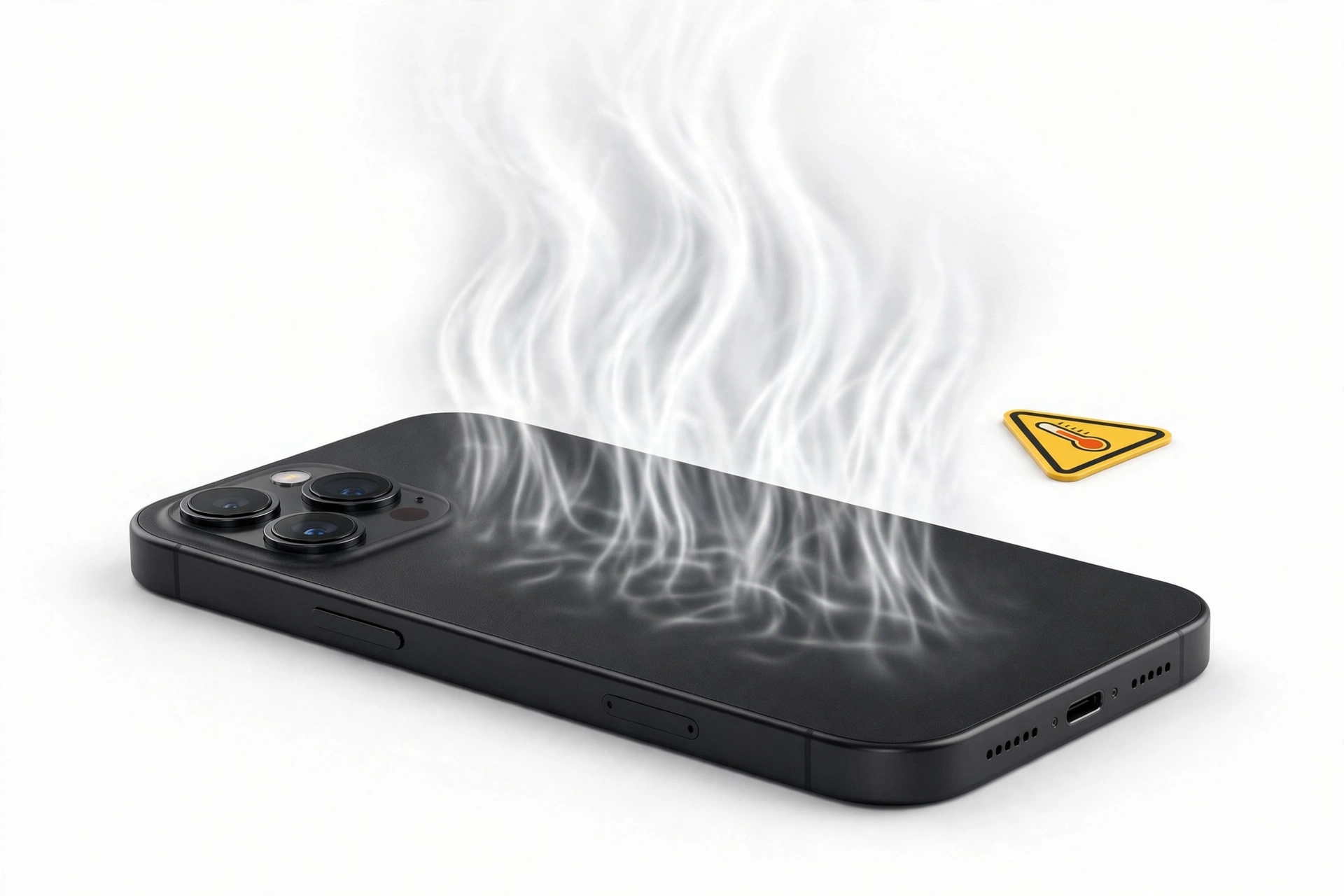
Most Samsung phones run warm for 24–48 hours after a software update because the system is re-indexing files, re-optimizing apps, and rebuilding caches in the background.
1. Who this guide is for — and what it is not
This guide is for Samsung Galaxy owners whose phone started running warm right after a software update — a One UI version upgrade, a monthly security patch, or a major Android version jump — and who want to know whether the heat is normal, what is causing it, and which safe steps actually help. (Source: samsung.com)
It is not a general overheating guide. If your phone has always run hot while gaming or charging, or if the heat started for no obvious reason, the causes are different. For battery-related heat on a Galaxy phone, see our guide on Samsung Galaxy battery draining fast. For heat that appears specifically while charging, see phone overheating while charging. For battery drain that began after an update (with or without heat), see phone battery draining after update.
Throughout this guide, “after an update” means within roughly two weeks of installing new system software. The advice here is organized around a single practical question: should you wait it out, or act now?
2. Why a Samsung phone often runs warm right after an update
Samsung’s own support guidance explains that a Galaxy device “may temporarily heat up due to increased battery consumption” whenever it runs demanding work, and it lists several situations where extra heat is expected — including initial setup, data restoration, and file transfers. A system update triggers several of these heat-producing processes at once. Understanding them is the key to deciding whether your phone’s warmth is routine or a warning sign.
2.1. Post-update indexing and optimization
After new system software is installed, the phone re-indexes its storage: it re-catalogs photos, files, messages, and app data so that search, the gallery, and system services can find things quickly under the new software version. It also re-compiles parts of the operating system and re-optimizes system libraries for the current processor and configuration. This is genuine processor work — the same kind of load that makes a phone warm during gaming — except that it happens in the background, often while the screen is off.
This is the single most common reason a Samsung phone feels warm for a day or two after an update. Samsung’s support materials describe this class of activity (setup, restoration, large file operations) as expected causes of temporary heat. There is nothing to fix here; the work finishes, and the phone cools down.
2.2. Apps re-optimizing and re-syncing
Apps do their own version of the same thing. After an OS or One UI update, many apps re-download or re-generate cached data, re-sync with their servers, re-index local content, and update their own internal databases to match new system interfaces. Messaging apps re-process message histories, photo apps re-scan libraries for faces and objects, and cloud services (Google Photos, OneDrive, Samsung Cloud) may re-verify large amounts of uploaded content.
On the first day after an update it is common for a dozen apps to do this simultaneously, especially on Wi-Fi while the phone is charging — which is exactly the combination that generates the most heat: processor load plus charging heat plus radio activity.
2.3. Cache rebuilding
System and app caches store temporary data that speeds up everyday operations. An update can invalidate large portions of these caches, and the phone then rebuilds them as you use the phone. Each rebuild is small, but hundreds of them across the first day or two add up to sustained background processor activity — and sustained warmth.
Quick fact: Post-update warmth is systemic — the whole phone feels mildly warm even when you are not using it, and the battery drains a little faster than usual. Warmth that is localized (one hot spot near the camera, the charging port, or one edge) or that appears only during a specific activity points to a different cause.
3. The 48-hour rule: when to wait vs. when to act
Here is the practical framework this guide uses:
- Wait (first 24–48 hours): The phone is mildly warm to the touch, you installed an update within the last two days, there are no warnings on screen, the battery charges and discharges normally, and the phone works fine. This matches the post-update indexing pattern. Give it two days of normal use.
- Act (do the checks in this guide): The warmth has lasted more than 48 hours after the update, the phone is uncomfortably hot rather than mildly warm, the heat comes with rapid battery drain, apps crash or the phone restarts, or the heat appeared days or weeks after the update finished installing.
- Stop and get help: The phone shows an overheating warning, shuts itself down from heat, the battery or back panel is swollen or distorted, the phone is too hot to hold comfortably, or there is a smell of heat or chemicals. These are the safety stops — covered in section 11.
A useful test: note the phone’s temperature behavior at the same time of day across three days after the update. If day one is warm, day two is less warm, and day three feels normal, you watched the indexing finish. If day three is as hot as day one, move to the active checks below.
4. First, do the ten-minute cool-down
Whatever the cause, start with Samsung’s own first-response steps. These come from Samsung’s official “what to do when your Galaxy device heats up” guidance, summarized here in our own words:
- Stop demanding activity. Close games, video calls, camera recording, and navigation. Let the processor idle.
- Unplug the charger if one is connected, especially a fast or wireless charger. Samsung notes that heat while charging is common and advises unplugging, closing apps, waiting for the phone to cool, then charging again.
- Remove the case for a few minutes. Thick cases trap heat; taking it off lets the phone shed warmth faster.
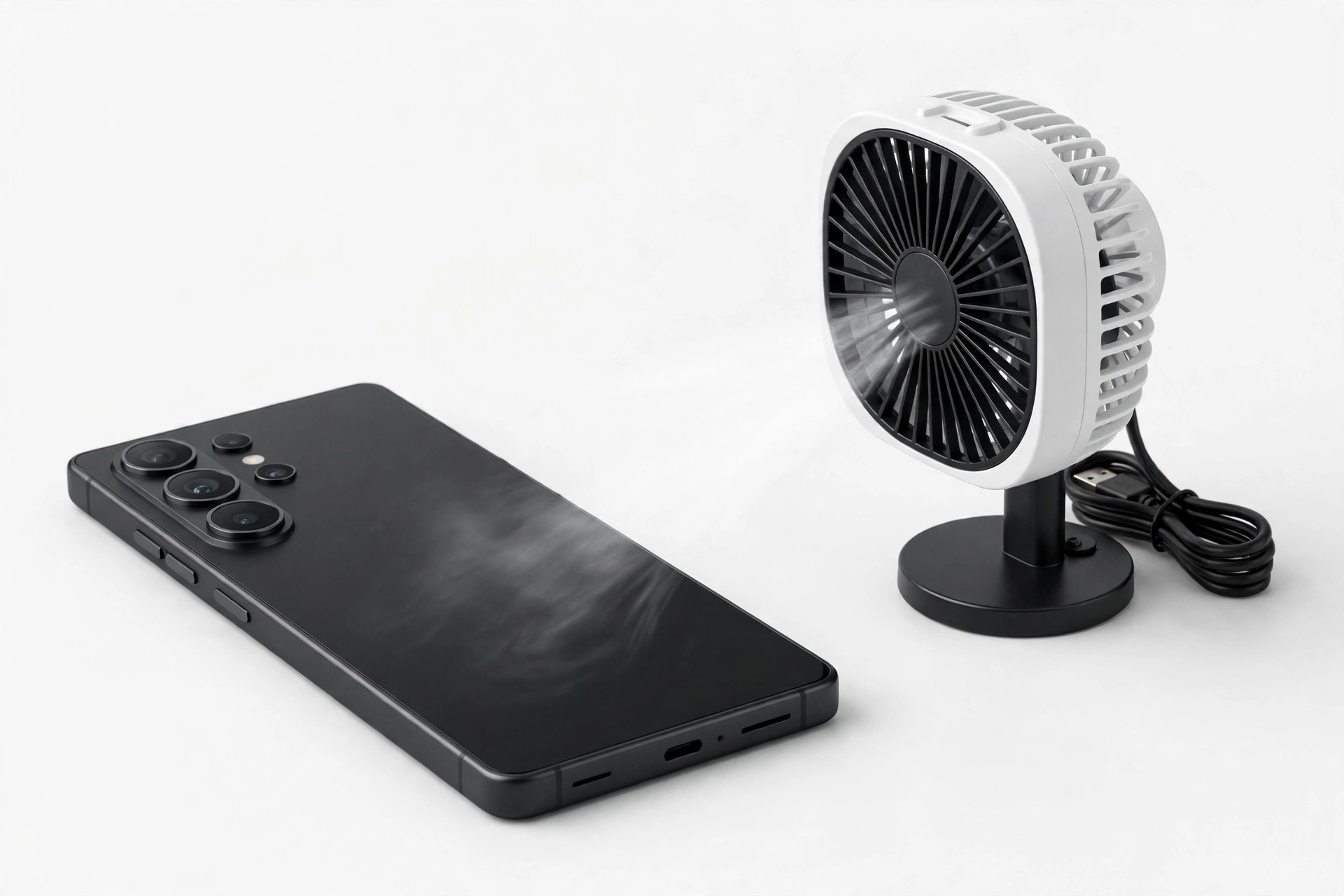
- Move it somewhere cool and ventilated — off the bed, out of the pocket, out of direct sunlight, away from heaters. Do not put it in a fridge or freezer and do not run it under water; rapid temperature shock can damage the phone.
- Wait. Give it ten to fifteen minutes. A phone that was warm from background indexing will cool noticeably in this time.
If the phone cools down and stays cool during light use, you likely just needed patience. If it heats back up within minutes of light use — or never cooled at all — continue to the diagnostic sections.
5. Symptom-to-cause-to-fix worksheet
Match what you observe to the most likely cause, then try the linked fix. Work down the table in order — the rows are arranged from most to least common for post-update heat.
| What you observe | Likely cause | Safe fix to try |
|---|---|---|
| Mild warmth for 1–2 days after update, no warnings | Post-update indexing and app re-optimization | Wait 48 hours; keep the phone ventilated and avoid heavy use while it settles (Section 3) |
| Warmth plus faster battery drain after update | Background sync and re-indexing consuming power | Check Battery usage for the hungriest apps; restrict background activity; enable Power saving (Sections 7–8) |
| One app using far more battery than others | App misbehaving under the new software version | Update the app, clear its cache, or reinstall it (Section 7) |
| Heat that started with a specific update and never settled | Buggy update or corrupted system cache | Wipe the cache partition; check for a follow-up patch (Sections 8–9) |
| Phone hot only while charging after update | Charging heat plus background indexing, or a cable/charger issue | Unplug and cool; try a Samsung-approved charger and cable; charge without demanding apps (Section 4) |
| Heat plus apps crashing or phone restarting | Unstable system state after update | Restart; wipe cache partition; test in Safe Mode (Sections 7–8) |
| Overheating warning or automatic shutdown | Thermal protection triggered | Stop using the phone immediately and let it cool — then investigate (Section 11) |
| Swollen back panel or distorted frame with heat | Battery fault — not a software issue | Power down, do not charge, do not puncture — get professional assessment (Section 11) |
6. Check your apps — the most common real culprit
When post-update warmth does not settle, an app is the most common cause. An app that worked fine before the update can misbehave under the new software: it may get stuck in a sync loop, poll the network constantly, or fail to sleep when the screen turns off. Samsung’s support guidance specifically recommends checking battery usage and managing background apps as heat-reduction steps.
6.1. Find the hungriest apps
- Open Settings, then Battery (on some models: Settings → Battery and device care → Battery).
- Tap Battery usage and look at consumption since the last full charge.
- Look for any app using a disproportionate share — especially one you barely opened. A social, shopping, or utility app sitting at the top of the list while idle is a strong suspect.
For a suspect app, work through these in order: check the Play Store or Galaxy Store for an app update (developers often ship compatibility fixes in the days after a major OS release); clear the app’s cache (Settings → Apps → select the app → Storage → Clear cache — this deletes temporary files, not your data); and if the problem persists, uninstall and reinstall the app.
6.2. The Safe Mode test
Safe Mode temporarily disables all third-party apps, leaving only Samsung’s built-in software running. It is the cleanest way to answer the question “is an app causing this?” To enter Safe Mode: press and hold the power button, then touch and hold the Power off icon until the Safe Mode prompt appears, and tap Safe Mode. The phone restarts with “Safe mode” shown on screen.
Use the phone lightly in Safe Mode for 30–60 minutes and note whether it stays cool. If the heat disappears in Safe Mode, a third-party app is the cause — remove recently installed or recently updated apps one at a time until the heat stays away in normal mode. If the phone still runs hot in Safe Mode, the cause is in the system software itself, and the cache-partition and patch checks in the next sections are the right moves. Restart normally to leave Safe Mode.
Tip: Check Settings → Battery → Background usage limits and turn on Put unused apps to sleep. Samsung lists this as a heat-reduction step: sleeping apps cannot wake the processor in the background.
7. Wipe the cache partition — the classic post-update cleanup
The system cache partition holds temporary system files. After an update, stale or corrupted cache entries can keep background processes churning — and churning processors generate heat. Wiping the cache partition deletes only temporary system files; it does not erase your photos, apps, accounts, or settings. Samsung support communities and service guidance routinely recommend this step after updates that misbehave.
Because the exact key combination varies by model, here is the general flow — check your model’s manual if these steps do not match:
- Power the phone off completely.
- Press and hold the volume up and power buttons together until the Samsung logo appears, then release. (On some models the combination involves the Bixby button or a USB cable connected to a computer — your model’s support page lists the exact keys.)
- In the recovery menu, use the volume buttons to highlight Wipe cache partition and press power to select it. Confirm if asked.
- Select Reboot system now.
Be careful to select Wipe cache partition and not Factory data reset — they sit near each other in the menu, and the factory reset erases everything. After the reboot, give the phone a few hours: it will rebuild fresh caches, which itself generates mild warmth, and then it should settle cooler than before.
Note: A factory data reset is sometimes suggested for stubborn post-update problems, but treat it as a last resort, never a first step. It erases all data on the phone. If you ever go that route, back everything up first — see phone battery draining after update for the backup-first framing that applies here too.
8. Reduce the heat load: Power saving and Light mode
While you investigate, you can lower the phone’s heat generation directly. Samsung’s official heat guidance describes two built-in tools for this:
- Power saving mode (Settings → Battery and device care → Battery → Power saving) reduces power consumption and heat, and lets you limit background app activity. Samsung notes that it limits network activity, data sync, and background location use — which is exactly the background churn that keeps a post-update phone warm.
- Light performance mode (Settings → Battery and device care → Performance profile → Light) lowers the processor’s maximum speed to reduce heat and power consumption. Samsung describes it as a way to minimize heat generation while using the battery more efficiently.
Also run Device care → Optimize now (Settings → Battery and device care → Optimize now). Samsung’s guidance presents this as the first optimization step when heating occurs: it closes unnecessary background activity in one tap. None of these are permanent fixes for a real underlying problem, but they make the phone comfortable to use while you work through the diagnostics, and they are fully reversible.
9. Check for a follow-up patch — sometimes the update itself is the bug
Occasionally the heat is not a side effect of a healthy update but a defect in the update. Tech reporting has documented cases where a Samsung security patch caused abnormal battery drain and overheating — for example, coverage in 2026 described a July security update that appeared to prevent some Galaxy S24 Ultra and S25 Ultra phones from entering sleep mode properly, causing overnight battery loss and unusual heat. In such cases the fix is not on your phone at all: it is the next patch.
What to do:
- Open Settings → Software update → Download and install and check for a newer release. Install it if one is available — follow-up patches frequently include thermal and battery fixes.
- Update your apps at the same time (Play Store and Galaxy Store). App developers ship compatibility fixes in the days after system updates.
- If no patch is available and the heat is severe, check Samsung’s community forums or Samsung Members → Support → Send feedback to see whether other owners of your model report the same problem after the same update. A widespread pattern usually means a fix is in the pipeline — and it also means aggressive troubleshooting on your phone is unlikely to help.
Quick fact: Reports of a buggy update are worth treating as reported rather than confirmed until Samsung acknowledges the issue or a patch resolves it. Do not delay sensible steps (cool-down, app checks, cache wipe) while waiting for news — but do not factory-reset your phone over a problem that a patch may fix next week.
10. What your observations can and cannot establish
| Observation | What it can establish | What it cannot establish |
|---|---|---|
| Phone warm for a day after update, then normal | Normal post-update background work completed | Nothing about long-term battery health |
| Heat gone in Safe Mode | A third-party app is involved | Which app, without testing them one by one |
| Heat persists in Safe Mode | The cause is in system software or hardware | Whether it is a corrupt cache or a hardware fault |
| Cache wipe fixed it | Stale system cache was contributing | That the underlying update was flawless |
| A patch fixed it | The update contained a software defect | That your phone has no other issues |
| Heat plus swelling | Stop — this needs professional assessment | Anything about the update; treat as unrelated to software |
Be honest with yourself about the timeline. Heat that began the day the update installed is plausibly update-related. Heat that began three weeks later, or that you only noticed when thinking about the update, deserves the same open-minded diagnosis you would give any overheating phone — including the possibility that the update is a coincidence.
11. When to stop troubleshooting — the safety stops
Some symptoms mean the troubleshooting phase is over. Samsung’s own guidance says the phone will limit performance, close apps, stop charging, or shut down to protect itself when it gets too hot — these protections are the phone telling you something is wrong.
Stop for safety — power the phone down and do not charge it if you see any of these: an overheating warning that keeps returning, the phone shutting itself off from heat, a battery or back panel that is swollen, bulging, or separating from the frame, the phone too hot to hold comfortably, or any smell of heat, melting, or chemicals. Do not put the phone in the freezer, do not puncture or press on a swollen battery, and do not keep using it “just a little longer.” A swollen or overheating battery is a hardware problem that no software step can fix — it needs professional assessment.
Also stop and seek help if the heat is accompanied by the moisture-detection warning that will not clear, or if the phone only gets hot with a cable connected even after trying a different Samsung-approved charger and cable — a damaged charging port or cable can generate heat at the connector, and that is a hardware inspection job, not a settings job.
12. Questions to ask before approving any service
If the checks in this guide do not resolve the heat and you take the phone in for assessment, these questions keep the conversation grounded:
- Can you reproduce the heat here, and does it happen in Safe Mode? (This separates app causes from system/hardware causes.)
- Is the battery health normal for this model’s age, or is the battery itself generating the heat?
- Is there any sign of swelling, port damage, or liquid exposure that would explain heat unrelated to the update?
- What exactly will you do, what will it cost before you start, and what happens to my data?
- If a part is replaced, what is the warranty on the part and the work?
A reputable shop will answer these directly and will not promise that a battery replacement will fix a software-caused heat problem. Be wary of anyone who diagnoses a software issue as a hardware failure without testing, or who cannot explain what they found.
13. Two hypothetical illustrations
(The following are hypothetical illustrations, not customer stories.)
Maya’s One UI upgrade. Maya installs a major One UI update on her Galaxy S24 on a Friday evening while it charges overnight. Saturday afternoon the phone feels warm and the battery has dropped faster than usual, though she barely used it. She resists the urge to factory-reset, keeps the phone out of its case on a table, and by Monday morning it feels normal again — the background indexing simply needed the weekend to finish.
Daniel’s stubborn patch. Daniel’s Galaxy A54 gets a monthly security patch on a Tuesday. A week later it is still running warm every evening, and Battery usage shows a podcast app consuming 28% of the battery despite two hours of listening. He updates the app, clears its cache, and the next day the phone runs cool. The app had been stuck in a failed sync loop under the new system version — a textbook post-update app problem, fixed without touching the system at all.
14. Frequently asked questions
Is it normal for my Samsung phone to get hot after an update?
Mild warmth for 24–48 hours after a software update is normal: the system re-indexes files, re-optimizes apps, and rebuilds caches in the background. Samsung’s support guidance lists setup, data restoration, and file operations among the expected causes of temporary heat. Warmth that persists beyond two days, or heat severe enough to trigger warnings, is not routine — work through the checks in this guide.
How long should I wait before worrying about post-update heat?
Give it 48 hours of normal use. Track whether the warmth is decreasing day by day — day one warm, day two less warm, day three normal is the classic settling pattern. If day three feels as hot as day one, start with the app checks and cache-partition wipe.
Will wiping the cache partition delete my data?
No. Wiping the cache partition deletes only temporary system files — not your photos, apps, accounts, messages, or settings. It is a standard post-update cleanup step recommended in Samsung support communities. Just be careful to select “Wipe cache partition” and not “Factory data reset” in the recovery menu.
Can a software update permanently damage my phone from overheating?
Samsung phones have built-in thermal protection: the phone reduces brightness and performance, closes apps, stops charging, or shuts down before heat reaches damaging levels. Brief post-update warmth within these protections is not expected to cause lasting harm. Sustained, severe overheating over weeks is harder on the battery — which is why persistent heat deserves investigation rather than patience.
Should I avoid installing Samsung updates to prevent overheating?
No — skipping updates is worse. Updates include security patches and often contain the very thermal and battery fixes that resolve heating problems. The right approach is to install updates, give the phone 48 hours to settle, and investigate only if the heat persists. Keeping apps updated at the same time matters too, since app developers ship compatibility fixes after system releases.
Why does my phone get hot only when charging after the update?
Charging generates heat on its own, and after an update the phone is often doing background indexing while charging — the two heat sources add up. Samsung advises unplugging, closing apps, letting the phone cool, then charging again, and recommends Samsung-approved chargers and cables. If the heat appears only with one particular cable or charger, try a different approved set before suspecting the update.
Does Safe Mode really help diagnose overheating?
Yes — it is the single most informative test in this guide. Safe Mode disables all third-party apps, so if the heat disappears in Safe Mode, an app is the cause; if it persists, the cause is in the system software or hardware. The test costs nothing, changes nothing, and takes under an hour.
When should I take the phone to a repair shop?
When the heat persists beyond 48 hours after you have checked apps, wiped the cache partition, and installed any available patches — or immediately if you see overheating warnings, shutdowns, swelling, or heat localized to the charging port. Bring the timeline (which update, when the heat started) — it helps the technician diagnose faster. If you are in the Las Vegas area, Las Vegas Phone Repair & Accessories at 7400 Las Vegas Blvd S, Unit TT42, Las Vegas, NV 89123, (424) 406-6202, can assess the phone; hours are 10AM–8PM and it is best to call ahead to confirm today’s hours.
Video: How to tell if your smartphone is fake or real
Sources and editorial notes
- Samsung Support — What to do when your Samsung Galaxy device heats up while in use: lists situations where heat is expected (charging, initial setup, data restoration, file transfer, gaming, streaming, long recording, hotspot use, weak-signal areas) and gives the official response steps — Device care optimization, Power saving mode with background app limits, charging-heat management, and Light performance mode. Summarized in our own words.
- Samsung Support — “Exit Camera. Battery temperature too high” guidance: explains that demanding apps can heat the device, that thermal protection limits brightness, performance, and charging or shuts the device down, and that this is a normal protective operating condition. Summarized in our own words.
- Samsung Members Community — Heating issue after software update (official support reply): Samsung support’s recommended steps for post-update heat — disable unused radios, lower brightness, close background apps, remove unnecessary apps, avoid use while charging, and factory reset only as a last resort with backup. Summarized in our own words.
- Samsung Members Community — S Series battery drain and heating fixes: practical steps including checking Battery usage for hungry apps, restricting background activity, Device care optimization, keeping software and apps updated, and using Phone diagnostics in Samsung Members. Summarized in our own words.
- Tech Advisor — Samsung’s July update and reported Galaxy overheating/battery issues: reporting on a 2026 security patch reported to cause abnormal battery drain and overheating on some Galaxy models, attributed to devices failing to enter sleep mode. Cited as press reporting, not confirmed manufacturer fact.
- Android Authority — How to stop a Samsung phone from overheating: corroborating guidance on closing demanding apps, removing cases, avoiding sunlight, updating software, and checking for malware; notes against fridge/freezer cooling. Summarized in our own words.
Last source check: October 14, 2026. AI-assisted editorial guide, checked against the linked manufacturer information. Manufacturer guidance is summarized in original language; no manufacturer text is reproduced. The July 2026 patch incident is described from press reporting and labeled as reported, not as Samsung-confirmed fact. This guide does not replace professional diagnosis: persistent heat, warnings, or swelling warrant in-person assessment.
Let’s get you connected again.
Tell us what’s happening with your device and we’ll help you decide the safest next step — no jargon, no pressure.
Las Vegas Phone Repair & Accessories · 7400 Las Vegas Blvd S, Unit TT42, Las Vegas, NV 89123
10:00 AM–8:00 PM — call ahead to confirm today’s hours