
Phone Screen Black After Drop: What to Check Before Repair
If your phone screen went black right after a drop, start by checking whether the phone itself is still alive — call it, listen for sounds, and feel for vibration — then run a force restart using the physical buttons. Many black screens after a drop turn out to be a crashed display state that a restart fixes, but if the phone is clearly on and the screen stays dark, the impact most likely damaged the display, its connector, or the backlight, and that needs a professional assessment — not a home teardown.
On this page
If your phone screen went black right after a drop, start by checking whether the phone itself is still alive — call it, listen for sounds, and feel for vibration — then run a force restart using the physical buttons.

1. What this guide covers — and what it doesn’t
This guide is for one specific situation: your phone was working, it fell or took an impact, and now the screen is black. It might have cracked glass. It might look perfectly intact. Either way, the screen shows nothing. (Source: support.apple.com)
If your screen was black without any drop — after an update, after getting wet, or for no apparent reason — our general black screen guides are the better starting point. A drop adds a hardware-suspect dimension that changes the decision-making, which is why this topic deserves its own article.
- Screen is black but the phone clearly still works (rings, vibrates, sounds play, Siri answers): start with our black-screen-but-still-works guide, which focuses on that exact pattern.
- Samsung Galaxy with a black screen and no clear drop event: our Samsung black-screen power checks cover the Galaxy-specific boot and recovery paths.
- iPad with a black screen: see our iPad black-screen guide, written for the larger device and its button layout.
This article is written for ordinary phone owners — iPhone, Samsung Galaxy, Google Pixel, and other Android phones. The procedures below use only the phone’s physical buttons and chargers. Nothing here requires opening the phone, removing the screen, or touching any internal part. If any step asks you to look for something you can only see inside the phone, stop — that step belongs to a technician.
2. Before anything else: don’t do these four things
A dropped phone puts everyone in a hurry. Slowing down for sixty seconds now can protect both your data and the phone’s remaining hardware.
Stop for safety. If the drop left the phone swollen, distorted, bent, cracked through with gaps, giving off heat, a chemical smell, or smoke — do not charge it, do not power it on, and do not try to force a restart. Set it on a non-flammable surface away from people and animals, and take it to a repair shop for assessment. A damaged battery is the one thing here that can become dangerous.
Quick fact: Repeatedly pressing buttons, plugging and unplugging the charger, and mashing the touchscreen for ten minutes straight has never fixed a black screen and can mask the one useful diagnostic signal — whether the phone is actually powered on. Do one check at a time, in order.
The four things to avoid:
- Don’t plug it into a fast charger and walk away. Charge only with the phone’s original or a known-good cable and adapter, and stay nearby for the first few minutes. You’re watching for abnormal heat, not just waiting for a logo.
- Don’t factory reset it. A factory reset erases everything — photos, messages, accounts — and it cannot repair a physically damaged display. Worse, it destroys the evidence a technician could use to tell a connector problem from a panel problem. Resetting is never the first step.
- Don’t press hard on the screen or try to “pop” it back. Flexing the glass can convert a possibly-reseatable connector issue into a broken one, and can crack the panel further.
- Don’t put it in the freezer, heat it, or tap it against something. These old “tricks” have no legitimate role in display repair and can finish off a fragile panel or battery.
3. The single most useful question: is the phone actually on?
A black screen tells you the display isn’t showing anything. It does not tell you the phone is off. Phones that survive a drop often keep running with a dead or disconnected display — and a phone that is alive gives you far more options (calls, Find My, backups, data transfers) than a phone that is truly dead.
Work through these checks in order. You need quiet surroundings and about two minutes.
Test 1: Call the phone from another device
Ask someone nearby to call you, or use a second device. If the phone rings, buzzes, or vibrates, it is on — the problem is isolated to the display. Note exactly what happens: full ringtone, short buzz, or nothing at all.
Test 2: Try Siri or the voice assistant
On an iPhone, say “Hey Siri” or press and hold the side button. On a Galaxy, say “Hi Bixby” or use your configured assistant; on a Pixel, “Hey Google.” If you hear the assistant’s voice or the familiar chime, the phone’s audio and main board are working.
Test 3: Feel and listen when you charge it
Plug in a known-good cable and adapter. Within a minute or two, most phones give some sign — a vibration, a charging chime, or gentle warmth from normal charging. Listen closely; the sound may be faint. (Normal gentle warmth is fine. Noticeable heat is a stop signal — unplug and go to the safety note above.)
Test 4: Check for the LED or screen glow
Some Android phones have a notification LED that blinks on charge or incoming messages. In a dark room, look at the screen at an angle while the phone “should” be showing something — a faint glow behind an otherwise black panel can indicate the backlight is on but nothing is being rendered.
Test 5: The toggle-switch test (iPhone)
Flip the mute switch on the side of the iPhone. If the phone is on, you’ll feel a short vibration as it switches modes. This is a fast, reliable on/off probe that needs no screen at all.
Quick fact: If the phone rings or vibrates but the screen stays black through every restart attempt, the display chain — panel, connector, or backlight — is the likely casualty of the drop. That’s a hardware assessment, and it doesn’t require you to diagnose further at home.
4. The force restart: your best first move
A force restart (sometimes called a hard reset or soft reset — the names are confusing, but they mean the same thing) uses only the physical buttons to reboot the phone. It does not delete apps, photos, messages, or settings. Apple and Samsung both document this as the correct response when a phone stops responding.
Why try this after a drop? A drop can crash the display driver or the system process that manages the screen even when the hardware is fine. A force restart clears that crashed state. If the display comes back, you had a software scare, not a hardware failure. If it doesn’t, you’ve ruled out the simplest explanation.
iPhone: the exact button sequences
Apple documents a different sequence depending on the model:
- iPhone 8 and newer (including iPhone X through the current models): press and quickly release the volume up button, press and quickly release the volume down button, then press and hold the side button until the Apple logo appears. Apple notes this can take longer than 10 seconds — keep holding.
- iPhone 7 and iPhone 7 Plus: press and hold the side button and the volume down button at the same time until the Apple logo appears.
- iPhone 6s and earlier: press and hold the Home button and the side (or top) button at the same time until the Apple logo appears.
If nothing appears, Apple recommends charging the phone for one hour and trying again — and if it still won’t turn on, it likely needs service.
Samsung Galaxy
Samsung’s display troubleshooting guidance documents this sequence: press and hold the side key and the volume down key at the same time for more than 2 seconds, then tap Restart. If the Restart menu doesn’t appear — it won’t, on a black screen — keep holding the same two keys for more than 7 seconds until the device restarts automatically.
Google Pixel and most other Android phones
Hold the power button together with the volume down button for 10–20 seconds until the manufacturer’s logo appears.
Tip: The first two presses on a modern iPhone are quick taps, not holds — only the side button gets the long hold. A common mistake is holding all three buttons at once, which triggers the emergency SOS screen instead. If you see the emergency screen, release everything and start over.
5. The diagnostic table: every test, what it means, what to do next
Use this as a worksheet. Start at the top and work down; the first row whose outcome matches yours is your answer.
| Test | What it means | Next step |
|---|---|---|
| Phone rings, vibrates, or plays assistant sounds | The phone is on; the display chain is the failure | Try the force restart once; if the screen stays dark, book an assessment — likely display or connector damage |
| Charging produces vibration or a chime but nothing else | Phone has power and is at least partly alive | Try the force restart with the charger connected; check for abnormal heat |
| Force restart produces a logo, then a normal screen | The drop crashed the display driver or system process | Watch for recurrence over 24–48 hours; back up your data promptly as a precaution |
| Force restart produces a logo, then the screen goes black again | Hardware may fail only under load, or the display dies after warming up | Note the pattern (time until black, whether sound continues); bring these notes to the shop |
| Force restart produces nothing at all — no logo, no sound, no vibration | The phone may be fully dead, or the battery connection may be broken | Charge for one hour with a known-good cable, then try once more; then book an assessment |
| Screen lights up but stays black with lines, flicker, or blotches | The panel itself is damaged (common with direct glass impact) | Stop troubleshooting — this is confirmed panel damage; assessment for screen replacement |
| Phone gets noticeably hot while charging, smells odd, or is swollen | Possible battery damage from the impact | Unplug immediately; do not attempt restarts; seek professional assessment |
| Screen shows a faint image only with a flashlight held to it | Backlight failure with a working display panel | Assessment — backlight repair or screen service |
6. Connector vs. panel: what a technician can assess
People often ask whether a black screen after a drop is “just a loose cable” or a dead screen. Honestly, you cannot determine this from the outside — and nobody should ask you to. But understanding what a technician looks for helps you have a useful conversation at the shop and understand the estimate you receive.
The display chain, in plain language
Your screen’s image travels through a short chain: the main board generates the picture, a thin flexible connector carries it to the display panel, and the backlight lights the panel so you can see it. A drop can break any link:
- The panel: the glass and the display layer beneath it. Direct impacts crack or kill it. Lines, blotches, spreading dark spots, and touch dead zones after a drop point here.
- The connector: a delicate ribbon between board and panel. A hard impact can unseat or tear it. This is the scenario where the phone is fully alive — calls, sounds, vibrations all work — but nothing displays.
- The backlight: on LCD screens, the layer that illuminates the picture. A backlight failure produces the “flashlight test” signature from the table above: a working image you can only see with an external light source.
- The board: in severe drops, the main board itself can be damaged — cracked solder joints or a broken display circuit. This is the least common and the most involved to repair.
What an assessment actually involves
A competent technician opens the phone in a controlled setting, visually inspects the connector and board, and typically tests with a known-good display to isolate which link failed. That “known-good screen swap” is the honest diagnostic — anything else is guessing. You should expect the shop to tell you which component they believe failed and why, before you approve any repair.
Note on scope: This article does not cover foldable phones (Galaxy Z Fold / Z Flip inner screens) or watches — their displays, hinges, and repair paths are different enough to need their own guidance. If your dropped device is a foldable, tell the shop the exact model and whether the inner screen, outer screen, or both are affected.
7. What you can safely observe without opening anything
Before you take the phone in, gather the observations that make an assessment faster and more accurate. All of these are external — look, listen, feel:
- Exactly what happened: height of the fall, what it landed on (concrete, tile, wood), which edge or corner took the hit, whether it bounced or slid. The impact point often predicts the damage location.
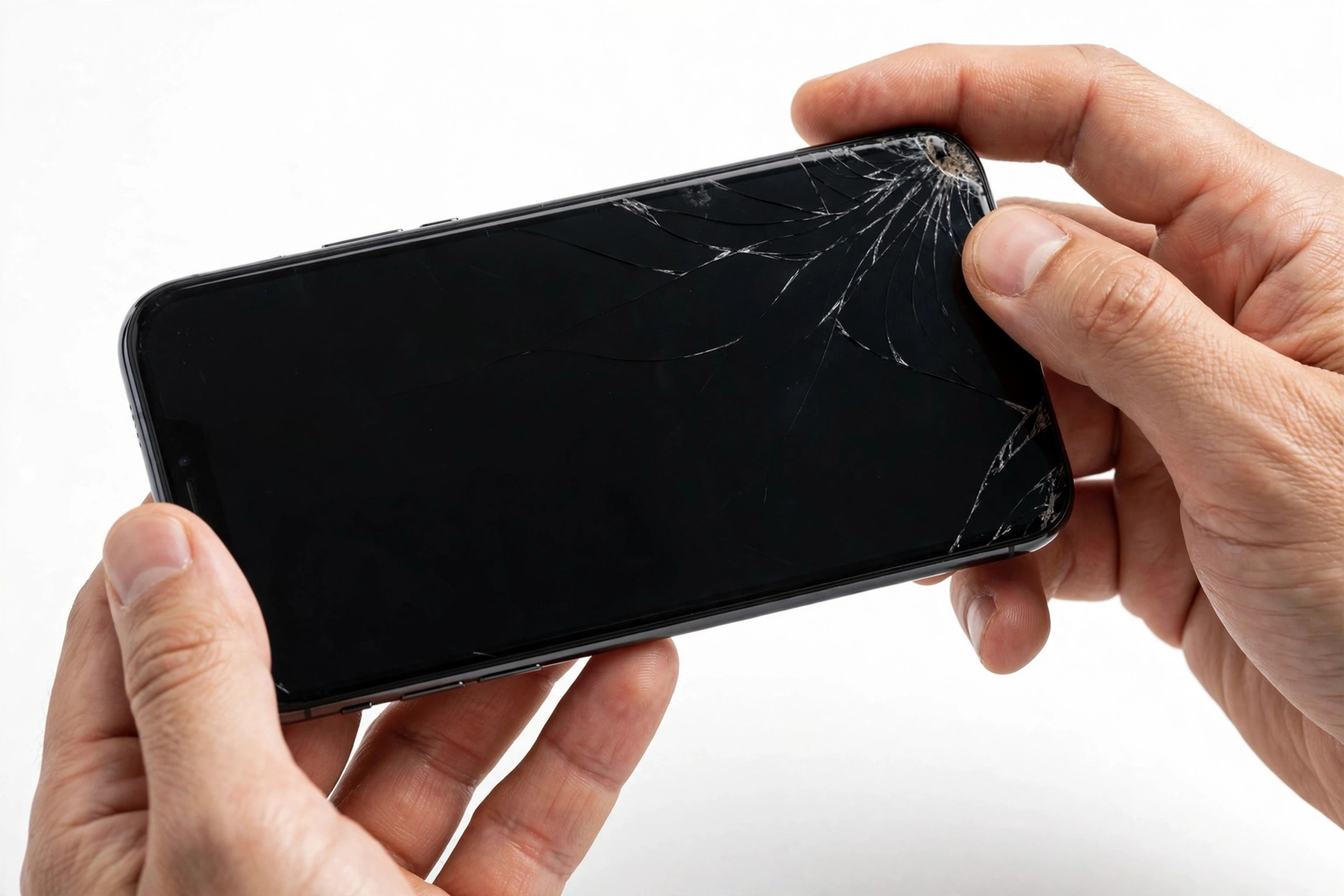
- Glass condition: cracked or intact? If cracked, is the crack over the display area or only on a corner? Spider-web cracks over the screen strongly suggest panel damage.
- Frame condition: dents or bends near the screen edge can press on the panel or connector.
- The phone’s sounds: which of the tests in section 3 produced what result — write them down. “It rings but shows nothing” and “it does nothing at all” lead a technician down very different paths.
- Charge behavior: does it get warm normally, stay cold, or get hot? Did the battery percentage seem normal before the drop?
- Timing: did the screen die instantly on impact, or did it flicker for a while first? Instant death leans hardware; delayed failure can mean a connector working loose over hours.
Tip: Take photos of the phone’s condition with another device before you hand it over. This documents the pre-repair state and is useful for your own records, for insurance, or for a warranty conversation later.
8. Reading the symptoms: what each pattern suggests
These patterns help you describe what you’re seeing accurately. They are observations, not diagnoses — but precise observations get you a precise estimate.
- Black screen, phone clearly alive: display chain failure — panel, connector, or backlight. The most common post-drop pattern.
- Black with bright lines or colored bars: panel damage, almost certainly. Lines radiating from an impact point are the signature of a cracked display layer.
- Black with a spreading ink-like blotch: on OLED screens, this can be a damaged pixel layer spreading under the glass. It typically gets worse, not better — don’t wait weeks hoping it heals.
- Flickering then black: an intermittent connection or a failing panel. Note whether tapping (gently!) near the impact point changes anything — and report it, don’t exploit it.
- Screen works only when bent or squeezed a certain way: strongly suggests a loose or damaged connector. Stop flexing it — every flex risks tearing the ribbon completely.
- Totally dead — no sound, no vibration, no charge response: beyond display failure; could be battery, board, or a fully drained battery. Charge for an hour with known-good equipment before concluding anything.
9. If the phone is alive: protect your data first
Here’s the scenario people miss: the phone rings and vibrates but the screen is dead — and because the screen is dead, they can’t back it up. If you can still interact with the phone blind (voice assistant, a paired computer, a smartwatch), do this before the repair:
- iPhone: if you have a computer the phone previously trusted, connect it and take an encrypted backup — your health data and passwords only carry over in an encrypted backup or with iCloud sync on. Ask Siri to confirm whether iCloud Backup is enabled.
- Android: if Google backup was on, your recent state is already in the cloud. A previously trusted computer can often still pull files over USB even with a dead screen.
- Photos and messages: check from another device whether your cloud photo library and message sync are current — this tells you what’s already safe.
- Find My / Find My Device: leave it on. If the phone is alive, its location services still work, which is useful if the phone gets misplaced during the repair process.
For detailed walkthroughs, see our backup guides: backing up before a factory reset and the iPhone-specific iPhone backup guide.
Stop for safety. Never hand your passcode, Apple ID, or Google account password to anyone who contacts you about the repair unsolicited — including callers claiming to be the shop. Legitimate shops ask for device access in person, at the counter, with you present.
10. Two hypothetical examples
(The following are hypothetical illustrations, not customer stories.)
Example 1 — Maya’s Galaxy after the parking-lot drop. Maya’s Galaxy S-series phone slipped from her hand onto concrete, landing on the lower-left corner. The screen is black, but when her friend calls, the phone rings and vibrates. She tries the force restart — side key plus volume down, held for a full ten seconds — and the Samsung logo flashes, then the screen goes black again. The phone keeps ringing on incoming calls. Maya’s notes (rings, logo-then-black, corner impact, glass intact) tell the technician this is most likely a display-chain failure rather than a dead phone — and she backs up nothing further at home because repeated restart attempts risk nothing gained. The shop tests with a known-good display and confirms the panel died at the impact corner.
Example 2 — Daniel’s iPhone after the tile-floor drop. Daniel’s iPhone lands face-down on tile. The glass is spider-webbed, the screen is black, and nothing happens when he calls it from his wife’s phone — no ring, no vibration, no charging chime. He charges it for an hour with his original cable, tries the force restart (volume up, volume down, hold side), and still gets nothing — but the phone stays cool, no swelling, no smell. His notes (no signs of life, cool to the touch, face-down impact) point the technician toward checking power and board before assuming the display. Because Daniel didn’t factory reset or keep mashing buttons, the phone arrives in its post-drop state, which is exactly what the technician needs to see.
11. When to stop DIY — the honest cutoff
You have done everything useful at home once you have: confirmed whether the phone is alive, attempted one or two force restarts, observed the symptoms carefully, and secured your data if possible. Everything after that requires opening the phone.
Stop and book an assessment if:
- The screen stays black through two force restarts on a phone that is otherwise alive.
- You see lines, blotches, or flicker that persist after a restart.
- The phone is dead with no response after an hour of charging with known-good equipment.
- There is any heat, swelling, smell, or distortion.
- The glass is severely shattered with loose fragments — handle it minimally and keep it away from children and pets.
There is no step 12 at home. Guides that tell you to reseat the connector yourself skip the part where the connector is a fraction of a millimeter wide, the screws are microscopic, and one slip can damage the board — turning a screen replacement into a board repair.
12. Questions to ask before you approve the repair
- What exactly failed? Ask them to name the component — panel, connector, backlight, or board — and what test identified it.
- What are my options? For many phones there is a choice between an original-quality display and a quality aftermarket one, with different prices and different trade-offs. Ask for both.
- What happens to my data? A screen replacement should not touch your data, but confirm their process — and make sure your backup is done before you hand the phone over.
- What is the warranty on the repair? Get the terms in writing: what it covers, for how long, and what voids it.
- What is the turnaround? Ask for a realistic estimate, not a promise — parts availability varies by model.
- Do I need to remove my SIM or memory card? Ask what to leave in and what to take out before the appointment.
13. FAQs
My screen is black after a drop but the phone still rings. Is my data safe?
Almost certainly yes — a dead display doesn’t affect stored data. The risk to data comes later, from ill-advised steps like a factory reset or from the repair process itself, which is why backing up (section 9) comes before the shop visit. A screen replacement, done properly, leaves your data untouched.
Can a black screen after a drop fix itself?
Sometimes, temporarily. A connector that is barely hanging on can reconnect with temperature changes or movement — the “it worked for an hour then died again” pattern. Treat any recovery as borrowed time: back up immediately and get it assessed, because the underlying damage hasn’t healed.
How much does it cost to fix a black screen after a drop?
It depends on the phone model, the failed component, and the part quality you choose. A connector reseat is the least expensive outcome; a full display replacement costs more; board-level damage costs the most. Any shop should diagnose first and quote before doing the work — be cautious of anyone quoting a price without looking at the phone.
Will tapping the phone or pressing the screen fix it?
No — and it can make things worse. Percussive maintenance is a myth for modern phones. If the screen briefly responds to pressure, that confirms a connection problem the technician needs to see intact, not one you’ve stressed further.
My phone has no visible damage but the screen is black. Is that possible?
Yes, and it’s common. The display panel and its connector sit just under the glass; an impact can kill them while leaving the outer glass flawless. “No cracks” does not mean “no damage” — the force travels inward.
Should I try the force restart more than twice?
No. Two careful attempts with the correct button sequence are enough to rule out a crashed display state. A third, fourth, or tenth attempt won’t change a hardware outcome and just delays the repair.
Can I use my phone with a black screen until I get it repaired?
Partially, if it’s alive — voice assistant, Bluetooth audio, and calls on speaker can keep basic functions going. But treat it as a temporary bridge, not a solution: every day with a damaged display is a day the underlying damage (like a spreading OLED blotch) can worsen.
Does a screen protector or case affect the repair?
Remove any screen protector before the appointment if it’s shattered — it won’t be reusable. Keep your case; the shop doesn’t need it. And yes — a good case and a quality screen protector are the cheapest lesson this drop can teach for the next phone.
Video: How to tell if your smartphone is fake or real
Sources and editorial notes
- Apple Support — Restart an unresponsive iPhone: documents the force-restart button sequences for iPhone 8 and newer, iPhone 7/7 Plus, and iPhone 6s and earlier; notes the side-button hold can take longer than 10 seconds and that a phone that still won’t turn on may need service.
- Samsung Support — Fix display issues on your Galaxy device: documents the restart sequence (side key + volume down) for unresponsive displays; notes that a display physically damaged by external impact may not function normally and advises stopping use and visiting a service centre.
- SamMobile — How to force restart an unresponsive phone: corroborates the button combinations across iPhone, Samsung Galaxy, and Pixel models and the distinction between force restart (no data loss) and factory reset (full erasure).
Last source check: October 14, 2026. AI-assisted editorial guide, checked against the linked manufacturer information. Procedures summarized in original language; no manufacturer text reproduced. This guide covers pre-repair checks only — it does not describe opening the phone or replacing any component. For repair assessment in Las Vegas, contact Las Vegas Phone Repair & Accessories, 7400 Las Vegas Blvd S, Unit TT42, Las Vegas, NV 89123, (424) 406-6202. Hours 10:00 AM–8:00 PM; call ahead to confirm today’s hours.
Let’s get you connected again.
Tell us what’s happening with your device and we’ll help you decide the safest next step — no jargon, no pressure.
Las Vegas Phone Repair & Accessories · 7400 Las Vegas Blvd S, Unit TT42, Las Vegas, NV 89123
10:00 AM–8:00 PM — call ahead to confirm today’s hours