
iPhone Microphone Not Working After Update: Causes and Safe Fixes
If your iPhone microphone stopped working right after an iOS update, the cause is almost always a permission, routing, or settings problem — not a broken microphone. Test each microphone with Voice Memos and the Camera app, check the app’s microphone permission, rule out Bluetooth routing, then work through the ordered fix path below.
On this page
If your iPhone microphone stopped working right after an iOS update, the cause is almost always a permission, routing, or settings problem — not a broken microphone.
1. Who this guide is for
This guide is for iPhone owners whose microphone worked before an iOS update and stopped working — or started working badly — immediately afterward. That timing matters: an update replaces software, and software problems follow a different fix path than physical damage. (Source: support.apple.com)
Typical symptoms covered here:
- People cannot hear you on calls, but you can hear them.
- Voice Memos records silence or faint, distant audio.
- Siri does not hear you, or dictation fails.
- The microphone works in one app but not another.
- Video recordings have no sound or muffled sound.
- Speakerphone calls are fine, but normal calls are not (or the reverse).
This guide is iPhone-specific and update-specific. If your microphone problem started after a drop, liquid exposure, or a repair — or never followed an update at all — the brand-agnostic phone microphone troubleshooting guide and the general iPhone microphone guide cover those cases. A companion update-specific guide covers the iPhone camera after an update.
2. The five ways an update breaks microphone input
An iOS update does not physically alter the microphone hardware. When audio input fails right after an update, one of these five software mechanisms is almost always responsible. Knowing which one fits your symptoms keeps you from resetting the whole phone for a single-app problem.
Stale or revoked app permissions
Major updates sometimes reset or corrupt the permission records apps rely on. An app that had microphone access before the update may silently lose it, or the permission list may show access as granted while iOS actually blocks the audio stream. This is the most common cause of “microphone works everywhere except one app.”
Changed audio routing
iOS decides which microphone and which output route to use — handset, speakerphone, a Bluetooth device, or CarPlay. Updates can change the default route: your iPhone may now send audio to a Bluetooth earbud in another room, or switch the input to a different microphone than the app expects. The microphone itself is fine; the sound is going somewhere you cannot hear it from.
Silently reset settings
Updates occasionally reset audio-related settings — noise cancellation behavior, the default Siri input, or per-app toggles — back to defaults. The microphone records, but the audio sounds distant, echoey, or processed, because the settings pipeline changed underneath you.
App incompatibility
Third-party recording, calling, and meeting apps need updates of their own to work correctly with a new iOS version. If the microphone fails only inside one app while Apple’s own apps work, the app — not the iPhone — is usually the culprit, and the fix is the app’s next update.
A genuine iOS bug
Sometimes Apple ships a release with an audio regression that affects many users at once. These are fixed by follow-up point releases. If the pattern matches — microphone fine before the update, broken immediately after, across multiple Apple apps — checking for the newest iOS version is one of the highest-value steps you can take.
3. The two-minute triage: isolate which microphone fails
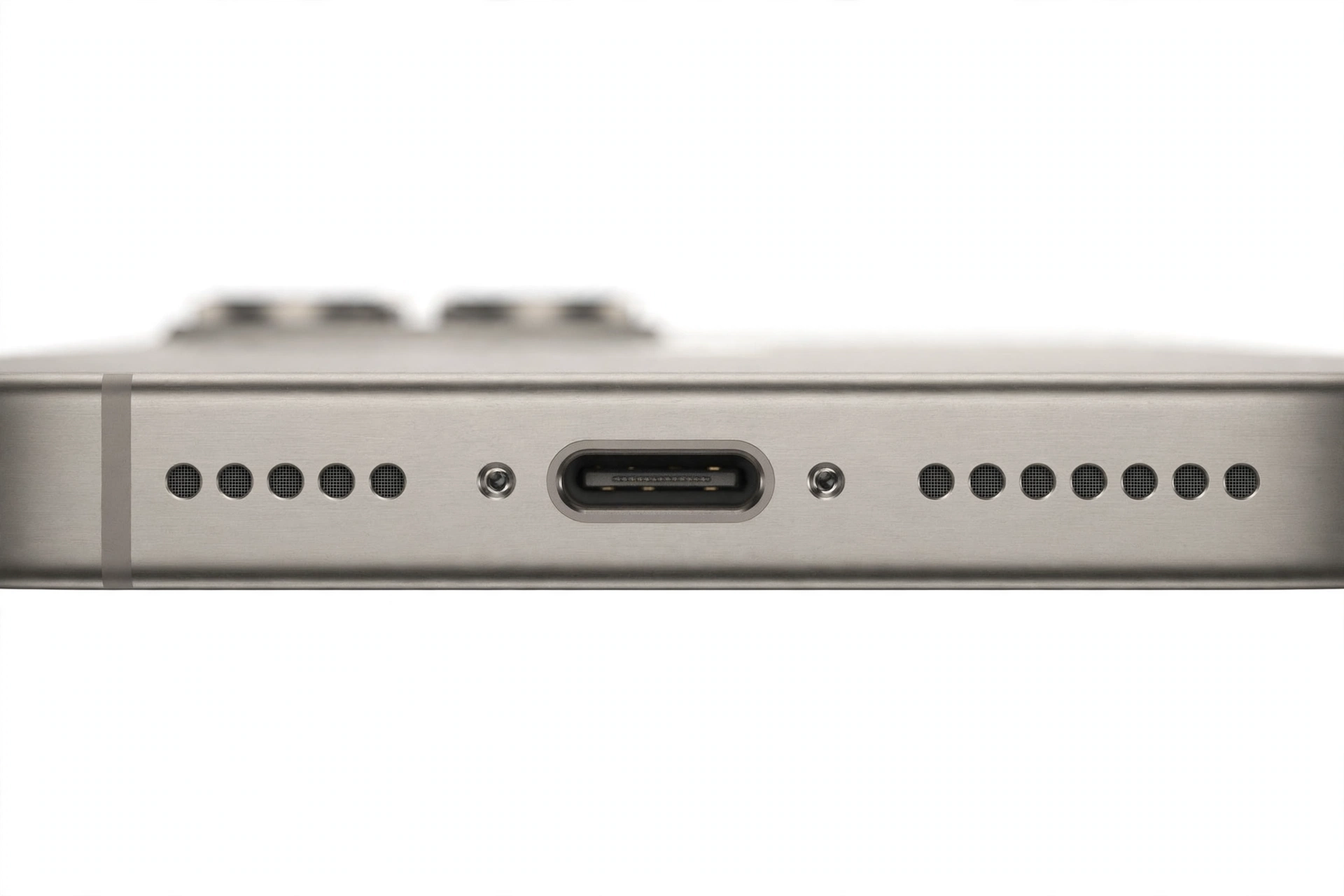
Your iPhone has multiple microphones, and iOS assigns them by task. Community summaries of Apple’s official microphone support guidance describe the layout this way: the bottom microphone (near the charging port) handles Voice Memos and phone calls; the front microphone (near the earpiece/TrueDepth area) handles FaceTime, Siri, and front-camera video; the rear microphone (near the rear camera) handles rear-camera video; the remaining microphones assist with noise cancellation.
Before changing anything, run three 30-second tests. They tell you exactly which input path is broken, and the fix depends on the answer.
4. Test 1: Voice Memos (bottom microphone)
This is Apple’s own recommended first test, summarized from its microphone troubleshooting page in original language: open the Voice Memos app, tap the record button, speak into the bottom of the iPhone for a few seconds, stop the recording, and play it back.
- Clear playback: the bottom microphone and its software path work. Your problem is app-specific, routing-specific, or limited to a different microphone.
- Silent or faint playback: the bottom input path is the broken one. Continue to the fix path, starting with the physical checks.
- Distorted or crackling playback: suggests either a software processing issue (try the restart and update steps) or, if it persists everywhere, hardware.
5. Test 2: front and rear camera video (front and rear microphones)
Record a short video with the front camera while speaking toward the top of the phone, then record one with the rear camera. Play both back.
- Front video silent, Voice Memo fine: the front microphone path is affected — common with FaceTime and Siri failures.
- Rear video silent, others fine: the rear microphone path is affected.
- All three silent: points to a system-level software problem (or, rarely, hardware) rather than one microphone.
This matters because “people can’t hear me on calls” and “Siri can’t hear me” can be two different microphones. Treating them as one problem leads to the wrong fix.
6. Test 3: one app versus every app (permission isolation)
If Apple’s own apps (Voice Memos, Camera, Phone, FaceTime) record and call normally, but a third-party app gets silence, you have isolated the problem to that app — almost always a permission or compatibility issue, not an iPhone problem. Skip straight to section 8 (app permissions) and the app-incompatibility notes in section 15.
Quick fact: A microphone that works in Voice Memos but not in a single app is a software/permission problem roughly every time. Do not reset the phone for it — the phone’s microphone is fine.
7. Match your symptom to the likely cause
| Symptom | Likely cause | Start with |
|---|---|---|
| Callers can’t hear you, but Voice Memos is clear | Audio routing to Bluetooth or speaker | Section 11 (Bluetooth and routing) |
| Voice Memos silent or faint | Blocked bottom opening or software glitch | Sections 9–10, then 12 |
| Siri or dictation fails, calls are fine | Front mic path or Siri input setting | Section 5 test, then section 8 |
| One app gets silence, all others work | Revoked permission or app incompatibility | Section 8 |
| Videos have no sound (front and rear) | System-level audio capture bug | Sections 12–13 |
| Muffled audio everywhere | Case or debris blocking openings | Section 9 |
| Works on speakerphone, fails on handset | Different mics for each mode; bottom mic path | Section 4 test, then section 9 |
| Fails on handset, works on speakerphone | Bottom mic path or routing | Sections 4, 11 |
| Echo or “underwater” audio after update | Processing/settings reset by update | Sections 12–14 |
| Stopped after update, works after restart, then fails again | Stuck audio process or app conflict | Sections 12–13, then 15 |
8. Fix step 1: check the app’s microphone permission
When the problem affects one app, the permission system is the prime suspect. Apple documents microphone access control in its microphone support guidance, summarized here in original language: check microphone access under Settings, in the Privacy & Security section, and confirm the affected app is listed and enabled.
- Open Settings > Privacy & Security > Microphone.
- Find the affected app in the list.
- If it is off, turn it on and test the app again.
- If it is already on, toggle it off, wait a few seconds, toggle it back on, force-quit the app, and test again — this clears stale permission records updates sometimes leave behind.
- If the app does not appear in the list at all, delete and reinstall the app (only if you can sign back in and your data is safe), then grant permission when it asks.
Tip: Some apps also keep their own microphone toggle inside the app’s own settings screen. Check there too — the iOS permission and the in-app toggle are two separate switches, and both must be on.
9. Fix step 2: remove what blocks the openings
Before assuming software, rule out the physical. Apple’s microphone troubleshooting guidance advises removing any case or film that covers a microphone opening and clearing visible debris gently.
- Remove the case. Thick or poorly fitted cases — especially new ones installed around the same time as the update — can cover the bottom microphone port or the rear mic pinhole. Test with the case off.
- Remove screen protectors and films that extend over the earpiece area, where the front microphone sits.
- Check for pocket lint in the bottom microphone ports on either side of the charging port.
- Remove accessories: unplug wired headsets and adapters during testing so iOS cannot route audio to them.
Stop for safety: Never push pins, needles, toothpicks, SIM ejector tools, or any metal object into a microphone opening. Apple’s guidance says not to insert objects into the openings — you can puncture the microphone membrane and turn a software problem into a permanent hardware one. A soft, dry brush is the safe limit.
10. Fix step 3: clean the openings safely
If the openings are visibly dusty or lint-filled:
- Use a soft, dry, clean brush (a soft toothbrush or camera lens brush) and sweep gently across — not into — each microphone opening.
- Do not use liquids, compressed air at close range, or heat.
- Re-test with Voice Memos immediately afterward.
If cleaning changes nothing, the blockage theory is ruled out — move on. Do not escalate to sharper tools; that path only damages hardware.
11. Fix step 4: Bluetooth and audio routing
This is the single most overlooked post-update cause of “nobody can hear me.” Updates can silently change the default audio route, so your iPhone sends call audio to a Bluetooth device in another room — earbuds in their case, a car system, a smart speaker — and the microphone appears dead.
- Open Settings > Bluetooth and toggle Bluetooth off entirely, then make a test call. If the microphone works with Bluetooth off, a connected or previously paired device was stealing the audio route.
- During a call, tap the Audio button on the call screen and confirm it says iPhone or Speaker — not a Bluetooth device name.
- In Settings > Bluetooth, tap the i next to old or unused devices and choose Forget This Device for anything you no longer use.
- Check Settings > Accessibility > Touch > Call Audio Routing and make sure it is set to Automatic, not forced to Bluetooth Headset.
Quick fact: “Automatic” call audio routing lets the iPhone choose sensibly per call. If an update pinned it to Bluetooth Headset, every call routes to a device that may not even be nearby — and the built-in microphone goes silent by design.
12. Fix step 5: force restart
A restart clears stuck audio processes without touching your data. Use the correct button sequence for your model:
- iPhone 8 and later (including iPhone X through iPhone 17 series): press and quickly release Volume Up, press and quickly release Volume Down, then press and hold the Side button until the Apple logo appears.
- iPhone 7 / 7 Plus: press and hold Volume Down and the Side button together until the Apple logo appears.
- iPhone 6s and earlier: press and hold the Home button and the Side (or Top) button together until the Apple logo appears.
After the restart, re-run the Voice Memos test before changing anything else. If the microphone works and later fails again, note which app or action precedes the failure — that pattern points to an app conflict (see section 15).
13. Fix step 6: install the follow-up point release
If Apple shipped an audio regression in the update you installed, the fix is usually the next point release (for example, 18.4.1 after 18.4). Before deeper resets:
- Go to Settings > General > Software Update.
- Install any available update, even a small one — audio fixes routinely ship in point releases without fanfare.
- Restart once more after installing, then re-test.
If no update is available and the problem began the day you updated, check Apple’s discussion forums and reputable tech press for other users reporting the same pattern on the same iOS version. A widespread pattern strongly suggests a bug awaiting a patch — and means aggressive resets are unlikely to help.
14. Fix step 7: Reset All Settings
If the microphone still fails across multiple Apple apps after the steps above, corrupted settings migrated by the update are the likely culprit. Settings > General > Transfer or Reset iPhone > Reset > Reset All Settings returns every setting to defaults — Wi-Fi passwords, wallpaper, privacy permissions, accessibility options — while keeping your photos, apps, and data.
Stop for safety: On the Reset screen there are two similarly named options. Reset All Settings keeps your data. Erase All Content and Settings deletes everything on the iPhone. Choose the wrong one and you will need a full backup restore to recover. Read the button twice before tapping.
After the reset, grant microphone permission to your apps again when prompted, then re-run the three triage tests.
15. When one app is the problem: the incompatibility check
If Apple’s apps work and one third-party app does not, work this list before blaming the iPhone:
- Update the app in the App Store — developers ship compatibility fixes in the days after a major iOS release.
- Force-quit and relaunch the app after granting permission.
- Check the app’s own settings for an internal microphone or audio-input toggle.
- Test the app with Bluetooth off — some apps grab the wrong audio route on their own.
- Contact the app’s developer if the failure survives all of the above; the fix is on their side.
16. When it is hardware, not software
Work through the software path honestly, because an update cannot physically damage a microphone. But seek professional assessment if:
- All three microphone tests fail after a restart, a point-release update, and Reset All Settings.
- The failure began with a drop, liquid exposure, or a repair — the update timing was coincidence.
- Audio is distorted or crackling identically in every app, including Voice Memos, after all software steps.
- Only one microphone fails and the phone has physical damage near that opening.
Do not open the iPhone yourself. Internal microphone components are part of flex assemblies and the logic board area; opening the device risks further damage and affects warranty coverage.
(The following are hypothetical illustrations, not customer stories.) Maya updated her iPhone on a Monday evening and discovered Tuesday that callers couldn’t hear her — but Voice Memos was crystal clear. Turning off Bluetooth revealed her old earbuds, still paired from a drawer, were capturing every call. Daniel’s issue was the opposite: silence in every app after the update, fixed only by Reset All Settings, which cleared a corrupted permission database the update had left behind.
17. What these tests can and cannot establish
| Observation | What it establishes | What it does not establish |
|---|---|---|
| Voice Memos records clearly | The bottom mic and its software path work | That the front/rear mics work, or that apps have permission |
| One app fails, others work | The iPhone microphone hardware works | Whether the app or iOS permission is at fault — check both |
| Works with Bluetooth off | A Bluetooth device was capturing the audio route | That Bluetooth is “broken” — it was a routing default |
| Fixed by Reset All Settings | Corrupted settings from the update were the cause | Which exact setting was corrupt |
| All mics fail after every software step | A system-level fault remains | Whether it is hardware or a deep OS bug — needs professional diagnosis |
| Problem matches forum reports on the same iOS version | A widespread bug is likely | When Apple will ship the fix |
18. Frequently asked questions
Can an iOS update really break the microphone?
It can break microphone function — through permissions, routing, settings, or bugs — but it cannot physically damage the microphone hardware. That distinction is why the software fix path comes first.
Why does my microphone work in Voice Memos but not in calls?
Different microphones and different audio routes serve each function. Check Bluetooth routing and the in-call Audio button first — a paired device in another room is the classic cause.
Should I erase my iPhone to fix the microphone?
No — not as a first, second, or third step. Erasing is a last resort, and only with a verified backup. Reset All Settings resolves most update-related audio problems without deleting anything.
Will a case really block the microphone?
Yes. The bottom microphone ports are small openings beside the charging port, and thick or misaligned cases cover them. Apple’s own troubleshooting guidance starts with removing the case and checking the openings.
My app doesn’t appear under Settings > Privacy & Security > Microphone. What now?
The app may never have requested permission, or its request record was lost. Reinstall the app and grant permission when prompted — or check whether the app has its own internal microphone toggle.
Is it safe to clean the microphone with a pin?
No. Never insert pins, needles, or SIM tools into microphone openings — you can puncture the membrane. A soft, dry brush swept across the opening is the safe limit.
The microphone worked before the update and broke the same day. Is it definitely the update?
Same-day timing after an update is strong evidence of a software cause, especially if it affects multiple apps at once. Work the software path — but if the phone was also dropped or exposed to liquid recently, say so to whoever assesses it, because hardware damage follows its own timeline.
When should I stop troubleshooting and get help?
Stop when all three microphone tests fail after a restart, a current iOS version, and Reset All Settings — or immediately if there is physical damage, liquid exposure, or a swollen battery. At that point the question is hardware, and it needs professional diagnosis.
If you are in the Las Vegas area and the software steps above did not resolve it, Las Vegas Phone Repair & Accessories (7400 Las Vegas Blvd S, Unit TT42, Las Vegas, NV 89123; (424) 406-6202; open 10AM–8PM, call ahead to confirm today’s hours) can assess the device and advise on next steps.
Video: How to fix iPhone stuck after iOS update

Sources and editorial notes
- Apple Support — Get help with the microphones on your iPhone, iPad, and iPod touch: Apple’s official microphone troubleshooting page — the Voice Memos record-and-playback test, per-app microphone access check, and removing cases/films from microphone openings, summarized in original language above. Apple’s guidance warns against inserting objects into the openings.
- SlashGear — Ways to fix an iPhone microphone that isn’t working: independent walkthrough covering restarts, permission checks, Bluetooth interference, and contacting Apple Support; used to cross-check the ordered fix sequence.
- MacObserver — Fix iPhone microphone not working: independent guide documenting the per-microphone isolation method (Voice Memos for the bottom mic, front-camera video for the front mic) and the Settings > Privacy > Microphone permission path.
- AppleCorridor — iPhone microphone not working: 7 ways to fix it: independent guide covering software updates as a fix, Reset All Settings (data-preserving), and Bluetooth disconnection as a routing check.
- AEANET — Why is my microphone not working on my iPhone?: independent troubleshooting reference noting that iOS updates can introduce microphone bugs, with the systematic test-each-microphone approach.
- PhoneModo — How to increase mic volume on iPhone: reference for the multi-microphone layout (front, rear, bottom) and the Voice Memos test procedure used to identify which microphone is affected.
Last source check: October 14, 2026. AI-assisted editorial guide, checked against the linked manufacturer information. Menu paths and procedures reflect Apple’s documented flows as of the last check; iOS layouts may vary slightly by version. This guide does not replace professional diagnosis for suspected hardware faults.
Let’s get you connected again.
Tell us what’s happening with your device and we’ll help you decide the safest next step — no jargon, no pressure.
Las Vegas Phone Repair & Accessories · 7400 Las Vegas Blvd S, Unit TT42, Las Vegas, NV 89123
10:00 AM–8:00 PM — call ahead to confirm today’s hours