
How to Transfer Data from Broken Cubot Phone to New Phone: Complete Guide
If your Cubot phone is broken but was signed into a Google account with backup turned on, most of your data can be restored to a new phone simply by signing into the same Google account during setup — even if the old phone is completely dead. If no backup was running, your options depend on what still works: a USB-OTG mouse can rescue a touch-dead phone, a USB cable and a computer can copy files, and a microSD card can carry photos and documents across — Cubot has never shipped a proprietary phone-to-phone transfer app, so Google’s tools and standard Android methods are the official path.
On this page
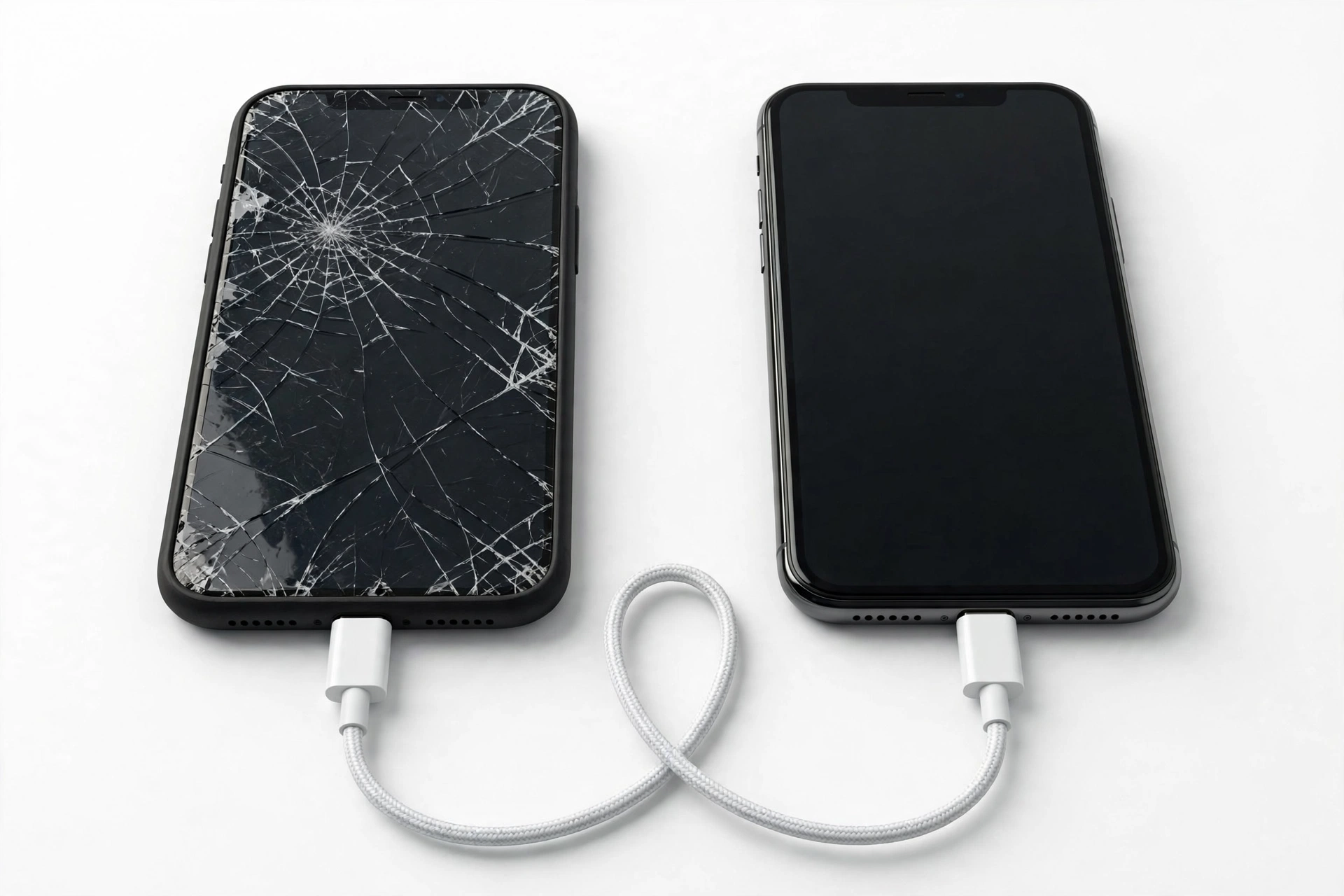
If your Cubot phone is broken but was signed into a Google account with backup turned on, most of your data can be restored to a new phone simply by signing into the same Google account during setup — even if the old phone is completely dead.
1. Who this guide helps
This guide is written for owners of Cubot smartphones — including popular lines like the X series, P series, Note series, KingKong rugged series, Max, S series, and the Hafury series — whose device has suffered physical or functional damage: a cracked or unresponsive screen, a black display, a phone that won’t charge, or a phone that won’t turn on at all. It also helps if your Cubot works but you are upgrading and want to move everything safely to a replacement device. (Source: tutorial.info)
Cubot is a Chinese budget-phone manufacturer whose sweet spot is the sub-$200 price range, and its phones run a light, near-stock build of Android. That matters here: unlike Samsung (Smart Switch) or Apple (iCloud), Cubot has never released a proprietary phone-to-phone transfer app. There is no “Cubot Smart Switch,” and any third-party app in the Play Store trading on Cubot’s name is unofficial. The good news is that Cubot’s near-stock Android means the standard Google backup and Android migration tools work exactly as documented — the instructions in this guide apply across the Cubot lineup with only small menu-label differences between Android versions.
This guide covers two audiences: people whose phone is still alive in some form (screen cracked but touch works, or touch dead but display alive), and people whose phone is fully dead or inaccessible. Be honest with yourself about which category you fall into — the methods are different, and trying the wrong one wastes hours.
If you are looking for the general broken-phone transfer walkthrough rather than the Cubot-specific one, see our guide on transferring data from a broken phone. The rugged-phone rescue techniques below also overlap with our guides for broken Blackview phones and broken Doogee phones, since all three brands ship near-stock Android with OTG and microSD support.
2. Safety first: what not to do with a broken Cubot
A broken phone is a battery with a screen attached, and a damaged battery is the one thing that can turn a data-rescue task into an emergency. Before you do anything, run through this checklist:
- Swollen, distorted, or very hot phone: stop. A battery that has swollen (the back cover or screen pushes outward) or that gets dangerously hot during charging is a fire risk. Do not attempt to charge it, do not keep it on soft furniture, and do not try to open it. Place it on a non-flammable surface and get it assessed by a professional. Data is not worth a battery fire.
- Wet phone: do not charge it and do not power it on repeatedly to “check” it. If the phone went through water, let it dry for at least 24–48 hours in a dry, ventilated place. Do not put it in rice (rice dust gets into ports) and do not use a hair dryer. Water damage is progressive — each power-on can push corrosion further.
- Shattered glass: handle the phone with care or gloves. Tiny glass fragments can cut fingers, and they can also migrate into charging ports. Avoid pressing hard on the broken area.
- Never open the phone yourself. Cubot devices, especially the KingKong rugged line with IP68/IP69K sealing, are assembled in ways that punish improvisation. Opening a phone voids any remaining warranty and risks destroying the very storage chip you are trying to rescue.
Stop for safety: never charge a phone that is wet, swollen, visibly distorted, or dangerously hot. Charging a compromised battery can cause thermal runaway. If any of those conditions apply, stop this guide here and get the device assessed by a professional.
3. Cubot’s transfer reality: there is no Cubot Smart Switch
This needs to be said up front, because many owners assume there is a Cubot-branded tool the way Samsung has Smart Switch or Xiaomi has Mi Mover: no such app exists. Cubot has never released a proprietary phone-to-phone transfer application, and the company does not publish its own cloud backup service. Its phones rely on Google’s backup system, Google Photos, and standard Android tools — which is also why the steps in this guide work across the whole Cubot range rather than depending on a model-specific utility.
A corollary warning: searching the Play Store for “Cubot transfer” turns up unofficial apps that borrow the brand name. Do not hand your Google account credentials, contacts, or photos to an app merely because it uses a familiar brand word in its title. Third-party migration apps can be legitimate, but they should be judged on their publisher, reviews, and privacy policy — never on brand-name resemblance.
The practical upshot: your rescue plan rests on three pillars that Cubot’s near-stock Android supports well — Google’s cloud backup (documented on Cubot phones via Settings → System → Backup), standard hardware interfaces (USB-C with OTG support on most models, and microSD/TF-card slots typically expandable to 256GB–1TB depending on model), and app-level backups (WhatsApp, authenticator apps, and photo services each handle their own data). The rest of this guide walks through them in order of reliability.
4. First, diagnose: what is your broken condition?
The method you choose depends entirely on what still functions. Spend two minutes on this triage — it saves you from attempting a cable transfer on a phone whose USB port is the broken part.
| Condition | What still works | Best methods | Expected recovery |
|---|---|---|---|
| Cracked glass, touch works | Display, touch, charging | Google backup, cable copy, microSD | Near-complete |
| Touch dead, display visible | Display, buttons, charging | OTG mouse, then Google backup or cable copy | Near-complete once mouse control is restored |
| Black screen, phone alive | Charging LED, sounds, vibration | OTG hub + external display, cable copy via computer | Good if USB port and storage work |
| Won’t charge / won’t power on | Nothing locally | Google backup restore only; professional board-level recovery | Whatever was already in the cloud |
| Water-damaged | Varies | Dry first (24–48h), then treat as the matching condition above | Unpredictable; cloud data is safest |
The honest framing: if the phone is completely dead and no cloud backup was running, local data that exists only on the phone is not recoverable by you. Anyone who tells you otherwise is selling something. That is not a Cubot limitation — it is true of every phone. The rest of this guide is about maximizing what is reachable.
Quick fact: the single most important number in this whole guide is not a model number — it is whether “Backup to Google Drive” was switched on before the damage. On Cubot phones it lives at Settings → System → Backup, and Cubot-specific tutorials (for the X20, KingKong Mini 2, and Note 9 among others) document the same switch. If it was on, your data is already safe even if the phone never turns on again.
5. Method 1: Google backup restore on the new phone (works with a fully dead old phone)
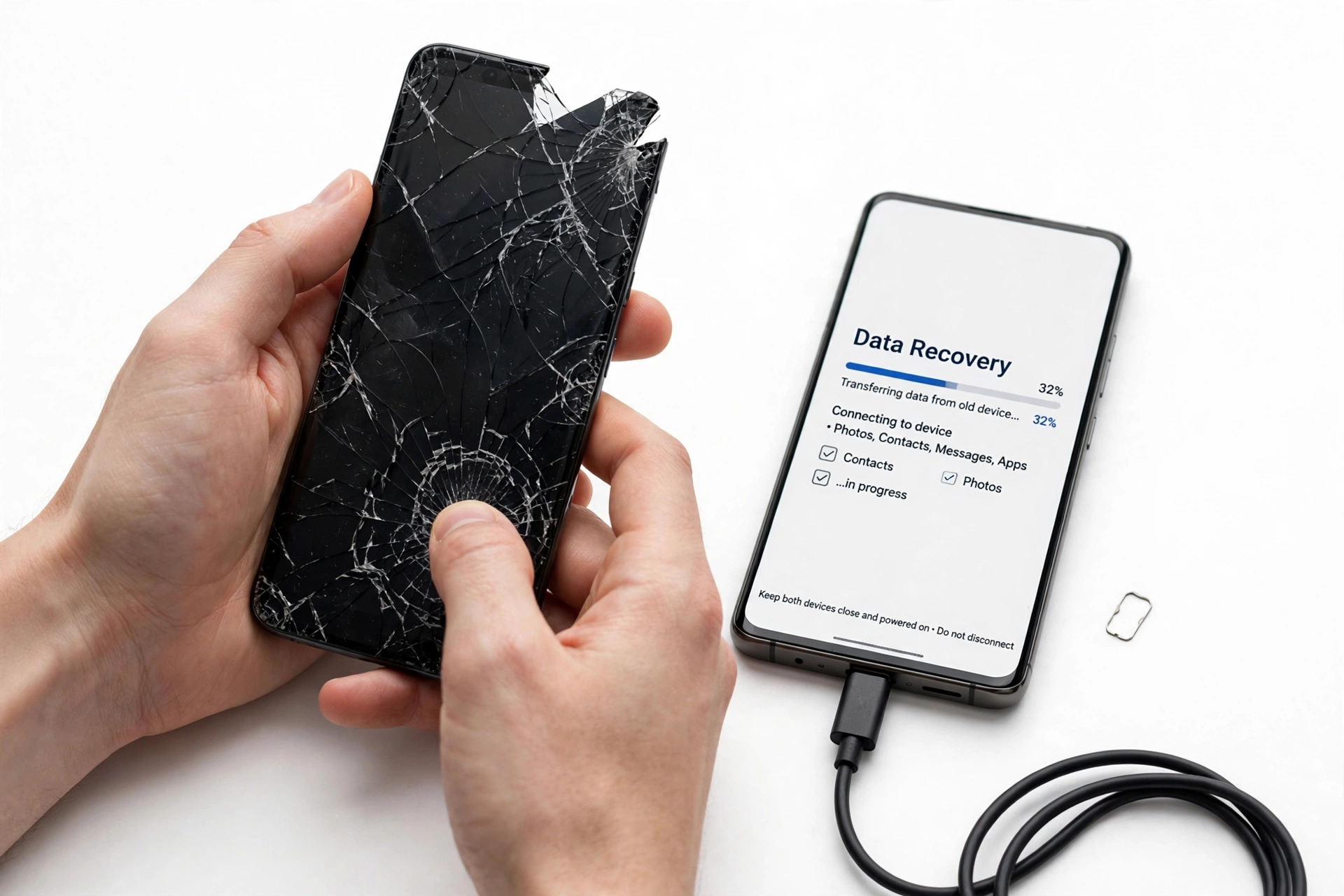
This is the method to try first, because it requires nothing from the old phone except that a backup was taken while it was still alive. Google’s Android backup covers apps, call history, contacts, device settings, SMS messages, and photos/videos (the last two via Google Photos, which is a separate sync). Mobile-data sources on Cubot-specific backup guides (MobileSpecs’ per-model backup pages for the X20 Pro, P30, KingKong Mini 2 Pro, and R15 Pro) describe exactly this flow: sync data to cloud storage via a Google account, and the phone restores from it.
5.1. Check whether a backup exists — before you buy or set up the new phone
- On a computer or another working device, sign into the same Google account your Cubot used, and visit Google Drive → Storage → Backups (or open the Google One app → Storage → Backups).
- Look for a backup entry named after your Cubot model. Each backup shows the date it was last updated.
- If a backup exists and is reasonably recent, your cloud rescue is ready. If the last backup is months old, adjust your expectations — only data from before that date will restore.
- If no backup exists at all, skip to Methods 2–5, which work with the physical phone.
5.2. Restore during new-phone setup
- On the new phone, begin setup and sign into the same Google account.
- When Android offers “Copy apps & data,” choose to restore from the cloud backup.
- Select the backup entry for your Cubot. The phone will download your apps, settings, call history, contacts, and messages over Wi-Fi. Leave it on Wi-Fi and plugged in — a full restore on a large backup can take an hour or more.
- After the system restore finishes, open Google Photos and confirm your photos are syncing down. Open WhatsApp separately (see Section 12) — it has its own backup.
| Data type | Covered by Google backup? | Notes |
|---|---|---|
| Contacts (saved to Google) | Yes | Sync is near-instant; check contacts.google.com |
| Photos and videos | Yes, via Google Photos | Separate sync from the system backup; check photos.google.com |
| Apps and app data | Mostly | Apps reinstall; in-app data restores only if the developer allows it |
| SMS messages | Yes | Restored during setup from the cloud backup |
| Call history | Yes | Part of the system backup |
| Device settings, Wi-Fi passwords | Yes | Restored automatically |
| Authenticator codes | Usually not | Most authenticator apps exclude themselves; re-register each account |
| Banking apps | Not data | Apps reinstall; you sign in fresh on the new phone |
| Files in Downloads or custom folders | No | Needs cable copy or microSD (Methods 3–4) |
6. Method 2: USB-OTG mouse rescue for a touch-dead Cubot
If the screen displays an image but does not respond to touch, the phone itself is often fine — only the digitizer is dead. A USB-OTG (On-The-Go) adapter lets you plug a standard USB mouse into the phone’s charging port, giving you a cursor you can use to operate the phone normally. OTG support is standard on most Cubot models — it appears in the spec sheets of the KingKong X, the S600, the Cubot Max, the Pocket, and the Hafury Meet, among others.
6.1. What you need
- A USB-OTG adapter matching your Cubot’s port (USB-C on recent models; micro-USB on older ones like the S600).
- A basic wired USB mouse. Wireless mice with a USB dongle usually work too.
- The phone charged to at least 20%.
6.2. Steps
- Power on the Cubot.
- Plug the OTG adapter into the phone, then plug the mouse into the adapter. A cursor should appear on screen within a few seconds.
- Click through to unlock the phone. If it asks for a PIN, click the digits with the mouse.
- Now the phone is operable: go to Settings → System → Backup and tap Back up now to force a fresh cloud backup (this is the single most valuable click in this guide).
- While you have control, also connect to Wi-Fi if the phone isn’t already, and open Google Photos to confirm photo sync is current.
- Optionally, plug a USB flash drive into the OTG adapter instead and copy the DCIM (photos), Downloads, and Documents folders manually — this gives you a local copy as insurance.
Tip: if the phone also needs a keyboard (for typing a long Google password), a USB hub lets you connect a mouse and keyboard at the same time. Some Cubot models also work with a USB-C hub that adds an HDMI output — if the display is dead too, the hub-plus-monitor route (Section 7’s bigger sibling) can give you a working screen on an external display.
(The following is a hypothetical illustration, not a customer story.) Imagine Maya, who drops her Cubot Note 30 and shatters the digitizer — the screen shows her lock screen perfectly, but no touch registers. She buys a $8 USB-C OTG adapter and plugs in an old wired mouse. Within a minute she’s clicking through her PIN, opens Settings → System → Backup, taps “Back up now,” and by evening her new phone restores everything during setup. Total extra cost: the adapter.
7. Method 3: USB cable + computer file copy
If the phone powers on and the USB port works, a computer can read the phone’s storage directly — no touch input needed beyond the initial connection steps. This is the best method for photos, videos, downloads, and documents.
7.1. Steps
- Connect the Cubot to a computer with a data-capable USB cable (some cheap cables are charge-only — if the computer doesn’t see the phone, try a different cable).
- On the phone, the USB connection mode defaults to charging-only. Swipe down the notification shade and tap the USB notification, then select File transfer / MTP. (If touch is dead, do this with the OTG mouse from Method 2 first.)
- On a Windows PC, the phone appears in File Explorer. On a Mac, use Android File Transfer or a similar tool. On a Chromebook or Linux machine, the phone typically mounts automatically.
- Copy the DCIM folder (camera photos and videos), Downloads, Documents, and Pictures folders to the computer. Copy first, verify the copies open, and only then think about the phone’s fate.
A common snag: if the phone is locked with a PIN and you cannot unlock it, the computer will see the device but not its storage. Android’s encryption requires the unlock before MTP exposes files. In that case, unlock via OTG mouse (Method 2) first — there is no supported way around the lock screen, and that is by design.
(The following is a hypothetical illustration, not a customer story.) Consider Daniel, whose Cubot KingKong Mini 2 went through a washing machine accident and never powered on again. He assumes his photos are gone — but months earlier he’d left Google Photos’ “Back up & sync” on. On his replacement phone he signs into the same Google account, opens Google Photos, and three years of pictures stream down. The phone was unrecoverable; the memories weren’t, because the backup had been running silently all along.
8. Method 4: microSD / TF-card migration
Many Cubot models include a microSD (TF-card) slot — commonly in a hybrid dual-SIM tray — with expansion support typically up to 256GB and on newer rugged models up to 1TB (the KingKong X is specced to 1TB; the Note 30 to 256GB). If your photos or files were stored on the card, migration is trivial: power both phones off, move the card to the new phone, and the files are there.
8.1. The adopted-storage trap
Android offers two ways to use a microSD card, and the distinction matters enormously for a broken phone:
- Portable storage: the card is a removable drive. Move it to any phone or computer and read it. This is what you want.
- Adopted (internal) storage: the card is encrypted and merged with the phone’s internal storage. It can only be read by the phone that adopted it. If that phone is dead, the card is unreadable — the encryption key died with the phone.
If you previously formatted the card as internal storage, do not waste time trying to read it in another device. Your recovery path is the Google backup (Method 1) or a working-phone connection (Methods 2–3).
If the card is portable and the phone’s touch is dead, use the OTG mouse (Method 2) to open the file manager and copy internal files to the microSD card, then move the card to the new phone. This is a practical bridge when the USB port is damaged but the card slot is fine.
9. Method 5: Bluetooth and Wi-Fi Direct transfers
When cables and OTG adapters aren’t available, wireless transfers can move smaller batches of files between the broken Cubot and a new phone — provided the Cubot is still operable (via touch or OTG mouse).
- Bluetooth: pair the two phones, select files in the file manager, and use Share → Bluetooth. Slow (best for documents and a handful of photos), but it needs no accessories.
- Wi-Fi Direct / Nearby Share (Quick Share): much faster than Bluetooth and built into Android. Open the file manager, select files, Share → Nearby Share/Quick Share, and accept on the new phone. Both phones need Wi-Fi and Bluetooth on and to be near each other.
- Upload to Google Drive from the phone, download on the new phone: the simplest wireless route for documents — open the Drive app on the Cubot, upload, then open Drive on the new phone.
These are convenience methods, not primary rescue methods — use them for stragglers after a backup restore or cable copy, not as your only plan.
| Method | Needs from old phone | Best for | Try it… |
|---|---|---|---|
| 1. Google backup restore | Nothing (backup already taken) | Dead phones; full settings/apps/messages | First, always |
| 2. OTG mouse | Working display + USB port | Touch-dead screens; unlocks all other methods | Second, if touch is dead |
| 3. USB cable + computer | Working USB port; unlocked | Photos, videos, downloads, documents | Alongside or after Method 2 |
| 4. microSD card move | Card in portable mode | Photos/files already on the card | Anytime; check adopted vs portable |
| 5. Bluetooth / Nearby Share | Operable phone | Small batches, no accessories handy | Last, for leftovers |
10. App-by-app: what actually moves and what doesn’t
A full “transfer” is really a dozen small transfers. This table sets honest expectations before you start:
| App / data | Moves via Google backup? | What to do instead |
|---|---|---|
| WhatsApp chats | No | Restore from WhatsApp’s own Google Drive backup (Section 12) |
| Google Photos library | Separate sync | Sign in on the new phone; photos stream down |
| Contacts (Google-saved) | Yes | Verify at contacts.google.com |
| Contacts (SIM/phone-only) | No | Export to .vcf via Contacts app before the phone dies, or copy SIM to new phone |
| SMS messages | Yes | Restored during setup |
| Authenticator codes | Usually no | Re-register each account; use backup codes |
| Banking / payment apps | App only | Reinstall and sign in fresh; re-verify identity as prompted |
| Game progress | Sometimes | Only if the game uses Google Play Games cloud saves |
| Downloaded music / offline maps | No | Re-download on the new phone |
| Files in Downloads/Documents | No | Cable copy (Method 3) or microSD (Method 4) |
11. The big three in detail: WhatsApp, photos, contacts
11.1. WhatsApp
WhatsApp keeps its own backup, separate from Android’s system backup. On the old phone: WhatsApp → Settings → Chats → Chat backup, and confirm it backs up to Google Drive on the same Google account. On the new phone: install WhatsApp, verify the same phone number, and when prompted, restore from the Google Drive backup. This only works if the backup was taken while the old phone was alive — a dead phone with no WhatsApp backup means chat history is gone. Media (photos/videos inside chats) is included only if “Include videos” was enabled in the backup settings.
11.2. Photos and videos
Open Google Photos on any device and sign into the same account — if your pictures are there, they were syncing and will appear on the new phone automatically once you sign in. If Photos sync was off (it is off by default on some setups until you enable “Back up & sync”), your photos live only in the phone’s DCIM folder, and you need the cable copy (Method 3) or the microSD move (Method 4). Check photos.google.com now — it takes thirty seconds and settles the question.
11.3. Contacts
Contacts saved to your Google account sync continuously and appear instantly on the new phone. The risk is contacts saved to “Phone” or “SIM” only. If the old phone still works, open Contacts → Settings → Export, save a .vcf file, and move it via any method above. SIM contacts can be imported on the new phone via Contacts → Settings → Import from SIM.
12. What can’t be recovered — the honest section
Some data is simply gone if the phone is dead and it was never backed up. Saying this plainly:
- Anything stored only in internal storage with no backup: unsynced photos, voice recordings, downloaded files, app data from apps that don’t cloud-sync. If the phone never turns on again and there is no backup, this data is inaccessible without professional board-level recovery (chip-off forensics), which is expensive, not guaranteed, and not something a retail repair shop typically offers.
- Authenticator codes: by design, these don’t leave the device. If you lose them without backup codes, you go through each service’s account-recovery process.
- Adopted-storage microSD cards from a dead phone, as explained in Section 8 — the encryption key is gone with the phone.
- End-to-end encrypted chat history (Signal, WhatsApp without a Drive backup) that was never backed up.
Stop for safety: never factory-reset the broken phone before you have copied or confirmed everything. A reset wipes the local encryption keys and makes any remaining on-device recovery impossible. Copy first, verify the copies, and only then wipe — wiping is the last step, done before recycling or handing the phone to a shop.
13. After the transfer: reset, SIM, and recycling
Once you’ve confirmed your data on the new phone — open a few photos, check contacts, verify WhatsApp restored — finish the job properly:
- Sign out of the old phone: if it’s operable, remove your Google account (Settings → Passwords & accounts → Google → Remove account). This detaches the phone from your account so a future owner can’t trigger remote actions.
- Factory reset: Settings → System → Reset → Erase all data. Only after you’ve verified your data elsewhere.
- Remove the SIM and microSD card before recycling, trading in, or handing the phone to a repair shop. SIM cards carry your number and sometimes contacts; microSD cards in portable mode carry your files.
- Recycle responsibly: phones contain batteries that don’t belong in household trash. Most electronics retailers and municipal programs accept them.
14. When to stop and get professional help
Stop DIY recovery and seek a professional assessment if:
- The phone is swollen, distorted, or dangerously hot.
- The phone was submerged and won’t power on after proper drying.
- The phone powers on but the storage isn’t recognized by any computer (possible storage-chip failure).
- You need data that exists only on a dead phone with no backup — this requires board-level microsoldering or chip-off recovery, a specialist service with no guaranteed outcome.
- The screen replacement cost approaches the price of a replacement Cubot — Cubot’s budget pricing sometimes makes a new device the rational choice over repair. A shop can give you a straight answer either way.
If you’re in the Las Vegas area and want a professional assessment of a broken Cubot — what data is recoverable, whether repair makes economic sense, and what your options are — Las Vegas Phone Repair & Accessories, 7400 Las Vegas Blvd S, Unit TT42, Las Vegas, NV 89123, (424) 406-6202, can evaluate the device and advise on next steps. Call ahead to confirm current hours.
15. Frequently asked questions
Can I transfer data from a completely dead Cubot phone?
Only what was already backed up to the cloud. If Google backup was on, sign into the same Google account on the new phone during setup and restore — the dead phone isn’t needed at all. If no backup existed, data stored only on the dead phone is not recoverable without specialist board-level recovery, which is expensive and not guaranteed.
Does Cubot have its own transfer app like Samsung Smart Switch?
No. Cubot has never released a proprietary phone-to-phone transfer app. Its phones use Google’s backup system and standard Android tools. Treat any Play Store app using Cubot’s name as unofficial and judge it on its publisher and privacy policy, not the brand word in its title.
How do I check whether my Cubot was backing up to Google?
On any computer, sign into the Google account the phone used and open Google Drive → Storage → Backups, or use the Google One app. A backup entry named after your Cubot model with a recent date means your apps, settings, messages, and call history are safe. Photos are checked separately at photos.google.com.
My Cubot screen is cracked but touch works. What’s the fastest method?
Go to Settings → System → Backup and tap “Back up now” over Wi-Fi, then restore on the new phone during setup. In parallel, copy the DCIM and Downloads folders to a computer via USB cable — the two methods together cover everything.
The touch doesn’t work but I can see the screen. What now?
Use a USB-OTG adapter and a wired mouse — OTG is supported on most Cubot models. The mouse cursor lets you unlock the phone, trigger a Google backup, enable file-transfer mode, and copy files to a USB drive, all without a working touchscreen.
Can I just move the microSD card to the new phone?
Yes, if the card was used as portable storage — power both phones off, move the card, and the files are there. No, if the card was formatted as adopted (internal) storage — it’s encrypted to the dead phone and unreadable elsewhere. When in doubt, try reading the card in a computer first.
Will my WhatsApp chats transfer automatically?
No — WhatsApp uses its own Google Drive backup, separate from Android’s system backup. It must have been enabled on the old phone (WhatsApp → Settings → Chats → Chat backup). On the new phone, install WhatsApp, verify the same number, and restore when prompted.
Should I repair the broken Cubot or just replace it?
It depends on the damage and the model. Cubot’s budget pricing means a screen replacement on an older or entry-level model can cost a large fraction of a new device — in those cases replacement is often the rational choice, and this guide’s transfer methods get your data across. For newer or higher-end models (KingKong rugged line, recent X series), repair can make sense. A professional assessment gives you the numbers to decide.
Video: How to transfer everything from old to new Android
Sources and editorial notes
- Tutorial.info — How to Turn On Google Backup on Cubot X20: documents the Settings → System → Backup → “Backup to Google Drive” flow on a Cubot device.
- Tutorial.info — How to Activate Google Backup on Cubot KingKong Mini 2: step-by-step Google backup activation on the KingKong Mini 2.
- Tutorial.info — How to Activate Google Backup on Cubot Note 9: Google backup and “Backup Now” flow on the Note 9.
- MobileSpecs — Backup copy of personal data on Cubot X20 Pro: describes Google cloud sync backup approach and per-model backup guidance for Cubot devices.
- GizmoChina — Cubot Pocket launch: confirms OTG support and microSD slot on Cubot models; illustrates the brand’s spec patterns.
- HelpMax — Cubot KingKong X Connectivity and Features: documents USB Type-C with OTG support on the KingKong X.
Last source check: October 14, 2026. AI-assisted editorial guide, checked against the linked manufacturer and tutorial information. Cubot publishes limited model-specific backup documentation; Google backup flows are documented via third-party Cubot-specific tutorials and apply to Cubot’s near-stock Android builds. No Cubot proprietary transfer app exists; methods described use Google and standard Android tools.
Let’s get you connected again.
Tell us what’s happening with your device and we’ll help you decide the safest next step — no jargon, no pressure.
Las Vegas Phone Repair & Accessories · 7400 Las Vegas Blvd S, Unit TT42, Las Vegas, NV 89123
10:00 AM–8:00 PM — call ahead to confirm today’s hours
2 thoughts on “How to Transfer Data from Broken Cubot Phone to New Phone: Complete Guide”