
How to Transfer Data from Broken Blackview Phone to New Phone: Complete Guide
Blackview has never released a proprietary phone-to-phone transfer app, so your data moves through Google’s own backup and the standard Android “Copy apps & data” setup flow — which works even if the old phone is completely dead. This guide walks through every realistic path, in order of reliability, matched to what your broken Blackview can still do.
On this page
Blackview has never released a proprietary phone-to-phone transfer app, so your data moves through Google’s own backup and the standard Android “Copy apps & data” setup flow — which works even if the old phone is completely dead.
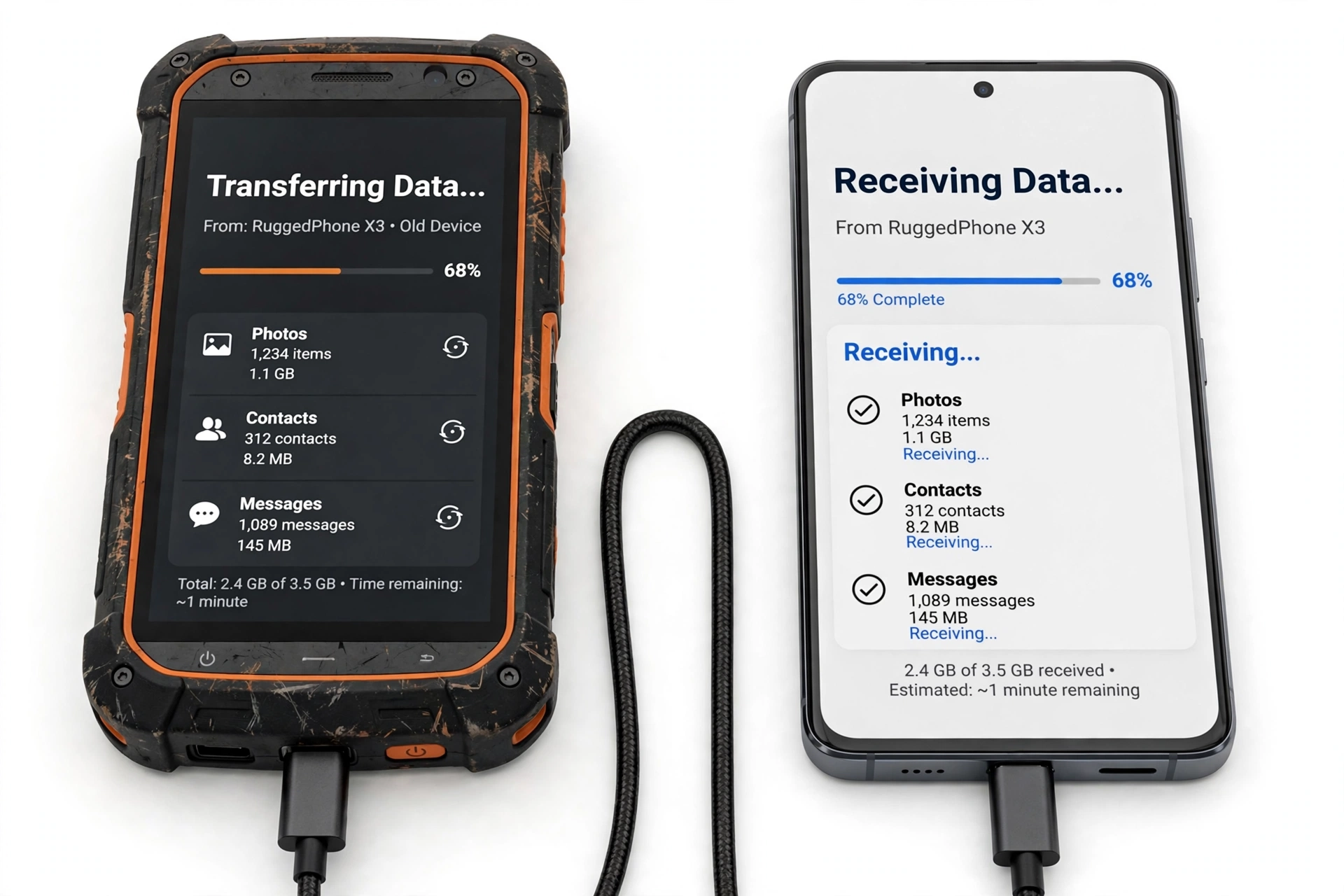
Quick fact: Blackview is a rugged-phone specialist. Its BV-series and newer Armor-class models (plus the Oscal line) run near-stock Android with Google Mobile Services on international models. That means the documented, supported transfer path is Google’s — not a Blackview-branded app.
1. Who this guide helps
This guide is for anyone whose Blackview phone — BV-series, N6000, Oscal, or any other Blackview model — is damaged and needs its contents moved to a replacement device. The three common situations are: (Source: firmwarespro.com)
- Cracked or unresponsive touchscreen. The display may still show something, but you can’t tap through menus. (The most common case, and the most solvable.)
- Completely dead screen. Nothing displays, but the phone still powers on — you may feel a vibration or hear notification sounds.
- Phone won’t power on at all. The only realistic path is whatever already lives in the cloud.
Before touching anything, do a thirty-second triage. Ask yourself: can the phone power on? and was Google backup switched on? Those two answers decide which of this guide’s methods are open to you — and honesty about the rest is the point of the article.
If you want the general version of this process for any brand, see our complete guide to transferring data from a broken phone. Brand-specific companions in this series include the Doogee transfer guide and the Ulefone transfer guide.
2. First: what does not work
Start with the things that waste time or endanger data, so you don’t learn them the hard way:
- Third-party “Blackview transfer” apps. Several Play Store apps use Blackview’s name, but none is Blackview software. They vary wildly in quality, and some exist mainly to collect data. They are not part of any official Blackview process, and this guide does not rely on any of them.
- PC “data recovery” software on a dead phone. Modern Android phones encrypt their storage. Recovery tools that promise to pull everything off a dead, encrypted device are largely marketing — without the phone booted and unlocked, they have nothing to work with.
- ADB without preparation. Android Debug Bridge can copy files, but only if USB debugging was enabled before the phone broke. If you never turned it on, ADB is a dead end.
- Factory-resetting the broken phone “to fix it.” A reset erases the very data you’re trying to save. Never reset a phone before you’ve copied everything off it.
Stop for safety: If the battery is swollen, deformed, or the phone is dangerously hot, power it down (or leave it off) and do not charge it. A swollen battery is a fire risk — no data transfer is worth handling one unsafely.
3. Broken-condition triage: which methods are available to you
Read across from your phone’s condition to find which methods in sections 4–9 apply:
| Condition | Google backup restore | OTG + mouse | USB-C hub + monitor | USB to PC | microSD card |
|---|---|---|---|---|---|
| Screen cracked, touch dead | Yes | Yes | Yes | Yes | Yes |
| Screen black, phone powers on | Yes | Sometimes | Yes | Sometimes | Yes |
| Phone won’t power on | Yes (cloud only) | No | No | No | Yes (card only) |
Notice that Google backup restore works in every row. That is why it is Method 1: it is the only approach that can recover your data even from a fully dead phone, as long as the backup existed.
4. Method 1: Google backup restore (works even with a dead phone)
Blackview phones on the international market ship with Google services, and the documented backup path is Settings > Google > Backup, where you enable “Upload to Google Drive” (also labeled “Back up to Google Drive” or “Backup by Google One” depending on the Android version). If that switch was on, your apps, contacts, call history, device settings, SMS messages, and calendar events have been uploading to your Google account automatically — no screen on the old phone required.
The restore happens on the new phone, during its first setup:
- Power on the new phone and connect it to Wi-Fi.
- When setup asks you to sign in, enter the same Google account that was on the Blackview.
- When prompted with “Copy apps & data” (or “Restore from backup”), choose to restore from the cloud backup.
- Select the Blackview backup from the list — it appears by device name and date.
- Choose what to restore and let the download finish. Give it 10–15 minutes on a good Wi-Fi connection.
Quick fact: Google Drive includes 15 GB of free storage shared across Drive, Gmail, and Photos. If your backup was larger than that, the most recent complete backup may be older than you expect — the backup list shows the date, so read it before relying on it.
Two honest caveats. First, Google backups expire after 57 days of device inactivity — if the Blackview has been sitting in a drawer for two months with no backup activity, the cloud copy may be gone. Second, not everything is in the device backup; the next two sections cover the gaps.
5. What Google backup covers — and what it does not
| Data type | In Google backup? | Notes |
|---|---|---|
| Contacts (Google account) | Yes | Sync continuously; also visible at contacts.google.com |
| Apps (list) and app data (most) | Yes | Apps re-download from the Play Store; some apps exclude themselves |
| Call history | Yes | Part of the device backup |
| SMS / MMS messages | Yes | Part of the device backup |
| Photos and videos | Only if Google Photos backup was on | Device backup does not include the camera roll by itself |
| WhatsApp chats | No | Needs its own backup to Google Drive from inside WhatsApp |
| Authenticator codes | Usually no | Export or re-register each account; treat as lost if not exported |
| Banking / payment app sessions | No | Apps reinstall, but you sign in again fresh |
| Files in Downloads / Documents | No | Use the USB or microSD methods below |
If photos matter to you, check Google Photos on the web right now — if “Backup & sync” was enabled, your pictures are already safe regardless of the phone’s condition. If WhatsApp matters, its own backup (Settings > Chats > Chat backup in WhatsApp) is what restores your conversations; the device backup alone won’t do it.
6. Method 2: microSD card — Blackview’s built-in advantage
Many Blackview models — especially the BV rugged series — support microSD expansion, often up to 1 TB depending on the model. If you used the card as portable storage (the default), anything you saved there — photos, videos, music, documents — is readable on any other device: pop the card into the new phone or a computer and copy the files.
There is one critical distinction:
| Format | Readable on another device? | What to do |
|---|---|---|
| Portable storage (default) | Yes | Move the card; copy files normally |
| Adopted (internal) storage | No — encrypted to the dead phone | Only readable by the original phone; if it’s dead, those files are unrecoverable |
Stop for safety: Google backups expire after 57 days of phone inactivity. If your Blackview has been dead or unused for two months, check whether the backup still exists (drive.google.com → Storage → Backups) before assuming the cloud has your data.
If you’re unsure which format your card used, try it in a computer first — a readable card is portable storage; a card that asks to be formatted was adopted storage.
7. Method 3: OTG cable + mouse (touch-dead screens)
If the display still shows an image but the touchscreen is dead, a USB OTG (On-The-Go) adapter plus an ordinary USB mouse gives you control back. Blackview phones support OTG; the steps are:
- Plug the OTG adapter into the phone’s USB-C port.
- Connect a USB mouse to the adapter. A cursor appears on screen.
- Use the mouse to unlock the phone, connect to Wi-Fi if needed, and open Settings.
- Go to Settings > Google > Backup and tap Back up now to force a fresh cloud backup.
- On the new phone, restore from that backup during setup (Method 1).
Blackview’s rugged models carry very large batteries, which is a genuine advantage here: a phone that has been sitting damaged for days may still have enough charge for an OTG rescue session, whereas a slim flagship would be long dead.
If the screen is completely black, this method only works blind — possible if you know the layout, but unreliable. Move to Method 4 instead.
8. Method 4: USB-C hub + external monitor (black screens)
When nothing displays but the phone still powers on, a USB-C hub with HDMI output plus a keyboard and mouse lets you see and control the phone on an external monitor:
- Connect the hub to the phone, and the monitor, keyboard, and mouse to the hub.
- Power the phone on and wait about a minute for it to boot (a vibration, even with a black screen, confirms it’s alive).
- The monitor should show the lock screen. Press Enter on the keyboard and type your PIN or password.
- Once unlocked, the full interface appears — navigate with mouse and keyboard.
- Force a Google backup (Settings > Google > Backup > Back up now) or copy files to an external USB drive attached to the hub.
A pattern lock is harder here — you may need to draw it blindly on the phone’s own screen. A PIN or password is much easier to enter through the keyboard.
9. Method 5: USB cable to a computer
If the phone powers on and you can unlock it (by mouse, or because it has no lock screen), a plain USB cable to a PC gets your files:
- Connect the Blackview to the computer with a USB cable.
- On the phone, set the USB mode to File transfer / MTP (use the OTG mouse if the touchscreen is dead).
- On the computer, open the phone’s storage and copy photos, videos, documents, and downloads.
- Move those files to the new phone via cable, cloud, or microSD.
This copies files, not app data or settings — pair it with the Google backup restore for the complete picture.
10. Moving to an iPhone
If the new phone is an iPhone, Apple’s Move to iOS app handles the migration — but it requires the old Android phone to be operable, since the transfer runs through an app on the old device. With a broken Blackview:
- If the screen works (OTG mouse or hub method), install Move to iOS from the Play Store and follow Apple’s on-screen flow.
- If the Blackview is dead, fall back to the cloud: contacts via Google account sync, photos via Google Photos (install it on the iPhone and sign in), and files via Google Drive.
11. Recommended order: which method to try first
| Priority | Method | Best when | Recovers |
|---|---|---|---|
| 1 | Google backup restore | Always — try this first | Apps, contacts, SMS, call history, settings |
| 2 | microSD card move | You used a card as portable storage | Photos, videos, music, documents |
| 3 | OTG + mouse | Display visible, touch dead | Forces fresh backup; unlocks other methods |
| 4 | USB-C hub + monitor | Screen black, phone alive | Full control; backup or file copy |
| 5 | USB to PC | Phone unlockable | Files (photos, videos, documents) |
| 6 | Move to iOS | New phone is an iPhone, old phone operable | Contacts, photos, messages (via app) |
12. Two hypothetical examples
Note: The following are hypothetical illustrations, not customer stories.
Amara’s cracked BV-series phone. Amara dropped her Blackview BV phone on concrete; the display shows a spiderweb of cracks but the touchscreen is completely dead. She connects a USB OTG adapter and a mouse, unlocks the phone, and taps through to Settings > Google > Backup to force a fresh backup. On her new phone, she signs into the same Google account during setup and restores everything. Her photos were on the microSD card as portable storage, so she moves the card over too — total data loss: zero.
Devon’s dead phone. Devon’s Blackview won’t power on at all after water exposure. He can’t use any cable method, so he goes to drive.google.com on his computer, checks that a backup from three weeks ago exists, and restores it onto the new phone during setup. His WhatsApp history is gone (he never enabled its own backup), but contacts, apps, and SMS all return. He treats the authenticator apps as lost and re-registers each one — the honest outcome for a dead encrypted phone.
13. When to stop and get help
Stop the DIY process if any of these are true:
- The battery is swollen, deformed, or dangerously hot — power down and do not charge.
- Water damage is involved — do not use rice, and do not repeatedly power the phone on and off hoping it revives; each attempt risks shorting the board further.
- None of the methods above apply and the data is irreplaceable — a professional data-recovery service is the honest next step, with no guarantee attached.
- You are about to open the phone yourself — don’t. Rugged phones use sealed, glued assemblies, and puncturing the battery is a fire risk.
If you are in the Las Vegas area and would like a professional assessment of what a damaged phone can still yield, Las Vegas Phone Repair & Accessories, 7400 Las Vegas Blvd S, Unit TT42, Las Vegas, NV 89123, (424) 406-6202 — call ahead to confirm current hours and model support.
14. Frequently asked questions
Can I transfer data from a Blackview that won’t turn on?
Only what already exists in the cloud: the Google backup (if it was enabled and hasn’t expired), Google Photos, and anything on a portable-storage microSD card. Nothing on the phone itself is reachable without power.
Does Blackview have its own transfer app?
No. Blackview has never released a proprietary phone-to-phone transfer app. The supported path is Google’s backup and the standard Android “Copy apps & data” setup flow. Treat any Play Store app using Blackview’s name as unofficial.
How do I check whether my Google backup exists?
On a computer, go to drive.google.com, click Storage, then Backups. If your Blackview appears with a recent date, the restore will work. Remember the 57-day inactivity expiry.
Will my photos transfer with the Google backup?
Only if Google Photos backup was enabled separately. The device backup alone does not include the camera roll. Check photos.google.com on the web.
Can I move the microSD card to the new phone?
If it was formatted as portable storage, yes — it’s readable anywhere. If it was adopted as internal storage, it’s encrypted to the dead Blackview and unreadable elsewhere.
What about my WhatsApp chats?
WhatsApp needs its own backup (inside WhatsApp: Settings > Chats > Chat backup to Google Drive). The device-level Google backup does not include WhatsApp conversations.
The touchscreen is dead but the screen shows an image — what’s fastest?
OTG adapter plus a USB mouse. It takes two minutes to set up and gives you full control to force a fresh backup or copy files.
Should I reset the broken Blackview before recycling it?
Only after you have confirmed everything is safely on the new phone or in the cloud. A factory reset erases the device — never do it first.
14. App-by-app honesty: what restores and what doesn’t
The Google backup restores most things, but a few categories of data live outside it. Knowing which is which saves you from discovering the gap after the old phone is gone:
- WhatsApp: needs its own backup. Open WhatsApp (via OTG mouse if you must), go to Settings > Chats > Chat backup, and back up to Google Drive. Without this, years of conversations don’t come back with the device restore.
- Google Photos: separate from the device backup. If “Backup & sync” was on, your pictures are at photos.google.com regardless of the phone’s state. If it was off and the phone is dead, the camera roll may be unrecoverable — check the website now.
- Authenticator apps: most authenticator apps deliberately exclude their secrets from cloud backups as a security measure. If you didn’t export your accounts or keep the QR setup codes, treat those logins as lost and re-register each service on the new phone. Do this before you lose access to SMS-based recovery on the old number, if the number is changing.
- Banking and payment apps: these reinstall cleanly from the Play Store, but sessions and device registrations don’t transfer. You’ll sign in fresh and possibly re-verify your identity — normal and expected.
- Downloaded files: PDFs, documents, and anything in the Downloads folder isn’t in the device backup. The USB-to-PC or microSD methods are the way to get these.
- Game progress: games that sync to Google Play Games or their own cloud accounts restore; games that stored progress only on the device don’t.
Tip: Before recycling or trading in the broken Blackview, open the new phone and spot-check the three things people miss most: WhatsApp chat history, authenticator codes, and photos from the last month. If any are missing, you still have the old phone in hand to fix it — that option disappears the moment it leaves your possession.
15. After the transfer: securing the old phone
Once you’ve confirmed everything important is on the new phone or in the cloud, deal with the broken Blackview properly:
- Sign out of Google on the old phone if it’s still operable (Settings > Accounts > Google > Remove account). This prevents the next person who powers it on from reaching your data.
- Factory reset — now, and only now, is a reset appropriate. Settings > System > Reset options > Erase all data. This is the correct order: copy first, wipe last.
- Remove the microSD card and SIM before recycling or trading in.
- If the phone is dead and can’t be wiped, remove the SIM and microSD card at minimum, and mention to the recycler that the internal storage was not erased.
Video: How to transfer everything from old to new Android
Sources and editorial notes
- Firmwarespro — How to Transfer Data to Blackview BV5900: documents the Google-services-integrated “Copy apps & data” setup flow on Blackview phones (new device detects the old one, Google account sign-in, data selection).
- Firmwarespro — How to Transfer Data to Blackview N6000: same documented setup flow on a newer Blackview model, confirming the method is consistent across the lineup.
- Firmwarespro — How to Backup Blackview N6000: documents the Settings > Google > Backup path with “Upload to Google Drive,” the 15 GB free-tier limit, and Titanium Backup as a root-only third-party alternative.
- TalkAndroid — cracked-screen data recovery walkthrough: USB-C hub + monitor + keyboard/mouse method for black screens, and the Settings > System > Backup “Back up now” force-backup step.
- TechCabal — moving data from a damaged phone: OTG adapter + USB mouse method for touch-dead screens, including unlocking and granting the file-transfer permission with the mouse.
Last source check: October 14, 2026. AI-assisted editorial guide, checked against the linked manufacturer and third-party documentation. Blackview publishes limited model-specific transfer documentation; the Google backup and Android setup-flow steps above are the documented, supported path. This guide is for informational purposes and does not guarantee data recovery.
Let’s get you connected again.
Tell us what’s happening with your device and we’ll help you decide the safest next step — no jargon, no pressure.
Las Vegas Phone Repair & Accessories · 7400 Las Vegas Blvd S, Unit TT42, Las Vegas, NV 89123
10:00 AM–8:00 PM — call ahead to confirm today’s hours
1 thought on “How to Transfer Data from Broken Blackview Phone to New Phone: Complete Guide”