
How to Transfer Data from Broken Kodak Phone to New Phone: Complete Guide
Transfer your data off a broken Kodak phone with Google backup, a USB cable to a computer, or the microSD card slot — Kodak never released a proprietary transfer app, so standard Android methods are the official route. This guide walks through each method step by step, including what to do when the screen is dead, and when a repair assessment is the only way forward.
On this page
Transfer your data off a broken Kodak phone with Google backup, a USB cable to a computer, or the microSD card slot — Kodak never released a proprietary transfer app, so standard Android methods are the official route.
1. Who this guide is for
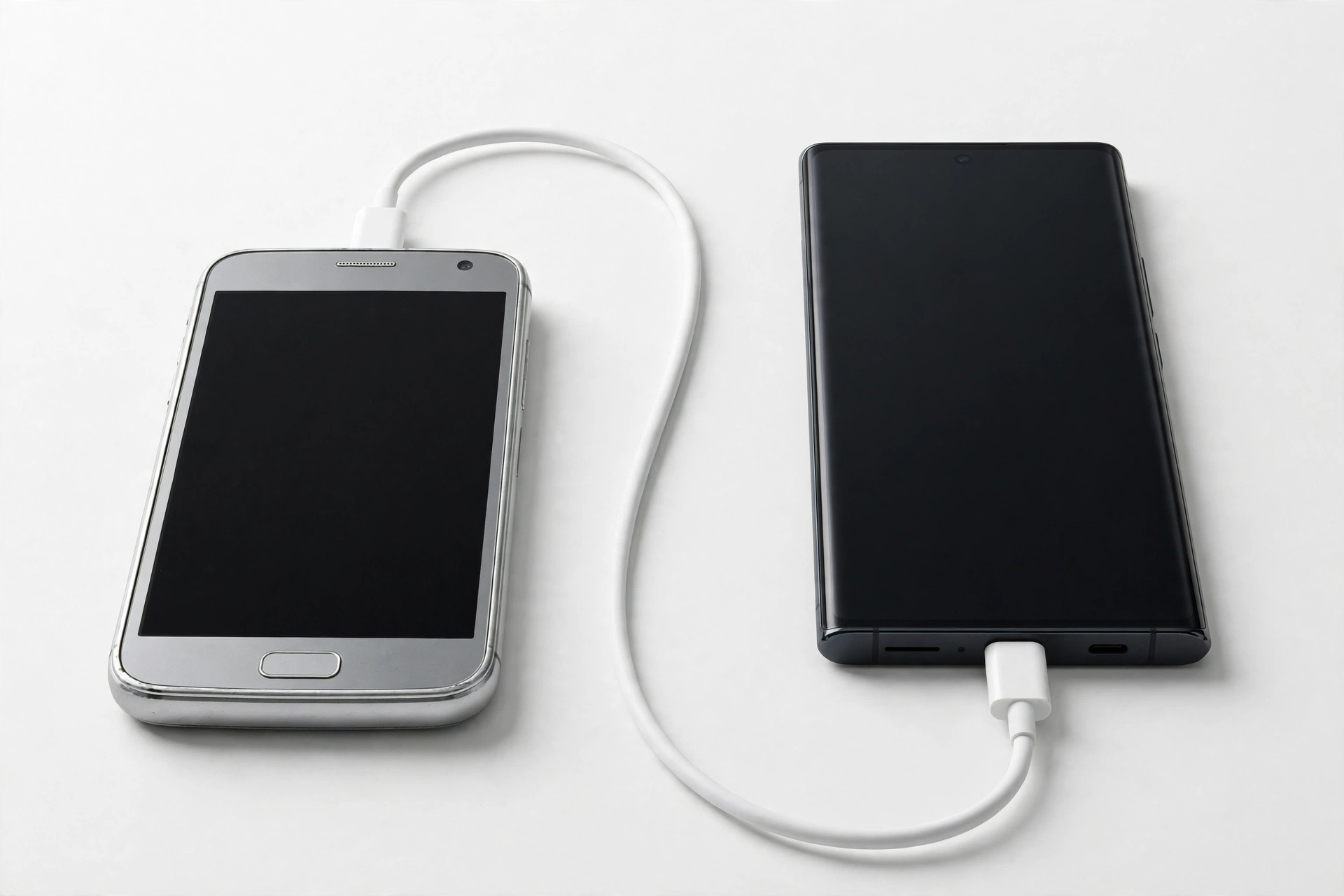
This guide is written for anyone who owns a Kodak-branded Android phone — the Kodak IM5 or the Kodak Ektra — that is damaged (cracked screen, unresponsive touch, boot loop, or completely dead) and needs their photos, contacts, messages, and other data moved to a new phone. It applies whether your replacement phone is Android or iPhone, and whether the Kodak phone still powers on or not. (Source: en.wikipedia.org)
It is also useful if the phone still works but you are retiring it and want a reliable transfer plan before it dies completely. If your data is already backed up to a Google account, the move is straightforward; this guide explains how to confirm that and what to do when it is not.
Quick fact: A Kodak phone is a camera-first Android phone from 2015–2017. Your most valuable data is probably your photo library — 21-megapixel stills, 4K video, and RAW files on the Ektra can take up many gigabytes, so plan for large transfers.
2. An honest reality check about Kodak phones
Three facts shape everything in this guide, and you should know them before you start.
First, Kodak did not build your phone. The Kodak Ektra and Kodak IM5 were designed, manufactured, and sold by Bullitt Group, a UK company that licensed the Kodak brand for mobile devices. Eastman Kodak — the film and camera company — did not engineer these phones, and there is no Kodak phone support team to call about data transfer.
Second, Bullitt Group is gone. The company ceased trading in January 2024 and entered administration, with joint administrators appointed in February 2024; its liquidation completed in 2025. There is no official support channel, no brand cloud service, and no company website where you can log in to retrieve anything. Do not wait for an official fix, tool, or response — there is nobody left at Bullitt to provide one.
Third, there is no Kodak transfer app. Kodak phones never shipped with a proprietary data-migration tool. On Android, the official route is the standard Google backup system: app data and settings to your Google account, photos to Google Photos if sync was enabled, and direct file copy over USB or microSD. That is not a workaround — it is the correct method, and every step below uses documented Android features.
Stop for safety: If the battery is swollen, bulging, extremely hot, or the phone smells chemical or sweet, do not charge it and do not try to open it. Set it somewhere non-flammable away from people and get a professional assessment before doing anything else. No data is worth a battery fire.
3. Know your Kodak phone model
Only two Kodak-branded smartphones were widely released. Identifying yours matters because their Android versions, ports, and storage options differ.
| Detail | Kodak IM5 | Kodak Ektra |
|---|---|---|
| Launched | 2015 | 2017 (announced 2016) |
| Android version | 4.4 KitKat era | 6.0 Marshmallow |
| Display | 5-inch | 5-inch Full HD 1080p |
| Rear camera | 13 MP | 21 MP (Sony IMX230), 6-axis OIS, 4K video, RAW support |
| Front camera | 5 MP | 13 MP |
| RAM / storage | 1 GB / 8 GB | 3 GB / 32 GB |
| microSD expansion | Yes | Yes, up to 128 GB |
| Charging / data port | Micro-USB | USB Type-C |
| USB-OTG | Varies | Yes (USB-OTG supported) |
| Battery | 2,100 mAh (removable on some units) | 3,000 mAh (non-removable) |
| Official support ended | Long discontinued | Camera support ended April 30, 2020 |
The Ektra’s camera focus is the most important transfer detail: a library of 21-megapixel photos, 4K video clips, and RAW (DNG) files can easily exceed 20–30 GB. Methods that handle large files well — USB cable to a computer and the microSD card — deserve priority on an Ektra.
4. Diagnose your situation first
Which method works depends on what the broken phone can still do. Match your situation below before choosing a method.
| What the phone does | What it means | Best methods |
|---|---|---|
| Screen cracked but touch works | Display damaged, phone functional | Google backup, USB to computer, microSD |
| Screen black but phone vibrates / sounds on | Phone running, display dead | USB OTG + mouse to control it, then any method |
| Screen cracked, touch dead | Cannot tap anything | USB OTG + mouse, or USB to computer |
| Stuck on logo / boot loop | Software failure, storage may be intact | Professional assessment; USB may still work |
| Won’t power on at all | Dead battery, board, or port | Charging attempt, then professional assessment |
| Wet or liquid-damaged | Corrosion risk | Do not charge; dry and seek assessment |
If the phone powers on and you can see the screen at all, start with the Google backup method (Section 6) — it captures the widest range of data types with the least effort. If you cannot see or touch the screen, skip to Section 10 on USB-OTG control.
Quick fact: Data transfer works at the file and account level, not the brand level. Your new phone does not care that the old one says “Kodak” — it only needs the files, the Google account, or the cable connection.
5. Before you start: safety and preparation
A broken phone is a fragile phone. A few precautions now prevent losing data permanently.
- Do not factory reset the broken phone. A reset wipes the internal storage you are trying to rescue. Never reset before every copy is verified on the new phone or computer.
- Charge only if it is safe. Use the original-style charger and cable, watch for heat, and never charge a wet, swollen, or distorted phone. If it gets hot, unplug it immediately.
- Know your Google account. Most Kodak phones were signed in to a Google account. Find the exact email address and password now — you will need them on the new phone and for any cloud restore. If two-factor authentication is on, make sure you can receive the code.
- Gather cables and adapters. An Ektra needs a USB Type-C cable; an IM5 needs micro-USB. For a dead touchscreen you may need a USB-OTG adapter and a wired USB mouse.
- Free space on the new phone. Check that the replacement has enough free storage for the full photo library before you begin.
6. Method 1: Google backup and restore on the new phone
This is the highest-value method when the Kodak phone still turns on and can connect to Wi-Fi. Android 6.0 (Ektra) includes “Back up my data,” which saves app data, call history, device settings, and Wi-Fi passwords to your Google account.
Step-by-step on the Kodak phone
- Connect to Wi-Fi: Settings > Wi-Fi, select your network.
- Open Settings > Backup & reset.
- Turn on Back up my data and confirm the backup account is your Google account.
- Turn on Automatic restore if shown.
- Leave the phone on Wi-Fi and charging for at least an hour. Android 6 backs up automatically when idle, charging, and on Wi-Fi — there is no manual “back up now” button on this version.
- For contacts, open Settings > Accounts > Google, tap your account, and confirm Contacts sync is on.
- For photos, open the Google Photos app (install it from the Play Store if missing), sign in, and turn on Back up & sync. This is opt-in — it is not automatic unless you enabled it years ago.
Step-by-step on the new phone
- During setup, sign in with the same Google account.
- When offered, choose restore from a backup and select the Kodak phone’s backup.
- Install Google Photos and wait for the library to sync.
Tip: On Android 6-era phones, the backup is stored per device and Google applies retention rules to old backups. If the Kodak phone has been off for a very long time, verify the backup still exists rather than assuming it. Check at your Google account’s backup page from a computer before wiping anything.
What this method does and does not capture
- Captured: Google account contacts, calendar, Gmail, app data for apps that support backup, Wi-Fi passwords, call history, Photos if sync was on.
- Not captured: files stored only on the microSD card, photos never synced to Google Photos, SMS history (unless a messaging app backed it up), authenticator app codes.
7. Method 2: USB cable to a computer (best for large photo libraries)
For a Kodak Ektra packed with 21-megapixel stills and 4K video, copying files directly to a computer over USB is the fastest and most complete method for media. It also works when the screen is dead but the phone still powers on — the computer sees the storage even if you cannot.
Step-by-step
- Connect the Kodak phone to a computer with a data-capable USB cable (Type-C for Ektra, micro-USB for IM5).
- On the phone, if the screen works, pull down the notification shade and tap the USB notification, then choose File transfer (MTP). On Android 6 the default is often “Charging only,” so this step matters.
- If the screen does not work, connect and check whether the computer detects a device anyway — many phones fall back to the last-used USB mode.
- On the computer, open the phone’s storage. Copy the entire DCIM folder (camera photos and videos), the Pictures folder, and any Download folder to the computer.
- If a microSD card is installed, copy its contents too — check for a second storage volume.
- Verify the copies open on the computer (spot-check several photos and at least one video) before doing anything to the broken phone.
Tip: RAW (DNG) files from the Ektra’s manual mode live in the DCIM folder alongside the JPEGs but are much larger — do not skip them if you shoot RAW. Sort the folder by file type to make sure they were all copied.
Stop for safety: Do not use “cut” or “move” — always copy. If the cable disconnects mid-move, files can be lost. Copy first, verify, and only then consider the phone’s copy expendable.
8. Method 3: The microSD card (the simplest path)
Both Kodak phones support microSD cards (the Ektra up to 128 GB), and many owners stored photos directly on the card. If your photos live on the card, you may not need the phone to cooperate at all.
Step-by-step
- Power the phone off completely.
- Remove the microSD card (on the Ektra it shares the SIM tray; use the tray ejector tool or a paperclip).
- Insert the card into a card reader on a computer, or directly into the new phone if it has a microSD slot.
- Copy the DCIM folder and everything else to the computer or new phone.
- Verify the files open before reusing the card.
There is one trap to check: Android can format a microSD card as adopted (internal) storage, which encrypts it so only that exact phone can read it. If the card is unreadable on the computer and the phone used adopted storage, the card can only be read by the original phone — in that case you must get the phone itself working (or at least booting) to copy the data off. Portable-format cards read anywhere with no issue.
9. Method 4: Google Photos and cloud sync for camera files
Because Kodak phones are camera-first devices, it is worth checking whether photos were already syncing to the cloud even if you never set up a formal backup.
- On a computer, sign in to the same Google account at photos.google.com and check whether the Kodak photos are already there.
- Check other cloud apps you may have used: Dropbox, OneDrive, or Amazon Photos auto-upload.
- If the Kodak phone still runs, install or open Google Photos, enable Back up & sync, and let it upload over Wi-Fi. For tens of gigabytes, leave it plugged in overnight.
Quick fact: Google Photos sync on these old phones uploads at reduced or original quality depending on the setting you chose years ago. Either way, the synced copies are real backups — check the website before assuming they are missing.
10. Method 5: Dead screen — control the phone with USB-OTG and a mouse
This is the key technique when the display is dead but the phone itself still runs. The Kodak Ektra supports USB-OTG, which lets you plug a standard USB mouse into the phone and control it blind.
Step-by-step
- Get a USB-OTG adapter (USB-C male to USB-A female for the Ektra; micro-USB OTG for the IM5) and a wired USB mouse.
- Connect the adapter to the phone, then the mouse to the adapter. A cursor should appear — on a dead screen you will not see it, but the phone registers clicks.
- The practical approach: connect the phone to a computer at the same time is not possible on one port, so instead use the mouse to blindly pull down the notification shade and change the USB mode — or simpler, connect to the computer first and check if storage appears. Many users find the computer detects the phone’s storage even with a dead screen.
- If storage does not appear, use the OTG mouse to unlock the phone and set USB to File transfer (MTP): swipe down from the top, click where the USB notification sits, and select MTP. This takes patience without a display — a sighted helper makes it far easier.
- Once the computer sees the phone, copy DCIM and other folders as in Method 2.
For a deeper treatment of this situation, see our guide on transferring data from a broken phone, which covers the same techniques in more detail.
Tip: If you have a USB-C hub with HDMI output, the Ektra may support display output through it, giving you a full external screen. This is not guaranteed on every unit, but when it works it turns a dead-screen phone into a fully usable one for the transfer.
11. Method 6: The phone won’t turn on at all
When nothing happens on the power button, work through this order before concluding the data is unreachable.
- Charge for a full hour. A deeply discharged battery can take 30–60 minutes before the phone shows any sign of life. Use a known-good charger and cable, and try a different wall outlet.
- Force restart. Hold the power button for 20–30 seconds. On the Ektra (non-removable battery) this is the only reset available; on the IM5 you can also remove and reseat the battery if your unit has a removable one.
- Try a different cable and charger. The USB port is a common failure point — wiggle gently and check whether charging indicators appear at any angle. Do not force it.
- Check for a charging light. Any LED or screen flicker means power is reaching the board, and data recovery odds are good.
If the phone truly will not power on, the data is still on its internal storage chip — but reaching it requires a repair shop to restore power to the board (charging-port repair, battery replacement, or board-level work) before any transfer method can run. This is an assessment job, not a DIY job: describe the symptoms, ask what they can attempt, and confirm they will not wipe the phone as part of diagnosis.
Stop for safety: Never open the phone yourself to reach the storage. Modern phone storage is soldered to the board and encrypted; opening the phone risks destroying the only copy of your data and voids any remaining repair options.
12. Contacts, messages, WhatsApp, and authenticator codes
Different data types need different handling on these old phones.
| Data type | Where it lives | How to move it |
|---|---|---|
| Contacts | Google account (if synced) or phone storage | Google sync restores automatically; export via Contacts app to a .vcf file as a backup |
| SMS / call logs | Phone storage | Google backup restores on Android; SMS Backup & Restore app can save to Drive |
| WhatsApp chats | App storage + Google Drive backup | On the Kodak phone: WhatsApp > Settings > Chats > Chat backup > Back up; on the new phone, restore during setup with the same number and Google account |
| Photos and video | DCIM folder (internal or microSD) | USB copy, microSD copy, or Google Photos sync |
| Authenticator codes | App storage (device-bound) | Must be migrated from the working app — codes do not transfer by file copy; use the app’s export/transfer feature |
| Music and downloads | Internal storage / microSD | USB copy of the Music and Download folders |
Authenticator apps deserve special attention. Two-factor codes are cryptographically bound to the device and cannot be recovered from a file copy or a Google backup. If the Kodak phone still runs, open the authenticator app and use its built-in transfer or export feature before retiring the phone. If the phone is dead and you have no backup codes, you will need to use each service’s account-recovery process — start that early, since it can take days.
13. Old-Android complications to expect
Kodak phones run Android 4.4–6.0, roughly a decade old. Three complications come with that.
App compatibility on the new phone. When you restore a Google backup to a modern phone, very old app versions may not install. Your data (contacts, photos, WhatsApp) transfers fine; individual old apps may need fresh installs from the Play Store, and some ancient apps no longer exist there.
Google account security checks. Signing in to a Google account from a new device after years can trigger verification. Keep the recovery phone number and recovery email current, and complete any “verify it’s you” prompts on a trusted device.
Photo sync was opt-in. Many Kodak owners never enabled Google Photos backup, assuming the microSD card was enough. Check photos.google.com first — if the photos are not there and not on the card, the USB copy from the phone’s internal DCIM folder is your path.
Quick fact: The Play Store on Android 6 still works for many apps, but some developers have dropped support. If you need a transfer-helper app on the Kodak phone, install it from the Play Store while the phone still runs — do not sideload APKs from random websites, which is a common malware vector on old phones.
14. Method comparison at a glance
| Method | Needs phone on? | Needs screen? | Best for | Limitations |
|---|---|---|---|---|
| Google backup + restore | Yes | Yes | Contacts, settings, app data | Slow; old backups may have expired |
| USB cable to computer | Yes | No (usually) | Large photo/video libraries | Needs MTP mode; cable and port must work |
| microSD card removal | No | No | Photos stored on card | Adopted-storage cards only readable by the phone |
| Google Photos sync | Yes | Yes | Camera library in the cloud | Must have been enabled; large uploads take hours |
| USB-OTG + mouse | Yes | No | Dead screen, working phone | Fiddly without a display; needs adapter |
| Repair assessment | No | No | Dead phone, valuable data | Costs a diagnostic; no guaranteed recovery |
Similar licensed-brand phones face the same constraints — our guides to transferring data from a broken Energizer phone and transferring data from a broken Jeep phone follow the same honest framework.
15. When to stop and get a professional assessment
Stop DIY attempts and seek a repair shop’s assessment when any of these apply:
- The phone will not power on after a full hour of safe charging with known-good equipment.
- The phone is stuck in a boot loop and USB does not expose its storage.
- The battery is swollen, hot, or smells wrong.
- The phone was submerged and you have already dried it — corrosion continues even after drying.
- A microSD card was formatted as adopted storage and the phone cannot boot to decrypt it.
When you visit a shop, ask three questions: will diagnosis wipe anything (it must not), what are the realistic chances for your specific symptoms, and what does the attempt cost if recovery fails. A trustworthy shop answers all three directly. If you are in the Las Vegas area, Las Vegas Phone Repair & Accessories, 7400 Las Vegas Blvd S, Unit TT42, Las Vegas, NV 89123, (424) 406-6202, can assess a dead or damaged phone — call ahead to confirm today’s hours.
Quick fact: No shop can guarantee data recovery from a dead phone. Anyone who promises a guaranteed result before examining the device is not being straight with you.
16. Two hypothetical walkthroughs
The following examples are hypothetical illustrations, not real customer stories.
Example A: Maya’s Ektra with a dead screen
Hypothetical. Maya dropped her Kodak Ektra and the screen went black, but the phone still vibrates when she holds the power button. Her concern is three years of 21-megapixel family photos. She connects the Ektra to her laptop with a USB-C cable — the laptop detects the phone’s storage even though the screen is dead. She copies the entire DCIM folder (18 GB, including RAW files) to the laptop, spot-checks a dozen photos, and then sets up her new phone with the same Google account to restore contacts. Total time: about an hour. The broken Ektra is never reset.
Example B: Devon’s IM5 that won’t turn on
Hypothetical. Devon’s Kodak IM5 sat in a drawer for a year and now shows no sign of life. He charges it for a full hour with a known-good micro-USB charger — nothing. He removes the microSD card, puts it in a card reader, and finds his old photos intact on the card. His contacts were synced to his Google account, so they appear automatically on his new phone. The WhatsApp backup had expired, so those old chats are gone — a reminder that chat backups need to be refreshed periodically. He recycles the IM5 through an e-waste program rather than the trash.
17. Frequently asked questions
Is there a Kodak phone transfer app?
No. Kodak never released a proprietary data-transfer app for its phones, and Bullitt Group — the company that made them — no longer exists. Standard Android methods (Google backup, USB file copy, microSD) are the correct and official route.
Can I still get support from Kodak for my Ektra?
Camera support for the Ektra ended on April 30, 2020, and Bullitt Group ceased trading in January 2024. There is no active support channel for these phones. For data transfer you do not need one — the methods in this guide use standard Android features.
My Ektra’s screen is dead. Are my photos gone?
Very likely not. The photos live on the storage chip or microSD card, independent of the display. Connect the phone to a computer with a USB cable and copy the DCIM folder, or remove the microSD card and read it directly. Photos are the easiest data type to rescue from a dead-screen phone.
Will a factory reset help me transfer data?
No — a factory reset erases the internal storage, destroying exactly the data you want to move. Never reset the broken phone until every file is verified on the new phone or computer.
Can I transfer my data to an iPhone?
Yes, for the main data types. Photos and videos copy to a computer first, then import to the iPhone via iCloud or a cable. Contacts sync through your Google account by adding it in the iPhone’s Settings. WhatsApp offers a cross-platform move during setup. App data generally does not cross between Android and iPhone.
What if my microSD card isn’t readable on my computer?
The card may have been formatted as adopted (internal) storage, which encrypts it to the original phone. In that case only the Kodak phone itself can read it — you need the phone to boot. If the phone cannot boot, a repair assessment is the next step.
My authenticator codes are on the dead phone. What now?
Authenticator codes cannot be recovered from a file copy. If the phone still powers on, migrate them with the app’s transfer feature immediately. If the phone is dead, use each service’s account recovery (backup codes, SMS fallback, or support) — and set up cloud-synced two-factor on the new phone this time.
Is it worth repairing a Kodak phone in 2026?
Usually not as a daily phone — parts are essentially unavailable since Bullitt’s closure, and the software is a decade old. Repair can still be worthwhile as a data-recovery step: restoring power to a dead phone long enough to copy files off it. Ask the shop to frame the work as a recovery attempt with clear costs, not as returning the phone to service.
Video: How to transfer everything from old to new Android
Sources and editorial notes
- Wikipedia — Kodak Ektra (phone): confirms the Ektra was built and sold by Bullitt Group (not Eastman Kodak), announced 2016, released 2017, with camera support ending April 30, 2020; lists full specifications (21 MP Sony IMX230, Helio X20, 3 GB RAM, 32 GB + microSD, Android 6.0, USB Type-C).
- FoneArena — Kodak Ektra announced: confirms the Ektra as Kodak’s second Android smartphone after the IM5 (January 2015), manufactured by Bullitt, with microSD expansion and Android 6.0.
- Gadgets360 — Kodak Ektra review: confirms USB-OTG support, microSD expansion, and the phone’s camera-centric design.
- TechSpot — Bullitt Group goes out of business: reports Bullitt Group, maker of CAT, Land Rover, and Kodak-branded phones, ceased trading (January 26, 2024 per related reporting), with the workforce laid off.
- The Register — Bullitt Group calls in PWC: confirms PWC appointed as administrators, with the group’s phones sold in 70+ countries.
- The Register — Bullitt Group finally liquidated: confirms the liquidation completed in 2025 with no funds recovered for creditors.
- Google Android Help — Back up or restore data: documents Android’s built-in backup and restore features.
- Google Photos Help — Back up photos and videos: documents the opt-in backup & sync feature.
Last source check: October 14, 2026. AI-assisted editorial guide, checked against the linked manufacturer and reporting sources. Kodak-branded phones were made by Bullitt Group under license; Bullitt ceased trading in January 2024 and was liquidated in 2025, so no official brand support, cloud service, or transfer app exists. All transfer methods described use standard Android and Google features. Business details (Las Vegas Phone Repair & Accessories, address, phone) are stated as given; call ahead to confirm today’s hours.
Let’s get you connected again.
Tell us what’s happening with your device and we’ll help you decide the safest next step — no jargon, no pressure.
Las Vegas Phone Repair & Accessories · 7400 Las Vegas Blvd S, Unit TT42, Las Vegas, NV 89123
10:00 AM–8:00 PM — call ahead to confirm today’s hours