
How to Transfer Data from Broken Jeep Phone to New Phone: Complete Guide
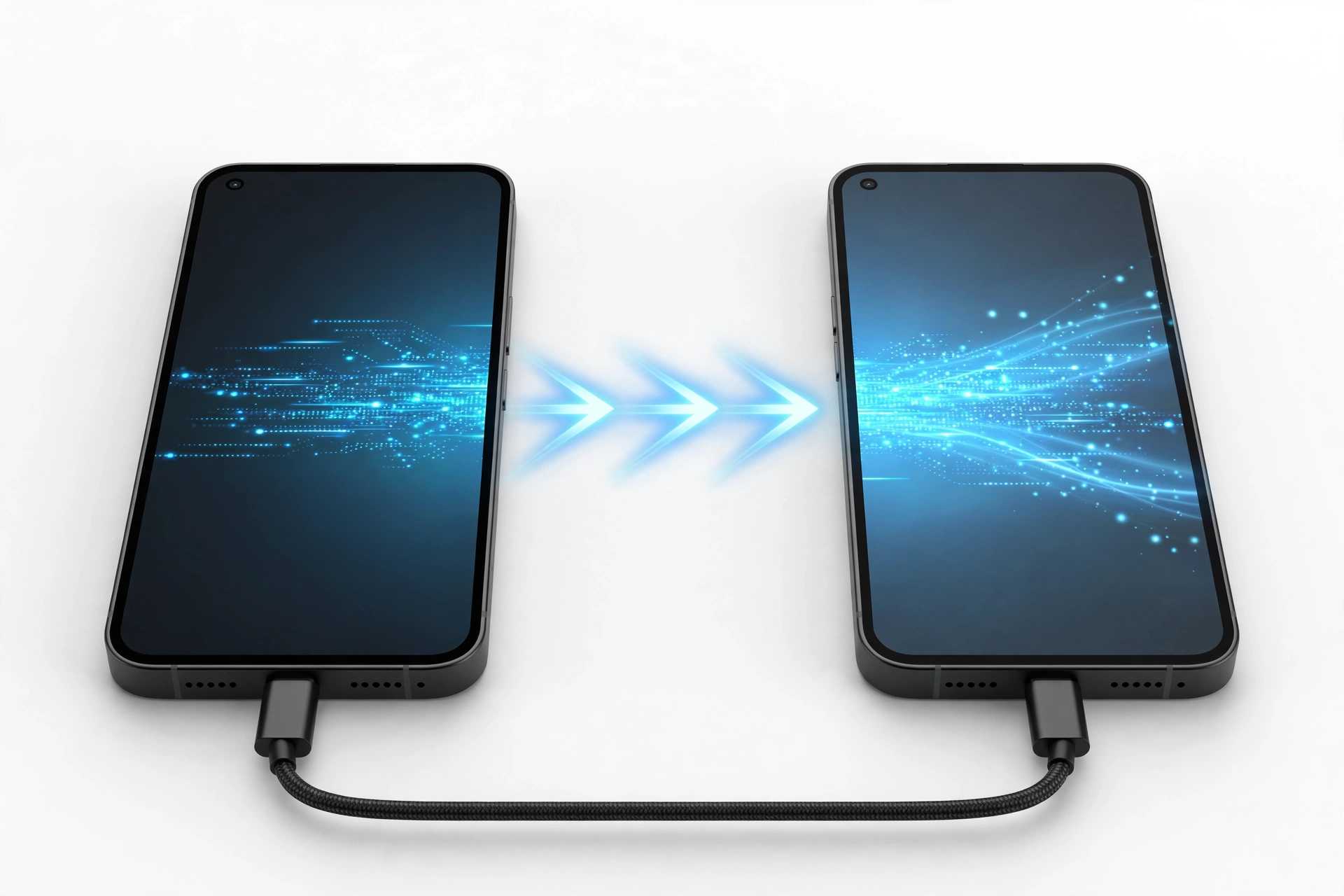
To move data from a broken Jeep-branded phone to a new phone, restore a Google backup on the new device, or copy files over USB or microSD. Jeep never released a proprietary phone-to-phone transfer app, so Google’s own backup and standard file-transfer methods are the official path.
On this page
To move data from a broken Jeep-branded phone to a new phone, restore a Google backup on the new device, or copy files over USB or microSD.
1. What this guide covers (and what it doesn’t)
This guide is for owners of Jeep-branded rugged phones — the budget, IP68-rated Android devices sold under the Jeep name (a licensed brand, not a Jeep factory product) — whose device is damaged, won’t turn on, or has a dead screen, and who need to get contacts, photos, messages, and other data onto a working phone. (Source: bobshop.co.za)
It is not a review of Jeep phones, and it cannot promise data recovery from a destroyed device. What it does is walk you through every realistic path from a broken Jeep phone to a new one, in the order most likely to work, with the honest limits of each spelled out.
Quick fact: Jeep-branded phones are produced under a brand license by independent manufacturers — they are not built or supported by the Jeep automobile company. There is no “Jeep Cloud,” no “Jeep Smart Switch,” and no manufacturer transfer utility. Any app on the Play Store using the Jeep name for data transfer is unofficial — treat it as such.
2. Who this helps
You are likely reading this because one of the following is true:
- Your Jeep rugged phone has a cracked or unresponsive screen, but may still power on.
- Your Jeep phone won’t turn on at all — battery, charging port, or internal failure.
- Your Jeep phone was exposed to water or impact damage, and you want its data on a replacement phone.
- You are buying a new phone anyway and want the transition to be painless.
The good news: if you ever signed into a Google account on the Jeep phone and backups were enabled, a large share of your data is recoverable from Google’s servers without the old phone doing a thing. That is Method 1 below, and it is the single most important thing to check first.
3. Triage: what still works on your Jeep phone?
Before choosing a method, spend two minutes figuring out which of three conditions your phone is in. Each one opens a different set of options.
| Condition | Signs | Data paths available |
|---|---|---|
| Screen dead, phone alive | Charging LED lights up; sounds or vibration on power button; recognizable via USB on a computer | Google backup check, USB file copy, microSD removal |
| Phone partially boots | Logo appears, stuck on boot screen, or random reboots | Google backup restore, USB if reachable, microSD |
| Completely dead | No LED, no vibration, not recognized by any computer or charger | Google backup restore (server-side), microSD removal, professional help |
Stop for safety: If the battery is swollen, bulging, distorted, or getting dangerously hot, do not charge it, do not plug it into a computer, and do not try to extract anything. A damaged battery is a fire hazard. Set the phone aside and ask a professional.
4. Method 1: Restore a Google backup on the new phone (works even with a dead phone)
This is the highest-value move, because it requires no functioning old phone at all. If your Jeep phone backed up to your Google account, you restore that backup while setting up the new phone.
4.1. Check whether a backup exists — before you reset the new phone
- On any computer, sign into the same Google account you used on the Jeep phone.
- Open Google Drive, then go to Storage → Backups.
- Look for a backup labeled with your Jeep phone’s model. Note the date — this is when your data was last synced.
What Google’s backup includes (per Google’s Android backup documentation): installed apps, settings, call history, SMS messages, contacts, calendar, and — depending on Android version — photos and videos synced through Google Photos. Jeep-branded phones typically shipped with older Android versions (around Android 5.0–7.x), which used the older Settings → Backup & reset → Back up my data path rather than the modern “Backup by Google One” toggle. The older system covered apps, settings, and some app data; photos needed Google Photos sync to be enabled separately.
Quick fact: Google account backups expire after roughly 57 days without the device checking in. If your Jeep phone has been dead for longer than that, the server-side backup may already be gone — which makes the microSD and USB methods below much more important.
4.2. Restore on the new phone
- Power on the new phone and connect to Wi-Fi.
- Sign in with the same Google account you used on the Jeep phone.
- At the “Copy apps and data” step, choose to restore from the cloud backup and select your Jeep phone’s backup.
- Leave everything checked and tap Restore. App reinstallation can take several hours in the background.
Note that you cannot restore a backup from a higher Android version onto a phone running a lower Android version. Since Jeep-branded phones shipped with old Android builds, and your new phone will almost certainly run a much newer Android, this direction is fine — the restriction only blocks the reverse.
| Data type | Backed up? | Notes |
|---|---|---|
| Contacts (Google-synced) | Yes | Restored automatically once you sign in |
| Photos/videos (Google Photos) | Only if sync was on | Check photos.google.com for your account |
| Apps and settings | Partially | Apps reinstall; per-app data varies by app |
| SMS/call history | Usually on newer backup systems | On old Android 5.x backups, coverage is thinner |
| WhatsApp chats | No (separate) | Requires its own Google Drive backup — see section 8 |
| Authenticator codes | No | Must be transferred separately before losing the phone |
| Files on microSD | No | Move the card or copy files manually |
4a. The old-Android complication: what Jeep phones’ vintage changes
Jeep-branded phones were budget devices built years ago — the Jeep Z6 generation shipped with Android 5.0-era software — and that vintage changes the recovery picture in three practical ways. This is not a criticism of the hardware; it is simply how the Android backup ecosystem has evolved since these phones were new.
First, the backup system was weaker. Android 5.0 used the original “Back up my data” service (Settings → Backup & reset → Back up my data) rather than today’s Backup by Google One. The older service covered app lists, some settings, and Wi-Fi passwords, but it was less thorough about app data, and automatic SMS/call-history backup did not exist in the form it does now. If your Jeep phone ever got an update, coverage improved slightly; most units in the wild stayed on their shipped build.
Second, Google Photos sync was opt-in and easy to miss. On a phone with 16 GB of internal storage, the Photos app’s “back up & sync” prompt was one more thing fighting for space and attention. Many owners dismissed it. That means the odds your Jeep phone’s photos are in the cloud are lower than they would be for a modern phone — which is exactly why the USB and microSD methods (sections 5–6) deserve extra weight in your plan.
Third, app compatibility narrows the restore. When you restore an old backup onto a modern phone, apps that no longer exist on the Play Store simply won’t reinstall, and very old app data may not migrate cleanly. Expect to sign into everything fresh and treat the restore as a head start rather than a perfect clone. WhatsApp is the exception worth handling carefully: its own Drive backup is independent of the Android version, so if it was enabled, chats restore regardless of the phone’s age.
Tip: If the Jeep phone still powers on, check Settings → Backup & reset (or Settings → Google → Backup on updated units) to confirm whether “Back up my data” was ever turned on — and check Google Photos’ backup status inside the Photos app. Five minutes of confirmation here saves hours of guessing later.
5. Method 2: Copy files over USB from a Jeep phone that still powers on
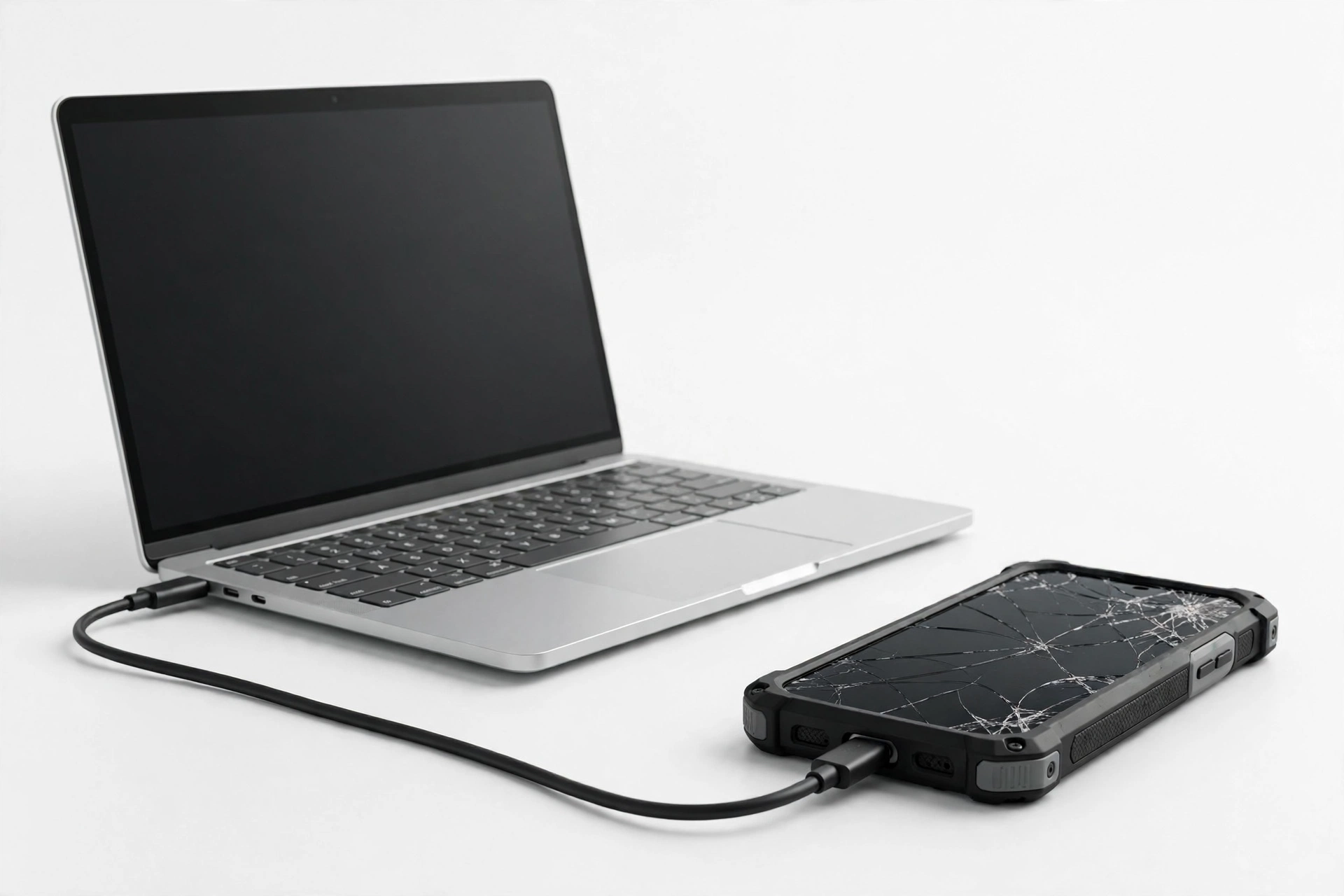
If the phone charges and your computer recognizes it, you can copy files directly even with a broken screen.
- Connect the Jeep phone to a computer with a USB cable.
- Jeep-branded phones are standard Android devices, so the USB mode list is the familiar one: Charging only / MTP (transfer files) / PTP (transfer photos). Select MTP if you can reach the notification shade — on a dead-screen phone, it sometimes defaults to the last-used mode.
- On the computer, open the phone’s storage and copy the DCIM (photos), Download, and WhatsApp folders first — those hold the irreplaceable data.
- Copy everything else time allows. Photos first, apps later: app files can be re-downloaded; memories cannot.
On a Mac, use Android File Transfer or a similar MTP client — Finder won’t see the phone by itself.
6. Method 3: Remove the microSD card
Jeep-branded rugged phones commonly shipped with microSD slots (the Jeep Z6, for example, supported expandable storage alongside its 16 GB of internal memory). If you kept photos or files on the card, this is the simplest recovery of all.
- Power the phone off (or confirm it is fully dead).
- Remove the microSD card from its tray.
- Insert it into a card reader on a computer or into the new phone.
- Copy the contents immediately to a second location — treat this as a one-time rescue, not a permanent archive.
| How the card was used | What happens | What to do |
|---|---|---|
| Portable storage (default) | Files are readable on any device | Copy freely — you are done |
| Adopted (formatted as internal) | Card is encrypted and tied to the dead phone | Files are unreadable elsewhere; rely on Google backup instead |
Quick fact: On older, low-storage phones like the Jeep Z6, users were more likely to set the card as internal storage to escape the 16 GB limit. If the card asks to be formatted when you insert it elsewhere, it was adopted storage — do not format it (that erases everything), and pivot to the Google-backup method.
7. Method comparison: which to try first
| Order | Method | Needs working phone? | Best for |
|---|---|---|---|
| 1 | Google backup restore | No | Contacts, apps, settings — always check this first |
| 2 | microSD removal | No (phone can be dead) | Photos and files stored on the card |
| 3 | USB file copy | Yes (powers on) | Full photo and file rescue |
| 4 | WhatsApp Drive backup | No (server-side) | Chat history — separate from Google backup |
| 5 | Professional assessment | Varies | Dead phone with no backup and no microSD |
8. App-by-app migration reality
Not everything moves automatically. Here is the honest picture:
- Contacts, calendar: move with the Google account — no action needed once you sign in.
- Photos/videos: only if Google Photos sync was enabled. Check photos.google.com before wiping anything.
- WhatsApp: has its own backup to Google Drive, separate from the system backup. On the new phone, installing WhatsApp with the same number triggers the restore offer. Without a prior WhatsApp backup, chats are gone.
- Authenticator apps: do not transfer with a standard backup. If you can still unlock the old phone, export or re-enroll each code now — this is the most common “lost everything” regret.
- Banking and payment apps: will require fresh sign-in and re-verification on the new phone regardless.
- Games and other apps: reinstall from the Play Store; progress restores only if the app used cloud save.
| App type | Automatic? | Your action |
|---|---|---|
| Google apps (Gmail, Calendar, Keep) | Yes | Sign in — data appears |
| No | Restore from its Drive backup with the same number | |
| Authenticator | No | Export or re-enroll each account |
| Banking | No | Re-verify identity on the new phone |
| Games | Sometimes | Sign into the game’s cloud account if one exists |
9. Hypothetical illustrations
(The following are hypothetical illustrations, not customer stories.)
Hypothetical 1 — Maya’s surprise. Maya’s Jeep Z6 slipped off a ladder and the screen shattered, though the phone still vibrates when the power button is pressed. Before panicking, she checks Google Drive’s Backups section on her laptop and finds a backup from two nights before the accident — contacts, apps, and settings all there. She restores it on her new phone during setup. The one gap: her photos were never synced to Google Photos, so she connects the phone to her computer over USB (it defaults to MTP) and copies the DCIM folder. Her advice to her past self: turn on Google Photos sync.
Hypothetical 2 — Devon’s dead phone. Devon’s Jeep phone died completely after a swim — no LED, no vibration, nothing. No Google backup exists (the account was signed out months ago), but he remembers the phone had a microSD card. He removes it, plugs it into a reader, and finds his photos intact. The WhatsApp chats are gone — there was no Drive backup — but the photos and documents survive. From here on, he keeps cloud backup enabled on every phone he owns.
10. When to stop and get professional help
Stop DIY recovery and seek a professional assessment when:
- The phone is completely dead and there is no Google backup — board-level data extraction is specialist work, and no shop can guarantee success.
- The battery is swollen, hot, or leaking.
- The phone was submerged and you are unsure it is dry — moisture and electricity are a dangerous combination.
- You have tried the microSD and USB methods and the data simply isn’t there.
Be skeptical of anyone who guarantees full data recovery from a dead device. An honest technician will tell you what is and isn’t realistic before charging you.
11. Preparing the new phone
Once data is moving, finish the job properly:
- On the new phone, enable Backup by Google One (Settings → Google → Backup) and tap Back up now immediately — future you will be grateful.
- Enable Google Photos sync for camera uploads.
- In WhatsApp, run a manual backup to Google Drive right away (Settings → Chats → Chat backup).
- Move your authenticator codes over deliberately — don’t leave this for “later.”
12. Frequently asked questions
Is there a Jeep phone transfer app?
No. Jeep never released a proprietary phone-to-phone transfer app. Third-party Play Store apps using the Jeep name are unofficial — avoid entering your Google credentials into them.
Can I transfer data if the Jeep phone won’t turn on at all?
Yes, potentially: check for a Google backup at Google Drive → Storage → Backups, and remove the microSD card if one was installed. Those two paths don’t need the phone to power on.
Why is my old backup missing from Drive?
Google backups expire after roughly 57 days of device inactivity. If the phone has been dead longer than that, the backup is gone.
My photos aren’t on the new phone. Where are they?
They were only backed up if Google Photos sync was enabled on the Jeep phone. Check photos.google.com — if they’re not there, they were never uploaded, and your remaining hope is USB copy or the microSD card.
Can a repair shop move everything to my new phone?
A shop can help with USB/microSD extraction and setup, but no shop can recover data that was never backed up and sits on a dead, encrypted storage chip. Ask what specifically they propose to do before paying.
The new phone asks for the old phone’s screen lock during restore. What if I don’t remember it?
Google requires verification of the old lock to decrypt certain backup data. If you can’t recall it, some data categories may restore anyway, but encrypted portions won’t. This is by design — it protects your data from thieves.
Do Jeep rugged phones need special cables or software?
No. They are standard Android devices — a normal USB cable and the standard MTP/PTP USB modes apply. No brand-specific drivers or software are required.
Should I wipe the Jeep phone before recycling it?
Yes, once you’ve confirmed your data is safe on the new phone. If the screen works, do a factory reset. If it doesn’t boot, remove the microSD card and the SIM — and remember that a non-booting phone’s internal storage still holds your data, so hand it to a recycler that certifies destruction if that matters to you.
13. Getting local help in Las Vegas
If the DIY methods above don’t cover your situation — a dead phone with no backup, or a screen so broken you can’t confirm what’s happening — an in-person assessment can tell you whether USB extraction or another approach is viable before you spend money. Las Vegas Phone Repair & Accessories, 7400 Las Vegas Blvd S, Unit TT42, Las Vegas, NV 89123; (424) 406-6202 — call ahead to confirm today’s hours.
Video: How to transfer everything from old to new Android
Sources and editorial notes
- Jeep Z6 rugged smartphone listing (bobshop.co.za) — Jeep Z6 specs: MTK6572, IP68, 4.5″ screen, Android 5.0-era hardware, 16 GB storage. Used to ground the model-specific hardware details.
- How to back up and restore data on your Android device (livemint.com) — Google’s backup and restore flow, including the 57-day backup expiry note.
- How to back up your Android phone (Android Authority) — “Backup by Google One” enablement steps and Google Account data sync coverage.
- Your Android phone finally backs up local documents (Android Police) — document backup behavior and storage-quota notes.
- How to back up and restore your Android Phone (geeky-gadgets.com) — Google One backup/restore overview used as a cross-check.
- How to back up your Android smartphone (Digital Trends) — third-party backup options (SMS Backup & Restore, My Backup Pro) referenced in passing.
- How to transfer files and data from an old Android phone to a new one (Android Police) — the “Can’t use old device” cloud-restore flow on the new phone.
- Internal series links: transferring data from a broken phone, the myPhone transfer guide, and the Evolveo transfer guide — related guides in this broken-phone data-recovery series.
Last source check: October 14, 2026. AI-assisted editorial guide, checked against the linked manufacturer information. Jeep-branded phones are licensed-brand devices; no official transfer utility exists, so the procedures described here use Google’s standard Android backup and file-transfer methods. If Google changes its backup behavior, the official Google support documentation takes precedence.
Let’s get you connected again.
Tell us what’s happening with your device and we’ll help you decide the safest next step — no jargon, no pressure.
Las Vegas Phone Repair & Accessories · 7400 Las Vegas Blvd S, Unit TT42, Las Vegas, NV 89123
10:00 AM–8:00 PM — call ahead to confirm today’s hours