
How to Transfer Data from Broken Evolveo Phone to New Phone: Complete Guide
Evolveo never released its own phone-to-phone transfer app, so your data moves through Google’s backup, a USB cable, or the microSD card — and a Google backup restore works even if the Evolveo is completely dead. This guide walks through every method that actually works for broken Evolveo StrongPhone models, what each method can and cannot move, and the traps that cause people to lose data permanently.
On this page
Evolveo never released its own phone-to-phone transfer app, so your data moves through Google’s backup, a USB cable, or the microSD card — and a Google backup restore works even if the Evolveo is completely dead.
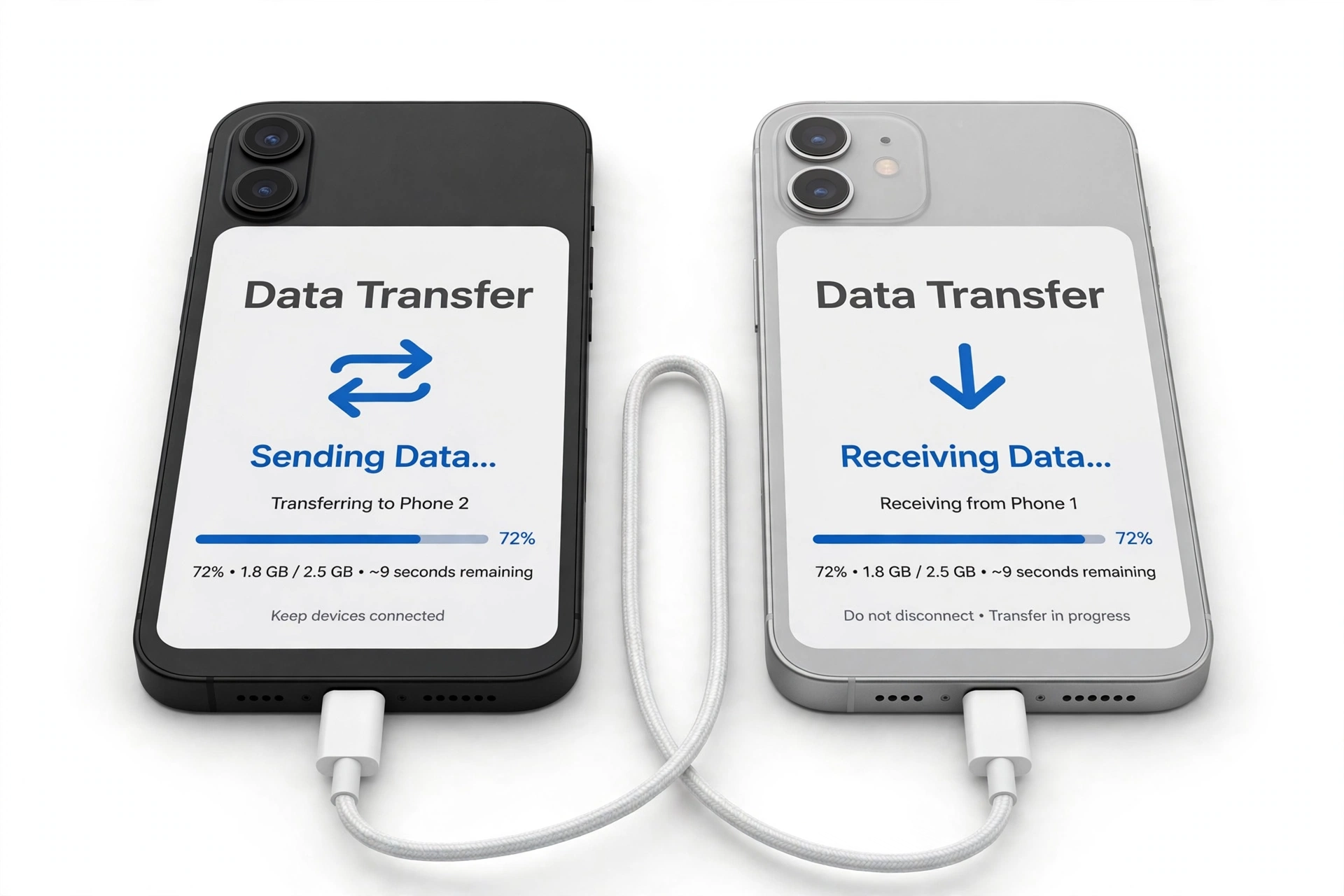
1. The honest answer first
If your Evolveo StrongPhone is broken and you need your data on a new phone, here is the situation in plain language. Evolveo, the Czech rugged-phone brand behind the StrongPhone line, never published a proprietary transfer tool — there is no “Evolveo Smart Switch,” no “Evolveo Clone,” no manufacturer migration app. Evolveo’s own manuals document Google’s built-in backup (Settings > Backup & reset, or Settings > Back up and Reset on older models) as the official route for protecting data, and that same Google backup is what restores your apps, contacts, call history, and settings onto a new phone during setup. (Source: manuals.plus)
That single fact organizes everything in this guide. If you had Google backup turned on, your data is already sitting in your Google account and a dead Evolveo changes nothing — you sign in on the new phone and restore. If you did not have backup turned on, your options narrow to whatever the broken phone can still physically do: power on enough for USB file transfer, surrender its microSD card, or give up its SIM contacts. And if the phone is fully dead with no backup, no microSD, and no cloud copies, then the data on its internal storage is accessible only through professional data recovery — which is expensive, uncertain, and worth understanding honestly before you spend money on it.
Quick fact: Evolveo’s manuals carry an explicit warning that the manufacturer accepts no responsibility for data loss, however it happens. That is standard legal language, but it underscores the real lesson of this guide: on any phone, the backup you make before something breaks is the only transfer method you can truly count on.
2. Who this guide is for
This guide is written for owners of Evolveo StrongPhone models — the Q5, G4, G9, G2, D2 Mini, Q4, Q7 LTE, X4, W4, and similar rugged Android phones — whose device is damaged, malfunctioning, or dead, and who need to move personal data to a replacement phone. It is useful whether your screen is cracked but the phone works, the phone powers on but the touchscreen is dead, or the phone will not power on at all.
It is also useful if you are deciding between repairing the Evolveo and replacing it. Data transfer and repair are separate decisions, but they interact: a screen replacement that revives the phone for an afternoon can be the cheapest “transfer tool” you ever buy, while a factory reset performed in a panic before copying anything can destroy the only copy of your data. Section 12 covers that decision directly.
This guide is not for people whose Evolveo works fine and who simply want to switch phones — the standard Google backup-and-restore flow during new-phone setup covers that in minutes, and your carrier or the new phone’s built-in transfer tool will walk you through it. It is also not a guide to rooting, custom recoveries, or forensic data extraction; those paths void warranties, risk the data they aim to save, and are inappropriate for a general audience.
3. Step zero: figure out what “broken” means for your data
“Broken” covers a wide range, and the right method depends entirely on what the phone can still do. Work through this triage table before anything else, because every method below assumes a specific level of function.
| Phone’s condition | What still works | Methods available |
|---|---|---|
| Screen cracked, touch works | Display damaged but usable; phone fully functional | All methods: Google backup check, USB transfer, microSD copy, app-level backups |
| Screen dead/black, phone powers on | Phone boots (vibration, sounds, LED); touch may work blind | USB transfer (if unlocked), microSD removal, Google backup restore from cloud |
| Touch dead, display works | You can see but not tap | USB mouse via OTG (worth one attempt), USB transfer to PC, microSD removal |
| Phone boot-loops or freezes | Powers on but never reaches home screen | Google backup restore from cloud; microSD removal; professional recovery |
| Completely dead, no power | No vibration, no LED, no charging indicator | Google backup restore from cloud; microSD removal; professional recovery only |
| Water-damaged | Unpredictable; may power on briefly | Do NOT charge; microSD removal after drying; Google backup restore; professional recovery |
The single most important row is the last column for “completely dead”: your realistic options are the cloud backup you already made, the microSD card you can physically remove, and professional recovery. There is no software you can install on a dead phone and no cable trick that reads internal storage without power. Anyone promising otherwise is selling something.
Stop for safety: If the phone is swollen, distorted, leaking, or dangerously hot, stop. Do not charge it, do not plug it into a computer, and do not try to remove anything under pressure from a swollen battery. A damaged lithium battery is a fire risk. Put the phone on a non-flammable surface away from anything combustible and get professional help.
4. Method 1: Restore from your Google backup — works even with a dead phone
This is the method most Evolveo owners should use, and it works even if the broken phone will never power on again — because the data is not on the phone anymore. It is in your Google account.
Evolveo’s manuals document the backup path as Settings > Back up and Reset (older models) or Settings > System > Backup (newer Android versions), with “Back up my data” backed by your Google account. If that toggle was on and the phone was charging on Wi-Fi with any regularity, Google was quietly copying your app data, call history, contacts, device settings, and SMS (on newer Android) to Google Drive. Photos and videos back up separately through Google Photos, and only if you enabled it there.
Here is the restore flow on the new phone:
- During the new phone’s first-time setup, connect to Wi-Fi and sign in with the same Google account that was on the Evolveo.
- When offered, choose to restore from the cloud backup rather than setting up as a new device. The setup wizard lists available backups by device name and date — pick the Evolveo’s most recent one.
- Let the restore finish on Wi-Fi before judging it. App data restores first; apps themselves re-download from the Play Store afterward, which can take an hour or more on a slow connection.
- Then open Google Photos and confirm your photos and videos are there. If Photos backup was off on the Evolveo, photos were never uploaded, and nothing can retroactively fetch them from a dead phone.
Two honest caveats. First, Google’s backup expires: if a device is inactive for roughly 57 days, Google may delete its backup. If your Evolveo has been sitting dead in a drawer for months, check whether the backup still exists before counting on it (Section 5 shows how). Second, some things never back up to Google at all — authenticator app codes, many banking app logins, downloaded music, and files saved outside standard folders need their own migration, covered in Section 9.
(The following is a hypothetical illustration, not a customer story.) Imagine Carlos, a field technician whose Evolveo StrongPhone was run over on a job site. He assumed his photos were safe “in the cloud” — but he had never opened Google Photos, so backup was off, and his last system backup was four months old. The restore brought back his contacts and settings, but the site photos from the last four months existed only on the dead phone’s internal storage. The lesson is not that backups fail; it is that an unchecked backup is a hope, not a plan. Section 5’s two-minute check is what turns hope into certainty.
For the broader principles behind moving data off any damaged phone — not just Evolveo models — see our general guide to transferring data from a broken phone, which covers the same triage logic in brand-neutral terms.
Tip: If you already set up the new phone as a new device and skipped the restore, you can factory-reset the new phone and go through setup again to get the restore prompt. Only do this if you have not yet put important new data on the replacement — the reset erases the new phone.
5. Check what your backup actually contains — before you buy the new phone
Before spending money on a replacement, verify the backup exists and is recent. This takes two minutes from any computer:
- Google Drive: go to drive.google.com, sign in with the Evolveo’s Google account, then open Storage (or Settings > Manage apps) and look for Backups. You should see an entry named after the Evolveo with a date. If the date is recent, your restore will be nearly complete.
- Google Photos: open photos.google.com and scroll. If your recent photos are there, Photos backup was on. Check the date of the newest photo — that tells you when backup last ran.
- Contacts: open contacts.google.com. If your contacts are listed, they will sync to any new Android phone automatically on sign-in, regardless of backup status.
- WhatsApp: open the app’s settings on any device where you are logged in, or simply remember: WhatsApp backs up to Google Drive only if you enabled Chat backup inside WhatsApp itself. The system-level Google backup does not reliably capture WhatsApp chats.
If you find a fresh backup, congratulations — the broken phone is now mostly irrelevant to your data, and you can shop for a replacement with confidence. If you find no backup, an old backup, or missing Photos, read on: the remaining methods recover whatever the phone can still physically surrender.
6. Method 2: USB file transfer when the phone still powers on
If the Evolveo powers on — even with a dead screen — a USB cable to a computer can copy your files. This moves photos, videos, documents, downloads, and anything stored in shared folders. It does not move app data, contacts, or settings; those live in protected storage that USB file transfer cannot see.
The practical steps:
- Connect the phone to a computer with a data-capable USB cable (some cheap cables carry power only; if nothing appears on the computer, try another cable).
- The phone must be unlocked. A locked phone will charge but will not expose its files. If the screen is dead but touch works, you may be able to unlock by muscle memory — enter your PIN or pattern on the black screen where the keypad would be.
- Set the USB mode to file transfer. On Evolveo’s Android builds this is usually a notification reading “Charging this device via USB” — tap it (or, with a dead screen, swipe down from the top and tap roughly where the notification sits) and choose “File transfer” / “MTP.” Some models default to file transfer automatically.
- On the computer, open the phone’s storage and copy the DCIM (photos/videos), Pictures, Documents, Download, and Music folders to the computer. Copy, don’t move — keep the originals until you have verified the copies open.
- On a Mac, Android file transfer requires a helper app such as Google’s Android File Transfer utility, since macOS does not speak MTP natively.
If the screen is completely dead and you cannot unlock or change the USB mode, this method stalls — which is exactly why the microSD method in the next section matters so much for rugged phones. One more honest note: USB transfer copies files, not apps. Your installed apps will re-download from the Play Store on the new phone; only their data needs the Google backup from Method 1.
7. Method 3: The microSD card — your rugged phone’s best friend
Evolveo StrongPhone models support microSD cards, and that slot is a quiet hero in broken-phone situations. Anything stored on the card — photos (if the camera was set to save there), videos, music, documents — can be recovered by simply moving the card to a new phone or a card reader, with no need for the broken phone to cooperate at all.
The procedure is straightforward: power the phone fully off, open the card tray (on rugged Evolveos this is often under a sealed cover or behind the battery cover — work gently and keep the sealing gasket clean), remove the microSD card, and insert it into the new phone or a USB card reader attached to a computer. Copy everything to the computer first as a safety copy, then decide what lives on the card going forward.
But there is one critical trap to understand before you celebrate: how the card was formatted.
| Portable storage | Adopted (internal) storage | |
|---|---|---|
| What it means | Card works as removable media | Card was merged with internal storage and encrypted |
| Readable in a new phone or PC? | Yes — files copy straight off | No — encrypted to the old phone; unreadable elsewhere |
| How to tell | Card shows as a separate volume; you chose “portable” at setup | Settings showed one combined storage pool; you chose “internal” at setup |
| Typical on Evolveo | Common — the default choice | Less common, but possible if the owner chose it |
| Recovery if adopted | Not applicable | Only the original phone can decrypt it; if the phone is dead, the data is effectively gone |
If your card was portable storage — the usual case — you are in good shape. If it was adopted as internal storage, the card is encrypted with a key that lives on the dead phone, and no new phone or computer can read it. This is worth knowing before you waste hours: try the card in a reader, and if it shows as unformatted or unreadable, adopted storage is the likely explanation.
Tip: Going forward, keep the microSD as portable storage and point the camera app at it (Camera settings > Storage location > SD card). That single setting means your photos survive almost any phone failure, because they were never on the phone’s internal storage to begin with.
8. Method 4: Contacts from the SIM card
A small, old-fashioned method that still rescues people: contacts stored on the SIM card itself. This only helps if contacts were actually saved to the SIM — most modern Android phones default to the Google account, in which case your contacts are already safe in contacts.google.com and this section is unnecessary.
To check: power off the Evolveo, remove the SIM (rugged models often place it under the same sealed cover as the microSD — keep track of which slot is which), insert it into the new phone, then open the new phone’s Contacts app and look for an Import from SIM option (usually under Settings, Manage contacts, or the menu). Any SIM-stored contacts will import in seconds.
Be aware of the limits: SIM cards hold a small number of contacts (typically a few hundred) with one number per name and no photos, email addresses, or notes. If your contact list was large or rich, the Google account copy is the complete one. And if you used two SIMs, check both.
9. App-by-app: what actually moves and what doesn’t
This is the section that prevents the most disappointment. “Transfer my data” sounds like one job, but it is really a dozen small jobs, and each app has its own rules. The table below covers the apps people ask about most.
| Data | Moves via Google backup restore? | What you must do manually |
|---|---|---|
| Contacts (Google account) | Yes — syncs automatically on sign-in | Nothing, if they were in the Google account |
| Photos and videos | Only if Google Photos backup was on | Check photos.google.com; otherwise USB or microSD copy |
| WhatsApp chats | Not reliably | Restore from WhatsApp’s own Google Drive backup during WhatsApp setup; must use the same phone number |
| SMS / text messages | Yes, on recent Android versions | Nothing, if backup was on |
| Authenticator app codes | No — deliberately excluded for security | Use the authenticator’s own cloud sync/transfer; otherwise re-enroll each account with backup codes |
| Banking and payment apps | App reinstalls; login data does not transfer | Sign in fresh on the new phone; have your credentials ready |
| Call history | Yes, via Google backup | Nothing, if backup was on |
| Downloaded music / podcasts | No | Re-download in the app, or copy files via USB/microSD |
| Notes (Google Keep, etc.) | Yes — synced to the cloud continuously | Just sign in |
| Files in Documents/Downloads | No | USB copy or microSD move |
| Home screen layout, Wi-Fi passwords, settings | Yes, via Google backup | Nothing, if backup was on |
The two rows that cause the most grief are authenticator codes and WhatsApp. Authenticator apps exclude their secrets from system backups on purpose — a backup that contained your second factors would defeat their security model. If you cannot open the old Evolveo, your path is each service’s account-recovery flow using the backup codes you (hopefully) saved when you enabled two-factor authentication. This is painful but it is also exactly the scenario backup codes exist for. WhatsApp, meanwhile, needs its own in-app Drive backup; if that was off, chats on the dead phone are gone unless the phone can be revived enough to create one.
(The following is a hypothetical illustration, not a customer story.) Consider Priya, who used her Evolveo for both work email and personal banking, protected by an authenticator app. When the phone died, the Google restore brought back everything except the authenticator — by design. She recovered her email through the provider’s backup codes, which she had printed and filed, but one banking app required in-person verification because she had never saved its recovery code. Her experience is the reason this guide keeps repeating: export or sync your authenticator while the old phone still works, because afterward the only path is each service’s recovery flow.
Quick fact: A Google backup restore moves your apps’ data, but the apps themselves re-download from the Play Store afterward. If an app is no longer published, it will not come back — but its data, if backed up, may still restore once you find an equivalent app. Check any irreplaceable niche apps before you wipe the old phone.
10. What Evolveo’s own manuals say (and don’t say)
It is worth grounding this guide in what Evolveo actually publishes, because the manuals are refreshingly blunt. The StrongPhone quick-start guides document the backup path as Settings > Back up and Reset, with factory data reset (“Erase all data on phone”) in the same menu — and they warn, in capital letters, that the reset reverts the phone to factory defaults and that all passwords, installed apps, and stored data will be lost.
Three manual statements matter for broken-phone owners:
- Repair is authorized-service only. The manuals state that repair and maintenance can only be handled at an authorized EVOLVEO service center, and that disassembly — including removing outer screws and the back cover — can damage the device and void the warranty. Translation: do not open your rugged phone to “fix” it yourself. The seals that make it rugged are factory assemblies.
- No responsibility for data loss. The manuals state that the manufacturer, resellers, and vendors hold no responsibility for data loss however caused. This is why the backup in Section 4 is the manufacturer’s own recommended protection.
- Water guidance is conservative. If the phone contacts water, the manuals advise disconnecting cables, turning the phone off, and wiping with a soft cloth — and warn against harsh cleaners, solvents, and abrasives. They do not promise the phone will survive; IP68 ratings describe fresh-water lab conditions on a new device, not a two-year-old phone that has been dropped on concrete.
What the manuals do not contain is any phone-to-phone transfer utility, any “move to new phone” wizard, or any Evolveo cloud service. That absence is itself the documentation: Evolveo’s answer to “how do I move my data” is Google’s backup, full stop. Any third-party app in the Play Store using Evolveo’s name is unofficial — treat it as untrusted software and never enter your Google credentials into it.
11. Traps and myths: what won’t save your data
Broken-phone panic creates a market for bad advice. Here are the traps specific to this situation:
- Unofficial “Evolveo transfer” apps. There is no official one. Apps borrowing the brand name are unofficial, may harvest credentials, and cannot do anything Google’s own restore does not already do better.
- Factory reset as a “fix.” A reset erases the phone. It never recovers data, and on a broken phone it destroys the internal-storage copy that professional recovery might otherwise have read. Never reset before you have copied everything copyable.
- Custom recoveries (TWRP/CWM) on a broken phone. You may find guides describing TWRP backups for Evolveo models. Installing a custom recovery requires an unlocked bootloader, a working phone, and technical skill — and it wipes data in the process on many devices. It is not a data-recovery tool for a phone that is already broken.
- Charging a wet phone to “see if it works.” Water and electricity are how a recoverable phone becomes a dead phone. If the Evolveo got wet, keep it off and unplugged, dry it gently at room temperature, and give it at least 48 hours before even thinking about power.
- The freezer trick and other folklore. Putting electronics in a freezer does not recover data; condensation on rewarming causes new damage. Ignore it.
- “The cloud has everything.” The cloud has what you told it to back up. Check Section 5 rather than assuming.
| Method | Phone must… | Moves | Difficulty |
|---|---|---|---|
| Google backup restore | Have backed up before breaking | Apps data, contacts, calls, SMS, settings, photos (if Photos backup on) | Easy — part of new-phone setup |
| USB file transfer | Power on and unlock | Files: photos, videos, documents, music | Easy, if the screen cooperates |
| microSD card move | Nothing — card is removable | Whatever was saved on the card | Easy — if card was portable storage |
| SIM contacts import | Nothing — SIM is removable | Contacts stored on the SIM only | Easy |
| Professional recovery | Nothing | Potentially internal storage, if readable | Expensive and uncertain — last resort |
12. When to stop and ask for professional help
There is a point where DIY ends, and recognizing it early saves both data and money. Stop and seek professional assessment when:
- The phone is dead, there is no cloud backup, and the microSD yields nothing. The remaining data lives only on internal storage, which requires chip-level reading. This is professional data recovery: specialized equipment, no guaranteed outcome, and pricing that reflects the labor. Get a clear explanation of what will be attempted and what it costs before authorizing anything — and be wary of anyone who guarantees recovery.
- The phone smells hot, is swelling, or was crushed. This is a safety issue first and a data issue second. Do not attempt anything yourself.
- You need the phone revived temporarily to make a backup. Sometimes the rational move is repairing the broken part — typically the screen — purely as a data-recovery step. A screen replacement that lets the phone boot for one afternoon can be cheaper than data recovery and more reliable than every other method combined. But weigh it honestly: if the phone has multiple failures, the repair cost can exceed the phone’s value, and a repair done only for data access still cannot guarantee the data is intact.
- Work or legal data is involved. If the phone holds employer data, evidence, or anything with compliance requirements, stop and involve the right people (your IT department, your lawyer) before anyone touches the device. Well-meaning DIY can create liability.
A note on honesty drawn from the manuals themselves: Evolveo states that unauthorized disassembly can damage the device and void the warranty. For data purposes, the practical translation is that opening a rugged sealed phone outside an authorized service center risks the seals, the board, and the data — all at once.
Rugged-brand owners face the same data-transfer logic regardless of badge: the same Google-backup-first, microSD-second, professional-recovery-last order applies to other sealed work phones. If you are comparing notes across brands, our guide to transferring data from a broken RugGear phone and our guide to transferring data from a broken Crosscall phone walk through the identical triage with each brand’s own manual details.
13. Safety rules for broken rugged phones
Rugged does not mean indestructible, and a broken rugged phone deserves the same caution as any damaged electronics — with a few extras:
- Battery first, always. Swollen, leaking, or overheating battery? Full stop. No charging, no USB, no disassembly attempts. Rugged phones often have large batteries sealed behind gaskets; a damaged one is handled by professionals.
- Wet phone protocol: power off, unplug everything, wipe gently with a soft dry cloth, and let it dry at room temperature for at least 48 hours. Do not use hair dryers, ovens, radiators, or compressed air — heat warps seals and adhesives, and forced air drives moisture deeper.
- Keep the seals’ gaskets clean. If you open the SIM/microSD cover to retrieve your cards, wipe the gasket groove free of grit before closing it again. A grain of sand in the seal is how “waterproof” becomes “water-damaged.”
- Don’t probe broken glass. A shattered screen can have loose glass splinters. Handle with care, and consider a strip of packing tape over the cracks before handling further.
- Factory reset is never a first step. It is the last step, taken only after every copyable byte is copied and verified. On a broken phone, it is usually the wrong step entirely.
Stop for safety: Never charge a phone that is wet inside, swollen, or smells of chemicals. Never attempt to dry a phone with heat. If the battery is compromised, the data question becomes secondary to the fire question — get the device to a professional.
14. Professional assessment in Las Vegas
If your Evolveo’s data situation has reached the “needs a professional” stage — a dead phone with no backup, a screen replacement being weighed purely as a recovery step, or uncertainty about whether the microSD card is readable — an in-person assessment can map your actual options before you spend money. A technician can check whether the phone powers, whether the storage responds, and whether a repair-for-recovery makes financial sense, and can tell you honestly when the answer is that the data is not recoverable at a sane price.
Las Vegas Phone Repair & Accessories, 7400 Las Vegas Blvd S, Unit TT42, Las Vegas, NV 89123, (424) 406-6202, offers in-person assessments of damaged phones. It is worth calling ahead to confirm today’s hours before visiting. Bring the broken phone, its charger, and — if you have them — the Google account details for the account that was on the phone, since verifying a cloud backup is often the fastest win of the appointment.
Quick fact: No shop can guarantee data recovery from a dead device — anyone who promises it before examining the phone is guessing. A trustworthy assessment tells you what is likely, what it costs, and when to stop spending.
15. Frequently asked questions
Does Evolveo have its own transfer app?
No. Evolveo never released a proprietary phone-to-phone transfer app, and its manuals document Google’s built-in backup as the official route. Any Play Store app using Evolveo’s name is unofficial — do not trust it with your Google credentials.
My Evolveo is completely dead. Can I still get my data?
Possibly, through three paths that don’t need the phone to power on: a Google backup restore on the new phone (check drive.google.com from a computer), the microSD card (remove it and read it in a new phone or card reader), and SIM contacts. If none of those yield your data, professional data recovery is the only remaining option, with no guaranteed outcome.
How do I check whether my Google backup exists?
From any computer, sign in to drive.google.com with the Google account that was on the Evolveo, then check Storage/Backups for an entry named after the phone with a recent date. Also check photos.google.com for your photos and contacts.google.com for contacts. Do this before buying a replacement phone.
The screen is cracked but touch still works. What’s the fastest method?
First, verify the Google backup is current (Settings > System > Backup > Back up now, on Wi-Fi). Then connect a USB cable to a computer and copy the DCIM, Pictures, Documents, and Download folders as a second copy. Two independent copies — cloud and local — is the safe standard.
Can I use a USB mouse to control an Evolveo with a dead touchscreen?
Evolveo does not document USB OTG mouse support for its phones, so treat this as worth one cheap attempt rather than a plan: connect a USB-C OTG adapter and a mouse, and see if a cursor appears. If it does, you can navigate to back up or copy files. If not, move on to the microSD and cloud methods rather than buying more adapters.
How do I move the microSD card to a new phone?
Power the Evolveo fully off, open the card tray or sealed cover, remove the microSD card, and insert it into the new phone or a USB card reader. Copy everything to a computer first as a safety copy. This works only if the card was formatted as portable storage — if it was adopted as internal storage, it is encrypted to the old phone and unreadable elsewhere.
Will my WhatsApp chats transfer automatically?
Not through Google’s system backup. WhatsApp needs its own backup: inside WhatsApp, Settings > Chats > Chat backup must have been backing up to Google Drive. On the new phone, install WhatsApp, verify the same phone number, and it will offer to restore that backup. If chat backup was off and the old phone is dead, those chats are gone.
Should I repair the Evolveo or just replace it?
Ask two separate questions. For data: if a repair (usually the screen) would let the phone boot long enough to complete a backup or USB copy, it can be the cheapest recovery method available — get a quote and compare it against the value of the data. For the phone itself: weigh the repair cost against a replacement, keeping in mind that Evolveo’s manuals limit service to authorized centers. Never authorize a repair that includes a factory reset until your data is copied and verified elsewhere.
Video: How to transfer everything from old to new Android
Sources and editorial notes
- Evolveo StrongPhone Q5 quick start guide (manuals.plus) — documents the Settings > Back up and Reset > Factory data reset path, the authorized-service-only repair policy, the no-responsibility-for-data-loss warning, and water/cleaning guidance. Summarized in original language.
- Evolveo StrongPhone Q5 FAQ (devicesfaq.com) — IP68 and MIL-STD-810G certification, 3,200 mAh battery, Google Photos backup guidance, and dead-phone triage steps. Summarized in original language.
- Evolveo StrongPhone W4 detailed manual (scribd.com) — factory-settings restore procedure and PIN/PUK security notes illustrating Evolveo’s settings structure. Summarized in original language.
- Evolveo StrongPhone Q4 backup guide (mobilespecs.net) — third-party backup walkthroughs for Evolveo models, cited to show the absence of any official Evolveo transfer tool. Summarized in original language.
- Google — Back up or restore data on Android (support.google.com) — the official documentation for Android’s backup and restore system that Evolveo’s manuals defer to. Summarized in original language.
- Google Photos — Back up photos and videos (support.google.com) — documents that Photos backup is separate from system backup and must be enabled in the Photos app. Summarized in original language.
- WhatsApp — Chat backup to Google Drive (faq.whatsapp.com) — documents WhatsApp’s independent Drive backup requirement. Summarized in original language.
Last source check: October 14, 2026. AI-assisted editorial guide, checked against the linked manufacturer information. Evolveo procedures described here are limited to documented Settings paths and manual-documented steps; no unofficial transfer apps or procedures are recommended. Community and third-party guides are labeled as such. If Evolveo or Google publishes updated backup or transfer guidance, the official documentation takes precedence. Business information: Las Vegas Phone Repair & Accessories, 7400 Las Vegas Blvd S, Unit TT42, Las Vegas, NV 89123, (424) 406-6202 — call ahead to confirm today’s hours.
Let’s get you connected again.
Tell us what’s happening with your device and we’ll help you decide the safest next step — no jargon, no pressure.
Las Vegas Phone Repair & Accessories · 7400 Las Vegas Blvd S, Unit TT42, Las Vegas, NV 89123
10:00 AM–8:00 PM — call ahead to confirm today’s hours