
How to Transfer Data from Broken Crosscall Phone to New Phone: Complete Guide
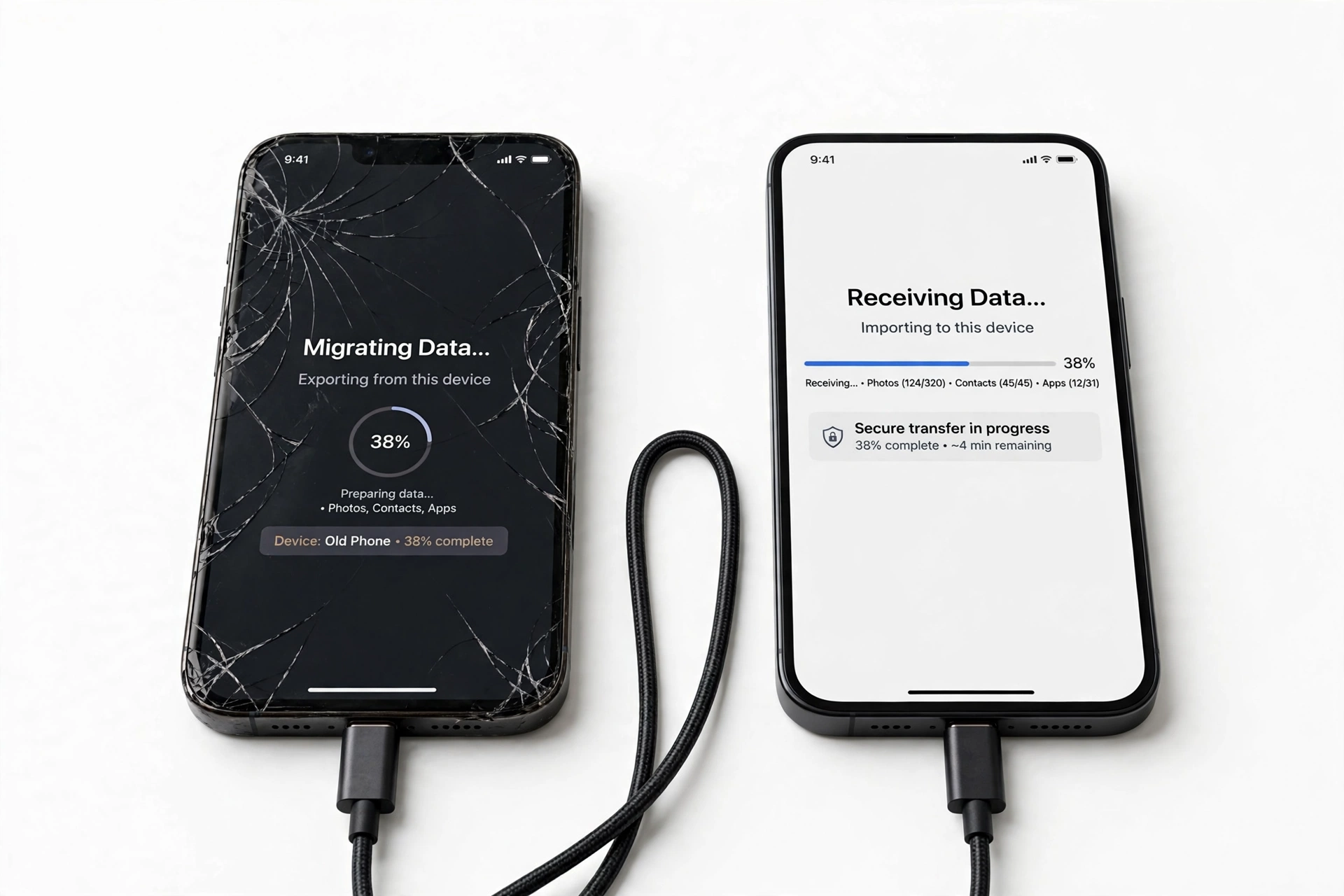
Crosscall never released a proprietary phone-to-phone transfer app, so Google’s own backup is the official route — and it works even if your Crosscall is completely dead. If your phone still powers on, add USB file transfer (or Crosscall’s X-CABLE/X-DOCK accessories) and a microSD card for the fastest copy; the right method depends entirely on how broken the phone is.
On this page
Crosscall never released a proprietary phone-to-phone transfer app, so Google’s own backup is the official route — and it works even if your Crosscall is completely dead.
1. Who this guide helps
This guide is for owners of a Crosscall rugged phone — models like the Core-X5, Core-M5, Trekker-X4, Action-X5, Stellar-X5, or Stellar-M6 — that has been damaged, stopped powering on, or can no longer be used normally, and who need to get their data onto a new phone. It covers every realistic path: Google cloud backup, USB file transfer to a computer, microSD cards, and restoring onto a new device. (Source: crosscall.com)
Crosscall is a French rugged-phone maker (based in Aix-en-Provence) whose phones are built for construction sites, outdoor work, and marine environments. Because these phones live rough lives, “broken” usually means a cracked display, a dead battery, or water intrusion — and Crosscall’s own support documentation points owners to Google’s backup system rather than any Crosscall-branded tool. That is the honest starting point for everything below.
If you are coming from a more general situation rather than a broken phone, our broader guide to transferring data from a broken phone covers brand-neutral methods in more depth. For owners of other rugged brands, see our guides on transferring data from a broken Kyocera and transferring data from a broken Sonim — the methods overlap heavily, and the honesty framing is the same.
2. The honest starting point: there is no Crosscall transfer app
Many phone brands ship a transfer utility: Samsung has Smart Switch, Huawei has Phone Clone, Google has its setup flow. Crosscall has never released a proprietary phone-to-phone transfer app. Search the Play Store and you will find unofficial apps borrowing Crosscall’s name — treat those as unofficial with a credential warning, because they are not from the manufacturer and will ask for broad access to your data.
Crosscall’s own official support article on backing up data (published on crosscall.com) documents exactly two families of methods: Google backup (Settings > System > Advanced Options > Backup > Back Up Now, with Google One Backup recommended for a complete backup) and USB transfer to a computer using the phone’s USB cable or Crosscall’s X-DOCK / X-CABLE accessories with the “File Transfer” USB mode. Restore on a new phone happens by signing in to the same Google account during setup and enabling automatic restoration. That official guidance is the backbone of this guide.
Quick fact: Because Crosscall relies on Google’s infrastructure, the most important preparation step costs nothing and takes one minute on any working Crosscall: Settings > System > Backup > Back Up Now, with a Google account signed in. Do it today, while the phone still works — it is the only method that can rescue your data after the phone dies completely.
3. Triage: match the method to how broken the phone is
Not every method works for every kind of damage. Use this triage to find your situation first, then jump to the matching method.
| Condition | Google backup restore | USB to computer | microSD removal |
|---|---|---|---|
| Phone dead (no power, no charge) | Yes — uses the last cloud backup | No | Yes — remove the card and read it elsewhere |
| Screen cracked but touch works | Yes | Yes | Yes |
| Screen dead but phone powers on | Yes — if backup was already on | Possibly — needs USB mode selection | Yes — remove the card |
| Phone works but USB port damaged | Yes | No | Yes — remove the card |
| Water-damaged, not powering on | Yes — uses the last cloud backup | No | Yes — dry the card, read it elsewhere |
The pattern: Google backup is the only method that works after the phone dies. Everything else requires the phone to power on or the storage card to be physically removable. Crosscall’s microSD support (up to 512 GB on models like the Core-X5, Core-M5, and Stellar-M6) is your best physical escape hatch — more on that in section 7.
4. Method 1: Restore from Google backup (works even with a dead phone)
This is the official Crosscall-documented route and the only one that works when the phone will never power on again.
What to check first
On any working device (or a computer), open a browser and go to your Google Drive: Drive > Storage > Backups. If your Crosscall appears there with a recent date, you have a backup. Note that Google can expire backups — a backup from a device that has been inactive for a long time may eventually be deleted, so check the date. If the newest backup is months old, it still restores whatever it captured, but anything newer than that date is not included.
The restore steps
- On your new phone, start setup and sign in to the same Google account that was on the Crosscall.
- When offered a backup to restore from, select the Crosscall’s backup.
- Enable automatic restoration during setup, as Crosscall’s documentation recommends.
- Let the restore finish on Wi-Fi — app data, call history, contacts, SMS, and settings transfer; photos restore separately through Google Photos if that was enabled.
- For content backed up to Google Drive or Google Photos, follow the corresponding restoration steps inside those apps after setup completes.
| Data type | Covered by Google backup? | Notes |
|---|---|---|
| Contacts | Yes | Synced to Google Contacts continuously |
| Call history | Yes | Included in device backup |
| SMS messages | Yes | Included in device backup |
| App list + most app data | Mostly | Apps opt in; some apps exclude their data |
| Photos and videos | Only if Google Photos backup was on | Check photos.google.com separately |
| WhatsApp chats | Only via WhatsApp’s own backup | Needs its own Google Drive backup — see section 8 |
| Authenticator codes | No | These do not transfer — see section 8 |
| Files on microSD | No | The card is physical media — move it or copy it |
Stop for safety: Never factory-reset the broken Crosscall “to fix it” before you have copied or confirmed your data elsewhere. A reset erases the internal storage, including anything the cloud backup had not yet captured. Reset is a last resort, not a first step.
5. Method 2: USB file transfer to a computer (phone must power on)
Crosscall’s official documentation describes this method directly: connect the device to a computer with the USB cable (or the X-DOCK station / X-CABLE), select File Transfer from the USB options, then find your files in the shared internal storage.
- Photos and videos: Connect, select File Transfer, open the DCIM folder, and copy everything to the computer (or to an SD card).
- Other files and folders: Same connection; browse the shared internal storage and copy what you need.
- Windows: Crosscall’s documentation mentions Quick Share as an easy wireless option for moving files between devices.
- Mac: You will need a tool like Android File Transfer, since macOS does not mount Android storage natively.
The catch with a broken screen: the phone must be unlocked and the USB mode set to File Transfer. If the screen is dead but the phone powers on, try connecting a USB mouse via an OTG adapter to navigate — this is worth one cheap attempt, but plan around it failing. If the USB port itself is damaged (common on rugged phones that take cable abuse), this method is closed and you move to the microSD method.
Quick fact: Crosscall’s X-LINK connector (on models like the Core-X5 and Core-M5) is a magnetic accessory interface for docks, chargers, and mounts — it is not a data-transfer app or a backup system. Do not confuse it with a transfer utility; file transfer still goes through USB File Transfer mode or the dock’s USB path.
6. Method 3: Google Photos and Drive (check from any browser)
Before assuming anything is lost, check the two cloud services independently — they back up separately from the device backup:
- photos.google.com — if Google Photos backup was enabled on the Crosscall, your photos and videos are here regardless of the phone’s condition. Search by date to confirm the most recent uploads.
- drive.google.com — documents, downloads, and any manually uploaded files live here. Also check Drive > Storage > Backups for the device backup itself.
On the new phone, sign in to the same Google account and both services sync back automatically. This is the fastest “rescue” for media when the phone is dead — many Crosscall owners discover their photos were quietly uploading all along.
7. Method 4: The microSD card (your best physical escape hatch)
Crosscall rugged phones support microSD expansion — up to 512 GB on the Core-X5, Core-M5, Trekker-X4, and Stellar-M6. If you stored photos, videos, or files on the card, that data is independent of the phone’s electronics.
- Power the phone off (or it is already dead), open the SIM/microSD tray, and remove the card.
- Insert it into the new phone or a computer with a card reader.
- Copy everything to a safe location before doing anything else.
- If the card was formatted as internal/adopted storage, it is encrypted to the dead phone and cannot be read elsewhere — this is the one trap. Portable (external) storage cards read fine anywhere.
| Format | Readable in another device? | Typical Crosscall default |
|---|---|---|
| Portable / external storage | Yes — any phone or reader | Most common on Crosscall |
| Adopted / internal storage | No — encrypted to the original phone | Only if you chose it during setup |
If your card was portable storage, this method is nearly instant and recovers every photo, video, and document stored on it. Move the card to the new phone or copy the files to a computer first — do not reformat the card until you have verified the copies.
8. App-by-app migration reality check
Some of the most important data lives inside individual apps, each with its own rules. Handle these separately:
| App / data | How it transfers | Broken-phone caveat |
|---|---|---|
| WhatsApp chats | WhatsApp’s own backup: Settings > Chats > Chat Backup > Back Up (to Google Drive) | Only restores if the backup ran before the phone broke |
| Google Authenticator codes | Do not transfer with device backup | Use your saved backup codes or re-enroll each account |
| Banking / payment apps | Re-install and re-verify identity | Expect SMS or ID verification on the new phone |
| Contacts | Google Contacts sync | Check contacts.google.com to confirm they are there |
| Calendar | Google Calendar sync | Automatic with the same Google account |
| Notes (Keep, etc.) | App’s own cloud sync | Verify in the app’s web version |
WhatsApp deserves emphasis because Crosscall’s own support documentation calls it out specifically: open WhatsApp, tap the three dots, go to Settings > Chats > Chat Backup > Back Up. If that backup never ran, old chats cannot be recovered from a dead phone — this is the single most common data-loss surprise across all brands, Crosscall included.
9. Crosscall-specific realities worth knowing
A few facts about Crosscall hardware shape your options:
- Dual SIM and hybrid trays: Many Crosscall models use hybrid dual-SIM trays where the second SIM slot doubles as the microSD slot. If you used two SIMs, the microSD option was unavailable — check which configuration you had.
- Water resistance and wet ports: Crosscall phones are IP68-rated, but the manuals warn against using the USB port while wet. If your phone took on water, let the port dry completely (room temperature, no heat) before attempting any USB transfer — forcing a cable into a wet port risks corrosion damage that can finish off a recoverable phone.
- Sealed, glued construction: Rugged sealing means the phone is not meant to be opened. Do not attempt to remove the battery or open the housing to “reach the storage” — internal storage is soldered and unreadable outside the phone anyway.
- Older Android versions: Models like the Trekker-X4 shipped on older Android (8.1). Backup behavior is the same family of Google backup, but menu paths may read “Backup & reset” rather than the newer “System > Backup” path — look for the backup toggle under Settings regardless of exact wording.
- Professional / fleet devices: Many Crosscalls are company-issued (the Core-M5 is Android Enterprise Recommended). If your phone is managed by an employer, the IT administrator may control backups and transfers — check with them before attempting anything, since management policies can block USB transfer and factory reset.
Stop for safety: If the battery is swollen, distorted, or the phone is dangerously hot, do not charge it, do not connect it to a computer, and do not attempt a transfer — set it aside in a fire-safe spot and seek professional help. No data is worth a battery fire.
10. Which method first: the decision order
When the phone still partially works, follow this order — fastest verification first:
| Step | Method | Why this order |
|---|---|---|
| 1 | Check Google Photos/Drive from a browser | Instant; confirms what is already safe |
| 2 | Trigger a fresh Google backup (Settings > Backup > Back Up Now) | Captures the latest state before anything else |
| 3 | USB file transfer to a computer | Fastest bulk copy of photos and files |
| 4 | Copy the microSD card | Physical backup independent of the phone |
| 5 | Run WhatsApp’s Chat Backup | Its own backup is separate and often forgotten |
| 6 | Set up the new phone with the same Google account | Automatic restoration pulls it all together |
When the phone is completely dead, the order collapses to three steps: check Drive > Storage > Backups, check Google Photos, remove and read the microSD card. Whatever those three yield is what you have — which is why the one-minute backup habit in section 2 matters more than any rescue technique.
11. Two hypothetical illustrations
(The following are hypothetical illustrations, not customer stories.)
Hypothetical 1 — Maya’s backup-restore surprise: Maya’s Core-X5 fell from scaffolding and never powered on again. She assumed everything was lost — until she checked Drive > Storage > Backups on her laptop and found a backup from two days before the drop. Setting up her new phone with the same Google account restored her contacts, messages, and apps. The surprise: her authenticator codes did not come back, and she had to re-enroll each account using saved backup codes. The lesson she took away: cloud backup covers most things, but authenticator apps need their own export step done in advance.
Hypothetical 2 — Devon’s dead-phone Photos discovery: Devon’s Trekker-X4 died after a swim — the phone was IP68-rated, but the charging port had been wet when he plugged it in weeks earlier and corrosion had been silently spreading. With the phone dead, he removed the 512 GB microSD card, put it in a reader, and found two years of site photos intact. Then he checked photos.google.com and discovered the most recent three months had also been uploading to Google Photos. Between the card and the cloud, he lost nothing — because the card held the archive and the cloud held the recent work.
12. When to stop and get professional help
Stop troubleshooting and seek professional assessment when:
- The phone shows any sign of battery swelling, overheating, or a burning smell.
- The phone was submerged and will not power on after thorough drying — internal corrosion needs professional equipment.
- You need data from internal storage and the phone will not boot — no software method can reach soldered storage on a dead board.
- The device is company-managed and policies block the steps above — your IT administrator is the correct contact.
- You are tempted to open the phone yourself — rugged sealing makes DIY opening destructive, and internal storage cannot be read outside the phone regardless.
For an in-person assessment of a damaged device in the Las Vegas area, Las Vegas Phone Repair & Accessories, 7400 Las Vegas Blvd S, Unit TT42, Las Vegas, NV 89123, (424) 406-6202, can evaluate what recovery options remain. Call ahead to confirm today’s hours. Be aware that no shop can guarantee data recovery from a dead device — anyone who promises it before examining the phone is not being honest with you.
13. Frequently asked questions
Does Crosscall have a transfer app like Samsung Smart Switch?
No. Crosscall has never released a proprietary phone-to-phone transfer app. The official route is Google backup (documented on crosscall.com) plus USB file transfer. Any Play Store app using Crosscall’s name is unofficial — do not enter your credentials into it.
Can I transfer data from a Crosscall that will not turn on?
Yes, partially: restore the last Google backup onto your new phone by signing in with the same Google account, check Google Photos and Drive from any browser, and remove the microSD card to read it elsewhere. Internal storage on a dead phone is not recoverable by software means.
What is the X-LINK connector for?
X-LINK is Crosscall’s magnetic accessory interface (found on models like the Core-X5 and Core-M5) for docks, chargers, and mounts. It is not a backup or transfer system — data still moves via Google backup, USB File Transfer mode, or the microSD card.
How do I check whether my Crosscall was backing up?
From any browser: Google Drive > Storage > Backups. If your Crosscall is listed with a recent date, you have a backup. Also check photos.google.com for photo uploads and contacts.google.com for contacts.
My screen is cracked but the phone works — what is the fastest method?
Run Settings > Backup > Back Up Now first (captures the latest state), then connect via USB with File Transfer mode and copy the DCIM folder and documents to a computer. Copy the microSD card as well. Then set up the new phone with the same Google account.
Can I use a USB mouse with a dead screen?
Possibly, with a USB OTG adapter — but Crosscall documents no official OTG rescue procedure, so treat it as worth one cheap attempt, not a plan. If it fails, fall back to Google backup and the microSD card.
Will moving my microSD card to the new phone just work?
If the card was formatted as portable storage, yes — insert it in the new phone or a reader and copy the files. If it was formatted as adopted (internal) storage, it is encrypted to the dead phone and cannot be read elsewhere. Most Crosscall setups use portable storage by default.
What about WhatsApp — will my chats transfer?
Only if WhatsApp’s own backup ran: WhatsApp > Settings > Chats > Chat Backup > Back Up (to Google Drive). The device-level Google backup does not include WhatsApp chats by itself. On the new phone, install WhatsApp, verify the same number, and restore when prompted.
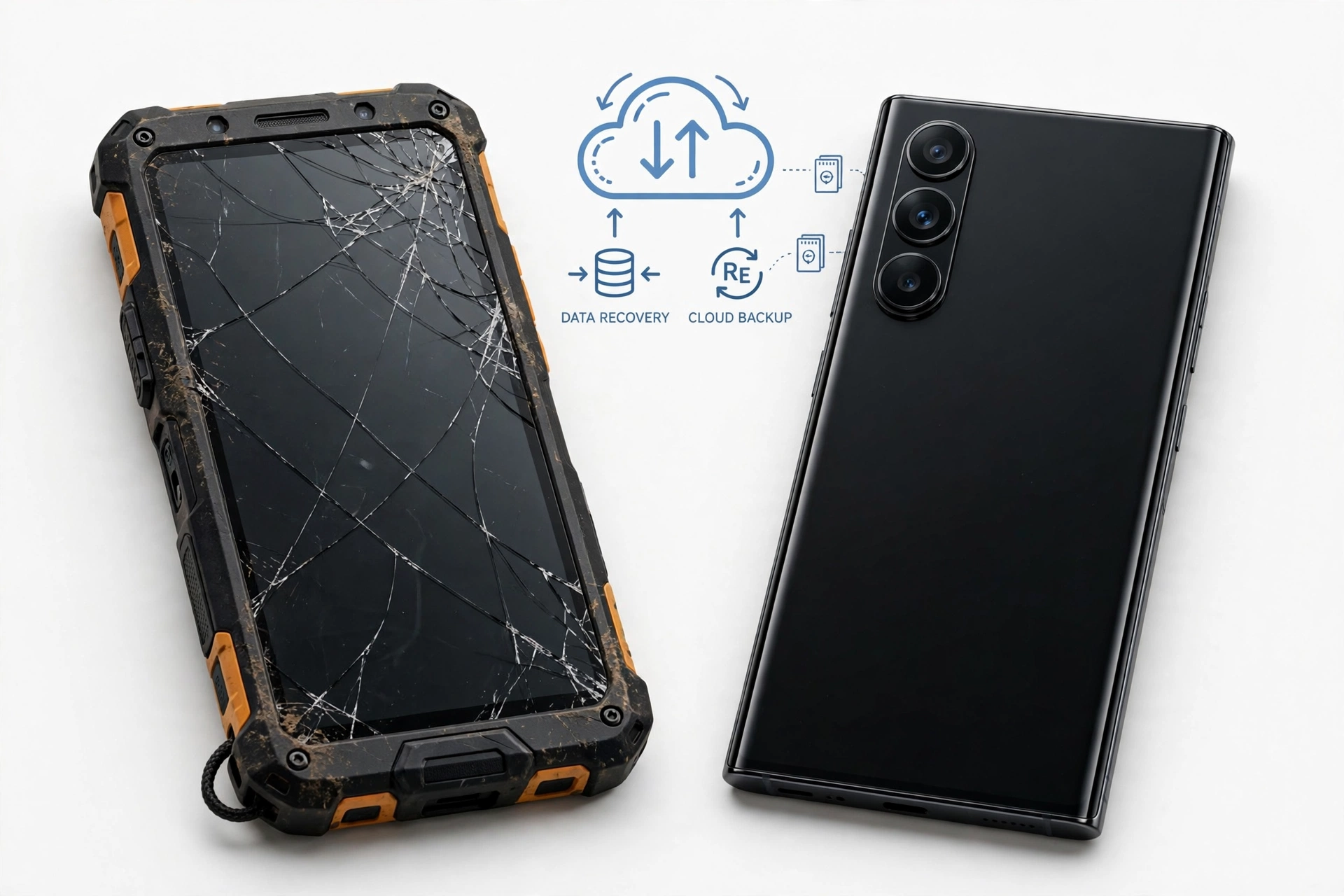
Video: How to transfer everything from old to new Android
Sources and editorial notes
- Crosscall official support — “How do you back up all your data on Android”: documents Google backup (Settings > System > Advanced Options > Backup), Google One Backup recommendation, WhatsApp chat backup steps, USB/X-DOCK/X-CABLE file transfer with File Transfer mode, Quick Share for Windows, Android File Transfer for Mac, and restore via Google account sign-in with automatic restoration.
- Crosscall Trekker-X2 user manual (docs.crosscall.com): documents the “Backup & reset” settings section (Back up my data toggle, factory data reset).
- GSMchoice — Trekker-X4 vs Core-X5 comparison: Core-X5 specs (5.45″, Snapdragon 665, 64 GB, microSD to 512 GB, IP68, 4,940 mAh); Trekker-X4 (microSD to 512 GB, IP68).
- Crosscall Core-M5 datasheet: 3 GB / 32 GB, microSD to 512 GB, IP68, USB Type-C, OTG, X-LINK connector, Android Enterprise Recommended.
- Refurbed — Crosscall Stellar-M6E listing: microSD to 512 GB, USB-C, Android 14, 4,500 mAh (used for current-model storage specs).
- BestDigit — Crosscall Core-M5 specifications: 4.95″ display, 3 GB RAM, 32 GB expandable storage, 4,000 mAh, IP68, hybrid dual SIM.
- Crosscall Core-M5 certification datasheet (manuals.plus): Android Enterprise Recommended, X-LINK compatibility, professional/enterprise positioning.
Last source check: October 14, 2026. AI-assisted editorial guide, checked against the linked manufacturer information. Crosscall procedures described here are limited to documented Settings paths and Crosscall’s own published support article; no unofficial transfer apps or procedures are recommended. Third-party spec listings are used only for hardware facts (storage, microSD limits), not for procedures. If Crosscall publishes updated backup guidance, the official guidance takes precedence.
Let’s get you connected again.
Tell us what’s happening with your device and we’ll help you decide the safest next step — no jargon, no pressure.
Las Vegas Phone Repair & Accessories · 7400 Las Vegas Blvd S, Unit TT42, Las Vegas, NV 89123
10:00 AM–8:00 PM — call ahead to confirm today’s hours