
How to Transfer Data from Broken RugGear Phone to New Phone: Complete Guide
RugGear never released its own phone-to-phone transfer app — the official route on every RugGear rugged phone is Google’s own Android backup, which you can restore to a new phone even if the old RugGear is completely dead. Because RugGear builds sealed, MIL-STD-810G-rated work phones with almost nothing in the way of brand-specific cloud services, your best path is the Google account that was signed into the phone, followed by a direct USB copy or the microSD card if the phone still powers on.
On this page
RugGear never released its own phone-to-phone transfer app — the official route on every RugGear rugged phone is Google’s own Android backup, which you can restore to a new phone even if the old RugGear is completely dead.
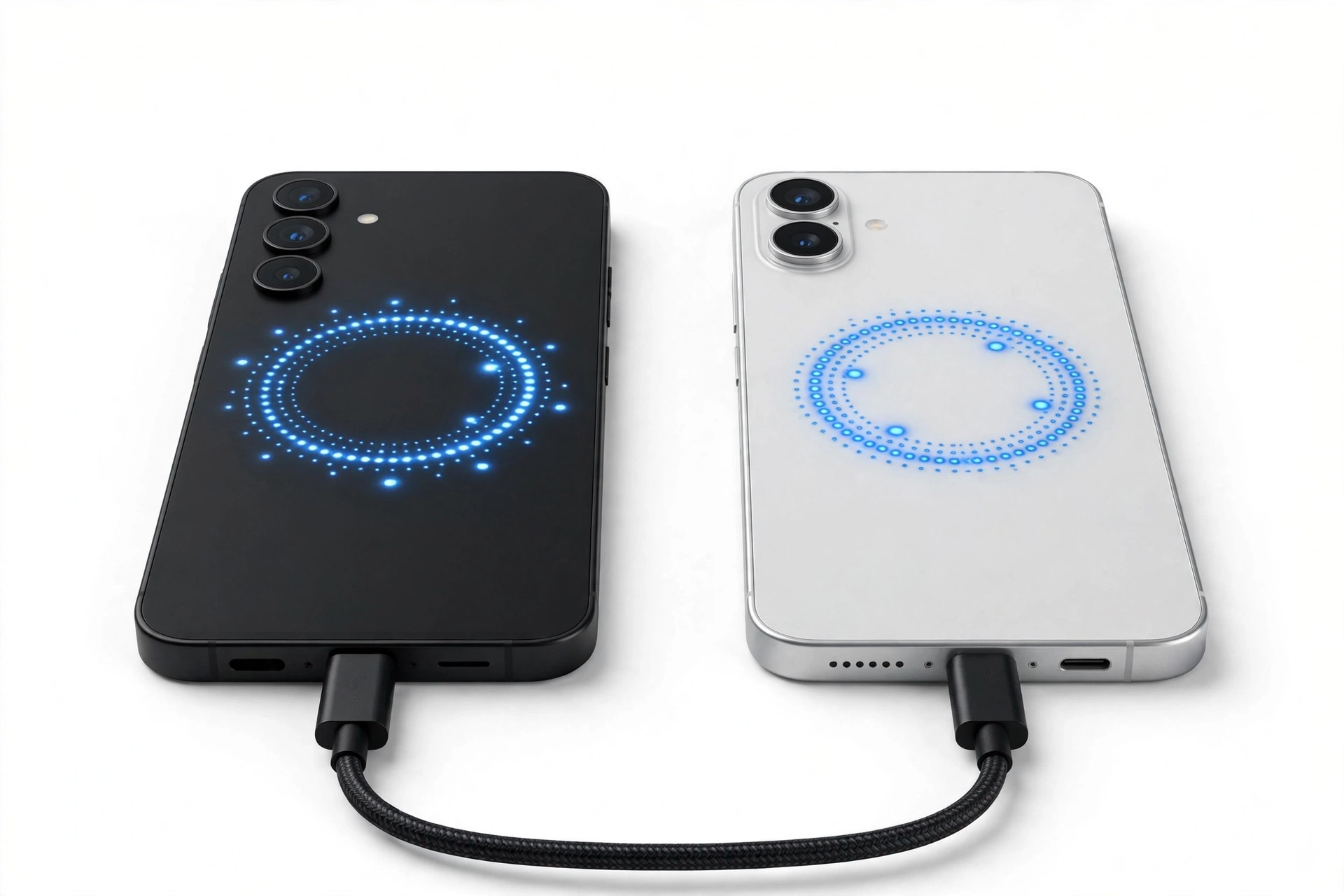
Quick fact: RugGear is a rugged-phone brand (from Power Idea Technology, Shenzhen) whose lineups include the RG650, RG655, RG725, RG760, RG360, RG530, and RG750. Every one of them runs a close-to-stock Android build — and none of them shipped with a proprietary data-transfer app. The method in this guide uses the tools Google and Android already provide.
1. Who this guide is for
This guide is written for anyone whose RugGear phone is damaged and who now needs their data — photos, contacts, messages, WhatsApp chats, app data, and documents — moved safely onto a replacement phone. It covers every common RugGear model, from the compact RG360 and RG725 through the mid-range RG650, RG655, and RG530, to the larger RG760 and the push-to-talk-focused RG750. (Source: manuals.plus)
RugGear owners tend to be different from typical smartphone owners: construction workers, delivery drivers, warehouse staff, field technicians, and people who bought the phone precisely because it can survive a 1.5-meter drop onto concrete. That matters for data recovery, because the same sealed, armored construction that keeps a RugGear alive through abuse also makes it harder to get data out once something finally breaks. This guide works with that reality instead of against it.
If your RugGear still turns on — even with a cracked screen, a dead speaker, or a camera that no longer works — you have more options than someone whose phone is completely dead. But even a fully dead RugGear does not mean your data is gone. As long as the phone was signed into a Google account with backup switched on, your contacts, app list, call history, device settings, and SMS can be restored to a new phone without ever touching the broken device again. If you want the brand-neutral version of this process that applies to any Android phone, see our general guide to transferring data from a broken phone.
2. First, figure out exactly what “broken” means
“My RugGear is broken” can describe five very different situations, and each one unlocks a different set of data-recovery options. Before you do anything else, work out which situation applies to you. The rest of this guide refers back to this triage.
| Condition | What it means | Best first method |
|---|---|---|
| Screen cracked, touch still works | The phone powers on and responds to taps; you just cannot see everything clearly | USB cable transfer to a computer, or Google backup check |
| Screen cracked, touch dead | The phone is on (you may hear sounds or feel vibration) but you cannot operate it | OTG mouse attempt, or USB transfer if file transfer was already enabled |
| Phone powers on, screen totally black | The device boots — charger sounds, vibration, notification sounds — but the display shows nothing | USB cable to computer; Google backup restore if the computer cannot see it |
| Phone will not power on at all | No lights, no vibration, no charging indicator, nothing | Google backup restore to the new phone — the broken phone is out of the picture |
| Water or physical damage, phone unstable | The phone turns on and off on its own, or only works when held a certain way | Grab the microSD card first if it holds files; then try a quick USB copy while it stays on |
The honest rule is this: the more of the phone still works, the more of your data you can recover directly. A phone that powers on can usually give up its files through a USB cable. A phone that is completely dead can only give up what it already uploaded to the cloud. That is why Section 3 comes first — it costs nothing, needs no working screen, and for many RugGear owners it recovers the most important data in about twenty minutes.
Stop for safety: if the battery is swollen, the back of the phone is bulging, the device is getting dangerously hot, or you smell something chemical or sweet, stop everything. Do not charge it, do not plug it into a computer, and do not try to open the sealed body. Place it somewhere non-flammable and away from people, and ask a professional to look at it before any data work continues.
3. Method 1: Restore from your Google backup (works even on a dead phone)
Every RugGear model runs Android, and every Android phone signed into a Google account can back up to Google’s servers automatically. RugGear documents the standard Android path in its own materials — Settings, then Accounts and backup — and there is no brand-specific alternative to use instead. If backup was switched on, your data is sitting in your Google account right now, independent of the broken phone.
What a Google backup actually contains
A Google Android backup covers more than most people realize: your contacts, the list of apps you had installed, your call history, device settings (including Wi-Fi passwords), and SMS text messages. If you used Google Photos with backup switched on, your photos and videos are there too. What it does not cover is WhatsApp chats (WhatsApp runs its own separate backup), authenticator app codes, and files that were stored only on the phone’s internal storage without cloud sync.
There is one catch worth knowing: Google’s device backups expire. If a backup sits unused for roughly 57 days, Google may delete it. So if your RugGear broke months ago and you are only getting around to this now, check whether a usable backup still exists before you count on it.
Step-by-step: check your backup before you touch anything else
- On a computer, open a browser and go to drive.google.com, then sign in with the same Google account that was on the RugGear.
- Click Storage in the left sidebar, then Backups at the top right.
- Look for a backup named after your RugGear model (for example, “RugGear RG655” or just the device name you gave it). Note the date — a recent date is a good sign.
- If the backup exists, your contacts, apps, call history, settings, and SMS are recoverable. Move on to the restore step below.
You can also check Google Photos at photos.google.com with the same account. If your photos are there, they were already safe before the phone broke — no recovery work needed for them at all.
Step-by-step: restore to the new phone
- Turn on the new phone and start the normal Android setup.
- When setup asks whether to copy apps and data, choose restore from a backup (the wording varies slightly between Android versions).
- Sign in with the same Google account that was on the RugGear.
- Pick the RugGear backup from the list and confirm. The new phone will download your apps, contacts, call history, settings, and messages.
- Leave the new phone on Wi-Fi and plugged in while it finishes — app downloads can take a while, and interrupting them mid-restore can leave apps half-installed.
This method works even if the RugGear is in pieces at the bottom of a toolbox. It is the single most reliable route in this guide, which is why it comes first.
4. Method 2: Copy files directly with a USB cable
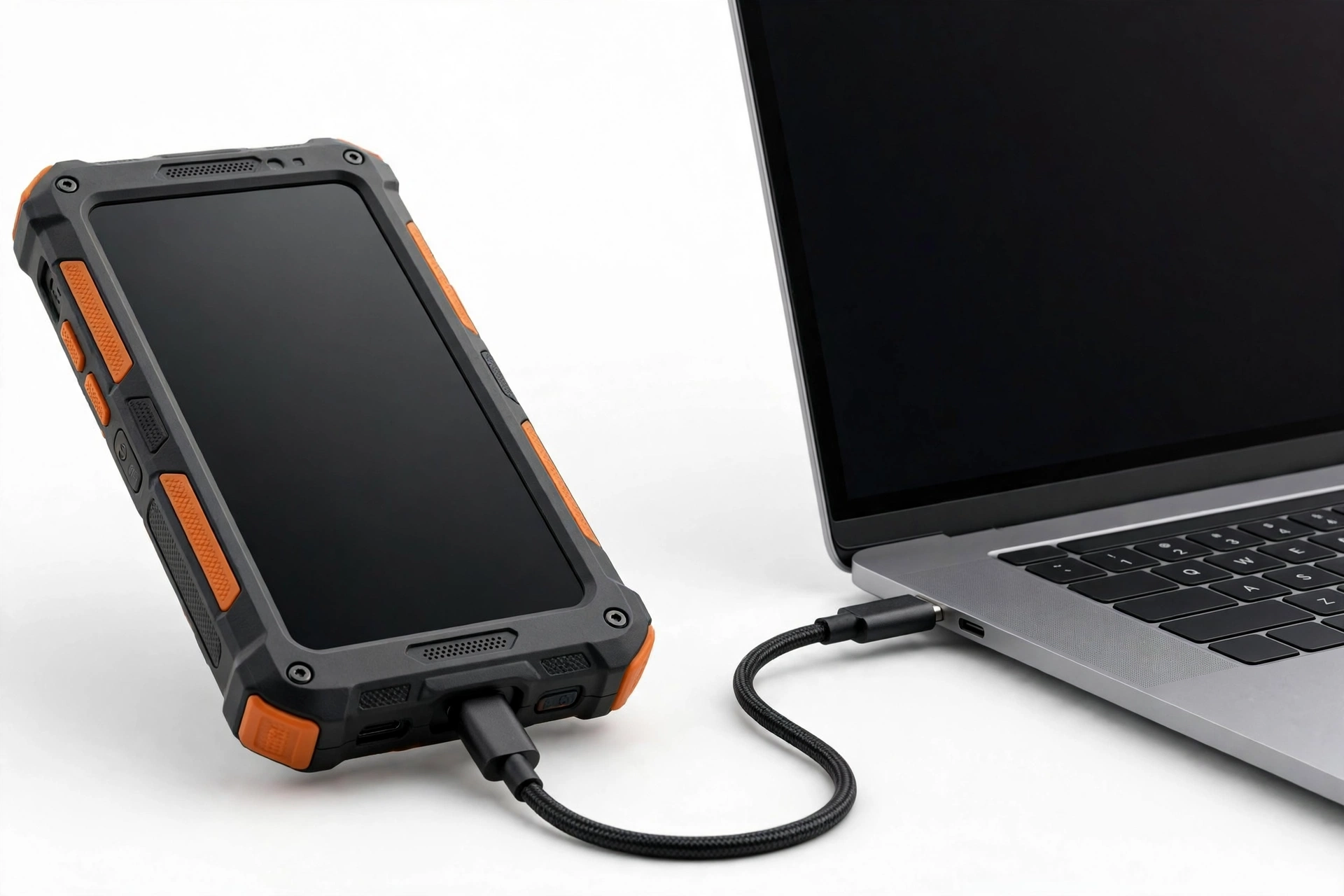
If the RugGear still powers on — even with a shattered screen — a direct USB copy to a computer is the fastest way to grab photos, videos, downloads, documents, and anything else stored on the phone. RugGear’s own RG655 user guide describes the phone’s USB port as being “for mobile phone charging and data transmission,” and that is exactly what we are using it for here.
A RugGear-specific detail: most RugGear models use an older Micro USB port rather than USB-C, and the SIM/microSD tray sits behind a sealed rubber plug to keep the IP68 water resistance intact. The port you need is the charging port itself — no adapter required, just the right cable.
Step-by-step
- Connect the RugGear to a computer with a data-capable USB cable (some cheap cables only carry power — if nothing appears on the computer, try a different cable).
- On the RugGear, you may see a USB notification. If the screen still responds to touch, tap it and choose File transfer (MTP). If the screen is dead, skip ahead — many phones default to charging-only mode, which is a real limitation (see the note below).
- On a Windows computer, open File Explorer and look for the phone under “This PC.” On a Mac, you will need the free Android File Transfer app from Google.
- Open the phone’s storage and copy the folders you care about — DCIM (camera photos and videos), Download, Pictures, WhatsApp/Media — to a folder on the computer.
- Copy, do not move. Moving deletes the originals from the phone as they transfer, so a single interruption can lose files. Copy everything first, verify the copies open correctly, and only then think about the old phone.
Tip: if the screen is dead and the computer does not see the phone, the phone is probably stuck in charging-only USB mode with no way to change it by touch. This is exactly the situation the OTG-mouse trick in Section 6 is for — a cheap USB mouse can give you a working pointer on a phone whose touch layer is dead.
What about the water-resistance seals?
RugGear phones earn their IP68 rating partly through tight rubber plugs over the SIM tray and ports. The USB port is meant to be opened and closed repeatedly — plugging in a cable does not damage anything. Just make sure the plug area is dry before you connect: pushing a cable into a wet port on any phone, rugged or not, is asking for corrosion. If the phone got wet recently, let the port air-dry at room temperature first. Do not use a hair dryer or heat — RugGear’s own safety materials warn against excessive heat near the battery.
5. Method 3: Pull the microSD card
Most RugGear models — including the RG655, RG760, RG650, and RG530 — accept a microSD card of up to 128GB, installed in the SIM tray behind the rubber plug. If you ever saved photos, videos, or documents to the card instead of the phone’s internal storage, those files are sitting on a removable piece of plastic you can simply take out.
Step-by-step
- Power the phone off if it still responds. If it does not, proceed carefully anyway — removing a card from a dead phone is harmless.
- Open the rubber plug over the SIM tray (RugGear’s manual shows the tray position; you may need the SIM ejector pin or a straightened paperclip).
- Eject the tray and remove the microSD card.
- Insert the card into a card reader on a computer (or into the new phone, if it takes microSD) and copy the files.
- As with USB transfer: copy, do not move, and verify the copies open before you do anything else.
There is one important trap here, and it applies to every Android brand, RugGear included: adopted storage. Some Android phones offer to “format as internal” (adopt) the SD card, which encrypts it so that only that specific phone can read it. If your RugGear adopted the card, the files on it are unreadable on any other device — the encryption key died with the phone. You can check this only on a working phone (Settings, then Storage — an adopted card shows as part of internal storage). If the card was used as portable storage, it reads fine anywhere.
| How the card was set up | Readable on another device? | What to do |
|---|---|---|
| Portable storage (the default) | Yes — photos, videos, and documents copy straight off | Remove the card, copy the files with a reader |
| Adopted as internal storage | No — encrypted to the broken phone | Only the phone itself can decrypt it; if the phone still boots, copy files via USB before anything else |
| You are not sure | Try it — a card reader costs almost nothing | If the computer asks to format the card, stop: it is probably adopted, and formatting destroys the data |
Stop for safety: if a computer or phone prompts you to format the microSD card, do not accept. Formatting wipes the card. A format prompt usually means the card is encrypted (adopted storage) or has a damaged filesystem — either way, the safe move is to stop and get advice before clicking anything.
6. Method 4: The OTG-mouse trick for a dead touchscreen
Here is a scenario RugGear owners hit often: the phone survived the drop structurally, powers on, makes sounds, even vibrates — but the touch layer is dead, so you cannot tap anything. A ten-dollar USB OTG (On-The-Go) adapter plus a regular USB mouse can give you a working cursor on the phone’s screen, which is enough to change the USB mode to file transfer or to check that Google backup is switched on.
Two honesty notes. First, RugGear publishes no official OTG rescue procedure, and OTG support varies between models and Android versions — treat this as worth one cheap attempt, not a plan. Second, the RG655 and several siblings use Micro USB, so you need a Micro-USB OTG adapter specifically, not the USB-C kind sold for modern phones.
Step-by-step
- Buy or borrow a USB OTG adapter that matches the phone’s port (Micro USB for most RugGear models).
- Plug the adapter into the phone, then plug a standard USB mouse into the adapter.
- If the phone supports OTG, a cursor appears on screen. Use it exactly as you would use touch: click the USB notification, select File transfer, then use the computer method from Section 4.
- If no cursor appears after a minute, this model likely does not support OTG host mode. Move on — you have not harmed anything.
7. What transfers automatically, and what needs manual work
Not all data moves the same way. This is the section that saves people from the nasty surprise of setting up a shiny new phone and discovering that one critical thing did not come along. Go through it app by app.
| Data type | Moves with Google backup? | What you need to do |
|---|---|---|
| Contacts | Yes, if synced to Google | Check contacts.google.com on a computer to confirm they are there |
| Photos and videos | Only if Google Photos backup was on | Check photos.google.com; otherwise copy via USB or microSD |
| SMS text messages | Yes | Restored automatically with the backup |
| Call history | Yes | Restored automatically with the backup |
| WhatsApp chats | No — separate system | Needs WhatsApp’s own Google Drive backup (see Section 8) |
| Authenticator / 2FA codes | No | Must be migrated from inside the app before losing the phone; see Section 9 |
| Banking and payment apps | App reinstalls; login does not transfer | Sign in fresh on the new phone; have your credentials ready |
| Downloaded documents and files | No | Copy via USB (DCIM, Download, Documents folders) or microSD |
| Music stored on the phone | No | Copy via USB, or re-download from your streaming service |
| Wi-Fi passwords and settings | Yes | Restored automatically with the backup |
Quick fact: contacts deserve a special mention because they are the single most common “lost” item. If your RugGear contacts were saved to the Google account, they are safe and will reappear the moment you sign into the new phone. If they were saved to “Phone” or “Device” storage only — a habit from older phones — they live and die with the broken device unless you can still access it. Check contacts.google.com right now; whatever you see there is what you have.
8. WhatsApp needs its own backup
WhatsApp does not use Google’s device backup. It runs its own backup to Google Drive, controlled entirely from inside WhatsApp’s settings. This is the number-one source of “everything transferred except my WhatsApp” complaints, so it gets its own section.
If the RugGear still works at all
- Open WhatsApp, tap the three dots, then Settings → Chats → Chat backup.
- Check the date of the last backup and which Google account it uses.
- Tap Back up to run a fresh one right now, including videos if you want them.
- On the new phone, install WhatsApp, verify the same phone number, and sign into the same Google account when prompted — WhatsApp will find the Drive backup and offer to restore it.
If the RugGear is completely dead
You can only restore whatever the last automatic backup captured. WhatsApp’s default is a daily automatic backup at 2 a.m. — if that was switched on, you will lose at most a day or two of messages. Install WhatsApp on the new phone with the same number and Google account, and restore what is there. Messages sent after the last backup are gone, and no tool can bring them back.
One more RugGear-relevant detail: WhatsApp media (photos and videos people sent you) lives in the phone’s WhatsApp/Media folder. If the phone still powers on, copy that folder via USB as described in Section 4 — it is often several gigabytes people forget about.
9. The authenticator trap: act before the old phone is gone
Two-factor authenticator apps — Google Authenticator, Microsoft Authenticator, Authy, and similar — are the most dangerous item on the “does not transfer” list, because losing them can lock you out of email, banking, and work accounts, not just lose data.
Stop and read this: authenticator codes do not transfer with a Google device backup. If your RugGear held your only copy of 2FA codes and the phone is dead, you cannot recover the codes from the backup — you must use each service’s account-recovery process (backup codes, SMS fallback, or support). This is the one item in this guide where prevention mattered more than cure.
If the RugGear still powers on and you can see the screen (even cracked), open your authenticator app now and use its built-in transfer or export feature to move the accounts to the new phone before you do anything else. Most authenticator apps have an “export accounts” or “transfer” option that shows a QR code the new phone scans. Do this first — before the USB copy, before WhatsApp, before anything. A phone that dies halfway through a file copy is an inconvenience; a phone that dies before you export authenticator codes can mean days of account recovery.
The following are hypothetical illustrations, not customer stories. Imagine Daniel, a site foreman whose RG655 took a fall from scaffolding: the screen is a spiderweb but the phone still boots, and his authenticator holds the 2FA for his company’s time-tracking portal. Because he exports the authenticator first using a USB mouse (Section 6) before attempting anything else, he keeps access to payroll even though the phone dies completely two days later. Contrast that with Amara, a delivery driver whose dead RG760 held her only authenticator copy with no export: she spends a week working through SMS-based recovery for three different accounts. Same broken phone, very different outcomes — the difference was ten minutes of prioritization.
10. Putting it together: the recommended order of operations
With all the methods on the table, here is the order that minimizes risk. Work top to bottom, and stop as soon as your data is safe — you do not need to do every step.
| Order | Action | Why this position |
|---|---|---|
| 1 | Check Google backup and Photos from a computer | Costs nothing, needs no working phone, recovers the most for the least effort |
| 2 | Export authenticator / 2FA accounts if the phone boots | The only truly irreplaceable item; everything else has a second chance |
| 3 | Run a fresh WhatsApp backup if the phone boots | Daily auto-backups may be a day behind; a manual one closes the gap |
| 4 | USB copy of DCIM, Download, Documents, WhatsApp/Media | Grabs the files Google backup never touches |
| 5 | Pull the microSD card and copy it | Covers anything saved to the card instead of internal storage |
| 6 | Restore the Google backup onto the new phone | Rebuilds contacts, apps, settings, SMS, and call history in one pass |
| 7 | Restore WhatsApp from its Drive backup | Separate system, separate restore — do it after the Google restore |
| 8 | Sign into banking, email, and work apps fresh | Credentials never transfer; have passwords and 2FA ready |
11. RugGear-specific realities worth knowing
A few things about RugGear hardware change the practical details of this guide:
- Sealed construction is a feature, not a bug. RugGear phones carry IP68 water and dust resistance plus MIL-STD-810G shock resistance, with rubber plugs sealing the SIM tray and ports. That sealing is why a RugGear survives a construction site — and why you should never try to pry the phone open to reach the storage chip. RugGear’s own RG750 documentation states the device has no user-serviceable parts and directs owners to the vendor or service center for repairs. Opening a sealed rugged phone destroys the water resistance and risks the battery.
- The custom button can help. Several RugGear models have a programmable custom button on the side. If it was configured before the damage — say, to launch the camera or a specific app — it still works even with a dead touchscreen, which can occasionally help you trigger an action (like starting a backup app) without touch input.
- Older Android versions back up less. The RG760 shipped with Android 7.1.2 and the RG655 with Android 9. On older Android versions, fewer apps participate in cloud backup, and the backup interface looks slightly different (Settings → System → Backup on newer builds; Settings → Accounts and backup on some RugGear builds). The core Google account backup still works, but expect to do more manual copying on older models.
- Big batteries mean longer “is it dead?” confusion. The RG760 packs a 5,600mAh battery — when one of these finally dies, owners sometimes assume it is broken when it is simply deeply discharged. Before declaring the phone dead, charge it for a full hour with the original-spec charger (RugGear’s RG750 guidance specifies 5V/2A or 9V/2A QC3.0 — do not use a higher-current fast charger than the phone supports). If it was just a dead battery, your “data recovery” problem just solved itself.
RugGear is not the only rugged brand built this way. If you also use — or are replacing the RugGear with — another work phone, the same Google-backup-first approach applies: see our guide to transferring data from a broken Crosscall phone and our guide to transferring data from a broken Kyocera phone for the brand-specific details (Crosscall’s X-LINK accessories, Kyocera’s programmable buttons) that differ from RugGear’s.
12. When to stop and get professional help
There is a point where DIY recovery stops being sensible. Stop and talk to a repair professional if:
- The phone is completely dead and no Google backup exists — a professional may still be able to power the board long enough for a USB extraction, but this is board-level work, not something to attempt at home.
- The phone gets hot, swells, or smells while charging — battery hazard, full stop.
- The data is business-critical (contracts, legal photos, client records) and worth more than the cost of professional recovery.
- You have tried the USB and microSD routes and the computer cannot see the phone at all.
Be honest with yourself about the value of the data versus the cost and risk. Copying files off a working phone is free and safe. Anything involving opening the phone, reflowing boards, or chip-level extraction is professional territory with professional pricing — and no honest shop will guarantee recovery before they have examined the device.
If you are in the Las Vegas area, Las Vegas Phone Repair & Accessories (7400 Las Vegas Blvd S, Unit TT42, Las Vegas, NV 89123; (424) 406-6202) can assess a damaged RugGear in person and tell you what recovery options actually exist for your specific damage. Call ahead to confirm today’s hours.
13. After the transfer: secure the old phone
Once your data is safe on the new phone, do not forget the broken RugGear still holds your data. If the phone still powers on, sign out of your Google account (Settings → Accounts and backup → Manage accounts) and run a factory reset (Settings → System → Reset) so the next person who handles it — a recycler, a repair shop, a buyer — does not inherit your accounts and files.
Never factory-reset before copying. This warning appears twice in this guide because it is the single most common self-inflicted data loss in phone transfers. A factory reset wipes the phone’s internal storage permanently. Only reset after you have verified — by opening the files — that everything you need exists somewhere else.
If the phone is dead and cannot be reset, at minimum remove the microSD card (it may hold photos) and the SIM card. For a dead phone you are recycling, physical destruction of the storage is the only certain wipe — ask the recycler about their data-destruction process.
14. Frequently asked questions
Does RugGear have its own transfer app like Samsung Smart Switch?
No. RugGear never released a proprietary phone-to-phone transfer app. The official route on every RugGear model is Google’s own Android backup (Settings → Accounts and backup), plus standard USB file transfer and microSD. Any third-party app in the Play Store using RugGear’s name is unofficial — do not enter your Google credentials into it.
My RugGear is completely dead. Is my data gone?
Not necessarily. Check drive.google.com → Storage → Backups with the Google account that was on the phone. If a backup exists, your contacts, apps, call history, settings, and SMS restore to a new phone without the old device. Check photos.google.com for your photos. Only data that was never backed up or synced anywhere is unrecoverable from a dead phone.
How do I check whether my RugGear was backing up?
From any computer: sign into drive.google.com with the phone’s Google account, click Storage, then Backups. If you see a backup named after your RugGear with a recent date, backup was on. No backup listed means it was off — or the backup expired after roughly 57 days of disuse.
What is the fastest method if the screen is cracked but touch works?
A USB cable to a computer. Connect the phone, select File transfer (MTP) on the phone’s USB notification, and copy the DCIM, Download, and WhatsApp/Media folders. It is faster than any cloud method and grabs files Google backup never touches.
Can I use a USB mouse with a RugGear that has a dead touchscreen?
Possibly. A Micro-USB OTG adapter plus a standard USB mouse gives you a cursor on some RugGear models — enough to change the USB mode or check backup settings. RugGear documents no official OTG rescue procedure, so treat it as worth one cheap attempt. If no cursor appears, the model likely lacks OTG host support.
Will my WhatsApp chats transfer automatically?
No. WhatsApp uses its own backup to Google Drive, separate from the Android device backup. If the old phone still works, open WhatsApp → Settings → Chats → Chat backup and run a manual backup now. On the new phone, install WhatsApp with the same number and Google account to restore it.
Why did my authenticator codes not transfer to the new phone?
Authenticator apps deliberately do not include their codes in Google device backups — it is a security design, not a bug. Codes must be migrated from inside the authenticator app (export/transfer feature) while the old phone still works. If the old phone is dead, use each service’s account recovery (backup codes, SMS fallback) to regain access.
Should I repair the RugGear or just replace it?
That depends on the damage, the model’s age, and parts availability — RugGear is a niche brand, so screens and parts can be harder to source than for mainstream phones. If the phone is several generations old (RG360, RG725 era) and the damage is major, replacement usually makes more sense. If it is a newer model with minor damage, get a repair quote first and compare. Either way, secure your data before deciding — a phone sitting in a drawer with your only copy of important files is a risk, not a backup plan.
Video: How to transfer everything from old to new Android
Sources and editorial notes
- RugGear RG655 Smartphone User Guide (Manuals.plus) — USB port for charging and data transmission, microSD up to 128GB, rubber-plug sealing guidance, safety instructions. Summarized in original language.
- RugGear RG750 User Guide (Manuals.plus) — no user-serviceable parts, vendor/service-center repair direction, 5V/2A or 9V/2A charging specification, battery safety. Summarized in original language.
- GSMchoice: RugGear RG760 vs RG655 comparison — model specifications including batteries, storage, microSD support, Android versions, IP68. Summarized in original language.
- GizmoChina: RugGear RG655 specifications — 5.5-inch display, Helio P22, 3GB/32GB, 4200mAh battery, OTG mention. Summarized in original language.
- Chemical Engineering: RugGear RG650 rugged smartphone — IP68, MIL-STD-810G, 1.5m drop protection, industrial use context. Summarized in original language.
- MobileXFiles: RugGear RG655 account settings — Settings → Accounts and backup path on RugGear’s Android build. Summarized in original language.
- RugGear RG760 datasheet (TechSolutions.id) — RG760 model specifications. Summarized in original language.
Last source check: October 14, 2026. AI-assisted editorial guide, checked against the linked manufacturer information. RugGear procedures described here are limited to documented Settings paths and manual-documented steps; no unofficial codes or procedures are included. Third-party spec aggregators are cited for hardware context only. If RugGear publishes updated backup or transfer guidance, the official guidance takes precedence.
Let’s get you connected again.
Tell us what’s happening with your device and we’ll help you decide the safest next step — no jargon, no pressure.
Las Vegas Phone Repair & Accessories · 7400 Las Vegas Blvd S, Unit TT42, Las Vegas, NV 89123
10:00 AM–8:00 PM — call ahead to confirm today’s hours