
How to Transfer Data from Broken Land Rover Explore Phone to New Phone: Complete Guide
Yes — you can usually get your data off a broken Land Rover Explore phone even with a cracked or dead screen, because it is a standard Android phone with a microSD slot, USB, and Google backup built in. There is no official Land Rover phone transfer app, and the company that built these phones (Bullitt Group) closed in 2024, so Google’s built-in backup plus direct USB and microSD copying are your honest, working options.
On this page
Yes — you can usually get your data off a broken Land Rover Explore phone even with a cracked or dead screen, because it is a standard Android phone with a microSD slot, USB, and Google backup built in.
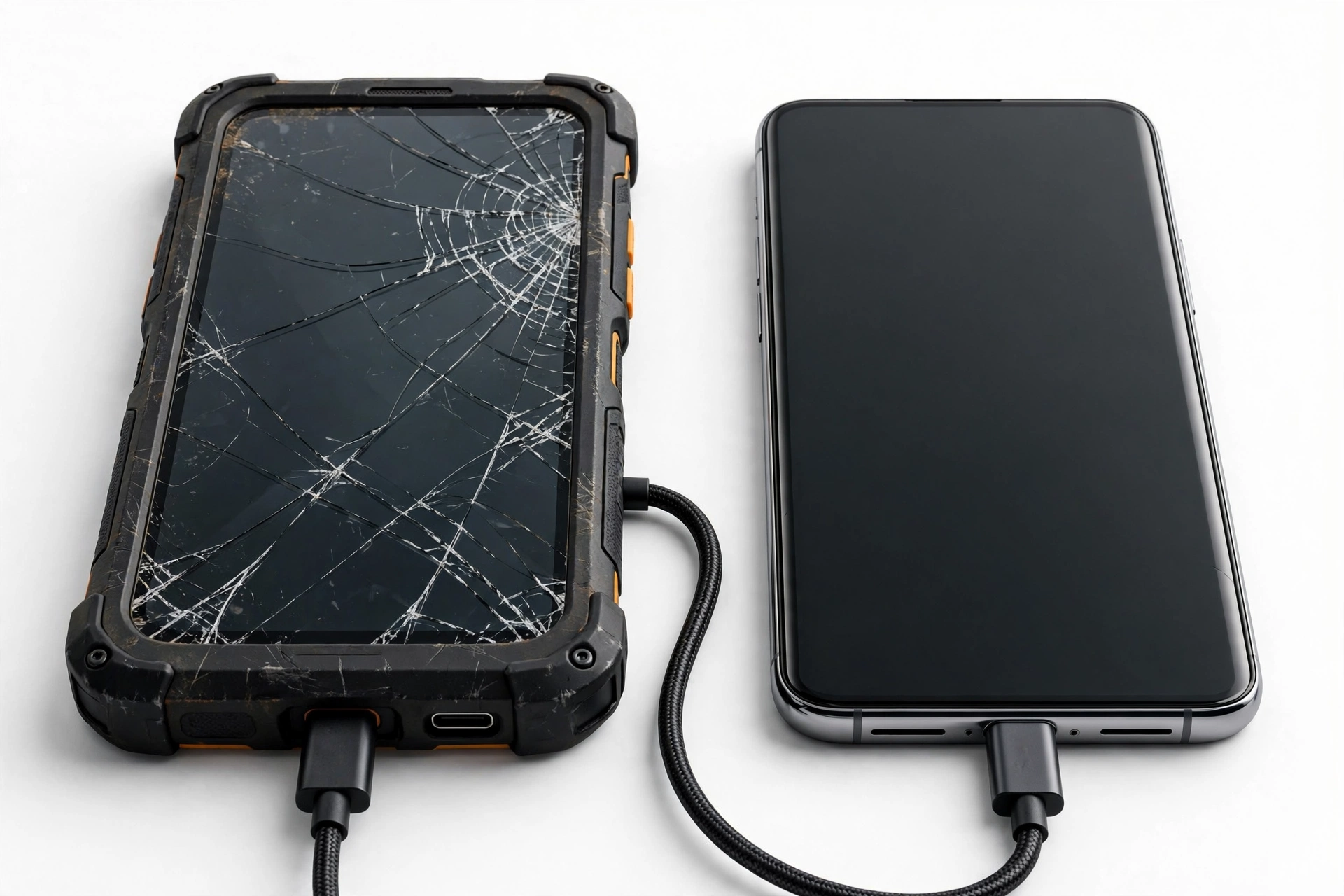
1. What kind of phone is this, actually?
The Land Rover Explore is not a phone made by Land Rover’s car company in the way you’d assume. It is a rugged phone built by the British company Bullitt Group under a licensing deal with Land Rover (Jaguar Land Rover). The same company made CAT phones, Kodak phones, and JCB-branded phones. The Explore launched in April 2018 with a MediaTek Helio X27 processor, 4 GB of RAM, 64 GB of internal storage, a microSD card slot, a 16 MP rear camera and 8 MP front camera, a 4,000 mAh battery, dual-SIM support, and Android 7.0 Nougat (later updated to Android 8.1 Oreo). It is IP68 dust- and water-resistant and rated to survive drops of up to 1.8 metres. (Source: devicebeast.com)
Why does any of this matter for getting your data back? Three reasons:
- It runs standard Android. Every method in this guide uses ordinary Android features (Google backup, USB file transfer, microSD storage) that work the same regardless of branding.
- Bullitt Group is gone. The company ran into financial trouble, entered administration in early 2024 with PWC appointed as administrators, and was fully liquidated by mid-2025. There is no manufacturer support desk to call, no official repair service, and no official fix updates coming. Don’t wait for a manufacturer solution.
- It has a microSD slot. If you stored photos or files on a memory card, that card may hold your most important data even if the phone itself is dead.
Quick fact: Bullitt Group made phones for many licensed brands — CAT (Caterpillar), Kodak, JCB, Jeep, and Land Rover. If your phone has “Bullitt” or “Explore” branding anywhere, the same transfer methods apply.
2. Who this guide helps
This guide is for you if your Land Rover Explore:
- Has a cracked, unresponsive, or completely black screen but still turns on (you hear sounds or feel vibration)
- Won’t turn on at all, but you had Google backup or a microSD card in it
- Was damaged by a drop, water, heat, or just stopped working
- Needs its data moved to a new phone — Android or iPhone
If the phone works fine and you just want to upgrade, most of the same steps apply, but skip the broken-screen sections.
3. Before you touch anything: diagnose the situation
Different kinds of “broken” need different approaches. Run through this worksheet first:
| What happens | What it likely means | Best first method |
|---|---|---|
| Screen cracked but shows image and responds to touch | Display damaged, digitizer working | USB to computer, then microSD check |
| Screen shows image but touch doesn’t respond | Digitizer damaged | USB-OTG mouse, or USB to computer |
| Screen completely black, phone vibrates/rings | Display failure, phone alive | USB-OTG mouse + USB to computer |
| Phone won’t power on at all | Battery, charging, or board failure | Google backup restore, microSD read |
| Phone turns on then dies quickly | Failing battery | Charge, then USB to computer immediately |
| Phone was submerged and won’t turn on | Possible board damage | Do NOT charge — read the safety section first |
Stop for safety: If the phone was soaked, shows a swollen or bulging battery, feels dangerously hot, or smells unusual — do not charge it, do not plug it into a computer, and do not try to open it. Read section 12 before doing anything.
4. Method 1: Google backup restore (the official route)
The Land Rover Explore shipped with standard Google services, including Google’s built-in backup. If backup was turned on (it is on by default on most Android phones unless the owner disabled it), your data may already be waiting for you.
What Google backup covers
- App data: Settings and data for many installed apps
- Contacts: If synced to your Google account
- SMS text messages: On Android 8.1 Oreo (the Explore’s final version), SMS backup is included
- Call history
- Device settings (Wi-Fi passwords, wallpaper, etc.)
- Photos and videos: Only if Google Photos backup was turned on separately — this is a separate opt-in setting
How to restore on your new phone
- During setup of your new Android phone, sign in with the same Google account you used on the Explore.
- When the setup wizard offers to restore from a backup, choose your Land Rover Explore from the list.
- Let the restore finish on Wi-Fi before setting a passcode or installing too many new apps — restoring works best on a fresh device.
- For iPhone: install the Move to iOS app on the new iPhone during setup, but note it moves contacts, messages, photos, and some app data — it does not restore Android app data.
Quick fact: Google keeps device backups for about 57 days of inactivity. If the Explore has been dead for longer than roughly two months, its cloud backup may have been deleted. Check your Google account’s backup page on a computer to see if a backup still exists before relying on this method.
To check whether a backup exists, on a computer go to drive.google.com/drive/backups while signed in to the same Google account. If you see “Land Rover Explore” listed with a recent date, you’re in good shape.
5. Method 2: USB cable to a computer (best for photos and files)
If the phone powers on — even with a dead screen — a computer can often read its internal storage directly. This is usually the fastest way to rescue photos, videos, downloads, and documents.
- Connect the phone to a computer with a USB cable. Use a data-capable cable (some cheap cables only carry power). The Explore uses USB-C.
- Unlock the screen if possible. Android requires the phone to be unlocked before the computer can see its files. If touch is dead, see Method 5 (USB-OTG mouse) first.
- On the phone, allow file transfer. A notification usually appears asking how to use the USB connection — choose “File transfer” or “MTP”. If you can’t see the screen, the default mode may already work, or you may need the OTG mouse.
- On the computer, open the phone. On Windows it appears as a portable device; on Mac, use Android File Transfer; on Linux, most file managers handle MTP natively.
- Copy the DCIM folder first (photos and videos), then Downloads, Documents, WhatsApp (if you use it), and anything else important.
Tip: Copy, don’t move. Leave the originals on the phone until you have confirmed every file opens correctly on the computer. A half-copied transfer you deleted from is worse than no transfer at all.
6. Method 3: microSD card (your secret weapon)
The Land Rover Explore has a microSD card slot — and this is genuinely the simplest rescue path if you used one.
- Power the phone off completely before removing the card.
- Remove the microSD card. On the Explore the tray is on the side; you need a SIM ejector tool or a straightened paperclip.
- Insert the card into your new phone or a computer (use a card reader or adapter).
- Copy everything. Photos, videos, music, and documents stored on the card are just files — no special software needed.
Quick fact: If the card was set up as “adopted storage” (formatted as internal storage), it is encrypted and can only be read by the original phone. A computer will see gibberish. In that case, the card only helps if the phone itself still powers on — USB copy from the phone is the way.
7. Method 4: SIM card contacts
Some people store contacts on the SIM card rather than the Google account. The Explore is dual-SIM, so check both slots.
- Move the SIM card(s) to your new phone.
- Open the contacts app on the new phone and look for an “Import from SIM” option.
- If no contacts appear, your contacts were stored on the phone or in Google — use Method 1 or 2 instead.
8. Method 5: USB-OTG mouse for a dead screen
If the phone powers on but the screen is dead or touch is unresponsive, a USB-OTG adapter plus a regular USB mouse lets you “see” and control the phone — sort of. You still can’t see the screen, but the mouse lets you blind-navigate to enable USB file transfer, or a friend can watch over your shoulder.
- Get a USB-C OTG adapter (a few dollars at any electronics shop).
- Plug a USB mouse into it, then plug the adapter into the phone.
- A cursor appears. You can click, unlock, and swipe — blind, but controllable.
- If you have a USB-C to HDMI adapter or dock, you can mirror the screen to a TV or monitor — this turns a dead-screen phone into a visible one.
Better yet: if the phone still responds to voice, try “Hey Google” or a Bluetooth keyboard — but the OTG mouse is the reliable classic.
Tip: Once you can control the phone, your first job is to enable USB file transfer (Method 2) or verify Google Photos backup is on. Do that before anything else — every minute a damaged phone stays on is a minute it could fail further.
9. Data-type specific notes
Not everything moves the same way. Here’s what to expect for each data type:
| Data type | Best method | Notes |
|---|---|---|
| Photos and videos | USB to computer; Google Photos | DCIM folder holds camera photos; check microSD too |
| Contacts | Google account sync; SIM import | Check contacts.google.com on a computer first |
| WhatsApp chats | Google Drive backup restore | Must restore with the same phone number; backup must exist beforehand |
| Text messages (SMS) | Google backup restore | Included in Oreo backup if it was enabled |
| Authenticator codes | Re-enroll on new phone | File copies do NOT carry these. If you can’t open the old app, use each account’s recovery codes |
| Music and downloads | USB to computer | Copy the Music and Download folders |
| ViewRanger / outdoor app data | App’s own cloud sync | Check whether the app account synced; Bullitt-era apps may have dead servers |
| Notes and documents | USB to computer; app cloud sync | Check the app’s own backup settings |
Quick fact: Authenticator apps (Google Authenticator, Authy, Microsoft Authenticator) store codes only on the device. Copying files off the phone does not move them. If the Explore won’t open the app, your only path is each service’s account-recovery process — start with your email accounts first, since everything else usually resets through email.
10. Method comparison
| Method | Needs phone powered on | Needs screen working | Best for | Limitations |
|---|---|---|---|---|
| Google backup restore | No | No | Settings, contacts, SMS, app data | Backup must exist; ~57-day expiry; Photos only if opted in |
| USB to computer | Yes | Ideally (or OTG mouse) | Photos, videos, files | Needs unlock; needs data cable |
| microSD card | No | No | Photos/files stored on card | Only what was on the card; adopted storage is encrypted |
| SIM contacts | No | No | Contacts | Only contacts saved to SIM |
| OTG mouse control | Yes | No | Enabling other methods | Blind navigation; needs adapter |
| Professional assessment | No | No | Last resort | Cost; no guarantee; parts scarce for Bullitt phones |
11. Two hypothetical examples
Example 1 — Maya (hypothetical). Maya’s Land Rover Explore fell off her bike mount and the screen went black, but the phone still vibrates when she holds the power button. She borrows a USB-C OTG adapter and a mouse from a friend, blind-navigates to enable file transfer, then copies the entire DCIM folder to her laptop — recovering three years of hiking photos. She then restores her contacts and SMS from her Google backup during her new phone’s setup.
Example 2 — Devon (hypothetical). Devon’s Explore won’t turn on at all after being left in a hot car. He removes the microSD card and puts it in a card reader — his photos and offline maps are all there, because he’d set the camera to save to the card. His WhatsApp history is gone because he’d never turned on Google Drive backup in WhatsApp, a lesson he notes for the new phone.
12. When to stop: safety and honest limits
- Swollen battery: If the back of the phone bulges or the screen is lifting away from the frame, the battery is swelling. Stop. Do not charge it, do not plug it in, keep it away from heat, and take it to a professional for safe handling.
- Wet phone: If the phone was submerged and won’t turn on, do not charge it or connect it to a computer. Charging a wet phone can short the board and destroy any chance of data recovery. Let it dry fully (24–48 hours in a ventilated spot, not on a radiator) before attempting anything.
- No backup and a dead board: If the phone won’t power on, there’s no Google backup, and the microSD holds nothing — be honest with yourself: the remaining path is professional chip-level data recovery, which is expensive, has no guarantee of success, and is harder for a discontinued Bullitt phone with scarce parts.
- Never open the phone yourself. The Explore’s water sealing and compact construction mean opening it without the right tools and knowledge risks the board — and your fingers, if the battery is damaged.
- Never factory reset before copying. A reset wipes the internal storage. If someone suggests “just reset it and it’ll work,” do that only after your data is safely copied elsewhere.
Stop for safety: No repair shop — including ours — can guarantee data recovery from a dead phone. Anyone who promises it before examining the device is not being straight with you.
13. The Bullitt shutdown: what it means for you
It’s worth understanding plainly: Bullitt Group, the company that designed and built the Land Rover Explore, went into administration in early 2024 and was fully wound up by 2025. This means:
- There is no official Land Rover phone support line for handset issues (Land Rover’s customer care covers vehicles, not phones).
- No software updates will ever arrive for the Explore.
- Official spare parts are essentially unavailable; any repair would rely on donor parts or third-party components.
- Cloud services tied to Bullitt-era apps may stop working without notice.
None of this affects Google backup, USB transfer, or microSD reading — those are standard Android features that work regardless. For more on transferring from another Bullitt-built brand, see our guide to transferring data from a broken Kodak phone and our guide to transferring data from a broken CAT phone. For the general method that works on any broken Android, see how to transfer data from a broken phone.
14. Professional assessment in Las Vegas
If the methods above don’t cover your situation — the phone is completely dead with no backup, or you need someone to attempt a board-level recovery — an in-person assessment is the next step. Las Vegas Phone Repair & Accessories, 7400 Las Vegas Blvd S, Unit TT42, Las Vegas, NV 89123, (424) 406-6202, can examine the device and tell you honestly what recovery options exist. Please call ahead to confirm today’s hours. There is no guarantee of recovery, and we’ll say so upfront after looking at the phone.
15. Frequently asked questions
Is there an official Land Rover phone transfer app?
No. Neither Land Rover nor Bullitt Group ever released a dedicated phone-to-phone transfer app for the Explore. Google’s built-in backup is the official route.
Can I transfer data from a Land Rover Explore that won’t turn on?
Yes, if a Google backup exists (restore it during new-phone setup) or if you had a microSD card with your files on it. If neither exists, the options narrow to professional data recovery, which carries no guarantee.
Does the Land Rover Explore have a microSD slot?
Yes. The Explore supports microSD cards, and many owners used them for photos and offline maps. Check the side tray — your most valuable data may be sitting on that card.
Will my WhatsApp chats transfer?
Only if WhatsApp’s Google Drive backup was turned on before the phone broke. Install WhatsApp on the new phone with the same number and it will offer to restore. Without a prior backup, old chats can’t be recovered.
Can I move data from the Explore to an iPhone?
Contacts, photos, and messages can move via the Move to iOS app during iPhone setup, or by copying files to a computer first and then importing them. Android app data does not transfer to iPhone.
What about my authenticator codes?
Authenticator codes live only in the authenticator app on the old phone — file copies won’t move them. If you can’t open the app, use each account’s backup or recovery codes to re-enroll on the new phone.
Is it worth repairing a broken Land Rover Explore?
Honestly, usually not — Bullitt’s closure means official parts are unavailable, and the phone’s 2018-era hardware is far behind current devices. Data recovery is the goal for most people, not repair. A professional assessment can confirm whether the board is worth attempting.
My Explore still works — how do I prepare for a future failure?
Turn on Google backup (Settings > System > Backup), enable Google Photos backup, turn on WhatsApp’s Google Drive backup, and consider saving photos to the microSD card. These four steps cover nearly everything.
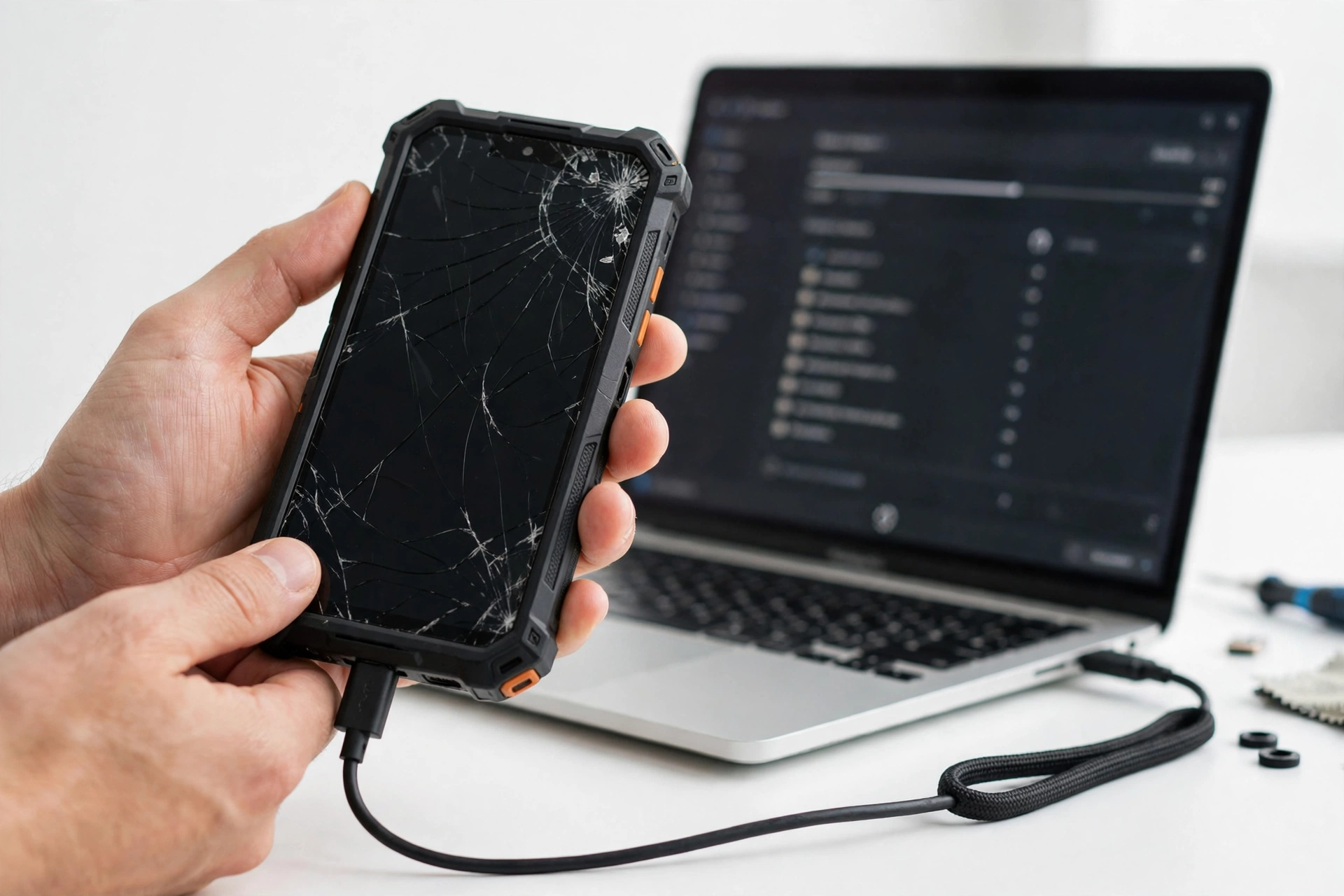
Video: How to transfer everything from old to new Android
Sources and editorial notes
- DeviceBeast — Land Rover Explore full device specifications: confirmed MediaTek Helio X27, 4 GB RAM, 64 GB storage, Android 8.1 Oreo, Bullitt Group as hardware designer.
- TechSpot — Land Rover Explore launch coverage: confirmed Bullitt partnership, IP68 rating, 1.8 m drop rating, modular Adventure/Bike/Battery packs.
- The Register — Bullitt Group liquidation complete (June 2025): confirmed administration in early 2024, PWC administrators, full wind-up with no creditor recovery.
- The Register — Bullitt Group administration details (March 2024): confirmed timeline of the collapse and staff redundancies.
- Google Android Help — Back up or restore data: official documentation of Android backup contents and restore process.
- Google Photos Help — Back up photos and videos: confirmed Photos backup is a separate opt-in.
- Google Drive — Backups page: where readers can check whether a device backup exists.
- WhatsApp FAQ — Google Drive backup and restore: confirmed same-number requirement for chat restore.
Last source check: October 14, 2026. AI-assisted editorial guide, checked against the linked manufacturer information. Land Rover Explore specifications are summarized from the linked spec sources; Bullitt Group’s closure is reported from The Register’s coverage of the administration and liquidation. Business details (Las Vegas Phone Repair & Accessories) are as provided by the site owner. No prices, warranties, or recovery guarantees are stated or implied.
Let’s get you connected again.
Tell us what’s happening with your device and we’ll help you decide the safest next step — no jargon, no pressure.
Las Vegas Phone Repair & Accessories · 7400 Las Vegas Blvd S, Unit TT42, Las Vegas, NV 89123
10:00 AM–8:00 PM — call ahead to confirm today’s hours