
How to Transfer Data from Broken CAT Phone to New Phone: Complete Guide
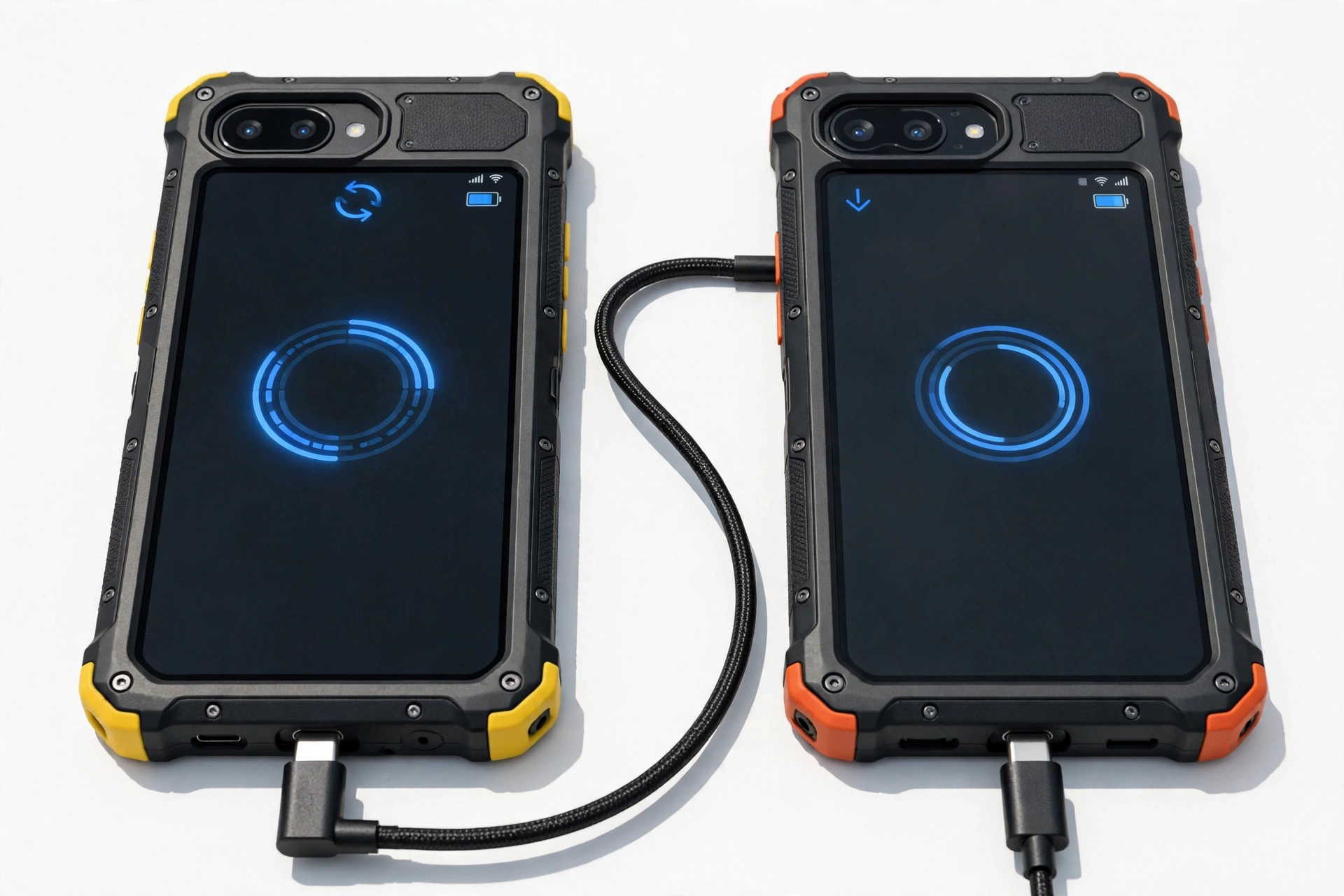
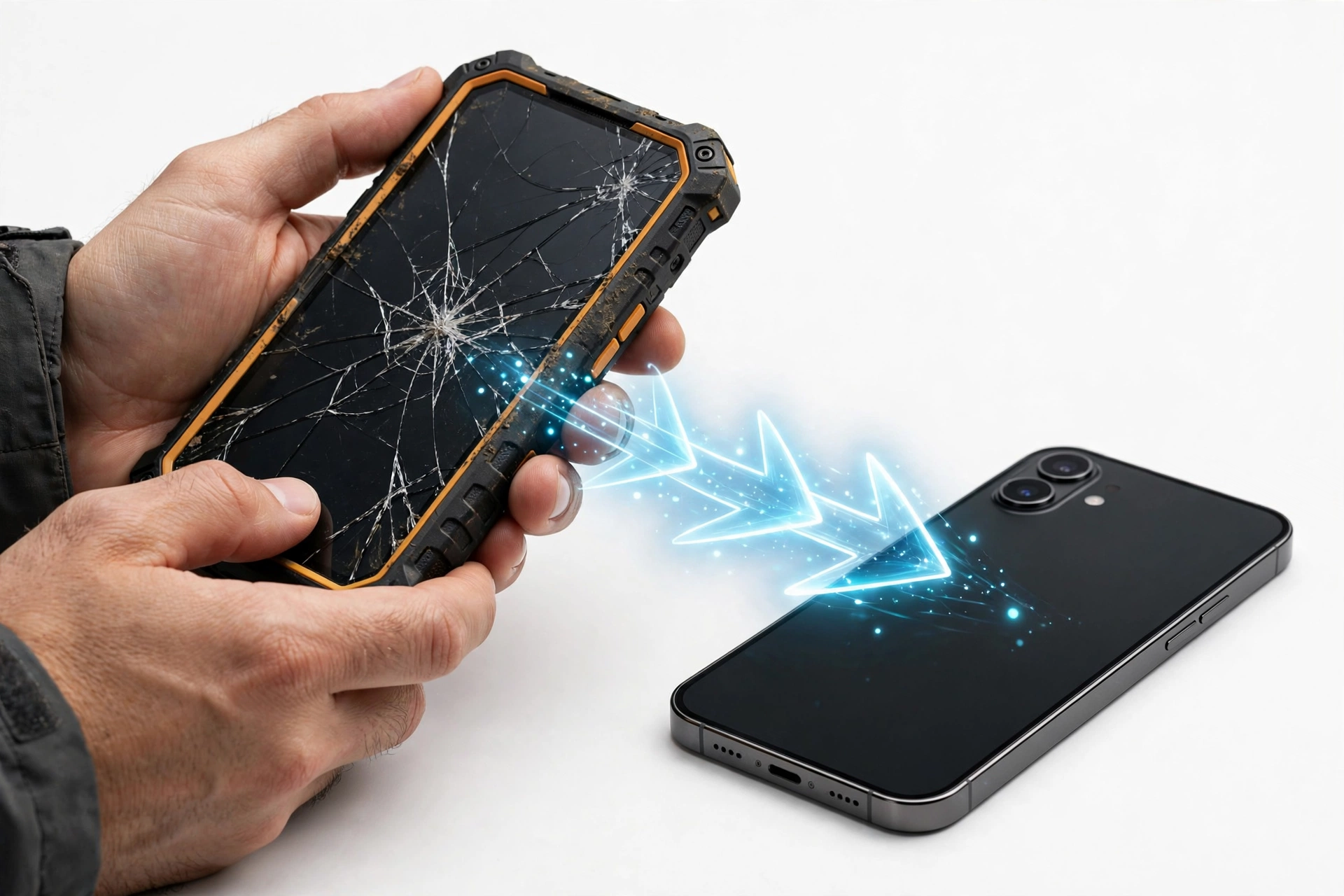
Your Google backup is the lifeline for a broken CAT phone — CAT never made its own transfer app, and its manufacturer has shut down. If your CAT phone synced to Google before it broke, you can restore everything to a new phone during setup; if the screen still shows anything, an OTG mouse or USB-C hub can rescue files directly.
On this page
Your Google backup is the lifeline for a broken CAT phone — CAT never made its own transfer app, and its manufacturer has shut down.
1. Who this guide helps
This guide is for anyone whose CAT phone — the rugged Caterpillar-branded line built by the UK company Bullitt Group — is cracked, unresponsive, stuck on a logo, or completely dead, and who needs to move photos, contacts, messages, WhatsApp chats, and app data to a replacement phone. It covers the CAT S75, S62 Pro, S62, S61, S60, S42, S41, S40, and related models. (Source: androidauthority.com)
It also helps buyers of secondhand CAT phones who want to confirm what a seller’s device can and cannot still do, because one fact shapes every method below: Bullitt Group, the company that designed, sold, and supported CAT phones, ceased trading in January 2024 and its administrators were appointed shortly after. There is no manufacturer help desk to call, no official CAT cloud service, and no new firmware coming. What you have on the phone — or in your Google account — is what you can recover.
Quick fact: Bullitt Group’s closure was reported in late January 2024 by Android Authority, TechSpot, FoneArena, GizmoChina, and The Register, with employees confirming the shutdown on LinkedIn and PWC appointed as administrators. CAT phones were sold in more than 70 countries, and warranty/support questions for existing owners were left uncertain. Google’s own backup and restore infrastructure is unaffected by this and keeps working on CAT phones.
2. The honest starting point: what CAT phones could and couldn’t do
CAT phones ran near-stock Android with Google Mobile Services, so the transfer toolkit is the standard Android one — nothing more, nothing less. Understanding this saves you from chasing tools that never existed.
| Claim you may see online | The reality |
|---|---|
| “CAT Smart Switch” / “CAT Clone Phone” | No such app ever existed. CAT never released a proprietary phone-to-phone transfer tool. Any Play Store app using CAT’s name is unofficial — treat it as a privacy risk, not a solution. |
| “CAT Cloud backup” | No such service. CAT phones backed up to Google’s servers (Settings > Backup & reset > Back up my data), exactly as the S40 and S41 user manuals document. |
| “Call CAT support to recover data” | Not possible. Bullitt Group’s customer service lines went to voicemail after the January 2024 shutdown, per reporting. There is no one to call. |
| “The new owner will keep updating it” | Unconfirmed. Reporting noted CAT could theoretically continue under a different parent company, but as of October 2026 no successor has been confirmed. Assume no future updates. |
The practical consequence is straightforward: your recovery plan is Google backup first, physical extraction second, and professional help third. Every method below is ordered by how likely it is to work on a broken device.
3. Safety first: what not to do with a broken rugged phone
CAT phones are sealed IP68/IP69K, MIL-STD-810H assemblies with non-removable batteries. A broken one deserves extra caution.
Stop for safety: If the phone is swollen, the back is separating, it smells chemical or sweet, or it gets dangerously hot, do not charge it, do not keep trying to power it on, and do not attempt any data method below. Place it on a non-flammable surface away from anything burnable and take it to a battery recycling point. No photo is worth a battery fire.
- Do not open the phone. The sealed construction means opening it destroys the water resistance and risks puncturing the battery. There is no user-serviceable data port inside.
- Do not repeatedly power-cycle a wet phone. CAT phones are water-resistant when intact, but a cracked screen or damaged seal voids that protection. If it got wet through a crack, power it off and let it dry — do not use rice, heat, or a hairdryer.
- Do not factory-reset before you have copied everything. A reset erases the internal storage permanently. Reset is the last step, after data is safe elsewhere — or the step you take before recycling a phone you are abandoning.
4. Triage: match your method to your phone’s condition
Not every method works for every kind of “broken.” Use this table to skip straight to what fits.
| Phone’s condition | Best method | Why |
|---|---|---|
| Cracked screen, touch still works | Google backup check + manual copy to computer | You can still navigate Settings and authorize USB file transfer. |
| Screen shows image but touch is dead | OTG mouse, then Google backup or file copy | CAT S62 Pro and S75 support USB OTG — a mouse gives you control back. |
| Black screen, phone vibrates/rings | USB-C hub + external display, or Google backup restore | The phone may be alive behind a dead display; a hub with HDMI can reveal it. |
| Completely dead (no lights, no vibration) | Google backup restore on the new phone | Nothing on-device is reachable. Your Google account backup is the only path. |
| Stuck on logo / boot loop | Google backup restore on the new phone | The data partition is usually unreachable; cloud restore bypasses the phone entirely. |
| microSD card was in the phone | Remove card, read it in the new phone or a computer | Photos and files stored on the card survive independently of the phone. |
5. Method 1: Restore from your Google backup (works even on a dead phone)
This is the method the CAT manuals themselves document, and it is the only one that works when the phone will not turn on at all. CAT phones backed up app data, call history, contacts, device settings, and SMS messages to Google Drive when “Back up my data” was enabled — the S40 manual describes it as backing up “to Google servers, with your Google account,” restored automatically “the first time you sign in with your Google account” on a replacement.
Before you buy or set up the new phone, check whether a backup exists:
- On a computer, open Google Drive and sign in with the same Google account used on the CAT phone.
- Click Storage in the left sidebar, then the Backups tab at top right.
- Look for an entry named after your CAT phone (e.g., “Cat S62 Pro”). Note the date — a backup from before the damage is what you want.
- Google’s free tier is 15 GB shared across Gmail, Drive, and Photos. If the backup is there, your data survived the phone.
Restoring during new-phone setup:
- Power on the new phone and connect to Wi-Fi.
- Sign in with the same Google account.
- When offered “Copy apps & data,” choose the CAT phone’s backup from the list.
- Select what to restore (apps, contacts, messages, settings) and let it finish — large restores can take an hour or more on Wi-Fi.
Quick fact: Google backups expire. If a phone is inactive for 57 days, Google may delete its backup. If your CAT phone broke months ago and you are only now setting up a replacement, check the Backups tab immediately — and in future, remember that a backup only protects you if it ran recently.
6. What Google backup covers — and what it doesn’t
| Data type | Covered by Google backup? | Notes |
|---|---|---|
| Contacts | Yes | Synced to Google Contacts continuously if sync was on. |
| SMS / call history | Yes | Included in the device backup. |
| App list and most app data | Mostly | Apps that opt into Android’s backup framework restore data; some don’t. |
| Device settings, Wi-Fi passwords | Yes | Restored automatically on sign-in. |
| Photos and videos | Only if Google Photos backup was on | Separate from the device backup — check photos.google.com. |
| WhatsApp chats | Only via WhatsApp’s own backup | WhatsApp backs up to Google Drive separately; needs its own restore. |
| Authenticator codes | Usually no | Most authenticator apps exclude codes from cloud backup — re-register each account. |
| Files on microSD (portable storage) | No | The card itself is the backup — move it physically. |
| Banking / payment apps | App reinstalls; data does not transfer | Sign in fresh on the new phone for security. |
7. Method 2: Rescue with an OTG mouse (touch-dead screen)
The CAT S62 Pro’s published specifications list “USB 2.0 / Type-C USB, USB-OTG,” and the S75 lists “USB Type-C 2.0, OTG.” That OTG support is your way back into a phone whose display works but whose touch digitizer is dead.
- Buy or borrow a USB-C OTG adapter (a few dollars) and any USB mouse.
- Plug the adapter into the CAT phone’s USB-C port and the mouse into the adapter.
- A cursor appears on screen. Click through to Settings > Google > Backup and tap Back up now to force a fresh backup over Wi-Fi.
- Or connect the phone to a computer with a USB cable, use the mouse to change the USB mode to File transfer, and copy photos, videos, and documents manually.
This method fails only if the USB-C port itself is damaged or the phone won’t stay powered on. CAT phones’ large batteries (4,000–5,000 mAh across the S62 Pro and S75) often give you a longer rescue window than slimmer phones — use it before the charge runs out.
8. Method 3: USB-C hub + external display (black screen)
If the screen is black but the phone vibrates, rings, or shows a charging light, the logic board may be alive behind a dead display. A USB-C hub with HDMI output and a monitor or TV can show you the phone’s screen externally.
- Connect a USB-C hub (with HDMI and at least one USB-A port) to the phone.
- Connect the hub’s HDMI to a monitor or TV and plug a mouse into the hub.
- If the phone outputs video, navigate with the mouse to run a Google backup or copy files.
Quick fact: USB-C video output is not universal on mid-range and rugged phones. If nothing appears on the monitor, the phone likely doesn’t support DisplayPort alt-mode — fall back to Method 1 (Google backup restore), which doesn’t need the phone at all.
9. Method 4: The microSD card (the overlooked lifeline)
CAT phones supported microSD expansion across the lineup: the S62 Pro has a dedicated microSDXC slot, and the S75 supports microSDXC up to 256 GB in its hybrid SIM tray. If you stored photos, videos, or files on the card, they survive the phone completely.
- Power the phone off (hold power until it shuts down, or let the battery die if controls are unreachable).
- Eject the SIM/microSD tray with the ejector tool and remove the card.
- Insert it into the new phone or a computer’s card reader and copy everything off.
| How the card was set up | What happens |
|---|---|
| Portable storage (default) | The card is readable in any device. Copy files freely. |
| Adopted as internal storage | The card is encrypted to the dead phone and unreadable anywhere else. This data is effectively lost without the original phone working. |
If you don’t remember which mode you used, try reading the card — portable storage just works. Adopted storage will show as unreadable or prompt to format (do not format it).
10. Method 5: WhatsApp, photos, and the app-by-app reality
Some of your most important data lives outside the device backup. Handle these separately:
- WhatsApp: On the new phone, install WhatsApp, verify the same phone number, and it will offer to restore from its own Google Drive backup. This is independent of the device backup — but it only works if WhatsApp backup was enabled on the CAT phone.
- Google Photos: Open photos.google.com on any device and sign in. If backup was on, every photo is already there regardless of the phone’s fate.
- Contacts: Check contacts.google.com — contacts synced to your Google account appear instantly on any new Android signed into the same account.
- Authenticator codes: These usually do not transfer. Use each service’s account-recovery flow (backup codes, SMS fallback) to re-register on the new phone, then remove the old entries.
11. Recommended order of operations
| Step | Action | Time |
|---|---|---|
| 1 | Check Google Drive Backups and Google Photos from a computer | 10 minutes — do this first, it costs nothing |
| 2 | Remove the microSD card and copy its contents | 15 minutes |
| 3 | If the screen shows anything, try the OTG mouse method | 30 minutes |
| 4 | If the screen is black but the phone is alive, try a USB-C hub + display | 30 minutes |
| 5 | Set up the new phone and restore the Google backup + WhatsApp backup | 1–2 hours |
| 6 | Re-register authenticator and banking apps manually | 30–60 minutes |
12. When to stop and get professional help
Stop DIY recovery and seek a repair shop’s assessment when:
- The phone is swollen, hot, or smells chemical (see the safety section — do not proceed at all).
- The USB-C port is physically damaged and no method can connect.
- The phone is stuck in a boot loop and you have confirmed there is no Google backup — a technician may be able to stabilize it long enough for one extraction attempt, but this is not guaranteed.
- The data is business-critical and irreplaceable. Say so up front so the shop can tell you honestly what is and isn’t possible before you approve any work.
A reputable shop will tell you when recovery is unlikely rather than selling you false hope. Ask what they can observe and what they cannot guarantee — “we’ll try” is honest; “we guarantee full recovery” is not. If you are in the Las Vegas area, Las Vegas Phone Repair & Accessories, 7400 Las Vegas Blvd S, Unit TT42, Las Vegas, NV 89123, (424) 406-6202, can assess a damaged CAT phone and advise on recovery options; call ahead to confirm current hours.
13. After the transfer: closing out the old phone
Once your data is safe on the new phone:
- Sign out of your Google account on the CAT phone if it still powers on (Settings > Accounts).
- Remove the SIM and microSD card.
- Factory-reset only now — Settings > Backup & reset > Factory data reset — to wipe your personal data before recycling or disposing of the phone. The CAT manuals warn that a reset erases all personal data from internal storage; that is exactly what you want at this stage.
- Recycle responsibly. Rugged phones contain a sealed lithium battery — use a battery/e-waste recycling point, not household trash.
Stop for safety: Never factory-reset a phone as a recovery step. Reset destroys the very data you are trying to save. Copy first, wipe last — no exceptions.
14. Frequently asked questions
Can I transfer data from a completely dead CAT phone?
Yes — if it backed up to Google. Check Google Drive > Storage > Backups on a computer; if your CAT phone’s backup is listed, restore it during the new phone’s setup. Nothing on the dead phone itself is reachable, but the cloud copy is independent of the hardware.
Did CAT make its own transfer app?
No. CAT never released a proprietary phone-to-phone transfer app or a CAT cloud backup service. The CAT user manuals document Google’s “Back up my data” as the backup method. Any third-party app trading on CAT’s name is unofficial — avoid it.
How do I check whether my CAT phone had a backup?
On a computer, open Google Drive, sign in with the account used on the phone, click Storage, then the Backups tab. A listed backup with a recent date means your app data, messages, call history, contacts, and settings are recoverable.
What’s the fastest method if the screen is cracked but touch works?
Plug the phone into a computer with a USB cable, set USB mode to File transfer, and copy your photos, videos, and documents directly — then run Settings > Google > Backup > Back up now for everything else. Ten minutes of cable beats an hour of cloud.
The touch screen is dead but the display works. What now?
Use a USB-C OTG adapter and a mouse — the CAT S62 Pro and S75 both support USB OTG per their published specifications. The mouse cursor lets you navigate to backup settings or authorize a file transfer.
Can I move the microSD card to my new phone?
If it was used as portable storage, yes — just move it and copy the files. If it was adopted as internal storage, it’s encrypted to the dead CAT phone and unreadable elsewhere. Try it in a reader; portable storage simply works.
Will my WhatsApp chats transfer?
Only through WhatsApp’s own Google Drive backup. Install WhatsApp on the new phone, verify the same number, and accept the restore prompt. This is separate from the Android device backup, so it needs to have been enabled on the CAT phone beforehand.
Is it worth repairing the CAT phone instead of replacing it?
Consider it carefully: with Bullitt Group shut down since January 2024, there are no official parts channels or firmware updates coming. A screen repair can still make sense to enable a one-time data extraction, but as a long-term daily phone, a CAT device is now frozen in time security-wise. Weigh the repair cost against a replacement.
15. Related guides
For the general version of this process, see our broken-phone data transfer guide. Owners of other rugged brands can follow the same principles in our AGM broken-phone transfer guide and our Oukitel broken-phone transfer guide — Google backup is the universal lifeline across all of them.
Video: How to transfer everything from old to new Android
Sources and editorial notes
- Android Authority — Bullitt Group shutdown reporting (January 2024): company behind CAT and Motorola rugged phones folded; employees confirmed on LinkedIn.
- The Register — PWC appointed as administrative receivers; Companies House filing confirming administration.
- FoneArena — Bullitt Group shutdown summary; workforce laid off; satellite business transfer plan failed.
- CAT S40 User Manual (usermanual.wiki) — documents Google “Back up my data” as the backup method and factory-reset data consequences.
- PhonesData: CAT S62 Pro vs S75 comparison — microSDXC slots, USB OTG support, and specifications for both models.
- FoneArena: CAT S75 specifications — Android 12, microSD expansion, USB Type-C, rugged ratings.
- SamMobile — Google Backup setup path and 15 GB free-tier details for Android phones.
Last source check: October 14, 2026. AI-assisted editorial guide, checked against the linked manufacturer information and press reporting. Bullitt Group’s shutdown status is reported as of early 2024; readers should verify current support options independently, as the situation may have evolved.
Let’s get you connected again.
Tell us what’s happening with your device and we’ll help you decide the safest next step — no jargon, no pressure.
Las Vegas Phone Repair & Accessories · 7400 Las Vegas Blvd S, Unit TT42, Las Vegas, NV 89123
10:00 AM–8:00 PM — call ahead to confirm today’s hours