
Phone Speakerphone Not Working During Calls: Causes and Safe Fixes
When your phone’s speakerphone doesn’t work during calls, the most common causes are audio being routed to a Bluetooth device, the call volume turned down, or a blocked speaker grille. Work through the safe sequence in this guide before assuming the speaker is broken — most speakerphone problems are settings or software issues, not dead hardware.
On this page
When your phone’s speakerphone doesn’t work during calls, the most common causes are audio being routed to a Bluetooth device, the call volume turned down, or a blocked speaker grille.
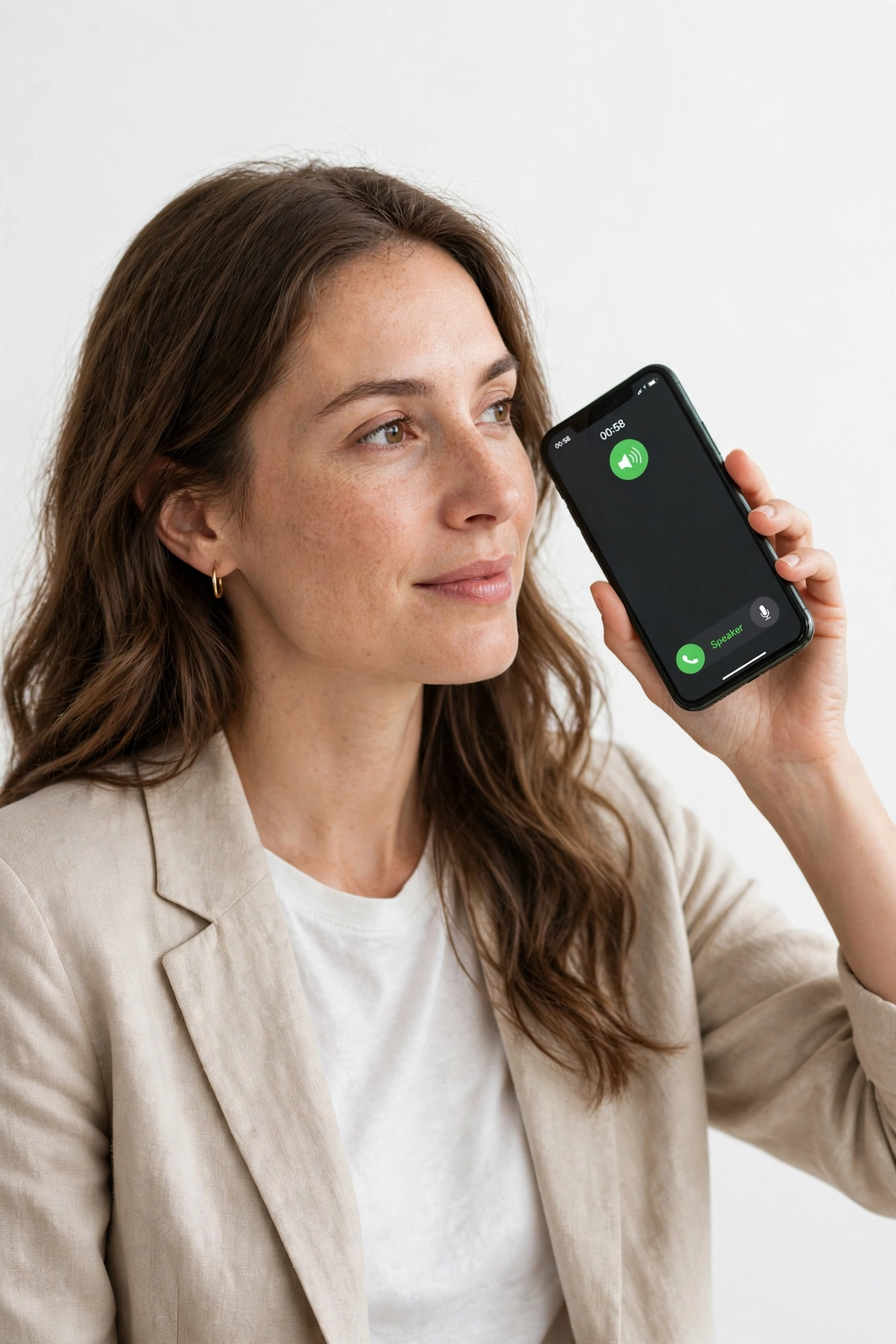
1. Who this guide is for
This guide is for anyone whose loudspeaker — the speakerphone — doesn’t work properly during phone calls. That includes situations where you tap the speaker button and hear nothing, the other person sounds very quiet or distorted through the speaker, or the speaker button is greyed out entirely. (Source: support.apple.com)
This is a different problem from earpiece speaker issues. Your phone has (at least) two speakers used on calls: the small earpiece speaker at the top of the screen, and the loudspeaker (usually at the bottom of the phone) that powers speakerphone mode. If you can only hear callers through the earpiece but not on speaker, the loudspeaker path is the problem. If it’s the other way around — you can only hear people on speakerphone — read the earpiece speaker guide instead.
This guide covers both iPhone and Android phones (including Samsung Galaxy). The steps apply whether speakerphone never works, works only sometimes, or stopped working recently.
Quick facts: Speakerphone mode uses the phone’s loudspeaker, not the earpiece. Call volume and media volume are separate settings on most phones — your music can be loud while call audio stays quiet. Audio can be silently routed to Bluetooth headsets, AirPlay devices, or hearing aids, making the speakerphone appear broken.
2. Quick answer: the five-minute safe sequence
If you need a fast fix, work through these five checks in order. Most speakerphone problems are solved by the first three:
- Check audio routing. On iPhone, look at the call screen — tap the audio button (it may show the speaker icon, a Bluetooth icon, or “iPhone”). If it shows a Bluetooth device or another output, tap it and choose Speaker. On Samsung, tap the speaker icon on the call screen to toggle it on, and swipe down to check Bluetooth in Quick Settings.
- Turn off Bluetooth. Go to Settings and switch Bluetooth fully off (not just disconnect one device), then place a test call. If the speakerphone now works, a paired headset, car kit, or smartwatch was stealing the audio.
- Raise the call volume. While you are on an active call, press the volume-up button repeatedly. Call volume is independent of ringer and media volume, and it can be turned all the way down without you noticing.
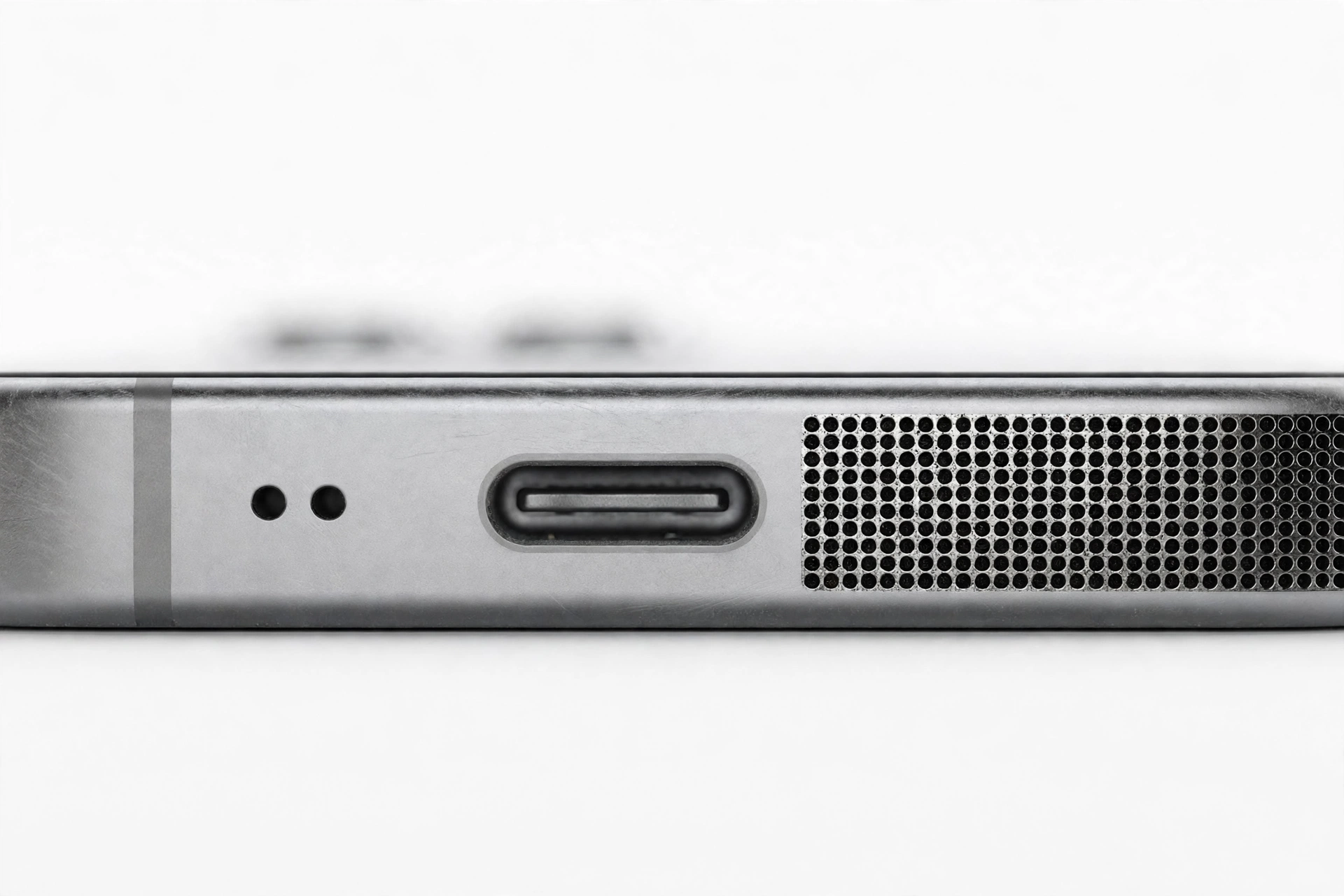
- Check the speaker grille. Remove the case and look at the speaker grille at the bottom of the phone. If it is clogged with lint or dust, gently clean it with a small, clean, dry, soft-bristled brush.
- Restart the phone. A restart clears temporary software glitches that can freeze audio routing.
If none of these fix it, continue to the deeper checks below.
3. How speakerphone audio routing works
Understanding the routing helps you diagnose the problem fast. When you tap the speaker button on a call, the phone is supposed to:
- Take the call audio (the other person’s voice) and send it to the loudspeaker.
- Switch the microphone to the bottom/speakerphone microphone so the other person can hear you.
- Keep doing both until you toggle speaker off or the call ends.
Any step in that chain can break. The audio might be sent to the right speaker but at zero volume. It might be sent to a Bluetooth earbud in your pocket instead of the speaker. A setting might force calls to the earpiece or to a hearing device. Or the loudspeaker itself may be blocked or damaged.
The key insight: speakerphone is software-selected hardware. The phone decides where to send audio every time. That decision is influenced by Bluetooth, accessibility settings, Focus modes, connected devices, and bugs — which is why software causes dominate.
4. Audio routed to the wrong device (the most common cause)
This is the single most common reason speakerphone “doesn’t work.” The loudspeaker is fine; the audio is simply going somewhere else.
iPhone: check the call audio button
During a call, the audio button on the call screen shows where sound is going. If it shows a Bluetooth icon, audio is going to a Bluetooth device — even if you aren’t wearing it. Tap the button and select Speaker. Also check Control Center during a call for AirPlay routing.
Common silent thieves of iPhone call audio:
- A Bluetooth headset or earbuds sitting in a pocket or bag, still connected.
- A car Bluetooth connection that reconnects automatically when you start the car.
- AirPods in their case nearby — the phone can still route to them.
- Hearing aids paired via accessibility settings.
Samsung and Android: check Bluetooth and separate app sound
On Samsung phones, audio can be hijacked by Bluetooth devices the same way. Go to Settings > Connections > Bluetooth and turn it fully off for testing. Samsung also has a “Separate app sound” feature (Settings > Sounds and vibration > Separate app sound) that can route call audio to a different device — make sure it is off if you aren’t using it intentionally.
Tip: The fastest diagnostic test for a routing problem is to turn Bluetooth completely off and call your voicemail. If speakerphone works with Bluetooth off, the hardware is fine — a connected device was the problem.
5. Call Audio Routing on iPhone (the hidden setting)
iPhone has an accessibility setting that controls where calls go by default: Settings > Accessibility > Touch > Call Audio Routing. The options are Automatic, Bluetooth Headset, and Speaker.
- If it is set to Speaker, every call starts on speakerphone — which some people mistake for a fault.
- If it is set to Bluetooth Headset, calls try to route to Bluetooth first, which can make the speaker button seem broken.
- Automatic is the normal setting: the phone picks earpiece, and you toggle speakerphone yourself.
If speakerphone behaves oddly on every call, check this setting. Set it to Automatic if you want normal behaviour.
6. Volume problems during calls
Phones keep separate volume levels for calls, media, ringtones, and alarms. The call volume can be turned down to zero while everything else sounds normal — a very confusing situation.
- Raise it during a call: While on an active call with speakerphone on, press volume-up until you hear the caller clearly. The on-screen indicator should say it is adjusting call or in-call volume.
- Check Settings: On iPhone, go to Settings > Sounds & Haptics and move the Ringer and Alerts slider. If you hear sound, the speaker hardware is at least partly working. On Samsung, go to Settings > Sounds and vibration > Volume and check that the call volume slider is up.
- The slider test: Apple’s own support guidance recommends dragging the Ringer and Alerts slider back and forth. If you hear no sound — or if the speaker button on that slider is dimmed — the speaker may need service.
7. Blocked or dirty speaker grille
The loudspeaker grille (usually along the bottom edge of the phone) collects pocket lint, dust, and debris. A partially blocked grille makes speakerphone sound quiet, muffled, or distorted — and a fully blocked one can silence it.
Safe cleaning, following manufacturer guidance:
- Remove the case and any screen protector edges covering the speaker area.
- Inspect the grille in good light.
- Use a small, clean, dry, soft-bristled brush (a clean soft toothbrush works) to gently sweep debris out of the grille.
- Do not use sharp objects, needles, or pins — they can puncture the speaker membrane.
- Do not blow compressed air directly into the grille — it can damage the speaker.
- Do not use liquids to clean the speaker opening.
After cleaning, test with a call. If the sound is still muffled only on calls but fine for music, the issue is likely software rather than a dirty grille.
8. Bluetooth and connected devices — the full check
Beyond the quick test, check these:
- Turn Bluetooth off at the system level. Toggling it in Control Center (iPhone) or Quick Settings (Samsung) sometimes only disconnects rather than disabling the radio. Go to Settings and switch Bluetooth off completely.
- Forget old pairings. A phone can auto-reconnect to a forgotten headset. In Bluetooth settings, forget devices you no longer use.
- Check smartwatches. A paired smartwatch can claim call audio. Test with the watch disconnected.
- Check the car. If the problem only happens in or near your car, the car’s Bluetooth is the likely culprit — see the call-audio section of the poor call quality guide.
- Wired headphones and dongles. A stuck or dirty headphone jack (on phones that have one) or a USB-C audio dongle left plugged in routes audio away from the speaker. On phones without a jack, check the charging port for debris — some phones detect a phantom audio accessory from a dirty port.
9. Do Not Disturb, Focus, and silent modes
These rarely disable speakerphone directly, but they cause confusion:
- On iPhone, the Ring/Silent switch silences ringtones but should not affect an active call’s speaker. Still, Apple’s guidance says to check it as part of sound troubleshooting.
- Focus / Do Not Disturb modes can suppress the incoming-call screen, making it look like calls aren’t working at all.
- On Samsung, check Settings > Sounds and vibration > Do Not Disturb and make sure it is off during testing.
Rule these out so you are not chasing a settings ghost while the real cause is elsewhere.
10. Software glitches, updates, and third-party apps
Software is a major cause of speakerphone failures, especially after system updates.
Restart first
A simple restart resolves many temporary audio-routing glitches. On iPhone, use the side button + volume button method for your model; on Samsung, hold Power and tap Restart.
Update the software
Audio bugs are frequently fixed in updates. Check Settings > General > Software Update (iPhone) or Settings > Software update (Samsung) and install anything available.
Safe Mode test (Samsung)
Booting into Safe Mode disables all third-party apps. If speakerphone works in Safe Mode, a downloaded app is hijacking the audio — common culprits include call recorders, VoIP apps, and “volume booster” utilities. To enter Safe Mode on most Samsung phones: press and hold Power, then long-press the Power off icon until Safe Mode appears, and tap it. Restart normally to exit.
Clear the phone app’s cache (Android)
On Samsung, you can clear the Phone app’s cache (Settings > Apps > Phone > Storage > Clear cache) without losing data. This sometimes fixes call-audio routing bugs.
Reset network settings (later resort)
On iPhone: Settings > General > Transfer or Reset iPhone > Reset > Reset Network Settings. This also resets Bluetooth pairings and Wi-Fi passwords — note them down first. On Samsung: Settings > General management > Reset > Reset network settings. This is a reasonable step when routing problems persist and nothing else explains them.
Stop for safety: A factory reset is not a casual fix for speakerphone problems. It erases everything and should only be considered as a last resort, after a full backup — and only when every safer step has failed. Never open the phone or attempt to reseat or replace the speaker yourself; phone speakers are internal components, and opening the device risks injury, battery damage, and loss of water resistance.
11. Microphone problems that look like speakerphone problems
Sometimes the speaker works fine but the other person can’t hear you on speakerphone. That is a microphone issue, not a speaker issue. Speakerphone mode switches to a different microphone (usually the bottom mic) than the one used for earpiece calls.
- Test the mic: On iPhone, open Voice Memos and record yourself speaking normally, then speaking as if on speakerphone (phone held away from your mouth). On Samsung, use the Voice Recorder app. If the recording is quiet or distorted, the microphone is the problem — see the iPhone microphone guide.
- Check for case blockage: Some cases cover the bottom microphone hole. Remove the case and test again.
- Check for debris: The mic hole can clog with lint just like the speaker grille. Inspect it in good light.
If people hear you fine on earpiece calls but not on speakerphone, the speakerphone microphone path is the suspect — this pattern strongly suggests hardware or a deep software fault.
12. Echo and feedback on speakerphone
A speakerphone that “works” but produces echo is a separate, common complaint. The caller’s voice comes out of your loudspeaker and is picked up by your microphone, creating an echo loop. See the dedicated phone call echo guide for the full diagnosis. Quick checks: lower the speakerphone volume (echo worsens at high volume), make sure you are not on speakerphone in a small reflective room, and check that the other person’s phone isn’t the one echoing.
13. Symptom → likely cause → safe fix
| Symptom | Likely cause | Safe fix to try first |
|---|---|---|
| Speaker button does nothing; audio stays on earpiece | Audio routed to Bluetooth device | Turn Bluetooth fully off, then test a call |
| Speakerphone works but is very quiet | Call volume turned down, or blocked grille | Raise volume during a call; clean the grille with a soft brush |
| Speaker button is greyed out | Software glitch, or audio hardware not detected | Restart; check for updates; run Samsung Members diagnostics (Samsung) |
| Caller can’t hear you on speakerphone | Speakerphone microphone blocked or faulty | Remove case; test with Voice Memos/Voice Recorder |
| Speakerphone works for music but not calls | Call audio routing setting or phone-app bug | Check Call Audio Routing (iPhone); restart; clear Phone app cache (Samsung) |
| Echo on speakerphone | Volume too high; mic picking up speaker | Lower speakerphone volume; see the echo guide |
| Worked before a software update | Update introduced an audio bug | Check for a follow-up update; restart; report the bug |
| Only fails near the car | Car Bluetooth auto-connecting | Turn off the car’s Bluetooth or forget the pairing |
| Fails after installing a call app | Third-party app hijacking audio | Test in Safe Mode (Samsung); uninstall the suspect app |
| Nothing helps; speaker dead in all apps | Hardware failure (loudspeaker or audio IC) | Stop troubleshooting and seek assessment |
14. What these checks can and cannot establish
| Observation | What it establishes | What it does NOT establish |
|---|---|---|
| Works with Bluetooth off, fails with it on | A Bluetooth device is stealing the audio | That the speaker hardware is broken |
| Works for music, fails on calls | The loudspeaker hardware basically works | The exact software cause (routing vs app bug) |
| Greyed-out speaker button in all apps | The system doesn’t see usable audio hardware | Whether it’s the speaker, the audio chip, or software |
| Fails only on speakerphone, earpiece fine | The loudspeaker path specifically is affected | Whether it’s blockage, software, or damage |
| Quiet after cleaning the grille | Debris wasn’t the (only) cause | That the speaker needs replacement — software still possible |
15. When to stop and seek assessment
Stop troubleshooting and seek professional assessment when:
- The speaker produces no sound in any app (music, videos, ringtones, calls) after a restart and grille cleaning.
- The speaker button is greyed out in every calling app and stays greyed out after a software update.
- You hear crackling, rattling, or distortion from the loudspeaker at all volumes — this suggests a damaged speaker membrane.
- The problem started immediately after a drop or liquid exposure.
- The phone is swollen, hot, or distorted — do not charge it and do not keep troubleshooting; this is a battery safety issue.
Before any service visit: back up your data, note your Apple Account or Google account credentials, remove the case, and be ready to describe exactly which steps you already tried. A technician can run hardware diagnostics (such as Samsung Members’ speaker test) that go beyond what settings can show.
If you need hands-on assessment, Las Vegas Phone Repair & Accessories is at 7400 Las Vegas Blvd S, Unit TT42, Las Vegas, NV 89123 — call (424) 406-6202 ahead to confirm today’s hours (generally 10:00 AM–8:00 PM).
16. Hypothetical examples
(The following are hypothetical illustrations, not customer stories.)
Hypothetical example: Maya’s pocket earbuds. Maya taps the speaker button on every call but hears the caller through neither the earpiece nor the speaker. She turns Bluetooth fully off in Settings and calls her voicemail — speakerphone works perfectly. Her wireless earbuds, sitting in her jacket pocket, had been auto-connecting and stealing the call audio. She forgets the earbuds’ pairing when not in use, and the problem never returns.
Hypothetical example: Daniel’s lint-clogged grille. Daniel’s speakerphone works but sounds muffled and quiet, though music through the same speaker sounds acceptable. He removes his case and finds the bottom speaker grille packed with pocket lint. A gentle cleaning with a soft, dry brush restores full volume. He adds a monthly grille check to his routine.
17. Frequently asked questions
Why does my speaker work for music but not for phone calls?
Call audio and media audio are handled separately. If the loudspeaker plays music fine, the hardware is almost certainly OK, and the problem is call-specific: audio routing to Bluetooth, the Call Audio Routing setting (iPhone), a phone-app bug, or the call volume being turned down. Work through the routing checks in sections 4 and 8.
Why is the speaker button greyed out during calls?
A greyed-out speaker button usually means the system can’t access the audio hardware or a software glitch has frozen routing. Restart the phone first. If it stays greyed out in every app after an update, run hardware diagnostics (Samsung Members on Samsung) or seek assessment — it can indicate a hardware fault.
Can Bluetooth really break speakerphone without me knowing?
Yes — it’s the most common cause. A headset in a pocket, a car kit, or earbuds in their case can stay connected and claim call audio silently. Turning Bluetooth fully off in Settings (not just Control Center) is the definitive test.
Should I use compressed air to clean the speaker?
No. Manufacturer guidance warns against blowing compressed air into the speaker grille — it can damage the speaker membrane. Use a small, clean, dry, soft-bristled brush instead.
Will a factory reset fix speakerphone problems?
It can fix deep software bugs, but it’s a last resort because it erases everything. Back up first, and only consider it after every safer step in this guide has failed. Most speakerphone issues never need it.
My speakerphone echoes. Is it broken?
Probably not. Echo on speakerphone is usually volume-related or room-related: the mic picks up the loudspeaker. Lower the speakerphone volume and see the call echo guide for the full diagnosis.
The other person can’t hear me on speakerphone. Is that a speaker problem?
No — that’s a microphone problem. Speakerphone uses a different mic than earpiece calls. Test with Voice Memos (iPhone) or Voice Recorder (Samsung), check the case isn’t covering the mic hole, and see the microphone guide.
When should I stop troubleshooting and get the phone checked?
When the loudspeaker makes no sound in any app after a restart and cleaning, when the speaker button is permanently greyed out, when you hear crackling or distortion at all volumes, or when the problem followed a drop or liquid exposure. Also stop immediately if the phone is swollen, hot, or distorted — that’s a battery safety issue, not a speaker issue.
Video: How to tell if your smartphone is fake or real
Sources and editorial notes
- Apple Support — If you hear no sound or distorted sound from your iPhone, iPad, or iPod touch speaker: Apple’s official troubleshooting sequence — check the Ring/Silent switch, remove cases and screen protectors, inspect and gently clean the speaker opening with a small soft-bristled brush, test the Ringer and Alerts slider, and try a call on speakerphone. (Last checked October 13, 2026.)
- Apple Support Communities — Can’t hear call sound unless on speaker: Apple Community guidance confirming the speaker-opening inspection, brush cleaning, and slider test steps for call-audio problems. (Last checked October 13, 2026.)
- Samsung Members Community — Samsung Customer Support on speaker/mic call issues: Samsung’s official support response — restart, test the microphone with Voice Recorder, check Safe Mode, update software, and visit a service center if the issue persists. (Last checked October 13, 2026.)
- Samsung Support — Safe Mode on Samsung phones: Samsung’s documented Safe Mode procedure for isolating third-party app interference. (Last checked October 13, 2026.)
- The Droid Guy — Galaxy S24 No Sound During Calls: third-party guide corroborating the Safe Mode audio-hijack test, Samsung Members phone diagnostics (earpiece, microphone, speaker tests), and third-party app culprits such as call recorders and volume boosters. (Last checked October 13, 2026.)
Last source check: October 13, 2026. AI-assisted editorial guide, checked against the linked manufacturer information. Procedures described here follow Apple and Samsung published support guidance; third-party sources are cited only for corroboration. If your phone needs hands-on assessment, Las Vegas Phone Repair & Accessories is at 7400 Las Vegas Blvd S, Unit TT42, Las Vegas, NV 89123 — call (424) 406-6202 ahead to confirm today’s hours (generally 10:00 AM–8:00 PM).
Let’s get you connected again.
Tell us what’s happening with your device and we’ll help you decide the safest next step — no jargon, no pressure.
Las Vegas Phone Repair & Accessories · 7400 Las Vegas Blvd S, Unit TT42, Las Vegas, NV 89123
10:00 AM–8:00 PM — call ahead to confirm today’s hours