
How to Transfer Calendar to New Phone: iPhone and Android
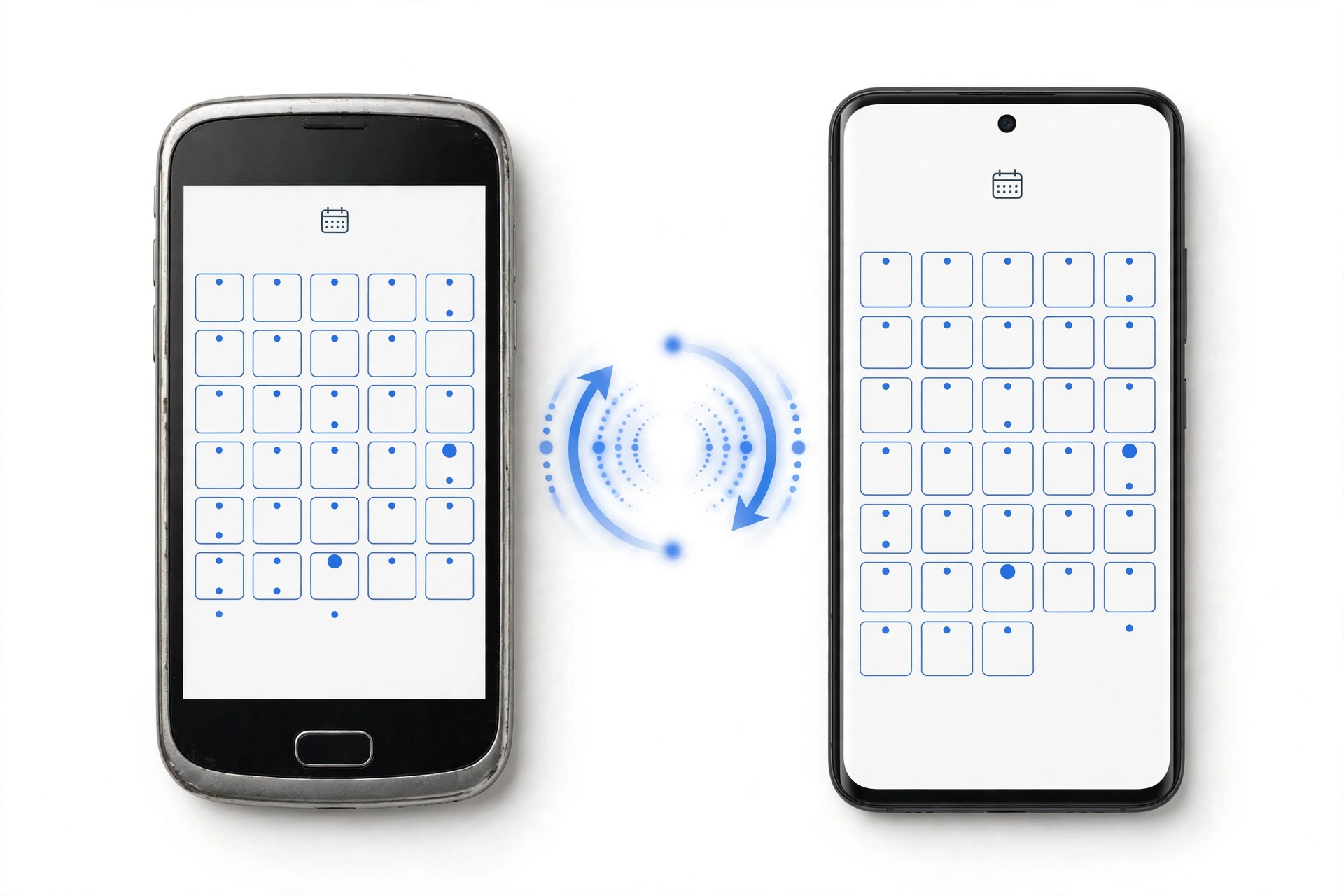
Your calendar usually travels with the account that stores it — iCloud calendars follow your Apple Account, and Google calendars follow your Google Account. Sign into the same account on your new phone and the events sync automatically; calendars stored only on the old phone need an export or transfer first.
On this page
Your calendar usually travels with the account that stores it — iCloud calendars follow your Apple Account, and Google calendars follow your Google Account.
1. Who this guide is for
This guide is for anyone switching phones who wants their appointments, birthdays, reminders, and events to arrive intact on the new device. It covers iPhone-to-iPhone, Android-to-Android, and cross-platform moves (Android to iPhone, iPhone to Android), with the specific rules for iCloud Calendar, Google Calendar, Samsung Calendar, and calendars stored only on the device itself. (Source: home.organizeat.com)
This is the calendar-specific companion to our broader data transfer guides. If you also need to move messages, contacts, or photos, see our guides on transferring all data to a new phone and transferring contacts to a new phone. Before any destructive step, make sure you have a backup — our iPhone backup guide covers that.
QUICK FACTS: A cloud calendar (iCloud, Google, Samsung, Outlook) is not “on your phone” — it lives in your account and syncs to every signed-in device. The transfer problem is almost always one of the other calendars: “On My iPhone,” device-only Samsung calendars, or events saved under a forgotten account. Identify where your events actually live before you move.
2. Quick answer: where your calendar lives decides the method
The fastest way to move your calendar is to do nothing technical at all — just sign into the same account on the new phone. This works because the calendar is stored in the cloud, not on the phone:
- iCloud Calendar → sign in with your Apple Account on the new iPhone. Events sync automatically.
- Google Calendar → sign in with your Google Account on the new phone (iPhone or Android). Events sync automatically.
- Samsung Calendar synced to a Samsung Account → sign in with the same Samsung Account on the new Samsung phone.
- Outlook/Exchange calendar → add the same account on the new phone.
- “On My iPhone” or device-only calendars → these do not sync anywhere. Export, copy, or move them to a cloud calendar before switching.
The one step most people skip is the check before moving: open the Calendar app on your old phone, tap Calendars (the list of calendars), and read the actual calendar names and their account labels. If you see an account you do not recognize, or a calendar labeled “On My iPhone” or “On My Device,” those events need special handling.
3. First step: find out where your events are stored
Before choosing a method, answer this question on the old phone: for each calendar, which account owns it? The method you use depends entirely on the answer.
- iPhone: Open the Calendar app, tap Calendars at the bottom. Each calendar shows its account (iCloud, Google, Outlook, Yahoo, or “On My iPhone”). Note which ones matter.
- Android (Google Calendar app): Tap the menu icon, look at the calendars listed under your Google account. Calendars not under an account may be device-only.
- Samsung Calendar: Open Samsung Calendar, tap the menu, and check whether events are under your Samsung Account, Google Account, or “My calendars” / device-only storage.
TIP: Check your default calendar too. On iPhone, go to Settings > Apps > Calendar > Default Calendar. If it points to a device-only calendar, months of new events may be stored in the least portable place. Set it to your cloud calendar after moving so future events land somewhere safe.
3.1. The “On My iPhone” / device-only problem
Calendars labeled “On My iPhone” or stored “On My Device” live in local phone storage and sync to nothing. If you erase the old phone without moving them, they are gone. Your options: turn on cloud sync if the calendar app supports it, export the events and import them elsewhere, or move each event to a cloud calendar (tedious but reliable for small numbers of events).
3.2. Events under a forgotten account
Many people find events saved under an old Gmail, a work Exchange account, or a carrier account they no longer use. The fix is the same as the transfer: add that account to the new phone. If you can no longer sign in, export from the old phone while you still can.
4. iPhone to iPhone: iCloud Calendar sync
This is the simplest case. iCloud calendars sync through your Apple Account automatically — the same mechanism that keeps your calendar consistent across an iPhone, iPad, and Mac.
- On the old iPhone: Go to Settings > your name > iCloud and confirm Calendars is turned on. If it is off, turn it on and tap Merge if asked — this combines the device’s calendar data with iCloud.
- On the new iPhone: Sign in with the same Apple Account during setup, and confirm Calendars is enabled in Settings > your name > iCloud.
- Give it time: Events may take a few minutes to appear, especially on Wi-Fi with a large history. Open the Calendar app, pull down the Calendars list to refresh.
Apple’s own guidance confirms the toggle path: Settings > [your name] > iCloud, with the Calendars switch controlling sync. If an event is missing after sync, check the sync range setting at Settings > Apps > Calendar > Sync — it controls how far back events sync (for example, “Events 1 Month Back” or “All Events”), and older events beyond the range simply do not appear on the device.
4.1. Also during a full phone transfer
If you are moving everything at once — via Quick Start, an iCloud backup restore, or an encrypted computer backup — calendars come along with the rest. Quick Start copies device-to-device during setup; an iCloud backup restore rebuilds the calendar from the backup; an encrypted computer backup includes calendar data as well. All of these rely on the same principle: the calendar was in the backup because it was in the account.
4.2. Google calendars on an iPhone
Many iPhone users keep a Google calendar alongside iCloud. On the new iPhone, add the Google Account at Settings > Mail > Accounts (or Settings > Apps > Calendar > Accounts, depending on iOS version) and make sure Calendars is enabled for it. The events then appear in the iPhone Calendar app under the Google section of the Calendars list.
5. Android to Android: Google Calendar sync
Google Calendar is the native calendar on most Android phones, and it syncs through your Google Account automatically.
- On the old phone: Open the Google Calendar app, tap the menu, and confirm your events appear under your Google Account. If some are device-only, move them first (see section 3).
- Confirm sync is on: Go to Settings > Accounts > Google, tap your account, and confirm Calendar sync is enabled. You can tap Sync now to force a refresh.
- On the new phone: Sign in with the same Google Account during setup. Open Google Calendar — your events appear automatically.
Samsung’s own support guidance describes the same flow for Galaxy devices: make sure Calendar is turned on in the Google account sync settings (Settings > Accounts and backup > Manage accounts > Google account > Sync account), and when adding new events, choose your Google account as the calendar so they sync across devices. Samsung also warns — fairly — that during sync the most recently changed data wins, so a bad sync setup can overwrite events; get the direction right before syncing.
5.1. Check each calendar’s own sync toggle
Inside the Google Calendar app, each individual calendar (primary, birthdays, a shared team calendar) has its own sync toggle under Settings. A secondary calendar can stay hidden while everything else syncs fine. Review all toggles on the new phone.
5.2. Samsung-to-Samsung via Smart Switch or Samsung Cloud
On Galaxy phones, Samsung Cloud sync (Samsung Calendar > Settings > Sync with Samsung Cloud, or Settings > Accounts > Samsung Account) moves Samsung-Account calendars between Galaxy phones. Samsung’s Smart Switch also transfers calendar data phone-to-phone. Use Google Account sync as the primary method and Smart Switch as the secondary — belt and suspenders.
6. Android to iPhone: two routes
You have two legitimate routes, and the right one depends on your setup.
6.1. Route A: Move to iOS (during setup)
Apple’s Move to iOS app explicitly lists calendars among the content it transfers — along with contacts, message history, photos, mail accounts, call logs, and WhatsApp content. It works only during the new iPhone’s initial setup (or after erasing it back to setup):
- On the new iPhone, reach the “Transfer Your Apps & Data” screen and choose From Android.
- Install Move to iOS on the old Android phone, enter the code shown on the iPhone, and select Calendars (Calendar permission on the Android side).
- Keep both phones on power and nearby until both confirm the transfer is done.
Note the limitations honestly: Move to iOS does not merge with an already-set-up iPhone — it is a setup-time transfer. Reviewers report mixed results on fragmented Android builds. And it moves the events, not the calendar structure — check on the iPhone afterward that everything landed where expected.
6.2. Route B: just add the Google Account
If your Android calendar is a Google Calendar (which it usually is), skip Move to iOS entirely: on the new iPhone, go to Settings > Mail > Accounts > Add Account > Google, sign in, and enable Calendars. Your events appear in the iPhone Calendar app. This is the simplest route and works on an already-set-up iPhone.
7. iPhone to Android: the account-sync route
There is no Apple-made equivalent of Move to iOS for the iPhone-to-Android direction. The reliable method is account sync:
- iCloud calendars: Apple offers iCloud for Windows and iCloud.com, but on Android the practical path is to move iCloud events to a Google calendar. Export from iCloud.com (Calendar > share/export) and import into Google Calendar, or add the iCloud account via a third-party app — check current compatibility before relying on it.
- Google calendars already on the iPhone: These need no transfer at all. Sign into the same Google Account on the Android phone and they appear.
- On Samsung: Samsung’s Smart Switch can pull some content from iCloud backups, but calendar coverage is unreliable — verify event-by-event afterward.
STOP FOR SAFETY: Never hand your Apple Account or Google Account credentials to a “one-tap transfer” app or a stranger offering to move your calendar. Calendar access means schedule access — where you live, work, travel, and when the house is empty. Use only the official account-sign-in paths above.
8. Cross-platform without sync: export and import (ICS files)
When neither phone shares an account, the universal fallback is the ICS file — the standard calendar file format every major calendar app understands.
- Export: From iCloud.com, Google Calendar (web settings > Import & export), or Outlook, export the calendar as an .ics file.
- Import: On Google Calendar web, use Settings > Import & export > Import. On iPhone, email or AirDrop the .ics file to yourself and open it — iOS offers to add the events.
- Expect imperfections: Recurring events, attachments, and custom alerts sometimes import imperfectly. Spot-check the new calendar afterward.
This method is also the safety net for device-only calendars: export them before you erase the old phone, even if you plan to use sync for everything else.
9. Shared and subscribed calendars
Shared family calendars, subscribed holiday calendars, and work calendars follow the account, not the phone — re-share or re-subscribe on the new device:
- iCloud shared calendars: The owner re-sends the invitation, or the invitee re-accepts from the email; the shared calendar then appears under their iCloud.
- Google shared calendars: They follow the Google Account — sign in and they return. Check the per-calendar sync toggle if one is missing.
- Subscribed calendars (holidays, sports): These are URL subscriptions; re-add the subscription on the new phone.
- Work/Exchange calendars: Add the work account on the new phone (you may need your IT details). Company policies sometimes restrict which devices can sync — check with IT.
10. Method comparison table
| Method | Direction | What it moves | Limitations |
|---|---|---|---|
| Same-account sign-in (iCloud) | iPhone → iPhone | All iCloud calendars automatically | Device-only “On My iPhone” calendars not included; sync range limits older events |
| Same-account sign-in (Google) | Any → any | All Google calendars automatically | Each calendar’s own sync toggle can hide one; device-only events not included |
| Samsung Cloud / Smart Switch | Samsung → Samsung | Samsung-Account calendars | Samsung-to-Samsung only; verify event-by-event |
| Move to iOS | Android → iPhone | Calendars plus contacts, messages, photos | Setup-time only (new or erased iPhone); does not merge; mixed results on some Android builds |
| Add Google Account on iPhone | Any → iPhone | Google calendars in the iPhone Calendar app | Does not move iCloud calendars off the iPhone |
| iCloud → Google via export | iPhone → Android | Exported iCloud events into Google | Manual; recurring events may import imperfectly |
| ICS export/import | Any → any | Any exportable calendar | Manual; attachments and custom alerts may not survive |
| Re-subscribe / re-share | Any → any | Shared and subscribed calendars | Requires the owner’s invitation or the subscription URL |
11. The 8-step safe transfer checklist
- 1. Inventory calendars on the old phone (Calendars list) and note the account behind each one.
- 2. Turn on cloud sync for the calendars that matter — iCloud Calendars toggle, Google Calendar sync, Samsung Cloud sync.
- 3. Handle device-only calendars — export them or move events to a cloud calendar.
- 4. Check sync range (iPhone: Settings > Apps > Calendar > Sync) so old events are not hidden by the range setting.
- 5. Set up the new phone — sign into the same accounts, or run Move to iOS during iPhone setup.
- 6. Verify visually — open the new phone’s Calendar app, compare a few dates (including an old one and a future one) against the old phone.
- 7. Check shared/subscription calendars — re-accept invitations and re-subscribe where needed.
- 8. Keep the old phone until you are sure everything arrived. Then set the default calendar to your cloud calendar.
TIP: The most common “missing calendar” cause is the per-calendar sync toggle or the Calendars list selection — the calendar synced fine but is unchecked in the app’s Calendars list. Before any troubleshooting, open the Calendars list and make sure everything you want is checked.
12. Hypothetical examples
(The following are hypothetical illustrations, not customer stories.)
Example 1 — Maya’s iCloud-plus-Google mix. Maya upgrades from an iPhone 14 to a new iPhone. Her personal life lives in iCloud Calendar; her freelance work lives in a Google calendar she added years ago. She signs into her Apple Account and her iCloud events sync — but the Google events are missing. The fix takes thirty seconds: she adds her Google Account in Settings > Mail > Accounts and enables Calendars. Lesson: check the Calendars list for every account, not just the one you think of as “my calendar.”
Example 2 — Daniel’s device-only discovery. Daniel moves from a Samsung Galaxy to a Pixel. His Google calendars sync perfectly — but two years of a personal “On My Device” calendar do not exist on the Pixel. He still has the old Galaxy, so he exports the device-only calendar and imports the ICS file into Google Calendar on the web. Lesson: inventory before you erase; the cloud only syncs what was actually in it.
13. What these steps can and cannot establish
| Observation | What it establishes | What it does not establish |
|---|---|---|
| Events appear on the new phone | Those events synced or transferred | That every calendar did — check each one |
| An event is missing | It may be unchecked, out of sync range, or unsynced | That it is deleted — check the old phone and the cloud first |
| Old events missing, new ones present | Likely the sync-range setting | A transfer failure — widen the range and re-check |
| Shared calendar missing | The invitation or subscription needs re-adding | That the owner removed you — check with them |
| Events exist on iCloud.com / Google Calendar web | The cloud copy is intact | That the new phone is syncing — toggle sync and refresh |
14. Troubleshooting: the five-minute fix list
- Missing on the new phone: Open the Calendars list and check every calendar is selected; confirm the right account is signed in; pull down to refresh.
- Only recent events show: Widen the sync range (iPhone: Settings > Apps > Calendar > Sync > All Events).
- Old events on the phone but not the cloud: They were never synced — export them from the old phone before it is erased.
- Sync feels stuck: Toggle the calendar sync off and on in account settings, then restart the phone.
- Wrong times on events: Confirm automatic date/time and the correct time zone on both phones (Settings > General > Date & Time > Set Automatically).
- Duplicates after import: An ICS import on top of an already-synced calendar doubles events. Remove one source and re-verify.
15. When to stop and keep the old phone a little longer
Stop and do not erase the old phone if any of these are true:
- A calendar shows events on the old phone that do not appear anywhere else (not in the cloud, not exported).
- You cannot sign into the account that owns a calendar.
- Shared-calendar invitations have not arrived on the new phone.
- Work calendar sync is blocked by a company policy you have not resolved with IT.
A repair shop can help with device-level problems (a failing phone that will not stay on long enough to sync, a broken screen blocking access), but no shop can recover a calendar that existed only on an erased phone, or bypass an account you cannot sign into. Keep the old phone powered and accessible until the new calendar is verified.
16. Frequently asked questions
Do calendars transfer automatically when I sign into my account?
Yes — if the calendar is a cloud calendar (iCloud, Google, Samsung, Outlook), signing into the same account on the new phone syncs it automatically. Device-only calendars never sync anywhere and need exporting.
Does Move to iOS transfer calendars?
Yes. Apple’s Move to iOS app lists calendars among the content it transfers from Android to iPhone, along with contacts, messages, photos, and more. It works only during the new iPhone’s setup (or after erasing it to setup).
Why are my old events missing on the new iPhone?
Check Settings > Apps > Calendar > Sync. If it is set to “Events 1 Month Back,” older events do not appear on the device. Change it to “All Events” and refresh the Calendar app.
How do I move an iCloud calendar to an Android phone?
The practical route is export-and-import: export the calendar from iCloud.com and import the ICS file into Google Calendar. Alternatively, sign the Google Account into the iPhone and gradually move events to the Google calendar before switching.
What about Samsung Calendar on a non-Samsung phone?
Samsung-Account calendars sync to Samsung devices signed into the same Samsung Account. On a non-Samsung phone, move the events to a Google calendar first (export or share), then they follow your Google Account anywhere.
Will my shared family calendar move too?
Shared calendars follow the account — sign in and they usually return. If one is missing, check its per-calendar sync toggle, or ask the owner to re-send the invitation.
Can a repair shop transfer my calendar for me?
A shop can help if the old phone has a device problem blocking access (broken screen, failing battery). But calendar transfer is an account-sign-in task — you should enter your own credentials, never share them. Keep them private even from the shop.
Should I erase the old phone right after the transfer?
No — not until you have opened the new phone’s Calendar app and confirmed every calendar (including old events and shared calendars) is present. The old phone is your safety copy.
Video: How to transfer all data to new iPhone fast
Sources and editorial notes
- OrganizeAt — iPhone Calendar Sharing Family Guide: third-party guide corroborating the Settings > [your name] > iCloud > Calendars toggle path and the per-device enablement requirement. (Last checked October 13, 2026.)
- AEANET — How to Sync iPhone and iPad Calendars: step-by-step corroboration of the iCloud calendar toggle, same-account requirement, and default-calendar check. (Last checked October 13, 2026.)
- Switching to Mac — iCloud Sync Fixes: corroboration of the Calendars toggle as the true on/off switch, the Merge prompt behavior, and the Settings > Apps > Calendar > Sync range setting. (Last checked October 13, 2026.)
- Samsung Support — Sync Google Calendar on Galaxy: Samsung’s documented flow for enabling Calendar in Google account sync settings, manual sync, and choosing the Google account when adding events. (Last checked October 13, 2026.)
- Move to iOS (Google Play listing): Apple’s official listing confirming calendars are among the content the app transfers from Android to iPhone. (Last checked October 13, 2026.)
- Cult of Mac — Move from Android to iPhone: summary of Apple’s Move to iOS flow including calendar selection and the setup-time requirement. (Last checked October 13, 2026.)
Last source check: October 13, 2026. AI-assisted editorial guide, checked against the linked manufacturer information. Procedures described here follow Apple’s, Google’s, and Samsung’s published support guidance; third-party sources are cited only for corroboration. Sync behaviors and menu paths can change with software updates — if a setting differs on your phone, check the manufacturer’s current support pages. If your phone needs hands-on assessment, Las Vegas Phone Repair & Accessories is at 7400 Las Vegas Blvd S, Unit TT42, Las Vegas, NV 89123 — call (424) 406-6202 ahead to confirm today’s hours (generally 10:00 AM–8:00 PM).
Let’s get you connected again.
Tell us what’s happening with your device and we’ll help you decide the safest next step — no jargon, no pressure.
Las Vegas Phone Repair & Accessories · 7400 Las Vegas Blvd S, Unit TT42, Las Vegas, NV 89123
10:00 AM–8:00 PM — call ahead to confirm today’s hours