
How to Transfer Contacts to New Phone: iPhone and Android
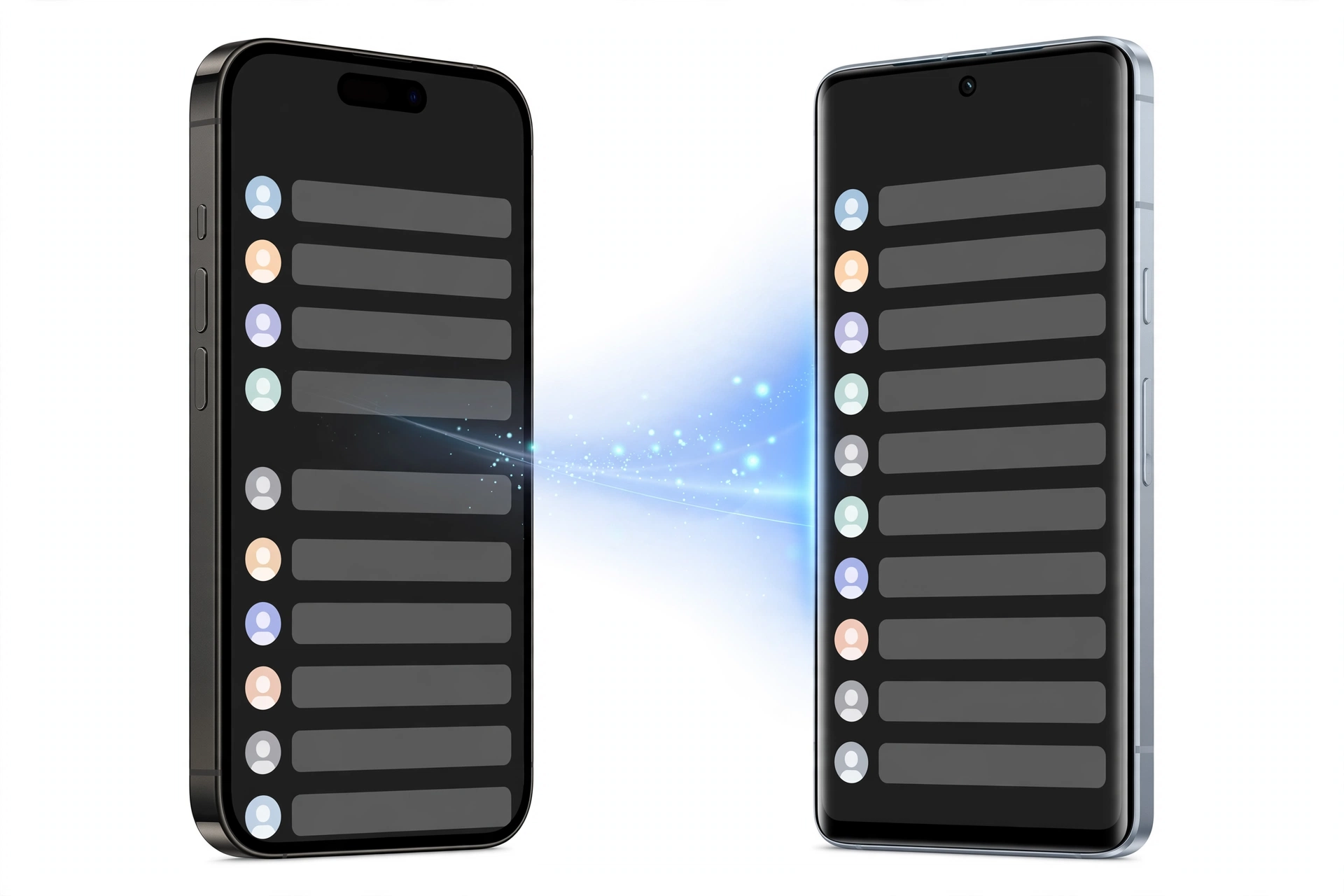
Moving your contacts to a new phone is usually done through the cloud account they are already saved to — iCloud for iPhone users, a Google account for Android users. Sign in to the same account on the new phone, turn on contacts sync, and your address book appears within minutes; SIM import and vCard (.vcf) files handle the cases cloud sync cannot.
On this page
Moving your contacts to a new phone is usually done through the cloud account they are already saved to — iCloud for iPhone users, a Google account for Android users.
1. Who this guide is for
This guide is for anyone who is setting up a new phone and wants their contacts to arrive with them — names, numbers, emails, photos, and notes intact. It covers four situations: (Source: support.apple.com)
- iPhone to iPhone: iCloud sync or Apple’s Quick Start.
- Android to Android: Google account sync.
- Switching platforms: iPhone to Android, or Android to iPhone.
- Fallbacks: SIM card import and vCard file export/import, for when the old phone is broken, you have no Wi-Fi, or the accounts on the two phones do not match.
If you need to move everything — photos, messages, apps, and WhatsApp — rather than just the address book, see our broader guide to transferring data to a new phone. This article is contacts-only by design, because mixing contacts guidance into a full data-transfer guide is where people get confused and where data gets lost.
Key point: contacts are tiny files — a typical address book is a few megabytes. The risk is not size or time; it is location. Contacts can be saved to an iCloud account, a Google account, the SIM card, the phone’s internal storage, or an app account. Your transfer method must match where the contacts currently live.
2. The short answer: where do your contacts actually live?
Before choosing a method, you need to know where your contacts are stored. Open the Contacts app on your old phone and look at how many entries you see — then think about where they came from:
- iCloud contacts: on iPhone, go to Settings > [your name] > iCloud and check whether Contacts sync is on. If it is, your contacts live in Apple’s cloud under your Apple Account.
- Google contacts: on Android, go to Settings > Accounts > Google > [your account] and check whether Contacts sync is on. If it is, your contacts live at contacts.google.com under that Google account.
- On the SIM card: common for contacts saved years ago or imported from a feature phone. SIM cards hold a limited number of contacts (typically a few hundred) and usually store only one name and one number per entry.
- On the phone itself (“On My iPhone” / “Device”): contacts saved locally to the phone’s storage without any cloud account. These do not sync anywhere and disappear if the phone is wiped or dies.
- Other accounts: contacts can also live in Exchange, Outlook, Yahoo, or a carrier account — any account added under Contacts settings.
Most transfer failures come down to one mismatch: the new phone is signed into a different account than the one holding the contacts. Verify the account first, and the transfer is usually straightforward.
3. Before you move: the 5-minute preparation checklist
Do these checks on the old phone before you touch the new one:
- Connect to Wi-Fi. Cloud sync needs internet. Cellular works in a pinch, but Wi-Fi is faster and safer for a first full sync.
- Confirm the account. On iPhone: Settings > [your name] shows your Apple Account. On Android: Settings > Accounts shows your Google account. Write down which account holds your contacts — this is the account you must use on the new phone.
- Force a sync. Toggle Contacts sync off and back on, or use the manual sync option, and wait a few minutes. On Android, you can open your account sync settings and tap Sync now. Then verify: visit contacts.google.com (Google) or icloud.com/contacts (Apple) in a browser and confirm your contacts are there. This is the single most reliable verification step in this entire guide.
- Charge both phones. Sync can stall if a phone dies mid-transfer.
- Do not erase the old phone yet. Keep the old phone until you have verified the contacts arrived on the new one.
Stop for safety: never erase, factory-reset, trade in, or give away the old phone until you have opened the Contacts app on the new phone and confirmed your contacts are all there. An erasure is not reversible, and no repair shop can recover contacts that were never backed up anywhere.
4. Method overview: which transfer method fits your situation
| Method | From → To | Best when | What it needs |
|---|---|---|---|
| iCloud contacts sync | iPhone → iPhone | Both phones use the same Apple Account | Wi-Fi, Apple Account sign-in |
| Apple Quick Start | iPhone → iPhone | Setting up a brand-new iPhone with the old one nearby | Both iPhones, Bluetooth, Wi-Fi, passcode |
| Google account sync | Android → Android | Both phones use the same Google account | Internet, Google sign-in |
| SIM card import | Any → iPhone or Android | Contacts are stored on the SIM card | The SIM card itself |
| vCard (.vcf) file | Any → any | Accounts don’t match, no Wi-Fi, or the old phone is partly broken | A file you can move (email, computer, cloud) |
| Move to iOS / switch tools | Android → iPhone | Moving from Android to a new iPhone | Apple’s Move to iOS flow during setup |
| Cross-platform via Google | iPhone → Android or Android → iPhone | You use a Google account on both | Contacts in the Google account |
5. iPhone to iPhone: iCloud contacts sync (the standard method)
If both iPhones use the same Apple Account, iCloud sync is the simplest path. Contacts stored in iCloud appear automatically on any Apple device signed into that account.
On the old iPhone
- Open Settings and tap your name at the top.
- Tap iCloud, then confirm the Contacts toggle is on. If you are asked what to do with existing local contacts, choose Merge so nothing is duplicated or lost.
- Wait a few minutes for the sync to finish.
On the new iPhone
- Sign in with the same Apple Account.
- Go to Settings > [your name] > iCloud and turn on Contacts.
- Open the Phone app’s Contacts tab. Your contacts will download over the next few minutes.
This method keeps working after the transfer: any change made on either device syncs to the other, because both are reading the same iCloud address book. Note that this syncs only contacts — it does not move photos or apps. For a full device migration, Apple’s backup-and-restore or Quick Start paths (covered in our data transfer guide) are the right tools.
6. iPhone to iPhone: Quick Start during setup
When you are setting up a brand-new iPhone with your old one nearby, Apple’s Quick Start flow can copy everything — contacts included — directly between the phones. Place the old iPhone next to the new one, confirm the Apple Account on screen, scan the animation with the old phone’s camera, and enter your old passcode. You can then choose to transfer directly from the old iPhone or download from an iCloud backup. Direct transfer keeps both phones near each other and connected to power until it finishes. If the Quick Start option does not appear, confirm both iPhones run recent iOS versions, that Bluetooth is on, and restart both phones before retrying.
7. Android to Android: Google account sync (the standard method)
Nearly all Android phones tie contacts to a Google account, and the sync is effectively automatic once it is set up. The steps below work across manufacturers — Samsung, Motorola, OnePlus, Pixel — though some menu names vary slightly (for example, “Accounts and backup” instead of “Accounts”).
On the old Android phone
- Open Settings > Accounts and select your Google account. If you have more than one, pick the primary one — the one you intend to use on the new phone.
- Choose Sync account (or Account sync) and confirm Contacts is enabled.
- If the last sync was more than a day ago, use the menu (three dots) and tap Sync now.
- Verify at contacts.google.com in any browser. If your contacts appear there, they are safely in Google’s cloud.
On the new Android phone
- Sign in with the same Google account — during setup if possible, or later via Settings > Accounts > Add account > Google.
- Confirm Contacts sync is enabled for that account.
- Open the Contacts app. Your address book should appear within moments.
One caution: if contacts were saved to the phone’s local storage rather than the Google account (“Device” or “SIM” as the storage location when the contact was created), they will not sync. Check where new contacts are saved: in the Contacts app settings, look for the default save location and set it to your Google account going forward.
8. SIM card import: when contacts live on the SIM
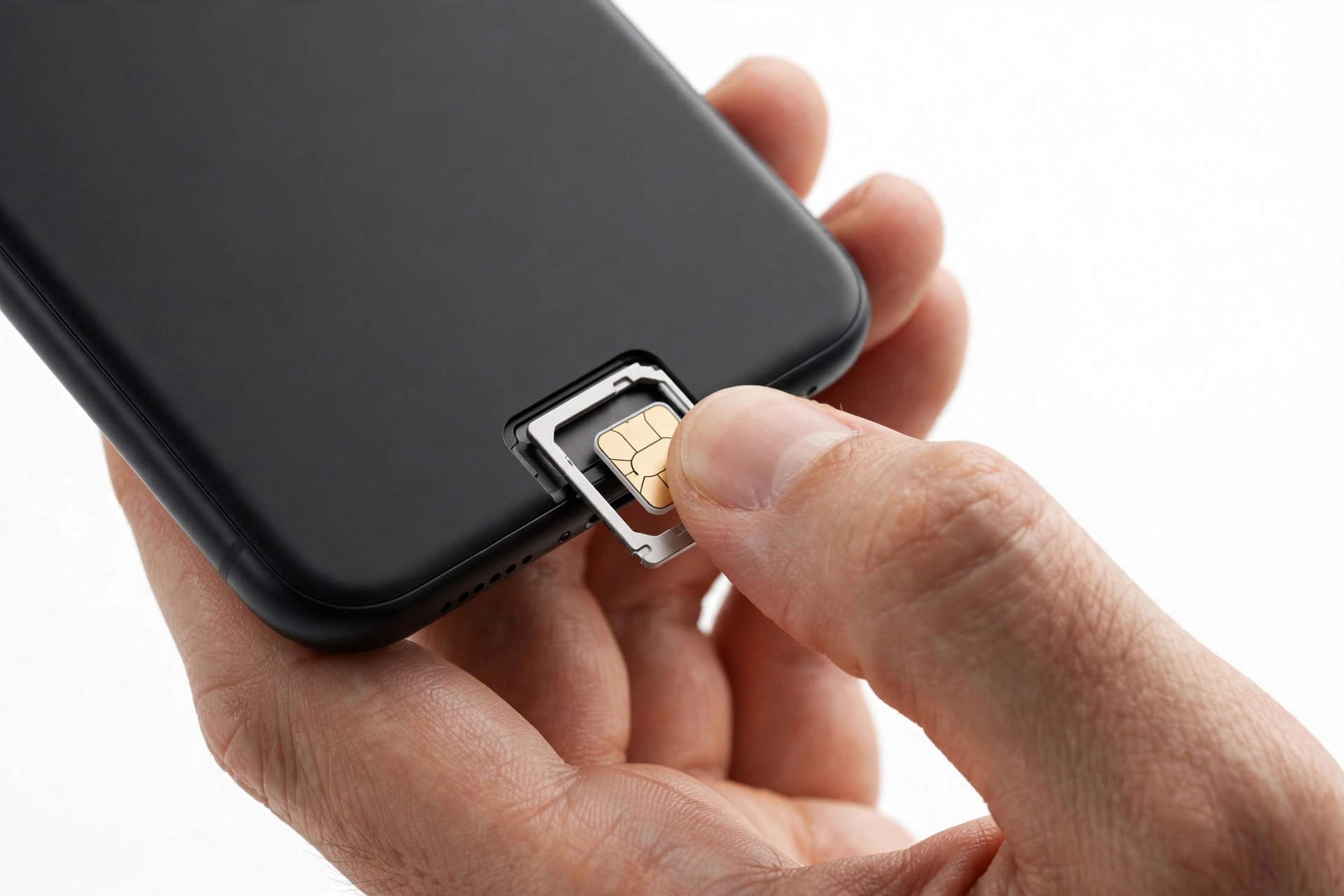
If your contacts were saved to a SIM card — common with older phones and carrier store transfers — neither iCloud nor Google sync will pick them up, because the contacts never lived in the cloud. Import them first, then let the cloud take over.
Importing SIM contacts on iPhone
- Insert the SIM card into the new iPhone.
- Go to Settings > Contacts > Import SIM Contacts.
- Choose where to save them — your iCloud account is the safest choice, since they will then sync and back up going forward.
Importing SIM contacts on Android
- Open the Contacts app.
- Go to Settings (or Manage contacts) and choose Import, then select SIM card.
- Choose your Google account as the destination so the contacts join your cloud address book.
SIM import is a one-time copy: it reads the card and writes the entries into the account you choose. After importing, check a few entries — SIM cards store only one name and one number per contact, so entries with multiple numbers or email addresses may have been truncated on the card long ago. That is a SIM limitation, not a transfer failure.
9. vCard (.vcf) files: the universal contacts format
A vCard file (extension .vcf) is a standard contacts file that virtually every phone, email program, and cloud service understands. Exporting your contacts to a .vcf file gives you a portable copy you can move by email, messaging app, computer, or cloud storage — and it works even when the two phones share no account, when there is no Wi-Fi, or when the old phone is partly broken but still opens the Contacts app.
Exporting from Android
- Open the Contacts app.
- Go to Settings (or Menu) and choose Export — often labeled “Export to .vcf file.”
- Save the file to the phone’s storage, then move it: email it to yourself, save it to Google Drive, or copy it to a computer.
Exporting from iPhone
iPhone’s Contacts app does not have a one-tap “export all” button. Practical options include: sharing individual contacts via AirDrop or Messages (fine for a handful), exporting from icloud.com/contacts on a computer (select contacts, then export as vCard), or a reputable App Store contacts app. Prefer the iCloud.com route for a full address book — it costs nothing and stays inside Apple’s own system.
Importing a .vcf file
- On Android: open the Contacts app > Settings > Import > choose the .vcf file, and select your Google account as the destination.
- On iPhone: email the .vcf file to yourself, open it on the iPhone, and choose to add the contacts (they go to iCloud if that account is selected for new contacts).
- Via Google: at contacts.google.com, use Import and upload the .vcf file — the contacts land directly in your Google account.
Hypothetical example: Daniel is switching from an old Android phone to an iPhone, but his old phone is no longer signed into the Google account he wants to use, and he doesn’t remember the password. Instead of fighting account recovery on a dying phone, he exports his contacts to a .vcf file, emails it to himself, and opens it on the new iPhone. The contacts import cleanly into iCloud. (Hypothetical illustration, not a customer story.)
10. Switching platforms: iPhone ↔ Android
Android to iPhone
Apple’s Move to iOS flow runs during new-iPhone setup and transfers contacts (along with messages, photos, and more) from an Android phone. During setup, choose to transfer from Android, install the Move to iOS app on the Android phone, and follow the code-pairing steps. Alternatively, if your Android contacts are in a Google account, simply add that Google account on the iPhone (Settings > Contacts > Accounts > Add Account > Google) and turn on Contacts — no app needed.
iPhone to Android
The Google-account route works in reverse too: if your iPhone contacts are synced to a Google account (via Settings > Contacts > Accounts > Google), they appear on the new Android phone as soon as you sign into that account. Newer Android setup flows also offer a direct iPhone-to-Android transfer — during setup, choose to copy data from an iPhone, then use a cable or the on-screen QR code to establish the connection. Google’s support guidance recommends keeping both phones connected to Wi-Fi and power and making sure the new phone has enough free storage before starting.
11. Troubleshooting: duplicate contacts
Duplicates happen when the same person arrives from two sources — for example, from both iCloud sync and a SIM import, or from both a Google account and a .vcf file. Fixes:
- Find the two sources first. Check your account lists (iPhone: Settings > Contacts > Accounts; Android: Contacts app > accounts view) to see which accounts hold contacts. Often you can simply turn off or remove one source.
- Merge rather than delete. Google Contacts (contacts.google.com) has a Merge & fix tool that finds duplicates and merges them safely. On iPhone, third-party App Store apps offer merge tools — use ones with strong reviews and privacy policies, and back up first.
- Prevent recurrence. After merging, set a single default account for new contacts (iPhone: Settings > Contacts > Default Account; Android: Contacts app > default save location) so future saves land in one place.
Hypothetical example: Maya moved her contacts twice — once through iCloud sync and once by importing the same SIM card. Every entry appeared twice. She found the duplicates were exactly the SIM entries, removed the SIM-sourced copies, and set iCloud as her default account so it would never happen again. (Hypothetical illustration, not a customer story.)
12. Troubleshooting: missing contacts
If some or all contacts don’t appear on the new phone, work through this order:
- Confirm the account. Is the new phone signed into the same account that holds the contacts? This resolves the majority of cases.
- Confirm sync is on and recent. Toggle Contacts sync off and on; on Android, tap Sync now. Wait several minutes — large address books take longer than expected.
- Check all accounts. The missing contacts may be in a second Google account, an Exchange account, or local device storage on the old phone.
- Check the old phone’s storage location. If contacts were saved to “On My iPhone” or “Device,” they never reached the cloud. Export them as a .vcf file from the old phone (Section 9) and import them into the cloud account.
- Check for filters. The Contacts app may be showing only one account’s contacts. Look for a “Lists” or “Accounts” view and enable all sources.
- Check the cloud directly. If the contacts appear at contacts.google.com or icloud.com/contacts, they exist — the problem is sync on the new phone, not loss.
Quick facts: contacts saved to local phone storage are the hardest to recover from a dead phone. If an old phone won’t turn on, a shop can sometimes help with data recovery from a broken phone, but cloud-synced contacts need no recovery at all — they’re already safe.
13. What this article is not
This guide covers the address book only. It does not cover moving photos, messages, apps, or WhatsApp chats — those have their own tools and their own failure modes. For the full picture, read how to transfer data to a new phone and how to transfer WhatsApp to a new phone. Treating contacts as a separate, verified step is deliberate: many people discover contacts are missing only after they have already wiped the old phone, when a full-device restore would have carried the contacts along.
14. When to stop and seek assessment
Stop self-troubleshooting and get professional help if:
- The old phone will not turn on, so you cannot export or sync anything.
- The old phone’s screen is dead but it still powers on (a shop may be able to assist with extraction).
- You are locked out of the cloud account holding your contacts and cannot recover it yourself.
- Contacts disappeared after a failed update or a restore, and no backup exists.
A repair shop cannot log into your Apple or Google account for you, cannot bypass account security, and cannot recover contacts that were never synced or backed up anywhere. What a shop can do is help with a non-booting phone’s data access and advise on your options honestly. Before visiting, bring both phones, their chargers, and know which accounts are involved.
15. Frequently asked questions
Do contacts transfer automatically when I set up a new phone?
Often, yes — if you sign into the same iCloud or Google account and contacts sync is enabled, they arrive on their own. But “often” is not “always”: verify at contacts.google.com or icloud.com/contacts before erasing the old phone.
Can I transfer only contacts without moving everything else?
Yes. Cloud contacts sync (iCloud or Google) moves only the address book. A .vcf file export/import also moves only contacts. Quick Start and full backup restores move everything.
Will my contact photos and notes transfer too?
Through iCloud or Google sync, yes — photos, notes, emails, and custom fields come along. Through a SIM card, no: SIM entries are name-and-one-number only. Through a .vcf file, usually yes, including photos.
Can I move contacts from iPhone to Android without a computer?
Yes. Either sync the iPhone’s contacts to a Google account and sign into it on the Android phone, export/import a .vcf file, or use the Android setup flow’s iPhone transfer option.
Why do I have every contact twice?
The same contacts arrived from two sources — typically a cloud sync plus a SIM import or a .vcf import. Use Google Contacts’ Merge & fix tool, or remove one source, then set a single default account for new contacts.
What if the old phone is broken and won’t turn on?
If contacts were synced to iCloud or Google, just sign into that account on the new phone — the broken phone is irrelevant. If they were stored locally on the dead phone only, see our guide on transferring data from a broken phone for your options.
Is it safe to use a third-party contacts-transfer app?
Stick to built-in methods (iCloud, Google sync, SIM import, .vcf) wherever possible — they don’t require handing your address book to a stranger’s server. If you use an app, check its reviews and privacy policy, and verify your contacts afterward.
Video: How to transfer all data to new iPhone fast
Sources and editorial notes
- Apple Support — Transfer data from your previous iOS or iPadOS device to your new iPhone or iPad: Apple’s documented device-transfer flows, including Quick Start and iCloud restore.
- Apple Support — Move to iOS guidance: Apple’s documented process for moving content, including contacts, from Android to iPhone.
- Google Contacts Help: Google’s official documentation for managing, importing, exporting, and merging contacts.
- Android Authority — How to transfer contacts to a new Android phone: independent walkthrough corroborating Google’s account-sync flow.
Last source check: October 13, 2026. AI-assisted editorial guide, checked against the linked manufacturer information. Menu paths and feature names follow the manufacturers’ published documentation as of that date; software updates can move settings, so use the linked sources as the final reference. For hands-on help with a phone that won’t cooperate, Las Vegas Phone Repair & Accessories, 7400 Las Vegas Blvd S, Unit TT42, Las Vegas, NV 89123, (424) 406-6202 — open 10:00 AM–8:00 PM; call ahead to confirm today’s hours.
Let’s get you connected again.
Tell us what’s happening with your device and we’ll help you decide the safest next step — no jargon, no pressure.
Las Vegas Phone Repair & Accessories · 7400 Las Vegas Blvd S, Unit TT42, Las Vegas, NV 89123
10:00 AM–8:00 PM — call ahead to confirm today’s hours
1 thought on “How to Transfer Contacts to New Phone: iPhone and Android”