
How to Transfer Apps to New Phone: iPhone and Android
The safest way to transfer apps to a new phone is the manufacturer’s built-in setup transfer: Quick Start on iPhone-to-iPhone, and Android’s “Copy apps & data” (or Samsung Smart Switch) on Android-to-Android. Cross-platform moves transfer your free apps where equivalents exist, but app data, logins, and paid items need extra steps — this guide covers each path in order.
On this page
The safest way to transfer apps to a new phone is the manufacturer’s built-in setup transfer: Quick Start on iPhone-to-iPhone, and Android’s “Copy apps & data” (or Samsung Smart Switch) on Android-to-Android.
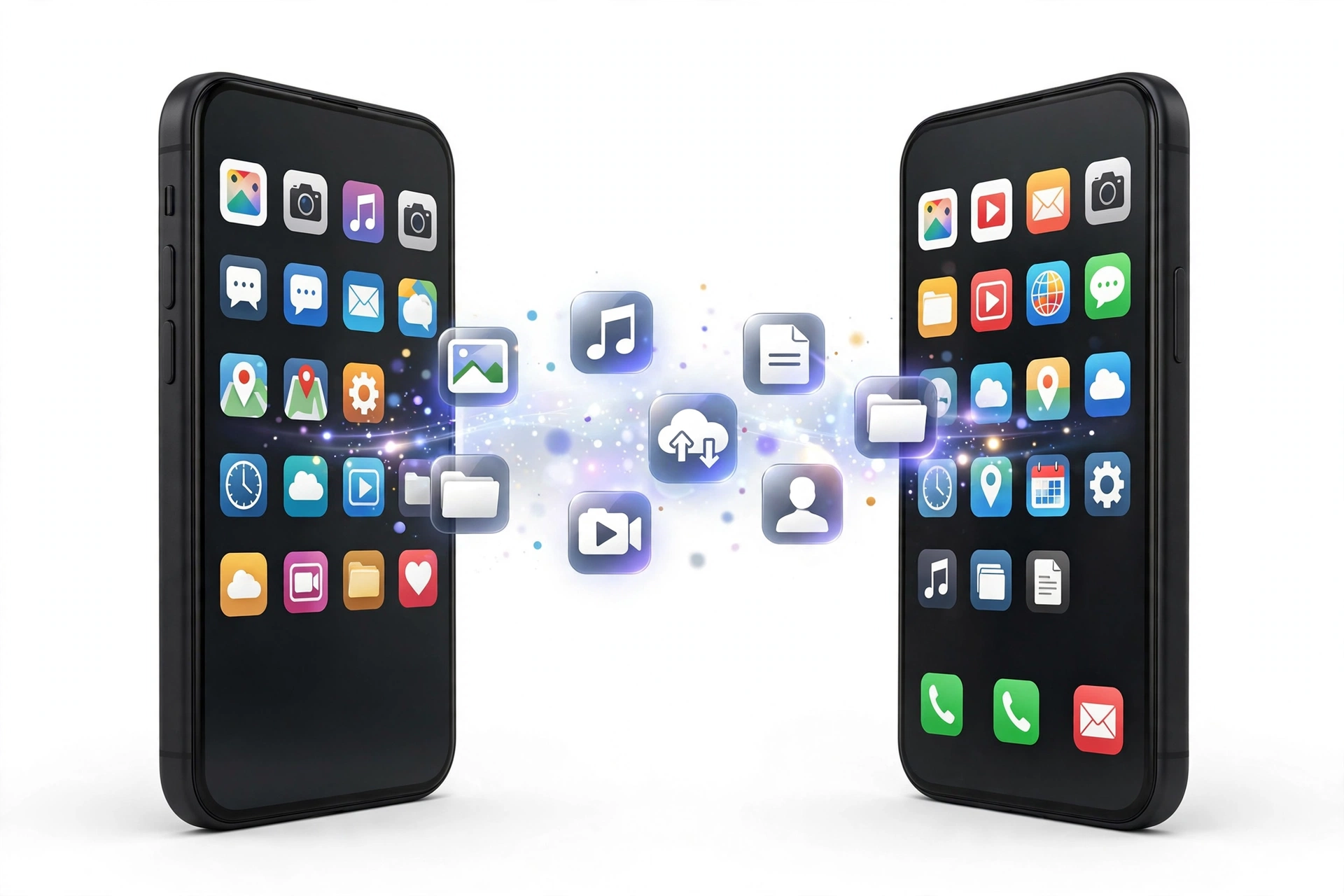
Who this guide helps
This guide is for anyone unboxing a new phone who wants their apps to look — and behave — the way they did on the old one. It covers four real-world scenarios: iPhone to iPhone, Android to Android, iPhone to Android, and Android to iPhone. It also explains the single most misunderstood part of app transfers: the difference between moving an app’s icon and moving its data. (Source: support.google.com)
If you already transferred your general data (photos, messages, contacts) and only need the apps piece, you are in the right place. For the full-device picture, see our companion guide to how to transfer data to a new phone, which covers photos, messages, call history, and settings alongside apps.
QUICK FACTS: Transfers work best during the new phone’s initial setup. Once you skip the transfer step and finish setup, re-running it usually requires erasing the new phone first — so plan before you tap “Skip.”
App installs vs. app data: the distinction that matters
When people say “transfer my apps,” they usually mean two different things bundled together:
- The app itself (the install): the icon, the program files, its place on your Home screen. Both Apple and Google move these reliably. On iPhone, apps reinstall from the App Store under your Apple Account. On Android, Google reinstalls apps from the Play Store under your Google account.
- App data (what’s inside the app): your documents, game progress, playlists’ offline files, login sessions, chat history, and preferences. This is where things get uneven. Some data transfers automatically, some only restores if you signed into the app’s own account on the old phone, and some — like banking sessions and certain authenticator codes — never transfers at all for security reasons.
Understanding this split protects you from the classic mistake: assuming the app icon arriving on the new phone means everything inside it arrived too. A messaging app that reinstalls perfectly but lost its offline chat media is “transferred” in one sense and incomplete in another.
iPhone to iPhone: Quick Start (the best default)
Apple’s Quick Start is the shortest, most complete route when both iPhones are in your hands. It copies apps, settings, messages, photos, Apple Account settings, Wi-Fi passwords, and Home Screen layout. It only runs while the new iPhone is still at its setup screens — if you already finished setting up the new phone, Apple’s documented path is to erase it first and start over (which wipes what is currently on it).
How Quick Start works
- Update and charge both iPhones. Keep both plugged in and close together until the migration finishes.
- Turn on the new iPhone and place it next to the old one, which should be unlocked on its Home screen with Wi-Fi and Bluetooth on. The old iPhone needs iOS 11 or later.
- Tap Continue on the “Set Up New iPhone” prompt, then use the old iPhone’s camera to scan the animation on the new iPhone. Enter the old iPhone’s passcode on the new one when asked.
- Set up Face ID or Touch ID, join Wi-Fi or cellular, and sign in with your Apple Account as prompted.
- Choose how to transfer your data: Transfer from iPhone (direct device-to-device, requires iOS 12.4 or later on both) or Download from iCloud (restores from a recent iCloud backup).
Direct transfer vs. Download from iCloud
With Transfer from iPhone, the move happens directly between the two devices (wirelessly, or with a cable if your Wi-Fi is slow or crowded — a wired connection needs the right cable or adapter for your models). Both phones are occupied until it finishes, so pick a time when you can leave the old phone alone. It is the most complete option and does not depend on iCloud storage space or internet speed.
With Download from iCloud, apps and data download in the background, so you can start using the new iPhone right away. You need a recent iCloud backup and good Wi-Fi. If the old iPhone was on iOS 17.2 or later, this background download path is available during Quick Start.
TIP: Expect to set up Face ID, Touch ID, and your passcode again on the new iPhone. Even an encrypted backup leaves biometric data out — that is a security design, not a transfer failure.
iPhone to iPhone: restoring from a backup instead
If the old iPhone is not available at setup time — lost, traded in already, or not working — restore from a backup during setup. At the “Apps & Data” screen on the new iPhone, choose Restore from iCloud Backup and sign in with your Apple Account, then pick the right backup (usually the most recent). Keep Wi-Fi and power connected until it completes.
Alternatively, use a Mac or PC: at the Transfer Apps & Data screen, tap From Mac or PC, connect the new iPhone, open Finder (or iTunes on older systems), select the iPhone, click Restore Backup, and choose the backup you made from the old phone. An encrypted computer backup saves more — including saved passwords and Health data — so choose encryption when creating it. Creating the backup before the move is essential: an iCloud backup goes through Settings → your name → iCloud → iCloud Backup → Back Up Now.
STOP FOR SAFETY: Restoring a backup onto a new iPhone that is already set up erases the data currently on it. If you need anything from the new phone’s current state — photos taken after unboxing, new messages — back it up first.
Android to Android: the built-in “Copy apps & data”
Google’s own recommendation for Android-to-Android moves is the transfer built into Android setup. When you power on the new device, it offers to copy apps, data, and settings from the old phone over a cable or wirelessly. It works across Pixel, Samsung, OnePlus, Xiaomi, Motorola, and other brands because it is part of core Android.
How it works
- Charge both phones and set aside time — the copy can take from a few minutes to over an hour depending on how much data you move.
- Power on the new phone, tap Start, connect to Wi-Fi (and insert your SIM or set up eSIM).
- When prompted, tap Copy to copy apps and data.
- With a cable (recommended): follow the on-screen instructions to connect both devices with a USB-C to USB-C cable. If the cable does not fit both phones, an adapter works. On the old device, tap Copy; signing in to your Google Account makes the transfer more complete. Choose what to copy, tap Copy, and wait.
- With Wi-Fi (no cable): on the new device, tap No cable, then Next at “Transfer wirelessly.” On the old device, open the Google app, search “set up my device,” tap Next, confirm the shapes and numbers match on both phones, tap Next then Copy, sign in to your Google Account, choose what to copy, and wait.
Google’s Pixel documentation confirms most data types move between Android phones: apps, contacts, photos and videos, messages, call history, Wi-Fi logins, device settings, and files. Home screen layout transfers between Pixel phones specifically; some manufacturer-specific app data may not transfer.
TIP: WhatsApp chats restore from the cloud after you sign in to the new Android device and open WhatsApp — but only if you turned on WhatsApp backups on the old device first. Enable that backup before you retire the old phone. For the full picture on moving conversations between platforms, see our guide to how to transfer messages to a new phone.
Samsung to Samsung (or Samsung to any Android): Smart Switch
Samsung’s Smart Switch is the most comprehensive option when a Samsung phone is involved. It connects phones wirelessly, over USB, or through a computer, and moves contacts, messages, photos, apps, and even some app data. For Samsung-to-Samsung moves it is generally the best pick; Google’s own Android Help pages also point Samsung users to Smart Switch as an alternative.
The flow is straightforward: install/open Smart Switch, choose how to connect (wireless or cable — cable is faster for large libraries), select what to move, and let it run. As with Google’s method, expect it to take from under an hour to a few hours depending on data volume.
iPhone to Android: what actually transfers
Google’s Android Switch flow lets you copy data from an iPhone or iPad to a new Android device during setup. What transfers depends on the method, and Google publishes a comparison table — the important app-specific rows are worth knowing:
- Apps: free apps available on Google Play transfer on the cable and upgraded-wireless paths. Paid subscriptions generally do not carry over — contact the app developer about moving a paid subscription.
- App data: on the upgraded transfer method, app data transfers at the app developer’s discretion. Some developers allow it, some do not — so check the apps that matter most to you individually.
- Everything else: contacts, calendars, photos and videos, messages (including encrypted messages and iCloud-stored messages on the upgraded path), Wi-Fi networks, and passwords/passkeys all have documented transfer paths.
On recent devices — Android 17 and newer, all updated Pixel 9 devices and newer, Samsung Galaxy Z Flip 8, Z Fold 8, and select others — if you skipped the initial setup transfer, you can still copy data later at Settings → Accounts and backup. On older devices, skipping setup usually means erasing the new phone to get the option back.
QUICK FACTS: Moving from iPhone to Android is an apps-and-data move, not a clone. Apple-exclusive apps (and their data) have no Android equivalent to transfer to — check the Play Store for the same app or a replacement before you wipe the old iPhone.
Android to iPhone: Move to iOS
Apple’s Move to iOS app moves content from Android to iPhone during the iPhone’s setup. It transfers contacts, message history, photos and videos, web bookmarks, mail accounts, calendars — and free apps that exist on both Google Play and the App Store. The key honest limitation: app data generally does not come across. A free app that exists on both stores will reinstall on the iPhone, but you sign in fresh and its old-phone data stays behind unless the app syncs through its own account.
This is why the practical Android-to-iPhone app strategy is account-first: before the move, make sure every important app’s data is tied to an account (game accounts, note apps, password managers, streaming profiles). After the move, reinstall and sign in — the data follows the account, not the device.
What does NOT transfer (honest list)
| Item | What to expect | What to do |
|---|---|---|
| Banking and payment apps | App reinstalls; login sessions and enrolled devices do not transfer | Re-verify identity and re-enroll the new phone in each banking app after the move |
| Authenticator / 2FA apps | Codes may not transfer depending on the app | Export or re-enroll codes before retiring the old phone; keep backup codes |
| Game progress | Transfers only if the game syncs to an account | Link the game to its account (or Facebook/Google/Apple sign-in) on the old phone first |
| Paid apps and subscriptions | iOS purchases do not move to Android and vice versa | Check the developer’s cross-platform policy; budget for repurchase where needed |
| Apps removed from the store | Cannot reinstall on the new phone | Export any data from the app on the old phone before it is gone |
| Offline downloads (music, maps, video) | Often need re-downloading | Re-download over Wi-Fi after signing in on the new phone |
| Manufacturer-exclusive apps | May not exist on the other platform | Find the closest equivalent and migrate its data via export/import |
Method comparison
| Method | Scenario | Apps transfer? | App data? | Notes |
|---|---|---|---|---|
| Quick Start (direct) | iPhone → iPhone | Yes | Yes (most) | Most complete; both phones busy until done |
| Quick Start (iCloud) | iPhone → iPhone | Yes | Yes (from backup) | Use the new phone while it downloads; needs recent backup + good Wi-Fi |
| Mac/PC backup restore | iPhone → iPhone | Yes | Yes (encrypted saves more) | Best when the old phone is unavailable |
| Copy apps & data (cable) | Android → Android | Yes | Yes (most) | Fastest and most stable; recommended by Google |
| Copy apps & data (wireless) | Android → Android | Yes | Yes (most) | No cable needed; slower for large libraries |
| Smart Switch | Samsung involved | Yes | Yes (some) | Wireless, USB, or computer; Samsung’s most complete option |
| Android Switch | iPhone → Android | Free apps on Play | At developer’s discretion | Newer devices allow transfer after setup via Settings |
| Move to iOS | Android → iPhone | Free apps on both stores | Generally no | Account-first strategy: sync app data to accounts before moving |
What observations can and cannot establish
| Observation | What it establishes | What it does not establish |
|---|---|---|
| App icon appears on new phone | The install moved | That your data and logins moved with it |
| App opens and asks you to sign in | Normal for many apps | That anything went wrong |
| Game starts from level one | Local progress did not transfer | That progress is lost — check the game’s account sync on the old phone |
| Banking app wants re-verification | Expected security behavior | That the transfer failed |
| An app is missing entirely | It was not available on the new platform or was delisted | That the transfer method was wrong |
Safe transfer sequence (recommended order)
- Update and charge both phones. Updates reduce compatibility surprises; a dying phone mid-transfer is the most common self-inflicted problem.
- Back up the old phone first. iCloud or encrypted computer backup on iPhone; Google One backup on Android; WhatsApp and authenticator backups separately. See our guide to how to back up an iPhone before repair for the iPhone backup details — the same steps apply before a transfer.
- Sync app data to accounts. Open the apps that matter — games, notes, password managers, authenticators — and confirm each is signed in and synced. Link unlinked games now.
- Run the manufacturer’s setup transfer. Quick Start, Copy apps & data, Smart Switch, or the cross-platform tool. Do not skip this screen.
- Open your critical apps and verify. Banking, authenticator, messaging, work apps. Re-sign-in where needed and confirm the data you expect is there.
- Keep the old phone for a week. Do not wipe it until the new phone has proven itself in daily use. This is your safety net if something was missed.
- Then wipe the old phone — only after you are certain. If apps misbehave on the new phone after a transfer, our guide to phone apps keep crashing fixes covers the usual causes.
STOP FOR SAFETY: Never share your Apple Account, Google account, banking, or authenticator credentials with anyone during a transfer — including at a repair shop. Enter credentials yourself on the device; legitimate help never needs your passwords.
Troubleshooting common problems
The transfer prompt disappeared (iPhone)
Apple’s documented fix is to restart both devices and try again. The Quick Start prompt appears only while the new iPhone is at its setup screens and the old iPhone is unlocked on its Home screen with Bluetooth and Wi-Fi on.
Wireless transfer is painfully slow (Android)
Switch to the cable method — USB-C to USB-C with an adapter if needed. Google recommends the cable as the faster, more stable option, and the difference is large for photo-heavy phones.
Apps transferred but none of my logins did
That is normal for many apps. Encrypted computer backups (iPhone) and Google-account sign-in during setup (Android) preserve the most, but banking, authenticators, and some work apps deliberately require fresh sign-in. Work through them once; it is a one-time cost.
An app I paid for wants me to pay again
Cross-platform purchases do not carry over: an app bought on the App Store is not owned on Google Play. Check the developer’s policy — some honor cross-platform licenses — otherwise budget for the repurchase.
(The following are hypothetical illustrations, not customer stories.) Hypothetical example: Maya upgrades from a Pixel 8 to a Pixel 10 using the cable method. All 120 apps reinstall, her Google Keep notes and Calendar arrive automatically, but her banking app asks for fresh verification and her favorite puzzle game restarts at level one — because she never linked it to a game account on the old phone. She re-links it on the old phone, but the progress was stored locally, so it stays behind. Hypothetical example: Daniel moves from an iPhone 14 to a Galaxy S25 with Android Switch. His free apps that exist on Google Play transfer; his Apple-exclusive apps do not. His WhatsApp history restores from the cloud backup he enabled the night before. His iCloud-only notes do not move — he exports them before wiping the iPhone.
Video: How to transfer all data to new iPhone fast
Frequently asked questions
Do my apps transfer automatically to a new iPhone?
Yes, when you use Quick Start or restore from an iCloud or computer backup during setup. Apps reinstall from the App Store under your Apple Account, and most app data comes along. You will still re-enter some logins and set up Face ID/Touch ID again.
Do my apps transfer automatically to a new Android phone?
Yes, when you choose “Copy apps & data” during the new phone’s initial setup. Google reinstalls your apps from the Play Store and restores available data. Sign in to your Google Account during the copy for the most complete transfer.
Will my game progress transfer to my new phone?
Only if the game syncs progress to an account. Link the game to its account (or a platform sign-in) on the old phone before transferring. Locally stored progress usually does not move.
Do paid apps transfer between iPhone and Android?
No. Purchases are tied to the store and platform where you bought them. Free apps with equivalents on both stores transfer; paid items generally need repurchase, though some developers honor cross-platform licenses — ask the developer.
Why does my banking app ask me to verify again?
Security design. Banking and payment apps treat a new phone as a new device and require fresh identity verification and device enrollment. It is expected, not a transfer failure.
What if I already finished setting up the new phone?
On iPhone, restoring a backup requires erasing the new phone first (which wipes its current content). On newer Android devices, you may still copy data later at Settings → Accounts and backup; on older ones, the setup-time transfer is the only path without erasing.
Does Move to iOS transfer my Android app data?
Generally no. Move to iOS transfers free apps that exist on both stores, plus contacts, messages, photos, and calendars — but app data typically stays behind. Sync each app’s data to its account before moving.
Should I wipe my old phone right after the transfer?
No. Keep the old phone for about a week of normal use on the new one. Only wipe it after you have verified every critical app, and keep a backup of the old phone until then.

Sources and editorial notes
- Google Android Help — Copy apps & data from an Android to a new Android device: Google’s documented setup flow — cable (recommended) and wireless methods, Google-account sign-in, choosing what to copy, and WhatsApp cloud-restore notes. (Last checked October 13, 2026.)
- Google Android Help — Copy apps & data from an iPhone or iPad to a new Android device: Google’s published data-type table for iPhone→Android transfers (apps, app data at developer discretion, messages, passwords), and post-setup transfer availability on newer devices. (Last checked October 13, 2026.)
- Google Pixel Phone Help — Transfer data to a Pixel phone: Pixel’s Express vs. Customize transfer options and the data-type table (apps, settings, messages, home screen layout Pixel-to-Pixel). (Last checked October 13, 2026.)
- DualMedia — Transfer apps and data on a new Android: corroboration of the setup-time transfer, cable recommendation, and the once-only nature of the setup transfer screen. (Last checked October 13, 2026.)
- SamMobile — How to transfer everything from an old phone: Smart Switch overview and the distinction between automatically transferred data and items needing manual attention (banking, authenticators, game progress). (Last checked October 13, 2026.)
- ArsDigitech — Transfer from old iPhone to new iPhone: corroboration of Apple’s Quick Start flow — scan animation, passcode, direct vs. iCloud transfer choice. (Last checked October 13, 2026.)
- TechnoBezz — Transfer iPhone to iPhone: corroboration of Quick Start requirements (Bluetooth/Wi-Fi, iOS versions, both devices occupied) and the Download-from-iCloud background behavior. (Last checked October 13, 2026.)
Last source check: October 13, 2026. AI-assisted editorial guide, checked against the linked manufacturer information. Procedures described here follow Apple’s, Google’s, and Samsung’s published support guidance; third-party sources are cited only for corroboration. Transfer behaviors and menu paths can change with software updates — if a screen differs on your phone, check the manufacturer’s current support pages. If your phone needs hands-on assessment, Las Vegas Phone Repair & Accessories is at 7400 Las Vegas Blvd S, Unit TT42, Las Vegas, NV 89123 — call (424) 406-6202 ahead to confirm today’s hours (generally 10:00 AM–8:00 PM).
Let’s get you connected again.
Tell us what’s happening with your device and we’ll help you decide the safest next step — no jargon, no pressure.
Las Vegas Phone Repair & Accessories · 7400 Las Vegas Blvd S, Unit TT42, Las Vegas, NV 89123
10:00 AM–8:00 PM — call ahead to confirm today’s hours