
How to Transfer Messages to New Phone: iPhone and Android
To transfer messages to a new phone, use the same-ecosystem route: Messages in iCloud or Quick Start for iPhone to iPhone, and a Google One backup (restored during setup) for Android to Android. Cross-platform moves are limited, WhatsApp history is separate, and you should keep the old phone until every conversation appears on the new one.
On this page
To transfer messages to a new phone, use the same-ecosystem route: Messages in iCloud or Quick Start for iPhone to iPhone, and a Google One backup (restored during setup) for Android to Android.
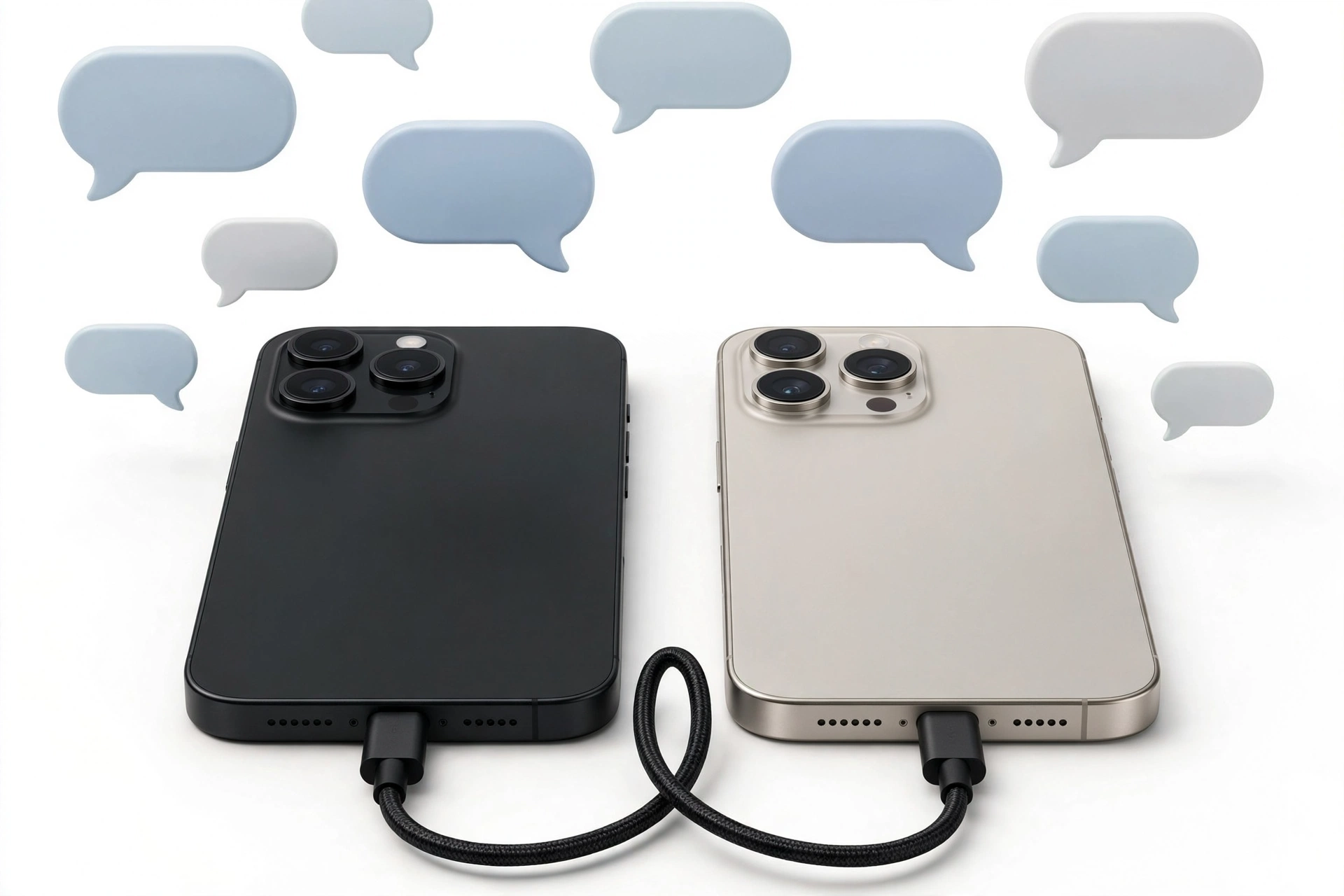
1. Who this guide is for
This guide is for anyone replacing a phone and wanting to keep their text-message history: family group chats, two-factor codes received by SMS, appointment confirmations, and years of conversation threads. It covers iPhone-to-iPhone, Android-to-Android, and the honest limits of switching between the two platforms. (Source: androidauthority.com)
It does not cover WhatsApp chats — WhatsApp uses its own backup system, which is documented separately. It also does not cover moving messages between two different Apple IDs or Google accounts, which is a separate account-migration problem.
Quick facts: SMS and MMS live on the phone itself and only move when a backup or migration tool carries them. RCS chats are tied to your phone number and Google account on Google’s servers, so they resync when RCS registers on the new phone. iMessage threads sync through iCloud when Messages in iCloud is on.
2. The short answer: pick your route
If both phones are iPhones, turn on Messages in iCloud on the old phone, force a sync, then turn it on on the new phone — or use Apple’s Quick Start device-to-device transfer during setup. If both are Androids, make a Google One backup that includes SMS and MMS on the old phone, then restore it during the new phone’s initial setup. If you are switching platforms, read the cross-platform sections before erasing anything, because some directions have no official message transfer at all.
3. Before you start: keep the old phone alive
The single most common cause of lost messages is erasing or trading in the old phone before the new one has everything. Old-phone threads are the safest source you have — they contain the complete local copy of SMS and MMS.
- Keep the old phone charged, connected to Wi-Fi, and signed in until every conversation you care about is visible on the new phone.
- On the old phone, confirm backups finished successfully — a “Back up now” tap does not mean the upload has finished. Wait for a recent backup timestamp.
- If your messages include photos or videos (MMS attachments), give attachments time to redownload on the new phone before concluding they are missing.
- If you are on Android, make sure Google backup was enabled before you switched — the restore option appears during new-phone setup, not afterward.
Stop for safety: do not erase, factory-reset, or trade in the old phone until you have verified message history on the new phone — opened threads, checked attachments, and confirmed recent conversations. Erasing first is the one step that turns a fixable gap into a permanent loss.
4. Method comparison: what moves messages between which phones
| Method | Works for | What it moves | Key limitation |
|---|---|---|---|
| Messages in iCloud sync | iPhone to iPhone | iMessage, SMS, MMS, RCS threads on the iPhone | Requires the same Apple Account on both phones |
| Quick Start (device-to-device) | iPhone to iPhone | Messages plus apps, settings, photos | Both phones needed together during setup |
| iCloud backup restore | iPhone to iPhone | Everything, including messages | Erases the new phone’s current data during restore; needs enough iCloud storage |
| Computer backup (Finder / Apple Devices) | iPhone to iPhone | Messages via encrypted backup | Needs a computer and cable; encrypt the backup or passwords and health data are skipped |
| Google One backup restore | Android to Android | SMS and MMS messages, plus app data | Restore happens during the new phone’s initial setup — not afterward |
| Samsung Smart Switch | Android to Samsung (or Samsung to Samsung) | SMS/MMS and most other data | Best with a cable or both phones present; results vary with the source brand |
| SMS Backup & Restore (third-party) | Android to Android | SMS, MMS, and call logs | Third-party app; backup files vanish if the app is uninstalled without saving a copy |
| RCS re-registration | Android to Android | RCS chat history tied to your number | Only one RCS registration per number at a time; the new phone must claim it |
| Move to iOS app | Android to iPhone | Message history, contacts, photos, and more | Only during iPhone setup; does not work in the iPhone-to-Android direction |
| No official method | iPhone to Android | — | Apple provides no official way to move iPhone message history to Android |
5. iPhone to iPhone: Messages in iCloud
Messages in iCloud is the cleanest iPhone-to-iPhone route. When it is on, your message history — iMessage, SMS, and MMS threads on that iPhone — uploads to iCloud and stays in sync across every device signed in with the same Apple Account. On recent iPhones with RCS enabled through a supporting carrier, RCS conversations sync the same way.
On the old iPhone
- Go to Settings, tap your name at the top, then tap iCloud.
- Open the list of apps using iCloud (on newer iOS versions, tap Show All), find Messages, and make sure “Use on this iPhone” is turned on.
- Open the Messages in iCloud page and tap Sync Now. Wait until the page shows a current sync status — large histories can take a while on Wi-Fi.
- Confirm that iMessage itself is enabled under Settings > Messages, and that your phone number and Apple Account appear under Send & Receive.
On the new iPhone
- Sign in with the same Apple Account used on the old phone.
- Repeat the same path — Settings > your name > iCloud > Messages — and turn on “Use on this iPhone”.
- Messages will begin downloading. Open the Messages app and give it time; threads appear progressively, and attachments follow behind the text.
Tip: if threads are missing on the new iPhone, go back to the old phone and tap Sync Now again, then repeat on the new one. Community reports and Apple’s own sync design agree: a stale sync on either end is the most common cause of gaps. Also check that iCloud storage is not full — a full account stalls the upload.
One more honest detail: when Messages in iCloud is on, your messages live in the sync and are not separately duplicated inside an iCloud device backup. That is normal, not a problem — but it is another reason the old phone stays powered until the new one is verified.
6. iPhone to iPhone: Quick Start device-to-device transfer
If you are setting up the new iPhone next to the old one, Apple’s Quick Start can move everything directly, messages included. This works on devices running iOS 12.4 or later.
- Connect both iPhones to Wi-Fi and turn on Bluetooth on both.
- Turn on the new iPhone and place it near the old one. The Quick Start screen appears on the new device.
- On the old iPhone, tap Continue when prompted, then use the old iPhone’s camera to scan the animation on the new phone’s screen.
- Enter the old iPhone’s passcode on the new iPhone, then follow the setup prompts including Face ID or Touch ID.
- When you reach the transfer step, choose Transfer Directly from iPhone. Keep both phones close together until the transfer completes.
This moves messages, attachments, apps, photos, and settings in one pass. Interruptions — weak Wi-Fi, phones drifting apart — are the usual cause of incomplete transfers, so give it an unhurried window.
7. iPhone to iPhone: restore from an iCloud backup
If the old phone is gone or you prefer a backup route, an iCloud backup also carries messages.
- On the old iPhone: Settings > your name > iCloud > iCloud Backup, turn it on, and tap Back Up Now. Confirm it finishes.
- On the new iPhone during setup: choose Restore from iCloud Backup when prompted and select the backup you just made.
- The phone downloads everything — messages included — which can take a while on a large backup.
Note: restoring from a backup erases the new phone’s current data and replaces it with the backup’s contents. If you already set up the new iPhone and started using it, restoring would wipe that new activity — use Messages in iCloud or Quick Start instead in that case.
8. iPhone to iPhone: encrypted computer backup
A computer backup through Finder (Mac) or the Apple Devices app (Windows) includes messages when the backup is encrypted. Connect the iPhone with a cable, select the device, choose to encrypt the backup (this also preserves saved passwords and health data), and back up. During the new iPhone’s setup — or afterward through the same computer — restore that backup to move messages across.
This is the best route when iCloud storage is tight or Wi-Fi is unreliable, since everything travels over the cable instead of the cloud.
9. Android to Android: Google One backup
Google’s device backup can include SMS and MMS, and restoring it is the standard Android-to-Android message transfer. The timing matters more than anything else: the restore happens during the new phone’s initial setup, not afterward.
On the old Android phone
- Open Settings, go to Google, then the All services tab, and select Backup.
- Make sure Backup by Google One is enabled, and confirm that SMS and MMS messages are listed among the backed-up items.
- Tap Back up now, then wait until the backup details show a recent time. The tap starts the process; the timestamp proves it finished.
- Confirm you are backing up to the Google account you plan to use on the new phone — check the account shown on the backup page.
On the new Android phone
- Turn on the new phone and sign in with the same Google account used for the backup.
- During setup, when asked whether to restore data from your account, choose to restore — messages come down with the rest of the device data.
- After setup, open Google Messages. Threads should appear; attachments may take longer to redownload.
Quick facts: on a Pixel, the same screen also lives under Settings > Google services > Manage backup, where “Other device data” shows the last save and its size. Under Device data, confirm “SMS & MMS messages” is toggled on — there may be no separate RCS switch, because supported RCS history is included with the device backup when Google Messages is your messaging app.
10. Pixel-specific notes
Pixels use the same Google backup system with slightly different labels. Open Settings > Google services, tap Manage backup, and check that backup is active, when “Other device data” was last saved, and how much storage it uses. Open Other device data, confirm “Back up other device data” is enabled and the correct Google account is shown, then check that SMS & MMS messages is included. Return and tap Back up now before resetting or replacing the phone, and wait for a completed status before erasing anything.
Pixels normally back up automatically while idle and charging, but a manual backup right before a device change gives you the freshest recovery point.
11. Samsung-specific routes
Samsung phones use the same Google backup system, reached through a slightly different path: Settings > Accounts and backup, then under the Google Drive section tap Back up data. (Do not confuse it with the similarly named option under Samsung Cloud unless you intentionally want Samsung’s separate service.) On the Google backup page, open Other device data, confirm the account, make sure device-data backup is enabled and SMS & MMS messages is included, then tap Back up now.
Samsung also offers Smart Switch, which moves messages directly from the old phone to the new Samsung over a cable or wirelessly, without depending on a cloud backup. It is the most reliable Samsung-native option, especially for large MMS histories, and it avoids the setup-only timing constraint of Google’s restore. Use the cable connection when possible — it is faster and less prone to stalling than wireless.
12. Third-party option: SMS Backup & Restore
The app SMS Backup & Restore (Android only) creates export files of SMS, MMS, and call logs that can be stored locally or on Google Drive or Dropbox, with manual or scheduled backups. On the new phone, the same app imports the file and restores the messages.
Treat it as a useful supplement rather than a primary plan: it is a third-party app with its own privacy considerations, and its local backup files are deleted if the app is uninstalled without saving a copy elsewhere. Prefer the built-in Google or Smart Switch routes when they are available, and keep a copy of any export file somewhere you control.
13. RCS vs SMS: what actually moves and why threads go missing
Two messaging systems hide behind one app, and the split explains almost every “my chats are missing” report.
- SMS and MMS are stored locally on each phone. They move only if a backup or migration tool carries them. If old SMS texts are gone after a switch, the usual cause is a backup that was never made or a tool that skipped them.
- RCS chats are tied to your phone number and Google account on Google’s servers. They resync once RCS re-registers and verifies your number on the new phone — no backup file needed. Only one RCS registration can be active per number at a time, so the new phone has to claim it. A fresh phone often shows empty RCS threads for the first few minutes while registration handshakes; give it time before assuming anything is lost.
- Media in MMS and RCS can lag behind the text during redownload — wait before concluding attachments are gone.
| What you see | What it can establish | What it cannot establish |
|---|---|---|
| Empty threads right after setup | Sync or RCS registration may still be in progress | That the messages are gone forever |
| RCS threads missing, SMS present | RCS has likely not re-registered on the new phone yet | That the RCS history was never backed up |
| Old SMS missing, backup shows no messages | The texts were probably never captured in a backup | That a retry of the same restore will find them |
| Attachments missing but text present | Media redownload is likely still running | That the attachments were excluded |
14. Cross-platform: Android to iPhone
Moving from Android to iPhone is the one cross-platform direction with an official route: Apple’s Move to iOS app. Install it on the Android phone, and during the iPhone’s initial setup it transfers message history along with contacts, photos, and other data over a direct Wi-Fi connection between the two phones.
- It works during the iPhone’s setup — plan for it before you finish setting up the new iPhone.
- Both phones need to be present, charged, and on Wi-Fi for the transfer.
- After the move, verify threads on the iPhone before wiping the Android.
Hypothetical example: Amara switches from a Pixel to an iPhone and runs Move to iOS during setup. Her SMS threads and RCS conversations appear in the iPhone’s Messages app, and she keeps the Pixel for a week until she confirms every thread and attachment is present. (Hypothetical illustration, not a customer story.)
15. Cross-platform: iPhone to Android — the honest limits
Apple provides no official way to move iPhone message history to an Android phone. There is no Apple equivalent of Move to iOS in the reverse direction, and iPhone apps cannot export SMS directly the way Android backup apps can.
What switchers can do:
- Deregister iMessage first. If you keep your phone number, turn off iMessage on the iPhone (Settings > Messages > iMessage off) and remove the number from your Apple Account’s Send & Receive list before switching. If the iPhone is already gone, Apple offers an online deregistration step. Skipping this is the classic cause of “my texts never arrive on Android” — messages from iPhone contacts keep routing to iMessage instead of SMS.
- Check third-party options carefully. Some desktop tools claim to export iPhone messages for import elsewhere; they vary in reliability and privacy practices, and none are Apple-supported. Treat any such tool with skepticism and never hand it your Apple Account credentials lightly.
- Preserve what matters most manually. For a small number of critical threads — legal records, medical confirmations — screenshots or printed copies are low-tech but dependable.
- WhatsApp is separate and has its own proper cross-platform path (see the next section).
Important: anyone promising a one-tap, guaranteed transfer of full iPhone message history to Android is overselling. Verify claims against Apple’s published guidance, and keep the old iPhone until you have confirmed whatever you managed to move.
Hypothetical example: Daniel moves from an iPhone to a Galaxy phone. He deregisters iMessage before the switch, so his contacts’ texts arrive as SMS instead of vanishing into his old iMessage inbox. His old iMessage threads stay on the iPhone, which he keeps for reference. (Hypothetical illustration, not a customer story.)
16. WhatsApp is a separate system
WhatsApp chats do not travel with iMessage, SMS, or Google backups — they use WhatsApp’s own backup: Google Drive on Android, iCloud on iPhone, with an optional end-to-end encrypted backup. Move WhatsApp separately using its in-app backup and restore flow, and verify it before wiping the old phone. The full WhatsApp process is covered in our WhatsApp chat backup guide.
17. Troubleshooting: threads still missing
- Wrong account: the most common cause. Confirm the new phone is signed in to the same Apple Account or Google account that holds the backup or sync.
- Sync not finished: on iPhone, check the Messages in iCloud sync status on both phones and tap Sync Now. On Android, confirm the backup timestamp is recent.
- Restore skipped during setup: Android’s Google backup restores during initial setup. If you skipped it, the supported fix is to reset the new phone and go through setup again — there is no supported later restore.
- RCS not re-registered: open Google Messages, confirm your number is verified and RCS is connected, then wait.
- Full storage: a full iCloud account or full Google account stalls uploads; free space or upgrade before retrying.
- Attachments missing: give media time to redownload on Wi-Fi before treating it as lost.
- Old phone already wiped: if no backup or sync existed, the messages are very likely unrecoverable. This is why verification comes before erasing.
18. What a repair shop can and cannot do
A repair shop can help you check backup settings, confirm sync status, run Smart Switch or Move to iOS with both phones present, and verify that threads arrived before you wipe the old device. What it cannot do: log in to your Apple Account or Google account for you, bypass Apple’s or Google’s account security, recover messages from a phone that was wiped without a backup, or move iPhone message history to Android through an official channel that does not exist.
A note from our shop: if you are in Las Vegas and want a second pair of eyes on a phone switch, Las Vegas Phone Repair & Accessories at 7400 Las Vegas Blvd S, Unit TT42, Las Vegas, NV 89123 can walk through backup and verification steps with you. Call (424) 406-6202 ahead — hours are 10:00 AM to 8:00 PM, and it is best to call ahead to confirm today’s hours. We cannot access your accounts or guarantee recovery of messages that were never backed up.
19. Frequently asked questions
Will my messages transfer automatically to a new phone?
Not by themselves. iPhones need Messages in iCloud, Quick Start, or a backup restore; Androids need a Google One backup restored during setup. In every case, something has to be enabled or done — nothing happens with zero setup.
Do I need the same Apple ID or Google account on both phones?
Yes. Messages in iCloud syncs across devices on the same Apple Account, and Google’s backup restores to the same Google account. A different account means a different message store.
Can I transfer messages after the new phone is already set up?
On iPhone, yes — turn on Messages in iCloud on both phones at any time. On Android, the Google backup restore is setup-only; if you skipped it, the supported path is to reset the new phone and repeat setup. Third-party export apps are the workaround if you do not want to reset.
Do RCS chats need a backup?
No backup file is needed. RCS history is tied to your number and Google account on Google’s servers and resyncs when RCS registers on the new phone — but only one registration per number can be active, and it can take a few minutes.
Why are my old texts on the new phone but photos in them are missing?
Attachments redownload separately from text and can lag behind, especially on slow connections. Give it time on Wi-Fi before concluding they are gone.
Can I move iPhone messages to a Samsung phone?
There is no official Apple-supported method. Deregister iMessage so new texts arrive as SMS, keep the old iPhone for reference, and be skeptical of tools promising a perfect one-tap transfer.
Does Move to iOS transfer WhatsApp?
WhatsApp is handled through its own backup system, not through the standard message transfer. Move WhatsApp separately and verify it on its own.
What if I already wiped the old phone?
Check every remaining source: Messages in iCloud on your other Apple devices, Google backup details, Smart Switch history, and any export files. If none of them captured the messages, recovery is very unlikely — which is why the old phone stays until verification is done.
Video: How to transfer all data to new iPhone fast

Sources and editorial notes
- Android Authority — How to move text messages to a new phone: Google One backup steps (Settings > Google > All services > Backup, SMS/MMS included, Back up now) and setup-time restore. Last checked October 13, 2026.
- Fone.tips — Google Messages chats missing after switching phones: RCS resync behavior, one RCS registration per number, SMS/MMS backup timing, attachment lag. Last checked October 13, 2026.
- MakeUseOf — Google Messages backup setting: Pixel and Samsung backup paths, “Other device data” screen, SMS & MMS toggle, manual backup before erasing. Last checked October 13, 2026.
- AEANET — How to restore Google Messages on a new phone: setup-time restore flow, skipped-prompt recovery via reset, common troubleshooting. Last checked October 13, 2026.
- Apple Community — Messages missing after switching iPhones: Messages in iCloud sync troubleshooting (Sync Now on both phones, matching message counts, iCloud storage). Last checked October 13, 2026.
Last source check: October 13, 2026. AI-assisted editorial guide, checked against the linked manufacturer information and reputable reporting. Procedures describe Apple, Google, and Samsung’s documented flows as of the check date; menu labels can shift between software versions, so use Settings search if a path looks different. For related move-day help, see our contacts transfer guide, full data transfer guide, and WhatsApp backup guide.
Let’s get you connected again.
Tell us what’s happening with your device and we’ll help you decide the safest next step — no jargon, no pressure.
Las Vegas Phone Repair & Accessories · 7400 Las Vegas Blvd S, Unit TT42, Las Vegas, NV 89123
10:00 AM–8:00 PM — call ahead to confirm today’s hours