
iPhone Back Tap Not Working: Causes and Safe Fixes
Back Tap usually fails because of a settings issue, a thick case, incompatible model or iOS version, or the taps not being registered properly — not because of a hardware fault. In most cases, confirming compatibility, checking the Back Tap settings, removing the case, and tapping firmly near the Apple logo restores the feature in a few minutes.
On this page
Back Tap usually fails because of a settings issue, a thick case, incompatible model or iOS version, or the taps not being registered properly — not because of a hardware fault.
1. Who This Guide Is For
This guide helps iPhone owners who have set up Back Tap — Apple’s accessibility feature that triggers an action when you double-tap or triple-tap the back of your iPhone — and found that it does nothing, works inconsistently, or stopped working after an iOS update. It walks you through every safe check in the right order, from the quickest fixes to the deeper software resets. (Source: support.apple.com)
You do not need any tools or technical experience. Nothing here involves opening your iPhone or changing anything you cannot undo. If at any point the checks suggest a hardware-level problem (for example, after a serious drop or with visible damage), the guide tells you when to stop troubleshooting and seek a professional assessment instead.
2. How Back Tap Is Supposed to Work
Back Tap is an accessibility feature introduced with iOS 14. It lets you assign an action to a double-tap or triple-tap on the back of your iPhone. According to Apple’s official setup guidance, you turn it on at Settings > Accessibility > Touch > Back Tap, choose Double Tap or Triple Tap, and select an action from the list — for example, taking a screenshot, opening Control Center, locking the screen, scrolling, or triggering an Accessibility Shortcut for features like AssistiveTouch, Siri Shortcuts, Magnifier, Reachability, or VoiceOver.
Two facts about how Back Tap works explain most “failures” reported by users:
- Back Tap only works when the screen is on. Tapping the back of a sleeping iPhone does nothing, by design.
- Some actions only run when the phone is unlocked. Actions that interact with apps or Shortcuts require an unlocked device. Simple actions such as locking the screen or toggling Reachability can work from the Lock Screen.
Keep those two behaviors in mind as you work through the checks below. What looks like a broken feature is often just Back Tap following its own rules.
3. The Two-Minute Fix Sequence
Start here. These steps resolve the majority of Back Tap complaints.
- Wake the screen first. Tap the side button or tap the display so the screen is lit, then double-tap the back of the phone firmly.
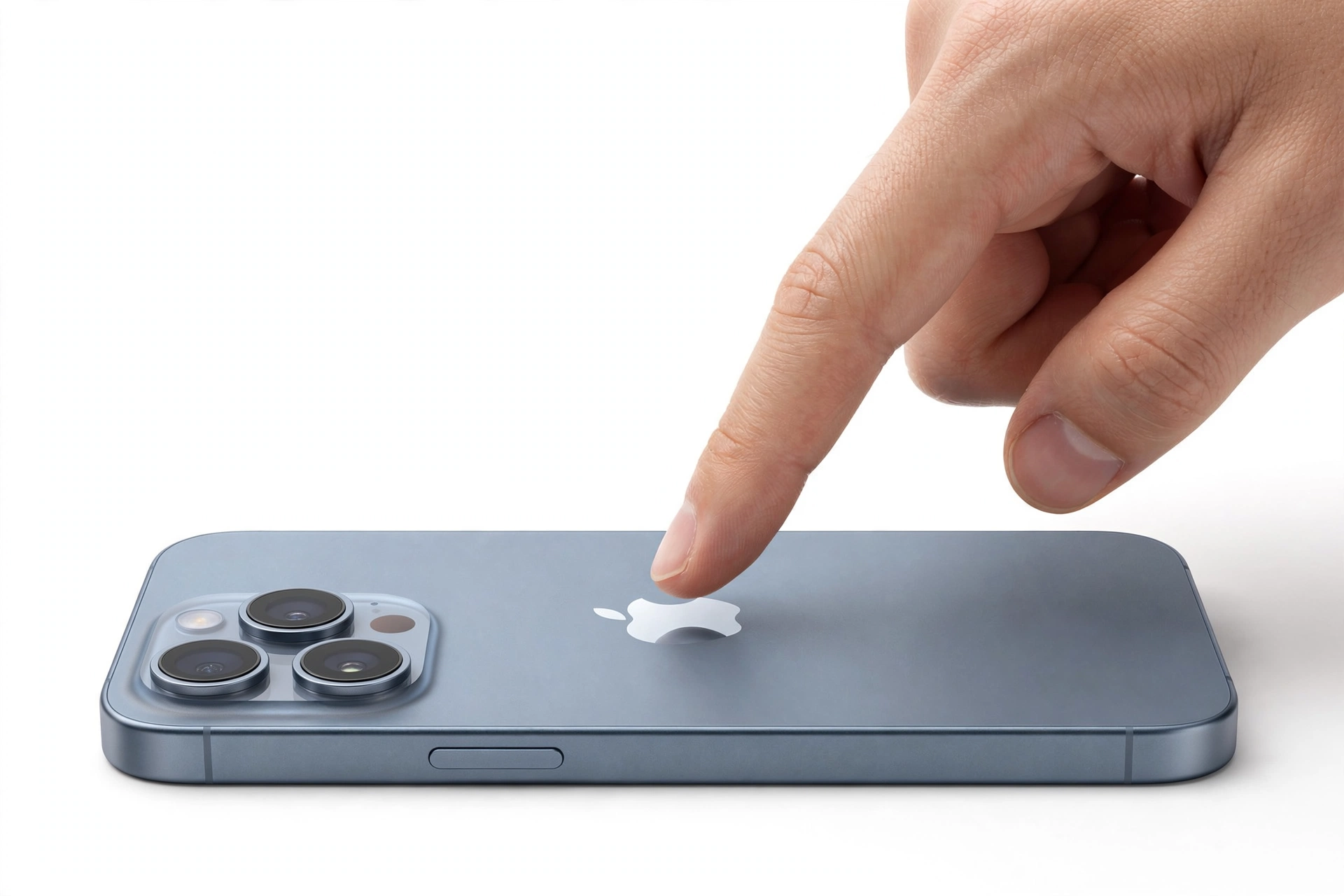
- Tap near the Apple logo. Apple describes the trigger zone as the back of the iPhone; tapping near the center — around the Apple logo — gives the most reliable registration. Many troubleshooting guides report the southwest area near the camera module works well too.
- Tap firmly and deliberately. Light, hesitant taps often fail to register. Two crisp taps in quick succession, roughly half a second apart, is the rhythm that works best.
- Remove the case. Take the case off and test Back Tap directly on the bare phone. If it works without the case, the case was the problem — thick or rugged cases are the single most common cause of weak or inconsistent Back Tap detection.
- Confirm an action is actually assigned. Go to Settings > Accessibility > Touch > Back Tap and make sure Double Tap and Triple Tap each show an action rather than “None.”
If Back Tap starts working after any of these steps, you have found your cause. If it is still dead, continue with the checks below.
4. Compatibility: Is Back Tap Even Available on Your iPhone?
Back Tap requires an iPhone 8 or later running iOS 14 or later. This is Apple’s documented requirement, and it is non-negotiable — the option simply does not appear on older hardware.
Models that do not support Back Tap include the iPhone 7 and 7 Plus, the iPhone 6s and 6s Plus and everything older, and the first-generation iPhone SE. If you have one of these models, you will not find Back Tap under Settings > Accessibility > Touch, and no update or setting can add it — the hardware requirement is built into the feature.
To check your iOS version, go to Settings > General > Software Update. If you are on an older release and your model supports Back Tap, updating to a current iOS version is the fix. Apple also advises keeping iOS current generally, since point updates frequently repair small accessibility-feature glitches — including a documented iOS 16 bug where the Scroll Up and Scroll Down Back Tap actions stopped working until Apple patched it.
5. The Case Problem, Explained
Back Tap detects taps using the iPhone’s motion sensors — the same accelerometer and gyroscope hardware that handles screen rotation and shake-to-undo. A thick, rugged, or metal case dampens the mechanical signal of your taps before it reaches those sensors. Apple itself notes that Back Tap works through a case, but adds that you may need to tap harder depending on the cover.
In practice:
- Slim cases usually work fine, though you may need slightly firmer taps.
- Thick, layered, or rugged cases are the most frequent cause of Back Tap that “used to work” — especially if you recently switched to a heavier case.
- Wallet cases with cards add mass and can further muffle tap detection.
- Metal plates or magnetic mounts on the case back can interfere with detection.
Quick test: remove the case, wake the screen, and tap firmly near the Apple logo. If Back Tap works bare but not in the case, your case is the cause — not your phone.
6. Double Tap vs. Triple Tap: When One Works and the Other Doesn’t
Back Tap offers two independent triggers — Double Tap and Triple Tap — each with its own assigned action. When one works but the other does not, the cause is almost always one of these:
- The non-working gesture is set to “None.” Check Settings > Accessibility > Touch > Back Tap and look at both entries. A gesture with no assigned action does nothing by design.
- Rhythm confusion. Three quick taps in succession are harder to time consistently than two. If triple tap fails while double tap works, slow down slightly and make each of the three taps deliberate. Pausing between the taps — rather than rushing them into one blur — usually registers better.
- The assigned action behaves differently. Remember that app-launching actions and Shortcuts require an unlocked phone, while system toggles like Lock Screen or Reachability work from the Lock Screen. If your triple tap is set to “Open Camera” and you test it on the Lock Screen, it will appear broken even though it is following Apple’s documented behavior.
- The action itself is unavailable right now. For example, a Back Tap assigned to a deleted Shortcut, or a scroll action in an app that has nothing to scroll, will silently do nothing.
If you never use one of the two gestures, consider assigning both to the same action — or setting the unused one to “None” — so there is no ambiguity about which gesture you intended.
7. The Settings Check, Done Properly
If the quick sequence did not help, re-verify the full settings path. Open Settings > Accessibility > Touch, scroll down, and tap Back Tap.
- Tap Double Tap and confirm your chosen action has a checkmark beside it. If it shows “None,” select an action.
- Go back and do the same for Triple Tap.
- If you assigned a Shortcut, open the Shortcuts app and confirm that shortcut still exists and runs when tapped manually. A deleted or broken shortcut assigned to Back Tap produces exactly the “nothing happens” symptom.
Re-enable Back Tap from scratch
A widely reported fix for Back Tap that stopped working after an iOS update is to fully re-enable the feature:
- Go to Settings > Accessibility > Touch > Back Tap.
- Set both Double Tap and Triple Tap to None.
- Force-quit the Settings app (swipe up from the bottom or double-press the Home button, then swipe Settings away).
- Reopen Settings > Accessibility > Touch > Back Tap and reassign your actions.
- Test immediately.
This clears the feature’s internal state without touching anything else on your phone.
8. The Screen-On and Lock Screen Rules
Before assuming anything is broken, make sure your expectations match the documented behavior:
- Screen must be on. Back Tap does nothing while the display is asleep. Wake the phone first.
- Unlocked vs. locked matters. Actions that launch apps, run Shortcuts, or interact with on-screen content require the phone to be unlocked. System actions — screenshot, Lock Screen, Reachability, Control Center, Notification Center — generally work from the Lock Screen too.
- Some actions conflict with context. “Lock Screen” assigned to Back Tap will not do anything visible if the phone is already locked. “Scroll Up” does nothing in an app with nothing to scroll.
A useful confirmation tool: enable the Show Banner option in the Back Tap settings. It displays a small banner whenever a tap registers, so you can tell whether the problem is detection (no banner) or the action itself (banner appears, nothing happens).
9. Restart Your iPhone
If the settings are correct, the case is off, the screen is on, and Back Tap still does nothing, restart the phone. Temporary software glitches are a documented cause of Back Tap failures — particularly right after iOS updates — and a simple restart clears them.
For a standard restart on an iPhone with Face ID, press and hold the Side button and either Volume button, drag the power-off slider, wait 30 seconds, then hold the Side button until the Apple logo appears. On models with a Home button, hold the Side (or Top) button instead.
If a standard restart does not help, a force restart is the next step: quickly press and release Volume Up, quickly press and release Volume Down, then press and hold the Side button until the Apple logo appears. (On iPhones with a Home button: hold the Home and Side buttons together until the Apple logo appears.) A force restart does not erase any data.
After the phone restarts, test Back Tap before reopening all your apps, so you know the restart itself was the fix.
10. Update iOS
Back Tap has had documented version-specific bugs — the iOS 16 scroll-action bug being the best known — and Apple’s updates have historically repaired them. If you are running anything older than the current iOS release, go to Settings > General > Software Update and install the latest version available for your model.
After updating, re-check the Back Tap assignments (Settings > Accessibility > Touch > Back Tap), since major updates occasionally reset accessibility preferences. Then re-test. For background on what software-update failures can look like more generally, see our guide on what to do when a phone won’t turn on after an update.
11. Reset All Settings (the Last Software Step)
Stop for safety: “Reset All Settings” does not erase your photos, apps, or data, but it does revert Wi-Fi passwords, wallpaper, accessibility preferences, and privacy settings to defaults. Do not confuse it with “Erase All Content and Settings,” which wipes the entire phone. Factory-erase is never the right fix for a Back Tap problem — never use it here.
If every check above has failed, Reset All Settings clears any corrupted preference that could be blocking Back Tap:
- Back up your iPhone first — our backup-before-service guide walks through the safe options.
- Go to Settings > General > Transfer or Reset iPhone > Reset > Reset All Settings.
- Enter your passcode when asked and confirm.
- The phone restarts with settings at defaults. Reconfigure Back Tap at Settings > Accessibility > Touch > Back Tap and test.
If Back Tap still does nothing after this step, the remaining possibilities are hardware-level, and further DIY attempts will not help — see the “when to stop” section below.
12. Symptom Worksheet: Match What You See to the Likely Cause
| Symptom | Likely cause | Try first |
|---|---|---|
| Nothing happens when tapping the back | Action set to “None,” or screen asleep | Wake the screen; check Settings > Accessibility > Touch > Back Tap |
| Worked before, stopped after an iOS update | Software glitch; assignments may have reset | Restart; re-enable Back Tap from scratch; update iOS |
| Works without the case, not with it | Thick or rugged case dampening taps | Tap harder, switch to a slim case, or test bare |
| Double Tap works, Triple Tap doesn’t | Triple Tap set to “None,” or timing too fast | Assign an action; slow the three taps down |
| Banner appears but nothing happens | Assigned action unavailable in this context | Unlock the phone; check the Shortcut still exists |
| No banner at all with Show Banner on | Taps not registering | Tap firmly near the Apple logo; remove the case |
| Scroll Up/Down actions don’t work | Version-specific software bug | Update to the latest iOS; choose a different action meanwhile |
| Shortcut action stopped working | Shortcut was edited or deleted | Run the Shortcut manually; reassign it in Back Tap |
| Back Tap triggers randomly | Overly sensitive detection or accidental taps | Set the unused gesture to “None”; adjust how you handle the phone |
| Option doesn’t appear in Settings | iPhone 7 or older, or iOS below 14 | Check model and iOS version — the feature isn’t supported on that device |
13. Hypothetical Examples
(The following are hypothetical illustrations, not customer stories.)
Hypothetical example: Maya sets Double Tap to take a screenshot and it works perfectly for months. After upgrading to a thick armored case, Back Tap stops responding. She removes the case and taps near the Apple logo — Back Tap works immediately. The phone was fine all along; the new case was muffling the taps. She switches to a slim case and taps a little more firmly, and the feature works again.
Hypothetical example: Daniel updates his iPhone and his Triple Tap shortcut stops running. He checks Settings > Accessibility > Touch > Back Tap and finds both gestures still assigned — but when he opens the Shortcuts app, the shortcut itself was deleted during the update cleanup. He recreates it, reassigns it to Triple Tap, enables Show Banner to confirm registration, and everything works. The detection hardware never failed; the assigned action was simply gone.
14. What Your Checks Can and Cannot Establish
| Observation | What it establishes | What it cannot establish |
|---|---|---|
| Works with case off, not with case on | The case is blocking detection | Whether the sensors themselves are healthy |
| Banner appears, action doesn’t run | Taps are registering; the action or context is the problem | Which internal step is failing |
| Fixed by restart or re-enable | A temporary software glitch was the cause | That it won’t recur after the next update |
| Persists after Reset All Settings | Software configuration is almost certainly not the cause | Exactly which hardware component is at fault |
| Never worked since a drop | Possible sensor damage from the impact | Whether repair is economical vs. using alternatives |
15. When to Stop Troubleshooting and Seek Assessment
Stop the DIY sequence and get a professional assessment if any of these apply:
- Back Tap fails after Reset All Settings with a supported model and current iOS — the remaining causes are hardware-level.
- The failure began immediately after a drop, impact, or liquid exposure, and other motion-sensor behaviors (screen rotation, shake-to-undo) also misbehave.
- The iPhone shows physical damage — cracked back glass, a bent frame, or a swollen battery (stop using it and do not charge it; a swollen battery is a safety issue, not a settings problem).
- You are also seeing broader system instability — for guidance on those, see iPhone stuck on Apple logo, iPhone screen flickering, or intermittent touch screen fixes.
No home troubleshooting can repair damaged motion sensors, and opening the phone yourself voids remaining coverage and risks battery damage. A professional assessment can confirm whether the sensors respond at all and advise on repair options.
Do not attempt a factory erase (“Erase All Content and Settings”) for a Back Tap problem. It will not fix a hardware fault, and it puts your data at risk for no benefit. Back up first — always — before any reset.
16. Frequently Asked Questions
Does Back Tap work with a case on?
Apple says Back Tap works through a case, but you may need to tap harder depending on the cover. In practice, slim cases work fine; thick, rugged, or metal-plated cases are the most common cause of weak or failed detection. Test with the case off to rule it out.
Why does Back Tap do nothing when my screen is off?
That is the documented behavior — Back Tap only functions when the screen is on. Wake the phone with the Side button or a screen tap first, then double-tap the back.
Do I need to tap the Apple logo exactly?
No. Apple describes the trigger area as the back of the iPhone. Tapping near the center — around the Apple logo — gives the most reliable registration, and many users report the area near the camera module works well. Exact placement matters less than firm, deliberate taps.
Can I use Back Tap on the Lock Screen?
It depends on the action. System actions like Lock Screen, Reachability, Control Center, and screenshot generally work from the Lock Screen. Actions that launch apps or run Shortcuts require the phone to be unlocked.
Why did Back Tap stop working after an iOS update?
Updates can introduce temporary glitches or reset accessibility preferences. The standard fix sequence is: restart the phone, re-enable Back Tap from scratch (set both gestures to None, force-quit Settings, reassign), and install any newer iOS update that patches the issue.
Which iPhones support Back Tap?
iPhone 8 and later running iOS 14 or later. The iPhone 7 and 7 Plus, iPhone 6s and older, and the first-generation iPhone SE do not support it, and the option will not appear in Settings on those models.
Will resetting all settings delete my photos?
No — “Reset All Settings” only returns settings to defaults and does not erase photos, apps, or data. But do not confuse it with “Erase All Content and Settings,” which wipes the phone completely. Always back up before any reset.
Is there an alternative if Back Tap can never work on my phone?
Yes. AssistiveTouch provides an on-screen menu for the same kinds of actions (screenshot, Lock Screen, Control Center, custom gestures) and works on every iPhone model. Enable it at Settings > Accessibility > Touch > AssistiveTouch.
Video: How to tell if your smartphone is fake or real
Sources and editorial notes
- Apple Support — Use Back Tap on your iPhone: Apple’s official setup steps (Settings > Accessibility > Touch > Back Tap), iPhone 8 and iOS 14 minimum requirements, Double Tap and Triple Tap action assignment, Accessibility Shortcut triggers, and turning the feature off by choosing None. (Last checked October 13, 2026.)
- MacRumors — How to Trigger Actions and Shortcuts by Tapping the Back of Your iPhone: corroborating setup path and the iPhone 8 / iOS 14 requirement, plus the Shortcut-based custom action flow. (Last checked October 13, 2026.)
- Guiding Tech — Ways to Fix Back Tap Not Working on iPhone: compatibility list, bulky-case interference, tap-near-camera technique, restart and update steps. Cited for corroboration only. (Last checked October 13, 2026.)
- iPhoneTricks — How to Fix Back Tap Not Working on iPhone: the re-enable procedure (set to None, force-quit Settings, reassign) reported after iOS updates. Cited for corroboration only. (Last checked October 13, 2026.)
- MakeUseOf — iPhone Back Tap hidden trick: screen-must-be-on behavior, Lock Screen action limitations, thick-case detection issues, and the Show Banner confirmation option. Cited for corroboration only. (Last checked October 13, 2026.)
Last source check: October 13, 2026. AI-assisted editorial guide, checked against the linked manufacturer information. Procedures described here follow Apple’s published support guidance; third-party sources are cited only for corroboration. Menu paths and feature behavior can change with software updates — if a setting differs on your phone, check Apple’s current support pages. If your iPhone needs hands-on assessment, Las Vegas Phone Repair & Accessories is at 7400 Las Vegas Blvd S, Unit TT42, Las Vegas, NV 89123 — call (424) 406-6202 ahead to confirm today’s hours (generally 10:00 AM–8:00 PM).
Let’s get you connected again.
Tell us what’s happening with your device and we’ll help you decide the safest next step — no jargon, no pressure.
Las Vegas Phone Repair & Accessories · 7400 Las Vegas Blvd S, Unit TT42, Las Vegas, NV 89123
10:00 AM–8:00 PM — call ahead to confirm today’s hours