
Phone Notification Sounds Not Working: Causes and Safe Fixes
Notification sounds usually stop because of a silent setting — the Ring/Silent switch, Do Not Disturb or Focus, a muted volume, or audio routed to a Bluetooth device — and the fix is a short ordered check, not a reset. This guide walks through the safe checks for iPhone and Samsung/Android, per-app sound settings, system sounds, and how to tell when the speaker itself needs professional assessment.
On this page
Notification sounds usually stop because of a silent setting — the Ring/Silent switch, Do Not Disturb or Focus, a muted volume, or audio routed to a Bluetooth device — and the fix is a short ordered check, not a reset.
1. Who this guide helps
This guide is for anyone whose phone no longer plays sounds for notifications — text message chimes, email alerts, app pings, or system sounds — while other parts of the phone may still work fine. It applies to iPhones and Samsung Galaxy phones and other Android phones. (Source: support.apple.com)
It is distinct from three related guides you may also find useful:
- If your phone does not ring for incoming calls but other notifications seem fine, see our guide on phone not ringing for incoming calls, which covers call-specific routing and carrier behavior.
- If the phone’s speaker sounds wrong — crackling, distorted, or muffled — for every sound, see our guide on phone speaker crackling and distortion.
- If you cannot hear the other person during calls but everything else plays sound, see our guide on phone speakerphone not working during calls.
Notification sounds are the small audio cues that tell you a text, email, or app alert arrived. They are different from your ringtone (which is for incoming calls) and from media sounds (music, videos, games). Phones control these sounds in several layers — hardware switches, volume sliders, sound modes, Focus modes, per-app settings, and Bluetooth routing — and a notification sound can be silenced at any one of those layers while everything else still works.
2. The five-minute fix sequence
Most notification-sound problems are fixed by the first three steps below. Work through them in order and test after each change (ask someone to send you a text message, or set a one-minute timer):
- Check the hardware silent control (iPhone). iPhones have a physical Ring/Silent switch above the volume buttons; newer models (iPhone 15 Pro and later, iPhone 16 line) use an Action button instead. If the phone is silenced, notifications vibrate or stay quiet. Push the switch toward the screen so no orange is visible, or press and hold the Action button and confirm the phone is not in silent mode.
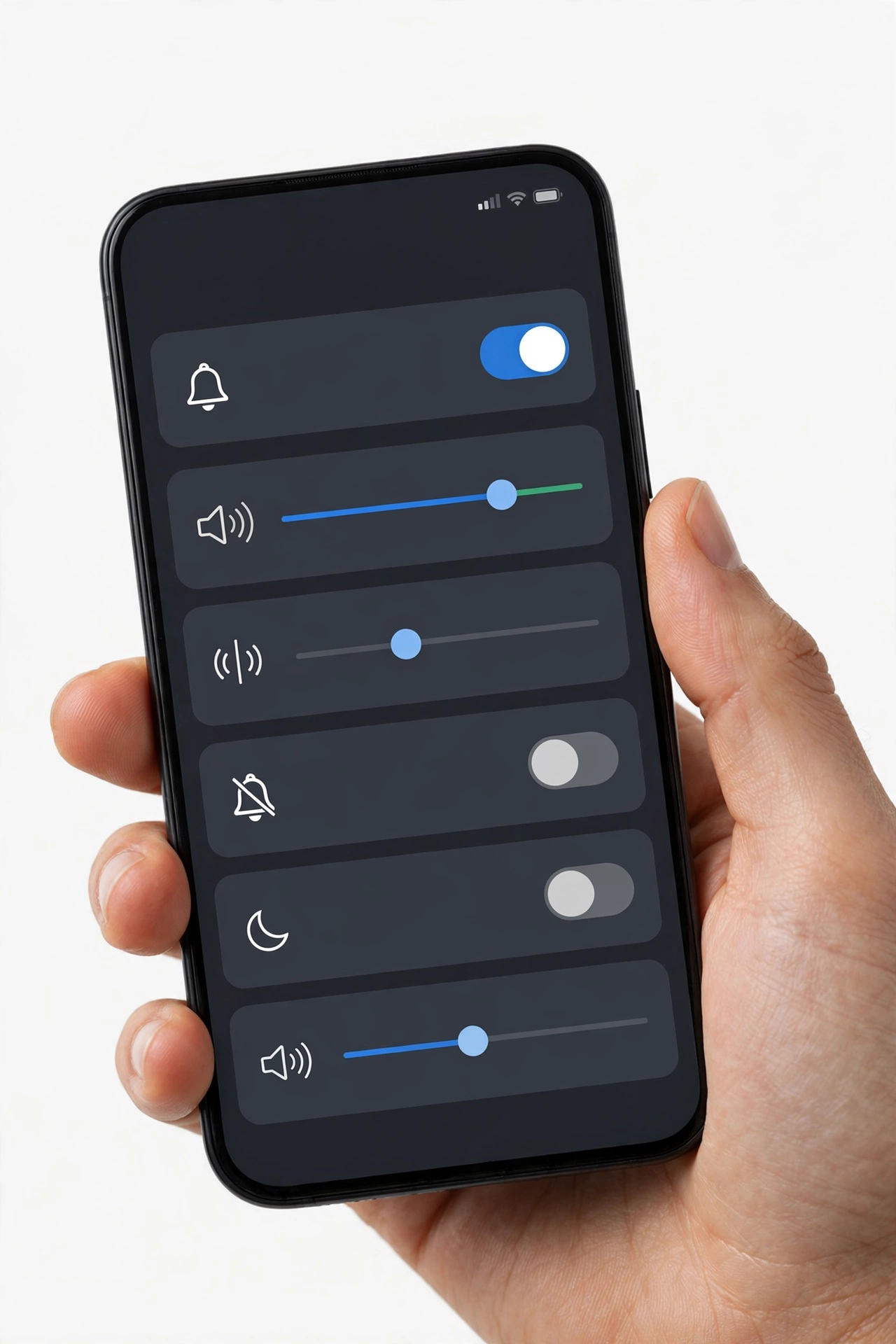
- Check the sound mode and notification volume. On Samsung phones, swipe down for Quick Settings and make sure the sound icon shows the bell (sound on), not a vibration or muted symbol. On both iPhone and Samsung, notification volume is separate from media volume: turn up the volume while not playing media, or open Settings and find the notification/alerts volume slider. On Samsung, press a volume button and tap the small arrow to open the full slider panel, then raise the Notifications slider.
- Turn off Do Not Disturb and Focus modes. Do Not Disturb silences notification sounds. On iPhone, check Control Center for an active Focus (crescent moon icon) and turn it off; on Samsung, check the Quick Settings panel for Do Not Disturb and turn it off.
- Disconnect Bluetooth devices. If earbuds, a watch, a speaker, or a car system is connected, notification sounds may be playing through that device instead of the phone’s speaker. Turn Bluetooth off temporarily and test.
- Check the specific app’s notification settings. On iPhone, go to Settings > Notifications, select the app, make sure Allow Notifications is on and that Sounds is enabled (not set to None). On Samsung, go to Settings > Notifications > App notifications, select the app, and check its notification categories — each category can have its own sound setting.
If sounds return after any of these steps, you have found the cause. If not, the deeper sections below cover each layer in detail.
Quick facts: silent switches and Focus/Do Not Disturb account for the large majority of “my notification sounds stopped” cases. Always rule those out before changing anything else.
3. How phone notification sounds actually work
Understanding the layers makes troubleshooting much faster, because each layer can silence notifications independently:
3.1. The layers, from hardware to app
- Hardware mute control. iPhone’s Ring/Silent switch or Action button; on most Android phones there is no hardware mute switch, so this layer rarely applies.
- System sound mode. Samsung phones have a system-wide Sound mode: Sound, Vibrate, or Mute, toggled from Quick Settings or Settings > Sounds and vibration.
- Volume channels. Phones keep separate volume sliders for ringtones/alerts, notifications, media, calls, and alarms. The volume buttons adjust whichever channel is currently active — raising media volume during a video does nothing for notification volume.
- Do Not Disturb / Focus. System modes that suppress notification sounds on a schedule or while active.
- Audio routing. Bluetooth devices, wired headphones, and special features like Samsung’s Separate app sound can send notification audio somewhere other than the phone speaker.
- Per-app notification settings. Each app has its own allow/block setting, alert style, and sound choice — including a “None” option that silences that app’s notifications.
- In-app settings. Many apps (WhatsApp, Messenger, banking apps) have their own notification sound settings that can override or supplement the system settings.
3.2. Why one app can be silent while others chime
This is one of the most confusing patterns: texts chime but WhatsApp stays silent, or Gmail pings but your calendar makes no sound. It happens because of layers 6 and 7 — the specific app’s system notification settings or its own in-app settings. When only one app is affected, the cause is almost always in that app’s settings, not in the phone’s system sound settings.
3.3. Why sounds work at some times but not others
Intermittent notification sounds usually point to a scheduled mode: a Sleep Focus that runs at night, Do Not Disturb with a schedule, or a “Driving” Focus that activates automatically. If sounds always fail at certain hours, check scheduled Focus modes and Do Not Disturb schedules before suspecting hardware.
4. iPhone: the complete check sequence
4.1. Ring/Silent switch and Action button
Check the Ring/Silent switch on the upper-left edge of older iPhones. If you can see orange, the phone is silenced — push the switch toward the screen. On iPhone 15 Pro, iPhone 15 Pro Max, the iPhone 16 line, and newer models, the Action button replaces the switch: press and hold it to toggle silent mode, and check the on-screen indicator or the bell icon in the status area.
Note that when an iPhone is silenced, it still vibrates for alerts (if vibration is enabled) and still plays media sounds. This is exactly the pattern of “no notification sounds but music works” — silent mode, not a broken speaker.
4.2. Sounds & Haptics volume
Go to Settings > Sounds & Haptics. Under “Ringer and Alerts,” make sure the volume slider is at a comfortable level. If “Change with Buttons” is off, the volume buttons will not affect this slider — you must adjust it here. Tap the Ringtone row to hear the selected ringtone, which also tests the speaker.
4.3. Focus modes (Do Not Disturb, Sleep, Work, Personal)
Open Settings > Focus and look for any active Focus. An active Focus shows in Control Center and often on the Lock Screen. Tap the active Focus to turn it off, or customize it:
- Under “Allowed Notifications,” check whether People and Apps you care about are allowed.
- Check “Time Sensitive Notifications” — enabling it lets important notifications break through the Focus.
- Look for schedules or automations that turn the Focus on automatically (for example, a Sleep schedule that starts at bedtime).
Apple’s own support guidance notes that Focus lets you stay in the moment but also that notifications from people and apps not on the allowed lists will be silenced while the Focus is active.
4.4. Per-app notification settings
Go to Settings > Notifications and tap the app that is not making sounds:
- Make sure Allow Notifications is on.
- Under “Alerts,” choose where alerts appear (Lock Screen, Notification Center, Banners).
- Tap Sounds and choose a tone — if it is set to None, the app’s notifications will be silent. Choose any tone.
- For Mail, note that each email account has its own alert tone; check the tone per account.
Apple’s support documentation for notification settings describes exactly this flow: select the app under Notifications, turn on Allow Notifications, then choose how and where notifications appear.
4.5. Muted conversations and unknown senders (Messages)
If only one contact or thread is silent in Messages, that conversation may be muted: open the thread, tap the contact name at the top, and make sure “Hide Alerts” is off. Also check Settings > Messages > Unknown & Spam and see whether messages are being filtered to the Unknown Senders folder — filtered messages do not play sounds.
4.6. Text tone set to None for a contact
Each contact can have a custom text tone. Open the contact card and check that Text Tone is not set to “None” (or “Default (None)”). A contact-level “None” tone silences that person’s messages even when everything else is correct.
4.7. Announce Notifications and Critical Alerts
If Siri’s “Announce Notifications” is on for an app, Siri reads the notification aloud instead of playing the app’s sound — this can feel like the sound “changed.” Turn it off per app in Settings > Notifications if you prefer the normal tone. “Critical Alerts,” where available, are a separate per-app switch that lets supported apps break through silences — check it for apps like security or weather apps if you want them always audible.
4.8. Paired Apple Watch routing
Apple’s support guidance notes an important default: when you use an Apple Watch, notifications go to either your Apple Watch or your iPhone — not both. If your watch is on your wrist and unlocked, notification sounds may play on the watch while the phone stays quiet. This is normal behavior. If you want the phone to sound as well, adjust notification behavior in the Watch app.
4.9. Bluetooth and AirPlay routing
If your iPhone is connected to Bluetooth headphones, a speaker, or a car system, notification sounds play through the connected device. Temporarily turn off Bluetooth (Settings > Bluetooth) and test again. This also applies to AirPlay speakers.
5. Samsung Galaxy and Android: the complete check sequence
5.1. Sound mode: Sound, Vibrate, or Mute
Swipe down from the top of the screen to open the Quick Settings panel and look at the sound icon. Tap it until it shows the bell (Sound). You can also go to Settings > Sounds and vibration and select Sound under “Sound mode.”
5.2. The notification volume slider
Press a volume button on the side of the phone, then tap the small arrow or expand icon on the on-screen volume panel to reveal all sliders, including Notifications. Make sure the Notifications slider is turned up. Because volume buttons adjust the currently active channel, testing volume “while a video is playing” only tests media volume — the notification channel can still be at zero.
5.3. Do Not Disturb and Modes
Swipe down to Quick Settings and make sure the Do Not Disturb icon is off. Then go to Settings > Notifications > Do Not Disturb and check:
- Whether it is scheduled to turn on automatically (bedtime schedules are the most common surprise).
- What is allowed under “Calls, messages, and conversations” and “Alarms and sounds.”
- Samsung’s Modes and Routines, which can enable Do Not Disturb-like behavior for sleep, work, or driving.
5.4. Per-app settings and notification categories
Go to Settings > Notifications > App notifications, select the app that is silent, and verify notifications are on. Then tap Notification categories — Android lets each app define categories (for example, “Messages” vs. “Promotions” inside one app), and each category has its own sound setting. A category set to Silent will stay silent even when the app’s main switch is on.
5.5. In-app notification settings
Open the app’s own settings (for example, WhatsApp > Settings > Notifications) and check its message and group notification tones. Many apps default to their own sounds; some updates reset them to “Default” or “Silent.”
5.6. Separate app sound
Samsung’s “Separate app sound” feature (Settings > Sounds and vibration > Separate app sound) sends audio from selected apps to a different output device, such as a Bluetooth speaker. If an app’s notifications seem to vanish, check whether the app is listed here and turn the feature off.
5.7. Bluetooth and connected devices
As on iPhone, a connected Bluetooth device captures notification audio. Disconnect earbuds, speakers, and car systems — or turn Bluetooth off temporarily — and test with the phone speaker alone.
5.8. Mute all sounds (accessibility)
Samsung support guidance points to the accessibility setting “Mute all sounds” (Settings > Accessibility > Hearing enhancements) as a check when notification audio is missing. Make sure it is off.
5.9. Smartwatch muting the phone
If a Galaxy Watch or other smartwatch is paired, it may mute notifications on the phone. In the Galaxy Wearable app, go to Watch settings > Notifications and check “Mute connected phone” — turn it off if it is on.
6. Symptom-to-cause worksheet
Use this table to match what you observe with the most likely cause:
| Symptom | Likely cause | Fix to try first |
|---|---|---|
| No notification sounds at all, on iPhone | Ring/Silent switch or Action button in silent mode | Flip the switch / press and hold Action button; confirm sounds return |
| No notification sounds at all, on Samsung | Sound mode set to Vibrate or Mute | Quick Settings sound icon → Sound (bell); raise Notifications slider |
| Sounds work except at night or certain hours | Scheduled Sleep Focus / Do Not Disturb schedule | Settings > Focus (iPhone) or Notifications > Do Not Disturb (Samsung); remove or adjust the schedule |
| Only one app is silent | Per-app sound set to None, or muted in the app’s own settings | Settings > Notifications > [app] > Sounds; also check in-app notification settings |
| Only one contact or thread is silent | Conversation muted (Hide Alerts) or contact tone set to None | Unmute the thread; check the contact’s Text Tone setting |
| Sounds play, but from earbuds/speaker/car instead of the phone | Audio routed to a connected Bluetooth device | Turn Bluetooth off temporarily and test; remove unused pairings |
| Media is loud but notifications are silent | Notification volume channel turned down | Adjust the Notifications slider in Settings, not with the volume buttons during media playback |
| Sounds stopped right after a software update | Settings changed or reset by the update | Re-check Focus schedules, per-app sounds, and volume sliders; update apps |
| Notification sounds are very quiet even at full volume | Wrong tone chosen, or speaker grille partially blocked | Choose a louder tone; check the speaker grille for lint or a misaligned case |
| No sounds anywhere — music, calls, and alarms are all silent | Possible speaker or audio hardware fault | See section 9 (hardware checks); seek professional assessment |
7. What observations can and cannot establish
Being honest about what a check proves saves you from replacing a phone that only needs a setting changed:
| Observation | What it establishes | What it does NOT establish |
|---|---|---|
| Sounds return after flipping the silent switch | The cause was silent mode, not hardware | That it will not happen again (check what silenced it) |
| Sounds return after turning off a Focus mode | A Focus mode was suppressing the sounds | Which schedule or automation turned it on |
| Music and alarms play, but notifications are silent | The speaker works; the cause is in a notification setting | Which setting — keep checking the layers |
| All sounds are absent everywhere | The problem may be the speaker, the audio path, or a deep system issue | That the speaker is definitely broken — software can mute everything |
| Sounds work after a restart | A temporary software glitch was the cause | That the glitch will not recur |
| Sounds work in Safe Mode (Samsung/Android) | A third-party app is interfering | Which app — remove recently installed apps one at a time |
8. Hypothetical examples
(The following are hypothetical illustrations, not customer stories.)
Hypothetical example: Maya notices her Galaxy S24 has not chimed for texts all afternoon, but music plays fine. She swipes down and sees the sound icon shows a vibration symbol — she had switched to vibrate during a meeting and forgotten. One tap back to Sound, and the next text chimes normally.
Hypothetical example: Daniel’s iPhone stops making sounds for his banking app after an iOS update. Calls still ring. He goes to Settings > Notifications > [banking app] and finds the update reset its Sounds to None. Choosing a tone fixes it in under a minute — no restart, no reset, no repair needed.
9. When the problem is hardware, not settings
A settings cause is likely when some sounds work. Consider hardware when:
- No sound comes from the speaker in any app — music, calls on speakerphone, alarms, and notification test tones are all silent, even after checking every setting and restarting.
- Sounds are distorted or cut in and out at all volumes, even with a clean grille — see our guide on phone speaker crackling and distortion.
- The phone was dropped or got wet shortly before the sounds stopped.
Before concluding it is hardware, try the safe software steps once more: a normal restart, checking the speaker grille for lint or debris (clean gently with a soft dry brush — never use sharp objects, liquids, heat, or compressed air), and, on Samsung, testing in Safe Mode to rule out a misbehaving third-party app. On Samsung, Safe Mode disables third-party apps temporarily; if notification sounds work in Safe Mode, a recently installed app is the likely culprit.
Stop for safety: never open the phone yourself to reach the speaker, and never use needles, pins, liquids, heat, or compressed air to “clean” a speaker grille. If the phone is swollen, distorted, or dangerously hot, do not charge it and seek professional assessment promptly.
10. The deeper software fixes (in the right order)
If the quick sequence and the per-platform checks did not help, work through these in order — stopping as soon as sounds return:
- Restart the phone. A normal power-off and power-on clears temporary audio glitches.
- Install software and app updates. Update iOS or Android and update the affected apps — updates sometimes reset or fix notification behavior.
- Reset all settings (not a factory reset). On iPhone: Settings > General > Transfer or Reset iPhone > Reset > Reset All Settings. On Samsung: Settings > General management > Reset > Reset all settings. This returns settings to defaults without deleting your data.
- Seek professional assessment. If no software step restores sounds and the speaker fails the hardware checks above, the cause may be the speaker module or the audio circuitry — a hands-on diagnosis is the right next step.
Never perform a factory erase (factory data reset) just to fix notification sounds. It deletes everything on the phone and rarely fixes a problem that a settings reset or restart would not — and it is irreversible without a backup. Back up first, and treat a factory reset as an absolute last resort.
11. Prevention: keep notification sounds working
- Learn what your Focus/Do Not Disturb schedules do. Review scheduled modes after setting them up so bedtime or work modes do not surprise you.
- Check per-app sounds after updates. Software and app updates occasionally reset notification tones to None.
- Disconnect Bluetooth devices you are not using. Old pairings that auto-connect in the car or at home quietly steal notification audio.
- Use distinct tones for important apps. A unique tone for messages or security apps makes it obvious when something changes.
- Keep the speaker grille clear. A soft dry brush during regular cleaning prevents lint buildup that muffles every sound.
12. Frequently asked questions
Why do I get notifications on screen but no sound?
The most common reasons are silent mode (iPhone switch or Action button), a sound mode set to Vibrate/Mute (Samsung), an active Do Not Disturb or Focus mode, or the app’s notification sound set to None. The banner proves the notification arrived — only the audio layer is silenced.
Why does my phone vibrate for notifications but make no sound?
On iPhone, that is the classic sign of silent mode: the phone vibrates for alerts while silenced. Flip the Ring/Silent switch or check the Action button. On Samsung, the sound mode may be set to Vibrate — switch it to Sound in Quick Settings.
Why do texts from one person never make a sound?
That conversation is likely muted (Hide Alerts in Messages), the contact’s text tone is set to None, or the messages are landing in an Unknown Senders or spam folder. Each takes under a minute to check and fix.
Why is there no sound when the app is already open?
Many phones skip the notification sound when you are already looking at the app — the new message simply appears in the conversation. Nothing is broken; the sound only plays when the app is in the background.
Why do my notification sounds play through my earbuds instead of the phone?
When a Bluetooth device is connected, notification audio routes to it. Turn Bluetooth off temporarily or disconnect the device, and the phone speaker will play the sounds again.
Why did notification sounds stop after a software update?
Updates can reset per-app sound choices, re-enable Focus schedules, or change default tones. Re-check the app’s Sounds setting, your Focus/Do Not Disturb schedules, and the notification volume slider.
Do texts make a sound during Do Not Disturb?
No, unless you allow that person or app in the Focus settings, or enable Emergency Bypass for a specific contact. Turn the Focus off and sounds return immediately.
When should I have the phone professionally assessed?
When no sound comes from the speaker in any app — music, calls, alarms, and notification tones are all silent — after you have checked every setting, restarted, and (on Samsung) tested in Safe Mode. That pattern points to the speaker or audio hardware, which needs hands-on diagnosis.
Video: How to tell if your smartphone is fake or real

Sources and editorial notes
- Apple Support — How to get notifications on your iPhone and Apple Watch: Apple’s documented notification settings flow, silent-mode behavior, Focus settings, per-app controls, Messages notification behavior, and the note that notifications go to either Apple Watch or iPhone by default. (Last checked October 13, 2026.)
- SamMobile — Why am I not getting a sound when I get a notification?: corroboration of Samsung sound modes, the separate notification volume slider, and Do Not Disturb as the leading causes. (Last checked October 13, 2026.)
- Seber Tech — Galaxy notification sounds fix: corroboration of Samsung per-app notification categories, Do Not Disturb settings, and volume checks. (Last checked October 13, 2026.)
- The Droid Guy — Galaxy S23 notification sounds: corroboration of Safe Mode testing, accessibility checks, and when to contact Samsung Support for hardware issues. (Last checked October 13, 2026.)
- Tablet Monkeys — Samsung notification sound solutions: corroboration of Separate app sound, Bluetooth routing, and the Galaxy Wearable “mute connected phone” setting. (Last checked October 13, 2026.)
- The Gadget Buyer — iPhone text sound checks: corroboration of Hide Alerts, contact text tones, Unknown Senders filtering, and Emergency Bypass. (Last checked October 13, 2026.)
Last source check: October 13, 2026. AI-assisted editorial guide, checked against the linked manufacturer information. Procedures described here follow Apple’s and Samsung’s published support guidance; third-party sources are cited only for corroboration. Settings names and menu paths can change with software updates — if a setting differs on your phone, check the manufacturer’s current support pages. If your phone needs hands-on assessment, Las Vegas Phone Repair & Accessories is at 7400 Las Vegas Blvd S, Unit TT42, Las Vegas, NV 89123 — call (424) 406-6202 ahead to confirm today’s hours (generally 10:00 AM–8:00 PM).
Let’s get you connected again.
Tell us what’s happening with your device and we’ll help you decide the safest next step — no jargon, no pressure.
Las Vegas Phone Repair & Accessories · 7400 Las Vegas Blvd S, Unit TT42, Las Vegas, NV 89123
10:00 AM–8:00 PM — call ahead to confirm today’s hours