
Phone Won’t Charge After Update: Causes and Safe Fixes
If your phone stopped charging right after a software update, the update is the most likely trigger — usually through heat, a settings change, or a software glitch — but it is not the only suspect. The fix sequence is: rule out heat and accessories first, then work through the software checks in order, and treat a factory reset as the last software step before professional assessment.
On this page
If your phone stopped charging right after a software update, the update is the most likely trigger — usually through heat, a settings change, or a software glitch — but it is not the only suspect.
1. Why a software update can stop charging: the three real mechanisms
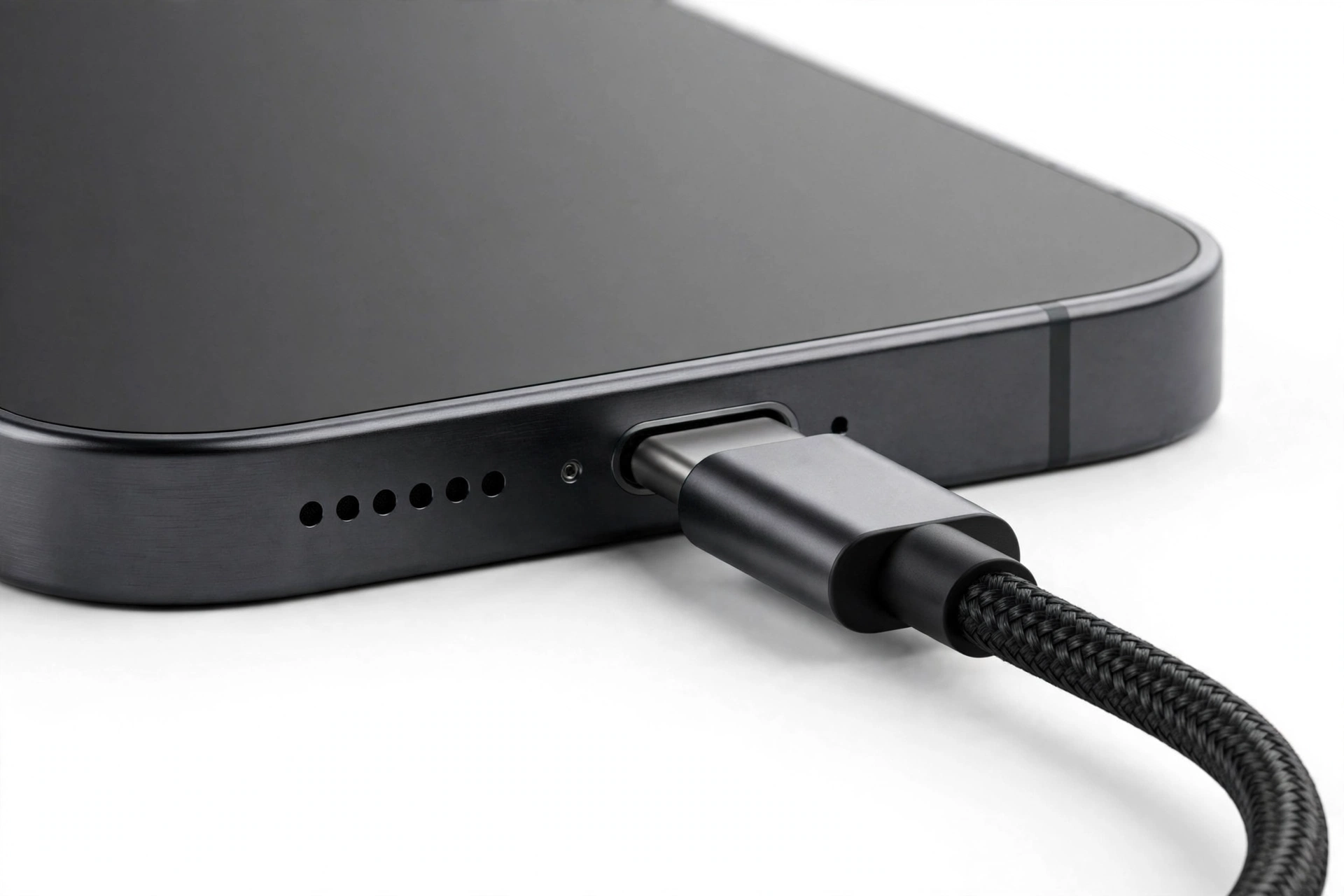
A software update does not physically damage a battery or charging port. When charging stops right after an update, one of three things is usually happening. Understanding which one applies to your phone saves a lot of wasted effort. (Source: macobserver.com)
Mechanism 1: Heat-based charging pause (very common)
Major updates make a phone work hard: re-indexing files, updating apps, syncing data, and optimizing the system. That work generates heat. Both Apple and Samsung document that charging slows or stops when a device is too warm — it is a built-in protection, not a malfunction. Apple’s temperature support documentation states that charging, including wireless charging, slows or stops when a device is too warm, and it specifically lists completing a software update — particularly a major release — among the documented causes of that warmth. A separate Apple support article covers the case where an iPhone or iPad is temporarily too hot or too cold to charge, and the recommended fix is to turn the device off, move it to a cooler environment away from direct sunlight, and let it cool. If your phone feels warm to the touch and refuses to charge, this is the most likely explanation, and it usually resolves on its own.
Mechanism 2: A settings or software glitch
Updates occasionally change charging-related settings, corrupt a preference file, or introduce a genuine bug. Reported cases include phones that charge while powered off but not while powered on — a pattern that points squarely at software, since the hardware path demonstrably works. Tech press and community forums have carried such reports after both iOS and One UI updates. These are fixable with software steps, and this article walks through them in order.
Mechanism 3: Coincidence
This one is uncomfortable but honest: sometimes a cable frays, a port fills with lint, or a battery degrades past a threshold at roughly the same time an update installs. The update gets the blame because it is the visible change. The accessory and port checks in this guide exist precisely to catch this scenario before you erase your phone chasing a software bug that was never there.
Quick fact: “Stopped charging after an update” and “won’t charge at all” are different problems with different checklists. This guide covers the after-update case. If your phone never charged reliably even before the update, start with our general guides: iPhone not charging or Samsung Galaxy not charging.
2. The first five minutes: what to check immediately
Before diving into settings, run this quick sequence. It takes five minutes and rules out the most common causes.
- Feel the phone. Is it warm or hot? If yes, stop: let it cool in a room-temperature spot away from direct sunlight, then try charging again. Do not put it in the freezer — rapid cooling risks condensation inside the device.
- Try a different cable and charger. Use a known-good combination, ideally the manufacturer’s own charger. A surprising number of “after update” charging failures turn out to be a dying cable that finally gave up.
- Try a different wall outlet. Faulty outlets and worn power strips are more common than people expect.
- Remove the case. Cases trap heat and can interfere with wireless charging alignment.
- Restart the phone. A plain restart clears transient software glitches and is the single most effective first step for post-update issues.
3. iPhone: the iOS steps in order
If the quick checks did not help, work through these iPhone-specific steps in order. Stop when charging resumes.
Step 1: Check for a follow-up update
Apple frequently releases a small patch (for example, iOS x.0.1) within days of a major release, and charging fixes have appeared in such patches. Go to Settings → General → Software Update and install anything offered. Keep the phone connected to power while it installs if possible.
Step 2: Check battery health and charging status
Go to Settings → Battery → Battery Health & Charging. Note the maximum capacity. If it is significantly degraded (well under 80%), the battery may no longer accept a charge normally — and the update was coincidental. This check also shows which charging optimizations are active.
Step 3: Restart, then force-restart if needed
A normal restart first. If the phone is unresponsive to the charger, a force restart (volume up, volume down, then hold the side button on modern iPhones) can clear deeper software stalls.
Step 4: Try Optimized Battery Charging and Clean Energy Charging toggles
These are covered in detail in section 5 below, but they belong early in the sequence because they are the most update-specific setting changes.
4. iPhone: the heat pause in detail
This deserves its own section because it is the single most common reason an iPhone stops charging after a major iOS update — and the one people are most likely to misdiagnose as damage.
After a major update, an iPhone can spend hours or even days re-indexing photos, updating apps, and re-syncing data. During this period it runs warm, and Apple’s documented behavior is that charging slows or stops until the device cools. You may also see a notification that charging is on hold due to temperature. This is expected behavior, not a fault, and Apple treats it that way in its support documentation.
- What to do: Stop using the phone, remove the case, and leave it in a cool, ventilated spot. Let background tasks finish — they usually complete within 24–48 hours.
- What not to do: Do not repeatedly unplug and replug the charger, do not charge in direct sunlight or a hot car, and do not put the phone in a freezer or in front of air conditioning vents blowing ice-cold air directly at it.
- When it is not heat: If the phone is at room temperature, has been idle for hours, and still will not charge, move on to the software steps. Heat was not the cause.
5. iPhone: Optimized Battery Charging and Clean Energy Charging
iOS includes two features that deliberately alter charging behavior, and updates can change their state or how aggressively they act:
- Optimized Battery Charging learns your routine and holds the charge at 80% until you need it, reducing battery aging. After an update, the phone may behave as though this is active or re-learn your pattern.
- Clean Energy Charging (available in some regions) pauses charging when the local grid is carbon-intensive.
To check: Settings → Battery → Battery Health & Charging. If your phone stops at 80% or charges in fits and starts after an update, try turning these features off temporarily and retesting. If charging returns to normal, you have found the cause — and you can turn them back on once you are satisfied. These features are meant to be helpful, not to be left off permanently.
Tip: “Stops at 80%” is almost never a hardware failure. It is almost always Optimized Battery Charging, a charge limit setting, or heat. Check settings before assuming the battery is dead.
6. iPhone: the “charges when off, not when on” pattern
This specific pattern has been reported after iOS updates: the phone charges normally while powered off, continues charging if powered on while still plugged in, but refuses to start charging if the cable is plugged in while the phone is on. Because the charging hardware demonstrably works, this pattern points to a software problem — likely in how iOS negotiates power or manages a charging-related process.
If you see this pattern:
- Restart the phone and retest.
- Install any pending iOS update.
- Reset all settings (Settings → General → Transfer or Reset iPhone → Reset → Reset All Settings). This does not delete personal data, but it does clear Wi-Fi passwords and customized preferences.
- If it persists, the next steps are a backup followed by a full restore via computer, or professional assessment.
7. Samsung: the One UI steps in order
For Galaxy phones, work through these in order after the quick checks in section 2:
Step 1: Restart and check for a follow-up update
Go to Settings → Software update → Download and install. Samsung regularly ships refinements after major One UI releases, and charging behavior fixes have arrived this way. Keep the phone connected while updating.
Step 2: Run Phone Diagnostics
Samsung’s Members app includes a built-in hardware check: open Samsung Members → Support → Phone Diagnostics → Battery status. It can report on the battery and the charging cable. If the diagnostic flags the cable, replace it before doing anything else.
Step 3: Check fast-charging settings
Updates can reset charging preferences. The path varies by Android version, but look under Settings → Device care (or Battery) → battery settings for fast cable charging and fast wireless charging toggles. Make sure they are enabled if you were using them before.
Step 4: Try Safe Mode
A third-party app updated alongside the system (or misbehaving after the system update) can interfere with charging. Boot into Safe Mode and test charging. If it charges in Safe Mode, an app is the culprit — uninstall recently updated apps one at a time.
Step 5: Wipe the cache partition
Booting into recovery and wiping the cache partition clears stale system cache without deleting personal data. This is a standard Samsung troubleshooting step for post-update misbehavior. Be careful to select the cache partition option, not a factory reset.
8. Samsung: Device Care, fast charging, and charging procedure
Samsung’s own support guidance for charging issues after updates includes several specific points worth following exactly:
- Use Samsung-approved chargers. Third-party chargers with different output ratings can cause errors, and an update can make the phone pickier about negotiation.
- Fast charging may pause while you use the device. Samsung notes this as a safety measure. Test charging with the phone idle and the screen off.
- Check the physical charger. Inspect for damage. If the phone charges with a different charger, the original charger is the problem.
- Try the powered-off test. Samsung’s guidance suggests charging with the device switched off for about 10 minutes as a standard diagnostic. If it charges while off but not while on, you are looking at a software or app issue.
- Reduce background load. Turn off unused radios (Wi-Fi, GPS, Bluetooth) temporarily and check whether multiple apps are running in the background, since post-update background activity can outpace a weak charger.
9. Samsung: the One UI 9 slower-charging reports — an honest note
In October 2026, tech press reported that some Galaxy users — including Galaxy S25 and S24 series owners — experienced slower charging after updating to One UI 9.0. This is worth knowing about, but it must be stated plainly: Samsung has not confirmed that One UI 9.0 is responsible, and the reports do not affect every phone. Charger compatibility, cable condition, device temperature, battery condition, and settings can all affect charging speed, and press coverage of the reports explicitly cautions against concluding the update is the cause based on a single charging session.
Practical takeaway: if your Galaxy charges more slowly after a One UI update, run the accessory and heat checks first, verify your fast-charging settings are still enabled, and watch for a follow-up patch. Treat the update as a suspect, not a conviction.
Note on scope: Rumor and report framing matters. “Users reported slower charging after One UI 9” is a fact about reports. “One UI 9 slows charging” is not an established fact. This guide keeps the two separate.
10. Cable and charger: the accessory check done properly
Accessories are the most common true cause of charging failure, update or not. Test methodically:
- Swap the cable first. Cables fail internally with no visible damage. Use a cable you know works on another device.
- Swap the charger. Try the phone manufacturer’s own charger at its rated wattage. Underpowered chargers (old 5W bricks, laptop USB ports, car hubs) can fail to keep up with a phone that is busy with post-update background work — the phone may even lose charge while plugged in.
- Check certification. For iPhone, prefer MFi-certified Lightning/USB-C cables. For Samsung, prefer Samsung-approved chargers. After an update, the phone’s power negotiation can become stricter.
- Test wireless separately. If wired charging fails but wireless works (or vice versa), you have isolated the fault to one charging path — useful information for any technician.
11. The charging port: safe inspection
Lint, dust, and pocket debris compacted in the charging port are a classic cause of intermittent or failed charging, and the timing can coincide with an update by pure chance.
- Shine a light into the port and look for visible lint or debris.
- If you see debris, remove it gently with a dry soft-bristled brush or a wooden or plastic toothpick. Never use metal objects (pins, needles, SIM ejector tools) inside the port — they can short contacts and cause permanent damage.
- Do not blow into the port with your mouth (moisture) and avoid compressed air, which can drive debris deeper.
- If the port looks damaged, bent, or corroded, stop — that is a hardware repair, not a software problem.
12. Wireless charging after an update
Wireless charging has its own post-update failure modes:
- Alignment matters more than you think. Remove the case and center the phone on the pad. Thick or metal-containing cases block charging.
- Heat pauses wireless charging first. Wireless charging generates more heat than wired, so Apple’s documented heat-pause behavior hits wireless charging earliest. Let the phone cool and retest.
- Try wired as a control test. If wired charging works but wireless does not, the issue is in the wireless path (pad, alignment, case, or coil) — not the update.
- Check for accessory firmware updates. Some wireless chargers receive firmware updates; a charger maker’s app may offer one.
13. Symptom-to-cause worksheet
| Symptom | Likely cause | First fix |
|---|---|---|
| Phone warm + not charging | Heat-based charging pause (documented behavior) | Cool down, wait for background tasks to finish |
| Stops at 80% | Optimized charging / charge limit setting | Check Battery settings; toggle optimization off to test |
| Charges when off, not when on | Software bug in power negotiation | Restart, update iOS/One UI, reset settings |
| Charges slowly after update | Background activity, weak charger, heat, or reset fast-charge setting | Idle the phone, use rated charger, re-enable fast charging |
| No response to any charger | Cable, port debris, or deeper fault | Swap cable/charger, inspect port, run diagnostics |
| Intermittent charging | Loose cable, port lint, or damaged connector | Clean port safely, try new cable |
| Charging icon shows, percentage never rises | Charger too weak for current drain, or battery fault | Use stronger charger with phone idle; check battery health |
| Wireless fails, wired works | Alignment, case, pad, or heat | Remove case, recenter, cool down, test another pad |
14. The ordered 10-step fix sequence
Follow this sequence in order. Most post-update charging problems resolve within the first five steps.
| Step | Action | Why it helps |
|---|---|---|
| 1 | Check for heat; cool the phone down | Rules out the documented heat-pause behavior |
| 2 | Restart the phone | Clears transient post-update glitches |
| 3 | Try a different cable, charger, and outlet | Rules out the most common true cause: accessories |
| 4 | Inspect and safely clean the charging port | Removes lint/debris that blocks contact |
| 5 | Install any pending software update | Follow-up patches often fix charging bugs |
| 6 | Check charging-related settings (optimized charging, fast charging toggles) | Updates can change these silently |
| 7 | Try Safe Mode (Samsung) / test with minimal apps (iPhone) | Isolates third-party app interference |
| 8 | Reset all settings (not erase) | Clears corrupted preferences without deleting data |
| 9 | Back up, then factory reset | Last software step; see the backup warning below |
| 10 | Professional assessment | Hardware fault if software steps fail |
15. When to reset settings (and when not to)
“Reset all settings” is the right middle step: it clears system preferences — including anything the update may have corrupted — without deleting photos, messages, or apps. You will need to re-enter Wi-Fi passwords and re-pair Bluetooth devices afterward.
Do not jump to a factory reset (erase) as an early step. A factory reset deletes everything and is only worth doing after you have a complete, verified backup. The guides iPhone not charging and Samsung Galaxy not charging cover the deeper hardware diagnostics if settings resets do not help.
Stop for safety: If the battery is swollen, the phone is distorted, or it becomes dangerously hot during charging attempts, stop immediately. Power the phone down, do not charge it, do not puncture or press the battery, and keep it away from flammable materials. A swollen battery is a fire risk — this is a professional-assessment situation, not a DIY one.
16. Factory reset: the last software step
If every step above has failed, a factory reset is the final way to prove whether the problem is software or hardware. But it comes with a strict precondition:
- Back up first — and verify the backup. For iPhone, an iCloud or encrypted computer backup. For Samsung, Samsung Cloud and/or Smart Switch backup. Confirm the backup completed before erasing.
- Perform the reset through Settings (not through recovery, unless the phone will not boot — see phone won’t turn on after update).
- Test charging before restoring your data. Set the phone up as new temporarily and plug in the charger. If it charges, the problem was software — restore your backup. If it still does not charge on a clean system, the problem is hardware, and no amount of software work will fix it.
Note: on Samsung phones there is no way to uninstall a system update other than a factory reset — and the phone will typically re-install the update afterward. If a specific update truly broke charging, watch for a patch rather than fighting the update itself.
17. What the checks can and cannot establish
| Check | Can establish | Cannot establish |
|---|---|---|
| Charges while powered off | Charging hardware path works | Which software component is at fault |
| Different cable/charger works | Original accessory was faulty | Whether the update contributed |
| Phone cools down, then charges | Heat was the cause | Whether background tasks are finished |
| Safe Mode charging works | A third-party app interferes | Which app, without further testing |
| Factory reset fixes it | The cause was software | Which setting or file was corrupt |
| Factory reset does not fix it | The cause is hardware | Which component, without inspection |
18. Two worked examples
(The following are hypothetical illustrations, not customer stories.)
Example 1: Maya’s iPhone stops at 80% after a major iOS update
Maya installs a major iOS release in the evening. The next morning, her iPhone will not charge past 80%. She assumes the update damaged her battery. Working through this guide, she first checks heat (the phone is cool), then opens Settings → Battery → Battery Health & Charging — and finds Optimized Battery Charging active, holding the phone at 80% because her routine changed during a holiday week. She toggles it off temporarily, the phone charges to 100%, and she turns the feature back on. Total time: ten minutes. No repair needed.
Example 2: Daniel’s Galaxy won’t start charging after a One UI update
Daniel’s Galaxy A-series phone installs a One UI update overnight. The next day, plugging in the charger does nothing — but if he powers the phone off, it charges normally. He tries a different cable and charger (no change), then restarts and installs a small follow-up patch Samsung released that week (no change). He boots into Safe Mode and the phone charges — pointing to an app. He uninstalls a recently updated battery-widget app, restarts normally, and charging works. The update had exposed an app incompatibility, not broken the phone.
19. When to stop and get professional assessment
Stop troubleshooting at home and seek professional assessment if:
- The battery is swollen, the screen is lifting, or the phone is distorted.
- The phone becomes dangerously hot during charging attempts.
- There is visible port damage, corrosion, or a burning smell.
- A factory reset on a clean system still does not charge — this is a hardware fault.
- The phone was exposed to liquid around the same time as the update.
A technician can test with known-good displays, batteries, and charging assemblies to isolate the fault — diagnostics that are not possible at home without opening the phone, which you should never do yourself.
20. Frequently asked questions
Can a software update really break charging?
An update can trigger charging problems through heat (the most common, and documented by Apple as expected behavior), changed settings, or a genuine software bug. What an update cannot do is physically damage the battery, port, or charging circuitry. If hardware is broken, it was already failing or failed coincidentally.
How long should I wait before assuming it’s not just post-update background work?
Give it 24–48 hours of normal use with the phone kept cool. Post-update indexing and syncing usually complete within that window. If the phone is cool, idle, and still will not charge after two days, move through the software steps.
My phone charges when it’s off but not when it’s on. Is that definitely software?
It strongly indicates software, because the charging hardware demonstrably works. Restart, install pending updates, and reset all settings. This exact pattern has been reported after both iOS and One UI updates.
Should I uninstall the update?
On iPhone, you cannot roll back iOS through normal means. On Samsung, there is no supported way to uninstall a system update short of a factory reset — and the update will typically reinstall. The practical path is forward: install follow-up patches and watch for fixes.
Will a factory reset definitely fix it?
No. A factory reset proves whether the cause is software or hardware — it is a diagnostic as much as a fix. If charging works on a clean system, restore your backup. If it does not, you need hardware assessment. Never factory reset without a verified backup.
Is it safe to keep using a weak charger while I troubleshoot?
Use the manufacturer’s rated charger for testing. A weak charger can mask the real problem: a phone doing heavy post-update background work can drain faster than a weak charger supplies, looking exactly like “won’t charge.”
What if the phone gets hot while charging after the update?
Some warmth during the first day or two after a major update is expected. Unplug, let the phone cool, remove the case, and retry. If heat is severe, persistent beyond a few days, or accompanied by swelling, stop and seek professional assessment.
When should I take it to a repair shop?
When the software sequence in this guide is exhausted — especially the factory-reset test — or immediately if you see swelling, damage, or dangerous heat. Bring your usual cable and charger so the technician can rule accessories in or out. If you are in the Las Vegas area, Las Vegas Phone Repair & Accessories, 7400 Las Vegas Blvd S, Unit TT42, Las Vegas, NV 89123, (424) 406-6202, can assess charging faults. Hours are 10AM–8PM; call ahead to confirm today’s hours.
Video: How to tell if your smartphone is fake or real
Sources and editorial notes
- Mac Observer — iPhone won’t charge after iOS 27 update: Apple documents heat as a cause: summarizes Apple’s support article 118431 (charging slows or stops when too warm; completing a major software update listed as a cause of warmth) and article 104949 (device temporarily too hot or cold to charge; turn off, move to cooler environment). Used for the heat-pause mechanism.
- Mac Observer — iPhone not charging after iOS 17/17.7 update: restart, update iOS, check battery health, toggle Optimized Battery Charging and Clean Energy Charging off to test. Used for the iOS settings sequence.
- The Droid Guy — iPhone wireless charging after iOS update: let the phone cool, install pending updates and accessory firmware, reset all settings for post-update issues. Used for wireless and reset guidance.
- Samsung Members Community — charging issue after software update: Samsung support’s official reply — use Samsung-approved chargers, check fast-charging settings, charge powered-off for 10 minutes, reduce background load. Used for Samsung’s official procedure.
- Technastic — fix Samsung phone not charging: software updates can affect charging; update via Settings → Software update; Samsung Members Phone Diagnostics for battery/cable; factory reset as last resort. Used for the Samsung step order.
- Sammy Fans — Galaxy slower charging after One UI 9.0 reports: user reports of slower charging after One UI 9.0 on S25/S24 series; Samsung has not confirmed responsibility. Used with explicit unconfirmed framing.
- Samsung Community — phone won’t charge after update (A235G): user report of charging only while powered off after a One UI update; support acknowledged and is working on it. Used as a reported case, not a confirmed defect.
Last source check: October 14, 2026. AI-assisted editorial guide, checked against the linked manufacturer information and reputable tech reporting. Update-related charging reports are labeled as reported, not confirmed, unless the manufacturer has acknowledged them. This guide does not replace professional diagnosis for hardware faults.
Let’s get you connected again.
Tell us what’s happening with your device and we’ll help you decide the safest next step — no jargon, no pressure.
Las Vegas Phone Repair & Accessories · 7400 Las Vegas Blvd S, Unit TT42, Las Vegas, NV 89123
10:00 AM–8:00 PM — call ahead to confirm today’s hours