
How to Transfer Huawei Health Data to New Phone: Complete Guide
Your Huawei Health data follows your Huawei ID, not your phone — sign in with the same Huawei ID on the new phone, sync everything to the cloud on the old phone first, then re-pair your watch or band through the Huawei Health app. There is no backup-file restore to run; it is a sign-in plus re-pair process, and it works for both Android and iPhone, with a few platform-specific steps worth knowing.
On this page
Your Huawei Health data follows your Huawei ID, not your phone — sign in with the same Huawei ID on the new phone, sync everything to the cloud on the old phone first, then re-pair your watch or band through the Huawei Health app.
1. Who this guide helps
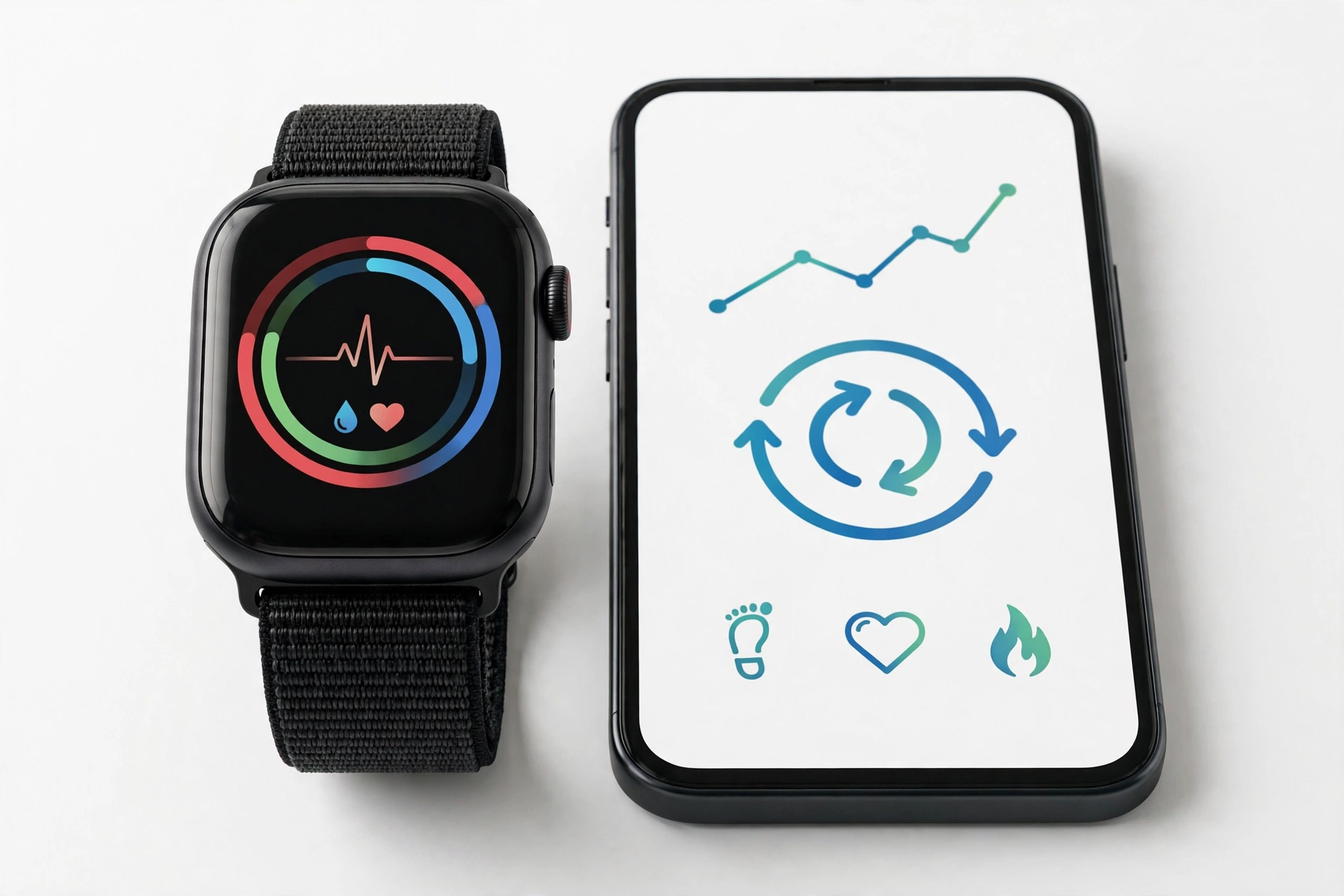
This guide is for anyone who has upgraded, replaced, or lost their phone and wants their Huawei Health history — steps, workouts, heart rate records, sleep data, and paired wearable settings — to appear on the new phone. It applies whether you use a Huawei Watch, Huawei Band, or any other wearable that syncs through the Huawei Health app, and whether your new phone is a Huawei device, another Android brand, or an iPhone. (Source: consumer.huawei.com)
It does not cover moving general phone data (photos, contacts, messages) between phones — Huawei’s Phone Clone tool handles that separately, and our transfer guides for other fitness platforms are organized the same way. This guide is Huawei Health–specific throughout.
2. The short answer: how the transfer actually works
Huawei Health keeps your history in two places: on the phone in the app, and — if you have cloud sync turned on — in your Huawei ID’s cloud storage. A wearable device itself can only be actively paired with one phone at a time. So the transfer has three parts:
- Sync to cloud on the old phone. Before anything else, make sure every recent workout and health record has been uploaded from the old phone to your Huawei ID’s cloud storage.
- Sign in with the same Huawei ID on the new phone. Your history reappears in the app once the same account signs in and sync completes. This is the step where most “my data is gone” cases are resolved — they are actually “I signed in with a different account” cases.
- Re-pair the wearable through the app. The watch or band must be released from the old phone and paired fresh with the new one inside the Huawei Health app — not through the phone’s system Bluetooth settings.
Quick fact: Pairing inside the Huawei Health app (Devices > Add) is not the same as pairing in your phone’s Bluetooth settings. Huawei’s own support guidance directs users to pair through the app, and bonds created in the system Bluetooth menu alone generally do not produce a working sync.
3. What moves with your Huawei ID — and what does not
Knowing the boundary up front prevents disappointment. The table below separates what reliably follows your account from what must be rebuilt.
| Item | Transfers with Huawei ID sign-in? | Notes |
|---|---|---|
| Steps, workouts, and exercise records | Yes, if cloud sync was on | Requires “Sync fitness data to cloud” enabled on the old phone before the switch |
| Heart rate, sleep, SpO2, and other health records | Yes, if cloud sync was on | Requires “Sync health data to cloud” enabled |
| Profile info (age, weight, goals) | Yes, if cloud sync was on | Requires “Sync personal info to cloud” enabled |
| Watch faces and app settings | Partially | Some preferences are account-side; watch faces and device-specific settings are usually reconfigured after re-pairing |
| Bluetooth pairing with the wearable | No — must be rebuilt | A wearable pairs with one phone at a time; re-pairing on the new phone is mandatory |
| Notification permissions and app grants | No — must be rebuilt | Android and iOS both require fresh permission grants on the new phone |
| Third-party connections (e.g., Strava) | No — must be re-authorized | Linked accounts are tied to the app installation and must be reconnected |
| Unsynced data still on the watch only | No — and may be lost | Anything recorded on the wearable but never synced to the old phone is unrecoverable without that phone |
4. Before you start: the pre-transfer checklist
Run through this checklist on the old phone before you touch the new one. Skipping the cloud-sync step is the single most common cause of missing history after a switch.
| Check | How | Why it matters |
|---|---|---|
| Cloud sync is on for all three categories | Huawei Health > Me > Privacy management — toggle on Sync personal info to cloud, Sync fitness data to cloud, and Sync health data to cloud | Without these, your records exist only on the old phone |
| Manual sync completed to 100% | Huawei Health > Me > Settings > Sync data manually — tap SYNC and wait until the progress bar reaches 100% | Confirms everything pending has actually uploaded |
| Wearable is synced | Open the app with the watch connected and let it finish syncing; check that today’s data appears | Data sitting only on the watch has not reached the cloud yet |
| You know your Huawei ID credentials | Confirm you can sign in (check the account email/phone and password, or recovery options) | A forgotten password mid-transfer is the most avoidable delay |
| New phone has Huawei Health installed | AppGallery, Google Play Store, or Apple App Store depending on your region and phone | Some regions do not list the app on the Play Store — see the Android notes below |
| Both phones charged above 50% | Plug in if unsure | Pairing and first sync can take a while; a dying phone mid-process creates avoidable problems |
Stop for safety: Do not factory-reset the old phone or the wearable until the new phone shows your full history. A reset before a completed sync permanently deletes anything that was only stored locally.
5. Step by step: moving to the new phone
These steps assume you still have the old phone. If you do not, skip to section 7.
5.1 Sign in on the new phone
- Install the Huawei Health app on the new phone and open it.
- Accept the terms and grant the permissions the app requests — Bluetooth, location, and notifications are all needed for pairing and syncing.
- Go to Me and sign in with the exact same Huawei ID you used on the old phone. If you use a different account, your history will not appear — this is the most reported “missing data” cause, and it is always fixable by signing out and signing back in with the correct account.
- Wait for the first sync to complete. Your steps, workouts, and health history should begin populating in the app.
5.2 Release the wearable from the old phone
A Huawei wearable can only maintain an active pairing with one phone. Before pairing with the new phone, the device should be released from the old one. In the Huawei Health app on the old phone, remove or unpair the device (typically under the Devices section or the device’s own settings page). If the old phone is unavailable, you can reset the wearable itself — but only after confirming your data is safely in the cloud, because a factory reset clears everything stored on the device.
Tip: Also remove the wearable from the old phone’s system Bluetooth list (“Forget this device”) to prevent the old phone from grabbing the Bluetooth connection back while you are trying to pair with the new one.
5.3 Pair the wearable with the new phone
- On the new phone, open Huawei Health and go to Devices, then tap Add (on some versions, the + icon in the Me tab).
- Power on the wearable, select your language if prompted, and keep it close to the phone.
- The app will scan for nearby devices. When your watch or band appears, tap Connect. Some models also display a QR code you can scan to start pairing.
- Confirm the Bluetooth pairing code matches on both the phone and the wearable screens, then tap Pair.
- Allow the requested permissions (notifications, calls, location) so features like call alerts and workout GPS work correctly.
After pairing completes, let the app finish its first full sync. Your historical data comes from the cloud (via your Huawei ID); new data from the wearable begins accumulating from this point forward.
6. Method comparison: which transfer path fits your situation
| Method | Best for | Platforms | Limitations |
|---|---|---|---|
| Same Huawei ID sign-in + cloud sync + re-pair | Most users with both phones | Android (Huawei, Samsung, Xiaomi, others), iPhone | Requires cloud sync enabled on old phone beforehand; wearable must be re-paired |
| New phone setup with old phone nearby | Upgrading within Huawei’s ecosystem | Huawei-to-Huawei (Phone Clone can move the app itself) | Moves the app, but Huawei Health history still depends on the Huawei ID cloud sync |
| No old phone: cloud-only recovery | Lost, broken, or sold old phone | Any | Only data already synced to the cloud is recovered; unsynced watch-only data is lost; wearable needs a factory reset to pair fresh |
| Manual record export | Users who want their own copy | Varies | Huawei Health’s export options are limited; not a substitute for account sync |
Note that Huawei’s Phone Clone tool moves apps and phone files between phones, but it does not replace the Huawei ID sign-in for health history — the fitness and health records live in the Huawei Health cloud tied to your account, and signing in with the correct Huawei ID is what restores them.
7. If you no longer have the old phone
Lost, broken, traded-in, or already wiped — the process still works, with two caveats.
- Install Huawei Health on the new phone and sign in with your Huawei ID. Everything that was synced to the cloud before you lost the old phone will download. Anything that was never synced is gone; be honest with yourself about when cloud sync was last on.
- Reset the wearable to pair it fresh. Since you cannot unpair from the old phone, restore the watch or band to its factory settings (usually via its Settings menu), then pair it through the app as described in section 5.3. A factory reset clears all data on the wearable — which is why step 1 comes first.
Stop for safety: Never buy a “paired” or “logged-in” wearable secondhand and keep using the previous owner’s account. Sign out fully and pair it to your own Huawei ID, or the previous owner could retain access to data the device generates.
8. Troubleshooting: when pairing or sync fails
| Symptom | Likely cause | Fix |
|---|---|---|
| History is empty after signing in | Signed in with a different Huawei ID, or cloud sync was never on | Sign out and sign in with the original account; check the old phone’s Privacy management toggles |
| Watch not found during scan | Still paired to old phone, Bluetooth off, or too far away | Unpair/forget on old phone, enable Bluetooth, keep devices close, restart both |
| Pairing code mismatch or failure | Stale Bluetooth bond | Forget the device in system Bluetooth settings on both phones, then pair fresh inside the app |
| App not found in Play Store | Regional availability | Install via Huawei AppGallery (download AppGallery first if needed); iPhone users use the App Store |
| Sync stalls below 100% | Weak connection or large backlog | Use stable Wi-Fi, keep the app open and the phone awake, retry manual sync |
| Notifications not working after re-pair | Permissions not granted on new phone | Re-allow notification access for Huawei Health in system settings; re-enable in the app’s device settings |
| Third-party app (e.g., Strava) no longer receives workouts | Authorization tied to old installation | Reconnect under Me > Privacy management > Data sharing and authorization |
9. Android-specific notes
9.1 Getting the app when it is not on the Play Store
In some regions, Huawei Health is not listed on the Google Play Store. The documented workaround is to install Huawei’s AppGallery first (downloaded from Huawei’s official site, allowing installation from the browser when prompted), then install Huawei Health from inside AppGallery. Always download AppGallery itself from Huawei’s official domain — never from random APK mirror sites, which are a common malware vector.
9.2 Permissions that matter
On Android, Bluetooth scanning requires location permission, and background sync requires the app to be exempted from aggressive battery optimization. If syncing stops when the screen is off, check that Huawei Health is allowed to run in the background and that location permission is set to “Allow all the time” or equivalent on your Android version. These are standard Android requirements, not Huawei quirks.
9.3 Keeping the app updated
Huawei’s support guidance recommends updating Huawei Health via Me > Check for updates before troubleshooting pairing problems. An outdated app is a frequent hidden cause of first-pairing failures.
10. iPhone-specific notes
Huawei wearables work with iPhones through the same Huawei Health app, available on the App Store. The transfer logic is identical — Huawei ID cloud sync plus in-app re-pairing — but note the following:
- The app needs Bluetooth, notification, and Health app permissions on iOS; grant them when prompted during setup.
- Pairing is still done inside the Huawei Health app (Devices > Add), not in iOS Settings > Bluetooth.
- If a previous pairing lingers, use Forget This Device in the iPhone’s Bluetooth settings before pairing fresh in the app.
- Background sync on iOS is more restricted than on Android; opening the app periodically keeps data flowing.
One honest limitation to know: as of 2026 reporting, there is no official, documented path that writes Huawei Health data into Apple Health or Google’s Health Connect automatically. If cross-platform aggregation matters to you, third-party bridge apps exist but operate unofficially, with varying reliability and privacy trade-offs — evaluate them case by case rather than assuming they work.
11. What your observations can and cannot establish
| Observation | What it suggests | What it cannot prove |
|---|---|---|
| Old workouts appear after sign-in | Cloud sync was working | That everything synced — spot-check recent dates |
| History is empty on the new phone | Wrong account, or sync was off | That the data is lost — check the old phone first |
| Watch pairs but shows no history | Normal — history lives in the app/cloud, not the watch | That anything is broken; this is expected behavior |
| Sync stuck at the same percentage | Connectivity or a large backlog | That data is corrupted — retry on stable Wi-Fi first |
| New workouts sync but old ones are missing | Old data was never uploaded | That the cloud “deleted” anything — it never received it |
12. When to stop troubleshooting
Stop and seek help rather than repeating the same steps if any of the following apply:
- You have signed in with the correct Huawei ID, confirmed cloud sync on the old phone reached 100%, re-paired the wearable, and history is still missing — something account-side may need Huawei support.
- The wearable will not enter pairing mode at all (no response to buttons, no display) — that is a hardware issue, not a transfer issue.
- You are being asked to pay, share your Huawei ID password, or install software from unofficial sources to “recover” data — those are scam markers. Huawei support never asks for your password.
If a professional assessment is needed, Las Vegas Phone Repair & Accessories, 7400 Las Vegas Blvd S, Unit TT42, Las Vegas, NV 89123, (424) 406-6202, can take a look. Hours are 10AM–8PM — please call ahead to confirm today’s hours.
13. Hypothetical examples
(The following are hypothetical illustrations, not customer stories.)
Maya’s careful Android upgrade
Maya is moving from a Samsung Galaxy to a new Huawei phone and wears a Huawei Watch GT. A week before the switch, she opens Huawei Health on the old phone, enables all three cloud-sync toggles under Me > Privacy management, and runs a manual sync to 100%. On the new phone she signs in with the same Huawei ID, sees two years of workouts appear, then unpairs the watch from the old phone, forgets it in the old phone’s Bluetooth list, and pairs it fresh through Devices > Add. Total data lost: none.
Daniel’s stolen-phone scramble
Daniel’s phone is stolen with his Huawei Band still paired to it. He installs Huawei Health on his replacement phone, signs in with his Huawei ID, and his cloud-synced history downloads. His band, still bonded to the stolen phone, will not pair — so he factory-resets the band (accepting that the last unsynced day of step data is gone), then pairs it fresh in the app. He also changes his Huawei ID password as a precaution.
14. Frequently asked questions
Do I need the old phone to transfer Huawei Health data?
No — not for the history itself, as long as cloud sync was enabled. Your records download from your Huawei ID’s cloud storage when you sign in on the new phone. You do need the wearable itself (to re-pair it), and if the old phone is gone, the wearable will need a factory reset before it can pair with the new phone.
Will my workouts transfer if I switch from Android to iPhone?
Yes. The history is tied to your Huawei ID, not to the phone’s operating system. Sign in with the same account in the iOS version of Huawei Health and your synced data will appear. You will still need to re-pair the wearable and re-grant iOS permissions.
Why is my history empty after signing in?
Almost always one of two things: you signed in with a different Huawei ID than the one that holds the data, or cloud sync was never turned on on the old phone. Check the account first — it is the faster fix — then check the old phone’s Privacy management toggles.
Can I pair my Huawei watch with two phones at once?
No. A Huawei wearable maintains an active pairing with one phone at a time. To move it, release it from the old phone (or factory-reset it if the old phone is unavailable) and pair it fresh through the Huawei Health app on the new phone.
Does a factory reset of the watch delete my history?
It deletes whatever is stored on the watch itself. Your cloud-synced history in the Huawei Health app is unaffected. That is why the order matters: confirm your history is visible on the new phone before resetting the wearable.
Why can’t I find Huawei Health on the Play Store?
In some regions it is not listed there. The official route is to install Huawei AppGallery from Huawei’s official site and then install Huawei Health from inside AppGallery. Avoid third-party APK sites.
Will my Strava connection survive the transfer?
No — third-party authorizations are tied to the app installation. Reconnect them under Me > Privacy management > Data sharing and authorization on the new phone after pairing.
How is this different from Coros, Suunto, or Polar transfers?
The underlying pattern is the same — cloud account plus re-pair — because that is how all of these platforms work. What differs is Huawei-specific: the three cloud-sync toggles under Privacy management, the manual sync path under Me > Settings, AppGallery availability quirks, and the fact that Huawei’s Phone Clone moves phone data but does not substitute for the Huawei ID sign-in. Our Coros transfer guide, Suunto transfer guide, and Polar transfer guide cover each platform’s own steps.
Video: How to tell if your smartphone is fake or real
Sources and editorial notes
- Huawei Support — wearable fails to link with Huawei Health (first pairing): documents the cloud-sync toggles (Me > Privacy management), the manual sync path (Me > Settings > Sync data manually to 100%), network-settings reset steps per platform, and the factory-reset caution for wearables.
- EveryHuawei — pairing a Huawei watch or band with an EMUI phone: documents the in-app pairing flow (Me > + > scan/Connect, or QR scan), the Huawei ID sign-in step, and the “pair inside the app” requirement.
- EveryHuawei — connecting a Huawei wearable to iOS: documents the iPhone pairing flow (Devices > Add, pairing-code confirmation) and the iOS 9.0+ requirement.
- HardReset.info — pairing the Huawei Watch D3 with Android: video walkthrough corroborating the AppGallery-first install path where the Play Store does not list the app, region selection, and Huawei ID sign-in during setup.
- FitMesh — Huawei Health and Health Connect sync status (2026): reports no official documented path between Huawei Health and Health Connect as of 2026, informing the honest-limits framing on cross-platform aggregation.
- HuaweiAdvices — Phone Clone data transfer guide: documents Phone Clone’s role in moving general phone data between devices, supporting the distinction drawn between Phone Clone and Huawei ID health-data sync.
Last source check: October 14, 2026. AI-assisted editorial guide, checked against the linked manufacturer information. Procedures are summarized in original language from the sources above; menu paths reflect the app versions documented at the time of checking and may shift slightly with updates. This guide does not imply any affiliation with or authorization from Huawei.
Let’s get you connected again.
Tell us what’s happening with your device and we’ll help you decide the safest next step — no jargon, no pressure.
Las Vegas Phone Repair & Accessories · 7400 Las Vegas Blvd S, Unit TT42, Las Vegas, NV 89123
10:00 AM–8:00 PM — call ahead to confirm today’s hours