
Phone GPS Not Working After Update: Causes and Safe Fixes
Yes — a phone whose GPS stops working right after a software update can usually be fixed with software steps, because updates most often break location by resetting permissions, permissions modes, or system location helpers, not by damaging the GPS hardware. This guide walks you through the update-specific checks and fixes, in order, for both iPhone and Samsung Galaxy phones.
On this page
Yes — a phone whose GPS stops working right after a software update can usually be fixed with software steps, because updates most often break location by resetting permissions, permissions modes, or system location helpers, not by damaging the GPS hardware.
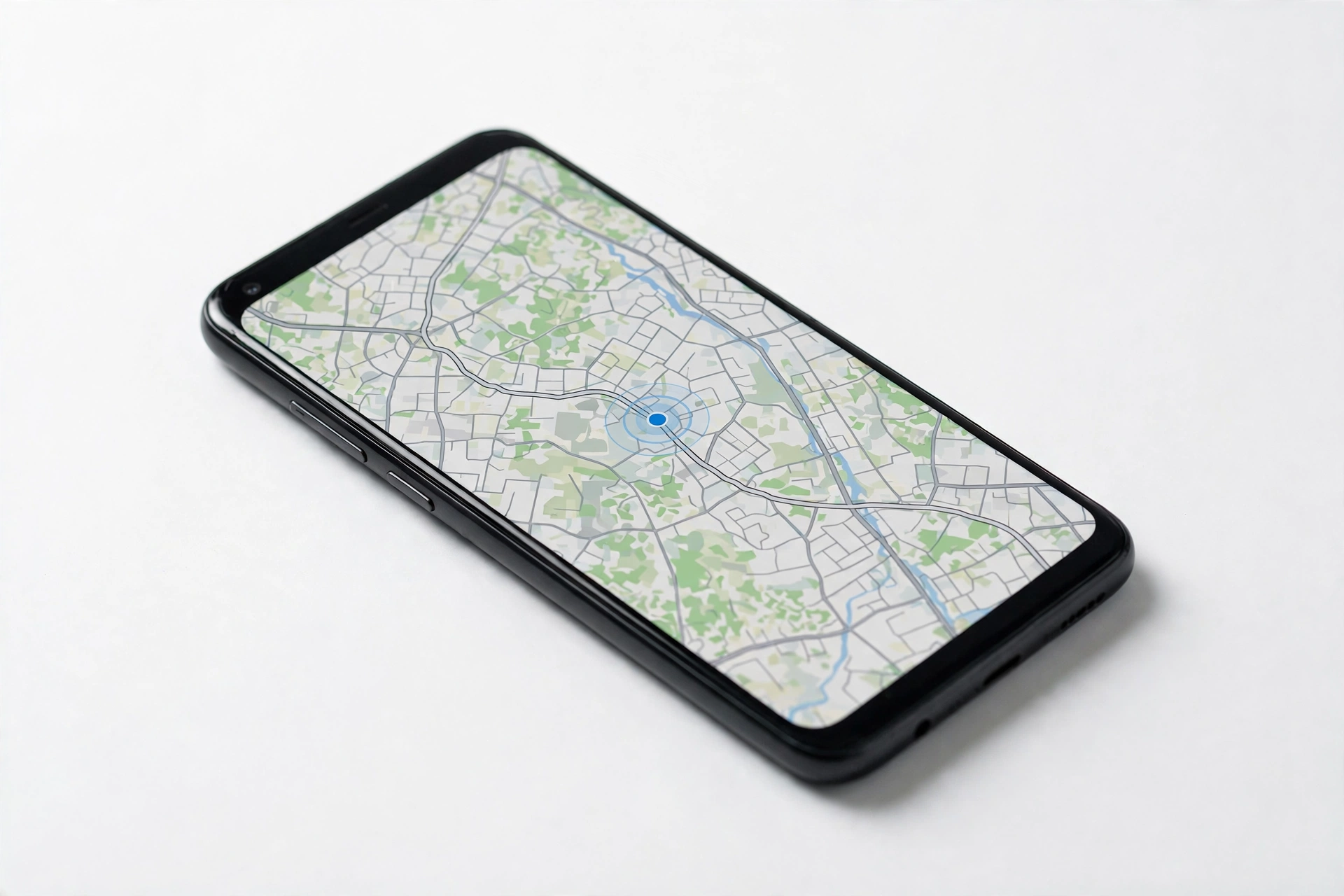
1. Why GPS breaks after an update
A major iOS or Android update touches the files and settings that location depends on. When GPS worked the day before the update and stopped the day after, the culprit is almost always one of these update-related mechanisms: (Source: discussions.apple.com)
- Permissions silently reset. Apps that had “Always” location access can be downgraded to “While Using the App” or revoked entirely during a major update. Background tracking (navigation, running apps) then stops working even though the app still opens fine.
- System location helpers turned off. Features like Google Location Accuracy, Wi-Fi scanning, and Bluetooth scanning on Samsung, or Motion Calibration, Networking, and Significant Locations on iPhone, can end up toggled off after an update.
- Stuck or corrupted location caches. The update can leave the fused-location cache in a bad state, so the phone keeps reporting an old or approximate position.
- App incompatibility. The update may ship before your map, fitness, or ride-share app has released a compatible version, so the app requests location in a way the new OS no longer answers.
- Settings conflicts introduced by the update. New defaults — such as stricter battery optimization, a changed Low Power behavior, or a reworked location privacy panel — can silently block location in the background.
- A genuine OS bug. Occasionally the update itself ships with a location regression (Apple and Samsung both acknowledge these from time to time), and the fix is the next point release.
Quick fact: True hardware failure — a dead GPS chip or a damaged antenna — is rare and is not caused by software. If GPS never works at all in any app, even after you reset the relevant settings, that is when hardware becomes a real suspect. Intermittent, slow, or approximate location after an update points at software first.
2. Who this guide helps
This guide is for anyone whose phone’s location services worked normally before installing a software update and became inaccurate, slow, or completely non-functional afterward. It covers both iPhone (iOS) and Samsung Galaxy (One UI / Android) phones, distinguishes what a software problem looks like from what a hardware problem looks like, and tells you exactly when to stop troubleshooting and seek professional assessment.
This is an update-specific guide. For GPS problems that appeared without any update — for example, location that has always been poor, or location that broke after a drop — the troubleshooting overlaps but the priorities differ. The companion troubleshooting guides for Bluetooth, Wi-Fi, camera, speaker, and microphone issues after an update follow the same “what the update changed” logic used here.
3. GPS vs. network location: what is actually failing
Your phone rarely uses pure satellite GPS alone. It combines three signals:
- Satellite GPS. Precise positioning outdoors, but slow to lock (30 seconds to a few minutes) and blocked by roofs, metal, and dense buildings.
- Wi-Fi positioning. Uses nearby Wi-Fi networks to estimate position. Works indoors, fast, but approximate.
- Cell-tower positioning. Triangulates from carrier towers. Always available where there is signal, but the least precise.
When people say “GPS stopped working after the update,” what they usually mean is one of these:
| Symptom | What is probably failing |
|---|---|
| Blue dot takes minutes to appear or never locks outdoors | Satellite GPS path or its system helpers |
| Location shows a city center or a place kilometers away | Wi-Fi/cell fallback running while satellite GPS is blocked or off |
| Location fine in Maps, broken in one app | That app’s permissions, not the phone’s GPS |
| Tracking stops when the screen turns off | Background permissions or battery optimization |
| No location in any app, anywhere | System-level location services or a hardware fault |
Sorting this out first saves time: an app-permission problem and a dead antenna look identical from the map screen, but the fixes are completely different.
4. Five-minute checks: rule out the obvious
Do these before anything deeper. They fix a surprising number of post-update location failures.
4.1 Confirm Location Services are on
- iPhone: Settings > Privacy & Security > Location Services. The master toggle must be on.
- Samsung: Settings > Location > Location services. The toggle must be on. You can also flick it off and back on in the Quick Panel.
4.2 Check the app’s permission
- iPhone: Settings > Privacy & Security > Location Services > tap the app. For navigation and fitness apps you usually want Always; for most other apps, While Using the App is enough. Turn Precise Location on for turn-by-turn and fitness tracking — with it off, apps only get an approximate position.
- Samsung: Settings > Location > App permissions > tap the app > select Allow all the time for navigation/fitness apps, or Allow only while using the app for the rest.
Permissions are the single most common casualty of a major update, so re-checking them is never wasted effort even if you are sure they were fine before.
4.3 Go outside
Step outdoors with a clear view of the sky and open Maps. GPS hardware needs a direct satellite line of sight; testing indoors after an update can make a working phone look broken.
4.4 Restart the phone
A plain restart clears stuck location services and is the first step Apple and Samsung both recommend.
4.5 Turn Low Power / battery saver off
- iPhone: Low Power Mode reduces background activity and can degrade or stop background GPS tracking. Turn it off while testing (Settings > Battery).
- Samsung: Check that Adaptive Power Saving is off and that the map/fitness app is not listed under sleeping or restricted apps (Settings > Battery > Background usage limits).
5. Fix the update-specific causes, in order
5.1 Re-enable location helpers the update may have switched off
- Samsung: Settings > Location > Location accuracy (or Location services > Improve accuracy) — turn on Improve Location Accuracy, and enable Wi-Fi scanning and Bluetooth scanning. These let apps use nearby Wi-Fi and Bluetooth signals for faster, more accurate fixes even when Wi-Fi and Bluetooth are “off.”
- iPhone: Settings > Privacy & Security > Location Services > System Services — check that Motion Calibration & Distance and Networking & Wireless are on (Maps and fitness features depend on them).
5.2 Reset Location & Privacy (iPhone) or clear location caches (Samsung)
- iPhone: Settings > General > Transfer or Reset iPhone > Reset > Reset Location & Privacy. This restores all location and privacy settings to defaults; you will need to re-grant app permissions afterward.
- Samsung: Try clearing the cache of Google Play services (Settings > Apps > Google Play services > Storage > Clear cache). This refreshes the location data your phone uses without deleting anything important.
Stop for safety: “Reset” and “Erase” sit next to each other in the iPhone Reset menu. Reset Location & Privacy only restores settings — it does not delete your photos, apps, or data. Erase All Content and Settings deletes everything on the phone. Never tap Erase unless you intend a full factory reset and have a current backup.
5.3 Update the apps, then the OS
Open the App Store or Google Play Store / Galaxy Store and update the map, fitness, and navigation apps first — an app that has not been updated for the new OS version is a common cause of post-update location failures. Then check for the next OS point release (Settings > General > Software Update on iPhone; Settings > Software update on Samsung), because location regressions are frequently fixed within one or two patch releases.
5.4 Check for interference the update did not cause but revealed
- Remove thick or metal cases while testing — they can attenuate the GPS antenna signal.
- On foldables, unfolding can change antenna behavior; test both ways.
- VPNs can conflict with location services on iPhone; disable yours while testing.
- Check that the date and time are set to automatic (Settings > General > Date & Time) — GPS depends on correct time.
6. iPhone: the ordered fix path
Work through these in order; stop when location works:
- Restart the iPhone and the failing app.
- Settings > Privacy & Security > Location Services — confirm it is on, the app has the right permission (Always for navigation/fitness), and Precise Location is on.
- Settings > General > Background App Refresh — make sure it is on for the app (needed for location when the screen is off). Note: if you force-quit an app from the app switcher, it may not be able to run in the background at all.
- Turn off Low Power Mode (Settings > Battery).
- Toggle Airplane Mode on for a few seconds, then off, to refresh network connections.
- Test outdoors with a clear sky view in Apple Maps.
- Install the latest iOS point release (Settings > General > Software Update).
- Reset Location & Privacy (see the warning in section 5.2).
- Reset Network Settings (Settings > General > Transfer or Reset iPhone > Reset) — note this erases saved Wi-Fi passwords, so have them handy.
- Factory reset (Erase All Content and Settings) only as a last resort, with a current backup — and only to distinguish software from hardware (see section 9).
7. Samsung Galaxy: the ordered fix path
Work through these in order; stop when location works:
- Restart the phone.
- Quick Panel: turn the Location icon off, wait a few seconds, turn it back on, then open Google Maps and test.
- Settings > Location — confirm Location services are on; set Improve Location Accuracy on; enable Wi-Fi scanning and Bluetooth scanning.
- Settings > Location > App permissions > tap the app > Allow all the time for navigation/fitness apps.
- Settings > Battery > Background usage limits — remove the app from any sleeping/restricted list.
- Move outdoors with a clear sky view and test in Maps.
- Update the apps (Play Store / Galaxy Store), then install the latest software update (Settings > Software update > Download and install).
- Clear Google Play services cache (Settings > Apps > Google Play services > Storage > Clear cache).
- Reset network settings (Settings > General management > Reset > Reset network settings) — this resets Wi-Fi passwords and Bluetooth pairings but not your personal data.
- Test in Safe Mode (third-party apps disabled) to rule out an incompatible app introduced by the update.
- Factory reset only as a last resort, with a current backup — and only to distinguish software from hardware (see section 9).
8. Symptom worksheet: match what you see to the cause
| Symptom | Likely cause | First fix |
|---|---|---|
| One app lost location; others fine | App permission reset by the update | Re-grant permission (Always / Precise Location) |
| Location stops when screen locks | Background permission downgraded or battery optimization | Allow all the time; remove app from sleeping apps |
| Position shows a city center or miles away | Satellite GPS blocked; phone falling back to Wi-Fi/cell positioning | Test outdoors; enable Wi-Fi scanning / Improve Location Accuracy |
| GPS slow to lock (minutes) after working instantly before | Corrupted assistance-data cache from the update | Restart; clear Play services cache (Samsung) or reset Location & Privacy (iPhone) |
| Blue dot drifts or jumps around | Low-accuracy mode or interference | Enable Improve Location Accuracy; remove case; go outside |
| Compass direction wrong in Maps | Compass calibration lost | Calibrate (open the Compass app on iPhone and follow prompts) |
| Every app reports no location at all | System-level location services off or a genuine OS bug | Re-enable helpers; install the next point release |
| Location wrong only on Wi-Fi, fine on cellular | Stale Wi-Fi positioning database after the update | Forget and rejoin the network; reset network settings |
| GPS worked after the update, then failed again days later | A second trigger (new app, new setting, changed environment) | Re-run the five-minute checks; check for newer app updates |
| No GPS anywhere, in any app, after all resets | Possible hardware fault | Stop — see section 9 |
9. When it is hardware, not the update
Quick fact: A software update cannot physically damage the GPS chip or antenna. If GPS is dead in every app, outdoors, after you have re-enabled all helpers, re-granted permissions, and reset the relevant settings, that pattern suggests a hardware fault — often unmasked rather than caused by the update.
Signs pointing toward hardware:
- No satellite lock ever, in any app, under open sky, after all software resets.
- Location is consistently wrong by large distances no matter what you do.
- GPS failed shortly after a drop, impact, or liquid exposure (the update timing may be coincidental).
The honest hardware test: back up the phone, then factory-reset it and test GPS before restoring anything. If GPS still fails on a clean system, that is strong evidence of hardware failure. Do not skip the backup — a factory reset erases everything.
Stop for safety: Never open the phone yourself to reach the GPS antenna or chips. Modern phones are sealed; opening them risks battery damage, fire, and injury, and it voids warranty coverage. Antenna and board-level GPS repair is professional work.
10. What observations can and cannot establish
| Observation | What it suggests | What it cannot prove |
|---|---|---|
| One app fails, Maps works | That app’s permission or version | That the phone’s GPS hardware is fine (other apps may use different methods) |
| Location returns after a restart | A stuck software service | That the problem will not recur |
| Location works outdoors but not indoors | Normal satellite behavior | That anything is broken — buildings block GPS by design |
| Still fails after factory reset | Hardware fault | Which component — that needs diagnosis |
| Failed the day after an update | An update-related settings or software issue | That the update “damaged” anything — software cannot physically damage the chip |
11. Preventing the next update from breaking GPS
- Screenshot or note your Location settings before a major update, so you can compare afterward.
- Update your map, fitness, and navigation apps before installing the OS update.
- Consider waiting for the first point release (x.0.1) rather than installing a major version on day one.
- Keep at least a few GB of free storage — updates with nearly-full storage are more likely to leave corrupted caches.
- Charge above 50% and stay on Wi-Fi during the update so it completes cleanly.
- Right after an update, open your main location apps once and check their permissions are still correct.
12. Hypothetical examples
(The following are hypothetical illustrations, not customer stories.)
Maya’s morning run. Maya updated her Galaxy phone overnight. The next morning, her running app tracked the first kilometer and then froze her position while she kept running. The app’s permission had been reset from “Allow all the time” to “While using the app,” and the phone had also added the app to its sleeping-apps list. Re-granting “Allow all the time” and removing it from sleeping apps restored full background tracking on her next run.
Daniel’s road trip. Daniel updated his iPhone the night before a long drive. Maps showed him sitting in a parking lot three miles from his actual location and never moved. His Precise Location toggle had been switched off during the update, so Maps was only getting an approximate fix from Wi-Fi and cell data. Turning Precise Location back on brought the blue dot back to his driveway within a minute.
13. Related guides
Location failures after an update often travel with other update-related breakages. If you are fixing more than one of these, the same “check what the update changed first” approach applies:
- Phone WiFi Not Working After Update: Causes and Safe Fixes — Wi-Fi positioning feeds location accuracy; fix Wi-Fi and GPS often improves together.
- Phone Bluetooth Not Working After Update: Causes and Safe Fixes — Bluetooth scanning assists location; the same reset-settings logic applies.
- Phone Camera Not Working After Update: Causes and Safe Fixes — another update-specific guide using the same permission-and-cache-first method.
14. Frequently asked questions
Why did my GPS stop working right after the update?
The most common reasons are permissions that were silently reset, location helpers (like Google Location Accuracy or Wi-Fi/Bluetooth scanning) that ended up switched off, or a corrupted location cache from the update process. All three are software issues and are fixable with the steps above.
Can a software update damage my phone’s GPS hardware?
No. A software update cannot physically damage the GPS chip or antenna. If GPS never works in any app after all software resets, the hardware fault was likely already present — the update timing may be coincidental.
Do I need to go outside to test GPS?
Yes, for a fair test. Satellite GPS needs a clear view of the sky; buildings block the signal by design. Testing indoors after an update can make a working phone look broken.
What is Precise Location, and why does it matter?
On iPhone, Precise Location gives apps your exact position; with it off, apps only get an approximate location. Turn-by-turn navigation and fitness tracking need it on. Updates can switch it off, which is a common cause of “GPS stopped working.”
Why does tracking stop when my screen turns off?
That usually means the app lost its background permission (“Allow all the time” on Samsung / “Always” on iPhone), or the phone put the app to sleep to save battery. Re-grant the permission and remove the app from any battery-optimization or sleeping-apps list.
Should I factory reset my phone to fix GPS?
Only as a last resort, after trying everything else, and only with a current backup. A factory reset is most useful as a diagnostic: if GPS still fails on a completely clean system, that is strong evidence of a hardware fault.
How long should I wait for a GPS lock?
Outdoors with a clear sky, a healthy phone usually locks within 30 seconds to a couple of minutes. If it takes much longer consistently, work through the fix paths in sections 6 and 7.
When should I stop troubleshooting and get the phone assessed?
Stop when GPS fails in every app, outdoors, after you have re-enabled all helpers, re-granted permissions, updated apps and the OS, and reset the relevant settings. At that point, professional assessment is the sensible next step. If you are in the Las Vegas area, Las Vegas Phone Repair & Accessories (7400 Las Vegas Blvd S, Unit TT42, Las Vegas, NV 89123; (424) 406-6202; open 10 AM–8 PM, call ahead to confirm today’s hours) can assess the device.
Video: How to tell if your smartphone is fake or real
Sources and editorial notes
- Apple Community — troubleshooting location services on iPhone: documents the standard Apple troubleshooting order — verify Location Services are enabled, check per-app permissions, restart, and reset Location & Privacy (Settings > General > Transfer or Reset iPhone > Reset).
- Samsung Support — how to fix GPS issues on a Samsung device: documents enabling Location Services, Improve Location Accuracy, Wi-Fi and Bluetooth scanning, restarting location via Quick Panel, and checking app permissions (Allow all the time from Android 10).
- Samsung Support — inaccurate GPS location: covers Adaptive Power Saving, removing third-party cases, and removing GPS apps from the Sleeping Apps list.
- Samsung Support — GPS not working properly on Galaxy device: documents Google Location Accuracy setup, Wi-Fi/Bluetooth scanning for accuracy, and re-activating GPS outdoors.
- Samsung UK Support — inaccurate location information: documents per-app location permission paths and notes that Google’s policy requires explicit location permission from Android 10.
- AEANET — iPhone GPS troubleshooting guide: corroborates the Apple troubleshooting order including Precise Location, Background App Refresh, Low Power Mode effects, Reset Network Settings, and compass calibration.
- SamMobile — why a phone shows the wrong location: documents the Improve Accuracy settings and clearing Google Play services cache to refresh location data.
Last source check: October 14, 2026. AI-assisted editorial guide, checked against the linked manufacturer information. Menu paths reflect the manufacturers’ documented layouts as of the last source check; exact labels may vary slightly by model and OS version. Examples in this article are hypothetical illustrations, not customer stories.
Let’s get you connected again.
Tell us what’s happening with your device and we’ll help you decide the safest next step — no jargon, no pressure.
Las Vegas Phone Repair & Accessories · 7400 Las Vegas Blvd S, Unit TT42, Las Vegas, NV 89123
10:00 AM–8:00 PM — call ahead to confirm today’s hours