
Phone Camera Not Working After Update: Causes and Safe Fixes
If your phone’s camera stopped working right after a software update, the cause is almost always software — not broken hardware. Work through restart, app permissions, camera cache, and a point-release update before anything destructive; most post-update camera failures clear within those four steps.
On this page
If your phone’s camera stopped working right after a software update, the cause is almost always software — not broken hardware.
1. Who this guide helps (and how it differs from our other camera guides)
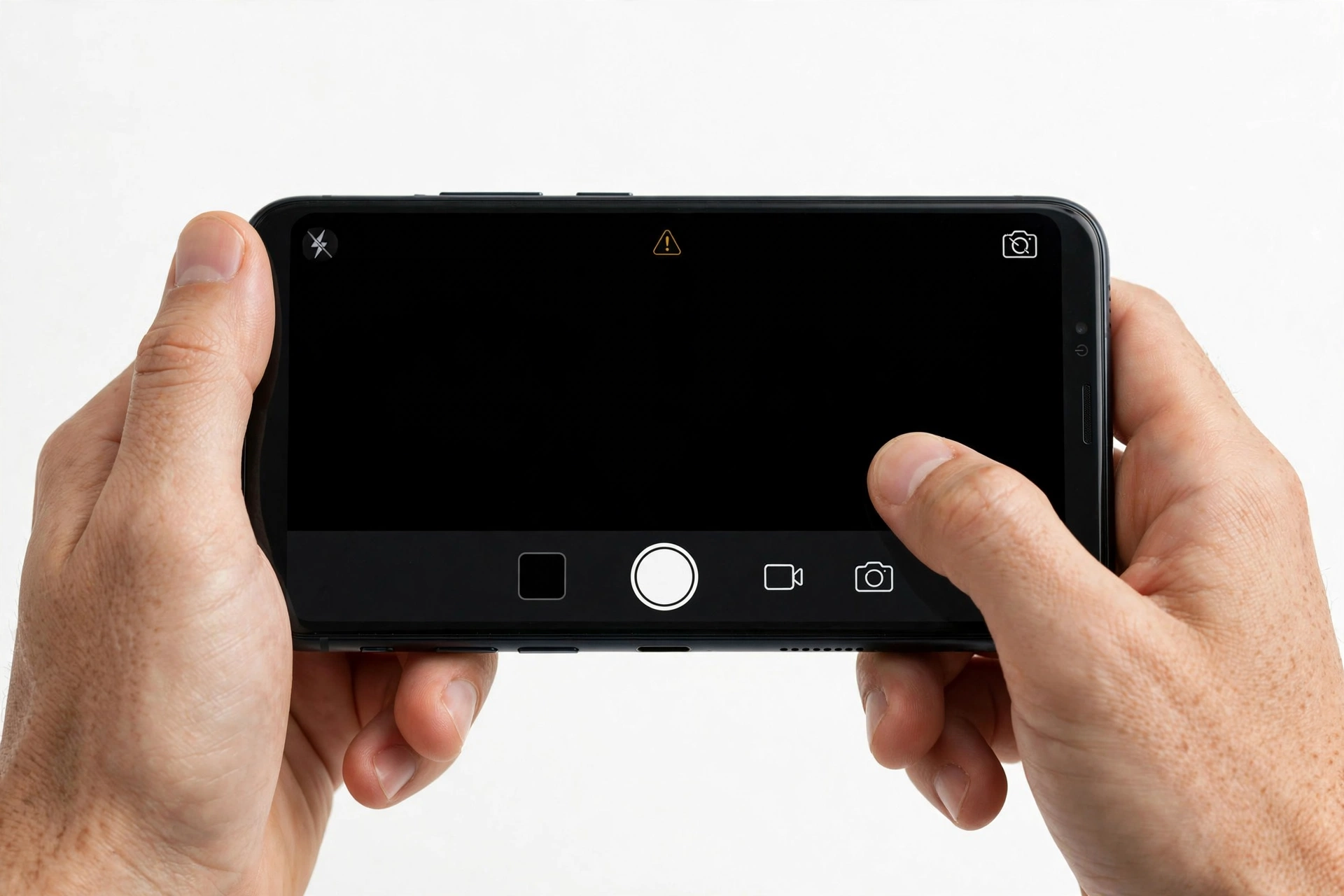
This guide is for one specific situation: your phone’s camera was working, you installed a software update (iOS or Android), and now the camera app crashes, shows a black screen, freezes, or refuses to open. It does not cover a camera that never worked, a camera damaged by a drop, or a camera that works but can’t focus — those have their own guides. (Source: elservicecentre.com)
Quick fact: A software update cannot physically break your camera sensor or lens. What it can do is corrupt a driver, invalidate an app’s permission, leave a stale cache, or ship with a bug in the camera software itself. All of those are fixable in software — which is why you should never assume a hardware failure from an update-triggered camera problem.
If your camera problem is about focus rather than the camera not opening at all, see our focusing guides instead:
- Samsung Galaxy Camera Not Opening — the general (non-update) camera failure guide
- iPhone Camera Black or Blurry — black viewfinder and image-quality issues on iPhone
- Phone Bluetooth Not Working After Update — a companion guide in our “after an update” series
2. What an update can actually do to your camera
Understanding the mechanism helps you pick the right fix. Here are the five realistic ways a software update disables a working camera:
2.1. The camera process crashed and never recovered
The update restarted your phone’s core services. On some devices, the camera service (the background process the Camera app talks to) fails to start cleanly after the update. The symptom: tapping the camera icon does nothing, or the app opens and immediately closes. A normal restart usually clears this — it simply restarts the stuck service.
2.2. App permissions were silently revoked
Major updates sometimes reset privacy permissions. If the Camera app — or a third-party app like Instagram, Snapchat, or WhatsApp — lost its camera permission during the update, it will show a black screen or an error instead of the viewfinder. This is the single most common post-update camera cause on iPhones, and it’s a two-minute fix in Settings.
2.3. A corrupted camera cache
On Samsung phones, the Camera app stores temporary data (mode preferences, resolution settings, processing cache). After a system update, this cached data can become outdated or corrupted, causing the app to crash with errors like “Camera failed” or “Unfortunately, Camera has stopped.” Clearing the cache removes the stale data without touching your photos.
2.4. A bug in the update itself
Sometimes the update ships with a genuine camera bug. A documented example: iOS 18.0.1 (released October 2024) fixed a bug that froze the camera while recording macro video on iPhone 16 Pro models. When the fault is in the build, the remedy is the next build — a point-release update from Apple or Samsung. Check for updates before assuming anything else.
2.5. A third-party app conflict
Third-party camera apps (or apps that use the camera, like banking apps with check deposit) may not yet be compatible with the new OS version. If the built-in Camera app works but one specific app’s camera doesn’t, the app — not your phone — is the problem. Update the app or wait for the developer’s compatibility patch.
| Mechanism | Typical symptom | Most likely on | First fix to try |
|---|---|---|---|
| Crashed camera service | App opens then closes instantly | Any phone | Restart the phone |
| Revoked permission | Black screen or “no access” error in one app | iPhone especially | Settings > Privacy > Camera |
| Corrupted cache | “Camera failed” / “Camera has stopped” | Samsung | Clear camera app cache |
| Bug in the build | Specific function broken (e.g., macro video) | Any phone | Install the next point release |
| Third-party app conflict | Built-in camera works; one app doesn’t | Any phone | Update the app; test in Safe Mode |
3. The 5-minute checks (do these first)
Before touching settings, rule out the physical and the trivial. Updates don’t move cases or clean lenses, but troubleshooting while a case blocks the sensor wastes everyone’s time.
- Remove the case and any lens protector. Check that nothing covers the camera lenses — front or back. Some cases shift slightly and partially cover a lens after the phone is handled during an update.
- Wipe the lenses. Use a soft, lint-free microfiber cloth. Smudges and fingerprints are the most common cause of a “blurry after update” complaint, and the update is a coincidence.
- Force-close the Camera app and reopen it. On iPhone, swipe up from the bottom (or double-click Home) and swipe the Camera app away. On Samsung, tap the Recent apps button and swipe Camera away. Then reopen.
- Restart the phone. This is the single highest-yield step for post-update camera failures. It restarts the crashed camera service described in section 2.1.
- Test the camera in more than one app. Open the built-in Camera app, then try the camera in a second app (e.g., the front camera in a video call app). If it fails everywhere, it’s a system issue. If it fails in only one app, it’s that app.
Tip: If the shutter fires but no photo is saved, check your free storage before anything else. A photo needs somewhere to go — a completely full phone has nowhere to put it, and updates themselves consume storage, which can push a nearly-full phone over the edge.
4. iPhone: ordered fixes after an update
Work through these in order, testing the camera after each step. Stop when it works.
4.1. Check camera permissions
Go to Settings > Privacy & Security > Camera. You’ll see a list of every app that has requested camera access. Make sure the toggle is on (green) for each app you use. If the built-in Camera app itself isn’t listed, that’s fine — it doesn’t need a permission entry.
Pay special attention to third-party apps (Instagram, Snapchat, TikTok, banking apps). An update can silently flip these toggles off, and the app will show a black viewfinder or an error instead of asking again.
4.2. Check Screen Time restrictions
If the Camera icon has vanished from your Home Screen entirely, it wasn’t deleted — it was hidden. Go to Settings > Screen Time > Content & Privacy Restrictions > Allowed Apps & Features and switch Camera back on. Apple documents that turning off an app this way only hides it temporarily.
4.3. Force restart
If a normal restart didn’t help, do a force restart — this cuts power to all running processes more aggressively:
- iPhone 8 and later: press and quickly release Volume Up, press and quickly release Volume Down, then press and hold the Side button until the Apple logo appears.
- iPhone 7 / 7 Plus: press and hold Volume Down and the Side button together until the Apple logo appears.
- iPhone 6s and earlier: press and hold Home and the Side (or Top) button together until the Apple logo appears.
4.4. Install the latest iOS point release
Go to Settings > General > Software Update and install whatever is offered. Apple’s own troubleshooting guidance lists updating as a key step — point releases exist precisely to fix bugs (including camera bugs) in the build you’re running. The iOS 18.0.1 macro-video camera fix is the textbook example of this pattern.
4.5. Reset All Settings
Go to Settings > General > Transfer or Reset iPhone > Reset > Reset All Settings. This resets system settings — Wi-Fi passwords, wallpaper, privacy permissions — back to defaults without deleting your photos, apps, or data. It clears the corrupted preference files that can keep a camera broken after an update.
Stop for safety: “Reset All Settings” and “Erase All Content and Settings” sit on the same screen and sound similar. They are very different. Reset All Settings keeps your data. Erase All Content and Settings deletes everything on the phone. Read the button twice before tapping — this is the most common catastrophic tap in iPhone troubleshooting.
4.6. Factory reset — last resort only
If nothing above works, a factory reset (set up as a new device, not from backup) will resolve any software-caused camera failure. But it erases everything, so back up first — and understand that if the camera still fails after a clean factory reset, the problem is hardware, not the update.
5. Samsung: ordered fixes after an update
Samsung’s own Customer Support publishes a standard camera-troubleshooting flow, and it maps directly onto post-update failures. Work through these in order.
5.1. Reset the camera settings
Open the Camera app, tap Settings (gear icon), then Reset settings > Reset. This restores the Camera app’s internal settings to defaults without touching your photos. Corrupted mode preferences after an update are a common cause of “Camera failed” errors.
5.2. Clear the camera app cache
Go to Settings > Apps > Camera > Storage > Clear cache. This removes temporary files without deleting your settings or photos. Do not tap “Clear data” yet — that resets all Camera settings (mode preferences, resolution, grid overlay) to defaults. Try cache first; use Clear data only if cache doesn’t help.
5.3. Test in Safe Mode
Safe Mode disables all third-party apps. If the camera works in Safe Mode, a third-party app is the culprit — most likely one that hasn’t been updated for the new OS version.
To enter Safe Mode: press and hold the Power key until the Power off icon appears, then touch and hold the Power off icon until “Safe mode” appears. Tap it. To exit, simply restart the phone normally.
5.4. Wipe the cache partition
The system cache partition stores temporary files used by Android and all pre-installed apps. After a system update, these cached files can become outdated or corrupted, causing app crashes — including the Camera app. Wiping it is safe: it does not delete personal files, photos, apps, or settings.
General path (varies slightly by model): turn off the phone completely, then press and hold Volume Up + Power (on newer models without a Bixby key) until the recovery menu appears. Use Volume keys to highlight Wipe cache partition, press Power to select, confirm, then choose Reboot system now.
5.5. Check for a software update
Go to Settings > Software update > Download and install. Samsung releases patches that specifically address camera stability, and a follow-up patch may already fix what the original update broke.
5.6. Factory data reset — last resort only
Samsung’s support flow ends here too. Before resetting: back up with Smart Switch (mobile app or PC suite), and make sure you remember your Google account password — you’ll need it during setup. The path is Settings > General Management > Reset > Factory data reset. If the camera still fails after this, it’s hardware.
6. Symptom → likely cause → fix worksheet
Match your symptom to narrow down the cause before you start resetting things.
| Symptom | Likely cause | Try first |
|---|---|---|
| Camera app opens then closes instantly | Crashed camera service | Restart (or force restart) the phone |
| Black screen in the viewfinder | Revoked permission or frozen app | Check permissions; force-close and reopen |
| “Camera failed” error (Samsung) | Corrupted camera cache or settings | Reset camera settings; clear cache |
| “Unfortunately, Camera has stopped” (Samsung) | Corrupted system cache after update | Wipe cache partition |
| Camera icon missing from Home Screen (iPhone) | Screen Time restriction | Settings > Screen Time > Allowed Apps |
| Built-in camera works; one app’s camera doesn’t | Third-party app incompatibility | Update that app; test in Safe Mode |
| Shutter fires but no photo saves | Storage full | Free up storage space |
| Front camera fails; rear camera works | App-specific or permission issue | Check permissions; test in another app |
| Camera worked, update installed, now specific mode broken (e.g., macro video) | Bug in the update build | Install the next point release |
| Camera fails in every app, even after all software fixes | Hardware fault (coincidence or revealed by update) | Professional assessment — stop troubleshooting |
7. The permissions deep dive (the #1 post-update fix)
Because silently revoked permissions cause more post-update camera failures than anything else, it’s worth understanding exactly what to check on each platform.
7.1. iPhone permissions
Settings > Privacy & Security > Camera shows every app with camera access. Toggles should be green for apps you use. Also check Settings > [App Name] — some apps show their camera toggle on their own settings page instead. If an app shows a black viewfinder after an update, this screen is the first place to look, not the last.
7.2. Samsung permissions
Go to Settings > Apps > [App Name] > Permissions > Camera and make sure it’s set to “Allow.” Android’s permission model also includes a “Ask every time” option — after an update, some apps get reset to this, which can look like a broken camera if you dismiss the prompt without noticing.
Quick fact: The built-in Camera app on both iPhone and Samsung does not need a user-granted permission — it’s part of the system. If the built-in camera fails, permissions are not the cause; look at cache, settings, and updates instead.
8. What your observations can and cannot prove
Honest diagnosis matters. Here’s what each test result actually tells you — and what it doesn’t.
| Observation | What it suggests | What it cannot prove |
|---|---|---|
| Camera works after a restart | A crashed service or temporary glitch | That it won’t happen again |
| Camera works in Safe Mode (Samsung) | A third-party app is interfering | Which app — remove recent ones one by one |
| Built-in camera works; one app fails | That app’s incompatibility or permission | That the phone’s camera hardware is fine in all modes |
| Camera fails in every app after all software fixes | Hardware fault is likely | The exact failed component — that needs diagnosis |
| Problem started immediately after the update | Update-related software cause is likely | That the update caused it — coincidence is possible |
| Front camera fails; rear works | Software/permission issue (hardware rarely fails selectively) | That the front module is definitely fine |
9. When to stop troubleshooting
Stop and seek professional assessment if:
- The camera fails in every app after you’ve completed the full ordered fix list for your platform.
- The camera still fails after a factory reset (set up as new). At that point no software cause remains.
- You see physical damage — a cracked lens, moisture under the glass, or a rattling sound from the camera module.
- The phone was dropped or exposed to water around the same time as the update. The update may be a coincidence.
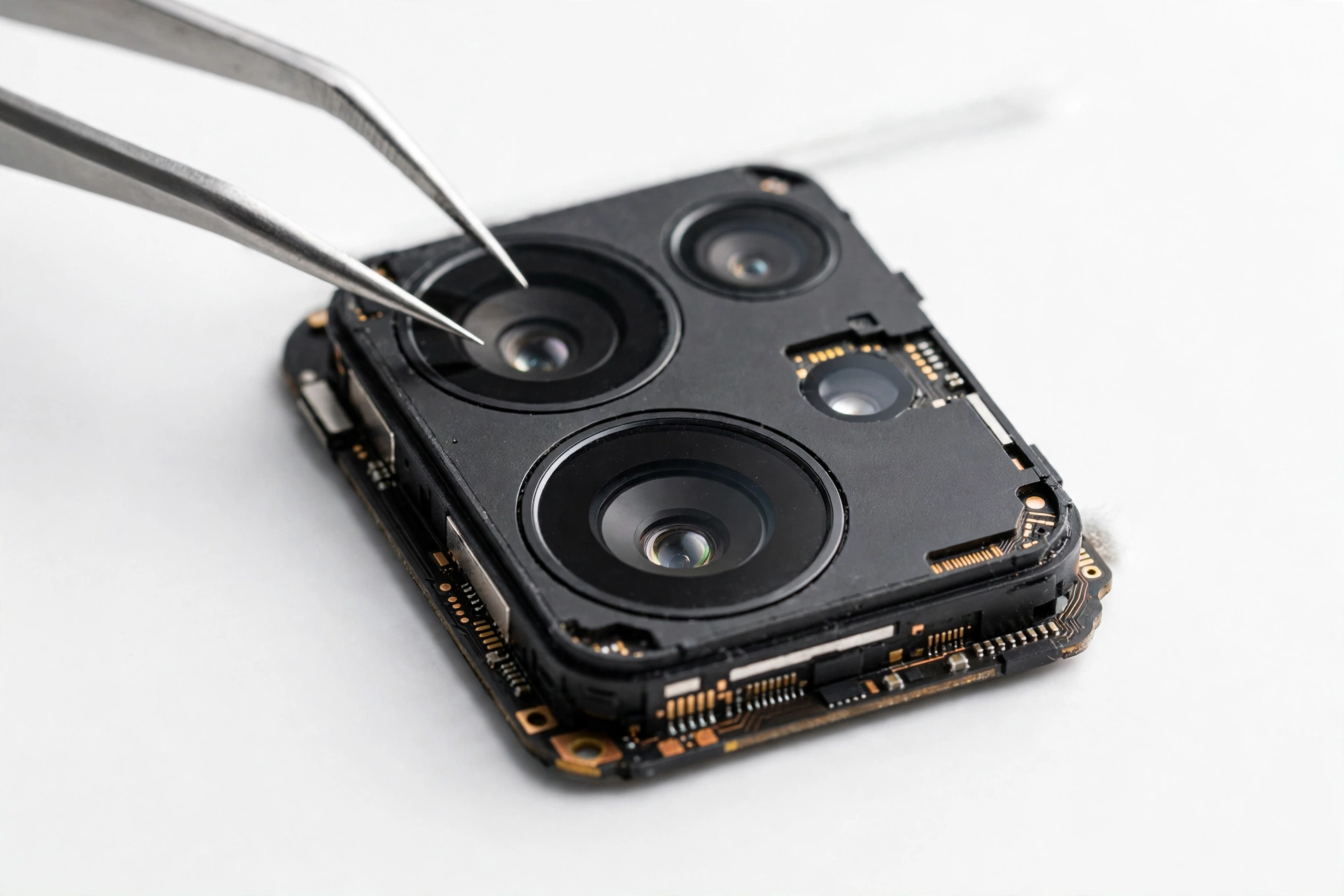
Stop for safety: Never open the phone yourself to “check” the camera module. Phone cameras are sealed precision assemblies; opening the phone risks battery damage, breaks water resistance, and voids remaining warranty. Module-level camera repair is professional work.
If you’ve reached the end of the software road, a repair shop can run hardware diagnostics to confirm whether the camera module itself has failed. In the Las Vegas area, Las Vegas Phone Repair & Accessories (7400 Las Vegas Blvd S, Unit TT42, Las Vegas, NV 89123; (424) 406-6202; open 10AM–8PM, call ahead to confirm today’s hours) can assess a camera that survives all software troubleshooting.
10. Preventing the next post-update camera failure
- Update apps before updating the OS. Open the App Store / Play Store / Galaxy Store and update everything first, so third-party camera apps are as compatible as possible.
- Don’t install a major update on day one if your camera is critical to your work. Waiting for the x.0.1 point release lets early camera bugs get fixed first.
- Restart once after every major update — even if the phone restarted during installation. One clean manual restart clears the half-initialized services that cause most post-update glitches.
- Keep 5–10 GB of free storage. Updates consume space; a phone that was nearly full before the update may behave strangely after it.
- Screenshot your camera settings before a major update, so you can spot (and restore) anything the update silently resets.
11. Hypothetical examples
(The following are hypothetical illustrations, not customer stories.)
Maya’s permission reset. Maya updated her iPhone overnight. The next morning, Instagram’s camera showed only black, though the built-in Camera app worked fine. She assumed the update broke her camera — but Settings > Privacy & Security > Camera showed Instagram’s toggle had been switched off by the update. One tap restored it. Total fix time: under two minutes.
Daniel’s cache crash. Daniel’s Samsung showed “Camera failed” every time he opened the app after a One UI update. Restarting didn’t help. He went to Settings > Apps > Camera > Storage > Clear cache, reopened the app, and the camera worked immediately. The update had left corrupted temporary data behind; clearing it was all that was needed.
12. Frequently asked questions
Can a software update really break my camera?
It can’t break the physical hardware, but it can break the software that drives the camera — a crashed service, a revoked permission, a corrupted cache, or a bug in the update itself. All of these present as “the camera stopped working after the update,” and all are fixable in software.
Why does my camera work in the built-in app but not in Instagram?
That’s the classic signature of a revoked permission or a third-party app incompatibility. Check the app’s camera permission first (Settings > Privacy & Security > Camera on iPhone; Settings > Apps > [App] > Permissions on Samsung), then make sure the app itself is updated.
What does “Camera failed” mean on Samsung?
It’s Samsung’s generic error when the Camera app can’t initialize — most often a corrupted camera cache or settings after an update. Samsung’s own support flow is: reset camera settings, clear the camera app cache, then clear app data, then check for a software update.
Should I factory reset my phone to fix the camera?
Only as a last resort, after trying restart, permissions, cache clearing, Safe Mode, and a point-release update. A factory reset erases everything — back up first. And note the diagnostic value: if the camera still fails after a clean factory reset, the problem is hardware, not the update.
Will Reset All Settings delete my photos?
No. On iPhone, Reset All Settings (Settings > General > Transfer or Reset iPhone > Reset) resets system preferences without deleting photos, apps, or data. Don’t confuse it with Erase All Content and Settings on the same screen, which deletes everything.
Does clearing the camera cache delete my photos?
No. On Samsung, Settings > Apps > Camera > Storage > Clear cache removes only temporary files. Your photos are stored separately and are untouched. (“Clear data” is stronger — it resets the Camera app’s settings to defaults — but it still doesn’t delete photos.)
My camera was already acting up before the update. Is the update to blame?
Probably not — or not entirely. An update can reveal a weakness that was already developing (for example, a marginal hardware fault that the new driver handles less gracefully). Work through the software fixes, but be open to a hardware cause if they all fail.
How do I know if it’s hardware or software?
The decisive test: if the camera fails in every app after a full factory reset (set up as new, not from backup), no software cause remains — it’s hardware. Anything short of that still leaves a software explanation on the table.
Video: How to tell if your smartphone is fake or real
Sources and editorial notes
- EL Service Centre — iPhone Camera Not Working After iOS Update: Summarizes Apple’s troubleshooting order (force quit, permissions at Settings > Privacy & Security > Camera, Screen Time hidden-app check, storage check, iOS point-release updates including the iOS 18.0.1 macro-video fix). Last checked October 14, 2026.
- GeeksModo — Fix iPhone Camera Issues After iOS 26 Update: Documents the general iPhone software path (close apps, restart, update iOS, Reset All Settings without data loss, factory reset as last resort) and hardware checks (case obstruction, lens cleaning). Last checked October 14, 2026.
- The Droid Guy — Samsung Camera App Troubleshooting: Documents the Samsung flow (force stop, clear camera app cache via Settings > Apps > Camera > Storage, wipe cache partition, software update check). Last checked October 14, 2026.
- Samsung Members Community — S21 Ultra Camera Not Working After One UI 7.0 Update: Samsung Customer Support’s published response (clean lens, reset camera settings, clear app data/cache, software update, factory reset with Smart Switch backup and Google password reminder). Last checked October 14, 2026.
- Samsung Members Community — Front Camera Not Working on M30 Post Android Upgrade: Samsung Customer Support’s published Safe Mode diagnostic steps and software-update check. Last checked October 14, 2026.
- Dr.Fone — Fix iPhone Front Camera Not Working: Permission checks, restart, iOS update, and multi-app testing to distinguish software from hardware faults. Last checked October 14, 2026.
Last source check: October 14, 2026. AI-assisted editorial guide, checked against the linked manufacturer information. Procedures describe documented iOS and One UI settings paths; update-specific bug examples are labeled as press reporting where applicable. This guide does not replace professional diagnosis for suspected hardware faults.
Let’s get you connected again.
Tell us what’s happening with your device and we’ll help you decide the safest next step — no jargon, no pressure.
Las Vegas Phone Repair & Accessories · 7400 Las Vegas Blvd S, Unit TT42, Las Vegas, NV 89123
10:00 AM–8:00 PM — call ahead to confirm today’s hours