
Phone Bluetooth Not Working After Update: Causes and Safe Fixes
If your phone’s Bluetooth stopped working right after a software update, the update is the prime suspect — and the fix is almost always software-side. Work through the ordered checks below for your iPhone or Samsung phone before assuming anything is broken.
On this page
If your phone’s Bluetooth stopped working right after a software update, the update is the prime suspect — and the fix is almost always software-side.
1. Who this guide helps
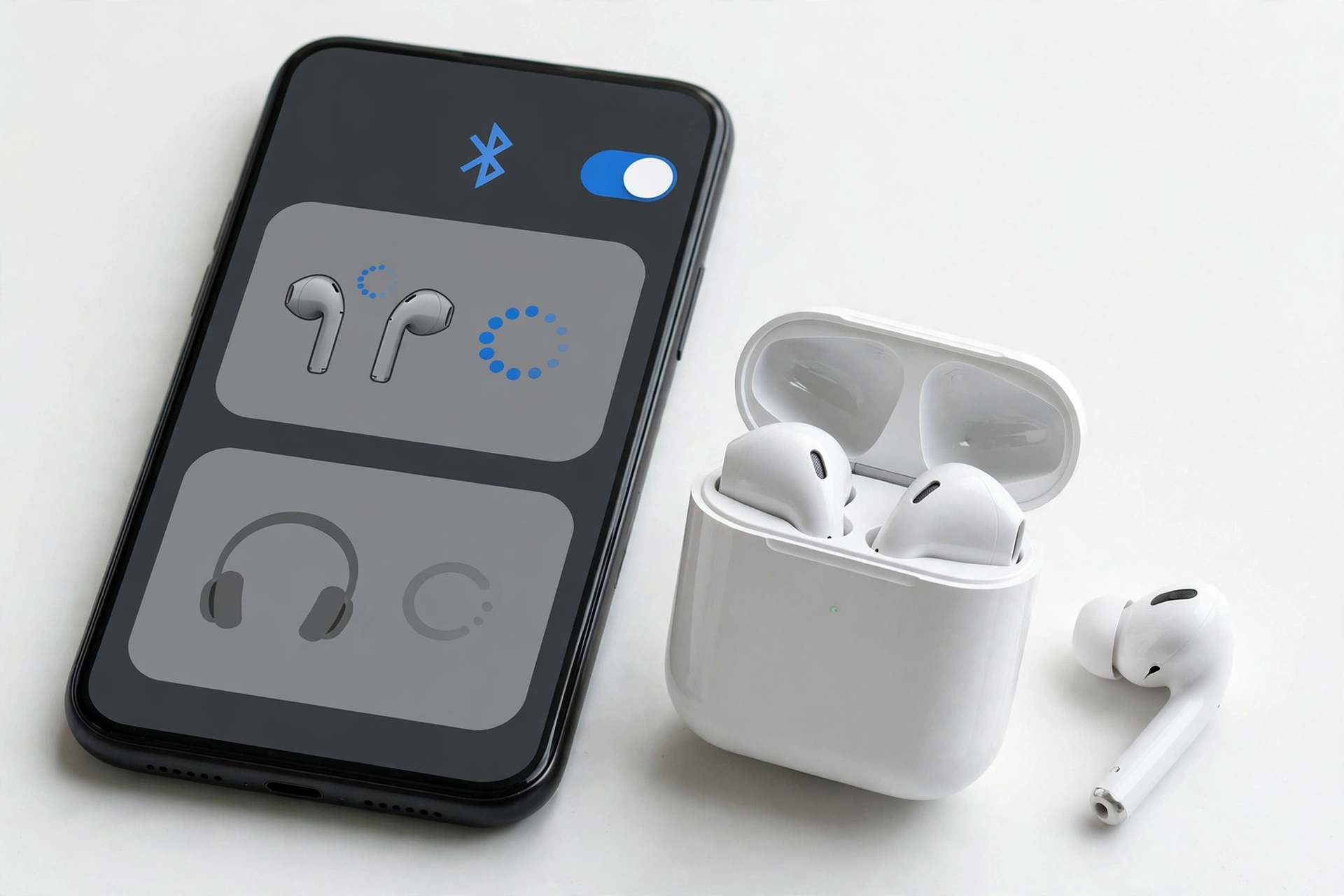
This guide is for you if your phone’s Bluetooth worked before a software update and stopped working — or started misbehaving — immediately after. Common situations include: (Source: simplymac.com)
- Bluetooth earbuds, headphones, or speakers that paired fine before the update now refuse to connect.
- Your car stereo or CarPlay/Android Auto connection broke after the update.
- Devices connect but drop repeatedly, or audio stutters and cuts out.
- Bluetooth accessories need to be re-paired every time, when they used to reconnect automatically.
- The Bluetooth toggle is grayed out or won’t stay on after the update.
Quick fact: This guide covers Bluetooth problems caused by a software update. If your Bluetooth never worked on this phone, or the problem started after a drop or water exposure rather than an update, see our general Bluetooth troubleshooting guide for iPhone at iPhone Bluetooth Not Working instead.
This guide covers iPhone (iOS) and Samsung Galaxy (Android/One UI) phones. The underlying causes are similar on both, but the menu paths and fix order differ, so each platform gets its own section.
2. The 5-minute checks
Before diving into deeper fixes, run through these quick checks. They resolve a surprising number of post-update Bluetooth problems.
Restart your phone
A restart clears temporary software glitches that updates frequently leave behind. On Samsung phones this single step resolves the majority of post-update Bluetooth complaints, according to repair-community reporting. On iPhone, a restart is Apple’s documented first step for accessory issues.
- iPhone (Face ID models): Press and hold the Side button and either volume button until the power-off slider appears, drag the slider, wait 30 seconds, then press and hold the Side button until the Apple logo appears.
- Samsung: Swipe down twice from the top to open Quick Settings, tap the Power icon, and select Restart.
Toggle Bluetooth off and on
Open Settings, go to Bluetooth, turn it off, wait about 10–15 seconds, and turn it back on. This forces the phone to reinitialize its Bluetooth radio and rescan for devices. On Samsung you can do this from the Quick Settings panel.
Restart the accessory
Turn your Bluetooth accessory (earbuds, speaker, car system) completely off and back on. Many accessories hold a stale connection state from before the update. If the accessory has a companion app, check whether the app needs updating too.
Move closer and reduce interference
Keep your phone and the accessory within about 30 feet (10 meters) with a clear line of sight. After an update, phones sometimes renegotiate connection parameters, and a weak or interference-heavy link that “worked before” can start failing. Temporarily move away from Wi-Fi routers, microwaves, and USB 3.0 hubs, which can interfere with the 2.4 GHz band Bluetooth uses.
Tip: If you use a thick or metal phone case, try removing it. Cases can attenuate the Bluetooth signal, and a marginal signal that worked before an update can tip into failure afterward.
3. Why Bluetooth breaks after a software update
Understanding why updates break Bluetooth helps you pick the right fix instead of trying things at random. Here are the update-specific mechanisms:
Corrupted Bluetooth service cache
Updates replace system files, but they don’t always cleanly migrate the cached data that the Bluetooth service uses. Samsung’s own customer support directs users to clear the Bluetooth system app’s cache and data (Settings > Apps > show system apps > Bluetooth > Storage > Clear cache > Clear data) precisely because stale cache entries are a leading cause of post-update failures. The corrupted cache can cause pairing failures, disconnections, or audio routing errors.
Invalidated pairing profiles
Each paired device stores a pairing profile — encryption keys, supported codecs, and connection parameters. Major OS updates can change the Bluetooth stack’s behavior enough that old profiles no longer validate. The phone may show the device as “paired” but fail to connect, or connect and immediately drop. Forgetting the device and re-pairing from scratch creates a fresh profile under the new OS.
Reset or changed network settings
Some updates silently reset parts of the network configuration. Apple’s Reset Network Settings path exists because Bluetooth pairings, Wi-Fi networks, and VPN configurations live in a shared settings store that updates can corrupt. Samsung’s equivalent (Reset Wi-Fi and Bluetooth settings) serves the same purpose.
Accessory firmware incompatibility
Your phone updated, but your earbuds, car stereo, or smartwatch didn’t. New OS versions sometimes change Bluetooth behavior — for example, how they negotiate audio codecs or handle low-energy connections — in ways that older accessory firmware doesn’t expect. This is why Apple and Samsung both recommend checking for accessory firmware updates. Third-party accessories are especially vulnerable because their manufacturers may lag behind OS releases.
Revoked or changed app permissions
On iPhone, apps that use Bluetooth need permission under Settings > Privacy & Security > Bluetooth. Major iOS updates can reset these permissions, so a companion app (for earbuds, a smartwatch, or a car system) may silently lose Bluetooth access. The fix is to re-enable the permission.
Stuck audio routing
Sometimes Bluetooth “works” — the device shows as connected — but audio still comes from the phone speaker, or calls route to the wrong device. Updates can leave the audio routing table in a confused state, with the phone believing audio is going to Bluetooth when it isn’t, or vice versa. Toggling Bluetooth, forgetting and re-pairing, or resetting network settings typically clears this.
Genuine OS bugs
Occasionally, the update itself contains a Bluetooth bug. Community reporting after iOS 18.x releases described devices disconnecting and reconnecting repeatedly, CarPlay refusing to connect, and accessories requiring constant re-pairing. In these cases, the reliable fix is a follow-up point-release update from Apple or Samsung. If all the steps below fail and the timing lines up exactly with a major update, check for a newer software version before assuming hardware failure.
| Mechanism | Typical symptoms | Most effective fix |
|---|---|---|
| Corrupted Bluetooth cache | Pairing fails, devices won’t stay connected, audio stutters | Clear Bluetooth app cache/data (Samsung) or Reset Network Settings (iPhone) |
| Invalidated pairing profile | Device shows “paired” but won’t connect, or connects then drops | Forget This Device and re-pair from scratch |
| Reset network settings | Bluetooth toggle grayed out, all wireless behaving oddly | Reset Network Settings / Reset Wi-Fi and Bluetooth settings |
| Accessory firmware mismatch | Phone updated fine but one specific accessory stopped working | Update the accessory’s firmware via its companion app or manufacturer site |
| Revoked app permission | Companion app can’t find or control the accessory | Re-enable Bluetooth permission for the app in Privacy settings |
| Stuck audio routing | Connected but no sound, or sound from wrong device | Toggle Bluetooth, re-pair, or reset network settings |
| OS bug in the update | Many accessories fail at once; nothing helps | Install the next point-release update; report via Feedback/Samsung Members |
4. iPhone: ordered fixes after an update
Work through these in order. Stop when Bluetooth works again — don’t keep going “just in case.”
Step 1: Restart and toggle
Restart your iPhone as described in Section 2, then toggle Bluetooth off and on in Settings > Bluetooth. Try connecting to your accessory. If it works, you’re done.
Step 2: Forget and re-pair the accessory
This is the single most effective iPhone fix for post-update Bluetooth problems. The old pairing profile may be incompatible with the new iOS version.
- Go to Settings > Bluetooth.
- Under My Devices, find the accessory that’s misbehaving.
- Tap the (i) info icon next to it.
- Tap Forget This Device and confirm.
- Put the accessory back into pairing mode (follow the manufacturer’s instructions — usually a long-press on a button).
- Stay on the Bluetooth settings screen and select the accessory when it appears to pair fresh.
Tip: If you use AirPods, place them in the charging case, open the lid, and press and hold the setup button on the back of the case until the status light flashes white, then re-pair. Make sure the AirPods have enough charge first.
Step 3: Check app Bluetooth permissions
If a companion app controls your accessory (earbuds app, smartwatch app, car app), the update may have revoked its Bluetooth permission:
- Go to Settings > Privacy & Security > Bluetooth.
- Make sure the toggle is on for every app that needs Bluetooth access.
Step 4: Update iOS and the accessory
Check for a newer iOS version: Settings > General > Software Update. Apple frequently ships Bluetooth fixes in point releases (x.1, x.2) following a major update. Also check whether your accessory has a firmware update available through its companion app or the manufacturer’s website.
Step 5: Reset Network Settings
This clears all saved Bluetooth pairings, Wi-Fi networks and passwords, VPN settings, and cellular settings, then restores them to defaults. It does not delete your photos, apps, or personal data — but you will need to re-enter Wi-Fi passwords afterward.
- Go to Settings > General > Transfer or Reset iPhone > Reset.
- Tap Reset Network Settings and confirm.
- Your iPhone will restart. Re-pair your Bluetooth accessories from scratch.
Stop for safety: Reset Network Settings is safe, but do not confuse it with Erase All Content and Settings on the same screen — that wipes the entire phone. Read the button label carefully before tapping. If you’re unsure, back up your iPhone first.
Step 6: Check for interference and distance
If Bluetooth works but keeps dropping, keep the iPhone within 30 feet of the accessory, remove any metal or very thick case, and move away from Wi-Fi routers and other 2.4 GHz sources. Bluetooth 5.0+ phones can theoretically reach further, but walls and interference reduce real-world range significantly.
Step 7: Report and wait for a patch
If every Bluetooth accessory fails and none of the above helps, you may be dealing with an OS-level bug in the update. Report it through the Feedback app (or Apple Support), check Apple’s System Status page, and install the next iOS point release when it arrives. Downgrading iOS is technically possible in narrow windows but is not recommended for most users — it carries data-loss and security risks.
5. Samsung: ordered fixes after an update
Work through these in order, stopping when Bluetooth works again.
Step 1: Restart and toggle
Restart the phone (Quick Settings > Power icon > Restart), then toggle Bluetooth off, wait 10 seconds, and toggle it back on. Attempt to pair again.
Step 2: Forget and re-pair
- Go to Settings > Connections > Bluetooth.
- Tap the gear icon next to the problem device.
- Tap Unpair and confirm.
- Put the accessory in pairing mode and pair it fresh from the Bluetooth screen.
Step 3: Clear the Bluetooth system app cache
This is Samsung-specific and directly targets the corrupted-cache mechanism that updates cause. Samsung’s own customer support recommends it:
- Go to Settings > Apps.
- Tap the menu (three dots) and enable Show system apps.
- Search for Bluetooth and tap it.
- Tap Storage, then Clear cache, then Clear data, and confirm.
- Restart the phone and try pairing again.
Quick fact: Clearing the Bluetooth app’s data removes saved pairings, so you’ll need to re-pair your accessories afterward. It does not delete personal files, photos, or app data.
Step 4: Reset app preferences
Updates can leave app permissions and defaults in a broken state. Resetting app preferences restores default permissions without deleting any data:
- Go to Settings > Apps.
- Tap the More option (three dots).
- Tap Reset app preferences and confirm.
Step 5: Reset Wi-Fi and Bluetooth settings
- Go to Settings > General management > Reset.
- Tap Reset Wi-Fi and Bluetooth settings (on some models: Reset network settings).
- Confirm. The phone will restart its wireless services.
- Re-pair your Bluetooth accessories.
This erases saved Wi-Fi passwords and Bluetooth pairings but leaves your personal data intact.
Step 6: Test in Safe Mode
Safe Mode disables third-party apps. If Bluetooth works in Safe Mode but not normally, a third-party app is interfering — possibly one that wasn’t fully compatible with the update.
- Press and hold the Power button, then touch and hold Power off until the Safe Mode prompt appears.
- Tap Safe Mode. The phone restarts with “Safe mode” in the corner.
- Test Bluetooth. If it works, restart normally and uninstall recently updated or suspicious apps one by one.
Step 7: Run Samsung Members diagnostics
The Samsung Members app includes a hardware diagnostic for Bluetooth:
- Open the Samsung Members app.
- Go to the Get Help tab.
- Open Interactive Checks (or Diagnostics).
- Run the Bluetooth check.
If the diagnostic reports a failure, that’s evidence pointing toward hardware rather than software. If it passes but Bluetooth still fails, the problem is software-side — continue to Step 8.
Step 8: Check for a newer update and report
Go to Settings > Software update > Download and install. Samsung ships Bluetooth fixes in follow-up patches. If the problem persists, use Samsung Members > Support > Error report to send a log file to Samsung so the bug can be investigated.
6. Symptom worksheet: match what you see to the likely cause
| Symptom | Likely cause | Try first |
|---|---|---|
| Accessory paired before the update won’t connect at all | Invalidated pairing profile | Forget This Device / Unpair, then re-pair from scratch |
| Connects but drops every few minutes | Corrupted Bluetooth cache or interference | Clear Bluetooth cache (Samsung) or Reset Network Settings (iPhone); move closer |
| Audio stutters or cuts out | Codec renegotiation failure or interference | Re-pair; move away from Wi-Fi routers; check accessory firmware |
| Connected but no sound / sound from wrong device | Stuck audio routing | Toggle Bluetooth off/on; re-pair; reset network settings |
| Bluetooth toggle grayed out or won’t stay on | Corrupted network settings or OS bug | Restart; Reset Network Settings; check for newer OS update |
| Car stereo / CarPlay / Android Auto broke after update | Pairing profile or car system firmware mismatch | Delete the car pairing on both phone and car, re-pair; update car system firmware |
| One accessory fails but others work | That accessory’s firmware vs. new OS | Update the accessory firmware; re-pair that device |
| Everything Bluetooth fails after update | OS-level bug in the update | Reset network settings; install next point release; report the bug |
| Companion app can’t find the accessory | Revoked Bluetooth permission | Re-enable Bluetooth permission (iPhone: Privacy & Security; Samsung: App permissions) |
| Worked in the morning, failed after auto-update overnight | Overnight update changed Bluetooth stack | Restart; re-pair; check for follow-up patch |
7. What your observations can and cannot tell you
It’s easy to misread Bluetooth symptoms. This table keeps the diagnosis honest:
| Observation | What it suggests | What it cannot prove |
|---|---|---|
| Re-pairing fixed it | The old pairing profile was incompatible with the new OS | That the update was “buggy” — profile invalidation is normal after major updates |
| Only one accessory fails | That accessory’s firmware likely conflicts with the new OS | That the phone is broken — other accessories working points away from phone hardware |
| All accessories fail | Phone-side software issue (or OS bug) | Hardware failure — software causes are far more likely right after an update |
| Works in Safe Mode (Samsung) | A third-party app is interfering | Which app — remove candidates one by one |
| Samsung Members Bluetooth diagnostic passes | The Bluetooth radio hardware is likely fine | That software is correctly configured — diagnostics test hardware, not settings |
| Bluetooth toggle grayed out after reset | Deeper OS corruption or possible hardware fault | Hardware failure on its own — check for a newer OS patch first |
| Problem started exactly at update time | The update triggered it | That the update is permanently broken — point releases often fix it within weeks |
8. Hypothetical examples
(The following are hypothetical illustrations, not customer stories.)
Maya’s car stereo silence. Maya updated her iPhone overnight. The next morning, her car stereo — which had auto-connected for two years — wouldn’t connect at all. She restarted the phone (no change), then went to Settings > Bluetooth, tapped the (i) next to her car’s name, chose Forget This Device, deleted the phone from the car’s own Bluetooth menu, and paired fresh. It connected immediately. The old pairing profile hadn’t survived the iOS update; the fresh one worked fine.
Daniel’s stuttering earbuds. Daniel’s Samsung Galaxy updated to a new One UI version, and his earbuds started stuttering. Restarting didn’t help. He went to Settings > Apps, showed system apps, found Bluetooth, cleared its cache and data, restarted the phone, and re-paired the earbuds. The stuttering stopped. The update had left corrupted entries in the Bluetooth service cache.
9. When to stop troubleshooting and seek help
Stop and get professional assessment if:
- The Bluetooth toggle is grayed out or missing even after a restart and network-settings reset.
- Samsung Members diagnostics reports a Bluetooth hardware failure.
- Bluetooth fails identically after a factory reset (back up first — this is a last resort, not a casual step).
- The phone was dropped or exposed to liquid around the same time as the update — the timing may be coincidence, and hardware damage needs hands-on diagnosis.
- You’ve installed the latest point release and the problem persists across all accessories.
Stop for safety: A factory reset erases everything on the phone. It is never a casual first step. Back up your iPhone (iCloud or computer) or Samsung (Samsung Cloud, Google, or Smart Switch) before even considering it, and treat it as a last resort after all the steps above have failed.
If you’ve worked through the steps and Bluetooth still fails, an in-person diagnostic can determine whether the Bluetooth radio or related hardware is at fault. Las Vegas Phone Repair & Accessories at 7400 Las Vegas Blvd S, Unit TT42, Las Vegas, NV 89123 can assess Bluetooth and wireless issues — call (424) 406-6202 ahead to confirm today’s hours (generally 10AM–8PM).
10. Preventing Bluetooth problems on the next update
- Update accessories first. Before installing a major phone OS update, check your most important Bluetooth accessories for firmware updates via their companion apps.
- Don’t update the night before you need Bluetooth. If you rely on Bluetooth for your car commute or work calls, install major updates when you have time to troubleshoot.
- Keep a list of paired devices. If you end up resetting network settings, you’ll need to re-pair everything — knowing what’s paired saves time.
- Install point releases promptly. The x.1 and x.2 updates after a major release are where Bluetooth regressions usually get fixed.
- Back up before major updates. If a factory reset ever becomes necessary, a fresh backup turns a disaster into an inconvenience.
11. Frequently asked questions
Why did Bluetooth stop working right after I updated my phone?
The most common reasons are a corrupted Bluetooth service cache, an invalidated pairing profile that no longer matches the new OS, or an accessory whose firmware conflicts with the updated Bluetooth stack. All three are software-side and fixable with the steps in Sections 4 and 5. Genuine OS bugs are less common but do happen — they usually get fixed in a follow-up point release.
Will resetting network settings delete my photos or apps?
No. On iPhone, Reset Network Settings clears Bluetooth pairings, Wi-Fi networks and passwords, VPN settings, and cellular settings — but not photos, apps, messages, or other personal data. On Samsung, Reset Wi-Fi and Bluetooth settings is similarly limited to wireless configuration. You will need to re-enter Wi-Fi passwords and re-pair Bluetooth devices afterward.
Should I factory reset my phone to fix Bluetooth?
Almost certainly not as a first, second, or third step. A factory reset is a last resort because it erases everything and takes significant time to recover from. The ordered fixes in this guide resolve the vast majority of post-update Bluetooth problems without a reset. Only consider it after all steps — including installing the latest point release — have failed, and back up first.
My car Bluetooth broke after the update. Is that different?
Car systems are a special case because both sides have firmware: your phone updated, but your car’s infotainment system didn’t. Delete the pairing on both the phone and the car, then pair fresh. Also check whether your car manufacturer offers an infotainment firmware update. For CarPlay/Android Auto specifically, try a different cable (for wired) and make sure the car’s system software is current.
Why do my AirPods work but my other Bluetooth headphones don’t?
Apple optimizes iOS most thoroughly for its own accessories, so AirPods often survive updates that break third-party devices. The third-party accessory’s firmware may need an update from its manufacturer to restore full compatibility with the new iOS version. Re-pairing the accessory sometimes helps even without a firmware update.
Bluetooth worked before the update and the accessory works with other phones. Is my phone’s Bluetooth hardware broken?
Very unlikely. If the accessory works with other phones and your phone’s Bluetooth worked before the update, the timing points squarely at software. Hardware doesn’t break on a software-update schedule. Work through the re-pairing, cache-clearing, and network-reset steps before considering hardware at all.
How long should I wait for Apple or Samsung to fix a Bluetooth bug?
Point releases that fix regressions typically arrive within 2–6 weeks of a major update. If your problem matches widespread reports (check community forums for your exact OS version), installing the next update is often the real fix. In the meantime, the workarounds in this guide — especially forgetting and re-pairing — can restore functionality.
Does a phone case really affect Bluetooth?
It can. Thick, metal, or battery-case designs can attenuate the 2.4 GHz signal Bluetooth uses. A case that was “fine before” can become a problem after an update if the new OS negotiates a more fragile connection. Removing the case for a test costs nothing and rules out an easy cause.
Video: How to tell if your smartphone is fake or real
Sources and editorial notes
- SimplyMac — Bluetooth Not Working on iPhone: Troubleshooting Guide: Summarizes Apple-aligned steps including restart, forget and re-pair, Reset Network Settings, and when to contact Apple Support; notes iOS 18.x-specific community reports of disconnection and re-pairing issues. Last checked October 14, 2026.
- MacObserver — How to Fix Bluetooth Issues in iOS 26.2: Documents forget/re-pair, Reset Network Settings path (Settings → General → Transfer or Reset iPhone → Reset), and waiting for patch updates for persistent bugs. Last checked October 14, 2026.
- Buzzy Moment — Troubleshooting Bluetooth Sync Problems After iOS Updates: Covers app Bluetooth permissions under Privacy & Security and the standard restart/re-pair/reset sequence. Last checked October 14, 2026.
- FixesToFollow — How to Fix Samsung Bluetooth After an Update: Attributes post-update failures to cache corruption and settings conflicts; recommends refresh, cache clearing, and network-settings reset. Last checked October 14, 2026.
- Samsung Members Community — Samsung Customer Support response on post-update Bluetooth issues: Official support steps including clear Bluetooth app cache/data (Settings → Apps → show system apps → Bluetooth → Storage), reset app preferences, reset network settings, Safe Mode test, and error reporting via Samsung Members. Last checked October 14, 2026.
- BackToDefault — How to Fix Samsung S22 Bluetooth Audio Not Working: Documents the Reset network settings path (Settings → General management → Reset → Reset network settings) and software-update check. Last checked October 14, 2026.
- The Droid Guy — Galaxy S24 Bluetooth Connectivity Issues (2026): Restart-first methodology, Bluetooth toggle refresh, and Samsung Members Interactive Checks Bluetooth diagnostic. Last checked October 14, 2026.
Last source check: October 14, 2026. AI-assisted editorial guide, checked against the linked manufacturer information and reputable troubleshooting references. Menu paths reflect documented iOS and One UI layouts; if your phone’s menus differ slightly by model or OS version, use your phone’s Settings search to find the matching option. For related update-caused issues, see also our guides on phone microphone not working after an update and phone speaker not working after an update.
Let’s get you connected again.
Tell us what’s happening with your device and we’ll help you decide the safest next step — no jargon, no pressure.
Las Vegas Phone Repair & Accessories · 7400 Las Vegas Blvd S, Unit TT42, Las Vegas, NV 89123
10:00 AM–8:00 PM — call ahead to confirm today’s hours