
Phone Speaker Not Working After Update: Causes and Safe Fixes
If your phone speaker stopped working right after a software update, the cause is almost always software — a stuck audio route, a reset setting, or a corrupted audio service — not a dead speaker. Work through the quick checks below in order (volume, Bluetooth, restart, app cache) before considering anything drastic, because most post-update speaker failures resolve without a factory reset or a repair visit.
On this page
If your phone speaker stopped working right after a software update, the cause is almost always software — a stuck audio route, a reset setting, or a corrupted audio service — not a dead speaker.
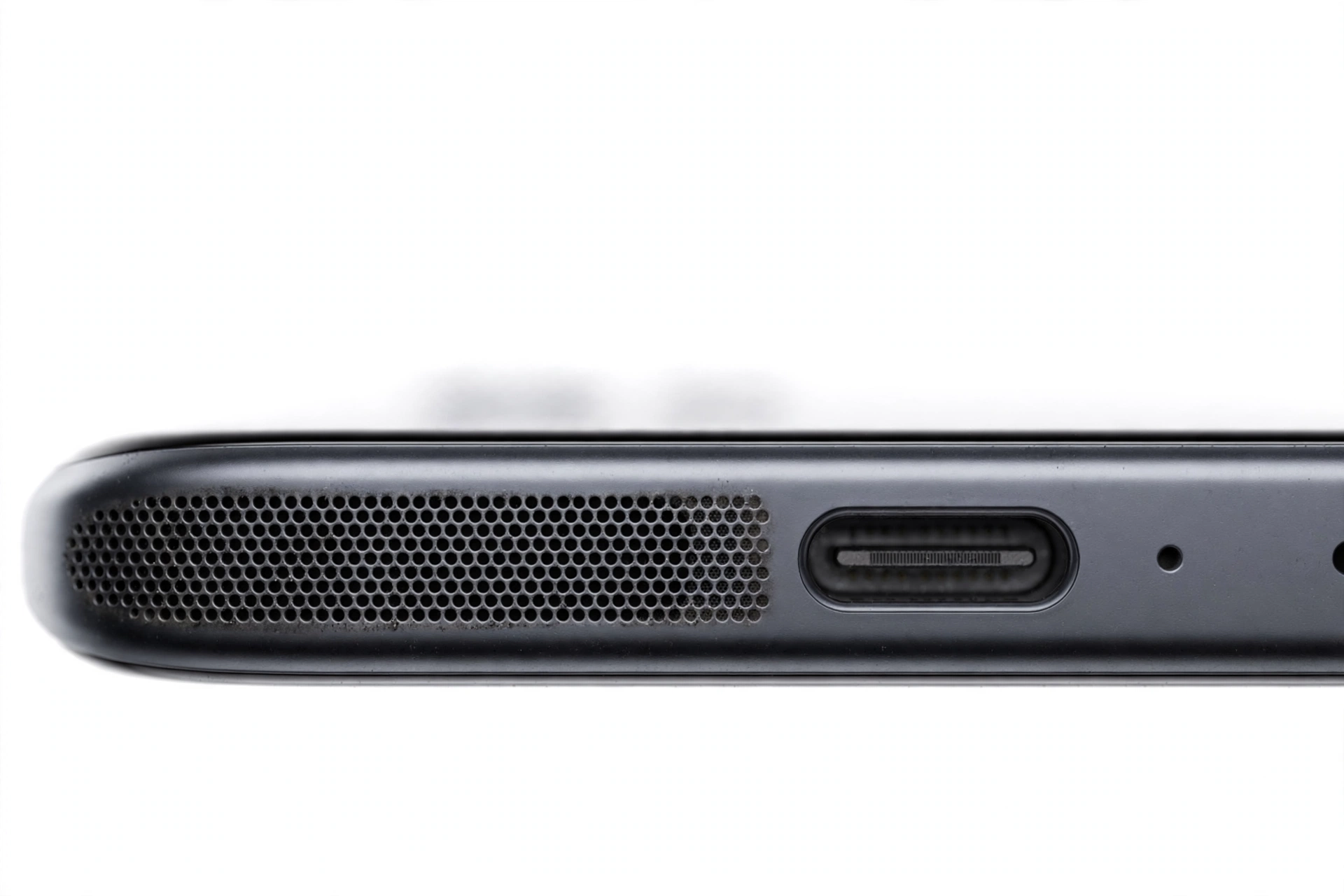
1. Who this guide helps
This guide is for anyone whose phone speaker worked fine before a software update — an iOS update, a Samsung One UI / Android update, or a security patch — and then went silent, quiet, distorted, or intermittent afterward. It covers both iPhone and Samsung Galaxy phones, because the underlying mechanisms are similar even though the menus differ. (Source: samsung.com)
It helps you if:
- Your speaker produces no sound at all after updating, but worked before.
- Sound works in some apps but not others since the update.
- The speaker is suddenly very quiet, crackly, or distorted after an update.
- Sound only comes through headphones, Bluetooth, or the earpiece — not the loudspeaker.
- You want to know whether the update actually broke something or just changed a setting.
Quick fact: A software update cannot physically damage a speaker. If the speaker worked minutes before the update and stopped immediately after, the hardware is almost certainly fine — something in the software chain (routing, permissions, audio service, or settings) is misconfigured. That is good news, because software problems are fixable without opening the phone.
2. How a software update can silence your speaker
Understanding the mechanisms helps you troubleshoot in the right order instead of guessing. Here is what an update can actually do to your audio:
Audio routing gets stuck
Your phone constantly decides where sound should go: loudspeaker, earpiece, wired headphones, Bluetooth earbuds, a car stereo, a smart speaker. Updates sometimes leave this routing “stuck” on a device that is no longer connected. The phone thinks it is still sending audio to your Bluetooth earbuds from yesterday, so the loudspeaker stays silent. This is the single most common cause of post-update speaker silence.
Settings get reset to defaults
Major updates occasionally reset audio-related settings: volume levels, sound enhancements (like Dolby Atmos on Samsung), mono/stereo balance, or notification sound selections. The speaker is fine — it is just set to zero, muted, or routed oddly.
Audio services or caches corrupt
Both iOS and Android run background audio services that manage sound output. On Samsung phones, these include system components like Sound Picker, Sound Alive, and Adapt Sound. An update can leave stale cache data in these services, causing them to crash or misbehave. Clearing their data forces a clean restart of the audio pipeline.
App permissions and audio sessions change
Updates can revoke or alter how apps access audio output. An app that played sound fine before may now be blocked, or two apps may fight over the audio session. This usually shows up as “some apps have no sound” rather than total silence.
Third-party apps conflict with the new OS version
An app that worked on the old OS version may misbehave on the new one — especially equalizer apps, volume boosters, call recorders, or accessibility tools that hook into the audio system. If the speaker works in Safe Mode (Samsung) but not normally, a third-party app is the culprit.
Stop for safety: Do not open the phone, pry at the speaker grille with needles or pins, or apply heat or liquids to “fix” the speaker. Post-update speaker issues are software problems. Physical intervention cannot help and can permanently damage the speaker, the waterproof seals, or the battery. If you have already tried the software steps below and the speaker is still silent, that is the point to seek professional assessment — not to disassemble anything.
3. The 5-minute checks (do these first)
These take five minutes total and resolve the majority of post-update speaker problems. Do them in order.
3.1. Turn the volume up — in the right place
Updates can reset volume sliders independently. On iPhone, press the volume-up button while media is playing (not on the home screen, which adjusts ringer volume). Also check Settings > Sounds & Haptics and confirm the Ringer and Alerts slider is not at zero. On Samsung, press volume-up and tap the three dots to expand all sliders — check Media, Ringtone, Notifications, and System separately. An update may have zeroed one slider while leaving the others intact.
3.2. Disconnect Bluetooth and unplug everything
Go to Settings > Bluetooth and turn Bluetooth off entirely (not just disconnect — turn it off). Also unplug any wired headphones, adapters, or USB-C audio dongles. Then play a video. If sound returns, the phone was routing audio to a phantom Bluetooth device. This is extremely common after updates.
3.3. Check silent, mute, and Do Not Disturb
On iPhone, check the Ring/Silent switch on the side (orange means silent) and confirm Focus / Do Not Disturb is off in Control Center. On Samsung, swipe down the Quick Panel and confirm Sound mode is set to Sound (not Mute or Vibrate). Updates occasionally flip these.
3.4. Restart the phone
A plain restart clears stuck audio sessions and restarts the audio services. On iPhone, hold the side button and either volume button, slide to power off, wait 30 seconds, and power back on. On Samsung, hold Power, tap Restart. Test the speaker immediately after the restart with a video or ringtone.
3.5. Remove the case and check for blockage
Remove any case, especially thick or waterproof cases, and check the speaker grille for lint or debris. A case that shifted during handling — or debris dislodged while the phone was in your pocket during the update — can muffle the speaker. This is not update-caused, but it is worth ruling out in 30 seconds.
| Symptom | Likely cause | Try first |
|---|---|---|
| No sound from loudspeaker at all | Stuck Bluetooth/wired audio route | Turn Bluetooth off; unplug everything; restart |
| Sound works in calls but not media (or vice versa) | One volume slider reset to zero | Expand all volume sliders; raise each one |
| Some apps silent, others fine | App audio permission or session conflict | Force-stop the silent app; reinstall it; check for app update |
| Speaker very quiet or muffled | Enhancement preset reset; debris; mono audio | Disable Dolby Atmos/equalizer; clean grille; check balance |
| Crackling or distortion | Corrupted audio service cache; enhancement conflict | Clear audio service data (Samsung); restart; disable effects |
| Speaker worked, then died hours after update | Third-party app conflicting with new OS | Test in Safe Mode (Samsung); uninstall recent apps |
| No sound and phone thinks headphones are plugged in | Stuck headphone-jack detection | Plug/unplug headphones several times; restart |
| Ringtones silent but media plays | Ringer volume zeroed; silent switch/Focus on | Raise ringer slider; check silent switch and Focus modes |
4. iPhone: ordered fixes after an update
If the 5-minute checks did not help, work through these iPhone-specific steps in order. Stop as soon as the speaker works.
4.1. Check audio output routing (AirPlay / headphones)
Open Control Center (swipe down from the top-right corner), long-press the audio card, and tap the AirPlay icon. Confirm the output is set to iPhone, not to a TV, HomePod, or Bluetooth device. Updates sometimes leave the output pointed at a device you used days ago.
4.2. Check Sound & Haptics thoroughly
Go to Settings > Sounds & Haptics. Confirm: the Ringer and Alerts slider is up; “Change with Buttons” is set as you prefer; a ringtone is actually selected (updates can rarely deselect it); and under Accessibility > Audio/Visual, the left-right Balance slider is centered and Mono Audio is off (unless you need it).
4.3. Force restart
A force restart goes deeper than a normal restart. Quickly press and release Volume Up, quickly press and release Volume Down, then press and hold the Side button until the Apple logo appears. This clears low-level audio driver states that a normal restart may not.
4.4. Update to the latest point release
If your update caused the problem, a follow-up point release (for example, 17.1 → 17.1.1) often contains the fix — Apple regularly patches audio regressions within days or weeks. Go to Settings > General > Software Update and install anything available. This is the legitimate “the update broke it, another update fixes it” path.
4.5. Reset All Settings (not Erase)
Go to Settings > General > Transfer or Reset iPhone > Reset > Reset All Settings. This resets system settings — including audio routing, sound preferences, and network settings — to defaults without deleting your photos, apps, or data. It resolves deep settings conflicts that individual toggles cannot. You will need to re-enter Wi-Fi passwords afterward.
Stop for safety: “Reset All Settings” and “Erase All Content and Settings” are very different. The first keeps your data; the second wipes the phone completely. Never choose Erase as a speaker troubleshooting step unless you have a verified backup and you understand everything on the phone will be deleted. For a speaker issue, Erase is almost never necessary.
4.6. Test with a clean audio source
Play a known-good audio file: a ringtone from Settings > Sounds & Haptics > Ringtone, or a video in the Photos app. If system sounds play but a specific app is silent, the problem is the app, not the speaker — update or reinstall that app.
5. Samsung Galaxy: ordered fixes after an update
Samsung phones have additional audio subsystems, so there are a few extra steps. Work through these in order.
5.1. Expand and check every volume slider
Press Volume Up, tap the three dots (or the gear icon) to expand the full volume panel, and check Media volume, Ringtone volume, Notification volume, and System volume individually. One UI updates are known to occasionally reset individual sliders.
5.2. Check Sound quality and effects
Go to Settings > Sounds and vibration > Sound quality and effects. Try turning off Dolby Atmos and any equalizer preset temporarily. A corrupted or incompatible enhancement preset after an update can cause silence, distortion, or very low volume. If sound returns with effects off, leave them off or reconfigure the preset.
5.3. Clear audio system app data
This is the Samsung-specific fix that resolves many post-update audio failures. Go to Settings > Apps, tap the filter/sort icon, enable “Show system apps,” then search for each of the following and tap Storage > Clear data (and Clear cache):
- Sound Picker — manages ringtone/notification sound selection
- Sound Alive — Samsung’s audio enhancement engine
- Adapt Sound — personalized audio calibration
Clearing data for these system apps does not delete your personal files; it resets their cached state so they rebuild cleanly under the new OS version. Restart the phone afterward.
5.4. Reset app preferences
Go to Settings > Apps, tap the three-dot menu, and choose “Reset app preferences.” This restores default permissions and background restrictions for all apps without deleting any app data. It fixes cases where the update left an app’s audio permission in a broken state.
5.5. Test in Safe Mode
Safe Mode disables all third-party apps. To enter it: press and hold Volume Down + Power until the power menu appears, then long-press “Power off” and tap “Safe mode.” Play audio. If the speaker works in Safe Mode, a third-party app (often an equalizer, volume booster, or call recorder) is interfering — uninstall recently installed or updated apps one by one until you find it. Restart normally to exit Safe Mode.
5.6. Run the Samsung Members speaker diagnostic
Open the Samsung Members app > Support > Diagnostics > Speaker. This plays a test tone directly through the speaker hardware, bypassing most software layers. If the diagnostic tone plays fine but normal audio does not, the problem is definitively software (routing, settings, or an app). If the diagnostic tone is also silent or distorted, that points toward hardware — and it is useful evidence to bring to a repair assessment.
5.7. Check for a follow-up software update
Go to Settings > Software update > Download and install. Samsung issues patches that fix audio regressions, just as Apple does. Install anything available, then retest.
6. Software vs. hardware: how to tell
After an update, the question everyone asks is: “Did the update break my speaker, or did the speaker coincidentally die?” Use this honest framework.
| Observation | What it suggests | What it cannot prove |
|---|---|---|
| Speaker died within minutes of the update finishing | Strongly suggests a software cause (routing, settings, service) | Does not 100% rule out coincidence, but coincidence is unlikely |
| Diagnostic tone plays fine (Samsung Members) | Speaker hardware works; problem is software | Does not identify which software layer is at fault |
| Speaker works in Safe Mode but not normally | A third-party app is interfering | Does not identify the app — uninstall candidates one by one |
| Sound works through headphones/Bluetooth but not loudspeaker | Routing issue or loudspeaker-specific setting | Does not rule out a hardware fault limited to the loudspeaker |
| Crackling that started exactly after the update | Usually a corrupted enhancement preset or service | Persistent crackling after all software fixes may be hardware |
| Speaker was already quiet/distorted before the update | Pre-existing hardware wear or debris; update is likely coincidence | Cannot confirm without inspection |
| No sound from any output (speaker, headphones, Bluetooth) | System-wide audio failure — deep software issue | Rare; may need Reset All Settings or professional diagnosis |
The key principle: software causes are reversible, and you can test them without spending money. Only consider hardware assessment after you have worked through the software steps and the Samsung diagnostic (or iPhone equivalent tests) still shows failure.
7. Hypothetical examples
(The following are hypothetical illustrations, not customer stories.)
Example 1 — Maya’s stuck Bluetooth route. Maya updated her iPhone overnight. In the morning, her alarm was silent and videos played with no sound. She turned the volume up, restarted — nothing. Then she opened Control Center, tapped the AirPlay icon, and saw the output was set to her car stereo from the previous evening. The update had frozen the audio route on the car. Switching output back to “iPhone” restored sound instantly. Total fix time: under a minute once she knew where to look.
Example 2 — Daniel’s corrupted Sound Alive cache. Daniel’s Samsung Galaxy updated to a new One UI version, and afterward the loudspeaker produced only faint, tinny sound. Volume sliders were all up. He cleared data for Sound Alive, Sound Picker, and Adapt Sound (showing system apps first), restarted the phone, and the speaker returned to full volume. The update had left the audio enhancement engine in a corrupted state; clearing its data forced a clean rebuild.
8. When to stop troubleshooting and seek assessment
Stop and seek professional assessment if:
- You have completed all software steps above and the speaker is still silent or distorted.
- The Samsung Members speaker diagnostic produces no tone or a badly distorted tone.
- The speaker problem is accompanied by other hardware symptoms (phone overheating, battery swelling, visible damage, or the phone was dropped in water).
- You hear rattling or buzzing that suggests something is physically loose inside.
- The phone is under warranty — check with the manufacturer before paying for anything.
A repair shop can test the speaker module directly, check the audio IC and flex connections, and determine whether the issue is the speaker unit itself or the audio circuitry. This is a diagnostic assessment — no reputable shop should quote a speaker replacement without testing first.
Quick fact: If you visit a shop for a post-update speaker issue, mention the exact update version and when the problem started. That timeline is the most useful diagnostic information you can provide — it immediately tells the technician to focus on software rather than assuming hardware failure. Las Vegas Phone Repair & Accessories (7400 Las Vegas Blvd S, Unit TT42, Las Vegas, NV 89123; (424) 406-6202; open 10AM–8PM, call ahead to confirm today’s hours) can assess speaker issues — call first to describe the symptoms and the update timeline.
9. Preventing post-update speaker problems
- Before updating: disconnect Bluetooth audio devices and unplug wired accessories. This prevents the “stuck route” problem.
- After updating: play a quick audio test (a video or ringtone) within the first few minutes, so you catch problems while the cause is obvious.
- Keep apps updated: audio-related apps (equalizers, music players, call recorders) should be updated to versions compatible with the new OS.
- Avoid “volume booster” apps: these hook deep into the audio system and are a frequent source of post-update conflicts. The built-in volume controls are safer.
- Do not delay point releases: if an update breaks audio, the fix often arrives in the next point release within days. Install it promptly.
10. Frequently asked questions
Can a software update permanently damage my phone speaker?
No. A software update cannot physically damage the speaker hardware. It can only misconfigure the software that drives the speaker — routing, volume, enhancements, or services. All of these are reversible. If the speaker worked before the update, the hardware is almost certainly intact.
Why does my speaker work for calls but not for music after the update?
Calls use the earpiece (or a separate call-audio path) while music uses the loudspeaker and the media volume slider. The update likely reset your media volume slider to zero or broke the media audio route. Expand all volume sliders and check media volume specifically, and confirm Bluetooth is off.
My Samsung speaker is very quiet after the One UI update. Is this a known issue?
Quiet or muffled audio after One UI updates is frequently reported and is usually caused by a corrupted Sound Alive / Adapt Sound cache or a reset enhancement preset — not by hardware failure. Clearing data for the audio system apps (Settings > Apps > Show system apps) and restarting resolves it in most cases.
Should I factory reset my phone to fix the speaker?
A factory reset is a last resort, not a first step. It erases everything and takes significant time to set up again. In the vast majority of post-update speaker cases, the fix is simpler: Bluetooth off, volume sliders, restart, clearing audio service data (Samsung), or Reset All Settings (iPhone, which keeps your data). Only consider a factory reset — with a verified backup — if every other step has failed.
The speaker worked for a day after the update, then stopped. Is that still the update’s fault?
Possibly. A delayed failure often points to a third-party app that updated itself after the OS update and now conflicts with the new version, or to a corrupted cache that degraded over hours. Test in Safe Mode (Samsung) to check for app interference, and clear the audio service caches.
Do I need to take the phone to a repair shop?
Only if the software steps fail. Because post-update speaker silence is software-caused in the overwhelming majority of cases, a shop visit is premature until you have worked through routing, volume, restart, service-cache clearing, and Safe Mode / Reset All Settings. If those all fail — especially if the Samsung speaker diagnostic is also silent — then a professional hardware assessment is the right next step.
Will the next software update fix my speaker?
Often, yes — if the problem is a widespread audio regression, the manufacturer typically patches it in the next point release. Check for updates regularly after a bad update. But do not wait passively if the fix is something you can do now (like clearing a stuck Bluetooth route); the troubleshooting steps above resolve most cases immediately.
Is this related to the microphone not working after an update?
The mechanisms overlap — both can be caused by stuck audio sessions, reset settings, or corrupted audio services after an update. But the speaker (output) and microphone (input) are separate hardware with separate software paths, so fix them independently. If you also have microphone trouble after the update, see our companion guide: Phone Microphone Not Working After Update: Causes and Safe Fixes.
Video: How to tell if your smartphone is fake or real

Sources and editorial notes
- Samsung Support — How to fix microphone or speaker issues on a Galaxy phone: official steps covering physical obstructions, software updates, Safe Mode, and volume checks.
- Samsung Support — Troubleshooting speaker and sound issues on a Galaxy device: official guidance on software updates, storage, Safe Mode testing, and when to seek service.
- Samsung Members Community — Loud speaker stopped working after update: Samsung Customer Support’s published response with steps to clear Sound Picker, Sound Alive, and Adapt Sound data and reset app preferences.
- Android Authority — iPhone speaker not working troubleshooting: independent guide covering mute switch, AirPlay routing, headphone detection, speaker cleaning, and restart procedures.
- SimplyMac — iPhone speaker troubleshooting: sound settings, software fixes (restart, iOS updates, restore), and hardware checks summarized in original language.
Related guides on this site: Phone Microphone Not Working After Update: Causes and Safe Fixes (companion guide for input-side audio problems after updates); Samsung Galaxy Speaker Not Working (general Galaxy speaker troubleshooting beyond update scenarios); Phone Speaker Muffled (fixes for quiet or muffled — rather than silent — speakers).
Last source check: October 14, 2026. AI-assisted editorial guide, checked against the linked manufacturer information. Procedures described match the documented Settings paths for current iOS and Samsung One UI versions; menu names may vary slightly by model and OS version. This guide does not replace professional diagnosis for suspected hardware faults.
Let’s get you connected again.
Tell us what’s happening with your device and we’ll help you decide the safest next step — no jargon, no pressure.
Las Vegas Phone Repair & Accessories · 7400 Las Vegas Blvd S, Unit TT42, Las Vegas, NV 89123
10:00 AM–8:00 PM — call ahead to confirm today’s hours
2 thoughts on “Phone Speaker Not Working After Update: Causes and Safe Fixes”