
Cubot Phone Speaker Not Working After Update: Causes and Safe Fixes
If your Cubot phone’s speaker stopped working right after a software update, run this checklist before assuming anything is broken: confirm all four volume sliders, disconnect every Bluetooth and wired accessory, turn off Do Not Disturb, restart the phone, and test the speaker in Safe Mode. In almost every case the speaker hardware is fine — an update cannot physically damage a speaker — and the silence comes from a changed setting, a stuck audio route, or a software bug the update introduced. This guide walks you through Cubot-appropriate checks in the right order, from the sixty-second fixes to the last-resort reset, so you can find out what actually happened.
On this page
If your Cubot phone’s speaker stopped working right after a software update, run this checklist before assuming anything is broken: confirm all four volume sliders, disconnect every Bluetooth and wired accessory, turn off Do Not Disturb, restart the phone, and test the speaker in Safe Mode.
1. What the timing actually tells you (and what it doesn’t)
When a speaker goes quiet immediately after a system update, the timing feels like proof that the update “broke” the speaker. The timing is meaningful — it tells you the problem is software-related — but it does not mean the update damaged anything physical. A software update cannot melt a voice coil, tear a diaphragm, or loosen a connector. What an update can do is change how the phone routes sound, reset an audio setting, leave a process in a bad state, or ship with a driver bug that silences one channel while the hardware sits there perfectly intact. (Source: manuals.plus)
This distinction matters because it changes your strategy. If the hardware were damaged, no amount of settings fiddling would help and you would be heading straight to a repair shop. If the cause is software — which, after an update, it almost always is — then a systematic elimination of the usual suspects usually brings the sound back, often in minutes. The rest of this guide is built around that premise: isolate, test, and fix, in order of simplest first.
There is one honest exception to keep in mind. A reboot during an update is not, by itself, capable of damaging a speaker. But if the phone was already struggling — for example, if the speaker had been crackling for weeks before the update — the coincidence of timing can mislead you. The update simply unmasked a hardware problem that was already developing. Section 15 explains how to tell the two situations apart.
| Mechanism | What happened | How it sounds |
|---|---|---|
| Stuck audio route | The phone still thinks a Bluetooth device or wired accessory is connected | Total silence from the phone speaker; audio may play fine on a paired device |
| Volume or mute setting changed | The update reset a volume slider, enabled mute, or turned on Do Not Disturb | Silence or very quiet audio on calls, media, or notifications |
| Stale audio process | A system service did not restart cleanly after the update | Silence across everything, often fixed by a single restart |
| App-level conflict | A third-party app (equalizer, booster, call recorder) conflicts with the new system audio stack | Speaker works in some apps but not others |
| Shipped audio bug | The update itself contains a driver or firmware bug affecting audio output | Speaker fails everywhere including Safe Mode; fixed only by a follow-up update |
2. First, find out which speaker is actually silent
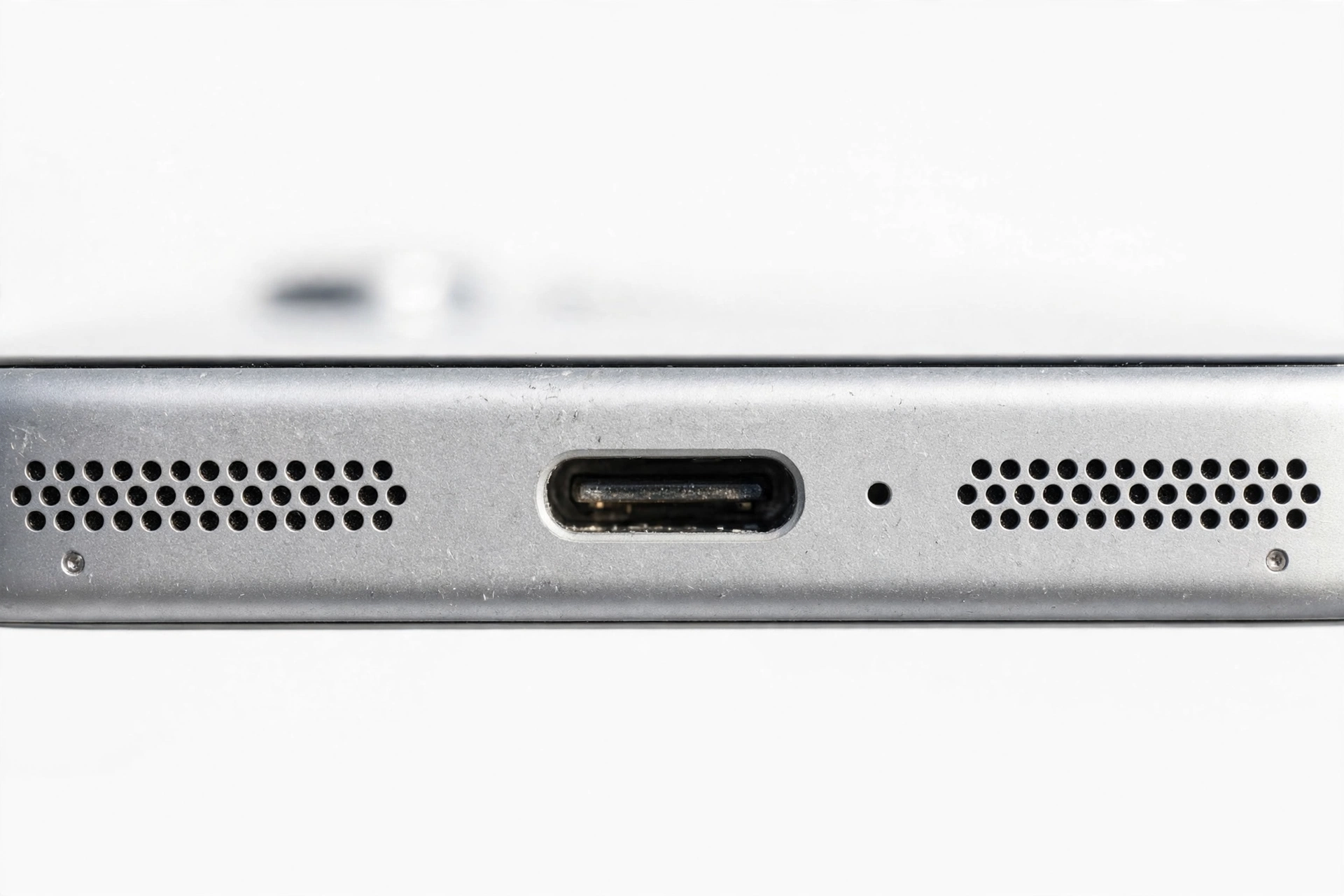
Your Cubot phone has at least two sound outputs that people call “the speaker”: the earpiece (the small slit at the top of the screen you hold to your ear during calls) and the loudspeaker (usually at the bottom edge, used for media, speakerphone, and ringtones). An update problem almost never kills both at once in the same way, and knowing which one is silent narrows the search dramatically.
Run this thirty-second test now:
- Play a video or music file with the volume up. Can you hear it? That is the loudspeaker.
- Make a normal phone call (not speakerphone) and hold the phone to your ear. Can you hear the other person? That is the earpiece.
- Tap the speakerphone icon during the call. Can you hear them now? That switches the call to the loudspeaker.
| What you hear | What it means | Where to look |
|---|---|---|
| Loudspeaker works, earpiece silent | The call audio path is misrouted or the in-call volume is down | Sections 4 and 9 — audio routing and in-call volume |
| Earpiece works, loudspeaker silent | Media routing or a media-volume setting is the culprit | Sections 3 and 8 — volume channels and accessory routing |
| Both silent, but Bluetooth audio works | The phone’s speaker output path is stuck or a system process failed | Sections 5, 6, and 7 — restart, Safe Mode, cache |
| Everything silent, everywhere | A system-level audio failure, possibly a shipped bug | Sections 5, 6, 11, and 14 — restart, Safe Mode, follow-up update |
Quick fact: Cubot phones run a lightly customized version of Android, so the audio settings paths in this guide (Settings > Sound & vibration, Settings > System) follow standard Android layout. If a menu name differs slightly on your model, look for the closest match.
3. The sixty-second checks: volume, mute, Do Not Disturb
Android keeps four separate volume channels, and updates occasionally reset one of them or collapse them into an unexpected state. Press the volume-up button on the side of your Cubot, then tap the small icon (usually three dots or a gear) that appears next to the volume bar to expand all channels. Check each one:
- Media volume — controls videos, music, games, and speakerphone.
- Call volume — controls how loud the other person sounds during calls (only adjustable during a call).
- Ring volume — controls the incoming-call ringtone.
- Alarm volume — controls alarms and timers.
Drag each slider up and watch for the test tone. If a slider moves but produces no preview sound while the others do, you have already narrowed the problem to one channel — and that is useful information for later sections.
Next, check Do Not Disturb. Swipe down from the top of the screen twice to open Quick Settings and look for the Do Not Disturb tile. If it is on, turn it off. DND can silence ringtones and notifications while leaving media playing, which is exactly the “my speaker works for videos but not calls” pattern that confuses people after updates.
Finally, make sure the phone is not in silent or vibrate mode. Some Cubot models let the volume-down button push the ringer all the way into vibrate and then silent. Press volume-up a few times from the home screen and confirm the mode indicator says “Ring,” not “Vibrate” or “Mute.”
4. Disconnect every Bluetooth and wired accessory
This is the single most common cause of “speaker not working” after any update, on any phone brand. The update process can leave the phone convinced it is still connected to a Bluetooth speaker, car stereo, or earbuds — even when it is not. The phone then sends all audio to the phantom device and the built-in speaker stays silent.
- Open Quick Settings (swipe down twice) and tap the Bluetooth tile to turn Bluetooth completely off — not just disconnect, fully off.
- Unplug anything from the 3.5mm headphone jack if your Cubot model has one. Some Cubot models (like the Note 40) have no headphone jack and use USB-C or Bluetooth audio instead.
- If you use USB-C audio, unplug the adapter or USB-C earphones. A dirty or partially seated USB-C connector can make the phone think wired audio is attached.
- Test the speaker again with Bluetooth off and everything unplugged.
If sound returns the moment Bluetooth goes off, you found it: a ghost connection. Go to Settings > Connected devices (or Bluetooth) and look for any device the phone claims is connected. “Forget” devices you no longer use, especially car kits and old speakers that might be in range and auto-connecting.
Tip: Car Bluetooth is the classic ghost-connection culprit. If your phone last connected to your car stereo before the update, and the car is parked nearby, the phone may reconnect silently. Turn the car’s Bluetooth off or “forget” the car pairing as a test.
5. Restart the phone — the unglamorous fix that works
A restart clears stuck audio services, drops phantom routes, and reloads the audio stack fresh. It is the first thing Cubot’s own troubleshooting guidance suggests for misbehaving functions, and it resolves a surprising share of post-update speaker silence.
Do it properly: hold the power button, tap Restart (or Power off, wait ten seconds, then power on). Do not just lock and unlock the screen — that does nothing for a stuck service. After the phone boots back up, play a video before opening any other app, so you test the speaker in the cleanest possible state.
If the speaker works after the restart but dies again later, something is re-triggering the problem — usually an app that grabs audio focus on launch (a “booster,” equalizer, or call-recording app). Make a note of which apps you open before the sound dies; Section 9 covers this.
6. Safe Mode: the test that separates software from hardware
Safe Mode starts Android with only the built-in system apps running. Every third-party app — including the equalizers, “speaker cleaners,” and boosters that are the most frequent audio offenders — is temporarily disabled. This makes Safe Mode the single most informative diagnostic you can run.
To enter Safe Mode on most Cubot phones:
- Press and hold the power button until the power menu appears.
- Touch and hold “Power off” until the “Reboot to safe mode” prompt appears.
- Tap OK. The phone restarts with “Safe mode” shown at the bottom of the screen.
- Play a video or audio file and test the speaker.
- To exit, simply restart the phone normally.
| Result in Safe Mode | Meaning | Next step |
|---|---|---|
| Speaker works | A third-party app is interfering with audio | Section 9 — find and remove the offending app |
| Speaker still silent | The cause is in the system itself, not an app | Sections 7 and 11 — cache clearing and follow-up updates |
| Speaker works intermittently | An app or service is competing for audio focus | Section 9 — check recently installed or updated apps |
Quick fact: Safe Mode changes nothing permanently. Your apps, data, and settings are untouched — third-party apps are simply not allowed to run until you restart normally. It is a diagnostic, not a fix.
7. Clear the cache: app cache first, then the system cache partition
Updates can leave behind stale cached data that conflicts with the new system audio components. Clearing cache removes temporary files without touching your photos, messages, or accounts — it is safe and worth doing before anything drastic.
Clear an individual app’s cache (start with the app where the speaker fails, or the system “Sounds” components):
- Open Settings > Apps & notifications > See all apps.
- Tap the app in question.
- Tap Storage & cache, then Clear cache.
This is also the procedure Cubot’s own device manuals describe for apps that freeze or misbehave after a change — clear the cache first, and only consider stronger measures if the problem persists.
Clear the system cache partition (deeper, still safe): this wipes temporary system files left over from the update. On most Cubot phones, power the phone fully off, then hold Power + Volume Up together until the recovery menu appears. Use the volume buttons to highlight “Wipe cache partition”, confirm with the power button, then choose “Reboot system now.” Your data is not affected. (If your model uses a different button combination, check the manual for your specific model — do not guess in the recovery menu.)
Stop for safety: In the recovery menu, “Wipe cache partition” and “Wipe data / factory reset” sit close together. Highlight carefully and read the confirmation prompt before confirming. Choosing the wrong one erases everything. If you are unsure, stop and ask someone experienced to help.
8. Check app-level and per-app sound settings
If the speaker works in Safe Mode but fails in normal use, a third-party app is the prime suspect. The worst offenders are:
- “Speaker cleaner” / “speaker booster” / equalizer apps — these take control of the audio output path and frequently break it after a system update changes the audio stack underneath them. Uninstall them; they are never necessary.
- Call recorders — can hijack the call audio route.
- Music and video apps with their own volume or mute controls — check inside the app’s own settings. Some apps (social media apps included) have an in-app mute that survives system updates.
Think about which apps updated around the same time as the system update. If the speaker failed in one specific app first, that app is your suspect: clear its cache (Section 7), check its internal sound settings, and if needed uninstall and reinstall it.
The hypothetical case below shows how this typically plays out.
Hypothetical illustration (not a customer story): Daniel installed a “volume booster” app months ago to make his Cubot louder. After a system update, his speaker went completely silent — but only when the booster app was running in the background. In Safe Mode the speaker worked fine. Uninstalling the booster restored sound immediately, because the app had been forcing audio through a processing path the update no longer supported.
9. The headphone-jack false detection
On Cubot models with a 3.5mm headphone jack, dust or lint inside the jack can trick the phone into believing headphones are plugged in — which mutes the speaker. An update does not cause this, but the timing coincidence is common: people notice it right after an update because that is when they are paying attention to sound.
Check for the headphone icon in the status bar. If you see it with nothing plugged in, the jack is falsely detecting a plug. Look into the jack with a flashlight. If you see lint, remove it gently — a dry wooden or plastic toothpick, with the phone powered off. Never use anything metal, and never force it.
Stop for safety: Never poke needles, pins, SIM tools, or any metal object into the headphone jack or speaker grille. You can short contacts, puncture the speaker membrane, or push debris deeper. A soft dry brush or a wooden toothpick used gently is the limit of safe home cleaning.
10. Inspect the case and speaker grille — safely
Before concluding anything about software, rule out the physical basics:
- Remove the phone case and test the speaker. Some cases cover or muffle the bottom-firing speaker grille, and a case that shifted during handling can block sound almost completely.
- Look at the speaker grille (the small holes along the bottom edge). If they are visibly clogged with pocket lint, brush them gently with a clean, dry, soft-bristled brush — a new soft toothbrush works.
- If a small amount of liquid got near the grille, let the phone dry for several hours in open air before testing again. Do not use heat, a hair dryer, or compressed air.
Compressed air deserves a special warning: it can force debris deeper into the grille and, at close range, damage the thin speaker membrane. It is not a safe cleaning method for phone speakers despite how often it is suggested online.
11. Check for a follow-up update
If the speaker is silent even in Safe Mode, across all apps, with all accessories disconnected — and the problem started with the update — you may be looking at a bug shipped inside the update itself. Manufacturers, including Cubot, release system updates to fix bugs, improve performance, and patch security issues; a follow-up update is the standard remedy when one update introduces a regression.
Check manually: Settings > System > System update (the exact path Cubot’s manuals give for checking updates). If an update is available, install it over Wi-Fi with the battery well charged, then test the speaker immediately after the phone restarts.
If no update is available and every other check has failed, this is the point to contact Cubot support (support@cubot.net is the address Cubot’s community points users to) and report the issue: your exact model, the update version that triggered it, and the fact that the speaker fails in Safe Mode. That report is also how bugs get fixed in the next update.
12. Reset network settings to clear stuck Bluetooth audio routing
If your speaker problem is specifically the ghost Bluetooth connection from Section 4 — the phone keeps routing audio to a device that is not there — and forgetting devices did not help, resetting network settings clears all Bluetooth pairings, Wi-Fi networks, and mobile settings back to defaults. This often clears routing corruption that survives ordinary disconnects.
Go to Settings > System > Reset options > Reset Wi-Fi, mobile & Bluetooth and confirm. You will need to re-enter Wi-Fi passwords and re-pair Bluetooth devices afterward, but your apps, photos, and files are untouched.
Only use this if Bluetooth routing is actually implicated. If your speaker is silent with Bluetooth already off, this reset will not help and you should move on.
13. The “speaker cleaner” app trap
This deserves its own section because it is so common on budget Android phones. “Speaker cleaner” apps claim to eject water or dust by playing special tones. In reality:
- They seize exclusive control of the audio output, which can leave the speaker silent or distorted after they run — especially after a system update changes the audio framework they were built against.
- Playing sustained maximum-volume tones can stress the small speaker driver in a way normal use does not.
- They cannot remove water from inside a phone. Only time and airflow do that.
If you have any such app installed, uninstall it and restart the phone. Then test the speaker. A remarkable number of “dead speaker after update” cases end here.
Hypothetical illustration (not a customer story): Amara’s Cubot speaker sounded muffled after she got caught in rain, so she installed a “speaker cleaner” app a friend recommended. The app played loud tones for two minutes. After a system update the following week, her speaker went completely silent. She assumed the update killed it — but uninstalling the cleaner app and restarting restored full sound. The app had left the audio output locked in an exclusive mode the new system version could not initialize.
14. Factory reset: the last resort, done right
A factory reset returns the phone to its out-of-the-box software state. It is the final software step because it erases everything — and because, honestly, it rarely fixes post-update speaker problems that survived Safe Mode. If the speaker is silent in Safe Mode, a reset reinstalls the same system version with the same potential bug. Still, when all else fails, it is the last thing to try before concluding the issue is hardware.
Cubot’s own manuals describe this path (Settings > System > Reset options > Erase all data) with the same warning every manufacturer gives: back up first. Before you reset:
- Back up photos, contacts, messages, and app data (Google backup, or copy files to a computer).
- Confirm you know your Google account password — the phone will ask for it after the reset.
- Remove the microSD card if you use one as portable storage, or back up its contents too.
- Go to Settings > System > Reset options > Erase all data (factory reset) and follow the prompts.
- After the reset completes, test the speaker before reinstalling any apps. This is the crucial step: if the speaker works on the clean system, reinstall apps one at a time until you find the one that breaks it.
Stop for safety: A factory reset permanently deletes everything on the phone. Never start one until your backup is verified — open the backup on another device and confirm your photos and files are actually there. “I thought it backed up” is not a backup.
15. What your checks can and cannot establish
By now you have run a structured diagnosis. Here is how to read the results honestly — what each outcome proves and what it leaves open.
| Outcome | What it establishes | What it does not establish |
|---|---|---|
| Speaker works after restart | A stuck audio process was the cause | Whether it will recur; watch for the triggering app |
| Speaker works in Safe Mode only | A third-party app is interfering | Which app, until you isolate it by uninstalling suspects |
| Speaker works with Bluetooth off | A ghost audio route was stealing the output | Why the route stuck; forgetting old pairings usually prevents recurrence |
| Speaker silent everywhere, including Safe Mode | The cause is in the system, not your apps | Whether it is a shipped bug or hardware — a follow-up update or professional diagnosis decides |
| Speaker silent after factory reset | Software is essentially ruled out | The exact hardware fault — that needs hands-on diagnosis |
| Speaker crackles or distorts rather than silent | The driver is producing sound but damaged or obstructed | Whether cleaning or replacement is needed — distortion usually means hardware |
The key honesty point: no home test can distinguish a shipped system bug from a hardware failure with certainty when the speaker is silent in Safe Mode after a clean reset. Both look identical from the outside. That is genuinely the point where professional diagnosis — someone who can test the speaker component directly — becomes the right move rather than more guessing.
16. When to stop troubleshooting and get help
Stop and seek professional assessment if:
- The speaker is silent in Safe Mode, after cache clearing, and after a factory reset.
- The speaker distorts, crackles, or rattles at normal volume — that pattern points to a damaged driver or debris inside, not software.
- The phone was dropped, bent, or exposed to significant water around the same time as the update. The update is then a coincidence, not the cause.
- The battery is swollen, distorted, or getting dangerously hot. Stop using the phone, do not charge it, and get it assessed promptly.
- You see any physical damage to the speaker grille area.
A repair shop can test the speaker module directly and tell you whether it is a component failure or a board-level issue — something no settings menu can do. If you are in the Las Vegas area and the checks in this guide have not resolved it, our general speaker troubleshooting guide covers the same ground, and a professional assessment can confirm what your home testing could not. Similar brand-specific guides exist for Blackview phones and Doogee phones if you are comparing symptoms across devices.
Las Vegas Phone Repair & Accessories, 7400 Las Vegas Blvd S, Unit TT42, Las Vegas, NV 89123 — (424) 406-6202. Call ahead to confirm today’s hours before visiting.
17. Frequently asked questions
Can a system update physically damage my Cubot’s speaker?
No. A software update changes code and settings; it cannot melt a voice coil, tear a speaker diaphragm, or loosen a hardware connector. When a speaker goes silent right after an update, the cause is a changed setting, a stuck audio route, a stale process, an app conflict, or — least commonly — a bug shipped in the update itself. All of those are software problems, and the hardware is almost always intact.
Why does my speaker work for videos but not for phone calls?
Videos use the loudspeaker and the media volume channel; calls use the earpiece and the in-call volume channel. If one works and the other does not, check the right channel: during a call, press volume-up to raise in-call volume specifically, and check that Bluetooth is off so the call is not being routed to a phantom headset.
My phone shows a headphone icon but nothing is plugged in. What do I do?
The headphone jack is falsely detecting a plug — usually lint or dust inside the jack. Power the phone off, look inside the jack with a flashlight, and gently remove visible lint with a dry wooden toothpick. Never use metal objects. If the icon persists with a clean jack, the detection switch itself may be faulty, which needs professional assessment.
Should I install a “speaker cleaner” app to fix this?
No. These apps take exclusive control of audio output and are a frequent cause of speaker silence after updates, not a cure. They cannot remove water or debris from inside the phone. If you have one installed, uninstall it and restart the phone before trying anything else.
The speaker worked in Safe Mode. What now?
A third-party app is interfering. Restart normally, then think about which apps handle audio: equalizers, boosters, “cleaners,” call recorders. Uninstall the most recently installed or updated one first, restart, and test. Repeat until the speaker works — the last app you removed was the culprit.
Will a factory reset fix a speaker problem caused by an update?
Sometimes, but not usually — and only as a last resort. A reset reinstalls the same system version, so if the update shipped with an audio bug, the reset keeps the bug. It is worth trying only after Safe Mode, cache clearing, and accessory checks have all failed, and only with a verified backup first. Test the speaker on the clean system before reinstalling apps.
How do I contact Cubot support about this?
Cubot’s community support points users to support@cubot.net. When reporting, include your exact model name, the system update version that triggered the problem, and the key diagnostic detail: whether the speaker works in Safe Mode. That single detail tells support whether they are looking at an app conflict or a system bug.
My speaker crackles instead of being silent. Is that the same problem?
No — crackling, distortion, or rattling at normal volume usually indicates a hardware issue: a damaged driver, debris lodged against the membrane, or moisture damage. Software troubleshooting rarely fixes distortion. If cleaning the grille gently does not help, that is a sign to get the speaker assessed professionally rather than continuing with settings changes.
Video: How to tell if your smartphone is fake or real
Sources and editorial notes
- Cubot Pocket user manual (Manuals.plus) — troubleshooting section: restart the device, check for updates via Settings > System > System update, clear app cache via Settings > Apps & notifications, factory reset only with backup first.
- Cubot A20 user manual (Manuals.plus) — software update path (System > System update), app cache clearing (Settings > Apps), factory reset path (Settings > System > Reset options > Erase all data) with backup warning.
- Cubot Note 40 user manual (Manuals.plus) — warranty and support guidance (official Cubot website or point of purchase); notes the model has no 3.5mm headphone jack.
- SlashGear: Android phone speaker troubleshooting — volume sliders, restart, Bluetooth/wired accessory disconnection, Do Not Disturb, installing system updates, factory reset as final step.
- TechMoran: fixing Android phone speakers — in-call volume, app sound settings, media volume path (Settings > Sounds and vibration > Volume), Do Not Disturb, headphone detection, removing the phone case.
- GSMArena Cubot X70 user reviews — community reference to Cubot after-sales support email support@cubot.net.
Last source check: October 14, 2026. AI-assisted editorial guide, checked against the linked manufacturer information. Cubot publishes limited model-specific audio troubleshooting, so this guide combines Cubot’s documented procedures (restart, update checks, cache clearing, reset paths) with standard Android audio diagnostics; brand-specific claims are labeled as such, and community-reported details are identified as community reporting rather than official guidance.
Let’s get you connected again.
Tell us what’s happening with your device and we’ll help you decide the safest next step — no jargon, no pressure.
Las Vegas Phone Repair & Accessories · 7400 Las Vegas Blvd S, Unit TT42, Las Vegas, NV 89123
10:00 AM–8:00 PM — call ahead to confirm today’s hours