
Blackview Phone Speaker Not Working After Update: Causes and Safe Fixes
Your Blackview phone’s speaker stopped working right after an update, and an update cannot physically damage the speaker — the silence comes from reset settings, rerouted audio, corrupted app data, an incompatible app, or a shipped bug, and most cases resolve with checks you can do safely at home. This guide walks through Blackview-specific causes — including the Harman booster app and sealed-grille pressure quirks on rugged models — in the order Blackview’s own support guidance recommends.
On this page
Your Blackview phone’s speaker stopped working right after an update, and an update cannot physically damage the speaker — the silence comes from reset settings, rerouted audio, corrupted app data, an incompatible app, or a shipped bug, and most cases resolve with checks you can do safely at home.
1. Who this guide helps
This guide is for owners of Blackview phones — from rugged models like the BV8100, BV9200, and S-series phones to standard models — whose loudspeaker or earpiece stopped producing sound immediately after a system update or app update. It covers phones that are now silent during calls, media playback, alarms, or all of the above. (Source: store.blackview.hk)
It does not matter whether the update was an Android version upgrade, a small security patch, or an app update from the Play Store. The diagnostic approach is the same: rule out the fast, reversible causes first, and work toward deeper software checks only if the simple ones fail.
This guide does not cover physically cracked speakers, water-damaged phones that will not power on at all, or phones that never produced sound even before the update. Those are hardware problems, not update problems, and they belong at a repair bench.
2. First: rule out the quick settings traps
Before any deeper troubleshooting, run through these traps. Each takes seconds, and each has produced countless “my speaker is dead” reports that turned out to be a toggle.
Volume channels are separate
Android keeps separate volume sliders for media, ringtones/notifications, calls, and alarms. An update can reset one channel without touching the others. Press a volume button, then tap the three-dot or slider icon to expand all channels. Confirm each slider is up — especially the media channel when music is silent but ringtones still play.
Do Not Disturb and silent modes
Check that Do Not Disturb is off and that the ring/silent toggle (if your model has a physical switch or quick-tile) is set to ring. An update can re-enable a schedule you had forgotten.
The rubber port flaps on rugged models
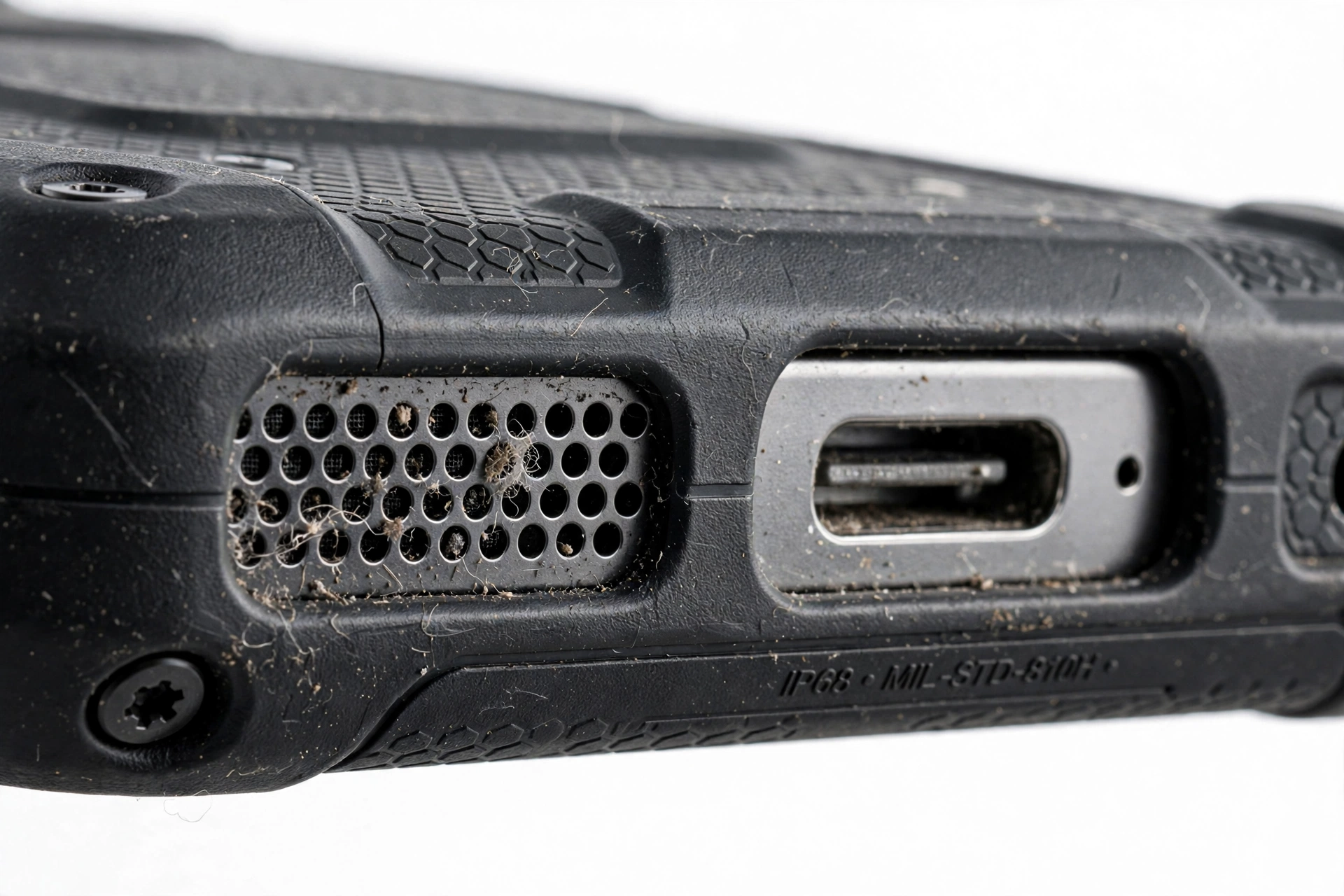
Blackview’s rugged phones seal their ports with rubber flaps. These flaps do not mute the speaker directly, but owners on Blackview’s own community forum report that the speaker membrane on airtight phones can behave oddly when dust or residue makes it sticky, combined with a pressure difference between the inside and outside of the sealed body. If your rugged model suddenly sounds muffled or distorted after an update, check that the flaps are seated properly and that no debris is trapped around them — because a coincidental physical blockage is easy to mistake for an update bug.
Tip: If only calls are silent but media plays fine, the problem is almost never the speaker hardware. Call audio and media audio use different paths and settings — a silent-earpiece-during-calls symptom points to an app or setting, not a dead speaker.
3. How an update can silence a speaker (and what it cannot do)
An update cannot physically damage the speaker. The speaker is a passive hardware component: a membrane driven by an electromagnet. Software cannot break the membrane, loosen a connection, or short a coil. When sound disappears at exactly the moment an update finishes, one of five software-level things happened.
| Mechanism | What happened | How it feels |
|---|---|---|
| Settings reset | The update restored a default volume, enhancement, or audio-profile setting | Sound is gone or sounds wrong; phone otherwise fine |
| Audio rerouted | Sound is being sent to a Bluetooth device, USB audio accessory, or wired headset that you are not using | Phone appears silent but vibrates and works normally |
| Corrupted app or service data | Cached data for the media or audio service was damaged during the update | Specific apps are silent while system sounds work |
| App incompatibility | A third-party app conflicts with the new system version | Sound fails only when a particular app runs |
| Shipped bug | The update itself contains an audio bug | Silence began at the update on a phone that was fine before, and nothing you change fixes it |
Knowing this list matters because it orders your work. Start with settings and routing — the first two rows — because they are fast, reversible, and explain the majority of cases. End with the shipped-bug possibility, which is the only one a factory reset cannot fix.
4. Test one: earpiece versus loudspeaker
Your phone has (at least) two sound outputs: the small earpiece speaker used for calls and the bottom loudspeaker used for media and speakerphone. Testing them separately tells you whether the problem is routing or hardware.
| Test | Result | Meaning |
|---|---|---|
| Play a video at full volume | Sound plays | Loudspeaker hardware works; problem is app- or call-specific |
| Play a video at full volume | No sound | System-wide silence — continue to the routing checks |
| Make a normal call | You hear the other person | Earpiece works; the fault is in media routing or an app |
| Make a call on speakerphone | Works on speakerphone, not on earpiece | Earpiece path is blocked by a setting or app |
| Plug in wired earphones | Sound returns in earphones | Audio is being generated but routed away from the phone speakers |
If sound returns through earphones, you have confirmed the audio pipeline is alive — the system is simply sending it somewhere other than the phone’s own speakers. Jump to the Bluetooth routing section next.
Quick fact: On Blackview phones with sound-enhancement software (see section 6), the earpiece and loudspeaker can behave differently after an update even when the hardware is fine — the enhancement profile may apply to one output and not the other.
5. The Bluetooth ghost connection — the number-one false alarm
The single most common cause of “speaker stopped working after update” is invisible audio routing. Your phone is playing sound, but it is sending it to a Bluetooth device you are not currently using: a car stereo in the driveway, wireless earbuds in a pocket or case, a Bluetooth speaker in another room.
After an update, the phone may reconnect to a previously paired device automatically, and some Blackview models are more aggressive about auto-reconnecting than others. Meanwhile you hear nothing, because the Bluetooth device is out of earshot.
Check this now:
- Open Settings > Bluetooth and look for any connected device. If anything shows as connected that you are not actively using, disconnect it.
- Temporarily turn Bluetooth off entirely and test the speaker. If sound returns, you found it.
- Also check for USB-audio routing: if a USB-C adapter or dock was left connected, audio may be routed to it.
To prevent repeats, unpair devices you no longer use rather than leaving them in the paired list.
(The following is a hypothetical illustration, not a customer story.) Daniel updated his rugged Blackview phone overnight. In the morning, no alarm sound, no media sound — but calls on speakerphone worked. He was about to factory-reset when he opened Bluetooth settings and saw his phone connected to the car stereo parked outside. One tap to disconnect, and the speaker came back. Nothing was ever broken.
6. Blackview-specific cause: sound enhancement and the Harman booster app
This is the most Blackview-specific item in this guide, and it comes from owner reporting on the XDA developers forum for the Blackview BV9200. Two software features on some Blackview models interact badly with updates:
- Sound enhancement during calls. Owners reported that sound cuts off while using the phone app, and the fix was to disable the sound-enhancement option in settings. An update can silently re-enable this feature.
- The Harman booster app. Owners reported that sound while playing videos or music sounds weird or overdriven (“oversteered”), and the fix was to uninstall the Harman booster app.
If your speaker sounds distorted, overdriven, or cuts out specifically during calls after an update, do the following before anything drastic:
- Go to Settings and search for “sound enhancement” or “audio enhancement.” If it is enabled, turn it off and test.
- Go to Settings > Apps and look for a Harman booster or audio-enhancement app. If present, try disabling or uninstalling it, then test.
- If neither exists on your model, skip this section — not all Blackview models ship these features.
Tip: “Speaker booster” and “speaker cleaner” apps from the Play Store are frequent offenders in post-update silence cases. If you installed one before the update, uninstall it and test in Safe Mode (section 8). These apps do not repair speakers; they often cause the very problems they claim to fix.
7. Blackview’s own official fix order
Blackview’s own published troubleshooting guidance for a non-working phone speaker recommends working through these steps in order. The order is deliberate: fast and reversible first, destructive last.
- Check volume and restart. Confirm volume levels, then restart the phone. A restart clears temporary audio-service glitches.
- Safe Mode test. If the speaker works in Safe Mode, uninstall recently downloaded apps (see section 8).
- Reset audio settings. On Android: Settings > System > Reset > Reset Wi-Fi, mobile & Bluetooth. This clears corrupted connection and audio-routing data without deleting your files or apps.
- Check for updates. Settings > System > Software Update. A follow-up patch may already fix the bug — Blackview releases updates that address known issues.
- Factory reset, last resort only. Back up your data first, then Settings > System > Reset > Factory Data Reset.
Note what Blackview lists second: the Safe Mode test. It is the single most informative check in this entire guide, and the next section explains why.
8. Safe Mode: the test that separates apps from the system
Safe Mode starts your phone with only the built-in system apps running. Every third-party app you installed is temporarily disabled. This single test divides the problem cleanly in half.
To enter Safe Mode on most Blackview phones: press and hold the power button until the power menu appears, then press and hold “Power off” until the “Reboot to Safe Mode” prompt appears, and confirm. (On some models, hold the volume-down button while the phone restarts.) “Safe Mode” appears in a corner of the screen. To exit, simply restart the phone.
| Result in Safe Mode | Meaning | Next step |
|---|---|---|
| Speaker works | A third-party app is interfering | Uninstall recently added or updated apps, starting with audio/booster/cleaner apps |
| Speaker still silent | The problem is in the system or hardware | Continue with reset-settings and update checks |
| Speaker works intermittently | App conflict or unstable audio service | Clear cache of media apps; check for a follow-up system update |
If Safe Mode fixes the sound, do not factory-reset. Instead, uninstall apps in reverse order of installation — most recently installed or updated first — testing the speaker after each removal. Audio-enhancement apps, equalizers, “volume boosters,” and recently updated social or streaming apps are the usual suspects.
9. Rugged-model physical checks: sealed grilles, pressure, and debris
Blackview’s rugged phones (BV series, S series, and similar) are sealed against water and dust, which creates a speaker quirk that ordinary phones do not share. On Blackview’s own community forum, owners traced mysterious muffled or dead speakers to a combination of the speaker membrane getting dirty or sticky and a pressure difference between the airtight inside of the phone and the outside air.
Before you blame the update, check these physical items:
- Grille debris. Look at the speaker grille under good light. Rugged phones collect fine dust, pocket lint, and workshop debris around the sealed grille. Use a soft dry brush to sweep it away gently.
- Rubber flap seating. Make sure the port flaps are fully seated. A partially open flap can let moisture or grit reach areas it should not.
- Recent water exposure. Even IP68/IP69K-rated phones can have sound affected by water trapped over the speaker membrane. If the phone was recently submerged or washed, let it dry completely — at least 24 hours in a ventilated spot — before concluding anything. Blackview’s own guidance for water-affected phones is to dry thoroughly; silica gel packs can help absorb moisture.
One community-reported fix is worth mentioning carefully: owners on Blackview’s forum report that washing the outside of the speaker area with mild dishwashing liquid in warm water, then letting the phone dry for at least 24 hours with the rubber flaps open to equalize pressure, restored sound on dirty sealed membranes. This is community reporting, not official Blackview guidance — and it only makes sense on a phone whose waterproof rating is intact. If the phone has any cracks, loose panels, or a compromised seal, do not introduce liquids; that will make things worse.
Stop for safety: Never poke needles, pins, SIM tools, or toothpicks into the speaker grille. Never use compressed air, heat, or liquids on the speaker of a phone with a cracked screen or damaged seals. The membrane is fragile, and a punctured membrane is a hardware repair — not a settings fix.
10. Reset the right things, in the right order
When settings and routing are ruled out, the next layer is resetting corrupted data — without deleting your files. The order matters: start with the least destructive reset and escalate only if the speaker stays silent.
- Restart the phone. Press and hold power for 10–15 seconds to force a restart if it is unresponsive. This clears transient audio-service faults.
- Reset Wi-Fi, mobile & Bluetooth. Settings > System > Reset > Reset Wi-Fi, mobile & Bluetooth. This is Blackview’s own recommended audio-settings reset. It erases saved Wi-Fi networks and Bluetooth pairings — write down passwords first — but keeps all your files and apps.
- Clear cache of audio-related apps. Settings > Apps, then clear cache (not data) for media and system audio apps. Cache clearing deletes no personal files.
- Check for a follow-up update. Settings > System > Software Update. If the silence is a shipped bug, the fix may already be waiting.
Do not jump to a factory reset at this stage. A factory reset is the last resort, and the next section explains why it is a poor tool for update-timing bugs.
11. Why “factory reset first” is the wrong instinct
When a speaker goes silent the moment an update finishes, many owners reach for a factory reset immediately. This is the wrong instinct for two reasons.
First, a factory reset reinstalls the same system version that is already on the phone. If the silence is caused by a bug shipped in that update, the reset restores the same buggy software — the bug comes back with it. A reset can fix corrupted settings and app data, but it cannot fix a bug that is part of the update itself.
Second, a factory reset deletes your data. Photos, messages, app logins, and settings are all erased. Back up everything first if you go this route, and test the speaker before restoring your backup — restoring a corrupted backup can reintroduce the problem.
Stop for safety: Back up your photos, contacts, and important files before any factory reset. A reset without a backup is permanent data loss. Test the speaker on the fresh system before restoring anything.
If you have worked through sections 2 through 10 and the speaker is still silent, and no follow-up update is available, a factory reset is a reasonable last software step — but treat it as the end of software troubleshooting, not the beginning.
12. Symptom worksheet: match what you see to what to do
| Symptom | Likely cause | Do this |
|---|---|---|
| No sound anywhere, started at update | Settings reset or audio rerouted | Check all volume channels; check Bluetooth connections; restart |
| Media silent, ringtones work | Media volume channel reset | Expand volume sliders; raise the media channel |
| Calls silent, media works | Call-path setting or app conflict | Disable sound enhancement; test in Safe Mode |
| Sound only through earphones | Audio routed away from speakers | Disconnect Bluetooth; remove USB audio adapters |
| Distorted or overdriven sound | Enhancement/booster app conflict | Disable sound enhancement; uninstall Harman booster |
| Muffled sound on rugged model | Grille debris or membrane pressure | Brush grille gently; check flap seating; let dry 24h |
| Works in Safe Mode only | Third-party app interference | Uninstall recently added/updated apps one by one |
| Silent after update, nothing helps | Shipped bug in the update | Check for follow-up update; report to Blackview; wait or reset |
| Crackling after update | Software glitch or debris | Restart; clean grille gently; check for updates |
| Intermittent cutouts on calls | Sound enhancement feature | Disable sound enhancement in settings |
13. What your observations can and cannot establish
Honest diagnosis means knowing the limits of what a home check can prove.
| Observation | Establishes | Does not establish |
|---|---|---|
| Sound returns in Safe Mode | A third-party app is the cause | Which app, without testing them one by one |
| Sound works through earphones | The audio pipeline is generating sound | Whether the speaker hardware is healthy |
| Silence began exactly at the update | Strong evidence of a software cause | Which of the five mechanisms is responsible |
| Factory reset did not help | The bug is likely shipped in the update or is hardware | That the hardware is definitely fine |
| Grille looks dirty | Cleaning is worth trying | That dirt is the actual cause |
| Another phone plays the same file fine | The file is not the problem | Anything about your phone’s hardware |
(The following is a hypothetical illustration, not a customer story.) Amara works in a metal fabrication shop and carries a rugged Blackview. After a system update, the loudspeaker sounded faint and scratchy. She assumed the update broke it — but the real cause was iron filings and fine dust packed around the sealed grille, which the update’s timing had only made coincidental. A gentle brushing restored most of the volume. The update was innocent; the workshop was guilty.
14. When to stop troubleshooting
Stop home troubleshooting and seek professional assessment when any of the following is true:
- You have completed sections 2 through 11 and the speaker is still silent.
- The phone shows signs of physical damage: cracked housing, a loose back panel, or a speaker that rattles.
- The phone was submerged beyond its rating, or the waterproof seals are visibly damaged.
- The battery is swollen, distorted, or dangerously hot — power the phone down and do not charge it.
- Sound works through earphones and in Safe Mode fails, and a factory reset changed nothing — this pattern suggests a hardware fault or a deep system bug.
If you are in the Las Vegas area and the phone is out of warranty, a local repair shop can assess whether the fault is the speaker module or the mainboard connection — but confirm they handle your specific Blackview model before making the trip, since parts for less common brands are not always stocked. Las Vegas Phone Repair & Accessories, 7400 Las Vegas Blvd S, Unit TT42, Las Vegas, NV 89123, (424) 406-6202 — call ahead to confirm current hours and model support.
15. Questions to ask before approving any service
If a shop recommends a speaker replacement, ask these questions first:
- Did you test the speaker in Safe Mode to rule out a software cause?
- Is the replacement part new, and is it the correct part for this exact Blackview model?
- Will the repair preserve the phone’s water resistance? (No third-party repair can guarantee the original IP rating — ask what sealing is redone.)
- What is the diagnostic fee, and is it applied to the repair cost if I proceed?
- What warranty comes with the repair, and what does it cover?
For related background, see our brand-agnostic guide to phone speakers not working after updates, and the companion guides for Doogee and Ulefone rugged phones, which share the sealed-construction quirks discussed here.
16. Frequently asked questions
Can a system update permanently damage my Blackview’s speaker?
No. Software cannot physically damage the speaker hardware. When sound stops after an update, the cause is always settings, routing, app data, an app conflict, or a bug in the update itself — all software-level, and almost all reversible.
My speaker worked before the update and nothing I change fixes it. Is it a shipped bug?
Possibly. If the silence began exactly at the update, survives Safe Mode, survives a settings reset, and no app is responsible, a shipped bug is the leading explanation. Check for a follow-up update first — Blackview and app developers release patches for known issues. Reporting the bug through Blackview’s support channels helps get it fixed.
Why does sound work with earphones but not the phone speaker?
Because the audio pipeline is alive but routed away from the phone’s speakers — almost always a Bluetooth ghost connection or a USB audio adapter. Disconnect Bluetooth devices and remove adapters, then test again.
Should I factory-reset right away?
No. A factory reset is the last resort, not the first step. It deletes your data, and if the cause is a shipped bug, the reset reinstalls the same buggy software. Work through the settings, routing, Safe Mode, and reset-settings steps first.
The speaker sounds distorted or “oversteered” after the update. What is that?
On some Blackview models, owner reporting traces this to the Harman booster app or the sound-enhancement feature being re-enabled by the update. Try disabling sound enhancement in Settings and uninstalling or disabling the booster app.
Can I use compressed air to clean the speaker grille?
No. Do not use compressed air, pins, needles, heat, or liquids on the speaker grille of a phone with any damage — and never poke anything into the grille. On a sealed rugged model in good condition, a soft dry brush is the safe cleaning tool.
My rugged Blackview got wet and now the speaker is muffled. Is it broken?
Not necessarily. Water trapped over the speaker membrane muffles sound even on waterproof phones. Let the phone dry completely — at least 24 hours in a ventilated spot — before concluding anything. Blackview’s own guidance for water-affected phones is thorough drying; silica gel packs can help.
When should I take it to a repair shop?
When you have completed the software checks in this guide, the speaker is still silent, and there are signs of physical damage — or when a factory reset changed nothing. Confirm the shop handles your specific Blackview model before traveling, since parts for less common brands are not always stocked.
Video: How to tell if your smartphone is fake or real
Sources and editorial notes
- Blackview — How to fix a phone speaker that is not working: Blackview’s own troubleshooting order — Safe Mode test, reset Wi-Fi/mobile/Bluetooth settings, factory reset as last resort, water-damage drying guidance. Summarized in original language.
- Blackview Blog — Why is my phone speaker making a crackling noise?: Causes including software/firmware issues after updates, dust accumulation, and water damage; basic steps of gentle cleaning and restarting. Summarized in original language.
- Blackview BV8100 Rugged Smartphone User Manual (via Manuals.plus): Troubleshooting section — restart for speaker/Bluetooth issues, check Airplane Mode, toggle features, factory reset as last resort with backup. Summarized in original language.
- XDA Forums — Blackview BV9200 general discussion: Owner-reported audio quirks — sound cut-off during calls fixed by disabling sound enhancement; overdriven video/music sound fixed by uninstalling the Harman booster app. Community reporting, summarized in original language.
- Blackview Community Forum — speaker membrane discussion: Owner-reported cause of muffled speakers on airtight phones (dirty/sticky membrane plus pressure difference) and the wash-and-dry community fix. Community reporting, summarized in original language.
- Blackview Smart Help Center — factory settings restore: Official paths for factory reset via Settings and via recovery mode. Summarized in original language.
Last source check: October 14, 2026. AI-assisted editorial guide, checked against the linked manufacturer information. Blackview’s official support documentation for specific audio issues is limited, so brand-specific behaviors beyond the cited sources are drawn from attributed community reporting and labeled as such. Update behaviors may vary by model and software version.
Let’s get you connected again.
Tell us what’s happening with your device and we’ll help you decide the safest next step — no jargon, no pressure.
Las Vegas Phone Repair & Accessories · 7400 Las Vegas Blvd S, Unit TT42, Las Vegas, NV 89123
10:00 AM–8:00 PM — call ahead to confirm today’s hours
1 thought on “Blackview Phone Speaker Not Working After Update: Causes and Safe Fixes”