
Ulefone Phone Speaker Not Working After Update: Causes and Safe Fixes
Your Ulefone speaker almost certainly did not break because of the update — software updates cannot physically damage a speaker, so the silence is caused by a settings change, a misrouted audio path, or a software bug the update introduced. Work through this guide from top to bottom: it starts with the 60-second false-alarm checks, moves to the Safe Mode diagnostic that separates app problems from system problems, covers the Ulefone-specific quirks of rugged Armor-series phones, and ends with clear rules about when to stop troubleshooting and seek help.
On this page
Your Ulefone speaker almost certainly did not break because of the update — software updates cannot physically damage a speaker, so the silence is caused by a settings change, a misrouted audio path, or a software bug the update introduced.
1. Who this guide helps
This guide is for owners of Ulefone phones — the Armor series (Armor X, Armor 8, Armor 10, Armor 12, Armor 20WT, Armor 21, Armor 22, and similar rugged models), the Power Armor line, the Note series, and other Ulefone Android devices — whose speaker stopped working after a system software update. Whether your loudspeaker produces no sound at all, your earpiece is silent during calls, or audio works in some apps but not others, the steps below apply. (Source: hardreset.info)
Ulefone is a Chinese smartphone brand specializing in rugged phones: devices built to survive drops, dust, and water exposure, with sealed housings, reinforced frames, and large batteries. That rugged design matters for speaker troubleshooting, because sealed speaker grilles can trap debris and moisture differently than a standard phone’s. This guide accounts for those differences while keeping every step safe — nothing here asks you to open the phone, insert tools into openings, or use liquids or compressed air in ways that could damage the device.
If your speaker was already failing before the update — crackling, intermittent, distorted — this guide can still help you run the diagnostics, but be honest with yourself about the timing: a speaker that was dying before the update almost certainly has a hardware problem, and no software fix will reverse it.
2. The honest truth first: an update cannot physically damage your speaker
This is the single most important thing to understand before you touch a single setting. A speaker is a passive hardware component — a diaphragm, a voice coil, and a magnet. Software updates change code, not physics. An update can:
- Reset audio settings to defaults (volume channels, balance, enhancement profiles)
- Reroute audio to the wrong output (Bluetooth, a stuck headphone jack, USB audio)
- Introduce a bug in the audio service or a driver that manages the speaker
- Change how a third-party app handles audio, creating a conflict
An update cannot:
- Tear the speaker diaphragm
- Disconnect the speaker’s internal wiring
- Corrode or short the speaker’s electrical contacts
- Turn a working speaker into a dead one through “wear” or “overload”
This distinction is practical, not just technical. If the update caused your problem, the fix is almost always in software — settings, cache, or a follow-up update — and the steps below are ordered to find it. If none of the software steps work, you are looking at a hardware problem that happened to coincide with the update (common on rugged phones that take hard use), and the “when to stop” section tells you how to confirm that without wasting hours.
Quick fact: Ulefone’s rugged phones use sealed speaker grilles to keep water and dust out. On models like the Armor series, those seals can trap fine dust or dried moisture behind the grille — and a software update that changes the audio output level can make a partially blocked speaker suddenly sound dead. A gentle exterior cleaning (soft dry cloth only) is always worth trying before deeper steps.
3. Which speaker is silent: earpiece or loudspeaker?
Your phone has at least two speakers, and knowing which one is silent narrows the problem dramatically. Most Ulefone models have:
- The earpiece — the small speaker at the top of the screen, used for phone calls held to your ear.
- The loudspeaker — the larger speaker at the bottom (or back on some Armor models), used for media, ringtones, alarms, and speakerphone calls.
Some Ulefone models have additional speakers or stereo configurations, but the isolation test works the same. Run each of these tests and note what you hear:
| Test | Which speaker it uses | What silence means |
|---|---|---|
| Play a song or video at full volume | Loudspeaker | Silent here but ringtones work = media channel or app issue |
| Set an alarm and let it ring | Loudspeaker (alarm channel) | Silent = loudspeaker hardware or system-level audio failure |
| Make a call with the phone to your ear | Earpiece | Silent = earpiece-specific issue (volume, sensor, hardware) |
| Make a call on speakerphone | Loudspeaker | Silent = loudspeaker issue confirmed in a second app |
| Play audio with wired earphones plugged in | Neither (earphones) | Works = phone’s audio system is fine; problem is the built-in speaker |
If earphones work perfectly but both built-in speakers are silent, your phone’s audio software stack is fine and the problem is isolated to the speaker hardware or the audio routing to it. If earphones are also silent, the problem is deeper in the audio system — which actually makes a software cause more likely, since a single hardware failure rarely kills every output at once.
4. The Bluetooth ghost connection: the number one false alarm
Before anything else, check for the most common cause of “my speaker stopped working” on any Android phone: your audio is playing on a device you forgot about. Car stereos, wireless earbuds in their case, Bluetooth speakers in another room, smartwatches — any of these can hold an active Bluetooth audio connection that silently captures your phone’s output.
This is especially easy to miss after an update, because updates sometimes re-pair or re-enable Bluetooth connections that were previously dormant, or reset the “media audio” routing preferences.
Run this check now:
- Open Settings > Connected devices (or Settings > Bluetooth).
- Look at every connected or paired device. If anything audio-capable shows as connected — car kit, earbuds, speaker, watch — disconnect it.
- Toggle Bluetooth off entirely, then play a test sound (Settings > Sound > Ringtone, or any video).
- If the speaker suddenly works, you found it: the ghost connection was capturing your audio.
Ulefone owners on community forums have reported Bluetooth volume quirks on models like the Armor 20WT — including ring volume blasting through car Bluetooth at unexpected levels — which shows how aggressively these phones can hand audio to paired devices. If you use your Ulefone with a car kit or earbuds regularly, make this check first every time audio disappears.
Tip: Also check for USB audio. If your Ulefone was recently connected to a USB-C headset adapter, a car USB port, or a computer, the phone may still be routing audio to that USB output. Unplug everything from the USB-C port and test again.
5. Volume channels and Do Not Disturb: the quiet settings reset
Android keeps separate volume sliders for different audio channels, and updates frequently reset them. Press a volume button and tap the three-dot or gear icon to expand the full volume panel. Check each of these:
- Media volume — controls music, videos, games. If this is at zero, media is silent while ringtones still ring.
- Call volume — controls the earpiece during calls. Adjust it during an active call, because this slider only appears then.
- Ring volume — controls ringtones and notifications.
- Alarm volume — separate from ring volume on most Android versions.
Next, check Do Not Disturb. Updates can enable DND schedules or leave the phone in a DND state that silences ringtones and notifications while media still plays. Swipe down the quick settings panel and make sure Do Not Disturb is off — or if you use it intentionally, check its settings to confirm it is not blocking the sounds you expect.
Also check the sound balance / mono audio setting under Settings > Accessibility > Audio. If the balance slider was dragged fully to one side by a settings reset, one channel of a stereo speaker pair goes silent. Center it.
6. Safe Mode: the diagnostic that splits the problem in half
Safe Mode is the single most useful diagnostic in this guide. It restarts your Ulefone with all third-party apps disabled — only the phone’s built-in system apps run. This tells you immediately whether a downloaded app is causing the silence.
To enter Safe Mode on most Ulefone phones:
- Press and hold the power button until the power menu appears.
- Press and hold “Power off” until a “Reboot to safe mode” prompt appears.
- Tap OK. The phone restarts with “Safe mode” shown in the corner of the screen.
Once in Safe Mode, play a test sound — a ringtone from Settings > Sound, or any built-in audio. Then read the result:
| Result in Safe Mode | Meaning | Next step |
|---|---|---|
| Speaker works | A third-party app is interfering with audio | Restart normally, then uninstall recently installed or updated apps one by one — start with “speaker booster,” “volume booster,” equalizer, and “speaker cleaner” apps |
| Speaker still silent | The problem is in the system software or the hardware | Continue with the system-level steps below (cache, settings reset, update check) |
To exit Safe Mode, simply restart the phone normally.
Stop for safety: If Safe Mode reveals that a “speaker booster,” “volume booster,” or “speaker cleaner” app was the culprit, uninstall it and do not reinstall it. These apps work by forcing the speaker beyond its designed output — on a rugged phone with sealed acoustics, sustained overdriving can permanently damage the speaker. No app can fix a hardware speaker problem; it can only risk creating one.
7. Ulefone-specific causes: the rugged phone factor
Ulefone’s rugged design introduces speaker issues that standard phones rarely see. If the generic Android steps have not resolved your problem, work through these Ulefone-specific checks.
Sealed speaker grilles and trapped debris
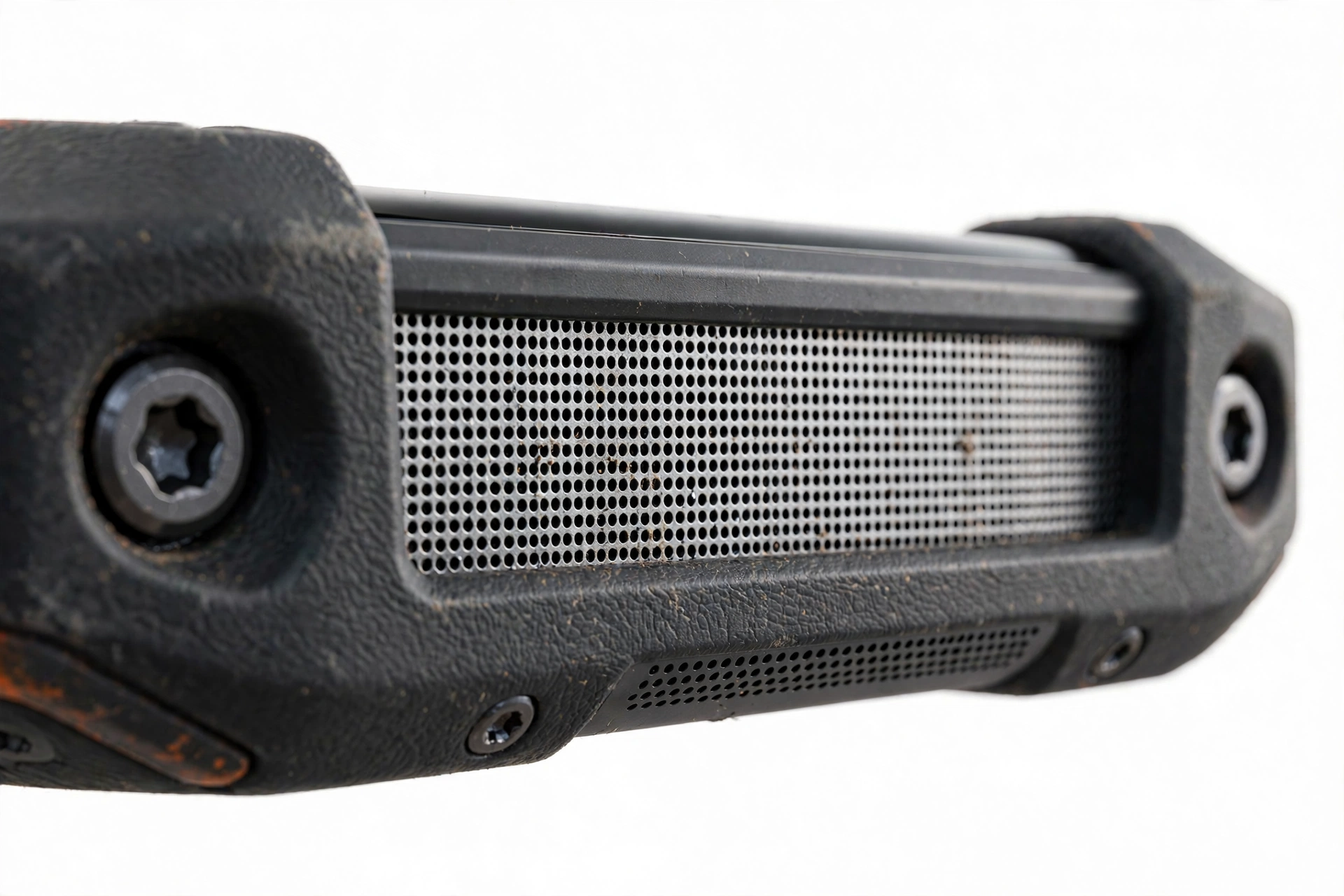
Rugged phones achieve their water and dust resistance with sealed speaker grilles — fine mesh or membrane-covered openings that keep the elements out but can trap fine dust, dried mud, pocket lint, or dried moisture behind them. Over time this buildup muffles the speaker; after an update that changes audio output characteristics, a partially blocked speaker can cross the line from “quiet” to “apparently dead.”
To clean the grille safely:
- Power off the phone.
- Use a soft, dry cloth or a soft-bristled brush (a clean, dry toothbrush works) to gently brush the speaker grille.
- Brush across the grille, not into it. Never push bristles, pins, needles, or any tool into the openings.
- Do not use water, cleaning liquids, or solvents on the grille — moisture behind a sealed membrane can get trapped and make things worse.
HardReset.info’s device-specific guide for the Ulefone Armor X5 Pro gives exactly this advice: dry soft cloth or toothbrush, gentle brushing, no excessive pressure. That guidance applies across the Armor line.
The water-exposure question
Many Ulefone owners buy rugged phones specifically for wet or dusty work environments. If your phone was exposed to water, mud, or heavy dust around the time of the update, consider that the speaker issue may be contamination rather than software. Water behind the speaker membrane muffles sound dramatically; it often dries out on its own over 24–48 hours in a warm, dry place.
What not to do: do not put the phone in rice (it does nothing and introduces starch dust), do not use a hair dryer or heat (heat damages seals and batteries), and do not repeatedly power-cycle a wet phone hoping the speaker “kicks in.”
Armor-series audio quirks reported by owners
Community reporting on Ulefone forums and XDA mentions a few model-specific audio behaviors worth knowing:
- Bluetooth volume behavior on the Armor 20WT: owners report inconsistent Bluetooth volume handling, including unexpectedly loud ringing through car kits. If your audio problems involve Bluetooth devices, the phone’s Bluetooth stack — not the speaker — is the suspect.
- Update availability varies by region: Ulefone releases separate ROM builds for different regions (EU vs. non-EU), and owners report that updates sometimes arrive late or not at all for their region. If you are waiting on a fix update, check Ulefone’s official support site for your exact model and region rather than assuming your phone is fully updated.
- Speaker failures on early-life units: isolated owner reports describe speakers failing within the first months on some Armor models, resolved through Ulefone’s warranty replacement process. If your phone is new and the speaker died with no warning, this is worth knowing before you spend hours on software steps.
8. Five update mechanisms, in likelihood order
When a speaker goes silent right after an update, one of these five mechanisms is responsible. They are ordered from most to least likely, so work through them in this order.
| # | Mechanism | How to recognize it | Fix |
|---|---|---|---|
| 1 | Settings reset | Volumes at zero, DND on, balance shifted, enhancement profile changed | Sections 5 and 9: restore volumes, check DND, center balance |
| 2 | Audio rerouting | Bluetooth/USB/headphone-jack false detection capturing output | Section 4: disconnect everything, toggle Bluetooth off, test |
| 3 | Corrupted app or service data | Speaker works in some apps but not others; worked before the update | Section 10: clear cache of affected apps; Section 6: Safe Mode |
| 4 | App incompatibility | One specific app lost audio after its own update coinciding with the system update | Section 6: Safe Mode; update or uninstall the app |
| 5 | Genuine shipped bug | Speaker silent everywhere, all settings correct, no app cause, started exactly at update | Section 12: check for a follow-up update; report to Ulefone |
9. Clear cache: the gentle fix for corrupted audio data
Updates can leave behind corrupted cached data in the apps and system services that handle audio. Clearing cache removes temporary files without deleting your personal data, photos, messages, or app logins. It is safe and reversible — the cache simply rebuilds itself.
Clear cache for the apps where audio fails:
- Open Settings > Apps (or Apps & notifications).
- Tap the app with the audio problem (music player, video app, phone dialer).
- Tap Storage & cache, then Clear cache.
- Repeat for any other affected apps, then test the speaker.
For system-wide audio issues, also clear the cache of the system apps that manage sound. Look for apps like “Android System,” “System UI,” or your phone’s audio service in the app list (tap “Show system” or “Show system apps” in the Apps menu to reveal them), and clear their caches the same way.
Quick fact: “Clear cache” and “Clear data” (sometimes labeled “Clear storage”) are different. Clear cache only removes temporary files. Clear data resets the app to a fresh install state — deleting its settings, logins, and saved preferences. For speaker troubleshooting, clear cache first; only consider clear data for a specific misbehaving app, and only if you are prepared to set that app up again.
10. Reset app preferences: the quiet system-level reset
If clearing individual app caches did not help, reset all app preferences. This restores default settings for disabled apps, notification restrictions, background restrictions, and default-app assignments — all of which can silently capture or block audio after an update — without deleting any of your data.
- Open Settings > Apps.
- Tap the three-dot menu (or equivalent) and select Reset app preferences.
- Confirm. No personal data is deleted.
- Test the speaker.
This step is particularly useful when the update disabled a system component that audio depends on, or when a notification/audio permission was revoked silently during the update.
11. “Reset all settings” vs. factory reset: know the difference
Android offers two very different resets, and confusing them is one of the most common and costly mistakes in speaker troubleshooting.
- Reset all settings (Settings > System > Reset > Reset all settings, or similar path): restores system settings — Wi-Fi, Bluetooth pairings, app preferences, sound settings — to defaults. Your photos, files, apps, and accounts stay. This is a reasonable step for persistent speaker issues after the gentler steps above.
- Factory reset (Erase all data): wipes the entire phone back to out-of-box state. Everything is deleted. This is a last resort, not a troubleshooting step.
Stop for safety: Do not factory-reset your phone as an early troubleshooting step for a speaker problem. A factory reset cannot fix a hardware speaker failure, and if the cause is a shipped software bug in the update itself, the reset reinstalls the exact same buggy system version — you lose all your data and the speaker is still silent. Only consider a factory reset after every other step in this guide has failed, you have a complete backup, and you understand it may not help.
12. Check for a follow-up update: the shipped-bug fix
If your speaker was working, the update installed, and the speaker immediately went silent everywhere — with all settings verified correct, no Bluetooth ghost, Safe Mode showing the same silence — you may be looking at a genuine shipped bug: the update itself contains a defect in the audio driver or audio service.
The fix for a shipped bug is a follow-up update from the manufacturer, not anything you can do on the phone. Check for it:
- Open Settings > System > System update (or About phone > Wireless update on some Ulefone models).
- Tap Check for updates.
- If an update is available, install it and test the speaker afterward.
A note on Ulefone updates specifically: owners report that Ulefone’s update rollout varies by region and model, with separate builds for different markets. If no update is available for your phone, check Ulefone’s official support website for your exact model number — a newer ROM may exist there even if the on-phone updater shows nothing. Do not install ROMs from unofficial sources; unofficial firmware can brick the phone and voids any remaining warranty.
If no fix update exists, report the bug to Ulefone through their official support channels with your model number, the update version that caused the problem, and a description of the symptoms. Manufacturers prioritize bugs by report volume — your report genuinely helps.
13. What your observations can and cannot establish
Honest diagnosis means knowing the limits of what you can determine at home. This table keeps expectations realistic.
| Observation | What it establishes | What it does NOT establish |
|---|---|---|
| Speaker works in Safe Mode | A third-party app is the cause | Which app, without further testing |
| Speaker silent in Safe Mode | The cause is system software or hardware | Which of those two — further steps needed |
| Earphones work, speaker does not | The audio system works; the built-in speaker path is the problem | Whether it is the speaker hardware or its software driver |
| Silence started exactly at update | Strong correlation with the update | That the update caused it — hardware can fail coincidentally |
| All settings correct, still silent | Settings are not the cause | Whether it is a shipped bug or hardware failure |
| Speaker crackles or distorts | Likely hardware damage or debris | That any software step will fix it |
14. Symptom worksheet: match what you hear to the likely cause
| Symptom | Likely cause | Try first |
|---|---|---|
| No sound from loudspeaker, earpiece works | Media volume at zero; Bluetooth capture; app-specific issue | Check media volume; toggle Bluetooth off; test in Safe Mode |
| No sound from earpiece, loudspeaker works | Call volume at zero; proximity sensor issue; earpiece hardware | Adjust volume during a call; clean earpiece grille gently |
| No sound anywhere, earphones work | System audio routing; shipped bug; speaker hardware | Reset app preferences; check for follow-up update |
| No sound anywhere, earphones also silent | System-level audio failure (software cause likely) | Restart; reset app preferences; check for update |
| Sound only in some apps | App cache corruption or app incompatibility | Clear cache of affected apps; test in Safe Mode |
| Speaker worked, then faded after update | Settings changed gradually; debris + new output level | Check all volume channels; clean grille gently |
| Crackling or distortion | Debris in grille; damaged diaphragm; overdriven by booster app | Clean grille; uninstall any booster apps; stop troubleshooting software |
| Sound cuts in and out | Loose connection (hardware); intermittent Bluetooth capture | Toggle Bluetooth off; if it persists, it is likely hardware |
| Very quiet but not silent | Volume/balance setting; partially blocked grille; DND limiting | Check balance slider; clean grille; check DND |
| Works after restart, then stops | App loading at boot capturing audio; system service crash | Safe Mode test; uninstall recently added apps |
15. When to stop troubleshooting
Stop and seek professional assessment when any of these are true:
- You have worked through every section above and the speaker is still silent. Further repetition of the same steps will not change the outcome.
- The speaker crackles, distorts, or rattles — these are hardware symptoms. No settings change repairs a damaged diaphragm.
- The phone was dropped, crushed, or exposed to significant water around the time of the failure. Rugged phones survive a lot, but seals and internal connections have limits.
- The battery is swollen, the phone is deformed, or it becomes dangerously hot. Power it down immediately and do not charge it. A swollen battery is a fire risk — this is not a speaker problem anymore.
- You are tempted to open the phone. Ulefone rugged phones use sealed, often glued assemblies. Opening one destroys the water resistance, risks puncturing the battery, and requires tools and adhesives you do not have. Speaker replacement on a sealed rugged phone is professional work.
Stop for safety: Never insert pins, needles, SIM tools, or any object into the speaker grille or any phone opening. Never use compressed air directly into the speaker — the pressure can rupture the sealed membrane on rugged models. Never apply heat to “dry out” the speaker. If the phone is swollen or dangerously hot, power it down, do not charge it, and keep it away from flammable materials.
16. Getting help in Las Vegas
If your Ulefone speaker needs professional assessment, a local repair shop can run hardware diagnostics that go beyond what software steps can determine — including testing the speaker component directly and checking internal connections.
Las Vegas Phone Repair & Accessories, 7400 Las Vegas Blvd S, Unit TT42, Las Vegas, NV 89123, (424) 406-6202, can assess speaker issues and advise whether repair is practical for your model. Ulefone parts availability varies by model — call ahead to confirm they can assess your specific device before visiting, and confirm current hours.
For related audio troubleshooting, see our brand-agnostic speaker guide, and the companion guides for Meizu and ZTE phones with the same symptom.
Video: How to tell if your smartphone is fake or real
Frequently asked questions
Can a software update really kill my Ulefone speaker?
An update cannot physically damage the speaker hardware — the diaphragm, coil, and magnet are unaffected by code changes. What an update can do is reset your audio settings, reroute audio to a Bluetooth or USB device, corrupt cached audio data, or introduce a software bug in the audio system. All of these are fixable in software, which is why this guide starts with settings and diagnostics rather than assuming hardware failure.
My speaker worked this morning and died right after the update finished. Isn’t that proof?
It is strong correlation, but not proof of causation. Hardware can fail at any moment, including right after an update — especially on rugged phones that take daily physical stress. The way to tell the difference is the diagnostic sequence: if Safe Mode, settings checks, and cache clearing all fail and no follow-up update fixes it, hardware failure becomes the more likely explanation regardless of the timing.
Why does my speaker work with earphones but not the built-in speaker?
This tells you the phone’s audio software system is working — it can generate and route audio correctly. The problem is isolated to the built-in speaker path: either the speaker hardware itself, the driver software that controls it, or a routing setting that sends audio to the wrong output. Work through the Bluetooth check and Safe Mode test to narrow it further.
Should I factory-reset my Ulefone to fix the speaker?
No — not as an early step. A factory reset deletes all your data, and if the cause is a shipped bug in the update, the reset reinstalls the same buggy system version, leaving you with no data and the same silent speaker. Only consider a factory reset after every other step has failed, you have a complete backup, and you accept it may not help.
Are “speaker cleaner” or “speaker booster” apps safe to try?
No. “Speaker cleaner” apps play loud tones claiming to eject water or dust — on sealed rugged phones they cannot reach behind the membrane and may overdrive the speaker. “Booster” apps force the speaker beyond its designed output, which can permanently damage it. If Safe Mode reveals one of these apps was interfering with your audio, uninstall it.
My Ulefone is a rugged waterproof phone. Could water be the problem even though it’s rated for it?
Water resistance ratings apply to new phones under lab conditions; seals degrade with drops, heat, and age. Water or moisture behind the speaker membrane muffles sound dramatically. If the phone was recently wet, let it dry in a warm, dry place for 24–48 hours and test again. Do not use rice, heat, or compressed air.
The speaker works in Safe Mode. What now?
A third-party app is capturing or blocking your audio. Restart normally, then uninstall recently installed or recently updated apps one at a time, testing the speaker after each. Start with audio-related apps: equalizers, volume boosters, speaker cleaners, call recorders, and VoIP apps. The most recently installed audio app is the most likely culprit.
Ulefone’s updater says no update is available, but my speaker died with the last one. What are my options?
First, verify on Ulefone’s official support site that no newer ROM exists for your exact model and region — Ulefone releases region-specific builds, and the on-phone updater does not always see them. Do not install firmware from unofficial sources. If no fix update exists, report the bug to Ulefone support with your model number and the problematic update version, and consider professional assessment to rule out coincidental hardware failure.
Sources and editorial notes
- HardReset.info — How to clean Ulefone Armor X5 Pro speaker: device-specific grille cleaning guidance (dry soft cloth or toothbrush, gentle pressure, no harsh materials).
- SlashGear — How to fix Android speaker not working: general Android speaker troubleshooting order (restart, check routing, clear cache, update, factory reset as last resort).
- GuidingTech — Fix speaker not working on Android phone: Safe Mode diagnostic procedure, per-app notification sound settings, reset-all-settings path.
- ITFix — Smartphone earpiece speaker troubleshooting: earpiece-specific diagnostics (debris, volume channels, Bluetooth/VoIP conflicts).
- XDA Forums — Ulefone Armor 20WT info and development: owner-reported Bluetooth volume quirks and region-specific update behavior (community reporting).
- GSMArena — Ulefone Armor 10 5G user reviews: owner reports on speaker longevity and support responsiveness (user opinions, not verified defect data).
Last source check: October 14, 2026. AI-assisted editorial guide, checked against the linked manufacturer information and press reporting. Ulefone-specific details are drawn from the cited community and device-guide sources; where official Ulefone documentation is limited, the guide relies on standard Android troubleshooting procedures and clearly labels community reporting as such. This guide is for owner troubleshooting and does not constitute a repair authorization or warranty statement.
Let’s get you connected again.
Tell us what’s happening with your device and we’ll help you decide the safest next step — no jargon, no pressure.
Las Vegas Phone Repair & Accessories · 7400 Las Vegas Blvd S, Unit TT42, Las Vegas, NV 89123
10:00 AM–8:00 PM — call ahead to confirm today’s hours