
Meizu Phone Speaker Not Working After Update: Causes and Safe Fixes
Your Meizu phone’s speaker stopped working right after a Flyme update, and it is almost always a settings, routing, or software problem — not a broken speaker. An update cannot physically damage the speaker, so work through the checks below in order: rule out Bluetooth routing and headphone mode first, then test Safe Mode, then check Meizu’s Dirac audio settings before you ever consider a factory reset.
On this page
Your Meizu phone’s speaker stopped working right after a Flyme update, and it is almost always a settings, routing, or software problem — not a broken speaker.
1. Who this guide helps
This guide is for anyone with a Meizu phone — a Meizu 21 or 21 Pro, a Meizu 20 series, a Meizu 18 or 18s, a Meizu 17, or an older MX or Note model running Flyme — whose loudspeaker, earpiece, or both went silent or started misbehaving right after a system update. The steps apply whether you installed the update deliberately through the system updater or it arrived overnight, and whether you are on the newer Flyme 10 or an older Flyme 8 or 9 build. (Source: gizchina.com)
It helps most when the timing is exact: sound worked before the update, and stopped (or changed) immediately after. If your speaker has been fading gradually over months, or the phone was dropped or got wet, the cause is more likely hardware — the diagnostic sections below will help you tell the difference.
Quick fact: Meizu has shipped audio-related fixes inside its own update changelogs more than once — for example, one Flyme 8.1 update for the Meizu 17 series explicitly fixed “the occasional abnormal sound of the speaker” and the speaker switching on during calls. That is direct evidence that some post-update speaker problems are bugs in the update itself, and that the fix can be another update rather than anything you do to the hardware.
2. The 60-second triage: which speaker is silent?
Your phone has at least two sound outputs, and they fail for different reasons. Before touching any setting, identify which one is quiet:
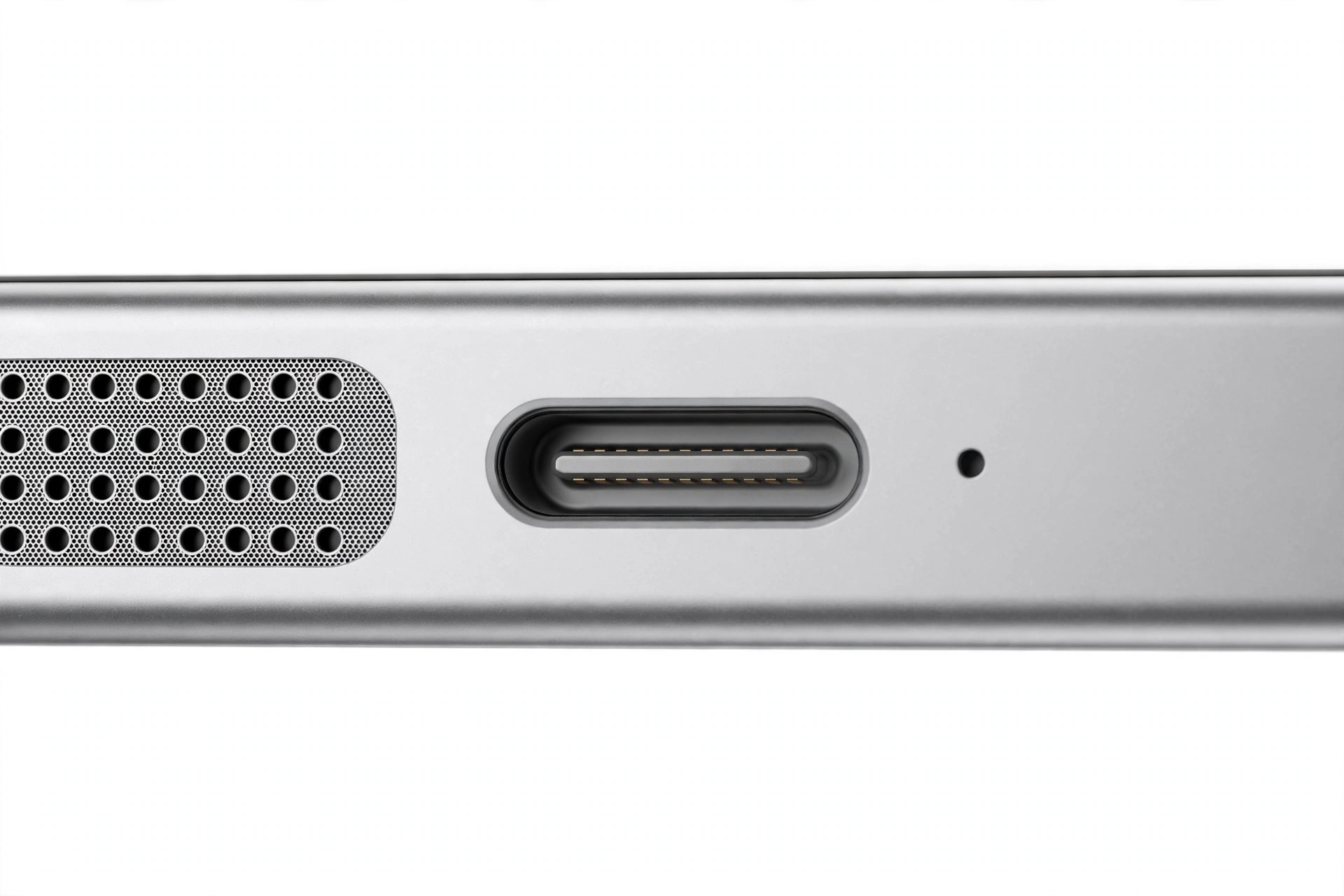
- The loudspeaker (bottom speaker): plays ringtones, music, videos, and speakerphone calls. Newer Meizu flagships like the Meizu 21 use a dual-speaker setup, so one unit may fail while the other works.
- The earpiece (top speaker): plays call audio when the phone is held to your ear. If calls are silent but music plays fine, the earpiece path is the problem.
- Wired earphones or a headset: if sound only fails through earphones, the issue is the jack, the USB-C audio path, or a stuck headphone-mode detection — not the speakers at all.
- Bluetooth devices: if sound only fails when nothing is connected, but works on your earbuds, audio may simply be routed to a Bluetooth device you forgot about (see Check 1 below).
Run this quick test: play a video with the phone in your hand, then call your voicemail and listen with the phone to your ear, then switch that call to speakerphone. Note exactly which of the three paths is silent. That single observation narrows the cause more than any other step.
| Test | What you hear | What it suggests |
|---|---|---|
| Video/music through phone | Silent | Loudspeaker path affected |
| Video/music through phone | Normal | Loudspeaker hardware likely fine |
| Call, phone to ear | Silent | Earpiece path affected |
| Call on speakerphone | Normal while earpiece was silent | Earpiece-specific issue, not system audio |
| Earphones plugged in | Normal | Audio system works; speaker output path is the problem |
| Bluetooth earbuds | Normal | Audio system works; check routing (Check 1) |
3. Why an update can silence a speaker without damaging it
This is the most important concept in the guide, so it is worth stating plainly: a software update cannot physically damage a speaker. The speaker is a small electromagnetic driver — a coil and a membrane. Software cannot burn it out, tear it, or disconnect it. When sound stops exactly after an update, one of these five software-level mechanisms is responsible, listed from most to least common:
- Reset settings. Updates commonly reset audio-related settings to defaults: Dirac sound profiles, equalizer presets, Dolby-style enhancements, or per-app volumes. Your speaker works; the profile driving it changed.
- Re-routed audio. The update re-paired, re-enabled, or reprioritized a Bluetooth device, or left the phone stuck in headphone mode. Sound is playing — just not through the speaker.
- Corrupted app or service data. The update migrated the cache or data of a media app or a system audio service incorrectly, so that app crashes or goes silent while the rest of the system is fine.
- App incompatibility. A third-party app — commonly a volume booster, an equalizer, or a “speaker cleaner” app — conflicts with the new system version and hijacks or mutes the audio stream.
- A genuine shipped bug. The update itself contains an audio driver or audio-service bug. Meizu’s own changelogs document this happening: the Meizu 17’s Flyme 8.1.2.2A update fixed “the occasional abnormal sound of the speaker,” and an older MX4 update was released specifically to “improve the noise floor of the speaker.” When the bug is in the update, the fix is usually the next update — which is why resetting your phone is the wrong first move (see section 13).
Tip: If the silence began within minutes or hours of the update finishing — not days later — mechanisms 1, 2, and 5 are the most likely. Gradual fading over days or weeks points away from the update and toward hardware or a failing component.
4. Meizu-specific audio: Dirac, dual speakers, and Flyme settings
Meizu has a deeper audio history than most phone brands — the company started in 2003 making MP3 players before it ever made phones — and that shows up in its software. Two Meizu-specific audio features are worth knowing about, because updates can disturb both:
- Dirac audio processing. Since the Meizu MX3 era (Flyme 3.6), Meizu phones have used Dirac’s DSP-based audio tuning, originally introduced as “Dirac HD Sound” with per-earphone profiles. On newer Flyme versions this appears as sound-effect or audio-enhancement settings. An update can reset the Dirac profile, switch it to a preset that sounds wrong on your hardware, or leave the enhancement engine in a broken state.
- Dual-speaker flagships. Recent models like the Meizu 21 series use dual speaker units (Meizu describes a “sixth generation master-level dual speaker unit”). If one channel goes quiet after an update while the other works, that asymmetry is a strong software signal — a hardware failure from an update is implausible, while a channel-balance or stereo-routing bug is a known software pattern.
Where to look: open Settings and search for “sound,” “audio,” “Dirac,” or “sound effects.” The exact path varies by Flyme version, so use the Settings search bar rather than memorizing a path that may not exist on your build. If you find an audio enhancement toggle, try switching it off as a test — if sound returns, the enhancement engine (not the speaker) was the problem, and you can re-enable it after the next update or leave it off.
Stop for safety: Never poke anything — pins, needles, toothpicks, SIM tools — into the speaker grille or any opening to “clean” it, and never use compressed air, liquids, or heat on the speaker area. Grilles protect a fragile membrane; improvised cleaning is a common way to turn a software problem into a real hardware one.
5. The documented Flyme audio bugs: when the update itself is the cause
It helps to know that you are not imagining a pattern. Meizu’s own published changelogs show that speaker problems have shipped inside Flyme updates before — and were then fixed by later updates:
- Meizu 17, Flyme 8.1.2.2A: the official changelog lists fixing “the occasional abnormal sound of the speaker” and the speaker “turning on occasionally during calls” — two distinct speaker bugs that arrived with earlier software and were resolved by updating.
- Meizu MX4, Flyme 4.0.4.1I: the changelog includes “improve the noise floor of the speaker,” an audio-quality fix delivered as a software update.
- Meizu MX2, Flyme 2.0.4: the firmware changelog notes repairing noise problems and sound that would “break” or boom during software prompts.
- Community reporting: Meizu MX5 owners on community forums have reported loudspeaker problems appearing right after updating from Flyme 4.5 to 5.1.x — a pattern consistent with a shipped audio regression rather than coincidental hardware failure.
The practical takeaway: if your speaker problem started with an update and none of the settings checks below fix it, check for a newer update before doing anything drastic. Go to Settings > System update (or search “system update” in Settings) and install anything available. Meizu has repeatedly fixed its own audio regressions this way.
6. Check 1: the Bluetooth ghost connection
This is the single most common false alarm after any update, on any brand. Updates re-enable Bluetooth, re-pair with remembered devices, or change audio-routing priority — and then your phone faithfully sends all sound to your car, your earbuds in their case across the room, or a Bluetooth speaker in another room. You hear nothing from the phone, and the phone is doing exactly what it was told.
- Open Settings > Bluetooth and look at what is connected right now.
- If anything is connected that you are not actively using, disconnect it (or turn Bluetooth off entirely as a test).
- Play a video. If sound returns, the “broken speaker” was a routing issue.
- To prevent repeats, “forget” devices you no longer use, and check your car’s infotainment — cars are the most frequent ghost because they auto-connect whenever the phone is in range.
Tip: A useful tell: if your phone shows a Bluetooth icon in the status bar while you believe nothing is connected, something is connected. Trust the icon over your memory.
7. Check 2: the headphone-mode trap
Phones decide whether earphones are plugged in using a tiny detection switch. If the phone believes earphones are connected — because of lint, moisture, a worn jack, or a software detection bug from the update — it routes all audio to the “earphones” and the speaker stays silent. A Flyme changelog for the MX5 era even documented a fix for headphone-mode volume misbehavior, so this detection path has a history of software involvement.
- Look for a headphone icon in the status bar with nothing plugged in. If it is there, the phone is in headphone mode.
- If your model has a 3.5 mm jack, shine a light into it and look for lint or debris. Remove debris gently with a dry, soft brush — never a pin or needle.
- Plug earphones in and unplug them firmly two or three times; this can reset a stuck detection switch.
- If the icon persists with a clean, empty jack, restart the phone. If it still persists, treat it as a software detection bug: check for a newer system update (section 5) rather than forcing the jack.
8. Check 3: volume channels, mute, and Do Not Disturb
Android (and Flyme on top of it) keeps separate volume sliders for media, ringtones, notifications, alarms, and in-call audio. An update can reset one channel to zero while the others look normal — so “the volume is up” may be true for ringtones and false for media.
- Press a volume button, tap the three-dot or settings icon on the volume panel, and inspect every slider: media, ring, notification, alarm, and call.
- While media is playing, raise the media slider specifically — some Flyme builds only show the media slider while audio is active.
- Check Settings > Sound for a mute or “silent” state, and check Do Not Disturb — DND silences ringtones and notifications but not media, which is exactly the “some sounds work, some don’t” pattern people report.
- Test with the phone’s own ringtone preview in Settings > Sound: if the preview plays, the speaker hardware works and the problem is routing or per-app volume.
9. Check 4: Safe Mode — the third-party app test
If a third-party app is hijacking your audio after the update, Safe Mode will expose it. Safe Mode boots Flyme with only system apps running — no downloaded apps, no equalizers, no “volume boosters,” no “speaker cleaners.”
- Press and hold the power button until the power menu appears, then press and hold “Power off” until the Safe Mode prompt appears, and confirm. (If your Flyme version uses a different gesture, search “safe mode” in Settings.)
- Once in Safe Mode (“Safe mode” appears on screen), play a video or audio file.
- Interpret the result using the table below, then restart normally to exit Safe Mode.
| Result in Safe Mode | Meaning | Next step |
|---|---|---|
| Sound works | A third-party app is the culprit | Uninstall recently updated audio apps (equalizers, boosters, cleaners) one by one |
| Still silent | System-level cause: settings, routing, or shipped bug | Continue with Checks 5–7 |
| Works intermittently | App conflict or unstable audio service | Same as “sound works,” plus clear media-app caches |
Quick fact: “Speaker cleaner” and “volume booster” apps are frequent offenders after updates. They request deep audio permissions and manipulate the audio stream; when the system version changes underneath them, they can mute or distort output. If you have one installed, uninstall it before any deeper troubleshooting — these apps cannot fix hardware and often cause the very problem they claim to solve.
10. Check 5: reset Meizu’s audio settings
Because updates commonly reset audio-enhancement settings to defaults (mechanism 1 in section 3), explicitly reviewing them is worth a dedicated check:
- Open Settings and search for “Dirac,” “sound effects,” “audio enhancement,” or “Hi-Fi.”
- If an enhancement is enabled, toggle it off and test. If sound returns, leave it off until the next system update, then try re-enabling it.
- Check for a balance or channel control — if audio is panned fully to one side on a dual-speaker model, one speaker will sound dead.
- If your Flyme version has per-app volume or per-app sound settings, check that the silent app is not muted there.
Do not install a third-party equalizer to “fix” the sound at this stage — you would be adding a new variable on top of a problem you have not finished diagnosing.
11. Check 6: clear the cache of the silent app
If sound fails in one app (say, YouTube) but works in another (say, the built-in music player), the problem is that app’s cached data, which the update may have migrated badly — not the speaker.
- Go to Settings > Apps, find the silent app, and open Storage.
- Tap Clear cache (not Clear data — clearing data signs you out and deletes the app’s local content).
- Retest the app. If it works, the diagnosis is confirmed.
Tip: Clearing cache never deletes your photos, messages, or accounts. “Clear data” / “Clear storage” is the destructive one — use it only as a last resort for a single misbehaving app, and only after you know your logins.
12. Check 7: look for the follow-up Flyme update
Given Meizu’s documented history of shipping speaker fixes inside updates (section 5), this check deserves its own step rather than being an afterthought:
- Go to Settings > System update and check for updates — install anything offered, even if it does not mention audio. Changelogs do not always list every fix.
- If no update is offered, note your current Flyme version (Settings > About phone) and re-check in a week. Meizu has historically issued audio-fix updates within weeks of a regression.
- While waiting, the workarounds from Checks 1–6 keep the phone usable.
13. The “don’t factory-reset first” rule
A factory reset is the most overused advice for post-update problems, and for exact-timing speaker bugs it is usually the wrong move. Here is why:
- A reset reinstalls the same system version that contains the suspected bug. If the cause is a shipped audio regression (mechanism 5), the reset cannot remove it — you will spend an hour restoring the phone and end up with the same silent speaker.
- A reset erases everything: accounts, app logins, authenticator setups, and any data not backed up. The cost is high and the chance of fixing a driver-level bug is near zero.
- Resets are appropriate only after you have proven the cause is corrupted system data — for example, Safe Mode works, a newer update is unavailable, and multiple system apps are affected.
| Mechanism | Typical symptom | Fix |
|---|---|---|
| Reset audio settings | Sound changed in character or volume after update | Review Dirac/enhancement settings (Check 5) |
| Re-routed audio | Total silence; Bluetooth or headphone icon present | Disconnect Bluetooth; clear headphone mode (Checks 1–2) |
| Corrupted app data | One app silent, others fine | Clear that app’s cache (Check 6) |
| App incompatibility | Silence began after app auto-updated alongside system | Safe Mode test; uninstall offender (Check 4) |
| Shipped audio bug | Silence across all apps, exact update timing, settings all correct | Install the next Flyme update (Check 7) |
Stop for safety: If you do reach the point of considering a factory reset, back up first — photos, chats, contacts, and authenticator codes — and verify the backup by checking it from another device. A reset without a verified backup is how data is actually lost, and it still will not fix a shipped driver bug.
14. Symptom worksheet: match what you observe to the cause
Work down the left column and stop at the first row that matches. Each row points to the check that resolves it.
| Symptom | Likely cause | Go to |
|---|---|---|
| No sound from speaker, Bluetooth icon in status bar | Audio routed to a Bluetooth device | Check 1 (section 6) |
| No sound, headphone icon with nothing plugged in | Stuck headphone-mode detection | Check 2 (section 7) |
| Media silent, ringtone normal | Media volume channel at zero | Check 3 (section 8) |
| Calls silent on earpiece, speakerphone works | Earpiece path or in-call volume | Checks 3 and 8, then section 16 |
| One app silent, others fine | Corrupted app cache or per-app mute | Checks 5–6 (sections 10–11) |
| Sound works in Safe Mode only | Third-party app conflict | Check 4 (section 9) |
| Sound is distorted, tinny, or abnormal after update | Enhancement profile reset or shipped audio bug | Checks 5 and 7 (sections 10, 12) |
| Speaker turns on by itself during calls | Documented Flyme bug class (seen in Meizu 17 changelog) | Check 7 (section 12) |
| Total silence across everything, exact update timing | Shipped audio regression | Check 7, then section 16 |
| Gradual fading over weeks, update timing coincidental | Hardware wear or debris | Section 16 (professional assessment) |
15. What your observations can and cannot establish
Honest diagnosis means knowing the limits of what home testing proves:
| Observation | Establishes | Does not establish |
|---|---|---|
| Ringtone preview plays in Settings | Speaker hardware produces sound | That every app’s audio path is healthy |
| Sound works in Safe Mode | A third-party app is involved | Which app, without further isolation |
| Silence began exactly with the update | Strong correlation with the update | Which of the five mechanisms is responsible |
| Earphones work, speaker does not | System audio pipeline is alive | Whether the cause is routing or driver-level |
| Nothing in these checks restores sound | The cause is below the settings layer | Whether it is a shipped bug or hardware failure |
| One dual-speaker channel works, other silent | Asymmetric software cause is likely | That hardware is definitely intact |
16. When to stop troubleshooting
Stop and seek professional assessment when any of these is true:
- Physical damage or warning signs: the phone was dropped, bent, or exposed to liquid; the battery is swollen, distorted, or the phone gets dangerously hot. Power it down and do not charge it — a swollen or overheating battery is a fire risk, not a speaker problem.
- All software checks exhausted: you have worked through Checks 1–7, no newer update is available, and the speaker is still silent across all apps. At this point the remaining possibilities are a shipped driver bug awaiting Meizu’s fix or a genuine hardware failure, and only hands-on diagnosis can separate them.
- Sound is distorted at all volumes with no settings cause: persistent crackling or rattling that survives Safe Mode and settings resets suggests the driver membrane itself is damaged.
Stop for safety: Never open the phone yourself. Modern Meizu phones use glued assemblies; prying them open risks puncturing the battery, which can cause fire or injury. Internal repair is a job for equipped technicians.
If you are in the Las Vegas area and the checks above point to hardware, Las Vegas Phone Repair & Accessories, 7400 Las Vegas Blvd S, Unit TT42, Las Vegas, NV 89123, (424) 406-6202, can assess the speaker. Call ahead to confirm today’s hours. For broader context on update-related speaker failures across brands, see our general guide to phone speakers not working after an update, and the companion brand guides for ZTE phones and Nokia phones.
(The following are hypothetical illustrations, not customer stories.) Example 1 — Daniel’s car-Bluetooth ghost: Daniel updated his Meizu 18s overnight and woke to a silent phone. He was about to factory-reset when he noticed the Bluetooth icon in his status bar — his car in the driveway had auto-connected. Disconnecting it restored sound in ten seconds. Example 2 — Amara’s Dirac reset: After a Flyme update, Amara’s Meizu 21 played music that sounded thin and harsh. The update had re-enabled an audio enhancement preset tuned for earphones. Switching the enhancement off in Settings restored the full speaker sound.
17. Frequently asked questions
Can a Flyme update really break my speaker?
It cannot physically break the speaker hardware, but it can absolutely break the software path to the speaker — and Meizu’s own changelogs document this happening (the Meizu 17’s Flyme 8.1.2.2A fixed “the occasional abnormal sound of the speaker”). Settings resets, routing changes, and shipped driver bugs are the real mechanisms.
Why does my speaker work for calls but not music?
Android keeps separate volume channels. Your in-call or ring volume may be up while the media channel was reset to zero by the update. Open the full volume panel while media is playing and raise the media slider specifically.
Should I install a “speaker cleaner” app?
No. These apps cannot repair hardware, and several request deep audio permissions that let them interfere with the audio stream — they are a known cause of post-update silence, not a cure. Uninstall any such app as part of your troubleshooting.
My phone is stuck in headphone mode. What do I do?
Check the jack for lint (remove gently with a dry soft brush, never a pin), plug and unplug earphones firmly a few times to reset the detection switch, then restart. If the icon persists with a clean empty jack, treat it as a software detection bug and check for a newer Flyme update.
Will a factory reset fix it?
Almost certainly not, if the timing points to the update. A reset reinstalls the same system version containing the suspected bug, so it cannot remove a shipped audio regression — and it erases your data. Work through Checks 1–7 first; consider a reset only after proving corrupted system data is the cause, and only with a verified backup.
The speaker crackles only at high volume. Is that software?
Crackling that appears only at high volume and survives Safe Mode with enhancements off leans toward hardware — a damaged membrane distorts when driven hard. If it started exactly with the update and affects all volumes, suspect the enhancement profile or a driver bug first.
How do I know if Meizu has fixed the bug in a newer update?
Check Settings > System update regularly, and read the changelog for audio mentions — Meizu has historically listed speaker fixes explicitly (as with the Meizu 17’s 8.1.2.2A). Community forums for your specific model are also a good early signal that a fix has shipped.
When should I get the phone assessed instead of troubleshooting further?
When all seven checks are done, no newer update exists, and the speaker is still silent or distorted across every app — or immediately, if there is any physical damage, swelling, or dangerous heat. At that point only hands-on diagnosis can separate a shipped driver bug from hardware failure.
Video: How to tell if your smartphone is fake or real
Sources and editorial notes
- GizChina — Meizu 17 series Flyme 8.1.2.2A update changelog: documents the official fix for “the occasional abnormal sound of the speaker” and the speaker turning on during calls. Used for the shipped-bug section.
- SoyaCincau — Meizu MX4 Flyme 4.0.4.1I changelog: “improve the noise floor of the speaker.” Used as a second documented update-delivered audio fix.
- GizmoChina — Meizu MX2 Flyme 2.0.4 firmware: documents repair of noise problems and broken/booming software prompt sounds. Used for the historical pattern.
- XDA Forums — Meizu MX5 loudspeaker issue thread: community reporting of loudspeaker problems appearing after a Flyme 4.5 to 5.1.x update. Framed as community reporting, not a confirmed defect.
- TheTechOutlook — Meizu 21 launch coverage: Flyme 10.5, dual speaker unit detail. Used for current-model context.
- Android Central forums — Dirac HD Sound on Meizu MX3: background on Meizu’s Dirac DSP audio tuning since the MX3 era. Used for the Meizu-specific audio section.
Last source check: October 14, 2026. AI-assisted editorial guide, checked against the linked manufacturer and press reporting. Update changelogs are summarized in original language; community forum reports are presented as reporting, not confirmed defects. This guide is for troubleshooting education and does not constitute a repair diagnosis or warranty.
Let’s get you connected again.
Tell us what’s happening with your device and we’ll help you decide the safest next step — no jargon, no pressure.
Las Vegas Phone Repair & Accessories · 7400 Las Vegas Blvd S, Unit TT42, Las Vegas, NV 89123
10:00 AM–8:00 PM — call ahead to confirm today’s hours