
Meizu Phone Camera Not Working After Update: Causes and Safe Fixes
If your Meizu phone’s camera stopped working after an update, start with permissions and a restart — most cases are software settings the update changed, not hardware the update damaged. Updates can silently revoke the Camera app’s permissions, corrupt its cached data, or leave it incompatible with the new system version; each has a safe, reversible fix that takes minutes. This guide walks through Meizu’s own official troubleshooting order, adds Flyme-specific traps to avoid, and shows you exactly when to stop and get the phone checked professionally.
On this page
If your Meizu phone’s camera stopped working after an update, start with permissions and a restart — most cases are software settings the update changed, not hardware the update damaged.
1. Who this guide helps
This guide is written for owners of Meizu phones running Flyme OS — from older models like the Meizu 15 series, 16 series, and Note series through newer devices — whose camera worked before a software update and stopped working afterward. It covers the camera symptoms most commonly reported after Flyme updates: (Source: meizu.com)
- The Camera app crashes immediately on launch, sometimes with an “application has stopped” style message.
- The camera opens but shows only a black viewfinder.
- The camera worked before the update and now freezes, lags badly, or shows horizontal bars and artifacts.
- The rear camera works but the front camera doesn’t, or vice versa.
- The flash or flashlight stopped working alongside the camera.
Quick fact: Photos on Meizu phones live in the Gallery app, not the Camera app. Clearing the Camera app’s cache or data — which this guide will ask you to do — does not delete your photos. They stay safely in Gallery.
2. The permission-reset trap: the most common update-specific cause
When a camera works perfectly, then dies immediately after an update, the single most common cause is also the simplest: the update revoked the Camera app’s permissions. Android updates — including Flyme updates — sometimes reset app permissions silently. The Camera app opens, finds it no longer has permission to use the camera hardware, and shows a black viewfinder or crashes.
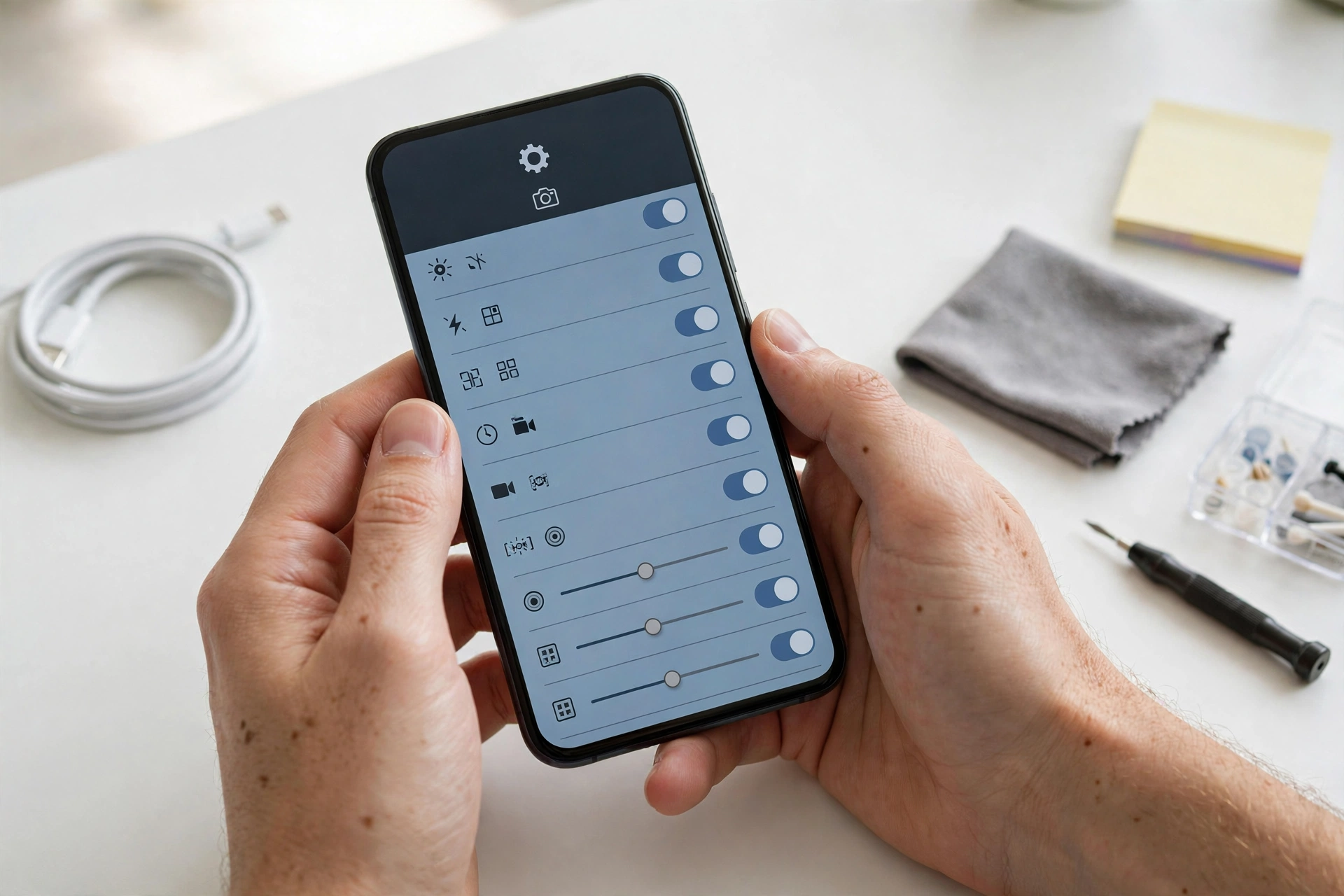
Meizu’s own support guidance lists checking permissions as one of its core camera fixes: the camera needs the correct permissions to function, and adjusting them can resolve many camera issues. Here’s how to check on a Meizu phone:
- Open Settings and go to Privacy > Permissions Manager (on some Flyme versions: Settings > Apps > Camera > Permissions).
- Tap Camera and confirm the Camera app has camera access allowed.
- While you’re there, check Storage and Microphone permissions for the Camera app too — a revoked microphone permission is a sneaky cause of video-recording crashes even when still photos work fine.
Tip: If the viewfinder is black but the app doesn’t crash, permissions are the prime suspect. If the app crashes the instant you open it, corrupted cache is more likely — keep reading.
3. Five ways an update can break the camera, in likelihood order
Updates change the software your phone runs, and the camera is a partnership between hardware and software. Here are the five mechanisms, ordered from most to least likely for a camera that worked before the update:
| Mechanism | What happens | Typical symptom |
|---|---|---|
| Permissions reset | The update revokes the Camera app’s access | Black viewfinder or immediate crash |
| Corrupted cached data | Old temp files conflict with new system code | Crashes on launch, freezing, artifacts |
| App/system mismatch | Camera app version doesn’t match new Flyme version | Crashes after update, features missing |
| Another app holding the camera | A third-party app seized the camera session | “Camera busy” or can’t-connect errors |
| Genuine shipped bug | The update itself contains a camera driver defect | Failure appears on many identical models at once |
The first four are fixable on your phone in minutes. The fifth — a genuine shipped bug — is fixable only by a follow-up update from Meizu, and recognizing it early saves you from destructive troubleshooting that can’t help. Section 11 shows how to tell.
4. The five-minute checks (do these first)
Before touching any settings, run these quick checks. They rule out the simplest explanations:
- Restart the phone. Press and hold the power button, select Restart, and try the camera again. Meizu’s own support lists this as fix number one because a restart clears temporary system states the update may have left behind. For a forced restart if the phone is unresponsive, hold Power + Volume Up for about 10 seconds.
- Close every other app. Open the recent-apps view and close everything. If a third-party app (a scanner, video-calling app, or AR app) is holding the camera session open, your Camera app can’t connect. This is a frequent cause of “camera busy” style failures.
- Charge the phone. If the battery is critically low, the camera may refuse to work — the camera hardware draws significant current, and a low battery can block it even though the app opens.
- Remove the case. A case pressing against the phone after an update didn’t cause the problem, but a case that shifted can block a lens or cover a sensor, and ruling it out takes ten seconds.
- Try both cameras. Switch between front and rear. If one works and the other doesn’t, you’ve isolated the problem to one lens — useful information for everything that follows.
5. Meizu’s official fix order: restart, update, clear cache, check permissions
Meizu’s own support documentation gives a clear, sensible troubleshooting order for a camera that isn’t working. Following the manufacturer’s own sequence is the safest approach — these are the steps Meizu itself recommends:
- Restart the phone. A simple restart refreshes the system and resolves temporary bugs.
- Update the phone’s software and camera app. Go to Settings > System Update (on Flyme: Settings > Software Update) and check for a newer version. Outdated software causes compatibility issues; keeping the device updated reduces app crashes. Meizu’s update notes explicitly state that updates “will not affect any existing data,” so this check is safe.
- Clear the Camera app cache. Go to Settings > Apps > Camera > Storage, then tap Clear Cache. This removes temporary data that could be causing performance issues — and as Meizu notes, it will not delete your photos.
- Check camera permissions. Go to Settings > Privacy > Permissions Manager > Camera and verify the Camera app has access to the camera, storage, microphone, and other necessary features.
This order is deliberate: it moves from least invasive (restart) to more targeted (cache, permissions). Notice what’s missing — Meizu does not list a factory reset as a troubleshooting step. Keep that in mind when you reach section 10.
Stop for safety: Never open the phone yourself to “check the camera.” Meizu phones use glued assemblies; prying them open risks puncturing the battery, which can cause fire. Camera hardware problems need a professional with the right tools — never a kitchen-table teardown.
6. Clear cache vs. clear data: which one, and when
Sections 5’s cache-clearing step fixes a surprising number of post-update camera crashes, because old cached files can conflict with the new system code. But there’s a second, stronger option — clearing the app’s data — and knowing the difference matters:
| Action | What it removes | Photos affected? | When to use it |
|---|---|---|---|
| Clear cache | Temporary files, thumbnails, session leftovers | No | First attempt — crashes, lag, artifacts after an update |
| Clear data | Cache plus all app settings and preferences | No — photos live in Gallery | When cache-clearing didn’t help; resets the app to a fresh state |
Clear data resets the Camera app to its default settings — shooting modes, resolution choices, and custom preferences return to defaults. It does not delete photos, which live in Gallery, not in the Camera app. Try cache first; escalate to data only if the crashes persist.
If you see an “application has stopped” error on a Meizu phone, community troubleshooting guidance for Meizu devices follows the same escalation: restart first, then Settings > Application manager > Camera > Clear Cache, then Clear Data if needed. This two-step approach resolves the large majority of app-crash cases.
7. The Flyme camera app update: a Meizu-specific fix path
On Meizu phones, the camera experience is closely tied to Flyme OS itself — and Meizu has a documented history of fixing camera problems through updates rather than hardware changes. Two patterns are worth knowing:
- System updates that fix camera bugs. Meizu’s Flyme changelogs regularly include camera fixes — for example, past Flyme updates have fixed “the camera’s failure when tapping the shutter after switching to micro-focusing mode from front camera” and “the problem of camera pages showing horizontal bars.” If your camera broke after an update, a follow-up update may already contain the fix. Check Settings > Software Update even if you just updated — Meizu sometimes ships quick follow-up patches.
- Camera improvements delivered as app updates. Meizu has improved camera performance through dedicated camera app updates (the Meizu 17 Pro’s camera app, for instance, gained telephoto recording and anti-shake features through a versioned camera update). On newer Meizu phones, check for Camera app updates wherever the app was installed from.
Quick fact: Meizu’s official feedback channel for Flyme issues is the “User Help” app and Meizu customer service, as stated in Flyme update changelogs. If you hit a camera bug that survives all the fixes in this guide, reporting it through those channels is the route most likely to get it fixed in a future update.
8. The third-party camera test: the key diagnostic
If the built-in Camera app still fails after permissions, cache, and updates, install a free third-party camera app (such as Open Camera) from a trusted app store and try it. The result tells you something important:
| Third-party app result | What it means | Next step |
|---|---|---|
| Works normally | The camera hardware is fine; the problem is in Meizu’s Camera app or its data | Clear the Camera app’s data, or wait for a Flyme/app update |
| Also fails | The problem is below the app level — system driver or hardware | Safe Mode test, then consider a shipped bug or hardware fault |
| Rear works, front fails (or vice versa) | One lens module or its driver is affected | Note which lens; this helps any technician diagnose faster |
Combine this with the front/rear isolation from section 4: if the built-in app fails on the rear camera but a third-party app succeeds, the rear hardware is fine and the built-in app is the problem — which is good news, because app problems get fixed by updates.
9. Safe Mode: ruling out third-party interference
Some apps can seize the camera or interfere with it — especially scanner apps, video apps, and “camera booster” style utilities. Safe Mode temporarily disables all third-party apps so you can test the camera in a clean environment:
- Press and hold the power button until the power menu appears.
- Long-press Power off until you’re offered Safe Mode, then confirm. (Exact steps vary by Flyme version; if this doesn’t work, check your model’s manual.)
- Open the Camera app and test it.
- Restart normally to exit Safe Mode.
If the camera works in Safe Mode but not in normal mode, a third-party app is the culprit. Uninstall recently installed or updated apps one by one — starting with camera-related ones — until the problem disappears.
Stop for safety: Avoid “camera fixer,” “camera booster,” or “speaker cleaner” style apps entirely. They cannot repair hardware or drivers, they often display aggressive ads, and some request permissions they don’t need. No app can fix a camera problem that Safe Mode can’t identify.
10. Symptom → cause → fix worksheet
Match your symptom to the most likely cause and the right fix. Work top to bottom — the earlier rows are more common after updates:
| Symptom | Likely cause | Fix |
|---|---|---|
| Camera app crashes immediately on launch | Corrupted cache from the update | Clear cache, then clear data if needed (§6) |
| Black viewfinder, app otherwise normal | Permission revoked by the update | Re-grant camera permission (§2) |
| Video recording crashes, photos fine | Microphone permission revoked | Grant microphone permission to the Camera app (§2) |
| “Camera busy” or can’t-connect error | Another app holding the camera | Close all apps; restart (§4) |
| Horizontal bars or visual artifacts | Driver/rendering bug in the update | Check for a follow-up Flyme update (§7) |
| One lens works, the other doesn’t | Single-module driver or hardware issue | Third-party camera test to isolate (§8) |
| Works in Safe Mode, fails normally | Third-party app interference | Uninstall suspect apps (§9) |
| Flash/flashlight also dead | Shared camera/flash driver or hardware path | Run the full fix order; stop if it persists (§13) |
| Camera slow or laggy after update | Cache bloat or background load | Clear cache; restart; check for update (§5) |
| Everything fails on every app | System-level driver bug or hardware fault | Check for follow-up update; then professional diagnosis (§13) |
11. Two hypothetical illustrations
(The following is a hypothetical illustration, not a customer story.) Priya’s black viewfinder: Priya’s Meizu 18 updated to a new Flyme version overnight. The next morning the Camera app opened to a black screen. She was about to factory-reset the phone — but first she checked permissions, and found the update had revoked the Camera app’s camera access. One toggle later, the camera worked. Total time: two minutes. Total data lost: none.
(The following is a hypothetical illustration, not a customer story.) Daniel’s crash loop: Daniel’s Meizu phone started crashing the Camera app the instant he opened it, right after an update. Permissions were fine. He cleared the Camera app’s cache — no change. Then he cleared the app’s data, and the crashes stopped immediately. His photos were untouched, because they live in Gallery. He re-set his preferred shooting mode in thirty seconds and moved on.
12. The central rule: don’t factory-reset first
When a camera breaks after an update, a factory reset is the most tempting — and most misguided — fix. Here’s why it should be your absolute last resort:
- A reset reinstalls the same system version. If the update itself contains a camera driver bug, the reset puts the same buggy software right back. It cannot fix a shipped bug.
- It erases everything. Photos, messages, app logins, two-factor setups — all gone unless your backup is complete and verified. Meizu’s own guidance never lists a factory reset among its camera fixes.
- It destroys diagnostic evidence. If the problem needs professional diagnosis, a reset wipes the logs and states a technician could have used.
If you do reach the point where a reset is genuinely the last option (section 13’s stop conditions are met and you’ve decided to try everything), back up first: verify the backup completed, verify you can sign back into your accounts, and only then reset. Then test the camera before restoring your apps — if it works on a clean system but breaks after restore, a restored app was the culprit all along.
Stop for safety: If the phone is swollen, distorted, or dangerously hot, do not charge it, do not run updates, and do not attempt a factory reset — power it down and stop. A swollen battery is a fire risk, and no camera problem is worth that danger.
13. What your observations can and cannot establish
Honest troubleshooting means knowing the limits of what you’ve learned:
| Observation | What it establishes | What it does NOT establish |
|---|---|---|
| Camera failed right after the update | The update is the likely trigger | That the update “damaged” hardware — updates can’t physically damage the camera |
| Third-party camera app works | Hardware is fine; built-in app is the problem | Which exact app data is corrupt — just clear it and move on |
| Works in Safe Mode | A third-party app is interfering | Which app — uninstall candidates one by one |
| One lens works, other doesn’t | The failure is isolated to one module or driver | Whether it’s the module or its driver — that needs professional tools |
| Many identical models failed at once | A shipped bug in the update is likely | When Meizu will ship the fix — watch for follow-up updates |
| Nothing in this guide helped | You’ve ruled out the common software causes | The exact fault — that’s what professional diagnosis is for |
14. When to stop troubleshooting
Stop and seek professional diagnosis when any of these are true:
- You’ve completed sections 2 through 9 and the camera still fails on every app.
- The phone is swollen, distorted, or dangerously hot — power down and stop immediately.
- The camera failed after a drop or liquid exposure around the same time as the update — the update may be a coincidence, and physical damage needs hands-on assessment.
- You see the same failure reported by many owners of your exact model right after the same update — that’s a shipped bug; no amount of resetting on your phone will fix it, and the fix will come as a follow-up update.
A repair shop can run hardware diagnostics that aren’t available to you — checking whether the camera module, its connector, or the mainboard path is at fault. If you’re in the Las Vegas area, Las Vegas Phone Repair & Accessories, 7400 Las Vegas Blvd S, Unit TT42, Las Vegas, NV 89123, (424) 406-6202, can assess a camera that survives all the software fixes in this guide. Call ahead to confirm today’s hours.
15. Frequently asked questions
Will clearing the Camera app’s data delete my photos?
No. Photos on Meizu phones are stored by the Gallery app, not the Camera app. Clearing the Camera app’s cache or data resets the app’s settings to defaults but leaves your photos untouched. Meizu’s own support confirms that clearing the cache “will not delete your photos.”
The camera worked this morning and broke after an update this afternoon. Is the camera physically damaged?
Almost certainly not. Updates cannot physically damage camera hardware. A failure timed exactly with an update is overwhelmingly likely to be permissions, corrupted cache, or a software bug — all covered in this guide. Work through sections 2–9 before worrying about hardware.
Why does video recording crash but still photos work?
Video recording needs the microphone in addition to the camera. If the update revoked the Camera app’s microphone permission, still photos work fine while video crashes. Re-grant microphone permission to the Camera app (section 2).
Should I factory-reset the phone?
Not as a first step — or a second, or third. A factory reset reinstalls the same system version, so it cannot remove a bug the update introduced, and it erases all your data. Meizu’s own camera troubleshooting never lists a factory reset. Try everything in sections 2–9 first; see section 12 for the full reasoning.
What if the flashlight also stopped working?
The flash and camera often share a driver path, so a driver-level bug can take both out together. Run the full fix order in section 5. If both stay dead across all apps, that’s a stronger signal of a driver or hardware issue — see section 13.
Can a “camera fixer” app repair the problem?
No. No app can repair a driver bug or hardware fault, and these apps often request unnecessary permissions or show aggressive ads. If Safe Mode (section 9) doesn’t identify a culprit app, uninstall any such utilities — they can’t help and may be hurting.
How do I know if it’s a shipped Flyme bug versus my phone?
Check whether other owners of your exact Meizu model report the same failure after the same update — Meizu’s “User Help” app and community forums are the places to look. If many identical models failed at once, it’s a shipped bug, and the fix will arrive as a follow-up Flyme update. Keep checking Settings > Software Update.
The front camera works but the rear doesn’t. What does that mean?
The failure is isolated to one lens module or its driver. Run the third-party camera test (section 8) to confirm. If the rear lens fails in every app while the front works, note that down — it’s exactly the detail a technician needs, and it rules out a whole class of system-wide causes.
16. Related guides
Camera problems after updates follow similar patterns across brands, with brand-specific twists. These companions cover the same problem on other phones:
- Phone Camera Not Working After Update: Causes and Safe Fixes — the brand-agnostic version of this guide, with the universal diagnostic order that applies to any Android phone.
- ZTE Phone Camera Not Working After Update: Causes and Safe Fixes — ZTE’s take on the same problem, including Nubia’s software-feedback channel and ZTE-specific quirks.
- Nokia Phone Camera Not Working After Update: Causes and Safe Fixes — Nokia/HMD’s version, built around the Play Store-distributed HMD Camera app as the signature fix path.
Video: How to tell if your smartphone is fake or real
Sources and editorial notes
- Meizu — “Why Is My Phone Camera Not Working? Common Causes and Fixes”: Meizu’s own support article; source for the official fix order (restart → update software → clear cache via Settings > Apps > Camera > Storage → check permissions via Privacy > Permissions Manager) and the statement that clearing cache will not delete photos.
- GizChina — “Meizu 16s gets its first update”: Flyme update changelog showing camera optimization delivered via system updates, Meizu’s “update will not affect any existing data” assurance, and the “User Help” app / Meizu customer service as the official Flyme feedback channel.
- IGeeKphone — Flyme 7 beta changelog: documents Flyme updates fixing camera-page horizontal bars and shutter failures — examples of camera bugs Meizu has fixed through updates.
- GizChina — “Meizu 17 Pro camera update 8.7.15”: camera improvements delivered as versioned camera app updates on Meizu phones.
- SlashGear — “Common Camera Problems on Android Phones and How to Fix Them”: independent reporting on the standard camera-crash fix order (restart → clear cache and data → check for software updates).
- HardReset.info — Meizu M5 “application has stopped” fix: community troubleshooting guidance for Meizu devices: restart, then Settings > Application manager > Clear Cache / Clear Data.
- PhoneCorridor — “How to Fix Camera Not Working on Android Devices”: independent reporting on camera permission checks, closing apps holding the camera, and clearing app data.
Last source check: October 14, 2026. AI-assisted editorial guide, checked against the linked manufacturer information and press reporting. Meizu’s official steps are summarized in original language; update behaviors and bug episodes are reported, not manufacturer-confirmed unless noted. This guide is for owner troubleshooting and does not constitute a repair warranty or authentication certificate.
Let’s get you connected again.
Tell us what’s happening with your device and we’ll help you decide the safest next step — no jargon, no pressure.
Las Vegas Phone Repair & Accessories · 7400 Las Vegas Blvd S, Unit TT42, Las Vegas, NV 89123
10:00 AM–8:00 PM — call ahead to confirm today’s hours