
ZTE Phone Camera Not Working After Update: Causes and Safe Fixes
Your ZTE phone’s camera stopped working right after a system update? In most cases this is a software problem — a revoked permission, corrupted app cache, or a camera session left hanging by the update — and you can fix it yourself without a repair shop. Work through the checks below in order, from the gentlest (a restart) to the most disruptive (a factory reset, only as a last resort), and you will either get the camera working again or know with confidence that it needs professional diagnosis.
On this page
Your ZTE phone’s camera stopped working right after a system update? In most cases this is a software problem — a revoked permission, corrupted app cache, or a camera session left hanging by the update — and you can fix it yourself without a repair shop.
1. Who this guide helps
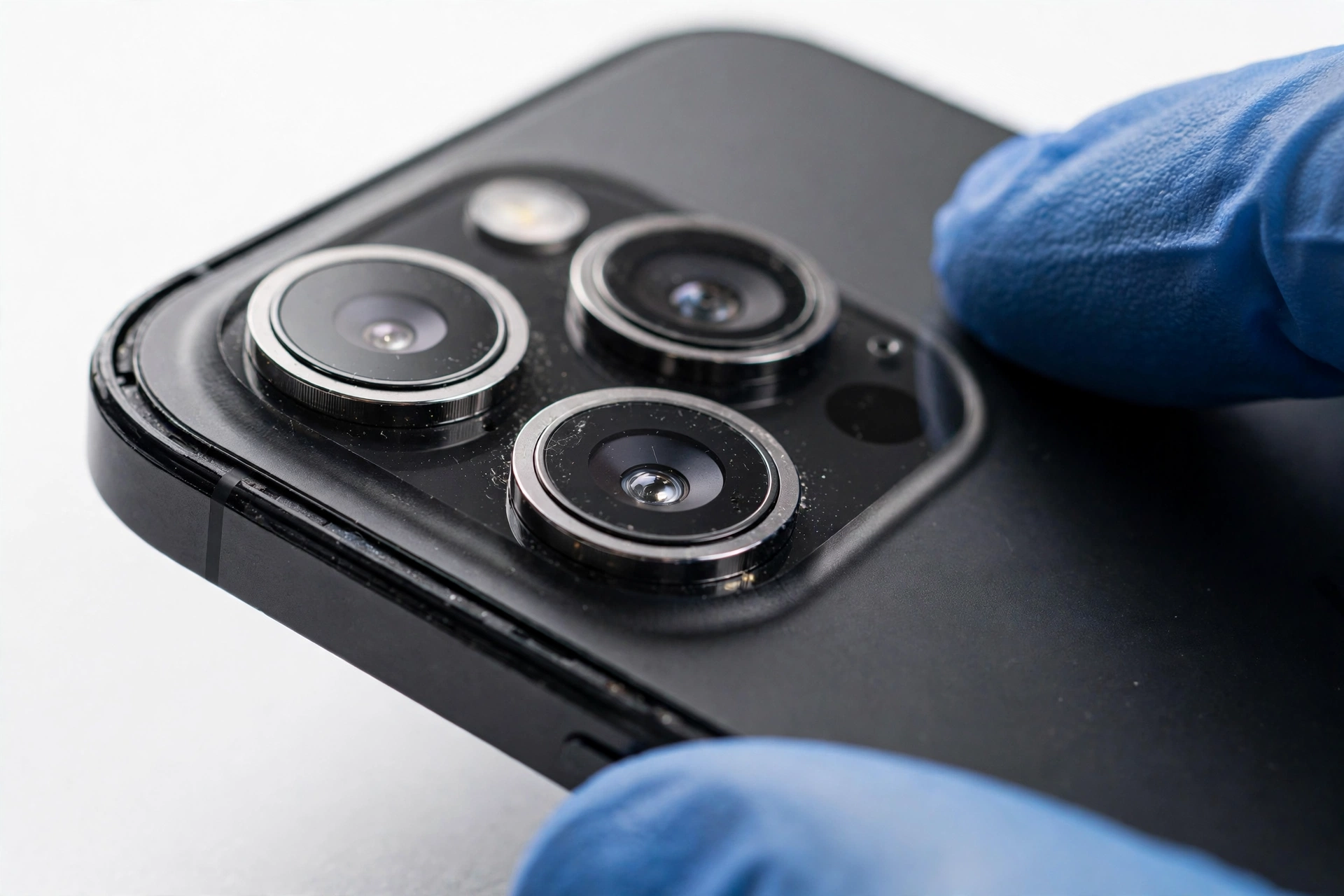
This guide is for anyone whose ZTE or Nubia phone camera broke immediately after a software update: the app opens to a black screen, crashes on launch, shows “Camera not available” or “Can’t connect to the camera,” takes blurry or laggy photos, or refuses to switch between front and rear lenses. It covers ZTE’s Blade, Axon, and budget carrier-branded lines, as well as Nubia phones (Nubia Focus, Neo series, V series), which run on ZTE’s software platform. (Source: ifixit.com)
If your camera problem started before the update, or if it began after a drop or water exposure, the cause is more likely physical — but the software checks in this guide are still worth trying first, because they cost nothing and take only a few minutes.
2. Why updates break cameras: the five mechanisms
A software update cannot physically damage your camera. The lens, sensor, and wiring are untouched. What an update can do is disturb the software layer that sits between your apps and the camera hardware. Here are the mechanisms, in the order of how commonly they cause trouble:
- Permission revocation. Major Android updates sometimes reset app permissions. The Camera app can open its full interface yet receive no video feed because its own camera permission was silently revoked. A black viewfinder with a working interface is the classic symptom.
- Corrupted camera-app data. The update can leave the camera app’s temporary files in an inconsistent state. The app crashes, freezes, or shows errors because its cached data no longer matches the new system version.
- Camera session conflict (“Camera Busy”). Another app — a video call, a flashlight app, a security app — may have been holding the camera when the update installed, leaving a “stuck” camera session that blocks every other app.
- Incompatible third-party camera app. If you use an alternative camera app, it may not yet be compatible with the new system version’s camera interfaces.
- Genuine shipped driver bug. Occasionally the update itself contains a camera driver bug. This is the least common cause, but it happens — and it is the one case where no amount of local fixing helps, because the bug lives in the system software itself.
Quick fact: On ZTE’s newer phones, the system update path is Settings > System and update > System update. If you see a red notification badge on the update entry, a pending patch is waiting — sometimes the fix for your camera is already published by ZTE.
3. Start here: restart the phone
It sounds too simple, but a full restart clears stuck camera sessions and reloads the camera driver. This resolves a surprising number of post-update camera failures, including the “Camera Busy” and “Can’t connect to the camera” errors.
- Close all open apps, especially anything that might use the camera (video calls, flashlight apps, QR scanners).
- Press and hold the power button, then tap Restart (or power off fully, wait 30 seconds, and power back on).
- Open the Camera app and test both the front and rear cameras.
If the camera works after a restart but the problem returns later, a background app may be grabbing the camera and refusing to release it — jump ahead to the Safe Mode check in section 11.
4. The permission-revoke trap: check the Camera app’s own permission
This is the most common update-specific cause, and it produces a distinctive symptom: the camera app opens normally but the viewfinder is black. Everything else looks fine — menus, buttons, mode icons — but no image appears. That is what happens when the Camera app has lost its own permission to use the camera hardware.
- Go to Settings > Apps > Camera > Permissions.
- Make sure Camera permission is set to Allow.
- If it is already allowed, toggle it off, wait five seconds, toggle it back on, and test the camera.
- While you are there, check Microphone too — if the camera app crashes specifically when you record video, a revoked microphone permission is the sneaky culprit.
Tip: Android’s privacy dashboard can show which apps used the camera recently. If you see an unfamiliar app with recent camera access, it may be the one holding the camera session hostage.
5. Clear the camera app’s cache (not data — yet)
The cache holds temporary files the Camera app uses to run quickly. An update can leave these files in a corrupted state, causing crashes or freezes on launch. Clearing the cache is safe: it deletes no photos, no settings, and no personal data.
- Go to Settings > Apps > Camera > Storage & cache.
- Tap Clear cache.
- Reopen the Camera app and test.
Stop for safety: On the storage screen you will also see Clear data (sometimes called “Clear storage”). Do not tap it yet — that resets all camera settings to defaults. It does not delete your photos, but it is a more disruptive step we reserve for section 7.
| Action | What it deletes | What it keeps | When to use it |
|---|---|---|---|
| Clear cache | Temporary app files | Photos, settings, preferences | First-line fix for crashes and freezes |
| Clear data | Temporary files + all camera settings and preferences | Photos (stored in Gallery/Photos app, not the Camera app) | When cache-clearing didn’t help, before resorting to a factory reset |
6. Test with a third-party camera app
This is the single most informative diagnostic in the whole guide. Install a free alternative camera app — Open Camera is a well-regarded choice — and open it.
- If Open Camera shows a live feed: your camera hardware and the system driver are fine. The problem is isolated to the stock Camera app’s data or settings. Clear its data (section 7) or wait for a camera-app update.
- If Open Camera is also black or crashes: the problem is at the system level — a driver issue from the update, a stuck camera session, or hardware. Continue with Safe Mode (section 11) and the update check (section 13).
| Third-party app result | What it means | Next step |
|---|---|---|
| Live feed works | Hardware + driver are healthy; stock Camera app’s data is the problem | Clear Camera app data (section 7) |
| Black screen in both apps | System-level driver or hardware issue | Safe Mode (section 11), then system update check (section 13) |
| Crashes in both apps | Likely a shipped driver bug in the update | Check for a follow-up patch (section 13); report to ZTE/Nubia (section 15) |
7. Clear the camera app’s data and use “restore defaults”
If the cache clear didn’t help, take the stronger step: clear the app’s data. Your photos are safe — they live in the Gallery or Google Photos app, not in the Camera app’s data store. What gets reset is your camera settings: resolution, mode preferences, and custom tweaks.
- Go to Settings > Apps > Camera > Storage & cache and tap Clear data (or “Clear storage”).
- Alternatively, open the Camera app itself, tap the settings gear icon, and choose Restore defaults — this achieves a similar reset from inside the app.
- Test the camera again.
8. Isolate front vs. rear camera
Flip between the front (selfie) and rear cameras inside the Camera app. This tells you whether the problem is with one physical module or with the camera software as a whole.
- Only the rear camera fails: the rear module, its connection, or its specific driver path is at fault. Software fixes are less likely; a repair assessment is the sensible next step if updates don’t resolve it.
- Only the front camera fails: same logic, for the front module.
- Both fail identically: almost certainly a software or driver issue, since two independent hardware modules rarely fail at the same instant — and right after an update, that coincidence points at software.
9. ZTE-specific check: remove the SD card
This one is genuinely ZTE-specific and comes from community troubleshooting of ZTE devices: a mispositioned or corrupted SD card can prevent the camera from operating correctly. If your ZTE uses a microSD card as photo storage, the camera app can hang or fail while trying to talk to it.
- Power the phone off completely.
- Remove the microSD card (and reinsert it firmly, making sure it seats fully).
- Power the phone back on and test the camera.
- If the camera works with the card removed but fails with it inserted, back up the card’s contents and reformat it, or replace it.
This check is especially worth trying if the camera worked fine before the update and you store photos on the SD card — the update may have changed how the phone handles external storage.
10. Free up storage space
A phone that is nearly full can cause camera failures — the app needs working space to process and save photos. As a rule of thumb, keep at least 2 GB free.
- Delete apps you no longer use.
- Move photos and videos to a computer or cloud backup, then delete the local copies.
- Clear cached data for heavy apps (Settings > Storage).
11. Boot into Safe Mode
Safe Mode starts your phone with only the pre-installed system apps running. If the camera works in Safe Mode, a third-party app you installed is the culprit — likely one with camera permission that starts at boot and grabs the camera before anything else can use it.
- Press and hold the power button until the power menu appears.
- Press and hold Power off until the Reboot to safe mode prompt appears, then tap OK. (On some ZTE models the method differs slightly — check your model’s manual.)
- Test the camera in Safe Mode.
- Restart normally to exit Safe Mode.
- Camera works in Safe Mode: uninstall recently installed apps one by one — start with anything that uses the camera, flashlight, or video (QR scanners, beauty-camera apps, security apps). Test after each removal.
- Camera still fails in Safe Mode: the problem is in the system itself, not a third-party app. Continue to the update check.
Stop for safety: Do not install “camera fixer,” “camera booster,” or “phone repair” apps from the Play Store. They cannot fix driver-level problems, and many are adware or worse. The official checks in this guide are the safe path.
12. The five update mechanisms, in likelihood order
Now that you have run the practical checks, here is a summary of why updates cause these failures, so you can match your symptom to the most likely cause:
| # | Mechanism | Typical symptom | Fix |
|---|---|---|---|
| 1 | Permission silently revoked | Black viewfinder, app otherwise normal | Re-grant permission (section 4) |
| 2 | Corrupted camera-app data | Crashes or freezes on launch | Clear cache, then data (sections 5, 7) |
| 3 | Stuck camera session (“Camera Busy”) | “Can’t connect” / “Camera not available” error | Restart; close background apps; Safe Mode (sections 3, 11) |
| 4 | Third-party app incompatibility | Works in stock app, fails in alternative app (or vice versa) | Update or uninstall the incompatible app |
| 5 | Shipped driver bug in the update | All apps fail, all checks fail | Wait for ZTE’s follow-up patch (section 13) |
13. Check for a follow-up update (and how to report the bug)
When many users report the same camera failure after the same update, ZTE and Nubia often ship a follow-up patch. Check for it:
- Go to Settings > System and update > System update and tap to check.
- Update your apps in the Play Store too, including any camera-related apps.
- If a patch exists, install it over Wi-Fi with the battery above 50%.
If no patch exists yet, reporting the bug helps it get prioritized. Nubia runs an official software feedback channel (intl.nubia.com software-feedback page) where users can submit bug reports with their software version — the camera category is listed right there. Include your phone model, the exact system version (Settings > About phone), and a precise description of the failure. For carrier-branded ZTE phones, the carrier’s support channel is the right place to report.
Quick fact: Never install unofficial firmware or “fixed” ROMs from forums to solve a camera bug. Unofficial firmware can brick the phone, void the warranty, and introduce malware. Wait for the official patch.
14. Do not factory-reset first: the central rule
When nothing has worked, the temptation is to factory-reset the phone. Resist it — at least until you have read this section. A factory reset erases all your data and returns the phone to its out-of-box state, but it reinstalls the same system version that contains the bug. If your camera failure is a shipped driver bug (mechanism 5 above), a reset cannot fix it — you will have lost your data for nothing.
A factory reset is only a sensible last resort when:
- You have tried every check in sections 3–13,
- You have a complete backup of photos, contacts, messages, and app data,
- And the third-party camera test (section 6) suggests the problem is in the phone’s software configuration rather than a shipped driver bug.
Stop for safety: Back up before you reset, not after — a reset is irreversible. Copy photos to a computer or cloud storage, confirm the backup by opening a few files on the other device, and only then reset via Settings > System > Reset options > Erase all data.
After the reset, test the camera before restoring your backup or reinstalling apps. If the camera works on a clean phone but breaks after you restore, one of your apps or settings was the cause — reinstall apps one at a time to find it.
15. Symptom worksheet: match what you see to the fix
| Symptom | Likely cause | Fix (section) |
|---|---|---|
| Black viewfinder, app looks normal | Camera permission revoked by update | Re-grant permission (§4) |
| App crashes immediately on launch | Corrupted camera-app data | Clear cache, then data (§5, §7) |
| “Can’t connect to the camera” | Stuck camera session held by another app | Restart; close background apps (§3) |
| “Camera not available” / “Camera Busy” | Another app is using the camera | Close recent apps; Safe Mode (§11) |
| Blurry or laggy preview | Dirty lens, overheating, or low storage | Clean lens with soft cloth; cool phone down; free space (§10) |
| One lens works, the other doesn’t | Single-module hardware or driver issue | Isolate front/rear (§8); professional assessment if persistent |
| Works in third-party app, not stock app | Stock app’s data corrupted | Clear stock Camera app data (§7) |
| Fails in every camera app | System driver bug or hardware | Check for patch (§13); report bug; professional assessment |
| Video recording crashes, photos fine | Microphone permission revoked | Grant microphone permission to Camera app (§4) |
| Camera fails only with SD card inserted | Faulty or mispositioned SD card | Reseat or replace the SD card (§9) |
16. What your checks can and cannot establish
Honesty matters when diagnosing your own phone. Here is what the checks in this guide actually prove:
| Observation | What it establishes | What it does NOT establish |
|---|---|---|
| Camera works after a restart | The failure was a transient software state | That it won’t happen again — watch for recurrence |
| Third-party app works, stock app doesn’t | Hardware and driver are healthy | Which exact file in the stock app is corrupted |
| Both cameras fail identically | Software/driver is the likely cause | That hardware is definitely fine — rare dual failures exist |
| Works in Safe Mode | A third-party app is interfering | Which app, without further testing |
| Nothing fixes it, all apps fail | System-level driver bug or hardware fault | Which of the two — that needs professional diagnosis |
17. When to stop troubleshooting
Stop and seek professional assessment when:
- Every check in this guide has failed, in every camera app, including Safe Mode.
- Only one camera module fails and the phone has been dropped or exposed to moisture.
- The phone is swollen, distorted, or dangerously hot — power it down immediately and do not charge it. A swollen battery is a fire risk; no camera is worth that danger.
- You see physical damage: a cracked lens, a rattling sound from the camera area, or visible debris inside the lens.
Stop for safety: Never open the phone yourself. Modern phones use glued assemblies; prying them open risks puncturing the battery, which can cause fire or chemical burns. Internal repair is a job for a professional with the right tools.
For readers in the Las Vegas area, our brand-agnostic camera troubleshooting guide covers the same diagnostic logic in general terms, and the companion guides for Nokia and Lenovo phones apply the same framework to those brands. If your ZTE needs hands-on diagnosis, Las Vegas Phone Repair & Accessories, 7400 Las Vegas Blvd S, Unit TT42, Las Vegas, NV 89123, (424) 406-6202 — please call ahead to confirm today’s hours.
18. Two hypothetical illustrations
(The following are hypothetical illustrations, not customer stories.)
Daniel’s black viewfinder. Daniel updated his ZTE Blade overnight. The next morning the Camera app opened normally — but the viewfinder was black. He tried restarting; no change. Remembering that updates can revoke permissions, he went to Settings > Apps > Camera > Permissions and found the camera permission set to “Ask every time.” He set it to “Allow,” and the viewfinder came back instantly. Total fix time: two minutes.
Amara’s “Camera Busy” error. Amara’s Nubia phone showed “Camera not available” after an update. She installed Open Camera as a test — also black. That told her the problem was system-level, not the stock app. She restarted the phone, which cleared a stuck camera session left by a video-call app that had been running during the update. The camera worked again, and she uninstalled the video-call app’s autostart permission to prevent a repeat.
19. Frequently asked questions
Will clearing the Camera app’s data delete my photos?
No. Your photos live in the Gallery or Google Photos app, not in the Camera app’s data store. Clearing the Camera app’s data resets settings and preferences only. That said, always keep a backup of irreplaceable photos regardless.
Why does the Camera app need its own permission — isn’t it part of the system?
On modern Android, even system apps declare and hold runtime permissions. An update can reset them. If the Camera app loses its own camera permission, it opens normally but receives no video feed — the classic black viewfinder.
Should I factory-reset before trying these checks?
No — that is the central rule of this guide. A factory reset erases all your data and reinstalls the same system version, so it cannot fix a shipped driver bug. Work through the gentler checks first; reset only as a documented last resort with a complete backup.
Can I downgrade to the previous system version?
We advise against it. Unofficial downgrades can brick the phone, void the warranty, and expose you to unpatched security vulnerabilities. Report the bug through official channels and wait for ZTE’s follow-up patch.
One lens works and the other doesn’t — is that software or hardware?
Usually hardware (or that module’s specific driver path). Software failures from updates almost always affect both lenses the same way, since they share the camera software stack. If only one lens fails persistently, get a professional assessment.
What does “Camera Busy” actually mean?
It means another app currently holds the phone’s single camera session. Android allows only one app to control the camera at a time. Close recent apps — especially video calls, flashlight apps, and QR scanners — or restart the phone to release the session.
Are “camera fixer” apps safe to try?
No. They cannot fix driver-level problems, and many are adware. There is no app that can repair what these apps claim to repair. Stick to the official checks in this guide.
When should I stop troubleshooting and get professional help?
When every check here has failed in every camera app including Safe Mode; when only one lens fails after a drop; or when the phone is swollen, distorted, or dangerously hot — in that last case, power down immediately and do not charge it.
Video: How to tell if your smartphone is fake or real
Sources and editorial notes
- iFixit — ZTE Grand X Max Plus Troubleshooting: camera checks including lens obstruction and cleaning; general ZTE troubleshooting framework.
- iFixit — ZTE ZMax Pro Troubleshooting: camera failing to start after software issues; restart and software-update guidance.
- iFixit Answers — ZTE camera fix thread: community-verified clear-cache-first approach for ZTE camera failures.
- iFixit — ZTE Jasper LTE Troubleshooting: distorted/blurry/dark camera images; lens cleaning and software-update steps.
- FixMyPCStore — Phone camera black screen diagnostic framework: permission-revocation check, cache-before-data ordering, third-party camera test, front/rear isolation logic.
- Nubia — Software Feedback (official): Nubia’s official bug-reporting channel, with a dedicated Camera (Photo, Video) issue category; confirms system-update path via Settings > System and update > System update.
Last source check: October 14, 2026. AI-assisted editorial guide, checked against the linked manufacturer information and community repair documentation. ZTE and Nubia software paths described here reflect publicly documented Settings menus; specific menu names may vary slightly by model and carrier customization. This guide does not claim manufacturer authorization for repair services.
Let’s get you connected again.
Tell us what’s happening with your device and we’ll help you decide the safest next step — no jargon, no pressure.
Las Vegas Phone Repair & Accessories · 7400 Las Vegas Blvd S, Unit TT42, Las Vegas, NV 89123
10:00 AM–8:00 PM — call ahead to confirm today’s hours