
How to Transfer Data from Broken Meizu Phone to New Phone: Complete Guide
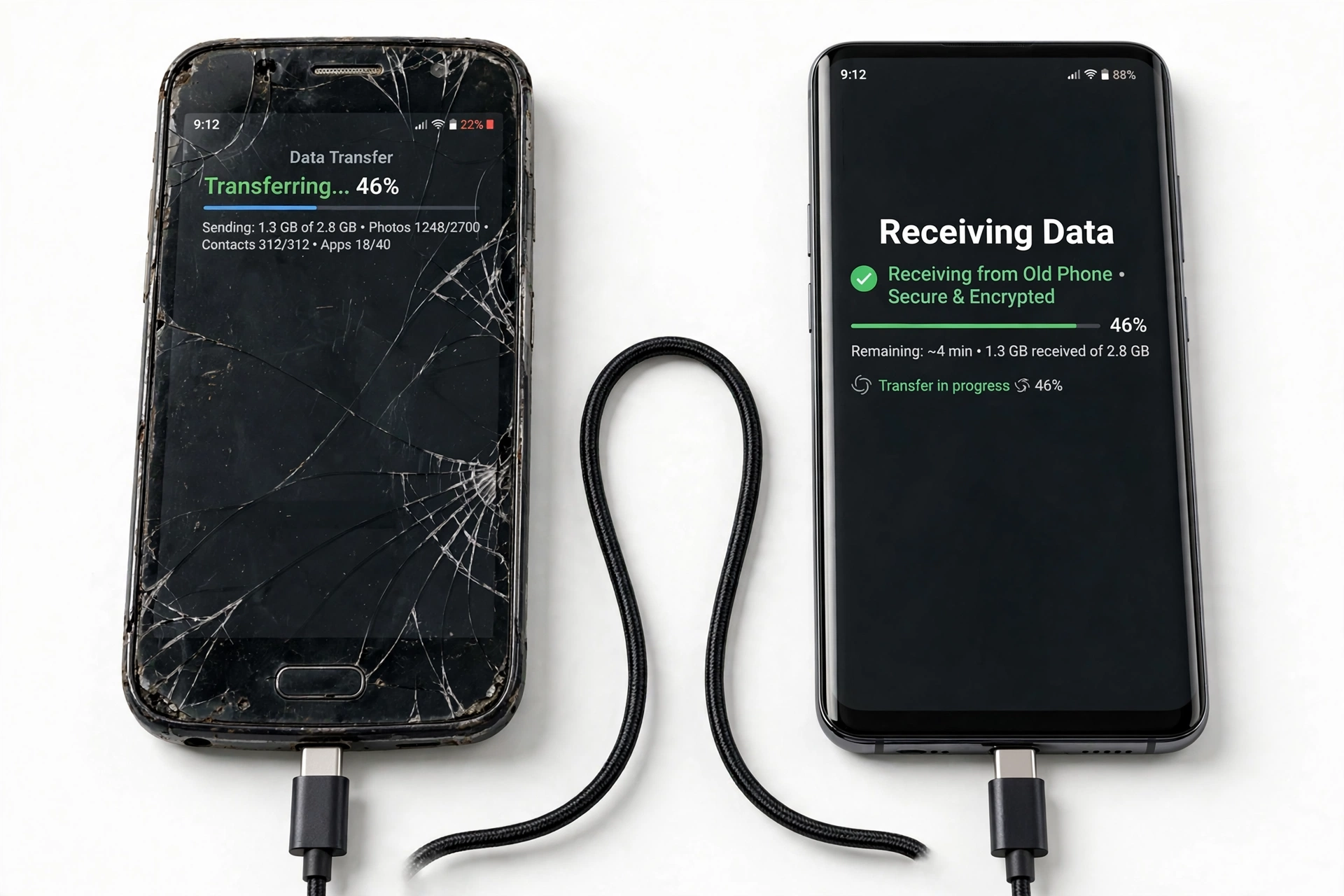
If your Meizu phone is broken but was backing up to Google or synced to your Flyme account, you can restore most of your data to a new phone without ever touching the old one. Phones with a cracked-but-working screen add more options — USB file copy, Flyme’s Data Rescue mode, or a QR-based file share — while a fully dead phone limits you to whatever was already in the cloud.
On this page
If your Meizu phone is broken but was backing up to Google or synced to your Flyme account, you can restore most of your data to a new phone without ever touching the old one.
1. Who this guide helps
This guide is for Meizu phone owners whose device has a cracked screen, a dead touchscreen, a phone that will not turn on, or a phone damaged by a drop or liquid — and who need to get contacts, photos, messages, and app data onto a replacement phone. Meizu phones run Flyme OS, Meizu’s own Android-based system, which has its own cloud sync service (the Flyme account) alongside Google’s backup on models that ship with Google services.
One honest note up front: unlike Samsung (Smart Switch) or some other brands, Meizu never released a dedicated phone-to-phone transfer app. There is no official “Meizu Phone Clone” tool. Any Play Store app calling itself a Meizu transfer tool is third-party software, not Meizu’s. This guide sticks to what Meizu actually provides — Flyme cloud sync, Flyme’s Data Rescue feature, Google backup where available — plus universal Android methods that work regardless of brand.
Quick fact: Flyme cloud sync covers your address book, SMS and call history, blocked-number list, mail app settings, Wi-Fi and VPN connection data, notes, and browser history. Photos, music, and videos can also be uploaded to Flyme’s cloud. Syncing is started in the “My Flyme” settings section on the phone.
2. First: what “broken” actually means for data recovery
Not all broken phones are equally broken when it comes to getting data off them. Your options depend entirely on what still works. Read the table below, find the row that matches your phone’s condition, and start with the methods listed for it.
| Phone condition | What still works | Methods available |
|---|---|---|
| Cracked screen, touch works | Display (partially), touch, USB | All methods: USB copy, QR share, Data Rescue, cloud restore |
| Screen black, touch dead | Phone powers on, recognized by PC | Data Rescue / MTP mode, USB copy, OTG + mouse, cloud restore |
| Phone powers on, not recognized by PC | Internal systems only | Cloud restore only (Flyme sync or Google backup) |
| Phone completely dead (no power) | Nothing | Cloud restore only — whatever was synced before it died |
| Water-damaged | Uncertain — do not keep trying | Cloud restore; stop powering it on (see safety section) |
Stop for safety: Never factory-reset the broken phone before you have copied or confirmed your data. A reset wipes the internal storage, and on a broken phone there is no undo. Resetting is a last resort for privacy before disposal — never a step in data recovery.
3. Method 1: Restore from Google One backup (works even if the phone is dead)
If your Meizu model shipped with Google services — most international (global firmware) models do; many China-market models do not — Google One backup is the single most powerful option, because it works even when the old phone will never turn on again. Google’s backup stores app data, call history, contacts, SMS messages, and device settings in your Google account. During setup of the new phone, you sign in with the same Google account, choose “Restore from cloud backup,” pick the old Meizu device’s backup, and the data comes down over Wi-Fi.
The step-by-step on the new phone:
- Power on the new phone and connect it to Wi-Fi.
- Sign in with the exact same Google account that was on the broken Meizu.
- When the setup wizard asks about copying apps and data, choose the cloud restore option (“Can’t use old phone?” on some phones).
- Select your old Meizu device’s backup from the list and confirm.
- Leave the phone on Wi-Fi and plugged in — the restore can take up to 24 hours for large backups.
What Google backup covers — and what it honestly does not:
| Data type | Backed up? | Notes |
|---|---|---|
| Contacts | Yes | Also syncable separately via Google Contacts |
| SMS / text messages | Yes | Restore happens at setup; cannot be restored later onto an already-set-up phone through Google’s own tools |
| Call history | Yes | Included in the cloud bundle |
| Device settings, Wi-Fi passwords | Yes | Restored automatically |
| App data | Mostly | Only for apps that participate in Google’s backup; some apps opt out |
| Photos and videos | Only if enabled | Handled by Google Photos backup, separate from the device backup — check photos.google.com |
| WhatsApp chats | No | WhatsApp keeps its own backup — needs its own restore inside WhatsApp |
| Authenticator codes | Usually no | Most authenticator apps exclude codes from cloud backup; check the app’s own export |
Important: Google deletes a device backup after 57 days of inactivity. If your broken Meizu has been sitting in a drawer for two months or more, its Google backup may already be gone. Check sooner rather than later — and once you buy the replacement, restore during its first setup, not after.
If your Meizu is a China-market model without Google Mobile Services, this method does not exist on it — skip to the Flyme account method below.
4. Method 2: Flyme account cloud sync (Meizu’s own service)
Every Meizu phone can create a Flyme account, and that account’s cloud sync is Meizu’s built-in safety net. When sync was turned on (in Settings → “My Flyme” / Flyme account → cloud sync), the phone uploaded contacts, SMS history, call logs, notes, browser history, the blocked-number list, and mail and Wi-Fi/VPN settings to Meizu’s servers. To get that data onto a new Meizu phone, you simply sign in to the same Flyme account during setup and let it sync down.
This method has two real strengths for broken-phone owners. First, it works even if the phone is completely dead — the data already lives on Meizu’s servers, so the broken phone never needs to cooperate. Second, it covers some things Google backup handles weakly on Flyme, like notes and the Flyme-specific settings.
The honest limitations:
- It only syncs to another Meizu phone. Flyme cloud sync restores into Flyme, not into a Samsung, Pixel, or iPhone. If your replacement is a different brand, you will pull contacts and basics from Google instead and treat Flyme sync as a contacts/messages safety net you read via another Meizu device or the cloud portal.
- It only contains what was synced before the break. If sync was off, or the phone died months ago and sync never ran, there is nothing to restore. You can check what is there by signing in at cloud.flyme.cn from a computer.
- Photo cloud storage has a complicated history. Meizu once shut down parts of its Flyme cloud photo and document storage during a migration between cloud providers, and announced that contact, message, note, and settings sync would not be affected. Treat Flyme sync as reliable for contacts, messages, and settings — and treat photos as something to verify in Google Photos or your own copies rather than assume.
Tip: Flyme 6 and later also include a “Time Machine” feature (Settings → Data Cloud Sync → Time Machine) that keeps deleted contacts recoverable for up to two years. If contacts vanished around the time the phone broke, check Time Machine on the new device after signing in.
5. Method 3: Flyme Data Rescue mode (for broken screens)
This is the most Meizu-specific tool in this guide, and it exists precisely for your situation. Flyme OS includes a “Data Rescue” feature designed for phones with a malfunctioning screen. The documented path is: Settings → Storage and Backup → USB Computer Connection → look for the usage tips, including “How to Transfer Files After Screen Malfunction.” Following it switches the phone into MTP (media transfer) USB mode, so a connected computer can browse and copy the phone’s files even though you cannot see or touch the screen.
Flyme’s documentation also describes a remote variant: from another person’s phone, you can send a message containing the broken phone’s serial number — the sender’s number must already be stored in the broken phone’s contacts — and after authentication the broken phone switches to MTP mode on its own. This is the option when the screen is so dead you cannot navigate any menu at all.
Practical notes:
- The phone must still power on and be recognized over USB for the computer variant to work. If the computer does not detect the phone at all, skip to the cloud methods.
- MTP mode exposes photos, videos, downloads, documents, and other files — but not app-private data like WhatsApp databases or authenticator codes. Those still need their own backups.
- Copy everything to the computer first, then move it to the new phone. The computer is the safe middleman.
6. Method 4: USB cable direct copy (computer as middleman)
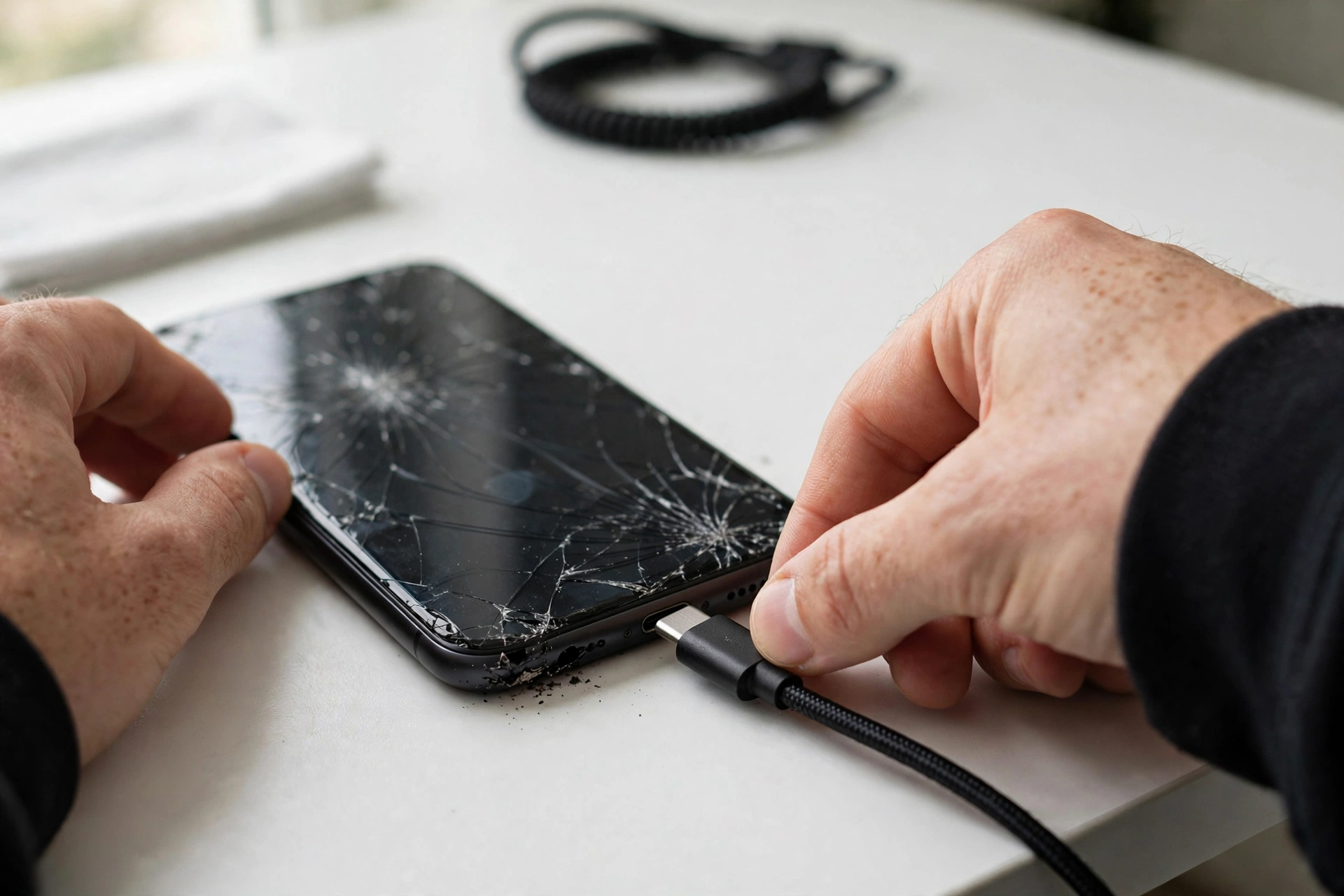
If the broken Meizu is detected by a computer when plugged in — even with a dead screen — the simplest rescue is a manual file copy. Connect the phone with a data-capable USB cable (some cheap cables are charge-only), unlock it if possible, set the USB mode to file transfer (MTP), and copy the DCIM (camera photos), Pictures, Videos, Music, Documents, and Download folders to the computer. Then connect the new phone and copy them across.
Two things to know:
- If the screen is dead but touch still works in places, you may be able to pull down the notification shade and tap the USB notification blind. An OTG mouse (next method) makes this far easier.
- This copies files, not app data, contacts, or messages. Pair it with a cloud restore for the full picture.
7. Method 5: OTG adapter + USB mouse (for touch-dead screens)
When the screen displays an image but touch no longer responds, a USB OTG (On-The-Go) adapter plus an ordinary USB mouse can give you control back. Plug the adapter into the Meizu’s charging port, plug in the mouse, and a cursor appears on screen. You can then navigate menus, enable USB file transfer, open the file manager, or trigger a final cloud backup — all with the mouse.
This is a genuinely useful trick for cracked-screen Meizus, and the adapters cost very little. It does not help if the screen shows nothing at all or the phone will not power on.
8. Method 6: Move the SD card (and know its limits)
If your Meizu used a microSD card for photo or file storage, power the phone off, remove the card, and read it in the new phone or a computer with a card reader. Photos and files stored on the card move with it.
Important: If the card was formatted as internal/adopted storage, it is encrypted to the dead phone and unreadable anywhere else. Only cards used as portable storage can be moved this way. Do not reformat the card before checking its contents.
9. Moving from Meizu to an iPhone: use Move to iOS
Apple’s Move to iOS app handles the Android-to-iPhone jump, and it works from a Meizu as the source phone provided the Meizu is functional enough to run the app and stay on Wi-Fi. Install Move to iOS on the Meizu from the Play Store (international models) or via Apple’s published APK route, then run it during the iPhone’s initial setup. It transfers contacts, message history, photos and videos, mail accounts, calendars, and free apps.
Honest limits: Move to iOS must run during the iPhone’s first setup (or after a factory reset of the iPhone). It cannot run on a completely dead Meizu — if the old phone will not power on, you fall back to Google contacts/calendar sync and Google Photos for media, which work independently of the broken phone.
10. App-by-app: what needs its own backup
Cloud restores handle the system-level data, but several important data types live inside individual apps and need their own handling:
- WhatsApp: Chats are backed up by WhatsApp itself (to Google Drive on Android). Install WhatsApp on the new phone, verify the same number, and restore when prompted. The phone’s general backup does not include WhatsApp chats.
- Photos and videos: Check Google Photos (photos.google.com) from any browser. If backup was on, your media is already safe regardless of the broken phone. If it was off, the USB/OTG methods above are your route.
- Authenticator apps: Most do not include codes in cloud backups. If you can still operate the broken phone (OTG mouse counts), open the authenticator app and use its export/transfer feature first. If the phone is dead and you have no export, you will need each service’s account-recovery process.
- Banking and payment apps: These deliberately do not restore login sessions. Plan to re-verify identity in each app on the new phone.
- Notes: Flyme Notes synced to the Flyme account restore with Method 2. Notes in third-party apps follow those apps’ own sync.
11. What does NOT work: honest limits
To save you wasted hours, here is what you should not attempt:
- There is no official Meizu phone-to-phone transfer app. Meizu never shipped a Smart Switch or Phone Clone equivalent. Any app in the Play Store advertising itself as an official Meizu transfer tool is third-party software — treat its privacy promises skeptically and do not grant it full device access.
- QR-code file sharing needs two working phones. Flyme’s File Manager and Gallery can share files between two phones on the same network via QR code (sender: select files → share → scan code; receiver: scan in browser or WeChat to download). This is handy for a cracked-but-usable phone and useless for a dead one.
- You cannot pull app-private data over USB. MTP/USB copy sees files, not the internal databases of apps. There is no cable trick that extracts WhatsApp chats or authenticator codes from a phone whose apps will not run.
- China-model Meizus without Google services cannot use Google One backup at all — the Flyme account methods are their cloud route.
- “Data recovery” PC software that claims to extract everything from a dead phone is, for modern encrypted Android phones, largely marketing. If the phone will not power on and nothing was synced, no software on a PC can decrypt its storage.
| Your situation | Try first | Then | Last resort |
|---|---|---|---|
| Phone dead, had Google backup | Google One restore at new-phone setup | Flyme sync for notes/messages | Check Google Photos, WhatsApp restore |
| Phone dead, no Google (China model) | Flyme account sync on new Meizu | cloud.flyme.cn check | Accept data loss; rebuild from app logins |
| Screen broken, phone powers on | Flyme Data Rescue / MTP mode | USB copy + OTG mouse | Cloud restores for the rest |
| Touch dead, screen visible | OTG + mouse, then USB copy | Trigger final cloud backup | Cloud restores |
| Moving to iPhone, Meizu usable | Move to iOS at iPhone setup | Google Photos/contacts sync | Manual file copy |
12. Safety precautions before you start
- Swollen or dangerously hot battery: if the broken phone’s back is bulging, the screen is lifting, or it gets hot without being used, power it down and stop. Do not charge it, do not keep trying USB connections. A damaged lithium battery is a fire risk — this is a stop-everything situation.
- Water damage: do not repeatedly power on a wet phone to “check” it. Do not use rice. If it is wet, power it off and leave it alone; every power-on attempt risks short-circuit damage that kills any chance of data access.
- Do not open the phone. Meizu phones are glued assemblies; prying one open risks puncturing the battery. Internal data recovery is not a DIY job.
- Never factory-reset before copying. Worth repeating: a reset on the broken phone destroys the data you are trying to save. Only reset a broken phone when you are finished with it and want your personal data off it before recycling or disposal.
13. Hypothetical examples
(The following are hypothetical illustrations, not customer stories.)
Amara’s cracked Meizu 18: Amara dropped her Meizu 18 and the lower half of the touchscreen stopped responding, but the display still showed an image. She bought a USB OTG adapter and a basic mouse, navigated to Settings with the cursor, switched USB to file-transfer mode, and copied her DCIM and Documents folders to her laptop. Then, on her new phone’s first setup, she signed in to her Google account and restored her contacts, SMS, and apps from the Google One backup. Between the manual copy and the cloud restore, she lost nothing except a game save from an app that did not participate in Google backup.
Devon’s dead Meizu Note 9: Devon’s Meizu Note 9 went completely dead after a fall — no lights, no vibration, not detected by any computer. Because the phone could not cooperate at all, his only route was the cloud: his international model had Google One backup on, so during his new phone’s setup he restored contacts, messages, call history, and most apps. His photos were already in Google Photos. His WhatsApp restored separately inside WhatsApp. The one loss was his authenticator codes, which had never been exported — he spent an afternoon on account recovery for two services, and now keeps a printed backup of his recovery codes.
14. When to stop and get professional help
Stop DIY attempts and consider a professional assessment when:
- The phone is not detected by any computer and shows no signs of life — further cable swapping will not change this.
- You suspect water damage — continued power-on attempts can destroy the storage controller.
- The battery is swollen, hot, or the phone smells unusual — safety first, always.
- The data is irreplaceable (legal documents, one-of-a-kind photos with no cloud copy) and worth a professional data-recovery evaluation.
For related brand-agnostic guidance, see our general broken-phone data transfer guide. If your replacement is another Transsion or budget-brand device, the same principles apply — see our guides to transferring from a broken ZTE phone and transferring from a broken Nokia phone.
If you are in the Las Vegas area and need hands-on help assessing a broken phone, Las Vegas Phone Repair & Accessories, 7400 Las Vegas Blvd S, Unit TT42, Las Vegas, NV 89123, (424) 406-6202 — call ahead to confirm today’s hours — can evaluate what a damaged device will still allow.
15. Frequently asked questions
Can I transfer data from a Meizu that will not turn on at all?
Only what was already in the cloud: a Google One backup (international models), Flyme account sync, Google Photos, or WhatsApp’s own backup. No cable or software can pull data from a phone that will not power on, because modern Android storage is encrypted and needs the phone’s own hardware to decrypt it.
Does Meizu have a transfer app like Samsung Smart Switch?
No. Meizu never released an official phone-to-phone transfer app. Third-party apps using Meizu’s name in the Play Store are not Meizu software. Use Google’s restore flow, Flyme cloud sync, or manual USB copy instead.
How do I check whether my Flyme account actually synced anything?
Sign in at cloud.flyme.cn from a computer with your Flyme account credentials. You can see synced contacts, messages, notes, and other data there without needing the broken phone.
Will my photos come back with a Google restore?
Only if Google Photos backup was enabled. The device backup and the Photos backup are separate. Check photos.google.com from any browser — if your pictures are there, they are safe regardless of the broken phone.
My Meizu is a China model with no Google apps. What are my options?
The Flyme account sync (Method 2) is your cloud route, restoring to another Meizu phone. For files, use Data Rescue/MTP mode or USB copy while the phone still powers on. There is no Google backup to fall back on.
How long do I have before my Google backup disappears?
Google deletes a device backup after 57 days of the device being inactive. If your Meizu broke more than ~two months ago, check immediately whether the backup still exists by starting the new phone’s setup — do not wait.
Can I restore a Google backup to a phone that is already set up?
Google’s full restore is offered during initial setup (or after a factory reset of the new phone). Contacts can be restored separately anytime via Settings → Google → Restore contacts, and photos via Google Photos, but SMS and app data need the setup-time restore.
Should I factory-reset the broken Meizu before recycling it?
Yes — but only after you have confirmed your data is safely on the new phone (open the new phone and verify contacts, photos, and messages). A reset is for privacy before disposal, never a step in the transfer itself. If the phone will not power on, it cannot be reset — remove the SIM and SD cards and recycle it through an e-waste program.
16. Sources and editorial notes
- Gadgets360 — Flyme OS 7 release coverage: documents the Data Rescue feature for emergency data retrieval from bricked or broken-screen phones.
- IGeeKphone — Flyme 7 feature documentation: documents the Settings → Storage and Backup → USB Computer Connection path and the “How to Transfer Files After Screen Malfunction” tip, plus QR-based file sharing between phones.
- Chop-nn — Flyme account guide: describes Flyme cloud sync scope (contacts, messages, call history, blacklist, mail settings, Wi-Fi/VPN data) and cloud.flyme.cn remote features.
- Gizmochina — Flyme 6 Time Machine: documents the Time Machine deleted-contacts recovery feature at Settings → Data Cloud Sync → Time Machine.
- Coolmuster — Google Backup and Restore guide: documents the Google One backup/restore flow and the 57-day backup expiry rule.
- GizChina — Flyme cloud service migration: historical reporting on Meizu’s cloud storage migration; notes that contact/message/note/settings sync was not impacted.
Last source check: October 14, 2026. AI-assisted editorial guide, checked against the linked manufacturer and press reporting. Meizu’s software and cloud services change over time; menu paths may vary by Flyme version and region. This guide is for data-transfer education and does not constitute a warranty of any transfer outcome.
Video: How to transfer everything from old to new Android
Let’s get you connected again.
Tell us what’s happening with your device and we’ll help you decide the safest next step — no jargon, no pressure.
Las Vegas Phone Repair & Accessories · 7400 Las Vegas Blvd S, Unit TT42, Las Vegas, NV 89123
10:00 AM–8:00 PM — call ahead to confirm today’s hours