
ZTE Phone Speaker Not Working After Update: Causes and Safe Fixes
Direct answer: If your ZTE phone speaker stopped working right after an update, work through volume settings, Bluetooth routing, a restart, Safe Mode, and app cache clearing before considering anything drastic — most post-update speaker silence is a software routing issue, not broken hardware.
On this page
Direct answer:
1. Who this guide helps
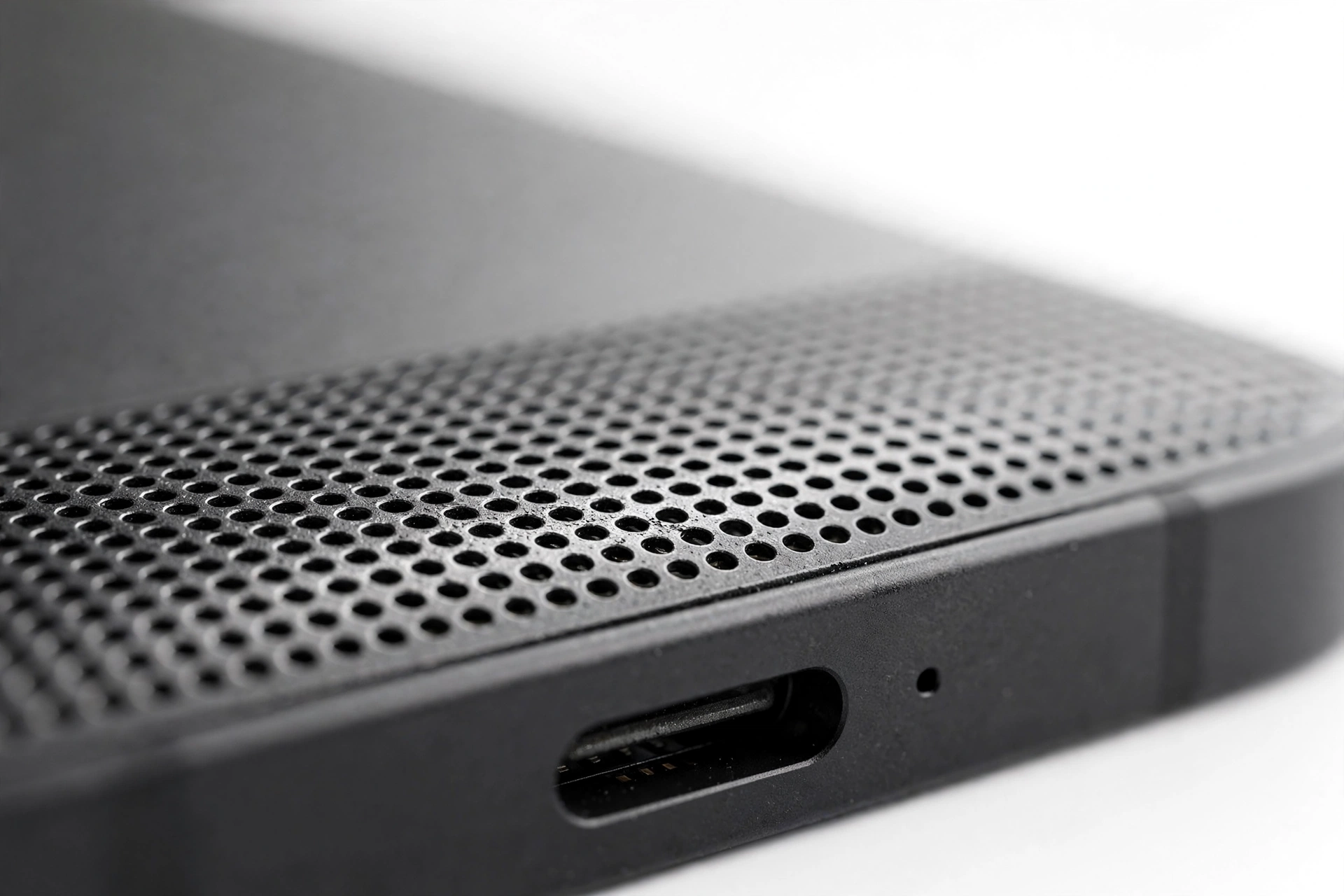
This guide is for anyone with a ZTE phone — including popular budget models like the ZTE Blade series, Axon series, Nubia/RedMagic phones, and carrier-branded ZTE devices — whose speaker audio stopped working, became distorted, or plays at the wrong volume after a software update. It covers both the earpiece speaker (the small one you hear calls through) and the loudspeaker (the one that plays ringtones, media, and speakerphone audio). (Source: ifixit.com)
You will find step-by-step checks ordered from fastest and safest to most involved. Each section explains what the check does, what a good or bad result means, and what to try next. Nothing here requires opening the phone, and nothing asks you to install questionable “fixer” apps.
Quick fact: An update cannot physically damage a speaker. The speaker is a passive hardware component — software cannot burn it out. When sound disappears right after an update, the cause is almost always a settings change, a routing problem, or a software bug, all of which are fixable without replacing parts.
2. The five things an update can change about your audio
Understanding what an update can actually do helps you troubleshoot with confidence instead of guessing. A software update can:
- Reset audio settings. Volume levels, Do Not Disturb status, and sound profiles can revert to defaults.
- Re-route audio output. Your phone may send sound to a Bluetooth device, a connected headset, or a paired car system you forgot about.
- Break an app’s audio. An app that worked before the update may now conflict with the new system, muting its own sound or hijacking the audio session.
- Corrupt cached audio data. Stale system or app cache can produce distorted, crackling, or missing sound.
- Ship with a genuine audio bug. Rarely, the update itself contains a driver or audio-framework defect that affects sound until the manufacturer releases a follow-up fix.
What an update cannot do is damage the physical speaker cone, loosen a speaker connection, or wear out the hardware. Keep that in mind if someone tells you the update “fried” your speaker — that is not how speakers work.
3. Start here: the two-minute checks
Before changing anything, run through these quick checks. They take about two minutes and resolve a surprising number of post-update speaker complaints.
3.1. Check every volume slider, not just one
Android phones have separate volume channels — ringtone, media, notifications, and call volume — and an update can reset any of them independently. Press the volume-up button, then tap the three dots or settings icon that appears to open the full volume panel. Confirm that media, ringtone, and notification volumes are all turned up. On some ZTE phones, the volume rocker only adjusts one channel at a time depending on what you were last doing.
3.2. Turn off Do Not Disturb and check sound mode
Swipe down from the top of the screen and check the Quick Settings panel. Make sure Do Not Disturb is off and the sound mode is set to Sound (not Vibrate or Silent). Updates sometimes flip these settings without asking. Community troubleshooting for ZTE phones (including the ZTE Blade X thread on iFixit) confirms that Do Not Disturb is one of the first things to verify when ringtones and notifications go silent.
3.3. Restart the phone
A simple restart clears temporary glitches in the audio system that can appear after an update. Hold the power button, choose Restart, and test your speaker again once the phone boots back up. This is the single most common first recommendation in ZTE troubleshooting guides, and it costs you nothing.
Tip: Test the speaker with more than one app — for example, play a video in your browser and then play a system ringtone in Settings. If one app is silent but the system ringtone plays fine, the problem is that app, not the update or the speaker.
4. Figure out which speaker is silent: earpiece vs. loudspeaker
Your ZTE phone has (at least) two separate speakers, and identifying which one is affected narrows the cause dramatically.
| Test | Which speaker | Silent means |
|---|---|---|
| Make a phone call, hold the phone to your ear | Earpiece | Earpiece or call-audio routing issue |
| Play music or a video on speakerphone | Loudspeaker | Loudspeaker, media routing, or system bug |
| Play a ringtone in Settings > Sound | Loudspeaker | System-level issue if silent; app-level if it plays |
| Use speakerphone during a call | Loudspeaker (during calls) | Call-audio routing vs. hardware |
If the earpiece is silent during calls but the loudspeaker works for media, the problem is call-audio routing — Bluetooth, hearing-aid settings, or the Phone app’s own configuration. If the loudspeaker is silent for everything but calls sound fine, the loudspeaker path or its settings are the issue. If everything is silent, work through this guide in order.
5. The Bluetooth ghost connection (check this early)
The single most common cause of “my speaker stopped working” on any Android phone is audio being routed to a Bluetooth device you are not actively using — a car stereo, wireless earbuds in their case, a smartwatch, or a speaker in another room. Updates can re-enable Bluetooth or change the default audio output.
To check: open Settings > Bluetooth and look at connected devices. If anything shows as connected, disconnect it or turn Bluetooth off entirely, then test your speaker again. Many ZTE owners report their audio “came back” the moment they realized the phone was still connected to their car’s Bluetooth from the morning commute.
Quick fact: Bluetooth audio routing is invisible — there is no persistent on-screen warning that your ringtone is playing through your car’s speakers in the garage. When troubleshooting speaker silence, always rule out Bluetooth first.
5.1. The false headphone jack problem
Some ZTE phones with a 3.5mm headphone jack can get stuck in “headphone mode” — the phone believes headphones are plugged in even when they are not, so it sends all audio to the empty jack. Try plugging a pair of wired earbuds in and removing them firmly a couple of times. This can reset the jack’s detection switch. iFixit troubleshooting for ZTE models notes that debris in the jack can also cause connection confusion.
Stop for safety: Never push needles, pins, or metal tools into the headphone jack or speaker grilles to “clean” them. A soft, dry brush or a gentle puff of air from your own breath is enough for surface dust. Metal tools can short the jack or puncture the speaker membrane.
6. Safe Mode: the test that finds the guilty app
Safe Mode starts your phone with only the original system apps running — every app you installed is temporarily disabled. This is the fastest way to find out whether a third-party app is causing the silence.
To enter Safe Mode on most ZTE phones:
- Press and hold the power button until the power menu appears.
- Touch and hold Power off until you see the “Reboot to safe mode” prompt.
- Tap OK. The phone restarts with “Safe mode” shown at the bottom of the screen.
Now test your speaker — play a video or a ringtone. If sound works in Safe Mode, a downloaded app is the culprit. The iFixit community answer for the ZTE Blade X speaker problem specifically recommends this test: if audio returns in Safe Mode, the next job is finding which app is responsible.
| Result in Safe Mode | Meaning | Next step |
|---|---|---|
| Speaker works | A third-party app is muting or hijacking audio | Exit Safe Mode, uninstall recently updated apps one by one, newest first |
| Speaker still silent | System setting, system bug, or hardware | Continue with cache clearing and system checks below |
To exit Safe Mode, simply restart the phone normally. Suspect apps include volume boosters, equalizers, call recorders, and “speaker cleaner” apps — ironically, apps marketed as audio helpers are frequent causes of audio problems.
Tip: If you recently installed or updated a volume-booster or equalizer app around the same time as the system update, start your suspect list there. These apps take control of the audio pipeline and often break when the system underneath them changes.
7. Clear the audio-related caches
Corrupted cached data is a classic post-update audio problem. Clearing cache is safe — it deletes temporary files, not your photos, messages, or settings.
7.1. Clear an app’s cache
If one app (say, your music player or a game) lost its sound after the update, go to Settings > Apps, find the app, tap Storage, and tap Clear cache. This forces the app to rebuild its temporary audio data. The ZTE Avid 559 troubleshooting community specifically recommends clearing the Phone app’s cache when call audio misbehaves.
7.2. Wipe the system cache partition
For system-wide audio problems after an update, wiping the cache partition clears stale system-level data without touching your files. The exact steps vary by ZTE model, but the general path is:
- Power the phone completely off.
- Hold Power + Volume Up until the phone vibrates or the ZTE logo appears, then release.
- Use the volume buttons to highlight Wipe cache partition and the power button to select it.
- Select Reboot system now.
A widely shared fix from the Android Central ZTE ZMax Pro community combines Reset app preferences (Settings > Apps > three dots > Reset app preferences) with a cache-partition wipe, which resolved persistent audio problems that survived the update. Resetting app preferences restores default permissions and notification settings for all apps without deleting any data — it is gentler than it sounds.
Quick fact: “Wipe cache partition” and “factory reset” are different menu items in recovery mode. Cache wipe deletes temporary system files only. Factory reset deletes everything. Read the highlighted line carefully before pressing the power button to confirm.
8. Check for a follow-up update
If the silence started immediately after an update, the manufacturer may already know about it. Go to Settings > System > System update (or Settings > About phone > System update on some ZTE models) and check for a newer version. ZTE’s Maven troubleshooting guide notes that audio distortion affecting both speaker and headphones can indicate the device software is not up to date, and installing the latest update can clear bugs left behind by the previous one.
When checking, make sure the phone is charged and connected to Wi-Fi. After installing any follow-up update, restart the phone and test the speaker again.
9. The shipped-bug possibility: when the update itself is at fault
Sometimes the update genuinely contains an audio bug. Signs that point to a shipped bug rather than a settings problem:
- The silence began at the exact moment the update finished installing.
- All the checks above (Bluetooth, Safe Mode, cache) change nothing.
- Other owners of the same ZTE model report the same problem online after the same update.
- Sound works through headphones or Bluetooth but not through the phone’s own speaker — or vice versa — in a pattern too consistent for a settings glitch.
If this fits, the fix is patience plus the follow-up update from section 8. A factory reset will not help here: resetting reinstalls the same system version containing the same bug. This is the central rule of post-update troubleshooting — do not factory-reset first for exact-timing bugs, because a reset cannot remove a bug that shipped inside the system software itself.
Stop for safety: A factory reset deletes your photos, messages, app data, and accounts from the phone. It is a last resort, never a first step. If you ever do reset, back up everything first and test the speaker before restoring your backup — restoring a backup can reintroduce the same misbehaving app or setting.
10. Symptom worksheet: match what you hear to the likely cause
| Symptom | Likely cause | Try first |
|---|---|---|
| No sound from anything after update | Volume reset, Do Not Disturb, or Bluetooth routing | Section 3 checks + turn off Bluetooth |
| Ringtone silent but media plays | Ringtone volume channel reset | Open full volume panel, raise ringtone slider |
| Media silent but ringtone plays | Media volume reset or app-specific mute | Raise media slider; test a second app |
| Calls silent on earpiece, speakerphone works | Call-audio routing issue | Disable Bluetooth; check Phone app settings |
| Sound only through headphones | Stuck headphone-mode detection | Re-plug earbuds firmly; check for debris |
| Distorted or crackling sound | Corrupted cache or blocked grille | Clear app cache; wipe cache partition |
| One app silent, everything else fine | That app’s audio broken by the update | Clear that app’s cache; update or reinstall it |
| Sound returns in Safe Mode | Third-party app conflict | Uninstall recently updated apps, newest first |
| Nothing helps; started exactly at update | Shipped audio bug in the update | Check for follow-up update; wait for fix |
| Speaker was already failing before update | Hardware wear, not the update | Professional assessment (see section 12) |
11. What your checks can and cannot prove
Honest troubleshooting means knowing the limits of what each test establishes.
| Observation | It can establish | It cannot establish |
|---|---|---|
| Sound works in Safe Mode | A third-party app is involved | Which app, without further testing |
| Sound works with headphones | The audio system produces sound | That the loudspeaker hardware is fine |
| Cache wipe fixed it | Stale data was the cause | That it will not recur after the next update |
| Nothing software-side helps | The cause is likely hardware or a shipped bug | Which of the two, without a follow-up update test |
| Problem started exactly at update time | Strong correlation with the update | Whether it is a setting, bug, or coincidence |
12. When to stop troubleshooting and get help
Stop and seek professional assessment if:
- The speaker produces no sound in any test, including Safe Mode and after a cache wipe.
- The phone is swollen, distorted, or becomes dangerously hot — power it down and do not charge it. (The following is a hypothetical illustration, not a customer story.) Imagine a phone whose back panel has started to lift after an update; that is a battery problem, not a speaker problem, and it needs immediate professional attention.
- You hear rattling or buzzing that suggests something is physically loose inside.
- The speaker worked intermittently before the update and the update merely finished it off — that points to hardware wear.
For readers in the Las Vegas area, Las Vegas Phone Repair & Accessories at 7400 Las Vegas Blvd S, Unit TT42, Las Vegas, NV 89123 — (424) 406-6202 — can assess speaker problems in person. Call ahead to confirm current hours before visiting.
Tip: Before any repair appointment, write down exactly which tests you ran and what each one showed (for example: “silent in normal mode, works in Safe Mode”). That summary saves diagnostic time and helps the technician go straight to the likely cause.
13. Hypothetical examples
(The following are hypothetical illustrations, not customer stories.)
Daniel’s car-Bluetooth ghost connection. Daniel updated his ZTE Blade overnight. The next morning his alarm was silent and no ringtones played. He restarted twice and checked every volume slider before noticing the Bluetooth icon in his status bar — his phone had reconnected to his car’s stereo in the driveway. Turning off Bluetooth restored all sound instantly.
Maya’s volume-booster app. Maya’s media audio vanished after a system update. Sound worked in Safe Mode, which pointed to an app. The culprit was a volume-booster app she had installed months earlier; it had taken over the audio pipeline and broke when the system changed underneath it. Uninstalling it fixed everything.
14. Frequently asked questions
Can a software update physically damage my ZTE speaker?
No. A speaker is a passive hardware component — software cannot burn it out, loosen its connection, or wear it down. Post-update silence is a settings, routing, or software-bug issue, and it is fixable without replacing parts.
Why does my ZTE play sound through headphones but not the speaker?
The phone may be stuck in headphone mode, believing earbuds are still plugged in. Plug a pair of wired earbuds in and remove them firmly a few times to reset the jack’s detection switch, and check the jack for pocket lint.
Should I factory-reset my ZTE to fix post-update speaker silence?
Not as a first step. A factory reset deletes all your data, and if the cause is a shipped bug in the update, the reset reinstalls the same buggy system — so it cannot help. Work through the settings, Bluetooth, Safe Mode, and cache steps first. Reset only as a documented last resort, with a full backup, and test the speaker before restoring your backup.
What is “Reset app preferences” and is it safe?
It restores default permissions, notification settings, and disabled-app states for all apps without deleting any of your data. It is much gentler than a factory reset and has resolved stubborn ZTE audio problems when combined with a cache-partition wipe.
My speaker worked in Safe Mode. Now what?
A third-party app is the cause. Restart normally, then uninstall recently installed or updated apps one at a time, starting with the most recent. Volume boosters, equalizers, call recorders, and “speaker cleaner” apps are the usual suspects — test your speaker after each uninstall.
The update finished an hour ago and my speaker is already silent. Is that a bug?
It could be, but check the fast causes first: volume channels, Do Not Disturb, and Bluetooth routing take two minutes to rule out. Only if all software checks fail and other owners of the same model report the same issue should you conclude it is a shipped bug — in which case the fix is the manufacturer’s follow-up update.
Do “speaker cleaner” apps actually fix water or dust in the speaker?
No — and they can cause new problems by seizing control of your audio pipeline. If you suspect debris, use a soft dry brush on the grille. Avoid apps that claim to “eject water” with sound vibrations; they are not a substitute for proper drying and can leave your audio worse than before.
When should I take the phone in for repair instead of troubleshooting further?
If the speaker is silent in every test including Safe Mode and a cache wipe, if the phone is swollen or dangerously hot, or if you hear physical rattling — stop troubleshooting and get a professional assessment. Continuing to poke at a hardware fault will not fix it.
Related guides
If this guide helped, these companion articles cover the same problem on other phones and the general version of this fix:
- Phone Speaker Not Working After Update: the brand-agnostic troubleshooting guide
- Nokia Phone Speaker Not Working After Update: Causes and Safe Fixes
- Lenovo Phone Speaker Not Working After Update: Causes and Safe Fixes
Video: How to tell if your smartphone is fake or real

Sources and editorial notes
- iFixit — ZTE Maven Troubleshooting: speaker sound-quality checks, headphone comparison test, and software-update guidance for distorted audio. Summarized in original language.
- iFixit Answers — ZTE Blade X external speaker thread: Do Not Disturb check and Safe Mode diagnostic for a silent loudspeaker. Summarized in original language.
- iFixit — ZTE Blade E Troubleshooting: volume, headphone-jack, and debris guidance for no-sound faults. Summarized in original language.
- Android Central forums — ZTE ZMax Pro volume problem thread: community-reported fix combining Reset app preferences with a cache-partition wipe. Treated as community reporting, not manufacturer guidance.
- CellularNews — ZTE Axon 7 common problems: notification/sound troubleshooting flow including software-update checks. Summarized in original language.
Last source check: October 14, 2026. AI-assisted editorial guide, checked against the linked manufacturer and community information above. ZTE support documentation for specific models is limited; procedures described follow documented Android paths and community-verified ZTE troubleshooting. No manufacturer authorization is claimed.
Let’s get you connected again.
Tell us what’s happening with your device and we’ll help you decide the safest next step — no jargon, no pressure.
Las Vegas Phone Repair & Accessories · 7400 Las Vegas Blvd S, Unit TT42, Las Vegas, NV 89123
10:00 AM–8:00 PM — call ahead to confirm today’s hours