
Ulefone Phone Camera Not Working After Update: Causes and Safe Fixes
A Ulefone camera that stops working right after an update is almost always a software problem — a revoked permission, a corrupted cache, or another app holding the camera — not a dead sensor. Work through the fixes in order below, gentlest first, and only consider a factory reset after you have a full backup, because a reset reinstalls the same system version and cannot fix a shipped driver bug.
On this page
A Ulefone camera that stops working right after an update is almost always a software problem — a revoked permission, a corrupted cache, or another app holding the camera — not a dead sensor.
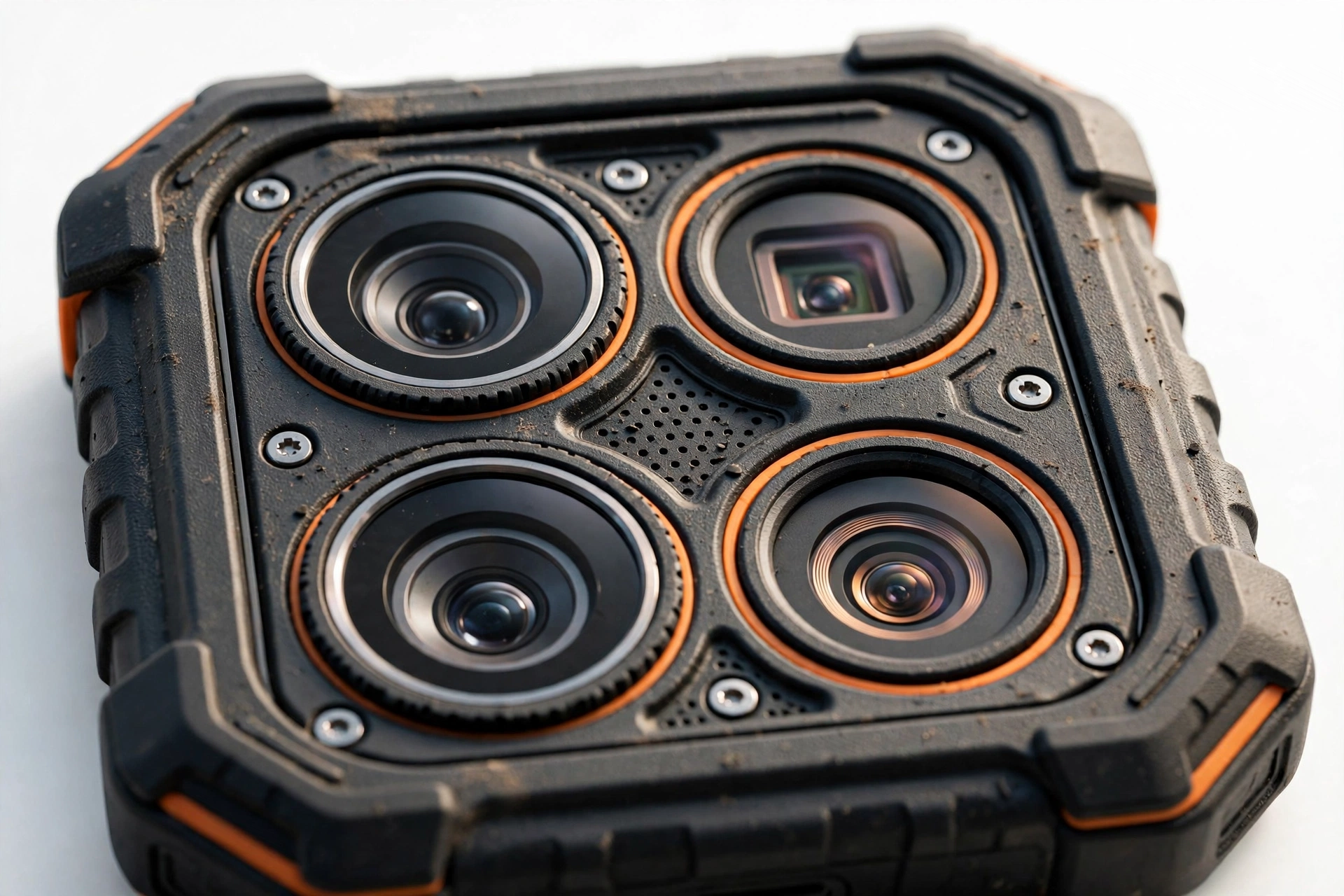
1. What “camera not working after an update” usually means
When the camera worked yesterday and fails today, and the only thing that changed in between was a system update, the timing is the diagnosis. A software update rewrites the code that talks to the camera sensor, re-applies privacy defaults, and sometimes leaves background processes in a confused state. The camera hardware itself — the sensor, the lens, the wiring — does not wear out or break because new software arrived. What breaks is the conversation between the software and the hardware. (Source: getdroidtips.com)
That distinction matters because it decides the entire repair strategy. Software problems are fixed with software steps: restarting, re-granting permissions, clearing corrupted temporary files, and closing whatever is blocking the camera. Hardware problems need a technician. Jumping to the harshest step first — a factory reset, or worse, prying the phone open — risks your data and your warranty while skipping the simple fixes that resolve most post-update camera failures.
On Ulefone phones specifically, there is an extra reason to be methodical. Ulefone’s official support documentation for individual models is thinner than what you get from the biggest brands, and most published camera-fix guidance for Ulefone devices comes from community troubleshooting write-ups rather than the manufacturer. That does not make the standard Android fix order any less valid — Ulefone phones run Android, and the camera stack behaves the same way — but it does mean you should be skeptical of any guide that claims a secret Ulefone-only code or a brand-specific button combination. The honest fixes are the documented Android ones, applied in the right order.
Quick fact: Photos you have already taken live in the Gallery (or Google Photos) app, not inside the Camera app. Clearing the Camera app’s cache or even its stored data never deletes your photos. Your pictures are safe through every software step in this guide — but a factory reset is a different story, and it gets its own warning later.
2. Who this guide helps
This guide is written for owners of Ulefone smartphones whose camera started misbehaving immediately after a system or app update. That includes the rugged Armor and Armor X series — the thick, sealed, drop-resistant phones Ulefone is best known for — as well as the regular Note, Power, and Top series phones. The steps apply to any Ulefone model running Android, because every fix here uses standard Android settings paths that exist on all of them.
It also helps if you are not sure the update is really the cause. Maybe the camera failed a day or two after the update installed, or you are not certain an update even ran. The diagnostic steps in this guide — especially the third-party camera test and the front-versus-rear isolation check — will tell you whether you are dealing with a software problem at all, regardless of what triggered it.
If your camera problem started after a drop, a swim, or visible damage rather than an update, this guide is not the right starting point. Physical damage follows different rules, and the “when to stop” section near the end explains how to tell the difference.
3. What Ulefone’s own support path looks like
Before diving into fixes, it is worth knowing where the official road leads, because one of these steps may end there. Ulefone runs a support center through its website (ulefone.com/pages/supportcenters), and its published contact channels include email at support@ulefone.com and a support phone line (+86 755 8389 3509, listed on the company’s regulatory documentation). Ulefone phones also carry the standard manufacturer warranty — commonly 12 months — which covers defects but not damage you cause yourself.
In practice, Ulefone’s published troubleshooting for camera issues is limited, which is why community-written guides fill the gap. Two of the most referenced are worth knowing about because this guide’s fix order follows the same spine they document: a GetDroidTips walkthrough for Ulefone camera problems (restart, clear the Camera app’s cache via Settings > Apps > Camera, check permissions, and only reset the phone as a last resort after backing up), and an AndroidReborn five-step list (remove root software if present, clear cache, uninstall overlapping camera apps, install any available OTA update via Settings > System Update, and take the phone to a repair shop if the problem is on the hardware side).
Nothing in this guide contradicts those sources. It organizes the same fixes into the order that wastes the least of your time and risks the least of your data, and it adds the update-specific traps — revoked permissions, stuck camera sessions, shipped driver bugs — that generic guides sometimes skip.
Tip: If your phone is still inside its warranty period and the camera never works again after every software step here, stop and contact Ulefone support or the seller about a warranty claim. Opening a rugged Ulefone phone yourself — the Armor series is glued and sealed against water and dust — will void that warranty and risks puncturing the battery.
4. Before you touch anything: the 60-second safety check
Every troubleshooting guide should start with the question “is it safe to continue?” rather than “what do I tap first?” Run through these four checks. They take a minute, and any “yes” answer changes the plan.
- Is the battery swollen, or is the phone dangerously hot? A bulging back cover, a screen lifting away from the frame, or heat you cannot comfortably hold means stop. Power the phone down and do not charge it. A swollen lithium battery is a fire risk, and no camera is worth that. This is a repair-shop situation, not a settings-menu situation.
- Did the phone get wet recently? Water and cameras are a bad combination, and an update that happened to install around the same time can be a coincidence. If there is any chance of moisture inside the phone, power it off, do not charge it, and do not keep powering it on to “test” the camera. Corrosion gets worse every hour the phone sits powered.
- Is there visible damage around the camera? A cracked lens cover usually causes blurry or scratched photos, not a completely dead camera — a black screen almost always means the sensor, its connection, or the software driving it. But fresh cracks after a drop point toward hardware, and the software steps below are unlikely to help.
- Do you have a backup of anything you cannot afford to lose? You will not need one for the gentle steps, but knowing your backup status now prevents panic later if the fix order eventually reaches the factory-reset step.
Stop for safety: Never open a Ulefone phone yourself to “check the camera connection.” The Armor series is sealed with adhesive against water and dust, and prying it open risks puncturing the battery — which can catch fire — while voiding the warranty. Internal inspection is a technician’s job.
5. Why an update breaks the camera: five mechanisms, in likelihood order
Understanding how an update breaks the camera helps you pick the right fix instead of trying them at random. These are the five mechanisms, ordered from most to least likely, based on how Android updates actually behave.
| Mechanism | What happens | Typical symptom |
|---|---|---|
| Permission reset | The update silently revokes the Camera app’s permission to use the camera (or the microphone, for video) | Black viewfinder, or app closes when switching to video |
| Stuck camera session | Another app grabbed the camera during or after the update and never released it | “Can’t connect to camera” error; camera works nowhere |
| Corrupted cache or app data | Temporary files the Camera app relies on were left in an inconsistent state by the update | App crashes on launch, freezes, or shows “Camera keeps stopping” |
| Shipped driver bug | The update itself contains a faulty camera driver | Camera fails identically in every app, starting exactly at the update |
| Coincidental hardware failure | The hardware was already marginal and the update’s timing is coincidence | Failure persists through every software step including a reset |
The first three mechanisms are fixed by the steps in this guide. The fourth — a genuine shipped bug — cannot be fixed by anything you do on the phone except waiting for the manufacturer to ship a follow-up patch; the honest response is to report it and wait, not to reset the phone repeatedly. The fifth is the point where software troubleshooting ends and professional diagnosis begins.
Notice what is not on the list: an update physically damaging the sensor. Software cannot break hardware by arriving. If someone tells you the update “burned out” the camera, they are describing mechanism four or five with scarier words.
6. The permission-reset trap: the update-specific culprit to check first
Of all the mechanisms above, the permission reset is the most Ulefone-update-specific in the sense that it is the most common and the most overlooked. Android updates — especially major version upgrades — sometimes re-apply privacy defaults, and the Camera app can lose its own permission to access the camera hardware. The result is a special kind of confusing: the app opens normally, the interface looks fine, but the viewfinder is black, because the app is politely being denied the very hardware it exists to use.
There is a sneakier variant. Video recording needs the microphone permission as well as the camera permission. If the update revoked only the microphone permission, the camera works perfectly for still photos and crashes the moment you switch to video mode. People chase this symptom for hours because “the camera works, just not video” does not sound like a permission problem — but it is one of the most common permission problems there is.
The fix takes thirty seconds:
- Open Settings, then Apps (on some Ulefone models: Apps & notifications).
- Find and tap Camera in the app list.
- Tap Permissions.
- Make sure Camera is set to Allow only while using the app. If it says “Not allowed,” that was your problem — allow it.
- While you are there, check Microphone too, and allow it the same way. This is the video-crash fix.
If the Camera app seems to have vanished from your home screen entirely, the same permission screen is the likely explanation — a Camera app with its camera permission revoked can become hard to find, and re-allowing the permission brings it back. Search the app drawer for “Camera” first before assuming anything worse.
Quick fact: Reviewers of camera troubleshooting consistently note that the permission toggle is skipped because it seems too simple — and that it resolves the problem more often than expected after OS updates. Always check it before doing anything destructive.
7. The fix order: gentlest first, exactly as Ulefone troubleshooters document it
The published Ulefone camera troubleshooting guides agree on the sequence, and it is the sequence this guide follows: restart, remove conflicts, check permissions, clear cache, clear data, test with another app, try Safe Mode, install updates, and only then — with a backup — consider a reset. Each step is less destructive than the next, so you never risk more than the step requires.
Step 1 — Full restart, not just lock and unlock
Hold the power button and restart the phone completely. Locking and unlocking the screen does not clear the camera’s state; a full power cycle releases any stuck camera session and lets the driver re-initialize. Open the Camera app again before opening anything else. This single step resolves a surprising share of “camera stopped after update” reports, because updates often leave the camera service in a half-migrated state that one clean boot clears.
Step 2 — Close every app that might be holding the camera
Android allows only one app to hold the camera at a time. If a video-call app, a barcode scanner, a social app, or even a browser tab grabbed the camera during the update and never released it cleanly, the native Camera app sees a locked resource and shows black or reports “Can’t connect to camera.” Swipe away all recent apps — especially Zoom, Teams, WhatsApp video, Snapchat, Instagram, TikTok, and any scanner — then restart the phone once more and open only the Camera app. If the camera springs to life, the culprit was a stuck session, not the update itself.
Step 3 — Re-check permissions (the trap from section 6)
If you skipped the permission check earlier, do it now: Settings > Apps > Camera > Permissions, and confirm both Camera and Microphone are allowed while using the app. Updates are the number-one cause of silently revoked permissions.
Step 4 — Force-stop the Camera app
A Camera app that has been running — or crashing — since the update may be in a corrupted in-memory state that a restart alone did not clear, because Android sometimes restores app state across reboots. Go to Settings > Apps > See all apps > Camera, tap Force stop, confirm, then reopen the camera. This kills the process completely without touching any of your data or settings.
Step 5 — Clear the cache (before data — order matters)
Go to Settings > Apps > Camera > Storage & cache and tap Clear cache. The cache holds temporary files the app uses to start faster; after an update, those files can be left in a format the new version cannot read, which produces exactly the “Camera keeps stopping” crash loop. Clearing the cache deletes nothing important — the app simply rebuilds those files on next launch, loading a little slower the first time. Community Ulefone guides list this as the core fix, and it is: try it before anything stronger.
Step 6 — Clear the app’s data (your photos are still safe)
If the crashes continue, return to Settings > Apps > Camera > Storage & cache and tap Clear storage (labeled “Clear data” on some versions). This resets the Camera app to its just-installed state — your mode preferences and settings return to defaults — but it does not delete your photos, because photos live in the Gallery app and in storage, not inside the Camera app’s private data. Reopen the camera and test again.
| Clear cache | Clear storage / data | |
|---|---|---|
| Deletes | Temporary working files only | App settings and preferences |
| Your photos | Untouched | Untouched — they live in Gallery, not the Camera app |
| When to use it | First — fixes most post-update crashes | When cache-clearing did not help |
| Downside | App loads slightly slower once | You re-set your camera preferences |
Step 7 — Uninstall overlapping camera apps
Because only one app can hold the camera at a time, a stack of third-party camera apps can fight over the resource — and an update can change which one wins. Ulefone-focused guides specifically recommend keeping the pre-installed camera app and the one or two third-party apps you actually use, and uninstalling the rest via Settings > Apps. If a third-party camera app is the one crashing while the system camera works, update that app from the Play Store or remove it.
Step 8 — Check storage space and power state
Two unglamorous causes: a nearly full phone and a nearly dead battery. The camera needs free storage to write photos — if the phone is critically full, the app can fail to launch or save. Free up space (the Files app’s Clean feature helps). And if the battery is very low, charge the phone first; the camera is power-hungry, and some phones limit it when the battery is critical. Likewise, if the phone is very hot, let it cool down — manufacturers throttle or block the camera on overheated devices to protect internal components.
8. The third-party camera test: the single most informative diagnostic
By now you have fixed the common software causes. If the camera still fails, you need to determine whether the problem is the Camera app or the camera system. Install a free third-party camera app — Open Camera is the standard choice because it is free, reputable, and talks to the camera hardware directly — and try it.
| Result | Meaning | Next step |
|---|---|---|
| Open Camera works, system camera does not | The hardware and driver are fine; the system Camera app is the problem | Clear the system camera’s data again, check for a camera-app update, or keep using the third-party app |
| Both apps fail identically | The problem is below the app level — driver, permission, or hardware | Continue to Safe Mode and the update check below |
| Open Camera shows an error the system app hides | Useful detail — note the exact message | The exact error text helps support diagnose the issue |
This test is the hinge of the whole guide: everything after it depends on which row of that table you land in.
9. Front versus rear: isolate which camera is failing
Ulefone phones, like all Android phones, have at least two independent cameras. Test them separately, because they fail independently:
- Open the Camera app and switch between front and rear using the rotate icon.
- If the rear camera works but the front does not (or vice versa), the system, driver, and permissions are fine — the problem is isolated to one sensor module or its connection. That is useful information for a technician, and it also tells you the phone is still partly usable.
- If both fail identically, the problem is system-wide: driver, permission, or a stuck session — keep working the software steps.
- If the app crashes only when switching between them, that points to the app itself rather than either sensor — clear the app’s data again.
Tip: A reader comment on one Ulefone troubleshooting guide described a camera that would “only take selfies” — front camera fine, rear camera dead. That pattern is the textbook signature of a single failed sensor module, not an update problem, and it is exactly the kind of case where the isolation test earns its keep.
10. Safe Mode: the third-party app detector
If the camera fails in every app, the next suspect is a third-party app interfering at the system level — something the update may have re-enabled or that updated itself at the same time. Safe Mode boots Android with all third-party apps disabled, which makes it the perfect detector:
- Press and hold the power button until the power menu appears.
- Long-press “Power off” until the Safe Mode prompt appears, then tap OK. The phone restarts with “Safe mode” shown on screen.
- Open the Camera app and test it.
- Restart the phone normally to leave Safe Mode.
If the camera works in Safe Mode but not in normal mode, a third-party app is the culprit. Uninstall recently installed or recently updated apps one by one — starting with camera-related apps, “cleaner” and “booster” utilities, and anything granted camera permission — testing the camera after each removal. If the camera fails in Safe Mode too, third-party apps are cleared as suspects, and the problem is in the system or hardware.
Stop for safety: “Camera fixer,” “camera booster,” and “phone cleaner” apps are frequent offenders in camera failures, not cures for them. Do not install one hoping it will repair the camera — several are known to seize the camera resource or display aggressive ads, making the problem worse.
11. “Can’t connect to camera” and “Camera keeps stopping”: what the errors actually mean
Two error messages dominate post-update camera failures, and they mean different things.
“Can’t connect to camera” is Android telling you, in its own blunt way, about the single-holder rule: some other process is holding the camera and will not let go. It is a resource-lock problem, not a damage report. The fix order for it is: close all recent apps, restart the phone, and if it persists, boot into Safe Mode to identify the app holding the lock. On older or heavily customized Android builds, community guides note that a full restart is the reliable cure because it forces every process to release the camera.
“Camera keeps stopping” / “Unfortunately, Camera has stopped” is a crash, and crashes after updates are the classic signature of corrupted cache or incompatible app data — Step 5 and Step 6 territory. Work the cache-then-data sequence, and check for a system update, because if the crash is caused by a shipped driver bug rather than local corruption, only a follow-up patch from the manufacturer resolves it.
A black viewfinder with the app otherwise running is the third classic presentation, and it points at the permission trap (section 6) or a frozen sensor state (Step 1’s full restart). Note that a cracked lens cover essentially never causes a fully black screen — it causes blur and flare. Black means the sensor is not delivering images at all: blocked, frozen, permission-denied, or genuinely failed.
12. Rugged-phone notes: Armor series specifics
Ulefone’s Armor and Armor X phones are built differently from ordinary phones — thick sealed bodies, raised bezels, and sometimes sliding or covered lens protection — and a few of those differences matter for camera troubleshooting.
- Check any lens cover or slider first. Some rugged models have a physical cover over the camera lenses. After an update-day of handling the phone, make sure it is fully open. It sounds obvious; it has fooled people.
- Underwater or glove modes. If your Armor model offers an underwater camera mode, verify it is off for normal use — an update can reset mode toggles, and some modes change how the camera app behaves on land.
- Do not mistake ruggedness for repairability. “Rugged” means sealed against the outside world, which also means sealed against you. The adhesive and gaskets that keep water out make do-it-yourself opening far riskier than on an ordinary phone. The never-open rule from section 4 applies doubly here.
- Warranty leverage. Rugged phones are sold on durability claims. If a camera fails under warranty with no damage and no water exposure, that is exactly what the warranty is for — contact Ulefone support or the seller rather than improvising.
Beyond those points, an Armor phone’s camera stack is standard Android, and every step in this guide applies unchanged.
13. Check for a follow-up update — then stop resetting
There is one more software step, and it belongs near the end deliberately: check whether the manufacturer has already fixed the bug. Go to Settings > System > System Update (on some Ulefone models: Settings > About phone > System update) and install anything available, preferably over Wi-Fi since update files are large. Camera bugs introduced by updates are frequently fixed within days in a follow-up release, and Ulefone-focused guides list the OTA update as one of the five core fixes for exactly this reason.
But note the limit of this logic, because it is the central rule of the entire guide:
Quick fact: A factory reset reinstalls the same system version that is already on the phone. If the camera broke because that version contains a faulty camera driver, the reset changes nothing about the driver — it only deletes your data and wastes an afternoon. Reset is for corrupted local state, never for shipped bugs. If every app fails identically starting exactly at an update, and no patch exists yet, the honest fix is to report the bug to Ulefone support and wait for the follow-up update.
That said, a factory reset remains the legitimate last software step when the evidence points to local corruption rather than a shipped bug — for example, when the failure is erratic rather than total, or when it survives cache clearing but behaves differently in Safe Mode. If you get there: back up everything first (photos, chats, authenticator codes — a reset erases the phone), then go to Settings > System > Reset options > Erase all data (factory reset), and test the camera before restoring your backup. If the camera works on the clean phone and breaks again after restore, something in your backup — usually a third-party app — is the culprit, and you have your answer.
14. Symptom worksheet: match what you see to what to do
| What you see | Likely cause | Do this first |
|---|---|---|
| Black viewfinder, app looks normal | Revoked camera permission | Settings > Apps > Camera > Permissions — allow Camera |
| Photos fine, crash on video mode | Revoked microphone permission | Same screen — allow Microphone too |
| “Can’t connect to camera” | Another app holding the camera | Close all recent apps, full restart |
| “Camera keeps stopping” on launch | Corrupted cache after update | Clear cache (Settings > Apps > Camera > Storage) |
| Crash persists after cache clear | Corrupted app data | Clear storage/data — photos stay safe |
| Works in Open Camera, not system app | System camera app fault | Clear system app data; check for app update |
| Fails in every app identically | Driver or system-level issue | Safe Mode test, then system update check |
| Works in Safe Mode only | Third-party app interference | Uninstall recent apps one by one |
| One lens works, the other does not | Single sensor module fault | Professional diagnosis — software steps won’t fix it |
| Failed exactly at update, all apps, no patch yet | Shipped driver bug | Report to Ulefone support; wait for follow-up update |
15. What your checks can and cannot establish
Honest troubleshooting means knowing the limits of what you have proven. This table keeps the conclusions straight.
| Observation | Establishes | Does NOT establish |
|---|---|---|
| Camera works after permission re-grant | The update revoked the permission | That nothing else is wrong — still test video and both lenses |
| Camera works after restart | A stuck session or frozen driver state | The underlying cause won’t recur |
| Open Camera works, system app doesn’t | Hardware and driver are functional | Which app component is at fault |
| Works in Safe Mode | A third-party app is interfering | Which app — that takes one-by-one testing |
| Fails after factory reset (tested before restore) | Hardware failure or shipped system bug | Which of the two — needs a follow-up update or a technician to separate |
| One camera works, other doesn’t | System and driver are fine; one module failed | Whether it’s the sensor or its connection — that’s a bench diagnosis |
16. When to stop troubleshooting and get professional help
Stop the software steps and seek professional diagnosis when any of these is true:
- The camera fails identically in every app after a factory reset that you tested before restoring your backup. At that point you have proven the problem is not local software corruption.
- Only one of the two cameras works, and the phone is otherwise fine. That is a module or connection fault.
- There is swelling, extreme heat, water exposure, or visible damage. Those were the section-4 stops, and they still apply.
- The phone is inside its warranty period. A no-damage camera failure on a warranted phone is the manufacturer’s problem to solve — contact Ulefone support (support@ulefone.com) or the seller about a warranty claim before spending money on third-party repair.
When you do seek help, bring the results of your diagnostics: which steps you tried, whether Open Camera worked, whether Safe Mode changed anything, and exactly when the failure started relative to the update. A technician who hears “fails in every app, worked until Tuesday’s update, permissions and cache already checked” diagnoses ten times faster than one who hears “camera broken.”
If you are in the Las Vegas area and the phone is out of warranty, a local repair shop can assess whether the fault is the sensor module or the mainboard connection — but confirm they handle your specific Ulefone model before making the trip, since parts for less common brands are not always stocked. Las Vegas Phone Repair & Accessories, 7400 Las Vegas Blvd S, Unit TT42, Las Vegas, NV 89123, (424) 406-6202 — call ahead to confirm current hours and model support.
Tip: Never let anyone — shop or forum — talk you into a mainboard replacement for a camera fault until the sensor module itself has been tested. On most phones the camera module is a separate, replaceable part, and module failure is far more common than mainboard failure.
17. Frequently asked questions
Will clearing the Camera app’s data delete my photos?
No. Your photos live in the Gallery app (or Google Photos) and in the phone’s storage — not inside the Camera app’s private data. Clearing cache or clearing storage/data for the Camera app resets the app’s settings and temporary files only. Your pictures are untouched. The one action that does erase photos is a factory reset performed without a backup, which is why the reset step carries its own backup warning.
Why does the camera work for photos but crash on video?
Video recording needs the microphone permission in addition to the camera permission. Updates frequently revoke one permission but not the other, so still photos work while video crashes the app. Go to Settings > Apps > Camera > Permissions and make sure both Camera and Microphone are allowed while using the app.
The update installed a week ago and the camera just broke now — is it still the update?
Possibly, but the link is weaker. A failure that starts immediately at an update points at the update; a failure days later points more at a stuck session, a newly updated third-party app, or coincidental hardware trouble. Run the same fix order either way — the permission check, the stuck-session restart, and the third-party camera test will sort out which one you have.
Should I downgrade to the previous Android version?
No. Unofficial downgrades — flashing older firmware from random download sites — risk bricking the phone, break verified-boot security, and void the warranty. They are also unnecessary: if the problem is a shipped driver bug, the manufacturer’s follow-up update is the safe fix; if it is local corruption, the steps in this guide fix it without touching the firmware.
One lens works but the other is black. Is that software?
Almost certainly not. When the front camera works and the rear does not (or vice versa), the system, driver, and permissions are demonstrably fine — otherwise neither would work. A single dead lens is a sensor-module or connection fault, and no settings change will revive it. That is a repair-shop diagnosis.
What does “Can’t connect to camera” mean?
It means another process is currently holding the camera and Android will not share it — the single-holder rule. Close all recent apps (especially video-call, social, and scanner apps), restart the phone fully, and open only the Camera app. If it persists, Safe Mode will reveal whether a third-party app is the holder.
Are “camera fixer” or “camera booster” apps worth trying?
No — avoid them. These apps cannot repair drivers or permissions; several are known to seize the camera resource themselves or flood the phone with ads, which makes the original problem harder to diagnose. Every legitimate fix in this guide uses the phone’s own Settings.
When should I stop and get professional help?
Stop when the camera fails identically in every app after a factory reset you tested before restoring your backup — you have proven it is not local software. Also stop for any safety signal (swelling, extreme heat, water), for single-lens failure, or when the phone is still under warranty and the failure is not your fault. Bring your diagnostic notes; they make the technician’s job dramatically faster.
Video: How to tell if your smartphone is fake or real
Sources and editorial notes
- GetDroidTips — Troubleshoot to fix Ulefone Camera Problems: Ulefone-specific fix order this guide follows — restart the app, clean the sensor, update third-party camera apps, clear the system camera app’s cache via Settings > Apps > Camera, and reset the phone only as a last resort after backing up.
- AndroidReborn — 5 Solutions to Fix Ulefone Camera Problems: five-step list — remove root software, clear cache, uninstall overlapping camera apps (single shared resource), install OTA updates via Settings > System Update, take the phone to a repair shop if the fault is hardware.
- iFixit — Ulefone Phone Repair Help: Ulefone is a China-based maker of Android smartphones; rugged Armor and Armor X series plus Note, Power, and Top series; support offered through Ulefone’s Support Center.
- Android Authority — Android camera not working? Here’s how you can try to fix it: force-stop, clear cache, free storage, install system updates, check app permissions, factory data reset as the last resort with backup.
- FixMyPCStore — Phone Camera Black Screen but App Opens?: black viewfinder means a frozen sensor, a blocking app, or a driver/permission problem; full restart (not lock/unlock); check for a follow-up patch when the failure started at an update; factory reset only as the last software step.
- MakeUseOf — How to Fix the “Unfortunately, Camera Has Stopped” Error: clear the Camera app’s cache first, then its data — cache holds no important data; clearing data resets settings but does not delete photos.
- PhoneCorridor — How to Fix Camera Not Working on Android Devices: check no other app is actively using the camera; verify camera permissions; clear the camera app’s data and cache; charge a low battery.
Related guides on this site: Phone Camera Not Working After Update: Causes and Safe Fixes (the brand-agnostic version of this guide), Meizu Phone Camera Not Working After Update: Causes and Safe Fixes, and ZTE Phone Camera Not Working After Update: Causes and Safe Fixes.
Last source check: October 14, 2026. AI-assisted editorial guide, checked against the linked manufacturer and press reporting. Ulefone publishes limited model-specific troubleshooting, so brand-specific steps above are drawn from Ulefone-focused community guides and clearly attributed; all Android settings paths are standard documented paths. This guide is for owner education and does not constitute a warranty or authentication certificate.
Let’s get you connected again.
Tell us what’s happening with your device and we’ll help you decide the safest next step — no jargon, no pressure.
Las Vegas Phone Repair & Accessories · 7400 Las Vegas Blvd S, Unit TT42, Las Vegas, NV 89123
10:00 AM–8:00 PM — call ahead to confirm today’s hours