
Phone WiFi Not Working After Update: Causes and Safe Fixes
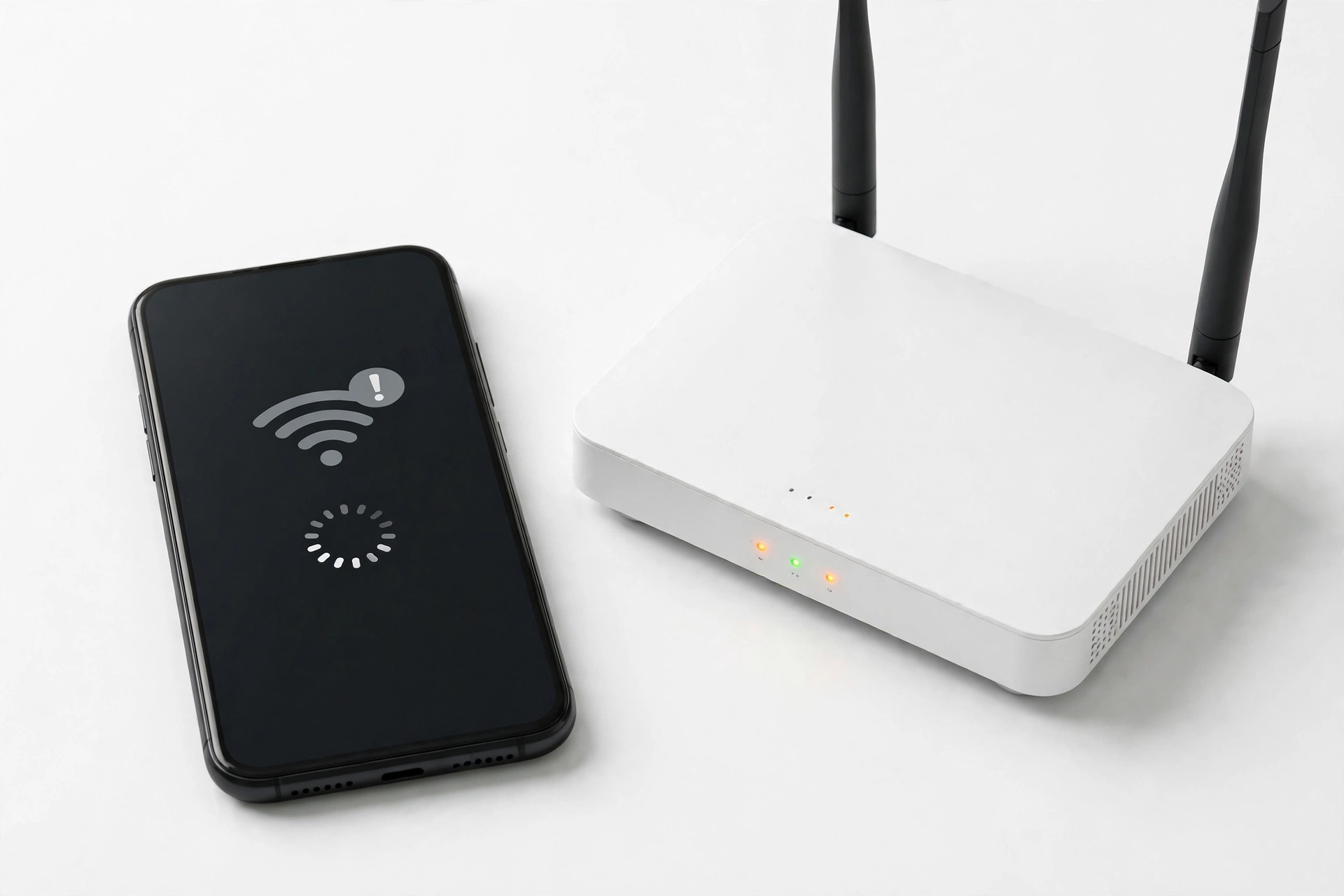
If your phone’s Wi-Fi stopped working right after a software update, the cause is almost always a software conflict — corrupted saved network data, a reset or changed network setting, or an app permission the update silently altered — and the fix usually takes five minutes of targeted resets, not a factory restore. This guide walks you through the update-specific mechanisms, an ordered ladder of safe fixes for iPhone and Samsung, how to tell whether the router or the phone is at fault, and when the problem is hardware that no setting can fix.
On this page
If your phone’s Wi-Fi stopped working right after a software update, the cause is almost always a software conflict — corrupted saved network data, a reset or changed network setting, or an app permission the update silently altered — and the fix usually takes five minutes of targeted resets, not a factory restore.
1. Who this guide is for
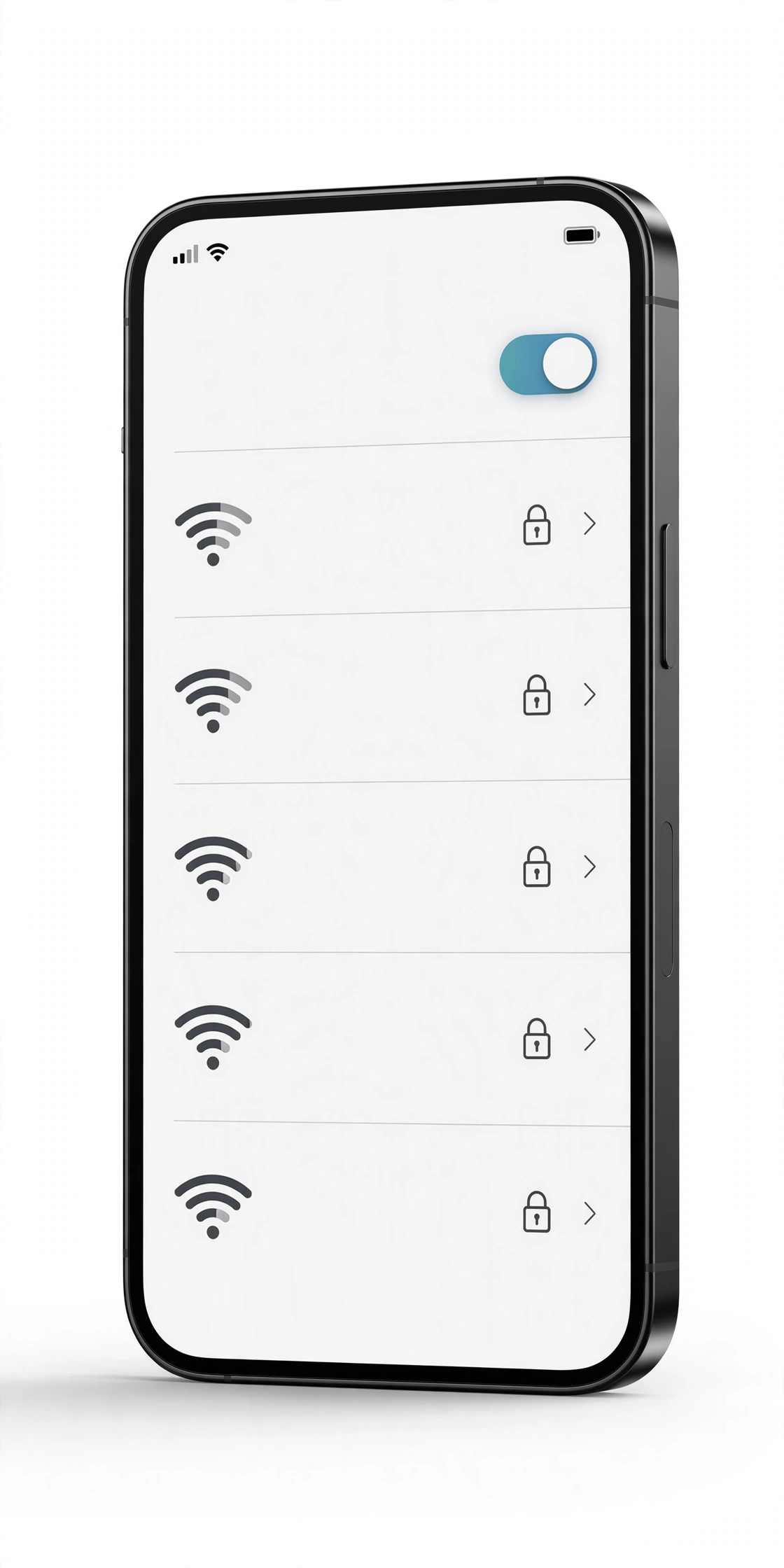
This guide is for anyone whose phone connected to Wi-Fi normally before a software update — an iOS point release, a major iOS upgrade, a Samsung One UI update, or a monthly security patch — and now cannot connect, keeps dropping, or shows “No Internet Connection” afterward. It applies whether the failure appeared minutes after the update or within a day or two of installing it. If your Wi-Fi problem existed long before the update, the general troubleshooting in our iPhone Wi-Fi troubleshooting guide is the better starting point; this article focuses specifically on the mechanisms by which an update can break a previously working connection. (Source: fone.tips)
Quick fact: Software updates replace deep system networking components — the Wi-Fi driver, the saved-network database, and the permission frameworks apps use to access the network. Any of these replacements can go wrong on your specific device even when the update installed “successfully.”
2. Why an update can break Wi-Fi that worked yesterday
It feels contradictory: the update was supposed to improve the phone, yet Wi-Fi worked before and does not now. In practice there are six well-understood mechanisms, and every one of them is a software problem rather than a coincidence:
Corrupted saved-network entries
Your phone stores every Wi-Fi network it has joined — the network name, password, security type, and various connection parameters — in a system database. A major update migrates this database to a new format. If the migration glitches for even one entry, the phone may fail to authenticate with a network it “remembers,” producing repeated password prompts even when the password is correct, or immediate disconnections after joining.
Silently reset or changed settings
Updates sometimes restore network-related defaults without telling you. Reported examples include private Wi-Fi address settings changing on iPhone (which can break routers that use MAC-address filtering), the “Auto-Join” toggle turning off for a saved network, and Samsung’s “Switch to mobile data” or “Turn on Wi-Fi automatically” behaviors changing state. The phone is working as configured — it is just configured differently than it was yesterday.
Outdated app or system-service caches
The networking stack on Android phones runs partly through system apps and services (the Wi-Fi service, the connectivity manager, DNS-related components). If cached data from the old OS version conflicts with the new version’s expectations, connections can stall, DNS lookups can fail (you “connect” but pages never load), or the phone can refuse to obtain an IP address. Samsung’s own support staff have repeatedly recommended clearing these caches after updates.
Revoked or altered app permissions
Some updates reset app-level permissions — including location permission, which both iOS and Android tie to Wi-Fi network scanning. An app or system feature that depended on “always allow location” may lose it, changing how the phone discovers and evaluates networks.
Router-side incompatibility
Sometimes the phone changed and the router did not. An update can switch the phone’s preferred Wi-Fi band, security negotiation, or randomization behavior, and an older router firmware may not handle the new behavior gracefully. The phone and the router each work fine alone; they simply no longer agree on how to talk. This is why “forget and rejoin” or a router restart often fixes what looks like a phone problem.
Genuine OS bugs
Occasionally the update itself ships with a Wi-Fi regression — a bug that affects a particular model or a particular combination of settings. These are real, documented by user reports after major releases, and they are typically fixed by the next point release (iOS x.0.1 or the next monthly patch). If every troubleshooting step fails and your exact symptom matches widespread reports from the same update, waiting for or installing the follow-up patch is the correct move.
| Mechanism | Typical symptom | Quickest test |
|---|---|---|
| Corrupted saved-network entry | Password rejected though unchanged; joins then drops in seconds | Forget the network and rejoin fresh |
| Silently reset setting | Worked before, now phone ignores the network or asks to join manually | Check Auto-Join, Private Wi-Fi Address, and Wi-Fi Calling settings |
| Stale system cache | Connects but “No Internet”; stuck on “Obtaining IP address” | Clear Wi-Fi/connectivity service cache (Samsung) or restart (iPhone) |
| Revoked permission | Apps cannot see networks; location-based features misbehave | Review Location and Local Network permissions |
| Router incompatibility | Phone fails only on one network; other devices fine | Restart the router; test phone on a different network |
| OS bug | Identical symptom on many devices after the same update; no fix works | Check for a newer point release; check manufacturer forums |
3. Before you start: the two-minute triage
Before changing anything, answer three questions. They take two minutes and they determine which section of this guide applies to you:
- Is it the phone or the network? Try connecting the phone to a different Wi-Fi network (a friend’s, a coffee shop, your phone’s own hotspot is not a valid test here — use a truly different router). If the phone connects fine elsewhere, the problem is between your phone and your router — skip to the router section. If it fails everywhere, keep reading.
- Is it Wi-Fi or the internet? If the phone joins the network but pages do not load, check whether other devices on the same network can browse. If they can, the phone’s connection is broken. If nothing can browse, your internet service or router is down — the update is a coincidence.
- Is anything else broken? If Bluetooth, mobile data, or the hotspot also failed after the same update (as in our companion guides on Bluetooth after an update and screen flickering after an update), you are likely looking at a broad system-level issue rather than a Wi-Fi-specific one, and the network-settings reset becomes the priority fix.
Tip: Write down the exact symptom before you start fixing. “Phone sees the network but the password is rejected” and “phone connects but nothing loads” have different causes and different fixes — a precise symptom saves you from trying everything.
4. Five-minute fixes to try first
These are ordered from fastest to slowest. Stop as soon as Wi-Fi works.
Toggle Wi-Fi off and back on
On iPhone: Settings > Wi-Fi, toggle off, wait 10 seconds, toggle on. On Samsung: Settings > Connections > Wi-Fi, toggle off and on. This restarts the Wi-Fi radio and forces a fresh scan. It resolves transient radio glitches that updates sometimes leave behind.
Toggle Airplane Mode
Turn Airplane Mode on, wait 15 seconds, turn it off. This resets all radios at once — Wi-Fi, Bluetooth, and cellular — and clears more stuck state than toggling Wi-Fi alone. It is the single most effective 30-second fix after an update.
Restart the phone
A full restart (not just locking the screen) clears temporary system state that the update process may have left inconsistent. On iPhone, use the side button plus volume button, slide to power off, wait 30 seconds, and power back on. On Samsung, hold the side key and volume down, tap Power off, wait, and restart.
Restart the router
Unplug the router (and modem, if separate) from power for a full 30 seconds, then plug the modem back in first, wait for it to fully boot, then the router. This is Samsung’s own recommended step after updates, and it resolves the phone-router disagreement described above more often than people expect. While you wait, restart the phone too — both ends get a clean start.
Move closer and remove the case
Temporarily move within a few meters of the router and remove any thick or metal phone case. Updates do not change physics, but they can change how aggressively the phone roams between bands or access points; a weak signal that was tolerable before can become unusable after. This is a diagnostic step, not a permanent solution — if proximity fixes it, the underlying issue is signal or roaming behavior, not a dead radio.
5. Forget the network and rejoin (fixes corrupted saved entries)
If the quick fixes did not help, the saved network entry is the prime suspect. Forgetting removes the corrupted entry entirely; rejoining creates a clean one.
On iPhone
- Go to Settings > Wi-Fi.
- Tap the blue “i” (information) icon next to the network name.
- Tap “Forget This Network” and confirm.
- Return to the network list, select the network again, and carefully re-enter the password. (Passwords are case-sensitive; this is the moment to double-check.)
On Samsung
- Go to Settings > Connections > Wi-Fi.
- Tap the gear icon next to the network, then tap “Forget” (or long-press the network name and choose Forget).
- Return to the list, select the network, and re-enter the password.
Tip: If the phone immediately rejoins the network on its own before you can type the password, toggle Wi-Fi off right after tapping Forget, then toggle it back on — this guarantees the old entry is fully gone before you reconnect.
6. Check the settings the update may have changed
On iPhone, open Settings > Wi-Fi, tap the “i” next to your network, and verify:
- Auto-Join is on. Updates have been reported to switch this off, leaving the phone sitting next to a known network without connecting.
- Private Wi-Fi Address — if your router uses MAC-address filtering or parental controls tied to the device’s address, try toggling this off for the network. The randomized address the phone presents may have changed with the update.
- Limit IP Address Tracking — rarely the cause, but worth toggling off as a test if pages load slowly rather than not at all.
On Samsung, open Settings > Connections > Wi-Fi > (three dots) > Advanced, and check:
- Turn on Wi-Fi automatically — re-enable it if the update switched it off.
- Switch to mobile data — if this is aggressively enabled, the phone may abandon a usable Wi-Fi connection; the symptom looks like “Wi-Fi drops” when it is actually intentional switching.
- Randomized MAC per network (under the network’s settings) — same MAC-filtering consideration as iPhone’s private address.
7. App permissions and VPN conflicts
Two software layers that updates frequently disturb:
VPN and security apps
If you use a VPN, a firewall app, or a security suite, disable it temporarily and test Wi-Fi. Updates can break the VPN’s network extension, leaving it half-engaged: the phone thinks traffic is routed through the VPN, the VPN is not actually working, and nothing loads. If disabling the VPN fixes Wi-Fi, update or reinstall the VPN app — do not leave it permanently disabled if you rely on it.
Location permission (Android)
Android ties Wi-Fi scanning to location permission. Go to Settings > Location and confirm it is on; then check that system Wi-Fi features still hold the permission. An update that reset this can make the phone behave as if no networks exist.
Quick fact: A VPN that worked yesterday can break connectivity today if the update changed the network-extension framework the VPN plugs into. This is one of the most common “it worked before the update” culprits, and the fix is on the VPN app’s side, not the phone’s.
8. The network-settings reset (the big hammer, used safely)
If nothing above worked, resetting network settings is the definitive fix for update-caused corruption. It wipes all saved Wi-Fi networks and passwords, Bluetooth pairings, VPN configurations, and cellular settings, then rebuilds the networking databases from scratch. It does not delete photos, apps, messages, or other personal data.
On iPhone
- Go to Settings > General > Transfer or Reset iPhone > Reset.
- Tap Reset Network Settings (not Erase All Content and Settings).
- Enter your passcode and confirm.
- The phone restarts. Rejoin your Wi-Fi network with the password.
On Samsung
- Go to Settings > General management > Reset.
- Tap Reset network settings (wording varies slightly by One UI version: “Reset Wi-Fi, mobile & Bluetooth”).
- Confirm. Rejoin Wi-Fi and re-pair Bluetooth devices afterward.
Stop for safety: “Reset Network Settings” and “Erase All Content and Settings” sit next to each other in the Reset menu. Read the label twice before tapping. The network reset keeps your data; the erase option deletes everything on the phone. If you ever tap the wrong one by mistake, do not proceed past the confirmation screen.
9. Samsung-specific: clear the Wi-Fi system-app cache
Samsung’s own customer support recommends this step for post-update connectivity problems, and it targets exactly the stale-cache mechanism described in section 2:
- Go to Settings > Apps.
- Tap the filter/sort icon and enable “Show system apps.”
- Search for “Wi-Fi” or “WiFi” — look for system entries such as Wi-Fi, Wi-Fi Direct, or the connectivity service.
- Tap Storage > Clear cache (do this for each Wi-Fi-related system app you find).
- Restart the phone and test.
Clearing cache removes temporary files without deleting your settings or passwords. (Do not tap “Clear data” on system apps unless a support agent specifically instructs you — that is a deeper reset with more side effects.) Some users also report that wiping the system cache partition from recovery mode helps after major One UI updates; that procedure varies by model and is best done with the manufacturer’s instructions in front of you.
10. Install the next update (when the update itself is the bug)
If you have tried everything above and the symptom matches widespread reports tied to your exact update version, check for a newer release:
- iPhone: Settings > General > Software Update. Apple frequently ships x.0.1 and x.1 point releases within days or weeks of a major version specifically to fix regressions like Wi-Fi drops.
- Samsung: Settings > Software update > Download and install. Monthly patches regularly include connectivity fixes.
Keep the phone charged above 50% and on a stable connection (mobile data is fine for downloading a small patch) while it installs. Do not interrupt the installation — a second interrupted update on top of the first is how minor problems become major ones.
11. Router vs. phone: settling it for good
If you are still unsure which side is at fault, run this decisive test:
| Test | If it works | If it fails |
|---|---|---|
| Phone on a different Wi-Fi network | Your router or its settings are the problem — restart it, check for firmware updates, or reconfigure the network | The phone is the problem — continue with phone-side fixes |
| Another device on your Wi-Fi | Your network is fine; the phone is the problem | Your network/internet is down — contact your ISP, not a repair shop |
| Phone in Safe Mode (Samsung) / with VPN removed (iPhone) | A third-party app is interfering — remove recently updated apps one by one | System-level issue — network reset or next OS patch |
| Phone after network-settings reset | Corrupted settings confirmed and fixed | Likely hardware or a genuine OS bug |
12. What your observations can and cannot prove
| Observation | What it suggests | What it cannot prove |
|---|---|---|
| Wi-Fi fails only after the update | A software cause is very likely | It cannot prove which software component failed |
| Other devices work on the same network | The router and internet are probably fine | It cannot prove the phone’s hardware is fine |
| Phone sees no networks at all | Radio or antenna problem is possible | It cannot distinguish a dead radio from a software radio failure without deeper testing |
| Network reset fixes it | Corrupted settings were the cause | It cannot tell you which entry was corrupted |
| Everything fails, including mobile data | Baseband/modem-level problem | It cannot be fixed with Wi-Fi settings — professional diagnosis is needed |
13. When to stop troubleshooting
Stop and seek professional assessment if:
- The phone detects no Wi-Fi networks anywhere — not at home, not at a café, not anywhere — after a network-settings reset. A phone that cannot see any network has a radio or antenna problem no setting can fix.
- Wi-Fi fails alongside mobile data, Bluetooth, and GPS simultaneously after the update. Multiple dead radios point to a modem or board-level issue.
- The phone gets unusually hot around the top edge while attempting to connect, or the Wi-Fi toggle is greyed out and will not turn on at all.
- You have installed the latest available point release and the exact symptom is acknowledged by the manufacturer as a known issue with a fix “coming soon” — in that case waiting is the correct action, not more resetting.
Stop for safety: Never open the phone to “check the Wi-Fi antenna” yourself. Modern phones seal the antenna system under the display and battery; opening the device risks battery damage, destroys water resistance, and voids remaining warranty. Antenna diagnosis requires proper tools in a repair environment.
14. Hypothetical examples
(The following are hypothetical illustrations, not customer stories.)
Maya’s One UI update and the forgotten network
Maya installed a One UI update overnight. In the morning, her Samsung phone showed her home network with “Incorrect password” even though nobody had changed it. She tried retyping the password three times. Following the steps in section 5, she forgot the network entirely and rejoined it fresh — and it connected immediately. The update’s migration had corrupted that one saved entry; everything else on the phone was fine.
Daniel’s iPhone and the silent setting change
Daniel updated his iPhone and found it would no longer auto-join his office Wi-Fi, though it had done so for two years. Manual joining worked, which told him the radio was fine. Checking the network’s settings (section 6), he found Auto-Join had been switched off by the update. One toggle, and the phone behaved exactly as before.
15. Frequently asked questions
Will resetting network settings delete my photos or apps?
No. Reset Network Settings only clears connectivity data — saved Wi-Fi networks and passwords, Bluetooth pairings, VPN configurations, and cellular settings. Your photos, apps, messages, and files are untouched. (Do not confuse it with “Erase All Content and Settings,” which wipes the entire phone.)
Why does my phone say “Incorrect password” when the password hasn’t changed?
Almost always a corrupted saved-network entry from the update’s database migration, not a wrong password. Forget the network and rejoin it fresh (section 5) rather than retyping the password into the broken entry.
My phone connects to Wi-Fi but nothing loads. Is that the same problem?
It is a related but different failure — the radio link works but DNS or routing is broken. Try toggling the VPN off first, then restart the router, then the network-settings reset. If other devices on the same network browse fine, the fault is in the phone’s network stack.
Should I just wait for the next update instead of troubleshooting?
Only if your exact symptom matches widespread reports for your update version and you have already tried the quick fixes. Most post-update Wi-Fi failures are corrupted settings that a network reset fixes in minutes — waiting weeks for a patch you may not need is the slower path.
Can a software update physically damage the Wi-Fi chip?
Essentially no. Updates cannot burn out a radio chip. What they can do is leave the software driving that chip in a broken state, which feels identical to hardware failure until the software is reset. True hardware failure is only confirmed when software fixes — including the network reset — all fail.
Why does Wi-Fi work on mobile data but not on my home network after the update?
That pattern points at the phone-router relationship, not the phone alone: the update changed something (MAC randomization, band preference, security negotiation) that your specific router handles poorly. Restart the router, check its firmware, and rejoin the network fresh.
Do I need to back up before resetting network settings?
It is not required — the reset does not touch personal data. But having a current backup is always wise before any system-level change, and it is mandatory before the deeper “Reset All Settings” or any factory restore.
When should I bring the phone to a repair shop?
When the phone cannot detect any Wi-Fi network anywhere after a network-settings reset, when the Wi-Fi toggle is greyed out and immovable, or when Wi-Fi fails together with cellular and Bluetooth. Those are hardware signatures. For anything else on this page, the software steps above resolve it. If you are in the Las Vegas area, Las Vegas Phone Repair & Accessories (7400 Las Vegas Blvd S, Unit TT42, Las Vegas, NV 89123; (424) 406-6202; open 10AM–8PM — call ahead to confirm today’s hours) can assess whether the issue is software or hardware before any work is approved.
Video: How to tell if your smartphone is fake or real
Sources and editorial notes
- Fone.tips — iPhone Wi-Fi troubleshooting guide: summarizes Apple’s official baseline steps (confirm Wi-Fi is on, restart device, restart router, verify other devices) and the ordered fix ladder from radio toggles through network reset. Last checked October 14, 2026.
- AppleInsider — Wi-Fi troubleshooting for iPhone/iPad: documents the forget-and-rejoin flow, router restart procedure, and the point at which hardware inspection is warranted. Last checked October 14, 2026.
- AEANET — iPhone Wi-Fi systematic troubleshooting: catalogs the standard iOS fix sequence including Reset Network Settings path and VPN-interference checks. Last checked October 14, 2026.
- Samsung Members Community — Samsung customer support response on post-update Wi-Fi failure: official support steps — forget network, reset network settings (Settings > General Management > Reset), restart router and device, disable flight mode. Last checked October 14, 2026.
- Samsung Members Community — post-update Wi-Fi and hotspot troubleshooting: official support flow including data-saver disable and reset-all-settings path. Last checked October 14, 2026.
- Samsung Support — mobile network troubleshooting: documents the network-settings reset path and its scope (resets Wi-Fi, Bluetooth, and network settings). Last checked October 14, 2026.
- Samsung Support — software update troubleshooting: notes VPN interference, Wi-Fi reconnection, and router restart as update-related connectivity steps. Last checked October 14, 2026.
Last source check: October 14, 2026. AI-assisted editorial guide, checked against the linked manufacturer information. Procedures are summarized in original language from the sources above; menu paths reflect documented iOS and One UI flows as of the check date and may vary slightly by model and software version. This guide does not claim manufacturer authorization. For hardware symptoms (no networks detected anywhere, greyed-out Wi-Fi toggle, multiple dead radios), professional assessment is recommended before any repair is approved.
Let’s get you connected again.
Tell us what’s happening with your device and we’ll help you decide the safest next step — no jargon, no pressure.
Las Vegas Phone Repair & Accessories · 7400 Las Vegas Blvd S, Unit TT42, Las Vegas, NV 89123
10:00 AM–8:00 PM — call ahead to confirm today’s hours