
How to Transfer Amazfit Data to New Phone: Complete Guide
To move your Amazfit data to a new phone, sync the Zepp app on your old phone, unpair the watch in the app, then install the Zepp app on the new phone, sign in to the same Zepp account, and pair the watch by scanning its QR code. Your history lives in your Zepp cloud account, so the same login restores it — the watch itself only holds recent data.
On this page
To move your Amazfit data to a new phone, sync the Zepp app on your old phone, unpair the watch in the app, then install the Zepp app on the new phone, sign in to the same Zepp account, and pair the watch by scanning its QR code.
Who this guide is for
This guide is for anyone who owns an Amazfit smartwatch or fitness band — a GTR, GTS, T-Rex, Bip, Band, Cheetah, Balance, or similar model — and is moving to a new phone. It covers the official Zepp app transfer flow, what happens to your health history, what you need to rebuild manually, and how to fix the problems people most often hit along the way. (Source: manual-cdn.zepp.com)
It is written for ordinary device owners, not developers. You do not need any special tools, accounts beyond your existing Zepp login, or technical knowledge. If you have never paired a watch before, the steps below walk you through the whole process from the beginning.
One scope note before we start: this guide covers Amazfit devices that pair through the Zepp app. If your older Amazfit device was paired through the Zepp Life app (formerly Mi Fit), that app runs on a different account system and servers, and its data does not automatically appear in the Zepp app. That distinction matters, and it is covered in its own section below.
The short answer: your data lives in the cloud, not in the phone
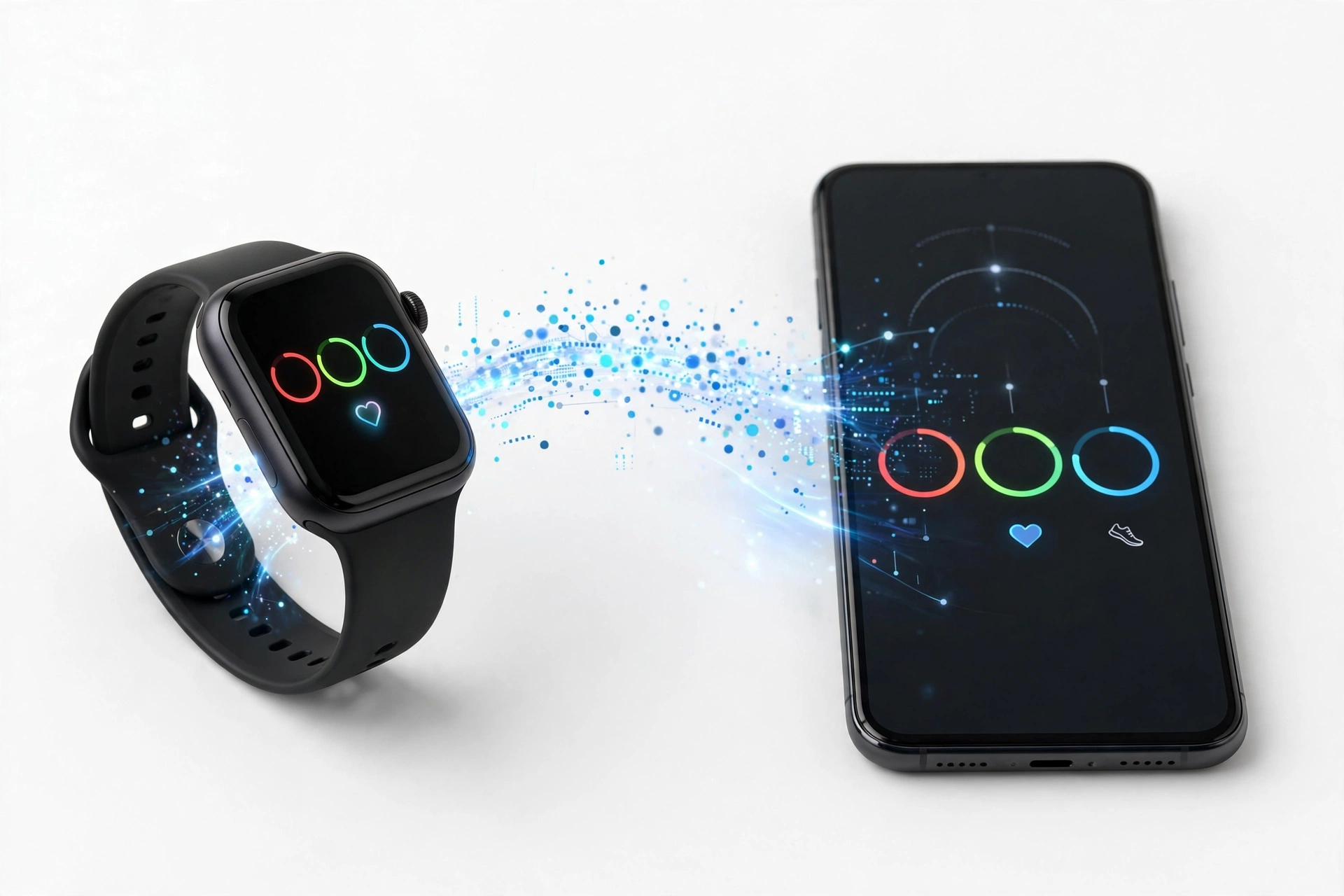
The single most important thing to understand about moving Amazfit data is where the data actually lives. When your watch syncs with the Zepp app, the app uploads your activity, heart rate, sleep, and workout records to your personal Zepp cloud account. The watch itself keeps only a rolling window of recent data — roughly the last few weeks, depending on the model — and your old phone’s copy of the app is just a viewer for the same cloud data.
That means the “transfer” is mostly not a transfer at all. It is a sign-in plus a re-pair:
- Sign in to the same Zepp account on your new phone, and your synced history appears in the app.
- Re-pair the watch to the new phone so new data keeps flowing into that same account.
What can go wrong is almost always one of three things: you sign in with the wrong account (a second email, or a social login you forgot you used), you skip the final sync on the old phone and lose the last day or two of unsynced watch data, or you try to pair the watch to the new phone while it is still paired to the old one. Every section of this guide exists to prevent one of those three mistakes.
Quick fact: If you remember nothing else, remember this: use the exact same Zepp login on the new phone that you used on the old one. Most “my data is gone” cases are actually “I signed in with a different account” cases.
What transfers and what does not
Not everything about your Amazfit setup travels through the account. The table below separates what the Zepp cloud carries for you from what you will need to set up again.
| Item | Transfers automatically | Notes |
|---|---|---|
| Workout history (runs, walks, rides, gym sessions) | Yes | Synced workouts appear in the app’s workout history after sign-in. |
| Daily activity (steps, distance, calories) | Yes | Daily totals and trends come back with the account. |
| Heart rate history | Yes | Continuous and resting heart rate records sync to the cloud. |
| Sleep records and stages | Yes | Past nights’ sleep analysis restores with the account. |
| SpO2, stress, and other health metrics already synced | Yes | Anything the app had synced before the move returns. |
| PAI (Personal Activity Intelligence) score history | Yes | PAI is computed server-side from synced data. |
| Unsynced data still only on the watch | No | Do a final manual sync on the old phone before unpairing — otherwise the last hours or days of watch-only data are lost. |
| Notification and call alert settings | Partially | Some preferences follow the account; re-check notification permissions on the new phone regardless. |
| Watch faces you downloaded | Partially | Watch faces tied to your account can be re-downloaded from the store; the face currently on the watch may reset during the factory reset step. |
| Third-party connections (Strava, Google Fit, Apple Health) | No | Re-authorize each integration in the new app under the account sync settings. |
| Alarms, reminders, and event alerts set on the watch | No | Recreate these after re-pairing. |
| Music stored on the watch | No | Music transferred to the watch must be copied over again. |
The honest summary: your health and fitness history is safe as long as it was synced and you use the same account. Your settings, integrations, and on-watch extras need a few minutes of rebuilding. Neither list should surprise you if you plan for it.
Tip: Before you start, open the Zepp app on your old phone and pull down on the home screen to force a manual sync. Wait until it finishes. That single action protects the most recent data, which is the data most at risk.
Before you start: the five-minute checklist
A smooth transfer takes about ten minutes of actual work. Five minutes of preparation prevents nearly every failure mode.
1. Confirm your Zepp login
Open the Zepp app on your old phone, go to your profile, and note exactly which account you are signed in with — the email address, or whether you used Google, Apple, Facebook, or another social login. Write it down. This is the single most common point of failure: people create a second account on the new phone by accident and then panic when their history is “missing.” It is not missing; it is in the other account.
2. Sync one final time on the old phone
With the watch nearby and Bluetooth on, open the Zepp app and trigger a manual sync. Confirm that today’s steps, last night’s sleep, and your most recent workout all appear in the app. Anything the app has not yet pulled off the watch cannot be recovered after you unpair and reset.
3. Charge the watch
Put the watch on its charger until it is well charged — aim for at least half, ideally more. A watch that dies mid-reset or mid-pairing can leave you repeating steps.
4. Install and update the Zepp app on the new phone
Download the Zepp app from the official app store on your new phone and let it update to the latest version. The official manuals recommend the latest version for the best pairing experience. Your new phone needs to run Android 7.0 or iOS 12.0 or later for the Zepp app to work.
5. Have your Bluetooth and location permissions ready
Pairing needs Bluetooth, and on Android the app also needs location permission to scan for Bluetooth devices. When the new phone prompts you during pairing, grant what it asks for — you can review permissions later, but refusing them during setup is a top cause of failed pairing.
Stop for safety: Do not factory-reset the watch until the final sync on the old phone is confirmed complete. The reset erases the watch’s local copy of any data that never made it to the cloud, and there is no way to get that data back afterward.
Method 1: The standard move (old phone still available)
This is the official flow documented in Amazfit’s own user manuals, and it is the path to use whenever your old phone still works and still has the Zepp app installed.
Step 1 — Final sync on the old phone
Open the Zepp app on the old phone with the watch nearby. Pull down to sync, and confirm the latest data is visible in the app — today’s activity, recent workouts, last night’s sleep.
Step 2 — Unpair the watch in the app
On the old phone, go to Profile, open your device’s page, scroll to the bottom, and tap Unpair. This unbinds the watch from the old phone’s app. If you skip this step, the watch may refuse to pair with the new phone because it still considers itself bound to the old one.
Step 3 — On iPhone, also forget the Bluetooth pairing
If the old phone is an iPhone, open Settings > Bluetooth, find the watch’s Bluetooth name, tap the info icon, and choose Forget This Device. The manuals call this out explicitly for iPhones. On Android this extra step is generally not required, but if pairing later fails, forgetting the watch in the Android Bluetooth settings is a reasonable troubleshooting step.
Step 4 — Restore the watch’s factory settings
On the watch itself, open Settings > System > Factory reset (the exact menu path varies slightly by model — check your model’s manual). Confirm the reset. The watch reboots and returns to its first-startup state, displaying the pairing QR code. This step is required: the watch will not enter pairing mode for a new phone while it still holds its old binding.
Step 5 — Pair with the new phone
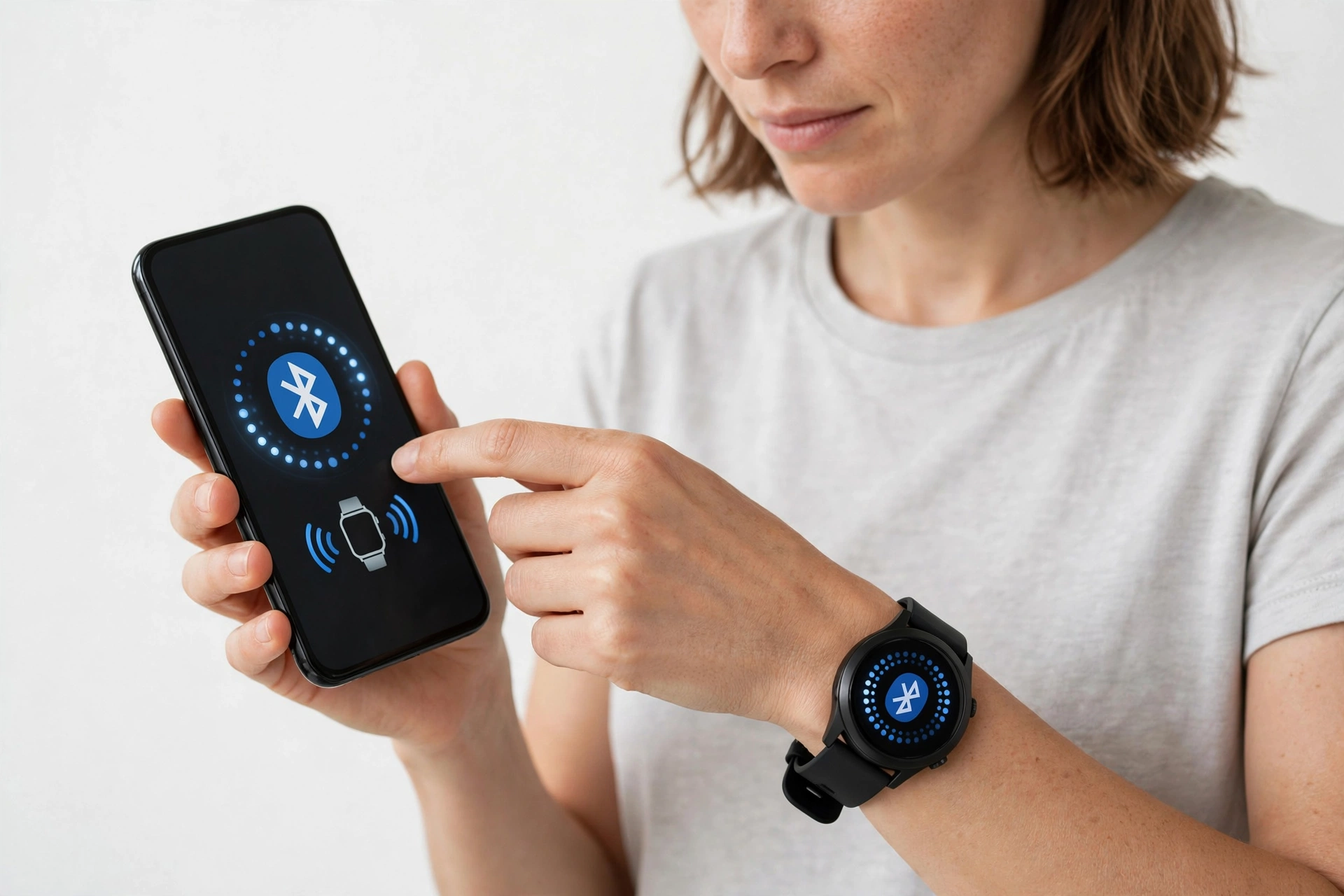
Open the Zepp app on the new phone and sign in with the same Zepp account you used on the old phone. Follow the app’s add-device flow and scan the QR code shown on the watch. Keep the watch close to the phone, with Bluetooth on, until pairing completes. The app will walk you through permissions — grant them.
Step 6 — Confirm your history
Once paired, pull down to sync, then check the app’s history views: workouts, heart rate trends, sleep records. Your synced history should be there, because it came from your account, not from the watch. Then continue with the “what to rebuild” section below.
Quick fact: The QR code pairing flow is the same one you used the very first time you set up the watch. After a factory reset, the watch behaves exactly like a new device — which is why the reset is a required step, not an optional one.
Method 2: Old phone lost, broken, or already wiped
If you cannot open the Zepp app on the old phone — the phone is lost, the screen is dead, or it was already factory-reset — you can still move your Amazfit setup. You just skip the old-phone steps and accept one cost.
What you lose
Any data that was on the watch but had never synced to the cloud is unrecoverable. In practice this is usually the last day or two of activity — everything older had already synced during normal use. There is no way around this; it is the price of not having the old phone.
The steps
- Install the Zepp app on the new phone and sign in with your original Zepp account. Verify that your history (workouts, sleep, heart rate trends) appears in the app. If it does, the cloud side is fine and you are most of the way there.
- Factory-reset the watch directly: Settings > System > Factory reset on the watch itself. This clears the old phone’s binding without needing the old phone.
- When the watch reboots to the pairing QR code, pair it from the Zepp app on the new phone exactly as in Method 1, Step 5.
- If the app refuses to pair because it believes the watch is still bound elsewhere, make sure you are signed in to the correct account — the account that originally paired the watch. A mismatched account is the most common cause of this error.
Tip: If you replaced a lost phone with the same phone number, your Zepp account is unaffected — it is tied to your login (email or social account), not to your phone number or SIM. Just sign in normally.
Method 3: Switching between Android and iPhone
Moving from Android to iPhone, or iPhone to Android, uses the same Method 1 flow with two platform-specific notes.
Android to iPhone
Unpair in the app on the Android phone, reset the watch, then pair from the iPhone. On the iPhone, remember the extra Bluetooth step from Method 1 in reverse: if you later move away from an iPhone, forget the watch in the iPhone’s Bluetooth settings. Apple Health integration, if you used it, is configured separately in the Zepp app’s third-party sync settings after pairing.
iPhone to Android
On the iPhone, unpair in the app and forget the watch in Settings > Bluetooth before resetting the watch. On the Android phone, grant the location permission when the Zepp app asks during pairing — Android requires it for Bluetooth device scanning, and declining it silently breaks pairing. Google Fit integration, if you used it, is re-authorized in the app’s sync settings after pairing.
Quick fact: Your Zepp account itself is platform-neutral. The same email-and-password (or social) login works on both Android and iOS, and your history follows the account, not the operating system.
Method comparison
| Method | Old phone needed | Platforms | Limitations |
|---|---|---|---|
| Standard move (Method 1) | Yes, working with Zepp app | Any to any | Requires completing the unpair on the old phone; iPhone needs the extra Bluetooth-forget step. |
| No old phone (Method 2) | No | Any to any | Unsynced watch-only data (usually the last day or two) is permanently lost. |
| Platform switch (Method 3) | Yes | Android ↔ iPhone | Same as Method 1, plus platform-specific permission steps; third-party integrations must be re-authorized. |
Re-pairing on the new phone: what to expect
The pairing itself is straightforward, but knowing what is normal prevents abandoned attempts.
The QR code flow
After the factory reset, the watch displays a QR code. In the Zepp app on the new phone, use the add-device flow and scan that code with the phone’s camera. Keep the watch within a few feet of the phone and keep Bluetooth switched on. Pairing usually completes within a minute or two; the app may then offer a firmware update for the watch. Accept it — updates fix pairing and sync bugs — but keep the watch near the phone and charged while it installs.
Permissions the app will request
Expect prompts for Bluetooth, location (Android), notifications, and background activity. These are not optional extras: notification mirroring, call alerts, and reliable background syncing all depend on them. If you declined something during setup and a feature later misbehaves, check the phone’s system settings for the Zepp app’s permissions before assuming anything is broken.
The first sync after pairing
Once paired, the app pulls the watch’s current state and merges it with your cloud history. Give it a minute, then pull down manually to force a full sync. Check that today’s step count moves when you walk around with the watch on — that is the simplest live confirmation that the new pairing is actually working.
What to rebuild on the new phone
With history restored and the watch paired, spend five minutes on the items the account does not carry over.
Notification and call settings
Open the device settings in the Zepp app and walk through notifications: which apps may send alerts to the watch, incoming call notifications, and any Do Not Disturb schedules. Test with a real notification — send yourself a message — rather than assuming it works.
Third-party integrations
If you previously synced to Strava, Google Fit, Apple Health, or similar services, re-authorize each one in the app’s account sync settings. These connections are tied to the phone-side app installation, not to your Zepp account, so they do not survive the move on their own.
Watch faces, alarms, and music
Re-download your preferred watch face from the store in the app. Recreate any alarms and reminders you had set on the watch. If you kept music on the watch, transfer it again. None of these are difficult; they are just easy to forget until you miss an alarm.
Workout and health preferences
Glance through the app’s health settings — heart rate monitoring frequency, sleep tracking options, workout auto-detection — and confirm they match what you had. Most follow the account, but a quick review costs a minute and catches anything that did not.
Tip: Do this rebuild pass the same day you pair the watch. Settings you postpone tend to stay postponed, and the most common “something stopped working after my phone upgrade” complaints trace back to a skipped notification or integration step.
Zepp Life (Mi Fit) users: an important detour
Some older Amazfit devices were originally paired through Zepp Life, the app formerly known as Mi Fit. Zepp Life and the Zepp app use different account systems and different servers. Signing in to the Zepp app with your Zepp Life credentials will show you an empty account — your history is not lost, it is simply in the other system.
If this describes you, you have two honest options. Option one: keep using Zepp Life on the new phone — install it, sign in with your existing Zepp Life account, and pair the device there; nothing about your history changes. Option two: migrate to the Zepp app, understanding that it starts as a fresh account history for that device; past Zepp Life data does not import into the Zepp app automatically. Check your current app’s name before you unpair anything, because the choice determines which app you install on the new phone.
Stop for safety: Never enter your Zepp, Google, or Apple credentials into a third-party app, website, or “data transfer tool” that promises to move your Amazfit data for you. The official path — sign in to the genuine Zepp app from your phone’s official app store — is the only safe one. Credential-harvesting scams target exactly this moment of phone-switching confusion.
Troubleshooting: when something goes wrong
| Symptom | Likely cause | Fix |
|---|---|---|
| App shows no history after sign-in | Signed in with a different account | Sign out and sign in with the exact login used on the old phone — check for a second email or a social login you forgot. |
| Watch will not enter pairing mode | Still bound to the old phone | Unpair in the old phone’s app (Profile > device > Unpair), then factory-reset the watch. |
| Pairing fails on Android | Location permission declined | Grant location permission to the Zepp app in system settings, then retry pairing. |
| Pairing fails on iPhone | Old Bluetooth pairing still present | On the old iPhone: Settings > Bluetooth > Forget This Device for the watch; then reset and retry. |
| Last day or two of data is missing | Final sync was skipped | Not recoverable after reset — but preventable: always force a manual sync before unpairing. |
| Notifications do not reach the watch | Permissions not granted on the new phone | Check notification access for the Zepp app in system settings and re-enable per-app alerts in the device settings. |
| Third-party app (Strava, etc.) stopped syncing | Integration tied to old phone | Re-authorize the integration in the new app’s account sync settings. |
| Watch battery drains fast after the move | Frequent re-syncing and firmware update | Usually settles within a day; if not, restart the watch and check for a pending firmware update. |
What this guide can and cannot establish
| Observation | What it establishes | What it does not establish |
|---|---|---|
| History appears after signing in | Your cloud data is intact and the account is correct. | It does not confirm the watch itself is paired — check live step counts too. |
| History is empty after signing in | You are almost certainly in the wrong account. | It does not mean the data was deleted — check your other logins first. |
| Pairing fails repeatedly | Something in the binding or permission chain is wrong. | It does not identify which link — work through unpair, reset, permissions, and Bluetooth in order. |
| Watch will not factory reset | The watch needs hands-on attention. | Remote steps cannot fix a watch that will not reset; that is a repair-shop question. |
Hypothetical examples
(The following are hypothetical illustrations, not customer stories.)
Example 1: Maya’s careful Android upgrade
Maya buys a new Android phone. Before touching anything, she opens the Zepp app on her old phone, pulls down to sync, and confirms last night’s sleep and today’s steps are visible. She checks her profile: she is signed in with her Gmail address. On the old phone she goes to Profile, opens her Amazfit GTR 4, taps Unpair, then factory-resets the watch from its system settings. On the new phone she installs the Zepp app, signs in with the same Gmail, scans the watch’s QR code, grants Bluetooth and location permissions, and pairs. Her three years of workout history appear in the app. She spends five minutes re-enabling WhatsApp notifications and reconnecting Strava. Total time: under twenty minutes, nothing lost.
Example 2: Daniel’s stolen-phone scramble
Daniel’s old phone is stolen, so he cannot sync or unpair from it. He installs the Zepp app on his replacement phone and signs in with his original Zepp account — his history is all there, because it lived in the cloud. He factory-resets his Amazfit T-Rex 2 directly from the watch’s settings menu, pairs it to the new phone via QR code, and is back in business. He loses only the unsynced steps from the day the phone was stolen — everything else had synced during normal use. His one mistake: he briefly panics when the app shows an empty dashboard, then realizes he first signed in with Apple instead of his email login; switching to the email account fixes it instantly.
Video: How to tell if your smartphone is fake or real
Frequently asked questions
Do I need the old phone to transfer my Amazfit data?
No — but it helps. With the old phone, you can do a final sync that preserves the last day or two of data and unpair cleanly. Without it, you factory-reset the watch directly and sign in to your Zepp account on the new phone; your synced history restores from the cloud, and only unsynced watch-only data is lost.
Will I lose my workout history when I switch phones?
Not if it was synced. Workout history, daily activity, heart rate, and sleep records that reached your Zepp cloud account reappear when you sign in with the same account on the new phone. History is tied to the account, not to either phone.
Why is my Zepp app empty after I signed in on the new phone?
Almost always because you signed in with a different account than the one on the old phone — a second email address, or a social login (Google, Apple) you used originally and forgot about. Sign out and try your other logins before concluding anything is lost.
Do I have to factory-reset the watch?
Yes, according to Amazfit’s own manuals. The watch stays bound to its old pairing until it is reset, and it will not enter pairing mode for the new phone otherwise. The reset only erases the watch’s local copy — your cloud history is unaffected.
Does my data transfer if I switch from Android to iPhone?
Yes. The Zepp account is platform-neutral, so the same login on iOS shows the same history. Follow the standard unpair-reset-pair flow, grant the permissions each platform asks for (location on Android for Bluetooth scanning; Bluetooth-forget on the old iPhone), and re-authorize third-party integrations afterward.
What about my Zepp Life (Mi Fit) data?
Zepp Life uses a separate account system from the Zepp app, and its data does not automatically appear in the Zepp app. If your device was paired through Zepp Life, the simplest path is to keep using Zepp Life on the new phone with your existing account.
How do I move my Strava or Google Fit connection?
Re-authorize it. Third-party integrations are tied to the phone-side app installation, not to your Zepp account. After pairing on the new phone, open the app’s account sync settings and reconnect each service.
My watch will not pair with the new phone at all. What now?
Work through the chain in order: confirm the watch was unpaired on the old phone (or factory-reset directly), confirm the same Zepp account is signed in, grant Bluetooth and location permissions, and on iPhone make sure the old Bluetooth pairing was forgotten. If the watch will not factory-reset or will not power on properly, that is a hardware question — a repair shop can assess it. For readers in the Las Vegas area, Las Vegas Phone Repair & Accessories, 7400 Las Vegas Blvd S, Unit TT42, Las Vegas, NV 89123, (424) 406-6202, open 10AM–8PM (call ahead to confirm today’s hours), can take a look at a watch that is not responding.
Sources and editorial notes
- Amazfit Band 7 User Manual (Zepp official manual CDN) — documents the official “Pairing with a new phone” flow: sync on the old phone, unpair via Profile > device page, forget Bluetooth on iPhone, factory-reset the watch, then pair with the new phone via QR code.
- Amazfit Cheetah User Manual (Zepp official manual CDN) — confirms the same new-phone pairing sequence and the iPhone Bluetooth-forget step across a second current model.
- Amazfit Bip 3 Pro User Manual (via Manuals.Plus) — third model confirming the identical official flow; notes the phone OS requirement (Android 7.0 or iOS 12.0 or later).
- CellularNews: How to Connect Amazfit Watch to Android Phone — describes Zepp app pairing, permission requirements, manual sync, and the third-party sync path (app settings > Account > Sync).
- Smartwatch Sphere: GPX export on Amazfit T-Rex 3 Pro — documents the Zepp app’s workout export flow (three-dot menu > Export data > GPX/TCX/FIT).
- GearProbe: Amazfit Pace Not Syncing with Zepp — notes that historical data remains stored in the Zepp account cloud backup after app reinstall, and covers sync troubleshooting (cache clearing, re-pairing).
- ha-zepp (Home Assistant integration docs) — notes that Zepp Life (Mi Fit) devices run on different servers than the Zepp app, and that sign-in options include email, Google, Apple, and Mi accounts.
Last source check: October 14, 2026. AI-assisted editorial guide, checked against the linked manufacturer information. The pairing and unpairing steps above follow Amazfit’s own published user manuals; platform-specific details (Android location permission for Bluetooth scanning, iPhone Bluetooth-forget) are documented in those manuals. Exact cloud retention periods are not published by Zepp/Amazfit and are therefore described only in general terms. For related wearable transfer guides, see our Oura Ring transfer guide, our Whoop transfer guide, and our Garmin transfer guide.
Let’s get you connected again.
Tell us what’s happening with your device and we’ll help you decide the safest next step — no jargon, no pressure.
Las Vegas Phone Repair & Accessories · 7400 Las Vegas Blvd S, Unit TT42, Las Vegas, NV 89123
10:00 AM–8:00 PM — call ahead to confirm today’s hours