
How to Transfer Apple Health Data to New iPhone: Complete Guide
To transfer Apple Health data to a new iPhone, use Quick Start direct transfer, turn on Health in iCloud sync on both phones, or restore the new iPhone from an encrypted computer backup — an unencrypted backup will not carry Health and Activity history. This Apple Health-specific guide walks through each method, what transfers and what does not, and how to verify the move before erasing the old phone.
On this page
To transfer Apple Health data to a new iPhone, use Quick Start direct transfer, turn on Health in iCloud sync on both phones, or restore the new iPhone from an encrypted computer backup — an unencrypted backup will not carry Health and Activity history.
1. Who this guide helps
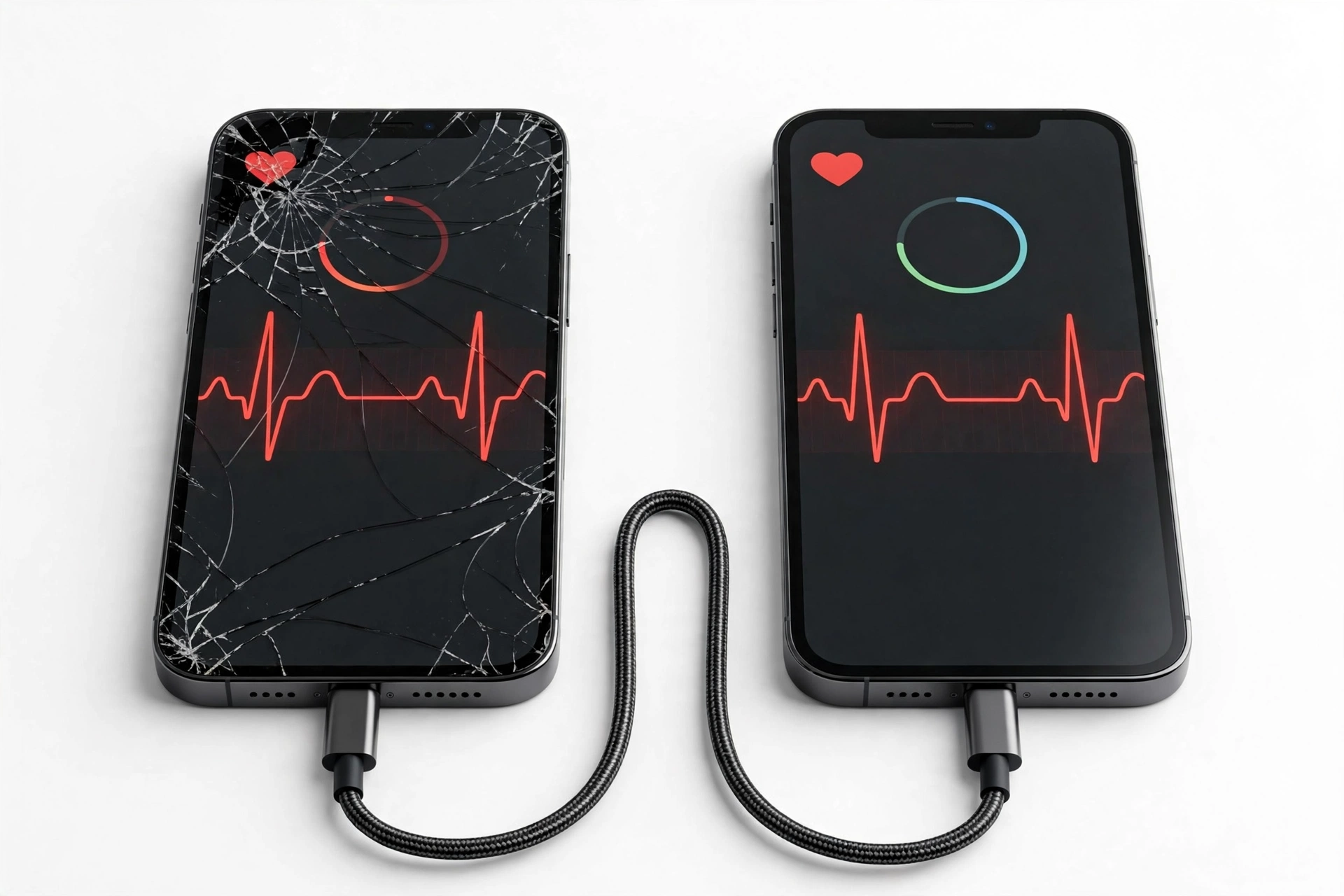
This guide is for iPhone owners who are switching to a new iPhone and want their Apple Health history — steps, workouts, heart-rate readings, sleep records, body measurements, medications, and the Health data collected by an Apple Watch — to arrive on the new device intact. It is written specifically around the Health app, which Apple treats differently from photos, contacts, and most app data because of the sensitivity of health records. (Source: support.apple.com)
If your move is between platforms (iPhone to Android or Android to iPhone), the picture is different: Apple Health history does not have an official path to Android’s health platforms, and this guide covers that limitation honestly rather than pretending a one-tap transfer exists. For the broader picture of moving everything else — messages, contacts, apps — see our general guide on transferring health data to a new phone.
Note on scope: This guide covers Apple Health on iPhone. It is not medical advice, and a successful data transfer is about records, not care decisions. If a measurement in the Health app worries you, talk to a clinician rather than trying to reinterpret the number through a troubleshooting guide.
2. Why Health data needs special handling
Most iPhone content transfers the same way no matter which method you use. Health data does not. Apple documents a sharp, specific rule: Health and Activity data will not transfer from an unencrypted computer backup. A backup can look completely successful — same size, same completion message — and still arrive at the new iPhone with years of workouts, steps, and heart-rate history missing. That rule is the single most important fact in this guide, because it is the most common way people lose Health history: they assume any backup carries everything.
The reason for the special treatment is privacy. Health records are among the most sensitive things a phone holds, so Apple encrypts them at rest and gives them extra protections in transit and in cloud storage. Apple states that with a recent iOS version and two-factor authentication enabled, it cannot read synced Health and Activity information in iCloud. Those protections are a benefit, but they also mean the wrong transfer method quietly drops the data instead of moving it insecurely.
There are three reliable ways to move Health data from an old iPhone to a new one:
- Quick Start direct transfer — the phone-to-phone method Apple presents during setup.
- Health in iCloud sync — Health data kept in sync with iCloud under your Apple Account, so the new iPhone picks it up after sign-in.
- Encrypted computer backup and restore — a Finder (Mac) or Apple Devices app (Windows) backup made with the “Encrypt local backup” option enabled, then restored onto the new iPhone.
A fourth option, restoring from an iCloud backup, also carries Health data because iCloud backups are encrypted by default — but it is worth confirming the backup is recent and complete before relying on it. Each method is covered in detail below, with a comparison table so you can pick the one that fits your situation.
3. Before you start: the preparation checklist
Whichever method you choose, a short preparation routine prevents most failures. Work through these steps on the old iPhone while it is still fully functional and signed in:
- Update iOS on both phones. Transfer bugs are one of the more common causes of missing data, and both devices should run the latest iOS version available to them before you begin.
- Confirm you know both Apple Account credentials. You will sign in on the new iPhone during the process. Recover or reset the password before you start, not mid-transfer.
- Check iCloud storage if you plan to use iCloud. Health data is compact compared with photos, but if iCloud storage is full, syncing and backups stall. Make room or confirm there is headroom.
- Decide your method in advance. Do not start a Quick Start transfer and then switch to a computer backup halfway through. Pick one route and follow it through.
- Keep the old iPhone until you have verified the new one. This is the golden rule of the whole guide. Do not erase, trade in, recycle, or sell the old phone until you have checked recognizable Health history on the new one. For safe disposal steps later, see our guide on how to erase an iPhone before selling.
Quick fact: If you are also moving an Apple Watch to the new iPhone, the watch’s Activity and Health history rides along with the same Health protections — and if the old iPhone is already gone, Apple states plainly that Health and Activity content cannot be recovered. Pair the watch to the new iPhone after the Health data transfer is confirmed.
4. Method 1: Quick Start direct transfer
Quick Start is the phone-to-phone transfer Apple offers when you place the old iPhone near the new one during setup. Both iPhones use Bluetooth and Wi-Fi to establish the connection, and the new iPhone can download content directly from the old one. This is generally the most convenient method for Health data because the transfer is encrypted end to end and Health history moves along with everything else.
How to run it
- Make sure both iPhones are plugged into power and have Bluetooth and Wi-Fi turned on.
- Place the old iPhone next to the new one. The Quick Start screen should appear on the old iPhone; confirm the Apple Account shown is yours, then follow the animation-pairing step.
- When offered a choice, select Transfer from iPhone (the direct device-to-device option) rather than downloading from iCloud.
- Keep both phones close together and connected to power until the transfer completes. Large photo libraries and years of Health data can take a long time.
- Complete setup on the new iPhone, then open the Health app and check recognizable history — a recent workout, step counts from past weeks, heart-rate readings — before touching the old phone.
What to watch for
Direct transfer moves Health data along with the rest of the device contents, which is why Apple presents it as the default. Two caveats: first, the transfer needs a stable connection between the phones — moving them apart or letting one sleep mid-transfer can stall the process; second, the same “verify before erasing” rule applies. Open the Health app on the new iPhone and spot-check specific records you remember from the old one.
Tip: If you use banking or authenticator apps, those often need manual re-verification on the new device even after a successful Quick Start. Do that walkthrough at the same time you verify Health data, while the old phone is still available as a fallback.
5. Method 2: Health in iCloud sync
Apple lets the Health app sync its data to iCloud under your Apple Account. When this is on, your Health history lives in iCloud (with the extra privacy protections described above) and any iPhone signed in with the same Apple Account with syncing enabled picks it up automatically. This method is independent of device transfers: sign in on the new iPhone, turn on Health sync, and the history downloads.
How to turn it on
- On the old iPhone, open Settings, tap your name at the top, then tap iCloud.
- Find Health in the app list (you may need to tap “See All” or “Show All” depending on your iOS version — Apple changes these labels between releases, so look for the Health entry rather than a specific wording).
- Make sure syncing is turned on for Health.
- Leave the old iPhone connected to Wi-Fi and power for a while so the initial sync completes. Years of history can take some time to upload.
- On the new iPhone, sign in with the same Apple Account, then repeat the same steps to turn on Health sync. Keep the new phone on Wi-Fi and power while the history downloads.
What to watch for
The sync only works when both phones use the same Apple Account and both have an internet connection. If you are changing Apple Accounts as part of the move, this method does not establish that history transfers between accounts — treat an account change as a separate problem and do not rely on sync alone. Also note that syncing is not instant: give the new phone hours, not minutes, on a large history before concluding something is missing. Apple Watch Activity data synced through this path can take a few days to fully appear.
Quick fact: iCloud does not sync everything Health-related. Apple notes that Activity Sharing data (the friends-with-whom-you-share-Activity-rings feature) is not stored in iCloud, so shared-Activity connections need to be re-established separately.
6. Method 3: Encrypted computer backup and restore
If you prefer to go through a computer — or you have no spare iCloud storage — a Finder backup (Mac) or Apple Devices app backup (Windows PC) can carry Health data, but only if the backup is encrypted. Apple is explicit: computer backups are not encrypted by default, and Health and Activity data will not transfer from an unencrypted backup.
How to make the encrypted backup
- Connect the old iPhone to the computer with a cable and open Finder (Mac) or the Apple Devices app (Windows).
- Select the iPhone, and look for the backup options. Tick Encrypt local backup (the exact label varies slightly between Finder, the Apple Devices app, and older iTunes, but the encryption option is the key one).
- Choose a backup password you will remember and write it down somewhere safe. An encrypted backup cannot be restored without its password — if you lose it, the backup is unusable.
- Click Back Up Now and wait for the backup to finish.
How to restore it onto the new iPhone
- If the new iPhone is already set up, you must erase it first (Settings > General > Transfer or Reset iPhone > Erase All Content and Settings), because a backup restore happens from the Apps & Data setup screen.
- On the new iPhone, proceed through setup until the Apps & Data screen, then choose Restore from Mac or PC.
- Connect the new iPhone to the same computer, open Finder or the Apple Devices app, select the device, and choose Restore Backup.
- Pick the correct backup by its date and size, enter the encryption password when asked, and wait for the restore to finish. Keep the iPhone connected to Wi-Fi and power afterward so iCloud content (photos, apps, music) can download.
- Open the Health app and verify recognizable history before erasing the old phone.
Stop for safety: Never erase the new iPhone to “try again” unless you are certain the encrypted backup exists and you know its password. An interrupted restore with no working backup leaves you with neither phone’s full data. Verify the backup file’s date and size in Finder or the Apple Devices app before you erase anything.
7. Method 4: iCloud backup restore
An iCloud backup of the old iPhone also carries Health data, because iCloud backups are encrypted by default. The procedure: on the old iPhone, go to Settings > [your name] > iCloud > iCloud Backup and run Back Up Now while on Wi-Fi and power. Then, on the new iPhone, choose Restore from iCloud Backup at the Apps & Data setup screen and sign in with the same Apple Account.
The main risks here are a stale backup (check the “Last successful backup” time before you start — run a fresh one) and insufficient iCloud storage. If storage is full, the backup silently stops being current, which is exactly how people discover too late that the backup they restored is weeks old. As with every method, verify Health history on the new phone before erasing the old one.
8. Method comparison
| Method | What it needs | Health data included? | Limitations |
|---|---|---|---|
| Quick Start direct transfer | Both iPhones, Bluetooth + Wi-Fi, power | Yes | Needs both phones present and close together; large libraries take time |
| Health in iCloud sync | Same Apple Account on both phones, internet, iCloud space | Yes | Not instant — allow hours; does not move data between different Apple Accounts |
| Encrypted computer backup + restore | Mac or PC, cable, backup password you remember | Yes — only if “Encrypt local backup” was ticked | New iPhone must be erased first if already set up; password loss makes the backup unusable |
| iCloud backup restore | Same Apple Account, Wi-Fi, enough iCloud storage | Yes (iCloud backups are encrypted by default) | Backup must be current; full iCloud storage stalls it silently |
| Unencrypted computer backup + restore | Mac or PC, cable | No — Health and Activity data will not transfer | Looks successful but omits Health history; the most common loss scenario |
9. What transfers and what does not
Within the Health app, the transfer methods above move the core history: steps and distance, workouts and routes, heart-rate and other vitals readings, sleep records, body measurements, nutrition entries, medications, menstrual-cycle tracking, and mindfulness minutes, along with data recorded by connected apps and Bluetooth devices that write into Health. Apple Watch Activity history — Move/Exercise/Stand rings, workout history, and achievements — travels with the same protections, though Apple notes it can take a few days to fully repopulate on the new device.
What does not reliably transfer:
- Activity Sharing connections. The friends you share Activity rings with are not stored in iCloud; re-add them after the move.
- Health data if you change Apple Accounts. Sync and iCloud backup are account-bound. Moving history between two different Apple Accounts is not a documented path.
- Health history from an unencrypted computer backup. Repeated here because it is the failure mode worth memorizing.
- Third-party app internals. Apps that read from or write to Health keep their own accounts and settings; a health-tracking app may need you to sign in again on the new phone before its own cloud data reappears.
| Item | Transfers? | Notes |
|---|---|---|
| Steps, distance, flights climbed | Yes | Core Health history moves with any of the three reliable methods |
| Workouts and workout routes | Yes | Includes Apple Watch workouts |
| Heart-rate and vitals readings | Yes | ECG, blood oxygen, and similar readings move with the history |
| Sleep, medications, cycle tracking | Yes | All Health categories are covered |
| Activity rings and achievements | Yes | May take a few days to fully repopulate via iCloud sync |
| Activity Sharing with friends | No | Re-establish sharing connections manually |
| History across different Apple Accounts | No | Not a documented transfer path |
| Health data in an unencrypted computer backup | No | The backup completes but omits this category |
10. An independent export: a useful second copy, not a restore method
The Health app can export your data as an XML file (from your profile picture > Export All Health Data). This creates a copy you can inspect, archive, or analyze outside the phone — a genuinely useful second layer of protection before a device change. But an exported file is not a native restore method: there is no Apple-supported flow that imports that XML back into the Health app on a new iPhone.
Treat the export as insurance, not as the transfer itself. The transfer itself should still be Quick Start, iCloud sync, or an encrypted backup. And note that a file you save to a computer or cloud drive does not automatically carry the same privacy protections as data inside Apple’s encrypted backup and sync systems — store it somewhere you trust.
11. What your checks can and cannot establish
| Observation | What it establishes | What it does not establish |
|---|---|---|
| Health app on the new iPhone shows recent workouts and step history | The transfer carried your core Health records | That every category transferred — spot-check a few different data types |
| Activity rings appear but history looks short | Recent data arrived; older history may still be syncing | That data is missing — give iCloud sync time before concluding a loss |
| Computer backup completed without errors | A backup file exists on the computer | That Health data is inside it — only an encrypted backup includes it |
| Health toggle is on in iCloud settings | Sync is enabled going forward | That past history finished uploading — check sync status and storage |
| Old iPhone still powers on and opens the Health app | You retain a fallback copy of the history | That the new phone’s copy is complete — verify directly on the new device |
12. Hypothetical examples
(The following are hypothetical illustrations, not customer stories.)
Hypothetical example: Maya’s marathon training log. Maya has three years of running workouts and heart-rate data in the Health app and is upgrading to a new iPhone. She turns on Health in iCloud sync on the old phone a week before the switch, keeps it on Wi-Fi overnight, then signs into the new iPhone with the same Apple Account and enables Health sync there. On the new phone she checks a marathon training run from two years ago, this week’s step counts, and her resting heart-rate trend. Only after all three look right does she erase the old phone for trade-in.
Hypothetical example: Daniel’s unencrypted backup surprise. Daniel backs up his old iPhone to his PC without ticking the encryption option, restores the new iPhone from that backup, and everything looks perfect — photos, messages, apps. Two weeks later he opens the Health app and finds it empty of history. Because he kept the old phone, he makes a new encrypted backup, erases the new iPhone, restores from the encrypted backup, enters the password, and his Health history returns. The lesson he takes away: the first backup looked successful and still omitted the one category that needed encryption.
13. Troubleshooting missing Health data
Health history is empty on the new iPhone after a computer restore
The most likely cause is an unencrypted backup. Check whether “Encrypt local backup” was enabled when the backup was made. If it was not, make a new encrypted backup of the old iPhone (which you kept, per the golden rule), erase the new iPhone, and restore from the encrypted backup.
Some history appears but older records are missing
If you are using iCloud sync, this is often just timing — large histories take hours, and Apple Watch Activity data can take a few days. Keep the new iPhone on Wi-Fi and power, confirm you are signed in with the same Apple Account, and check again later. If records are still missing after a few days, consider the encrypted-backup route as a second attempt.
You forgot the encrypted backup password
Apple does not provide a way to recover a forgotten local backup password — the backup cannot be restored without it. This is why writing the password down at creation time matters. If the password is lost, the practical fallback is the old iPhone itself: use Quick Start or iCloud sync from the old device instead.
Health toggle is on but nothing syncs
Check three things: the same Apple Account on both phones, an internet connection, and available iCloud storage. A full iCloud account silently stalls syncing. Also confirm two-factor authentication is on for the Apple Account, since Health’s iCloud protections depend on it.
The new iPhone was already set up before you decided to restore a backup
A backup restore requires the Apps & Data setup screen, so an already-set-up iPhone must be erased first (Settings > General > Transfer or Reset iPhone > Erase All Content and Settings). Before erasing, make sure the backup you intend to restore is the right one — check its date and size — and that you know the encryption password.
You changed Apple Accounts during the move
Health sync and iCloud backup are account-bound, so history does not follow you to a different Apple Account through the documented paths. If an account change is unavoidable, the safest approach is to complete the device transfer under the original account first, verify the Health data, and only then deal with the account transition as a separate step.
14. Apple Watch: pair it after the transfer
If you wear an Apple Watch, its Health and Activity history is tied to the same protections. The reliable order of operations: transfer Health data to the new iPhone first and verify it, then unpair the watch from the old iPhone (which creates a fresh watch backup) and pair it with the new iPhone. Apple notes that when the old iPhone is unavailable, Health and Activity content cannot be recovered — so do not erase the old phone or reset the watch until the new pairing is working and the history looks right.
If the watch gets stuck during pairing, keep it on the charger, unlocked, and near the new iPhone; the Watch app will offer to finish pairing or restore from the watch backup it made at unpair time.
15. What a repair shop can and cannot do
Transferring Health data is a software and account procedure — it does not require opening the phone or replacing parts. A shop cannot recover Health history that was never backed up or synced anywhere: if the old iPhone is erased, traded in, or destroyed with no backup and no iCloud sync, Apple states the content cannot be recovered, and no third-party tool changes that.
What a shop can help with is the practical side: getting a damaged phone working long enough to run a transfer, advising on the right method, or walking through the encrypted-backup steps. If your old iPhone has a cracked screen or a failing battery and you are worried about completing a transfer before it dies, that is a reasonable time to seek hands-on help. For a broader look at preparing a device for service, see our guide on how to back up an iPhone before repair.
Stop for safety: Never share your Apple Account password or backup encryption password with anyone, including at a repair shop. Sign in yourself on any device or computer involved in the transfer. Your Health data is private — keep the credentials that protect it private too.
16. Frequently asked questions
Does Quick Start transfer Apple Health data?
Yes. Quick Start’s direct device-to-device transfer moves Health and Activity history along with the rest of the iPhone’s contents. It is one of the three reliable methods, alongside Health in iCloud sync and an encrypted computer backup restore. Verify the history in the Health app on the new iPhone before erasing the old one.
Why is my Health data missing after restoring from a computer backup?
Almost certainly because the backup was not encrypted. Apple documents that Health and Activity data will not transfer from an unencrypted computer backup. The fix: make a new encrypted backup of the old iPhone (with “Encrypt local backup” ticked and the password written down), erase the new iPhone, and restore from the encrypted backup.
Can I transfer Health data between two different Apple Accounts?
There is no documented Apple path for moving Health history between Apple Accounts. Sync and iCloud backup are account-bound. Complete the device transfer under the original account first, verify the data, and handle any account change as a separate step.
How long does Health iCloud sync take on a new iPhone?
It depends on how much history you have. Small histories can appear within an hour; years of records plus Apple Watch Activity data can take several hours to a few days. Keep the new iPhone on Wi-Fi and power, stay signed in with the same Apple Account, and do not conclude data is missing until syncing has had real time.
Does the Health export (XML file) restore onto a new iPhone?
No. Exporting All Health Data creates an XML copy you can archive or analyze, but Apple provides no supported flow to import it back into the Health app. Use it as a second copy for insurance, not as the transfer method.
What happens to my Apple Watch data during the move?
Apple Watch Health and Activity history travels under the same protections as iPhone Health data. Transfer and verify the iPhone’s Health history first, then unpair the watch from the old iPhone and pair it with the new one. If the old iPhone is already gone, Apple states the Health and Activity content cannot be recovered.
I forgot my encrypted backup password. What now?
There is no Apple-supported way to recover a forgotten local backup password, and the backup cannot be restored without it. Fall back to the old iPhone: use Quick Start direct transfer or Health in iCloud sync from the old device instead.
Should I erase my old iPhone right after the transfer finishes?
No — not until you have verified recognizable Health history on the new iPhone. Check specific records you remember: a past workout, step counts from previous weeks, heart-rate readings. Only when the history looks right should you erase the old phone. Our guide on erasing an iPhone before selling covers the safe disposal steps.
Video: How to transfer all data to new iPhone fast
Sources and editorial notes
- Apple Support — Transfer data from your previous iOS device to your new iPhone or iPad (computer backup method): documents that Health and Activity data will not transfer from an unencrypted backup, and the restore-from-Mac-or-PC steps. (Last checked October 13, 2026.)
- Apple Support — Transfer data to a new iPhone: Apple’s overview of transfer methods, referenced for the Quick Start and iCloud paths. (Last checked October 13, 2026.)
- Apple Support — Back up your Health data (iPhone User Guide): Apple’s guidance on Health backup and iCloud sync, referenced via corroborating coverage. (Last checked October 13, 2026.)
- Apple — Health app privacy: Apple’s explanation of Health data protections, including that with iOS 12 or later and two-factor authentication it cannot read synced Health and Activity information. (Last checked October 13, 2026.)
- iGeeksBlog — How to sync your Health data to iCloud: corroboration of the Settings > Apple Account > iCloud > Health sync-toggle path. (Last checked October 13, 2026.)
- MacObserver — Move Apple Watch to a new iPhone and keep Health data: corroboration of watch-pairing order, iCloud sync timing, and Apple’s statement on unrecoverable Health content without the old iPhone or a backup. (Last checked October 13, 2026.)
- SimplyTechToday — Data transfer from old iPhone to new iPhone: corroboration of the encrypted-backup distinction and storage checks before transfer. (Last checked October 13, 2026.)
Last source check: October 13, 2026. AI-assisted editorial guide, checked against the linked manufacturer information. Procedures described here follow Apple’s published support guidance; third-party sources are cited only for corroboration. Menu labels and sync behaviors can change with iOS updates — if a setting differs on your phone, check Apple’s current support pages. This guide covers Apple Health records transfer only and is not medical advice. If your phone needs hands-on assessment, Las Vegas Phone Repair & Accessories is at 7400 Las Vegas Blvd S, Unit TT42, Las Vegas, NV 89123 — call (424) 406-6202 ahead to confirm today’s hours (generally 10:00 AM–8:00 PM).
Let’s get you connected again.
Tell us what’s happening with your device and we’ll help you decide the safest next step — no jargon, no pressure.
Las Vegas Phone Repair & Accessories · 7400 Las Vegas Blvd S, Unit TT42, Las Vegas, NV 89123
10:00 AM–8:00 PM — call ahead to confirm today’s hours