
How to Transfer Data from Broken Asus Phone to New Phone: Complete Guide
If your ASUS phone still turns on, the easiest path is usually ASUS Phone Clone — but it needs two usable screens; if the screen is broken or the phone is dead, the real rescue starts with your Google backup and a USB cable. This guide walks through every ASUS-specific route — ASUS Phone Clone (formerly ASUS Data Transfer), Google backup restore, ASUS Local backup, cable transfer, and broken-screen triage — so you can pick the one that fits your phone’s condition.
On this page
If your ASUS phone still turns on, the easiest path is usually ASUS Phone Clone — but it needs two usable screens; if the screen is broken or the phone is dead, the real rescue starts with your Google backup and a USB cable.
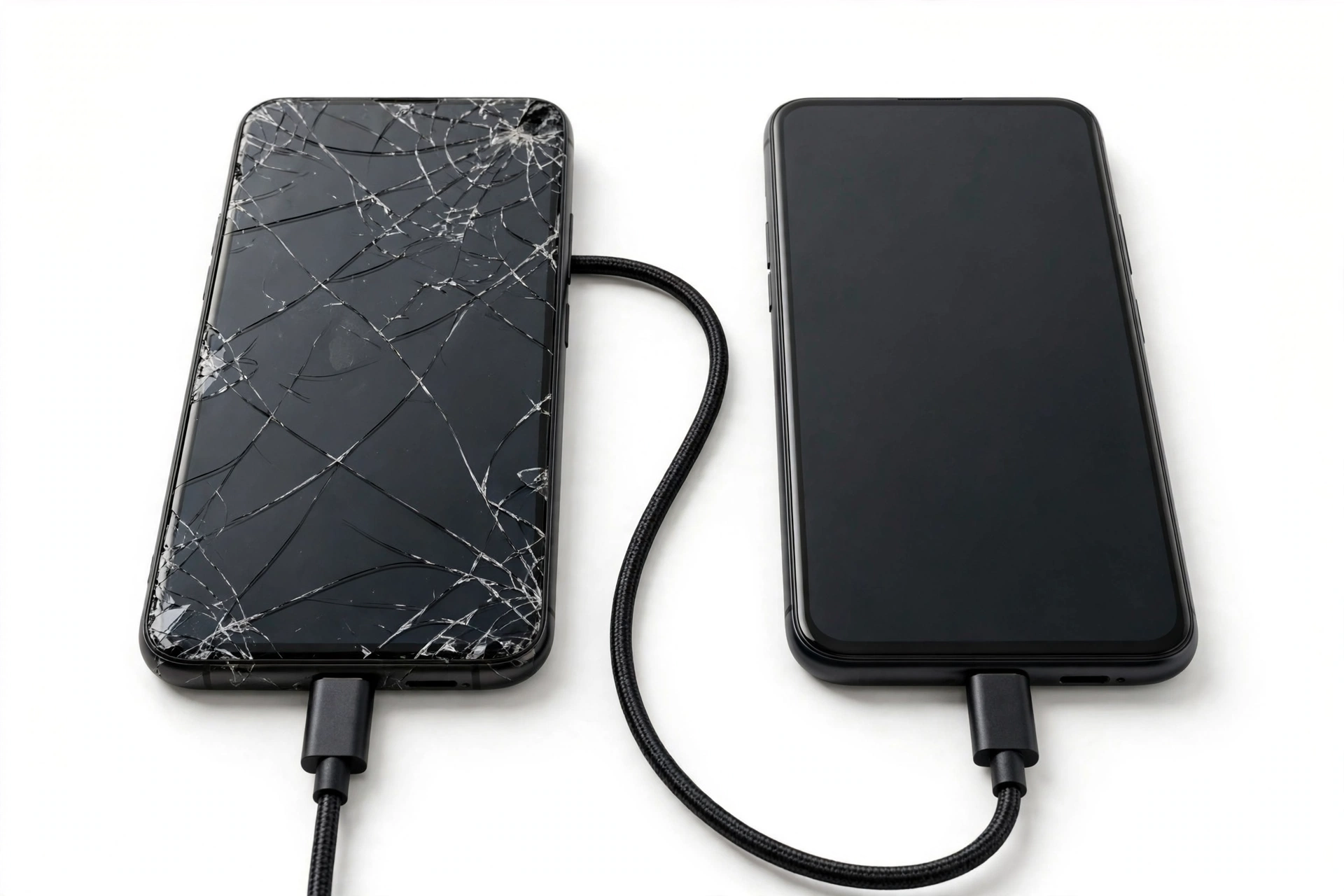
1. Who this guide helps
This guide is for anyone with a broken ASUS phone — a ZenFone, ROG Phone, or any other ASUS Android device — who needs to move data to a new phone. The phone might have a cracked screen, a dead touchscreen, a dead display, or be completely unresponsive. The goal is the same: get your contacts, photos, messages, files, and app data onto a working phone without losing what matters. (Source: asus.com)
It helps most when:
- Your ASUS phone’s screen is cracked and the touch no longer responds, but the phone still powers on.
- The display is black but the phone vibrates or makes sounds — it may still be running.
- The phone is completely dead and you need to know what can still be recovered from the cloud.
- You are setting up a new phone and want to bring everything over from the broken ASUS device.
This guide is ASUS-specific. A general guide to moving data off a broken phone covers brand-agnostic methods; here we focus on what ASUS itself provides — ASUS Phone Clone, Google backup paths built into ZenUI and ROG UI, and the Local backup feature found on newer ROG phones — plus what the official tools cannot do when the phone is badly damaged.
2. The one question that decides your path
Before touching any tool, answer this: did the broken phone back up to Google before it broke? That single fact decides which methods can work for you.
| Your situation | Your path | Broken phone needed? |
|---|---|---|
| Google backup was on (most ASUS phones with a Google account signed in) | Path A — Cloud restore. Sign in to your Google account on the new phone during setup and restore the backup. The broken phone never needs to be touched again. | No — the broken phone is irrelevant once you have the backup. |
| No cloud backup, but the phone still powers on and the screen partially works | Path B — Phone-to-phone transfer or cable extraction. Use ASUS Phone Clone if both screens work, or USB cable copy if you can get the phone recognized by a computer. | Yes — the phone must power on and be operable enough to run an app or show its files. |
| Phone is completely dead (no vibration, no sound, no charging light) | Path C — Cloud-only rescue. Check Google account, Google Photos, and any app-specific clouds. Then consider a professional assessment if data exists nowhere else. | No — the broken phone is treated as unusable until revived. |
Path A is by far the most common success story for ASUS owners, because ASUS phones ship with Google’s backup enabled by default when a Google account is signed in. If you are unsure whether a backup exists, check from any computer: sign in to your Google account, open Google Drive, and look under Storage → Backups. If your ASUS phone appears there, Path A will work.
Quick fact: Google Drive keeps an Android backup until the device has been inactive for 57 consecutive days — after that, the backup (except Photos) is automatically deleted. If the break is recent, your backup is almost certainly still there.
3. ASUS Phone Clone: what ASUS’s own tool can and cannot do
ASUS Phone Clone is ASUS’s official migration app. Its old name was ASUS Data Transfer — you may still see that name in older guides and app listings. According to ASUS’s own support documentation, it moves data wirelessly from an old Android device to a new ASUS phone, without a USB cable or a mobile network.
What ASUS Phone Clone can transfer
ASUS documents the supported data types. For an old phone running Android 6.0 or later, the app can move:
- Contacts (not including content stored in Google accounts or on the SIM card)
- SMS messages
- Recent call history
- Photos
- Videos (excluding files encrypted by third-party apps to prevent copying)
- Music (same encryption exclusion)
- Audio recordings made with ASUS’s built-in Sound Recorder and call recordings
- Documents — compressed files, PDFs, Microsoft Office files, APK installers
- Some third-party apps and their data
If the old phone is an ASUS phone with ASUS’s UI or ROG UI running Android 9.0 or newer, ASUS Phone Clone can also transfer system settings (like desktop layout and the contact blacklist) and third-party apps (excluding cloud data). That ASUS-to-ASUS bonus is the main reason to use this app rather than the generic Google flow when both phones work.
The critical honesty check: Phone Clone needs two working screens
Stop for safety: ASUS Phone Clone requires you to install and operate the app on both phones — selecting data types, scanning a code or confirming a connection, and monitoring progress. If your broken ASUS phone has a dead touchscreen or a black display, you cannot complete these steps. The app cannot help a phone you cannot operate. That is not a defect in the app; it is a fundamental limit of any phone-to-phone transfer tool.
This matters because many guides list ASUS Phone Clone as the top answer for broken phones without mentioning the requirement. If your screen is cracked but the touch still works and you can see the display, Phone Clone may work. If the touch is dead or the screen is dark, skip to the broken-screen triage section — no app can rescue a phone you cannot control.
ASUS Phone Clone limitations worth knowing
- It is designed to migrate to a new ASUS phone. Moving to a non-ASUS brand works partially but the ASUS-specific extras (app data, system settings) are only documented ASUS-to-ASUS.
- ASUS states it does not support ZenFone models running stock AOSP Android — including ZenFone Max Pro, Max Pro M2, ZenFone Live L1, and ZenFone Live L2. Those models must rely on the Google backup path.
- Cloud-stored data (for example, app data that lives on a company’s servers) is excluded — you get it back by signing into those apps on the new phone, not by any transfer tool.
- Encrypted media files from third-party apps are excluded.
- If the old phone runs iOS (4.2.1 or newer), only contacts, photos, and videos transfer.
4. Path A: Restore from your Google backup on the new phone
ASUS phones back up to Google using the standard Android backup system. ASUS’s own manuals describe it: Settings → Backup and reset → “Backup my data” backs up your data, Wi-Fi passwords, and other settings to Google servers. On ROG Phones the path is Settings → System → Backup → “Back up to Google Drive.” If this was enabled before the break, your new phone can pull the backup during its first setup.
How the restore works
- During the new phone’s initial setup, reach the “Copy apps and data” screen and tap Next.
- Choose “Can’t use old device” (your old phone is broken, so you cannot use it).
- Sign in to the same Google account that was on the broken ASUS phone.
- Select your ASUS phone’s backup from the list.
- Choose which apps and data to restore, then tap Restore.
- Leave the phone on Wi-Fi. Full restoration can take hours; a complete backup can take up to 24 hours.
What comes back: contacts synced to Google, call history, device settings, SMS (on newer Android), installed apps (re-downloaded), and photos/videos if Google Photos backup was on. What does not: anything the phone never backed up — which is why the “data that defeats every method” section later matters.
Tip: If your new phone is already set up and you skipped the restore screen, the restore option only reappears after a factory reset of the new phone. Do not reset the new phone until you have confirmed the backup exists in your Google account.
Version compatibility rule
A backup made on a newer Android version cannot be restored onto a phone running an older Android version. Check the new phone’s Android version first — most new phones ship newer than the old one, so this rarely blocks, but a refurbished older replacement could trip on it.
5. ASUS Local backup on ROG Phone
Newer ROG Phones include a Local backup feature in Settings (it was added in the Android Pie-era updates for ROG Phone). A local backup saves a snapshot of your data to the phone’s internal storage, which you can later restore after a reset or copy off the device.
For a broken phone, Local backup helps only in a narrow case: the backup file already exists on the phone’s storage and you can access the phone’s files from a computer via USB. If you made a local backup before the screen broke and the phone still powers on, connect it to a computer and copy the backup file off before anything else — it is a single file, easy to grab, and restores cleanly onto a replacement ASUS device.
If you never ran a local backup before the break, this feature cannot retroactively help. Do not spend time hunting for it on a dying phone; the Google path or cable extraction is faster.
6. Cable transfer: USB copy from the broken phone to a computer
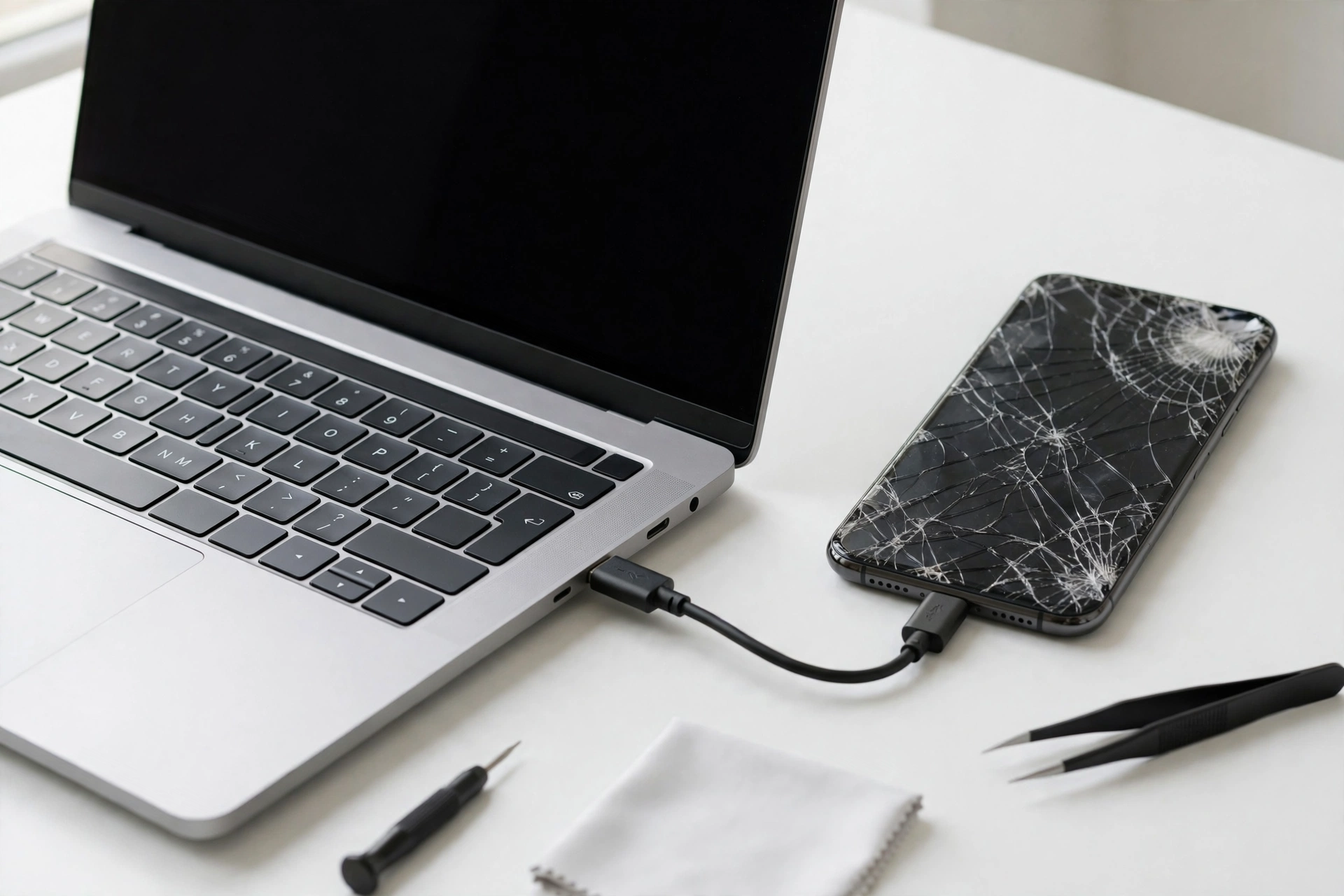
ASUS’s manuals state it plainly: “Use the bundled USB cable to copy files to or from the computer to your ASUS Phone.” If the phone powers on and the computer recognizes it, drag-and-drop copy works even when ASUS Phone Clone is impossible — because this method needs no apps and no screen interaction beyond the initial USB permission.
When cable copy works
- The phone powers on and boots fully (you hear sounds or feel vibration).
- The phone was previously connected to that computer with “always allow” USB access, or USB file transfer was the default — otherwise the computer cannot see the files.
- The screen lock is not blocking USB access. If the phone is locked and you cannot unlock it, file transfer is blocked — this is Android’s theft protection, and no legitimate method bypasses it.
What to copy
Grab the DCIM folder (photos and videos), Downloads, Documents, and any app folders you recognize (WhatsApp media lives under its own folder on older setups). Contacts and SMS do not live as copyable files — they come from the Google backup path, not the cable.
Quick fact: Cable copy moves files, not accounts or app data. Your photos and documents arrive intact; your logged-in apps, game progress tied to an account, and system settings do not. Those come back through the Google restore or by signing in again.
7. Broken-screen triage: three cases
The screen is the most common “broken” part, and the rescue depends on exactly what still works. Identify your case.
Case 1: Display works, touch is dead
You can see everything but cannot tap. The hero method is a USB OTG adapter and a wired USB mouse. Plug the adapter into the phone’s USB-C port, plug in the mouse, and a cursor appears on screen. Now you can operate ASUS Phone Clone, enable USB file transfer, or copy files — using the mouse as your finger.
Prefer a wired mouse over Bluetooth: pairing a Bluetooth mouse requires screen taps you cannot make. Most ASUS phones support USB OTG; ROG Phones and recent ZenFones do.
Case 2: Display is dead, touch may work
The screen is black but the phone seems alive. Options:
- Blind USB: connect the phone to a computer you have used before. If USB file transfer was the default and the phone is unlocked, the files appear without any screen interaction.
- External display: some ASUS phones support video output over USB-C to an external monitor. If yours does, you get your screen back on the monitor and can operate the phone normally.
- Voice assistant: if “Hey Google” was enabled, you can ask it to read notifications or place calls — limited, but enough to confirm the phone is alive.
Case 3: Phone is completely dead
No vibration, no sound, no charging LED after 30 minutes on a known-good charger and cable. Work through this order:
- Charge for 30 minutes, then try a force restart (hold Power for 10–15 seconds).
- If it wakes, move immediately to Path A or B — do not waste the revival.
- If it stays dead, go cloud-only: Google Drive backups, Google Photos, WhatsApp cloud backups, and each important app’s own cloud.
- Move the SIM card and any microSD card to the new phone — contacts stored on the SIM and files on the card survive the phone.
- If the data exists nowhere else and matters enough, seek a professional assessment. A repair shop may be able to temporarily revive the board enough to extract data — but treat any “guaranteed recovery” promise as a red flag.
Stop for safety: Never open a phone yourself to reach its storage. ASUS phones use glued assemblies and the battery can puncture, overheat, or catch fire. Never charge a swollen, distorted, or dangerously hot phone. Data is never worth a battery fire.
8. Method comparison table
| Method | Requires | Best for | Limitations |
|---|---|---|---|
| Google backup restore (Path A) | Backup existed before the break; new phone during setup | Most broken-ASUS cases — needs no access to the old phone at all | Only restores what was backed up; version compatibility rule; backup expires after 57 inactive days |
| ASUS Phone Clone | Both phones powered on with usable screens; new phone is ASUS for full benefits | ASUS-to-ASUS upgrades where both phones work | Useless for dead screens or dead phones; stock-AOSP ZenFones unsupported; no cloud data |
| ASUS Local backup restore | Backup file already made before the break; file accessible | ROG Phone owners who ran local backups | Cannot help retroactively; restores best onto ASUS devices |
| USB cable copy to computer | Phone powers on; computer recognizes it; USB permission already granted | Rescuing photos, videos, documents from a phone with a broken screen | Files only — no contacts, SMS, or app data; blocked by lock screen |
| OTG + mouse operation | Display visible; USB OTG support; wired mouse | Touch-dead screens — unlocks every other method | Needs the display to be readable; does not fix a dead phone |
| SIM / microSD move | Removable SIM or card | Contacts on SIM; files on portable-storage cards | Cards formatted as internal (adoptable) storage are encrypted to the dead phone and unreadable elsewhere |
| Professional board-level assessment | Willingness to pay; no guarantee | Irreplaceable data that exists nowhere else | Expensive; never guaranteed; hardware encryption means the board must boot |
9. Data that defeats every method
Some data survives no transfer tool. Know this before you spend hours:
- Authenticator codes: most authenticator apps do not back up to Google unless you enabled their own cloud sync. Without it, codes die with the phone and each account needs its recovery process.
- WhatsApp chats: only return if WhatsApp’s own Google Drive backup was enabled inside WhatsApp — the phone-level Google backup does not include them.
- Banking and payment apps: require re-verification on the new phone by design. No transfer tool carries them over.
- DRM-protected media: downloaded movies or music tied to the old device’s license may need re-download.
- App data for apps that opt out of backup: some apps exclude themselves from Android’s backup; their data returns only through the app’s own account sync.
10. What your observations can and cannot establish
| Observation | What it establishes | What it does NOT establish |
|---|---|---|
| Phone vibrates when the charger is plugged in | The board has power; the phone may be bootable | That the data is intact or accessible |
| Computer detects the phone as a device | USB communication works | That files are readable (lock screen and permissions still apply) |
| Google Drive shows an ASUS backup | Path A will restore contacts, settings, and apps | That photos or WhatsApp chats are included (separate backups) |
| ASUS Phone Clone stalls at the same percentage | The transfer is blocked — usually by a large file or connection drop | That the data is lost (retry with fewer data types selected) |
| New phone shows “no backup found” | No usable backup exists under that Google account | That no backup exists at all — check other Google accounts you may have used |
11. Hypothetical examples
(The following are hypothetical illustrations, not customer stories.)
Maya’s cracked-screen rescue: Maya’s ZenFone screen shattered and the touch died, but the display still showed the lock screen. She bought a USB-C OTG adapter and a wired mouse, unlocked the phone with the cursor, and copied her DCIM folder to her laptop. Her contacts were already in her Google account, so she signed into her new phone and everything appeared. Total cost: one adapter.
Daniel’s dead ROG Phone: Daniel’s ROG Phone 6 went completely dead after a drop — no vibration, no charging light. He checked Google Drive from his laptop and found a backup from three days before the drop. He restored it during his new phone’s setup and recovered contacts, apps, and settings. His WhatsApp had no cloud backup enabled, so those chats were lost — the one gap he now tells everyone to close before it matters.
12. When to stop and get a professional assessment
Stop DIY work and seek a professional assessment when:
- The phone is completely dead and the data exists in no cloud backup.
- The phone gets hot, swells, smells, or shows a distorted battery — power it down and do not charge it.
- The data is irreplaceable (business records, one-of-a-kind photos) and worth paying for board-level work.
- You are tempted to open the phone or follow a chip-removal tutorial — hardware-bound encryption means removing storage chips does not bypass the lock; the board must be revived enough to boot, which is specialist work.
Stop for safety: Do not factory-reset the broken phone before your data is secured elsewhere. A reset wipes the encryption keys that protect your data — after a reset, even professional recovery becomes effectively impossible.
If you are in the Las Vegas area and the phone needs an assessment, Las Vegas Phone Repair & Accessories (7400 Las Vegas Blvd S, Unit TT42, Las Vegas, NV 89123; (424) 406-6202; open 10:00 AM–8:00 PM — call ahead to confirm today’s hours) can evaluate what a broken device will still give up. For a broader overview of broken-phone rescue methods beyond ASUS, see our general broken phone data transfer guide, and brand-specific companions for Itel and Infinix devices.
13. Frequently asked questions
Can ASUS Phone Clone transfer data from a phone with a broken screen?
Only if you can still operate the broken phone — the app must be installed and controlled on both devices. With a working display and a USB OTG mouse substituting for dead touch, it can work. With a black display or a dead phone, it cannot.
Does ASUS Phone Clone work when moving to a Samsung or iPhone?
ASUS documents it for moving to an ASUS phone. To a non-ASUS Android phone, the generic Google restore path is more reliable; to an iPhone, use Apple’s Move to iOS during the iPhone’s setup.
My new phone says no backup found. What now?
Check every Google account you have ever signed into on the old phone — the backup lives under the account that was set as the backup account. Also confirm the backup has not expired (57 days of device inactivity deletes it).
Will my ROG Phone’s game profiles and Armoury Crate settings transfer?
ASUS-to-ASUS Phone Clone transfers system settings on Android 9.0+ with ASUS UI/ROG UI, which covers some settings. Game-specific profiles often need to be reconfigured; check Armoury Crate on the new phone after setup.
Can I get my photos if the phone is dead but Google Photos was on?
Yes — sign into photos.google.com with the same Google account. Photos backed up before the break are all there, independent of the phone’s condition.
Is a third-party “data recovery” app safe to try?
Be cautious. Legitimate recovery needs either USB debugging already enabled or a cloud backup. Apps that promise recovery with no access path often want excessive permissions or payment. The methods in this guide come first.
What about the SIM card and SD card?
Move the SIM to the new phone for your number and any SIM-stored contacts. A microSD card used as portable storage moves freely; one formatted as internal (adoptable) storage is encrypted to the old phone and unreadable elsewhere.
Should I factory-reset the broken phone before selling or recycling it?
Only after you have confirmed your data is safe on the new phone and in your Google account. A reset wipes the encryption keys — there is no undo.
Video: How to transfer everything from old to new Android
Sources and editorial notes
- ASUS Support — “What kind of phones does ASUS Phone Clone (Data Transfer) support?” — official data-type list, Android 6.0+ requirement, ASUS-to-ASUS extras on Android 9.0+ with ASUS UI/ROG UI, stock-AOSP ZenFone exclusions.
- ASUS phone user manual (via Manuals.plus) — Settings → Backup and reset → “Backup my data” to Google servers; USB cable file copy guidance.
- ROG Phone service manual (via ManualMachine) — Settings → System → Backup → “Back up to Google Drive”; reset options.
- Android Authority — “How to restore an Android phone from a Google or Samsung backup” — “Copy apps and data” → “Can’t use old device” restore flow.
- Samsung Support — Google One backup guide — 57-day backup expiry rule; restore-during-setup steps.
- Mint — “How to back up and restore data on your Android device” — Google One backup setup and restore timing.
Last source check: October 14, 2026. AI-assisted editorial guide, checked against the linked manufacturer information. ASUS procedures are summarized from ASUS’s own support pages; third-party guides are used only for general Android behavior. This article does not claim manufacturer authorization, and no data-recovery outcome is guaranteed.
Let’s get you connected again.
Tell us what’s happening with your device and we’ll help you decide the safest next step — no jargon, no pressure.
Las Vegas Phone Repair & Accessories · 7400 Las Vegas Blvd S, Unit TT42, Las Vegas, NV 89123
10:00 AM–8:00 PM — call ahead to confirm today’s hours