
How to Transfer Data from Broken Tecno Phone to New Phone: Complete Guide
If your Tecno phone is broken, the fastest way to get your data onto a new phone is to restore the Google backup your Tecno was already making — then use Tecno’s built-in Phone Clone feature for anything the backup missed. This guide walks through every realistic method, explains honestly which ones need a working screen, and shows what to do when the screen is dead.
On this page
If your Tecno phone is broken, the fastest way to get your data onto a new phone is to restore the Google backup your Tecno was already making — then use Tecno’s built-in Phone Clone feature for anything the backup missed.
1. Who this guide helps (and what “broken” means here)
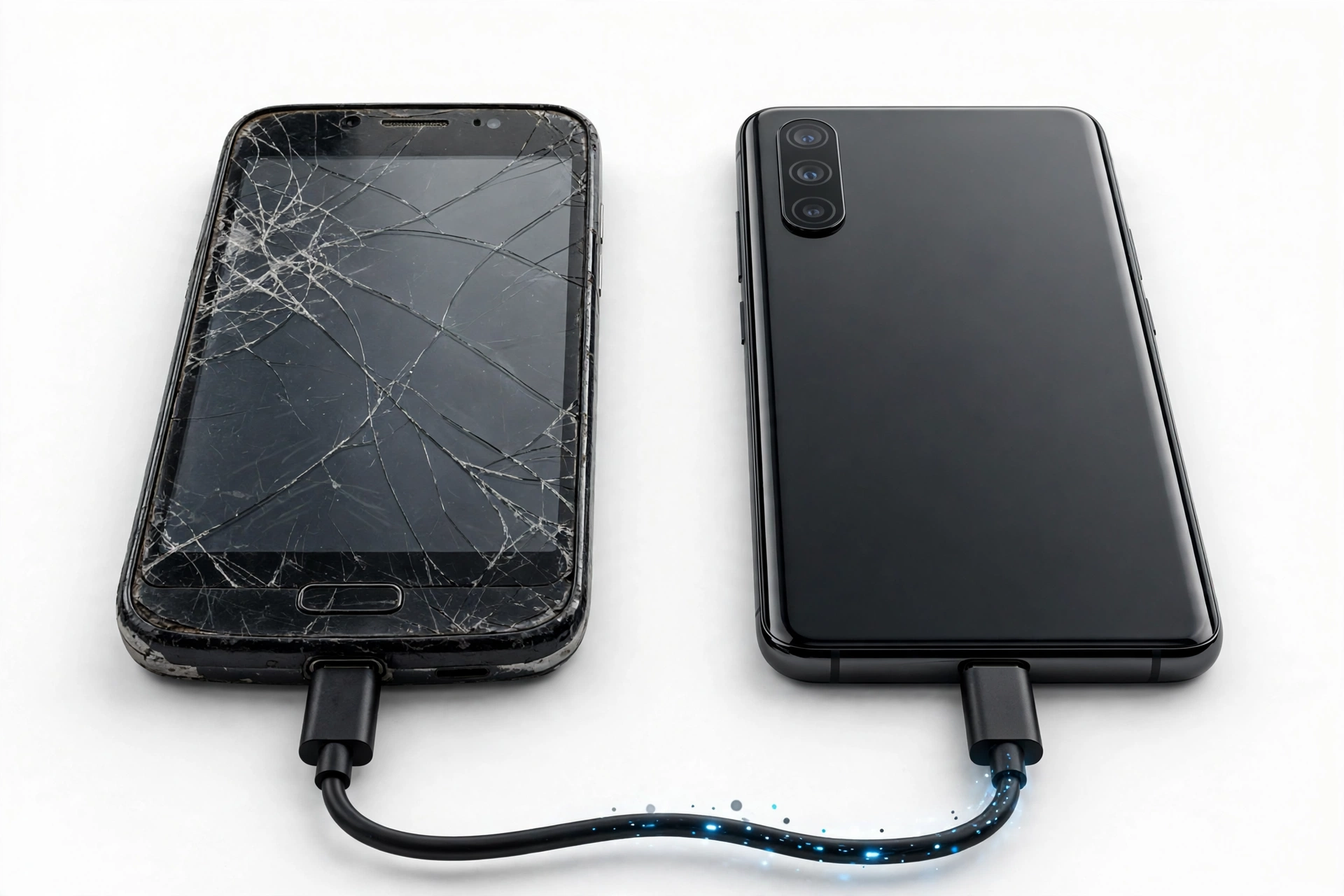
This guide is for Tecno phone owners whose device is damaged — a cracked or black screen, a phone that won’t turn on reliably, a device stuck in a boot loop, or a Tecno that charges but no longer responds normally — and who need their contacts, photos, messages, and other data moved to a replacement phone. (Source: helpforsmartphone.com)
Tecno is one of the three smartphone brands owned by Transsion Holdings (alongside Infinix and itel), and Tecno phones run HiOS, Tecno’s customized version of Android. That matters for data transfer because Tecno’s built-in migration tool, its backup menu layout, and its official repair network (Carlcare) are shared across the Transsion family — so some of the methods below will feel familiar if you’ve ever moved data from an Infinix or itel device. If your broken phone is one of those sibling brands instead, see our companion guides on transferring data from a broken Infinix phone and transferring data from a broken itel phone. For a brand-neutral overview of the whole process, start with how to transfer data from a broken phone.
“Broken” covers a wide range, and the right method depends on exactly what still works:
- Screen cracked but touch works: You can still operate the phone — most transfer methods are available.
- Screen black or touch dead, but the phone powers on: The phone is alive but you can’t see or tap anything. Workarounds exist (covered in section 6).
- Phone won’t turn on at all: Your options narrow to whatever was backed up to the cloud before it died, plus the SIM and SD cards.
- Phone turns on but is stuck (boot loop, frozen logo): Sometimes a computer can still recognize it over USB.
Quick fact: Most Tecno phones sold in the last several years back up to a Google account automatically when backup is enabled — contacts, app data, call history, device settings, and (through Google Photos) pictures and videos. If you ever signed into a Google account on the phone and never turned backup off, there is a good chance a usable backup already exists.
2. The honest truth first: what a broken phone can and cannot do
Before diving into methods, it helps to set expectations correctly. Data-transfer guides written for working phones often assume you can open apps, scan QR codes, and tap through setup screens on both devices. A broken phone may not cooperate, so here is the honest picture:
| Phone condition | Phone Clone / clone apps | Google backup restore | USB to computer | SD / SIM rescue |
|---|---|---|---|---|
| Cracked screen, touch works | Yes | Yes | Yes | Yes |
| Black screen, phone powers on | No (needs screen) | Yes (on the new phone) | Sometimes | Yes |
| Touch dead, display visible | With a USB mouse (see §6) | Yes (on the new phone) | Yes | Yes |
| Won’t power on at all | No | Yes (on the new phone) | No | Yes (cards only) |
| Boot loop / stuck at logo | No | Yes (on the new phone) | Sometimes | Yes |
The single most important takeaway: check your Google backup first. It costs nothing, it doesn’t require the broken phone to cooperate, and for many people it recovers the majority of what matters — contacts, photos, messages, and app data. Everything else in this guide is a supplement for what the backup missed.
Stop for safety: Do not factory-reset the broken Tecno “to fix it” before you have copied everything you can. A reset erases the internal storage, and if the phone then fails to boot, whatever wasn’t backed up is gone. Copy first, troubleshoot second.
3. Method 1: Restore your Tecno’s Google backup on the new phone
This is the method that works even when the broken phone is completely dead, because the backup lives on Google’s servers, not on the phone.
How Google backup works on Tecno phones
Tecno phones run standard Android backup under the hood. When backup is enabled, the phone periodically uploads app data, call history, contacts, device settings (including Wi-Fi passwords), and SMS messages to your Google account. Photos and videos are handled separately through Google Photos if backup was turned on there. Device guides for current Tecno models (such as the Spark 40 on Android 15) show the path as Settings > System > Back up to Google Drive, with account sync managed under Settings > Users & Accounts > Google > Account sync.
Restoring on the new phone
- Turn on the new phone and connect it to Wi-Fi.
- Sign in with the same Google account you used on the broken Tecno.
- When the setup wizard offers to restore from a backup, choose the backup labeled with your old Tecno’s name.
- Select what to restore (apps, contacts, call history, device settings) and continue setup.
- Open Google Photos and confirm your pictures and videos are syncing down.
Restoration can take a while — Google notes the process can take up to 24 hours for large backups, with most data arriving in the first hour. Keep the new phone on Wi-Fi and charging while it works.
Quick fact: Google deletes a device backup if the device is inactive for 57 days. If your Tecno has been sitting broken in a drawer for two months or more, check the backup’s date during setup — an expired backup simply won’t be offered, and you’ll need the other methods in this guide.
What Google backup does not include
- Photos and videos unless Google Photos backup was enabled (check photos.google.com from any browser to see what’s there).
- WhatsApp chats unless WhatsApp’s own Google Drive backup was enabled inside WhatsApp (Settings > Chats > Chat backup).
- Files in the Downloads folder and other manually stored files.
- Authenticator app codes (these need their own transfer process).
- Data from apps that opt out of Android backup.
4. Method 2: Tecno’s built-in Phone Clone feature
HiOS includes a built-in migration tool generally referred to as Phone Clone (listed in Tecno’s own setup guidance as the “Clone Phone” feature for transferring data from an old device during setup). It moves contacts, messages, call logs, photos, videos, music, documents, and apps directly between two phones over a local Wi-Fi connection — no internet required, no cable needed.
The honest limitation
Phone Clone requires both phones to have working screens. The process involves opening the app on both devices, designating one as the sender and one as the receiver, and scanning a QR code displayed on the new phone with the old phone. If your Tecno’s screen is black or its touch is dead, you cannot complete these steps — skip to sections 6 and 7 instead.
When the old Tecno’s screen still works
- On the new phone, open Phone Clone and choose “This is the new phone” (receiver).
- A QR code appears on the new phone’s screen.
- On the old Tecno, open Phone Clone and choose “This is the old phone” (sender).
- Scan the QR code with the old Tecno to connect the two phones directly.
- Select the data types to transfer — contacts, SMS, call logs, photos, videos, audio, apps — and start the transfer.
- Wait for the completion message on both phones before disconnecting.
Cloning copies data; it does not delete anything from the old phone. Contacts, messages, and media are merged into the new phone, so you don’t lose what was already there.
Tip: If you’re moving from the broken Tecno to a non-Tecno Android phone, that phone’s own migration tool (Samsung Smart Switch, Xiaomi Mi Mover, Motorola’s tools, or Google’s built-in setup transfer) can usually pull from any Android device including a Tecno. Use the new phone’s tool rather than hunting for a Tecno app.
5. Moving from Tecno to iPhone: use Move to iOS
If your replacement phone is an iPhone, Apple’s official Move to iOS app handles the Android-to-iPhone jump. It runs on the old Tecno (download it from the Play Store if the screen works) and transfers contacts, message history, photos, videos, and other data over a private Wi-Fi connection during the iPhone’s initial setup.
- Start the new iPhone’s setup and stop at the “Apps & Data” screen, then tap “Move Data from Android.”
- On the Tecno, open Move to iOS, agree to the terms, and enter the 6-digit code shown on the iPhone.
- Choose what to move, tap through, and wait — large photo libraries take a while.
Like Phone Clone, Move to iOS needs a usable screen on the old phone. If the Tecno’s screen is dead, restore your Google backup data to the iPhone instead: sign into the same Google account in the iPhone’s Gmail, Contacts, and Google Photos apps to pull down contacts, email, calendar, and pictures.
6. Method 3: Broken screen workarounds — USB mouse and screen casting
This section is for the most common “broken” scenario: the phone powers on, but the screen is black, cracked beyond use, or no longer responds to touch. Two workarounds can give you control of the phone again.
Option A: USB OTG mouse
Most Tecno phones support USB On-The-Go (OTG), which lets you plug a standard USB mouse into the phone with an inexpensive OTG adapter (USB-C or micro-USB, matching your Tecno’s port). The mouse cursor appears on screen, and you can click through menus, open Phone Clone or backup settings, and authorize a USB connection to a computer.
- This works best when the display is visible but touch is dead — you can see what you’re clicking.
- If the display is black but touch works, a mouse won’t help you see; try Option B.
- Some Tecno models need OTG enabled in settings before it works — if you can’t access settings, this option is unavailable.
Option B: Cast the screen to a computer
Carlcare — Transsion’s official after-sales service provider for Tecno, Infinix, and itel — advises that when a screen is only partially damaged, you can cast the phone’s display to a PC to pull data off it. In practice this means:
- If the phone was previously paired with a computer for screen mirroring (or supports wired mirroring over USB), connect it and view the display on the monitor.
- Combine with the OTG mouse: see the screen on the PC, control it with the mouse, and navigate to backup settings or a file transfer.
- Once you can see and control the phone, trigger a Google backup (Settings > System > Back up to Google Drive > Back up now) or start a Phone Clone transfer.
Quick fact: These workarounds sound fiddly, but they succeed often enough to be worth trying before giving up on the phone’s internal storage. An OTG adapter costs very little, and ten minutes of effort can save years of photos.
7. Method 4: USB cable to a computer
If the broken Tecno powers on and a computer recognizes it over USB, you can copy files directly — no screen interaction needed beyond the initial connection authorization.
- Connect the Tecno to a Windows PC or Mac with a USB cable.
- If the phone shows a USB notification (or you can click it via the OTG mouse), set the mode to File transfer / MTP.
- On the computer, open the phone’s storage and copy the DCIM folder (camera photos and videos), Pictures, Music, Download, and Documents folders to the computer.
- Copy those folders to the new phone over USB, or upload them to Google Drive / Google Photos and download them on the new phone.
When the computer doesn’t recognize the phone
- Try a different cable — many charging cables don’t carry data. Use a known data cable.
- Try a different USB port, preferably one directly on the computer rather than a hub.
- On Windows, check Device Manager for an unrecognized device; installing the standard MediaTek USB drivers sometimes resolves it (most Tecno phones use MediaTek chips).
- If the phone is stuck in a boot loop, it may still expose storage briefly during each loop — be ready to copy quickly, and prioritize the DCIM folder first.
Stop for safety: If the phone is swollen, distorted, extremely hot, or smells unusual, do not connect it to a computer or charger. Power it down and stop — a damaged battery is a fire risk, and no data is worth that.
8. Method 5: SD card and SIM card rescue
These two small cards are the easiest win when the phone itself is uncooperative.
SD card
- Power the phone off, remove the SD card, and insert it into the new phone or a computer card reader.
- Photos, videos, and files stored on the card are immediately accessible.
- Important exception: if the SD card was formatted as internal/adopted storage, it is encrypted and tied to the dead phone — it will not be readable anywhere else. Cards formatted as portable storage are fine.
SIM card
- Contacts saved to the SIM transfer by moving the card to the new phone and importing them (Contacts app > Import from SIM).
- Most people today save contacts to their Google account rather than the SIM, so check your Google contacts first — the SIM may hold only a few old entries.
- The SIM also carries your phone number, so moving it is part of getting the new phone working anyway.
9. The three things people panic about: photos, WhatsApp, contacts
Photos and videos
Check photos.google.com in any browser while signed into the Google account from the Tecno. If Google Photos backup was on, your pictures are already safe and will sync to the new phone automatically. If not, the DCIM folder via USB (section 7) or the SD card (section 8) is your next best hope.
WhatsApp chats
WhatsApp keeps its own backup, separate from Android’s system backup. On the new phone, install WhatsApp, verify the same phone number, and it will offer to restore from the Google Drive backup — if one was made (WhatsApp > Settings > Chats > Chat backup on the old phone). Without that backup, chat history cannot be recovered from a dead phone; media files already saved to the phone’s storage may still be copyable over USB.
Contacts
Contacts synced to a Google account reappear the moment you sign in on the new phone — check contacts.google.com from any browser to confirm. Contacts stored only in the phone’s local storage need Phone Clone, a USB export, or the SIM card.
10. Method comparison: which to try first
| Order | Method | Needs working screen? | What it recovers | Best when |
|---|---|---|---|---|
| 1 | Google backup restore | No | Contacts, app data, call history, settings, SMS | Always try first — works even if the phone is dead |
| 2 | Google Photos check | No | Photos and videos | Backup was enabled; check from any browser |
| 3 | WhatsApp Drive restore | No | WhatsApp chats and media | WhatsApp backup was enabled |
| 4 | SD / SIM card | No | Files on card, SIM contacts | Phone won’t turn on |
| 5 | USB to computer | Sometimes | Photos, files, documents | Phone powers on and is recognized |
| 6 | OTG mouse + screen cast | Partially | Everything reachable in settings | Display or touch partially works |
| 7 | Phone Clone | Yes | Contacts, messages, media, apps | Both screens fully work |
| 8 | Move to iOS | Yes | Contacts, messages, photos (to iPhone) | New phone is an iPhone, old screen works |
11. What your situation can and cannot establish
An honest note about diagnosis: not every recovery attempt proves what you hope it does.
| Observation | What it establishes | What it does NOT establish |
|---|---|---|
| Google backup restores successfully | Your contacts, messages, and app data are safe | That your photos transferred (check Google Photos separately) |
| Phone Clone completes | Selected data types copied to the new phone | That app logins carried over (most apps need re-login) |
| Computer recognizes the phone | File copy is possible | That the phone is otherwise healthy |
| No Google backup is offered at setup | No usable backup exists for that account | That data is unrecoverable (try USB, SD card) |
| SD card reads fine elsewhere | Card-stored files are safe | Anything about the phone’s internal storage |
| WhatsApp finds no Drive backup | No WhatsApp cloud backup exists | That messages are gone (media files may survive via USB) |
12. Two hypothetical examples
(The following are hypothetical illustrations, not customer stories.)
Amara’s cracked Camon: Amara’s Tecno Camon has a spiderwebbed screen, but touch still works. She signs into her Google account on her new phone first and restores contacts, messages, and apps from the automatic backup. Then she opens Phone Clone on both phones, scans the QR code with the cracked screen, and transfers her photos and videos directly. Total time: under an hour, and she never needed a computer.
Devon’s dead Spark: Devon’s Tecno Spark went swimming and never turned on again. No screen, no USB recognition. He signs into his Google account on the new phone — contacts and app data restore fine. He checks photos.google.com and finds two years of pictures backed up. His WhatsApp backup was off, so old chats are lost, but he pops the SD card (portable storage) into the new phone and recovers his downloaded music and documents. The SIM card brings over his number.
13. Before you hand the phone to a repair shop
Carlcare, the official after-sales service for Tecno (as well as Infinix and itel), explicitly advises customers to back up their data before any repair, because service procedures can erase the device. Their guidance for repair appointments includes:
- Back up everything first — copy documents, music, contacts, and videos to another device before handing the phone over.
- Bring documentation — a valid ID and the phone’s receipt or packaging, especially if the IMEI isn’t easily accessible.
- Remove security locks — disable PINs and passwords so technicians can test the device efficiently.
If you’re in Las Vegas and considering a repair assessment for the broken Tecno rather than replacing it, the same principle applies: get your data off first. Las Vegas Phone Repair & Accessories, 7400 Las Vegas Blvd S, Unit TT42, Las Vegas, NV 89123, (424) 406-6202, can assess damaged devices — but no shop can guarantee data recovery from a dead phone, so treat the backup steps above as your primary plan and repair as a separate decision.
Tip: If the phone is repaired rather than replaced, ask the shop whether the repair will wipe the device (screen replacements usually don’t; motherboard work sometimes does), and confirm your backup is complete before authorizing anything.
14. When to stop and accept the outcome
- Stop if the battery is swollen, the phone gets dangerously hot, or you smell anything unusual — disconnect everything and don’t try again.
- Stop opening the phone yourself. Tecno phones use glued assemblies; prying them open risks puncturing the battery and voids any remaining warranty.
- Stop paying for “data recovery” apps or services that promise to extract data from a completely dead phone without examining it — legitimate recovery starts with a physical assessment, not a download.
- Accept that anything never backed up and stored only in a dead phone’s internal storage may be unrecoverable without professional chip-level recovery, which is expensive and not always successful.
15. Frequently asked questions
Can I transfer data from a Tecno that won’t turn on?
Only what was saved elsewhere: your Google backup (restored on the new phone), Google Photos, WhatsApp’s Drive backup, and the contents of the SD and SIM cards. Nothing on the dead phone’s internal storage is reachable without professional repair or chip-level recovery.
Does Tecno have its own transfer app?
Yes — HiOS includes a built-in Phone Clone (“Clone Phone”) feature for device-to-device migration. It works well when both phones have working screens. It is not a cloud backup; both phones must be present and operable.
Will Phone Clone move my WhatsApp chats?
Not reliably. Use WhatsApp’s own Google Drive backup (Settings > Chats > Chat backup) and restore it by verifying the same number on the new phone. That’s the supported path.
My photos aren’t in the Google backup. Where are they?
Android’s system backup doesn’t include the photo library — that’s Google Photos’ job. Check photos.google.com. If backup was off there too, try USB file copy (DCIM folder) or the SD card.
Can I use third-party “Phone Clone” apps from the Play Store?
Some third-party apps with similar names exist, but they are not Tecno’s official tool, and quality varies. Prefer the built-in HiOS Phone Clone feature, Google backup, or the new phone manufacturer’s own migration tool. Avoid apps that demand excessive permissions or payment before showing any results.
The new phone is a Samsung/Xiaomi/Motorola. Can it pull from my Tecno?
Yes. Most manufacturers’ migration tools (Samsung Smart Switch, Xiaomi Mi Mover, and others) can import from any Android phone, including Tecno. Start the new phone’s setup and follow its transfer prompts.
My SD card asks to be formatted in the new phone. What happened?
The card was likely formatted as internal (adopted) storage on the old Tecno, which encrypts it to that phone. Do not format it if you hope to recover the data — formatting erases it. Adopted-storage cards are only readable by the phone that formatted them.
How long does Google backup restoration take?
Most data arrives within the first hour on Wi-Fi, but Google notes full restoration can take up to 24 hours. Keep the new phone connected and charging, and don’t factory-reset it mid-restore.
Video: How to transfer everything from old to new Android
Sources and editorial notes
- Help for Smartphone: Back up phone — Tecno Spark 40 (Android 15) — documents the Settings > System > Back up to Google Drive path on a current Tecno model.
- Carlcare: Online repair reservation tips for Tecno, itel & Infinix — official after-sales guidance: back up data before repair, bring ID and receipt, remove security locks.
- Carlcare: Tecno phone repair services guide — advises backing up before service; notes screen-casting to a PC to pull data when screen damage is partial.
- Mint: How to back up and restore data on your Android device — Google One backup setup and restore flow, including the Android-version restore limitation.
- Coolmuster: Transfer data from Tecno to iPhone — Move to iOS flow from a Tecno device (independent guide; steps match Apple’s documented process).
Last source check: October 14, 2026. AI-assisted editorial guide, checked against the linked manufacturer information. Tecno’s HiOS menus and Phone Clone availability vary by model and software version; menu paths described here reflect current Tecno documentation and may differ slightly on older devices. No manufacturer authorization, pricing, or warranty terms are implied.
Let’s get you connected again.
Tell us what’s happening with your device and we’ll help you decide the safest next step — no jargon, no pressure.
Las Vegas Phone Repair & Accessories · 7400 Las Vegas Blvd S, Unit TT42, Las Vegas, NV 89123
10:00 AM–8:00 PM — call ahead to confirm today’s hours