
iPhone FaceTime Not Working: Causes and Safe Fixes
If FaceTime isn’t working on your iPhone, most causes are fixable at home: an inactive FaceTime toggle, a network problem, a pending activation, or a Screen Time restriction blocking the app. Work through the checks below in order, and you’ll either get FaceTime working again or know exactly why it needs professional assessment.
On this page
If FaceTime isn’t working on your iPhone, most causes are fixable at home: an inactive FaceTime toggle, a network problem, a pending activation, or a Screen Time restriction blocking the app.

1. Who this guide is for
This guide is for iPhone owners whose FaceTime calls won’t connect, won’t start, show a “Waiting for Activation” message, or connect but with broken audio or video. Whether FaceTime stopped working suddenly or has never worked on this phone, the safe checks below apply to all current iPhone models. (Source: support.apple.com)
You can also use this guide if FaceTime fails only in specific ways — for example, video works but the other person can’t hear you, or audio calls work but video calls drop. Each symptom points to a different cause, and the symptom table in Section 8 maps them to fixes.
Quick facts: FaceTime needs an active internet connection (Wi-Fi or cellular data) — it doesn’t use regular phone minutes. It also needs your iPhone’s date and time to be set automatically, and it must be toggled on in Settings. If you see “Waiting for Activation,” Apple says to wait up to 24 hours before trying again.
2. How FaceTime actually works (and why it fails)
Understanding what’s happening behind the scenes makes troubleshooting faster. FaceTime is not a traditional phone call — it’s an internet-based video and audio service tied to your Apple Account. When you start FaceTime for the first time on a phone number, Apple sends a silent SMS to its servers to verify that number. This is why FaceTime can fail even when your regular calls and texts work perfectly: regular calls use your carrier’s voice network, while FaceTime uses your data connection plus Apple’s verification system.
This distinction matters because the most common causes of FaceTime problems fall into three groups:
- Account and activation issues: FaceTime isn’t signed in, is stuck on “Waiting for Activation,” or your Apple Account needs a refresh. These usually follow a SIM swap, a device restore, or an iOS update.
- Network issues: No internet connection, a weak Wi-Fi signal, a captive portal (hotel or airport Wi-Fi that requires a login page), or a firewall blocking FaceTime’s connection. FaceTime also doesn’t work in a few countries where Apple doesn’t offer the service.
- Device and settings issues: The front camera or microphone is blocked by a case or privacy setting, a Screen Time restriction has disabled FaceTime, or a software bug needs a restart or update to clear.
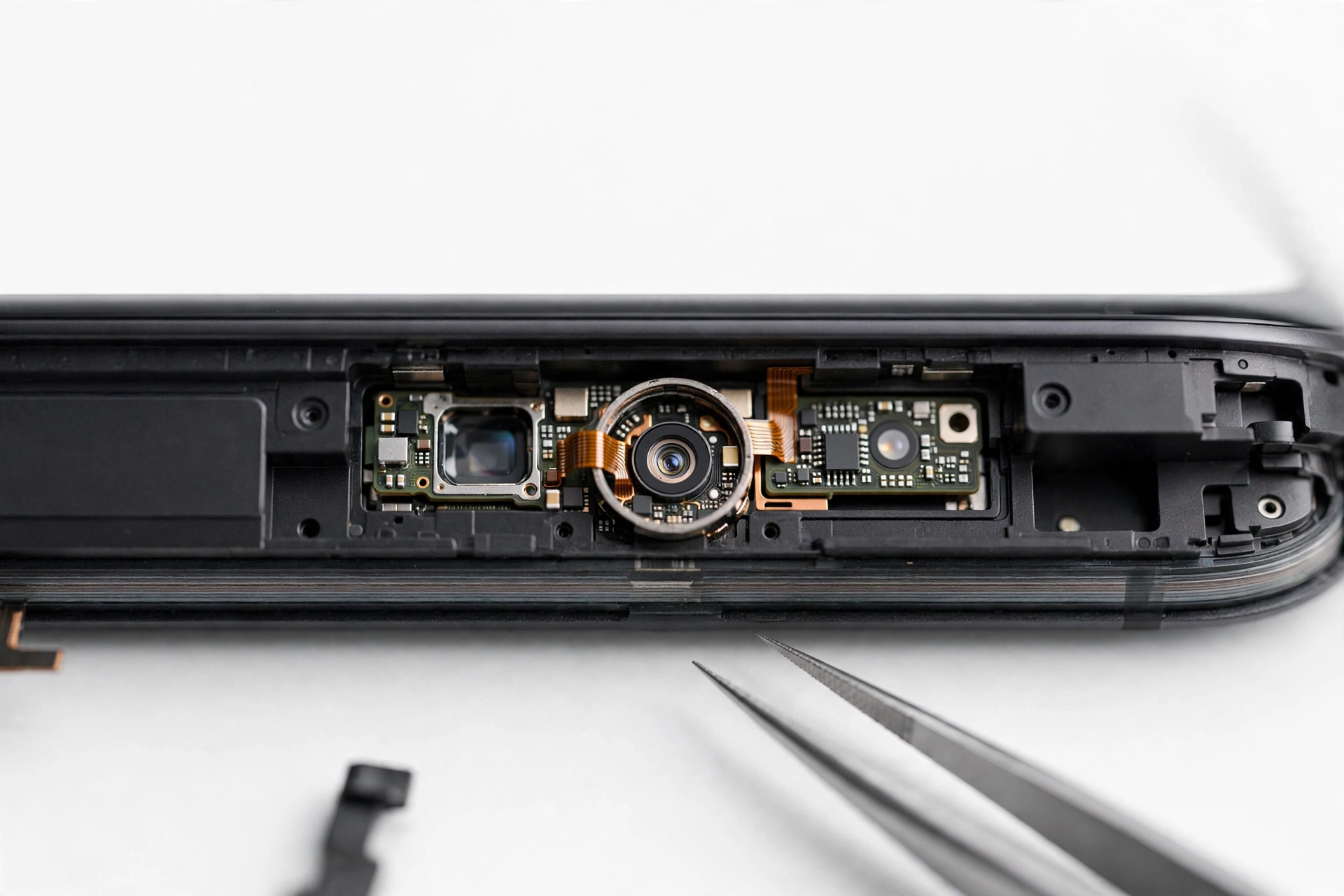
Hardware failures — a genuinely broken front camera or microphone — are the least common cause. Before suspecting hardware, rule out every software cause, because software causes cover the overwhelming majority of FaceTime failures.
3. The five-minute checks: start here
These take five minutes and resolve most FaceTime problems. Do them before anything more involved.
Confirm FaceTime is turned on
Open Settings > Apps > FaceTime and make sure the FaceTime toggle is on (green). This sounds obvious, but FaceTime can get toggled off during a restore, a carrier settings update, or when someone was troubleshooting a different issue. If it was off, turn it on and wait a few minutes — first-time activation can take a few minutes as your iPhone verifies with Apple’s servers.
Check your internet connection
Open Safari and load a website, or play a video in YouTube. If nothing loads, FaceTime can’t work either. FaceTime needs a stable connection of roughly 1–2 Mbps for a smooth call. If you’re on Wi-Fi, check that you’re actually connected and not stuck on a login page (common with hotel, airport, and cafe networks — these “captive portal” networks block FaceTime until you complete the login in your browser). If Wi-Fi is the problem, try switching to cellular data, or vice versa. For persistent Wi-Fi trouble, our guide to iPhone Wi-Fi problems covers the deeper fixes.
Tip: A quick way to refresh your connection is to toggle Airplane Mode on, wait 10 seconds, and toggle it back off. This forces your iPhone to reconnect to both Wi-Fi and cellular networks.
Set date and time to automatic
Go to Settings > General > Date & Time and make sure Set Automatically is on. FaceTime’s activation and security checks depend on your iPhone’s clock matching Apple’s servers. A clock that’s off by even a few minutes — common after a restore or after traveling across time zones — can cause activation to stall and calls to fail. If Set Automatically was off, turn it on and restart your iPhone.
Restart your iPhone
A restart clears temporary software glitches that can break FaceTime’s connection to Apple’s servers. Hold the side button and either volume button until the power slider appears (on models with a Home button, hold the side or top button). Slide to power off, wait 30 seconds, then hold the side button to turn it back on. After the restart, open FaceTime and try a call.
Check that FaceTime is available where you are
FaceTime isn’t offered in every country or region. Apple does not support FaceTime in the United Arab Emirates, Qatar, or mainland China, among a few others. If you’re traveling in one of these places, FaceTime simply won’t activate or connect — no troubleshooting on your phone will change that. This also applies to phones purchased in those regions even when used elsewhere.
4. “Waiting for Activation” — the most common FaceTime problem
If FaceTime shows “Waiting for Activation” for more than a few minutes, it means your iPhone started the verification process with Apple but never finished it. Here’s the ordered sequence Apple recommends and that independent troubleshooting confirms:
- Wait. Apple’s official guidance says activation can take up to 24 hours. If you just turned FaceTime on, give it time before changing anything. Toggling repeatedly during this window can restart the clock.
- Toggle FaceTime off and on. Go to Settings > Apps > FaceTime, turn it off, wait about 30 seconds, and turn it back on. This resends the activation request with a clean session, without changing your account or data.
- Check your carrier and SMS capability. FaceTime activation sends a silent SMS to Apple’s servers — sometimes to an international number. Your carrier plan must support SMS, and your carrier must support FaceTime. When prompted that your network provider may charge for this SMS, tap Turn On; declining blocks number activation. If you recently changed carriers or swapped SIMs, the new carrier may not have completed the setup on their side.
- Confirm your phone number is checked. In Settings > Apps > FaceTime, under “You can be reached at,” your phone number and email addresses should appear. If your number shows a spinning indicator, verification is still in progress. Tap it to retry if it’s been stuck for hours.
- Turn off both FaceTime and iMessage, restart, then turn both on. In Settings > Apps > FaceTime and Settings > Apps > Messages, turn both services off, restart your iPhone, then turn them both back on. Activation issues often affect both services together since they share the same verification.
- Sign out of your Apple Account and sign back in. Go to Settings > [Your Name], sign out (choose to keep data on the device), restart, then sign back in. This refreshes the account credentials FaceTime uses. Only do this if you know your Apple Account password — getting locked out of your account is worse than a broken FaceTime.
- Update iOS. Go to Settings > General > Software Update. Activation bugs are sometimes fixed in iOS updates, and persistent “Waiting for Activation” after an update can point to an account sync lag that a follow-up update resolves.
- Reset network settings. Go to Settings > General > Transfer or Reset iPhone > Reset > Reset Network Settings. This erases saved Wi-Fi passwords and VPN configurations but keeps your photos, messages, apps, and contacts. It can clear corrupted network configurations that block Apple’s verification servers.
Stop for safety: Never do a factory reset just to fix FaceTime activation. A factory reset erases everything on your iPhone and is never the right first, second, or third step for a FaceTime problem. Every fix above is safer and usually more effective.
If activation still fails after all of these steps and more than 24 hours have passed, the problem is likely on your carrier’s side (your line can’t send the verification SMS) or your Apple Account has a restriction. Contact your carrier first, then Apple Support.
(Hypothetical illustration, not a customer story.) Imagine Maya swaps her SIM to a new carrier on Monday morning. FaceTime shows “Waiting for Activation” all day. She toggles FaceTime off and on twice with no change. On Tuesday, she calls her carrier and learns the new SIM wasn’t fully provisioned for SMS — the carrier completes the setup, and FaceTime activates within an hour. The phone was fine all along; the carrier side just needed to catch up.
5. FaceTime connects but audio or video is broken
When calls connect but something’s wrong with what you see or hear, the cause is almost always local to one of the two phones — a blocked camera, a muted microphone, a privacy setting, or a bandwidth problem. Work through these:
The other person can’t hear you
- Check you’re not muted. During a FaceTime call, tap the screen and look for the microphone button — if it has a line through it, you’re muted. Tap it to unmute. This is the most common cause of “they can’t hear me” and the easiest to miss.
- Test your microphone elsewhere. Open Voice Memos and record a short clip, or ask Siri a question. If your voice records fine, the microphone hardware is working and the problem is FaceTime-specific. If the microphone doesn’t work anywhere, see our guide to iPhone microphone problems on calls.
- Check for Bluetooth interference. If your iPhone is connected to AirPods, a car system, or a Bluetooth speaker, FaceTime may be routing audio there instead of the phone’s speakers and microphone. During the call, tap the audio button to switch output back to the iPhone speaker.
- Remove the case and check for blockage. Thick cases can cover the microphone openings at the bottom and back of the iPhone. Test a call with the case off.
You can’t hear the other person
- Turn up the volume. During the call, press the volume-up button. FaceTime uses a separate volume level from ringtones, and it may be set very low.
- Check where audio is routing. As above, Bluetooth devices can hijack audio. Switch the output back to iPhone.
- Ask them to check their microphone. The problem may be on their end — their mute button, their case, or their microphone. Have them test with Voice Memos.
Your video is black, frozen, or missing
- Check the camera isn’t covered. A screen protector, case edge, or privacy cover over the front camera produces a black video feed. Remove anything covering the front camera area.
- Test the camera in the Camera app. Switch to the front camera and take a photo. If the Camera app works fine, the camera hardware is fine — the issue is FaceTime-specific (permissions or software). If the Camera app also shows black or crashes, see our guide to iPhone camera problems.
- Check camera permissions. Go to Settings > Privacy & Security > Camera and confirm FaceTime is listed and enabled. Permissions can get corrupted during iOS updates; toggling FaceTime’s camera permission off and back on can refresh it.
- Check if you’re on a video call at all. FaceTime audio calls don’t show video — that’s normal. Make sure you started a video call, not an audio-only call.
Video is choppy, freezes, or drops
This is almost always bandwidth. FaceTime needs roughly 1–2 Mbps of stable throughput for smooth video. Close other apps using data (video streaming, large downloads), move closer to your Wi-Fi router, or switch between Wi-Fi and cellular to find the stronger connection. If the problem happens only on one network, that network is the cause — not your iPhone.
Tip: Low Power Mode and poor battery don’t directly break FaceTime, but a nearly-dead battery with background processes competing for resources can make calls stutter. Charge above 20% for the most stable calls.
6. FaceTime won’t start or crashes
If tapping FaceTime does nothing, or the app opens and immediately closes:
- Force-close and reopen. Swipe up from the bottom (or double-click the Home button on older models) to open the app switcher, swipe FaceTime away, wait a few seconds, and reopen it.
- Check storage. Go to Settings > General > iPhone Storage. If you have very little free space (under 1 GB), iOS starts limiting app functionality and FaceTime may fail to initialize. Free up space — our guide to freeing iPhone storage safely walks through it.
- Update iOS. FaceTime crashes are sometimes caused by bugs in a specific iOS version. Check Settings > General > Software Update.
- Reinstall FaceTime. FaceTime can be deleted and reinstalled from the App Store like any app. Long-press the FaceTime icon, delete it, then download it fresh from the App Store. You’ll need to sign in and reactivate afterward.
7. Screen Time and restriction blocks
A surprisingly common cause of FaceTime “not working” is that FaceTime has been restricted — and the person holding the phone doesn’t realize it. Check these:
- Screen Time app limits: Go to Settings > Screen Time > App Limits and check whether FaceTime has a time limit that’s been reached. Also check Downtime — if Downtime is active, FaceTime may be blocked.
- Content & Privacy Restrictions: Go to Settings > Screen Time > Content & Privacy Restrictions > Allowed Apps and confirm FaceTime is allowed. On work or school managed devices, an administrator may have disabled FaceTime entirely — in that case, only the administrator can re-enable it. Do not attempt to remove management profiles; that’s the organization’s device policy.
- Camera restrictions: The same Allowed Apps screen controls camera access. If the camera is restricted, FaceTime video can’t work.
- Grayed-out FaceTime toggle: If the FaceTime toggle in Settings is grayed out and can’t be turned on, a Screen Time restriction or device management profile is almost always the cause.
(Hypothetical illustration, not a customer story.) Imagine Daniel’s teenager reports FaceTime “stopped working.” Daniel checks and finds the FaceTime toggle is grayed out. In Screen Time > Content & Privacy Restrictions > Allowed Apps, FaceTime had been switched off months ago during a parental-controls setup and forgotten. Turning it back on fixes it in ten seconds — no restart, no reset, no repair needed.
8. Symptom → likely cause → safe fix
| What you see | Most likely cause | Safe fix to try first |
|---|---|---|
| “Waiting for Activation” for hours | Carrier SMS not completing, or account sync lag | Wait 24 hours; then toggle off/on, check carrier SMS capability |
| FaceTime toggle is grayed out | Screen Time restriction or management profile | Settings > Screen Time > Allowed Apps; ask administrator for managed devices |
| Calls fail immediately on any network | No internet path to Apple’s servers, or region block | Test Safari; try Wi-Fi vs cellular; check country availability |
| Other person can’t hear you | Muted, Bluetooth routing, or blocked microphone | Unmute; switch audio to iPhone; test with Voice Memos |
| You can’t hear the other person | Volume low, Bluetooth routing, or their microphone | Volume up during call; switch audio output; ask them to test their mic |
| Black or frozen video | Covered camera, corrupted permission, or weak bandwidth | Uncover camera; test Camera app; refresh camera permission; improve connection |
| FaceTime app crashes on open | Low storage, corrupt app data, or iOS bug | Free storage; force-close and reopen; reinstall from App Store |
| Works on Wi-Fi but not cellular (or reverse) | One network path is blocked or too weak | Check Settings > Cellular > FaceTime is enabled; test the other network |
| “Poor connection” warnings constantly | Insufficient bandwidth on current network | Move closer to router; close data-heavy apps; switch networks |
9. When to reset settings (and what each reset does)
Two resets are genuinely useful for FaceTime problems. Know what each one erases before you run it:
- Reset Network Settings (Settings > General > Transfer or Reset iPhone > Reset > Reset Network Settings): Erases saved Wi-Fi passwords, VPN configurations, and cellular settings. Keeps photos, apps, messages, and contacts. This is the right reset when FaceTime fails on all networks or activation is stuck — it clears corrupted network configurations.
- Reset All Settings (same menu): Returns all Settings to defaults — wallpaper, brightness, privacy permissions, and more — but keeps your data. This is worth trying when permissions seem corrupted (camera/mic not working in FaceTime but fine elsewhere) and toggling permissions didn’t help.
What NOT to do: “Erase All Content and Settings” (factory reset) is never the right fix for a FaceTime problem. It wipes the entire phone. If you’ve reached the point of considering it, back up first — and know that a factory reset won’t fix carrier-side activation blocks, region restrictions, or management profiles anyway.
10. What these checks can and cannot establish
| What you observed | What it establishes | What it does NOT establish |
|---|---|---|
| FaceTime works on Wi-Fi but not cellular | The problem is with the cellular data path or carrier settings | That the iPhone’s hardware is broken |
| Camera works in Camera app but not FaceTime | The camera hardware is fine; the issue is permissions or FaceTime software | That FaceTime can never work on this phone |
| “Waiting for Activation” for over 24 hours | The verification SMS isn’t completing — carrier or account issue | That your Apple Account is compromised |
| FaceTime fails in one country but worked at home | A regional availability or network restriction | That your phone developed a fault while traveling |
| Microphone fails in FaceTime AND Voice Memos | A system-level microphone problem, possibly hardware | Which specific component failed — that needs diagnostics |
11. When to stop troubleshooting and seek assessment
Stop and get professional assessment if:
- The front camera or microphone doesn’t work in any app (Camera, Voice Memos, Siri, phone calls) after a restart and an iOS update. That’s a hardware-level symptom.
- The iPhone shows signs of physical damage — a cracked front camera area, liquid exposure, or a swollen battery (screen lifting from the frame). Do not charge a swollen or dangerously hot phone.
- FaceTime activation fails after 24+ hours, all the steps above are done, and your carrier confirms your line is fully provisioned. An Apple Account or device-level issue may need hands-on diagnosis.
- A managed (work/school) device blocks FaceTime and the administrator won’t enable it. No repair shop can override an organization’s device policy.
A repair shop can’t fix carrier provisioning, Apple Account restrictions, or regional availability — but it can diagnose whether a dead microphone or camera is a failed component, a loose connection, or a board-level issue. Bring notes on which steps you already tried; it saves diagnostic time.
12. Frequently asked questions
Why does FaceTime say “Waiting for Activation”?
Your iPhone is trying to verify your phone number with Apple’s servers via a silent SMS. This usually completes in minutes but can take up to 24 hours. If it’s stuck longer, the verification SMS isn’t getting through — check your carrier plan supports SMS, your date/time is automatic, and try toggling FaceTime off and on.
Does FaceTime use my phone minutes or data?
FaceTime uses internet data (Wi-Fi or cellular data), not voice minutes. On cellular, it counts against your data plan. On Wi-Fi, it uses no mobile data at all.
Why does FaceTime work on Wi-Fi but not on cellular data?
Check Settings > Cellular > FaceTime and make sure cellular data is enabled for FaceTime. Also confirm your cellular connection is strong enough — FaceTime needs roughly 1–2 Mbps. Some carriers or plans restrict video calling; check with your carrier.
Can I use FaceTime in any country?
No. Apple doesn’t offer FaceTime in a few regions, including the UAE, Qatar, and mainland China. If you’re in one of these places, FaceTime won’t activate or connect regardless of your settings.
Why can’t the other person hear me on FaceTime?
First check you’re not muted in the call, then check whether audio is routing to a Bluetooth device instead of the phone. Test your microphone with Voice Memos — if it works there, the issue is FaceTime-specific (permissions or settings); if it fails everywhere, the microphone itself needs attention. Our iPhone microphone troubleshooting guide covers this in depth.
Why is my FaceTime video black?
Usually the front camera is covered (case, screen protector, privacy cover) or FaceTime’s camera permission got corrupted. Uncover the camera, test it in the Camera app, and check Settings > Privacy & Security > Camera to confirm FaceTime is enabled.
Will resetting network settings delete my photos?
No. Reset Network Settings only erases Wi-Fi passwords, VPN configurations, and cellular settings. Your photos, messages, apps, contacts, and iCloud data are untouched. It’s one of the safest resets you can do.
Should I factory reset my iPhone to fix FaceTime?
No. A factory reset erases everything and won’t fix the most common FaceTime causes — carrier provisioning problems, region restrictions, Screen Time blocks, or management profiles. Work through this guide’s steps instead; they’re safer and target the actual causes.
Video: How to tell if your smartphone is fake or real
Sources and editorial notes
- Apple Support — If you can’t turn on or sign in to iMessage or FaceTime: Apple’s official troubleshooting for activation issues, including the 24-hour wait guidance, carrier SMS requirement, and date/time checks. (Last checked October 13, 2026.)
- Apple Support — Use FaceTime on iPhone: Apple’s official guide to making and receiving FaceTime calls, adding the FaceTime button to Control Center, and call controls including mute and camera switching. (Last checked October 13, 2026.)
- Apple Support — FaceTime availability by region: Apple’s list of countries and regions where FaceTime is and isn’t available. (Last checked October 13, 2026.)
- Fone.tips — FaceTime Waiting for Activation: 9 Fixes: third-party guide corroborating the toggle-off/on sequence, date/time checks, and the 24-hour activation window. (Last checked October 13, 2026.)
- Appuals — FaceTime Waiting for Activation Error: third-party guide corroborating the date/time, restart, and network-settings-reset sequence. (Last checked October 13, 2026.)
Last source check: October 13, 2026. AI-assisted editorial guide, checked against the linked manufacturer information. Procedures described here follow Apple’s published support guidance; third-party sources are cited only for corroboration. If your iPhone needs hands-on assessment, Las Vegas Phone Repair & Accessories is at 7400 Las Vegas Blvd S, Unit TT42, Las Vegas, NV 89123 — call (424) 406-6202 ahead to confirm today’s hours (generally 10:00 AM–8:00 PM).
Let’s get you connected again.
Tell us what’s happening with your device and we’ll help you decide the safest next step — no jargon, no pressure.
Las Vegas Phone Repair & Accessories · 7400 Las Vegas Blvd S, Unit TT42, Las Vegas, NV 89123
10:00 AM–8:00 PM — call ahead to confirm today’s hours