
iPhone Live Photos Not Working: Causes and Safe Fixes
Most iPhone Live Photos problems come from a setting that silently changed, not a broken camera. Work through the camera toggle, Preserve Settings, playback gesture, and storage checks below in order, and most Live Photos issues are fixed without erasing anything.
On this page
Most iPhone Live Photos problems come from a setting that silently changed, not a broken camera.
Who this guide is for
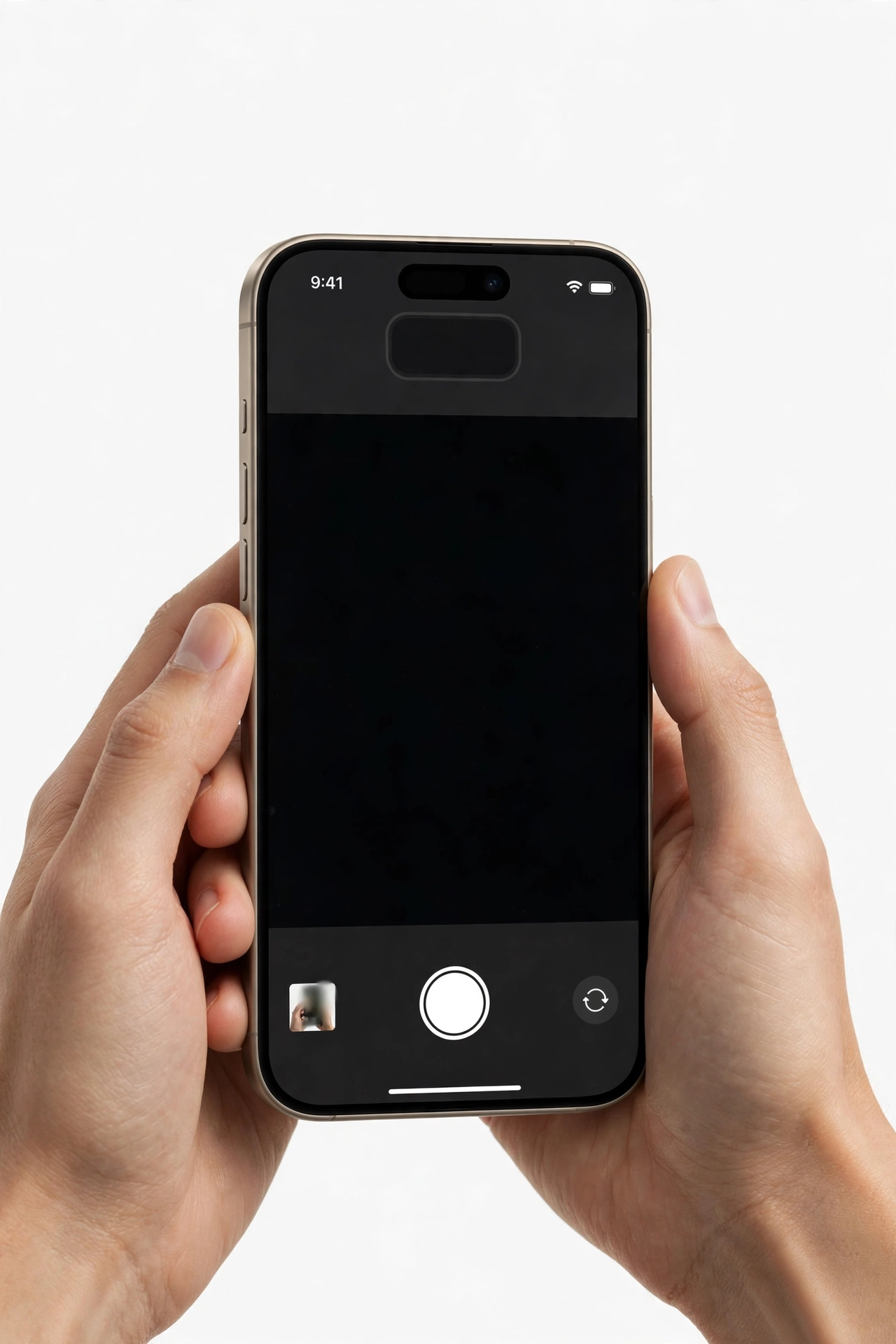
This guide is for iPhone owners whose Live Photos misbehave in one of several ways: photos that should be Live come out as stills, Live Photos that refuse to play their motion, silent Live Photos, Live Photos that keep turning themselves back on, or effects like Loop and Bounce that do not appear. If your camera has a separate problem — a black viewfinder, blurry stills, or a shaking lens — the iPhone camera black or blurry guide and the camera shaking guide cover those faults directly, and this article stays focused on the Live Photos feature itself. (Source: support.apple.com)
Everything below follows Apple’s documented behavior for Live Photos and the Photos app. No step here requires opening the phone, and nothing here erases your photos. Where a fix has a cost — such as resetting settings — that cost is stated before the step.
How Live Photos work, in plain language
A Live Photo is a still photo with a short video clip attached: the iPhone records the 1.5 seconds before and after you press the shutter, including sound. Apple pairs a standard image file with a small video file, so a Live Photo takes up roughly twice the storage of a plain still photo. When you open one in the Photos app and press and hold, it plays the little motion clip; when you share it through Apple channels like iMessage or AirDrop, the motion travels with it.
That two-part structure is the root cause of most confusion. The motion portion can be switched off for viewing while the still remains. The motion portion is stripped away when a Live Photo is sent through apps or services that do not support the format. And the motion portion can be removed permanently by the phone itself when storage runs low and you allow it. None of these are camera faults — they are the feature behaving the way Apple designed it, under conditions that are not obvious.
Quick fact: Live Photos have been on by default in the Camera app since their introduction. A yellow Live icon (three concentric circles, like a bullseye) at the top of the Camera screen means the next shot will be a Live Photo; a white icon with a slash through it means Live is off for the current session.
The five-minute fix sequence
Do these in order. Most readers find their answer before the end.
Step 1: Check the Live icon in the Camera app
Open the Camera app and switch to Photo mode. Look at the top of the screen for the Live icon. If it is white with a slash, Live Photos are off for this session — tap the icon to turn it back on. The icon should turn yellow. Take a test photo of something with movement, then check whether it saved as a Live Photo.
Step 2: Use the correct playback gesture
Open the test photo in the Photos app and press and hold your finger on it. The motion should play. If nothing moves, look at the top-left corner of the screen: if the button there says “Live Off,” tap it and choose Live, then press and hold again.
Step 3: Check the mute switch for sound
If the motion plays but silently, look at the Ring/Silent switch on the side of the iPhone. If orange is showing, the phone is muted — move the switch upward so the orange is hidden, then play the Live Photo again.
Step 4: Check Preserve Settings
If Live Photos keep turning off between Camera sessions, go to Settings > Camera > Preserve Settings. The Live Photo toggle here controls whether the Camera app remembers your last choice. If this toggle is off, the Camera app resets Live back to on every time it opens.
Step 5: Restart the iPhone
Press and hold the side button and either volume button, slide to power off, wait a few seconds, then press and hold the side button to turn the phone back on. Temporary software glitches behind Live Photo playback are a common cause and a restart clears many of them.
Live Photos are not being captured
The symptom: you press the shutter and the saved photo is a still, with no Live indicator. Work through these causes from most to least likely.
The Live icon was off
This is the most common cause and also the most overlooked, because the icon is small and easy to tap accidentally — especially when adjusting flash or exposure, which sit near it. Before anything else, open the Camera app and confirm the Live icon is yellow. If you tapped it off by accident, tapping it back on fixes the problem immediately.
Live Photos are set to Auto and the scene is still
Tapping the Live icon cycles through three states: Live On, Live Off, and Auto. In Auto mode, the Camera app decides whether the scene warrants motion capture. A nearly static scene may be saved as a still even with Auto enabled. If you want every shot to capture motion, set the icon to Live On rather than Auto.
Preserve Settings keeps reverting your choice
This is the number-one source of “Live Photos keep turning on/off by themselves” reports. The logic is counterintuitive, so read it carefully:
- If Settings > Camera > Preserve Settings > Live Photo is turned ON, the Camera app remembers your last choice. Turn Live off in the Camera app, and it stays off next time you open the app.
- If it is turned OFF, the Camera app resets Live Photos to their default (on) every time you open it.
So: to keep Live Photos permanently off, you must first turn on the Preserve Settings toggle, and then turn off Live in the Camera app. Many people do one half of this and conclude the setting is broken.
Low Power Mode is active
When Low Power Mode is on (Settings > Battery), the iPhone reduces or disables some background activity to save battery, and Live Photo capture can be affected. If the battery icon in the status bar is yellow, try turning Low Power Mode off and taking a test shot.
The camera lens itself is faulty
If still photos also fail — black images, extreme blur, or the camera app crashing — the problem is not a Live Photos setting. See the camera black or blurry guide first, because no Live Photos setting can compensate for a camera fault.
Live Photos are captured but will not play
The symptom: the photo has the Live indicator, but pressing and holding does nothing, or the motion is a frozen frame.
Live playback is set to Live Off
Each Live Photo has its own viewing setting. Open the photo in the Photos app, look at the top-left corner, and if the button says “Live Off,” tap it and select Live. This setting is per-photo, so one photo set to Live Off does not affect the others.
The press-and-hold gesture is not registering
Live playback requires a firm press-and-hold, not a quick tap. Place your finger on the photo and hold it still for a full second. If your iPhone has 3D Touch or Haptic Touch quirks in other apps, test the same gesture in a different context — for example, pressing and holding an app icon on the Home Screen to see if the context menu appears.
Reduce Motion is turned on
The Reduce Motion accessibility setting (Settings > Accessibility > Motion) minimizes interface animation across the phone, and on some iPhone models it also flattens Live Photo playback. If Reduce Motion is on, try turning it off and playing the photo again. If you rely on Reduce Motion for comfort, this is a trade-off to be aware of rather than a bug.
Touch Accommodations is interfering
Settings > Accessibility > Touch > Touch Accommodations adjusts how the screen responds to touches. When hold duration or ignore-repeat settings are strict, the press-and-hold gesture for Live playback can be swallowed. If Touch Accommodations is on, try turning it off temporarily and testing.
The file’s motion portion was stripped in transit
A Live Photo sent through a non-Apple channel — many email apps, messaging apps on other platforms, or social media uploads — arrives as a plain still. The motion is not hidden; it is gone from that copy. This is expected behavior. The original on your iPhone still has its motion, so check the original rather than the copy that traveled.
Live Photos have no sound
The symptom: motion plays, but silently.
The iPhone is muted
This is the most common cause. Check the Ring/Silent switch on the side of the iPhone — if orange is showing, the phone is muted, and Live Photo audio is muted with it. Flip the switch so the orange is hidden. Note that this also explains a pattern many people report: “the sound worked yesterday.” The mute switch moves easily in a pocket or bag.
The sound was switched off in Edit
Open the Live Photo, tap Edit, then tap the Live icon at the bottom. At the top of the edit screen there is a speaker icon: if it has a bar through it, sound is off for that photo. Tap the speaker to turn sound back on, then tap Done. Like the Live/Live Off viewing setting, this is per-photo.
The volume is down
Check the media volume with the volume buttons while the photo is open. Live Photo audio follows the media volume, and it is easy to have it at zero without realizing, especially if the last video watched was muted.
A Bluetooth device is capturing the audio
If the iPhone is connected to Bluetooth headphones, earbuds, a speaker, or a car system, the Live Photo audio may be routing there instead of the phone’s speaker. Disconnect Bluetooth (Settings > Bluetooth, or Control Center) and play the photo again to test.
Live Photos keep turning themselves on
This is one of the most reported Live Photos frustrations, and it is almost always the Preserve Settings behavior described above — not a bug. The checklist:
- Go to Settings > Camera > Preserve Settings and turn the Live Photo toggle ON.
- Open the Camera app and tap the Live icon until it is white with a slash (Live Off).
- Close the Camera app completely (swipe up from the bottom and swipe the Camera card away), reopen it, and confirm the icon is still off.
- If it reverts anyway, restart the iPhone and repeat the test. A persistent revert after a restart can indicate a software issue that an iOS update addresses.
One exception worth knowing: some iPhone models expose an Auto state for Live Photos. If yours keeps landing on Auto rather than Off, tap the Live icon again to move it from Auto to Off, then close and reopen the app to verify.
Effects not working: Loop, Bounce, and Long Exposure
Swipe up on a Live Photo in the Photos app to reveal the Effects row: Live (the default), Loop (repeats the motion), Bounce (plays forward then backward), and Long Exposure (blurs the motion into a still, good for waterfalls and light trails).
The Effects row does not appear
First confirm the photo is actually a Live Photo — check the top-left corner for the Live button. Effects only exist on Live Photos, never on stills. If the photo is a still that was once a Live Photo, its motion may have been stripped (see the sharing section below) or converted.
An effect is applied but looks wrong
Long Exposure combines all the frames of the motion clip, so it needs the phone to have been held reasonably steady during capture. A shaky capture produces a muddy blur rather than a smooth streak. Loop and Bounce need visible motion in the clip; on a nearly static scene they appear to do nothing. These are properties of the captured footage, not faults in the Effects feature.
Effects are missing after an edit
Certain edits — particularly trimming the motion portion in the Live edit screen — can change which effects look sensible. If an effect disappeared after editing, open Edit > Live and check that the motion clip is still intact and that the key photo and clip range are as expected.
Storage: Live Photos are using too much space
Because each Live Photo carries a video clip, a library full of them can be roughly twice the size of the same library as stills. This matters on iPhones with smaller storage.
- Reduce future use: use Preserve Settings to keep Live Photos off by default, and turn them on only for moments you care about.
- Convert existing Live Photos to stills: in the Photos app, select one or more Live Photos, tap the More button (•••), and choose Duplicate as Still Photo. This creates a still copy; you can then delete the Live originals to reclaim the space used by their video portions.
- Check iCloud storage: Live Photos sync to iCloud Photos like any other photo, and their larger size fills iCloud storage faster. The iPhone photo backup guide covers how to manage this without losing anything.
Stop for safety: do not delete photos to free space until you have confirmed they are backed up. Deleting from the Photos app with iCloud Photos on removes them from every synced device, and the Recently Deleted album only holds them for 30 days.
Sharing: the motion disappears when sent
Live Photos only stay “live” when they travel through channels that support the format. As a rule of thumb:
- Stays live: iMessage, AirDrop, iCloud shared albums, and saving to another Apple device with the same iCloud Photos library.
- Arrives as a still: most email attachments, non-Apple messaging apps, social media uploads, and file transfers to non-Apple devices.
If the recipient “can’t see the motion,” ask how the photo was sent before assuming anything is broken on your iPhone. If you need the motion to survive outside Apple’s ecosystem, open the Live Photo, tap Share, and choose Save as Video — this creates an ordinary video file that plays everywhere.
Also note that converting a Live Photo to a still (Duplicate as Still Photo) is permanent for that copy: the duplicate has no motion to recover. Keep the original if you want the motion.
Symptom-to-cause worksheet
Use this table to match what you are seeing to the most likely cause and the right fix.
| Symptom | Likely cause | Fix |
|---|---|---|
| New photos are stills, not Live | Live icon was tapped off in Camera | Tap the Live icon so it turns yellow |
| New photos are stills in some scenes | Live is set to Auto, scene too static | Set the Live icon to Live On, not Auto |
| Live keeps reverting to on | Preserve Settings toggle is off | Settings > Camera > Preserve Settings > Live Photo ON, then turn Live off in Camera |
| Live Photos will not capture at all | Low Power Mode active | Turn off Low Power Mode in Settings > Battery |
| Photo shows Live but will not move | Viewing set to Live Off | Tap the Live/Live Off button, choose Live |
| Press-and-hold does nothing | Gesture not registering; Touch Accommodations on | Hold a full second; check Accessibility > Touch settings |
| Playback is flat, no animation | Reduce Motion is on | Accessibility > Motion > Reduce Motion off (trade-off) |
| Motion plays but no sound | Phone muted or sound off in Edit | Flip the mute switch; Edit > Live > speaker icon on |
| Audio plays from the wrong device | Bluetooth routing | Disconnect Bluetooth and retest |
| Effects row missing | Photo is a still, not a Live Photo | Confirm Live indicator; motion may have been stripped in sharing |
| Sent photo arrives as a still | Channel does not support Live Photos | Send via iMessage/AirDrop, or Share > Save as Video |
| Storage filling up fast | Live Photos roughly double file size | Duplicate as Still Photo, then delete originals |
What your observations can and cannot establish
These distinctions keep you from drawing expensive conclusions from thin evidence.
| Observation | What it can establish | What it cannot establish |
|---|---|---|
| Still photos are also failing | The problem is broader than the Live feature | It does not identify which camera component is at fault |
| Only the motion is missing | The capture or viewing setting is the likely cause | It does not prove the camera sensor is faulty |
| One photo is affected, others are fine | The cause is per-photo (viewing setting, edit, or stripped copy) | It does not prove a system-wide fault |
| Every Live Photo is affected identically | The cause is a global setting or software issue | It does not prove hardware damage |
| The problem started after an iOS update | Software is a strong suspect | It does not prove the update is the cause — check settings first |
Software fixes, in the right order
If the settings above are all correct and the problem persists, work through these from least to most disruptive.
1. Restart the iPhone
Clears temporary software states behind capture and playback glitches. This resolves a meaningful share of “it worked yesterday” cases.
2. Update iOS
Go to Settings > General > Software Update. Camera and Photos bugs are fixed in updates regularly, and several Live Photos quirks documented by users have disappeared after updating. Connect to Wi-Fi and have reasonable battery or a charger connected before updating.
3. Toggle the feature off and on
Turn Live Photos off in the Camera app, close the app completely, reopen it, and turn Live back on. Do the same for the Preserve Settings toggle. This resets the feature’s state without touching your data.
4. Reset All Settings
Settings > General > Transfer or Reset iPhone > Reset > Reset All Settings. This returns settings — network, keyboard dictionary, Home Screen layout, location, privacy — to their defaults. It does not delete photos, apps, or data. It is the correct last software step for a stubborn Live Photos problem.
Stop for safety: Reset All Settings is not the same as Erase All Content and Settings. Never erase the iPhone to fix Live Photos — erasing deletes everything on the phone and cannot fix a settings or software problem any better than the steps above.
Hypothetical examples
(The following are hypothetical illustrations, not customer stories.)
Example 1: Maya’s vacation photos
Maya returns from a trip and notices that her beach photos have no motion, though the museum photos from the same day do. She checks the Camera app and finds the Live icon set to Auto — the bright, nearly static beach scenes did not trigger motion capture, while the busy museum did. She sets the icon to Live On for the rest of her trip. The cause was a setting behaving as designed, not a camera fault.
Example 2: Daniel’s silent Live Photos
Daniel’s Live Photos play motion but no sound. He checks the Edit screen and the speaker icon is fine. Then he notices the orange line on his mute switch — it flipped in his bag that morning. He moves the switch, and the sound returns on every photo. One physical switch explained the entire problem.
When to stop troubleshooting and seek assessment
Stop and get the phone assessed in person if any of these apply:
- Still photos are also failing — black frames, extreme blur, or the Camera app crashing point to a camera fault, not a Live Photos setting.
- The Camera app crashes every time Live Photos are enabled but works when they are off.
- The phone shows signs of battery swelling — a lifting screen, a distorted frame, or a case that no longer fits. Do not charge it; do not try to press it flat.
- Water damage is suspected. Do not charge the phone; let it dry and have it assessed.
- You have worked through every settings and software step above and the feature still fails identically on every photo.
At an assessment, the technician can determine whether the camera module, its connection, or the software stack is responsible — something no checklist can do from symptoms alone. If your iPhone needs hands-on assessment, Las Vegas Phone Repair & Accessories can take a look.
Video: How to tell if your smartphone is fake or real
Frequently asked questions
Why did my Live Photos stop working after an iOS update?
Updates can reset or alter camera and accessibility settings, including Preserve Settings behavior, Reduce Motion, and Touch Accommodations. Work through the settings checks in this guide before assuming the update broke the feature — in most cases a setting changed, not the code.
Do Live Photos work on every iPhone?
Live Photos require an iPhone 6s or later. On older models the Camera app simply has no Live icon. If the icon is missing entirely, check which model you have.
Can I turn Live Photos on for photos I already took as stills?
No. A still photo has no motion clip attached, and the iPhone cannot reconstruct the seconds before and after the shot. Live capture must be on at the moment the photo is taken.
How do I make a Live Photo into a regular photo?
Open the photo, tap the Live/Live Off button at the top, and choose Live Off — or select the photo, tap the More button (•••), and choose Duplicate as Still Photo to keep a still copy. The second option is better when you want to delete the Live original to save space.
Why can’t my friend see the motion in the Live Photo I sent?
The photo almost certainly traveled through a channel that does not support Live Photos, such as email or a non-Apple messaging app. Resend it through iMessage or AirDrop, or use Share > Save as Video to send an ordinary video file.
Do Live Photos drain the battery?
Capturing them uses slightly more processing than a still, but the difference in normal use is small. Low Power Mode may limit the feature, which is why it appears in the troubleshooting steps — but Live Photos themselves are not a meaningful battery drain.
Can Live Photos be used as wallpaper?
On supported models, a Live Photo can be set as the Lock Screen wallpaper, where pressing and holding the Lock Screen plays the motion. If it does not animate, check that the wallpaper was set from a Live Photo and that Reduce Motion is off.
Is it safe to delete the video part of a Live Photo?
Yes, if you no longer want the motion: duplicate the photo as a still, verify the duplicate, then delete the Live original. Just remember this is permanent for that copy — keep the original if there is any chance you will want the motion later.
Sources and editorial notes
- Apple Support — Take and edit Live Photos: Apple’s official documentation for capturing, viewing, editing, and sharing Live Photos, including the Live/Live Off toggle, the Edit > Live screen, key photo selection, and effects. (Last checked October 13, 2026.)
- Apple Support — Set up and use iCloud Photos: how iCloud Photos syncs Live Photos across devices and the Recently Deleted recovery window. (Last checked October 13, 2026.)
- Guiding Tech — 4 Ways to Fix iPhone Live Photos Not Working: corroboration of the Live preview toggle, Low Power Mode effect, Reduce Motion/Touch Accommodations interference, and the mute-switch sound fix. (Last checked October 13, 2026.)
- GadgetBridge — Can’t Hear Sound on Live Photos: corroboration of the per-photo sound toggle in Edit and the Preserve Settings path. (Last checked October 13, 2026.)
- Digital Trends — How to Turn Off Live Photos: corroboration of the Preserve Settings counterintuitive behavior and the Live Off/Live On/Auto cycle. (Last checked October 13, 2026.)
- MacGasm — How to Permanently Turn Off Live Photos: corroboration of the permanent-off procedure (Preserve Settings on, then Live off in Camera). (Last checked October 13, 2026.)
- IMEI.info — How to Manage iPhone Live Photos Gracefully: corroboration of the Duplicate as Still Photo bulk workflow for storage management. (Last checked October 13, 2026.)
Last source check: October 13, 2026. AI-assisted editorial guide, checked against the linked manufacturer information. Procedures described here follow Apple’s published support guidance; third-party sources are cited only for corroboration. Menu paths and behaviors can change with software updates — if a setting differs on your phone, check Apple’s current support pages. If your iPhone needs hands-on assessment, Las Vegas Phone Repair & Accessories is at 7400 Las Vegas Blvd S, Unit TT42, Las Vegas, NV 89123 — call (424) 406-6202 ahead to confirm today’s hours (generally 10:00 AM–8:00 PM).
Let’s get you connected again.
Tell us what’s happening with your device and we’ll help you decide the safest next step — no jargon, no pressure.
Las Vegas Phone Repair & Accessories · 7400 Las Vegas Blvd S, Unit TT42, Las Vegas, NV 89123
10:00 AM–8:00 PM — call ahead to confirm today’s hours