
Phone Keyboard Not Working: Causes and Safe Fixes
If your phone keyboard is not working, start with the simplest cause: a connected Bluetooth keyboard, a frozen app, or a misbehaving third-party keyboard is the culprit far more often than broken hardware. In most cases, disconnecting external keyboards, force-closing the app, clearing the keyboard’s cache, or switching back to the default keyboard restores typing in under two minutes.
On this page
If your phone keyboard is not working, start with the simplest cause: a connected Bluetooth keyboard, a frozen app, or a misbehaving third-party keyboard is the culprit far more often than broken hardware.
1. Quick answer: what to try first
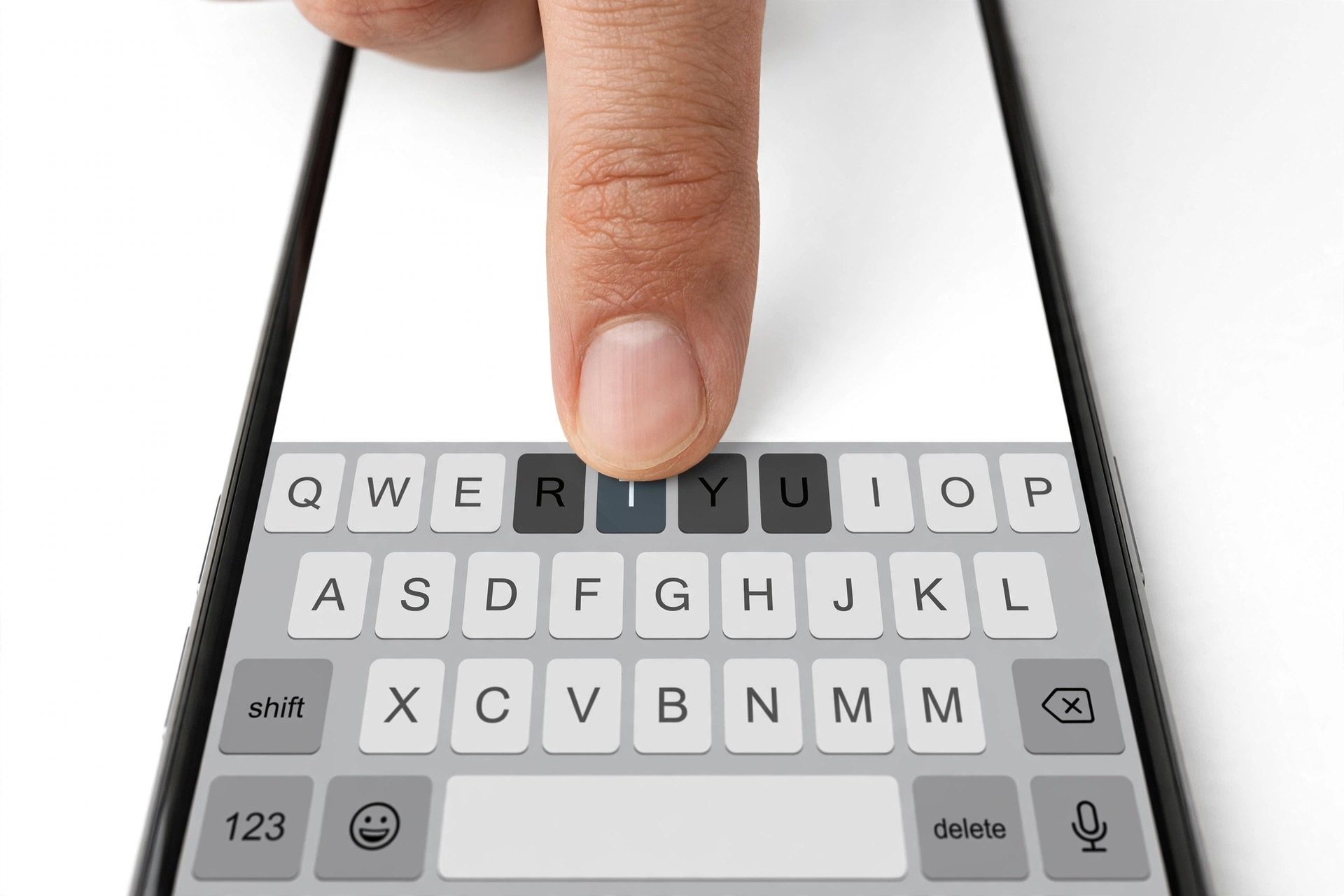
A dead or misbehaving phone keyboard almost always comes down to software. Before you change anything complicated, run this two-minute sequence: (Source: iphonelife.com)
- Turn off Bluetooth (or disconnect any paired physical keyboard). A paired Bluetooth keyboard silently hides the on-screen keyboard — this is the single most common cause of a keyboard that “vanished.”
- Force-close the app where the keyboard is misbehaving and reopen it. If the keyboard only fails in one app, the app — not the phone — is usually at fault.
- Restart the phone. Temporary software glitches behind lagging, frozen, or invisible keyboards are often cleared by a simple restart.
- Switch back to the default keyboard (Apple’s keyboard on iPhone; Samsung Keyboard or Gboard on Android) if you use a third-party keyboard.
If the keyboard works again after any step, stop there — there is no need to continue down the list.
2. Who this guide is for
This guide is written for ordinary phone owners who suddenly cannot type: the keyboard will not appear when you tap a text field, it freezes mid-word, it lags badly, it types the wrong language, or it opens and instantly closes. It covers iPhone and Samsung Galaxy phones (and most Android phones generally), because the underlying causes are the same even though the menu paths differ.
It is not a Samsung-only troubleshooting document. If you own a Galaxy phone and your keyboard fails only in Samsung-specific features (such as the keyboard toolbar), the Samsung keyboard guide goes deeper into Samsung Keyboard settings. If touches work nowhere on the display — not just the keyboard area — the problem may be the touch screen itself, covered in intermittent touch screen fixes.
3. How phone keyboards actually work (and why they fail)
Your phone does not have one keyboard; it has a keyboard system. An app asks the operating system for text input, the OS loads your chosen “input method” (Apple’s built-in keyboard, Samsung Keyboard, Gboard, SwiftKey, or a third-party alternative), and the input method draws itself on screen. A Bluetooth keyboard, a voice-dictation shortcut, or a handwriting panel can each replace or suppress the on-screen keyboard in that chain.
That is why keyboard problems almost always trace to one of five layers:
- Routing: the phone is sending keystrokes to a different input device (Bluetooth keyboard) or a different on-screen keyboard than you expect.
- The app: the app you are typing in has frozen, glitched, or lost focus on its text field.
- The keyboard software: the keyboard app’s cache is corrupted, its settings were reset by an update, or a third-party keyboard is crashing.
- Configuration: the wrong language, layout, or one-handed mode is active; the keyboard dictionary is corrupted.
- Hardware (rare): a touch screen fault in the lower part of the display, or damage from liquid or drops.
Understanding the layer saves time: a keyboard that works everywhere except one app is an app problem, while a keyboard that never appears anywhere is a routing or keyboard-software problem.
4. The 10-step safe fix sequence (try in order)
Work through these from top to bottom. Stop as soon as the keyboard works — most people are done by step 3.
Step 1 — Disconnect any Bluetooth or physical keyboard
When a Bluetooth keyboard is paired, most phones intentionally hide the on-screen keyboard, because typing on the physical keyboard is expected. If your keyboard vanished after you connected (or were near) a Bluetooth keyboard — including a keyboard case — disconnect it: go to Settings > Bluetooth and either turn Bluetooth off temporarily or tap the keyboard and choose “Forget” / “Disconnect.” Then tap a text field and check whether the on-screen keyboard returns.
Step 2 — Force-close the app and retry
If the keyboard fails in only one app, the app is the likely suspect. Close it completely (on iPhone, swipe up from the bottom and swipe the app away; on Samsung, open Recents and swipe it away), then reopen it and tap the text field again. If the keyboard now works, the app had a temporary glitch. If the problem returns every time you open a specific app, update that app from the App Store or Galaxy Store / Play Store — an incompatible or outdated app is a documented cause of missing keyboards.
Step 3 — Restart the phone
A restart clears the temporary software state behind frozen, lagging, or invisible keyboards. Power the phone fully off, wait about 30 seconds, and power it back on. This resolves a surprising share of keyboard issues on its own.
Step 4 — Check that a keyboard is actually enabled
On iPhone, go to Settings > General > Keyboard > Keyboards and confirm at least one keyboard (English, or your preferred language) is listed. On Samsung, go to Settings > General management > Keyboard list and default and confirm a keyboard is enabled and set as default. After major software updates, a keyboard can occasionally be dropped from the list or deselected.
Step 5 — Switch back to the default keyboard
Third-party keyboards are the most failure-prone layer of the keyboard system. Temporarily switch to the phone’s built-in keyboard to isolate the problem:
- iPhone: tap a text field so any keyboard appears, then tap and hold the globe icon (or emoji icon) at the bottom and choose the default Apple keyboard. Or go to Settings > General > Keyboard > Keyboards and remove third-party keyboards.
- Samsung: go to Settings > General management > Keyboard list and default > Default keyboard and choose Samsung Keyboard. Samsung’s own support documentation advises that third-party keyboard apps may cause problems and recommends the preinstalled Samsung Keyboard for diagnosis.
If the default keyboard works fine but your preferred third-party one does not, the keyboard app itself is at fault — update or reinstall it, or contact its developer.
Step 6 — Clear the keyboard’s cache (and settings if needed)
Corrupted cache is a well-documented cause of keyboards that open and instantly close, or that lag. On Samsung: open a text field, tap the settings (cog) icon on the keyboard, choose Reset to default settings, then Clear cache. Alternatively, go to Settings > Apps, show system apps, find Samsung Keyboard (or Gboard), tap Storage, and tap Clear cache. Clearing cache does not delete your words; Samsung’s support steps distinguish this from “Clear data,” which does erase saved words and keyboard settings — use clear data only if clear cache did not help, and know it resets your keyboard preferences.
On iPhone there is no per-app cache button; instead, reset the keyboard dictionary: go to Settings > General > Transfer or Reset iPhone > Reset > Reset Keyboard Dictionary. This clears the learned-word list that can become corrupted and cause glitching. (It does not delete any of your data or media.)
Step 7 — Check language, layout, and one-handed mode
A keyboard that “types the wrong thing” is often a keyboard set to the wrong language or layout rather than a broken one. Confirm the active language matches what you want (tap the globe icon to cycle, or check the keyboard settings list). On iPhone, also check Settings > General > Keyboard > One-Handed Keyboard — if one-handed mode shifted the keyboard far to one side, it can look as though the keyboard is missing or cut off. Similarly, check Settings > Accessibility > Touch and make sure Reachability is not interfering with the keyboard’s position in some apps.
Step 8 — Update the keyboard app and the phone software
Update Samsung Keyboard or Gboard from the Galaxy Store / Play Store, and check for a system software update (Settings > Software update on Samsung; Settings > General > Software Update on iPhone). Apple and Samsung both fix known keyboard bugs in updates — Apple has, for example, shipped iOS updates specifically to address third-party keyboard bugs in the past. If a bug appeared right after an update, check the manufacturer’s support pages for a follow-up fix before doing anything drastic.
Step 9 — Test in Safe Mode (Android)
If the keyboard still fails everywhere on a Samsung or Android phone, boot into Safe Mode (which temporarily disables all third-party apps) and test the keyboard. If it works in Safe Mode, a third-party app is interfering — most often a recently installed or updated keyboard, launcher, or “booster/cleaner” app. Remove the suspect app. On iPhone there is no Safe Mode; instead, the equivalent isolation is removing third-party keyboards and testing in a stock Apple app like Notes.
Step 10 — Reset all settings (not the same as erasing)
As a last software step, reset all settings to defaults: Settings > General management > Reset > Reset all settings (Samsung) or Settings > General > Transfer or Reset iPhone > Reset > Reset All Settings (iPhone). This does not delete your data or media — it returns personalized settings (keyboard dictionary, network settings, layout preferences) to defaults. You will need to reconfigure settings afterward, so consider backing up first. Factory reset (erasing all content) is a separate, far more destructive step — only consider it with a complete backup in place, and only after every step above has failed.
Stop for safety: never factory-erase your phone just to fix a keyboard. Erasing deletes everything on the device — photos, messages, app data — and if the cause was a simple Bluetooth keyboard connection or a third-party app, the wipe accomplishes nothing while putting your data at risk. Work the sequence in order; the destructive steps stay at the bottom for a reason.
5. Symptom-to-cause worksheet
| Symptom | Most likely cause | Try first |
|---|---|---|
| Keyboard never appears in any app | Bluetooth keyboard paired; no keyboard enabled | Turn off Bluetooth; check keyboard list in settings |
| Keyboard fails in one app only | That app is frozen or outdated | Force-close the app; update or reinstall it |
| Keyboard opens then immediately closes | Keyboard cache corruption or overlay conflict | Clear keyboard cache; test in Safe Mode |
| Keyboard lags or freezes while typing | Low storage, outdated software, corrupted dictionary | Free up storage; update software; reset keyboard dictionary |
| Keyboard types the wrong language | Wrong language active in keyboard list | Tap the globe icon; check language settings |
| Keyboard shifted to one side / cut off | One-handed mode or Reachability | Disable one-handed keyboard in settings |
| Only a third-party keyboard fails | The third-party keyboard app is buggy | Switch to default; update or reinstall the app |
| Predictive text / autocorrect went wild | Corrupted keyboard dictionary | Reset keyboard dictionary / reset keyboard settings |
| Keyboard toolbar features missing | Feature toggles off; app-specific limitation | Check keyboard feature toggles; see the Samsung-specific guide |
| Keys in the bottom rows do not register | Possible touch screen fault in that region | Test with a drawing app across the whole screen |
6. Third-party keyboards: the most common troublemaker
Third-party keyboards (SwiftKey, Fleksy, niche language keyboards, keyboard themes) sit between every app and your taps, so when they crash, all typing breaks. The pattern is distinctive: the keyboard worked until you installed or updated something, or it fails in every app at once.
- Isolate: switch to the default keyboard as described in Step 5. If typing works, the third-party keyboard is the problem — not your phone.
- Update, then reinstall: check the App Store or Play Store for an update; if none helps, uninstall the keyboard app completely and reinstall it. After an iOS update, third-party keyboards sometimes need an app update from their developer before they work again.
- Re-grant permissions: third-party keyboards often need “Full Access” (iPhone) or input-method permissions (Android) after updates. If a keyboard lost its permissions silently, it may appear broken.
- Know when to let go: if a keyboard app is abandoned by its developer and keeps breaking after every OS update, switching to a maintained keyboard is the fix — no phone repair can make an incompatible app work.
Samsung’s support guidance is explicit on this point: it recommends the preinstalled Samsung Keyboard for troubleshooting and notes that issues with an alternate keyboard app should go to that app’s developer. The same logic applies on iPhone.
7. Language, layout, and dictionary problems
A large share of “keyboard not working” complaints are configuration problems rather than failures:
- Wrong language active: if the keyboard shows unfamiliar characters, tap the globe icon (iPhone) or the language key (Samsung) to switch. If your language is missing, add it under the keyboard settings’ language list and make sure its language pack downloaded completely.
- Layout mismatch: QWERTY vs AZERTY vs QWERTZ, or a Dvorak layout enabled by accident, makes every key feel wrong. Check the layout setting inside the keyboard’s options.
- Corrupted dictionary: autocorrect that inserts nonsense, suggestions that never learn, or typing that stutters on certain words can all trace to the learned-word dictionary. On iPhone use Reset Keyboard Dictionary; on Samsung use the keyboard settings’ Reset to default settings options (choose “Reset keyboard settings” rather than just clearing cache if the dictionary itself is the issue).
- One-handed and floating modes: Samsung Keyboard supports one-handed and floating modes that shrink or move the keyboard; if it was triggered accidentally (a common gesture on some Galaxy phones), the keyboard can appear tiny or off-screen. Reset the keyboard mode from its settings.
8. When it might be hardware: the touch screen test
If the keyboard appears but taps on certain keys never register — especially keys in one region, like the bottom row — the keyboard software may be fine and the touch screen underneath may be at fault. Test it:
- Open a drawing or notes app and slowly drag your finger across the entire screen. If lines break or skip in one area, that region of the digitizer is not registering touch — and the keyboard keys drawn over that region will seem “broken.”
- Rotate the phone to landscape and test the keyboard again. If keys that failed in portrait now work (because they are drawn over a different part of the screen), the evidence points to a localized touch fault, not a keyboard bug.
- On Samsung, the Samsung Members app includes phone diagnostics that can test touch and buttons directly.
A localized touch dead zone after a drop, or after liquid exposure, is a hardware issue — no settings change will fix it. It needs a professional assessment of the display assembly. Do not attempt to open the phone yourself; modern displays and batteries are sealed and easily damaged, and an opened phone loses its water-resistance rating.
9. Hypothetical examples
(The following are hypothetical illustrations, not customer stories.)
Hypothetical example: Maya’s “vanished” keyboard. Maya taps the search bar in her browser and nothing happens — no keyboard, no error. She restarts the phone; the keyboard works once, then disappears again. Remembering she paired a Bluetooth keyboard case last week (now sitting in a drawer across the room, still powered on and connected), she opens Settings > Bluetooth and disconnects it. The on-screen keyboard returns immediately and stays. The keyboard was never broken; the phone was dutifully sending her typing to a keyboard in a drawer.
Hypothetical example: Daniel’s lagging keyboard. Daniel’s keyboard lags a full second behind his typing, but only in his email app. He force-closes the email app and the lag is gone — until the next long email thread. He updates the app from the store, clears the keyboard cache, and frees up storage (the phone was nearly full, which slows everything). After the update and cleanup, typing is smooth again. Three small software issues were stacking: an outdated app, a nearly full phone, and stale keyboard cache.
10. What your observations can and cannot establish
| Observation | What it establishes | What it does NOT establish |
|---|---|---|
| Keyboard works in some apps but not one | The keyboard system is fine; that app has the problem | That the phone needs repair |
| Default keyboard works; third-party one fails | The third-party keyboard app is at fault | That the phone’s software is broken |
| Keyboard never appears anywhere | Routing (Bluetooth) or input-method configuration issue | That the touch screen is dead |
| Bottom-row keys never register | Possibly a localized touch fault — worth testing | By itself, that the whole display is failing |
| Keyboard lags everywhere | System-level slowdown (storage, software, dictionary) | That any single step caused it |
The honest framing matters: a keyboard that fails in one app is an app problem, and taking the phone in for hardware service will not fix it. Conversely, a genuine touch dead zone will not be fixed by any settings change. Matching the symptom to the layer avoids wasted effort in both directions.
11. When to stop troubleshooting and get an assessment
- The keyboard fails across all apps and modes after you have completed steps 1–10, including testing the default keyboard.
- A touch screen test shows a dead or unresponsive region (lines break in a drawing app), especially after a drop or liquid exposure.
- The keyboard problem began immediately after physical damage — a cracked screen, a dent near the display edge, or visible liquid contact.
- The phone shows other symptoms at the same time: random restarts, ghost touches, or the screen flickering. Related guides cover intermittent touch screens and apps that keep crashing.
- The battery is swollen, distorted, or the phone gets dangerously hot — stop using it, do not charge it, and seek professional assessment immediately. A swollen battery is a safety issue, not a typing issue.
A repair shop cannot fix an incompatible third-party keyboard app or a corrupted app — those are software problems for the app’s developer. What a shop can assess is the hardware layer: the display assembly, the digitizer, and whether damage is causing the fault.
12. Prevention: keeping the keyboard reliable
- Keep the phone’s software and keyboard apps updated. Keyboard bugs are routinely fixed in updates from Apple, Samsung, and keyboard developers alike.
- Keep some free storage. A nearly full phone slows the keyboard system (and everything else) down; lagging keyboards are a classic symptom of a full phone.
- Disconnect Bluetooth keyboards when you are done. Leaving a paired keyboard powered on in a bag or drawer is the most common way to “lose” the on-screen keyboard mysteriously.
- Be selective with third-party keyboards. Install them from reputable developers, keep them updated, and remove any you no longer use — each one is another layer that can break.
- Protect the screen. A screen protector and a case reduce the odds of the drop damage that turns a software non-issue into a hardware one.
13. FAQs
Why does my keyboard disappear when I tap a text field?
The most common reason is a paired Bluetooth keyboard hiding the on-screen keyboard. Turn Bluetooth off and tap the text field again. The next most common reasons are a frozen app (force-close it) or a crashed third-party keyboard (switch to the default).
Why is my keyboard so slow or laggy?
Typing lag is usually system slowdown, not a broken keyboard: a nearly full phone, an outdated app, or a corrupted keyboard dictionary. Free up storage, update the app and the phone software, and reset the keyboard dictionary.
My keyboard works in some apps but not others. Is my phone broken?
No — that pattern means the keyboard system is fine and the failing app is at fault. Update or reinstall that app. If the keyboard fails in every app, then the problem is at the keyboard-system level and the steps in this guide apply.
Should I use a third-party keyboard or the default one?
The default keyboard (Apple’s on iPhone, Samsung Keyboard on Galaxy) is the most reliable and the best tool for diagnosis. Third-party keyboards offer extra features but are the most failure-prone layer; if one breaks, update or reinstall it, or switch back to the default.
Will resetting my keyboard dictionary delete my data?
No. Resetting the keyboard dictionary (iPhone) or resetting keyboard settings (Samsung) clears learned words and keyboard preferences, not your photos, messages, or files. It is a settings-level reset, not a data wipe.
What is the difference between clearing cache and clearing data on the keyboard?
On Samsung, clearing cache removes temporary files and is safe — it does not delete your words. Clearing data (Samsung’s support documentation calls this out explicitly) erases all keyboard settings, including saved words. Try clear cache first.
My bottom-row keys do not register. Is that a keyboard problem?
Possibly not — it may be a touch screen fault in that region. Test with a drawing app across the whole screen and try the keyboard in landscape. If one screen region consistently fails, the display needs a professional assessment.
When should I take the phone to a repair shop for a keyboard problem?
After you have worked through the software sequence and the keyboard still fails everywhere, or when a touch test shows a dead screen region — especially after a drop or liquid exposure. Bring the phone in for a hardware assessment; a shop cannot fix app bugs or incompatible keyboard apps, so rule those out first.
Video: How to tell if your smartphone is fake or real
Sources and editorial notes
- iPhone Life — iPhone Keyboard Not Working: troubleshooting flow covering force-quitting the app, restarting, updating iOS, and resetting the keyboard dictionary. (Last checked October 13, 2026.)
- GuidingTech — Fix iPhone Keyboard Not Showing Up: Reachability, keyboard dictionary reset, removing and re-adding keyboards, and Reset All Settings. (Last checked October 13, 2026.)
- Techbout — iPhone Keyboard Missing or Not Appearing: Bluetooth keyboard disconnection, one-handed keyboard, Reachability, third-party keyboard disabling, dictionary reset. (Last checked October 13, 2026.)
- Samsung Members Community — Samsung customer support response: recommends the preinstalled Samsung Keyboard for troubleshooting, clearing cache and data, resetting via General Management. (Last checked October 13, 2026.)
- GadgetBridge — Samsung Keyboard Not Working fixes: Bluetooth disconnection, Safe Mode testing, cache clearing, force stop, and keyboard settings reset. (Last checked October 13, 2026.)
- BazarOnWeb — Samsung Keyboard fixes (2026 guide): symptom-to-cause mapping, Safe Mode, cache partition wipe, and factory reset as last resort. (Last checked October 13, 2026.)
Last source check: October 13, 2026. AI-assisted editorial guide, checked against the linked manufacturer information. Procedures described here follow Apple’s, Samsung’s, and community-documented support flows; menu paths can shift with software updates — if a setting differs on your phone, check the manufacturer’s current support pages. If your phone needs hands-on assessment, Las Vegas Phone Repair & Accessories is at 7400 Las Vegas Blvd S, Unit TT42, Las Vegas, NV 89123 — call (424) 406-6202 ahead to confirm today’s hours (generally 10:00 AM–8:00 PM).
Let’s get you connected again.
Tell us what’s happening with your device and we’ll help you decide the safest next step — no jargon, no pressure.
Las Vegas Phone Repair & Accessories · 7400 Las Vegas Blvd S, Unit TT42, Las Vegas, NV 89123
10:00 AM–8:00 PM — call ahead to confirm today’s hours